
Cowork Is Only as Useful as What You Let It Touch
Cowork is only as useful as what you let it touch. Connectors, browser, and computer use are three doors, and knowing the order changes everything.
Connectors, the browser, and computer use are three ways Claude reaches your real work. Knowing which one fires when is the difference between seconds and minutes.
In this article: You will learn the three ways Cowork reaches external data and apps, why Claude always prefers the most precise path first, how to connect your real services (Google Drive, Gmail, Slack), what computer use is and how to turn it on safely, and the practical rule that makes all of it work: grant the least access that gets the job done.
Your first competitor brief was built almost entirely from public web search. Good, but generic. The same brief anyone could have gotten. The version that is actually worth your Monday morning pulls from sources that belong to you: the notes in your Drive, the deal chatter in Slack, the threads in your inbox, and the internal dashboard that nobody outside your company can see.
That is the leap this article is about. A loop is only as powerful as the tools it can reach, and right now you have handed Cowork almost nothing to reach with.
The three doors, in the order Claude opens them
When a task needs something beyond Claude's own reasoning, such as a service, an app, or a website, Claude works down a strict preference list.
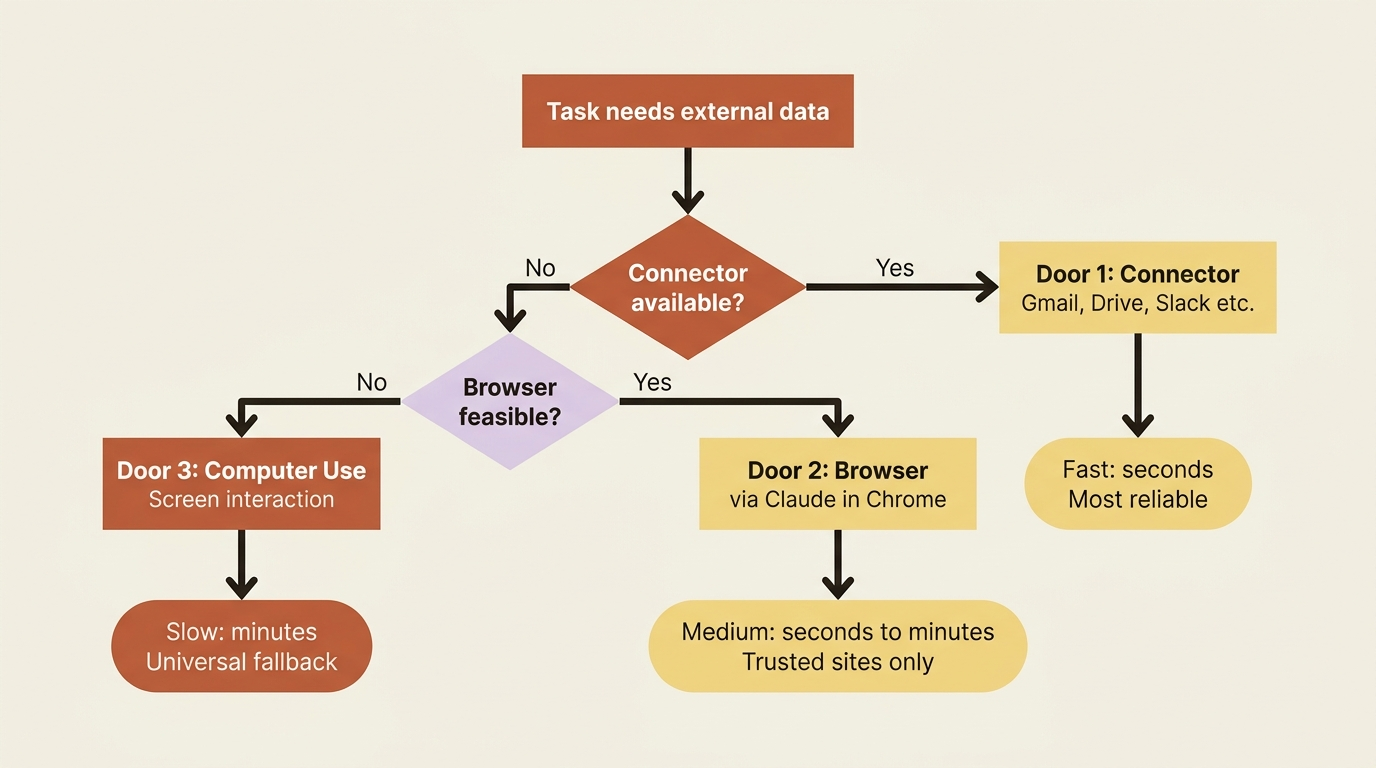
Connectors first. A direct line to a service like Gmail, Google Drive, or Slack. Fastest, most reliable, and least error-prone.
The browser second. When no connector exists, Claude drives Chrome through the Claude in Chrome extension to do the job on the web.
Computer use third. Claude works your screen directly, clicking and typing through your desktop apps, as the universal fallback that works on anything.
The order is about cost, not capability. A connector pulls your Slack messages in seconds through a clean integration. Computer use can pull the same messages, but it has to read your screen, find the right window, click into channels, and scroll, which takes far longer and breaks more easily.
Door one: connectors, the fast lane
A connector is a direct integration between Claude and a service you already use. Cowork connects to Google Drive, Gmail, Slack, DocuSign, and many more, and the same connectors you may already use in Claude chat work here too.
Connecting one is the highest-leverage thing you can do for the speed and quality of every future task. Open the desktop app, switch to the Cowork tab, and open the Customize menu in the left sidebar. From there, link the services you want Claude to use.
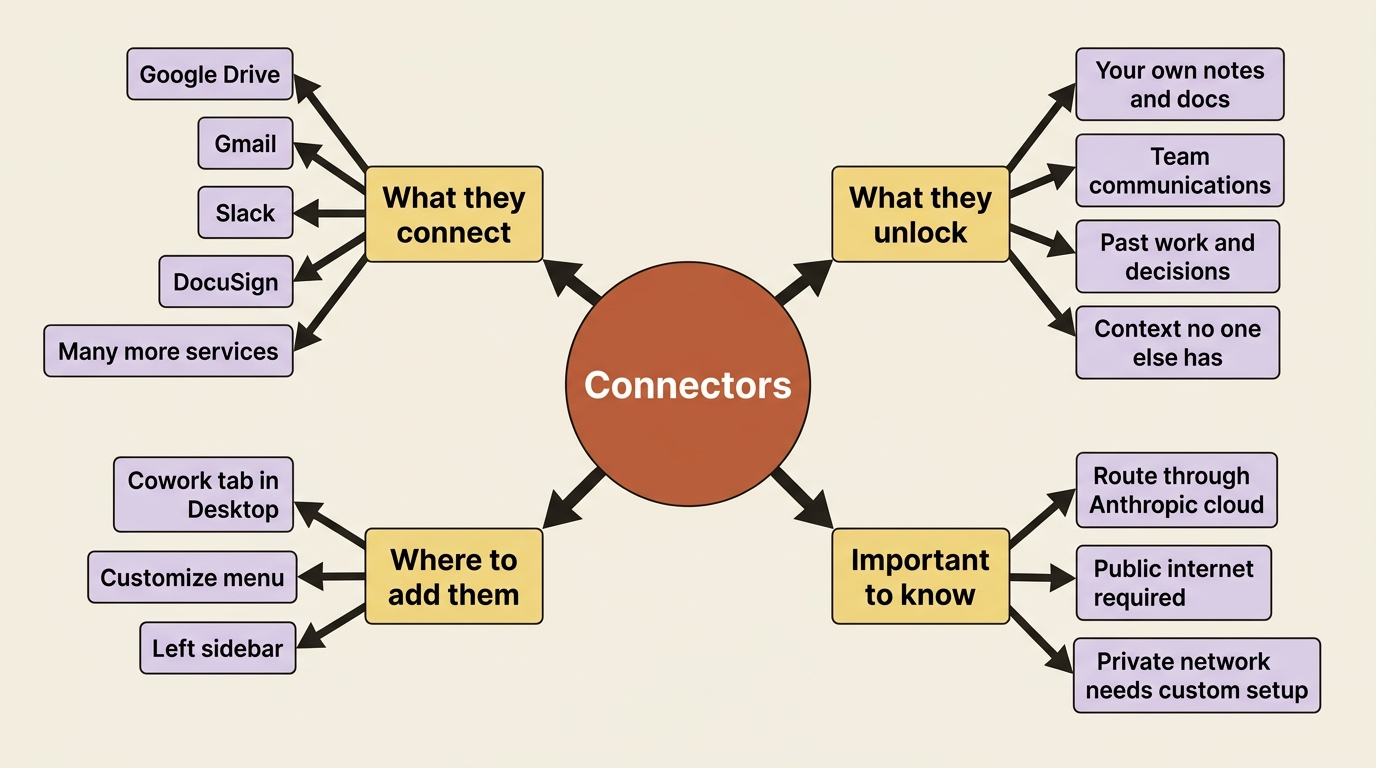
One architectural fact worth knowing: connectors in Cowork reach external services through Anthropic's cloud, not through your local network. Even though Cowork runs on your machine, a connector has to point at a server reachable over the public internet. If your company's internal services sit behind a firewall, a stock connector will not see them.
For the running example, the connector that changes everything is the one holding your own context. Connect Google Drive, and the next competitor brief can lean on the notes, decks, and call summaries already sitting in there. The brief stops being "what the public web says about these companies" and becomes "what the public web says, cross-referenced against everything we already know."
The speed difference in practice
The comparison between using a connector and not is stark.
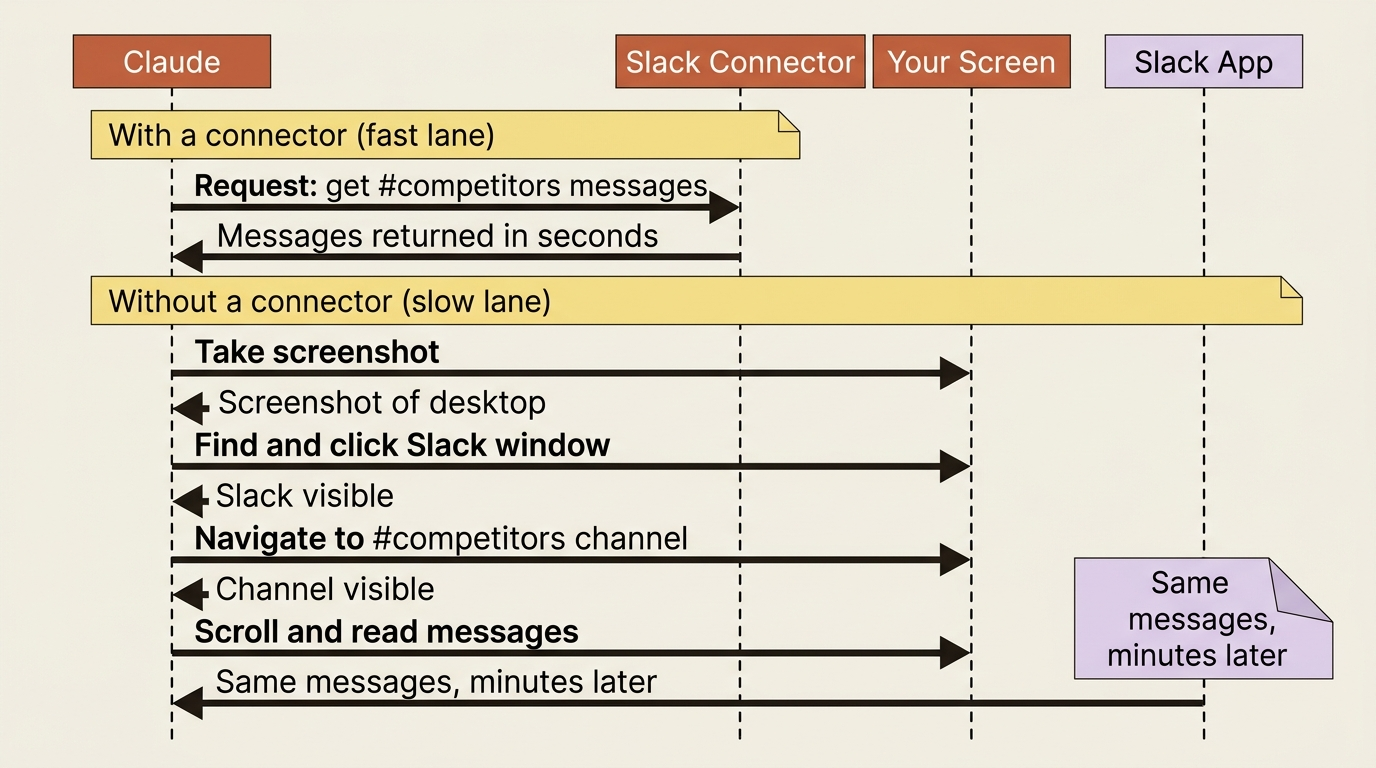
Every connector you add moves a chunk of work out of the slow, error-prone screen-clicking lane and into the fast, reliable direct lane. A Cowork setup with good connectors is not just more capable; it is dramatically faster.
Door two: the browser, for the web with no connector
Plenty of useful things on the web have no connector: a competitor's pricing page, a niche industry tracker, a web app your team uses that nobody built an integration for. Here Claude reaches for the browser, navigating Chrome through the Claude in Chrome extension.
One habit to start now: when you use Claude in Chrome with Cowork, keep its access pointed at sites you trust, and do not let it roam. Web content is the single most common way a malicious instruction can reach an agent, a risk covered in detail in the next article.
Door three: computer use, the universal fallback
When neither a connector nor the browser fits, computer use is the catch-all. Claude takes screenshots to understand your screen, then clicks, types, and navigates your desktop apps exactly as you would.
Computer use is a research preview, available on Pro and Max plans only. Team and Enterprise plans do not have it at this time. It is off until you enable it.
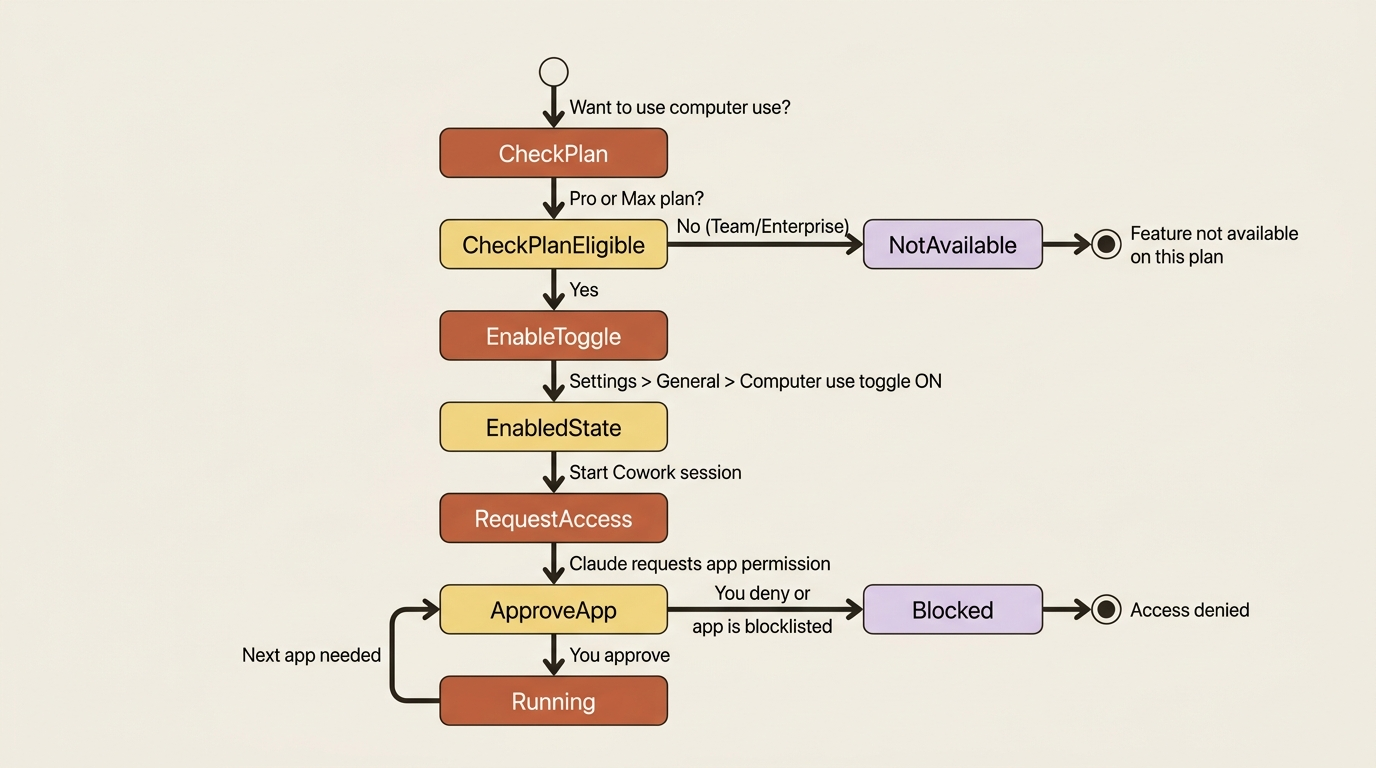
To enable: open Settings > General under the desktop app section, find the Computer use toggle, and turn it on. Then start a Cowork session and ask for something that involves one of your apps.
Permissions are per-app and explicit. Claude asks before accessing each application. Some sensitive categories, such as investment and trading platforms and cryptocurrency, are blocked by default, and you can add your own apps to a blocklist.
Safety note: Computer use has no sandbox between Claude and your screen. File operations go through permission checks and code runs inside the virtual machine, but computer use is Claude acting directly on your live desktop. Close confidential files before you start, and keep banking, healthcare, and personal-records apps off-limits.
One non-obvious wrinkle: actions in one app can spill into another. If Claude clicks a link in your email, that link opens in Chrome even if you never granted Chrome access. The permission gate covers which apps Claude can drive, not every downstream consequence of a click.
The guiding principle: least access that works
Notice the through-line. A connector is something you link. The browser is access you extend to sites. Computer use is a toggle you flip and apps you approve one at a time. None of this happens to you; all of it is granted by you.
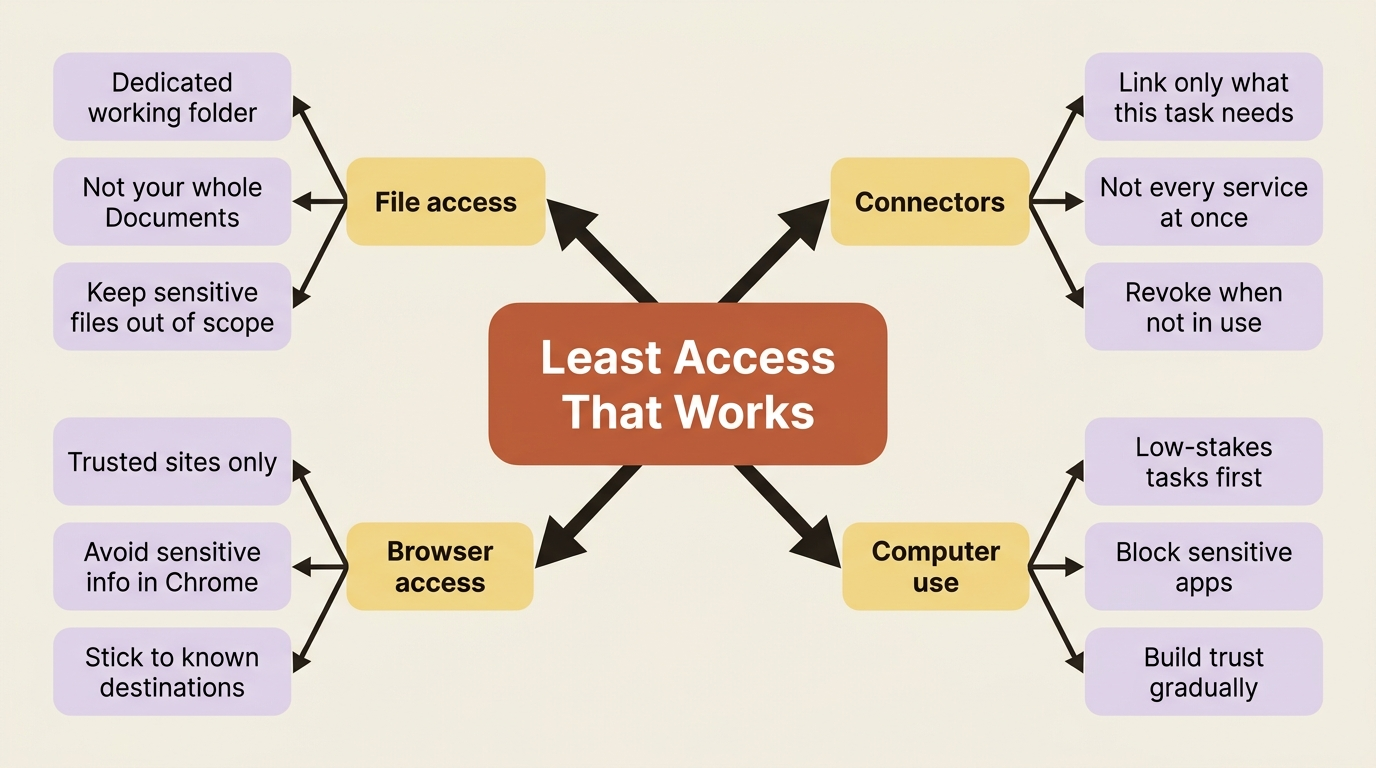
The practical rule: grant the least access that gets the work done. A dedicated working folder beats handing over your whole Documents directory. A single connector for the service this task actually needs beats linking everything at once. You are drawing the edges of what an autonomous agent is allowed to do on your behalf, and tighter edges are simply safer.
For the competitor-brief workflow, the high-value, low-risk setup is a Google Drive or Slack connector for your own context, web search and the browser for public competitor information, and computer use reserved for the one internal tool that has no other way in.
Do this today
- Open the Customize menu in the Cowork tab and connect at least one service you use daily. Google Drive or Slack is the highest-leverage first connector for most people.
- Enable computer use if you are on Pro or Max and have an internal app you want Cowork to reach. Go to
Settings > Generaland toggle it on. - Set your blocklist before enabling computer use. Block your banking app, any healthcare apps, and anything else that should stay off-limits regardless of what a task says.
- Re-run your competitor brief after connecting a Drive folder or Slack channel and notice how the output changes when Claude has access to your actual context.
- Practice the least-access rule: for your next task, ask what is the minimum access Cowork actually needs, and scope it to exactly that.
You have widened the loop
Cowork did not get smarter in this article. It got connected. The same loop now runs against your real sources instead of the public web alone, which is the difference between a brief anyone could generate and one grounded in what your team already knows.
Every connector you add and every access decision you make is a vote for what kind of agent you want Cowork to be: a powerful assistant that knows your world, scoped narrowly enough that you can trust it with real work.
This is Part 3 of "Getting Real Work Done with Claude Cowork," a 12-part guide to using Claude Cowork for real knowledge work.