
Close the Laptop, Keep the Agent Working: Your First Cursor Cloud Agent
A Cursor Cloud Agent sees only what you pushed to GitHub and none of your local guardrails, so the safe daily loop is push first, hand the task over with `&`, fetch the branch it pushes, and open the pull request yourself so you stay its author.
Push Ticket Triage to GitHub, hand one task to a Cursor Cloud Agent with a single &, fetch the branch it pushes, and open the pull request yourself.
You want an agent to keep working after you close the laptop, but you do not know what it can see, what rules still apply to it, or whose name ends up on the pull request.
In this article: Day 15 of an 18-day guide. Start here puts a small sample project on GitHub, checks the GitHub CLI, sends one keyword task to a Cursor Cloud Agent from the CLI with
&, fetches the branch the agent pushes, and opens the pull request yourself withgh pr create. Going deeper covers a branch name that silently blocks the handoff, what reaches the cloud machine and what does not, who owns the commits and the pull request, team repositories, environments, the other ways to start a Cloud Agent, and billing.
Every agent you have run so far lived on your computer. It saw your files, obeyed your allowlist, and stopped when you closed the terminal. A Cloud Agent breaks all three habits at once: it runs on a machine Cursor starts for the task, it sees only what is on GitHub, and it ignores your local approval rules entirely.
This is both the point and the risk. You get an agent that keeps working while your laptop is shut, but you need to know exactly what it sees, which rules travel with it, and whose name lands on the result. This article runs one real handoff end to end and answers all three questions.
Yesterday two agents worked in two worktrees at once, and you merged the smashed one.
Tested on Cursor CLI 2026.11.13-eacade1 and Cloud Agents, November 17, 2026, on a legacy Ultra plan. The test used a shared GitHub repository, so the steps that create your own repository and connect it are written from the docs. Editor steps: written from the docs, not yet run.
Start here
At the end of today, Ticket Triage is on GitHub, a Cloud Agent has added the keyword squashed with its test on its own branch, and you have opened a pull request from that branch. Your own computer runs nothing while the agent works.
Starting fresh or fell behind? Run git switch -C main cursor/day-14. This replaces your main with the end of Day 14; to keep your own work, run git branch my-backup first.
Check your starting state
Start where Day 14 ended. Run three checks in ~/code/ticket-triage.
cd ~/code/ticket-triage
git status --short
git log --oneline -1
npm test
git status --short prints nothing. git log --oneline -1 shows the newest commit, with your own hash:
e31d0c4 Add smashed to the damaged keywords
npm test ends with ℹ pass 11 and ℹ fail 0. If any check differs, finish Day 14 first.
What a Cloud Agent is
Every agent so far ran on your computer. A Cloud Agent runs on a machine that Cursor starts for the task. It clones your repository from GitHub, works on a new branch, runs commands there, and pushes the branch back when it is done (Cloud Agents). You can close your laptop while it works and follow it at cursor.com/agents.
Two things follow from "its own machine." First, a Cloud Agent never asks you to approve anything: Run Modes, your allowlist, and your deny entries apply only to local agents (Run Modes). Second, it can only reach what is on GitHub. Anything you have not pushed does not exist for it.
Check your plan. Cloud Agents need Premium or higher on The X Subscription, a Teams or Enterprise plan, or a legacy paid plan (Models & Pricing). They use your plan's usage like other agent work.
Check the GitHub CLI
Today you use the GitHub CLI, gh, to make the repository and open the pull request. It must be installed and signed in to your GitHub account. Check it:
gh auth status
If it says you are logged in to github.com, go to the next step. If the command is not found, install gh. On macOS with Homebrew:
brew install gh
If gh is installed but not signed in, sign in and follow its prompts:
gh auth login
In testing, gh was already installed and signed in. The install and sign-in commands come from the GitHub CLI docs at cli.github.com, and this guide did not test them.
Put the project on GitHub
(written from the docs, not yet run) A Cloud Agent clones from GitHub, so the project needs a GitHub repository. Create a private one and push your work. Use your own GitHub account; the name is up to you. This guide's test pushed to a shared repository instead. Going deeper explains the difference.
gh repo create ticket-triage --private --source . --remote origin
git push -u origin main
gh repo create makes the repository on GitHub. --source . uses the current folder as the repository's contents, and --remote origin adds the new repository as the remote named origin. git push -u origin main sends your history. -u makes origin/main the branch that git status compares against, so it can tell you when you have commits that are not pushed. You run the push yourself, in your own terminal. Day 4's deny entry blocks the agent's git push, not yours.
Connect GitHub to Cursor
(done by the account owner; the screens were not recorded) Cursor needs permission to clone and push. Open cursor.com/dashboard/integrations, click Connect next to GitHub, and grant the Cursor app access to your new repository under Selected repositories (GitHub integration). You do this once per account. Connect your personal GitHub account and the repository you just made. Going deeper explains what changes when the repository belongs to a GitHub organization.
Send the task to the cloud
Start a session:
cursor-agent
Wait until the input box shows → Plan, search, build anything. Then type & as the first character of your message. The & hands the message to a Cloud Agent instead of the agent on your computer (CLI overview). In testing, the input line changed to & Plan, search, build anything, with the hint ^ Move to cloud agent below it. Check for that hint before you type the rest, then press Enter:
& Add the keyword squashed to the damaged check in src/classify.js, add a test named squashed in test/classify.test.js, run npm test, commit, and push your branch. Do not open a pull request.
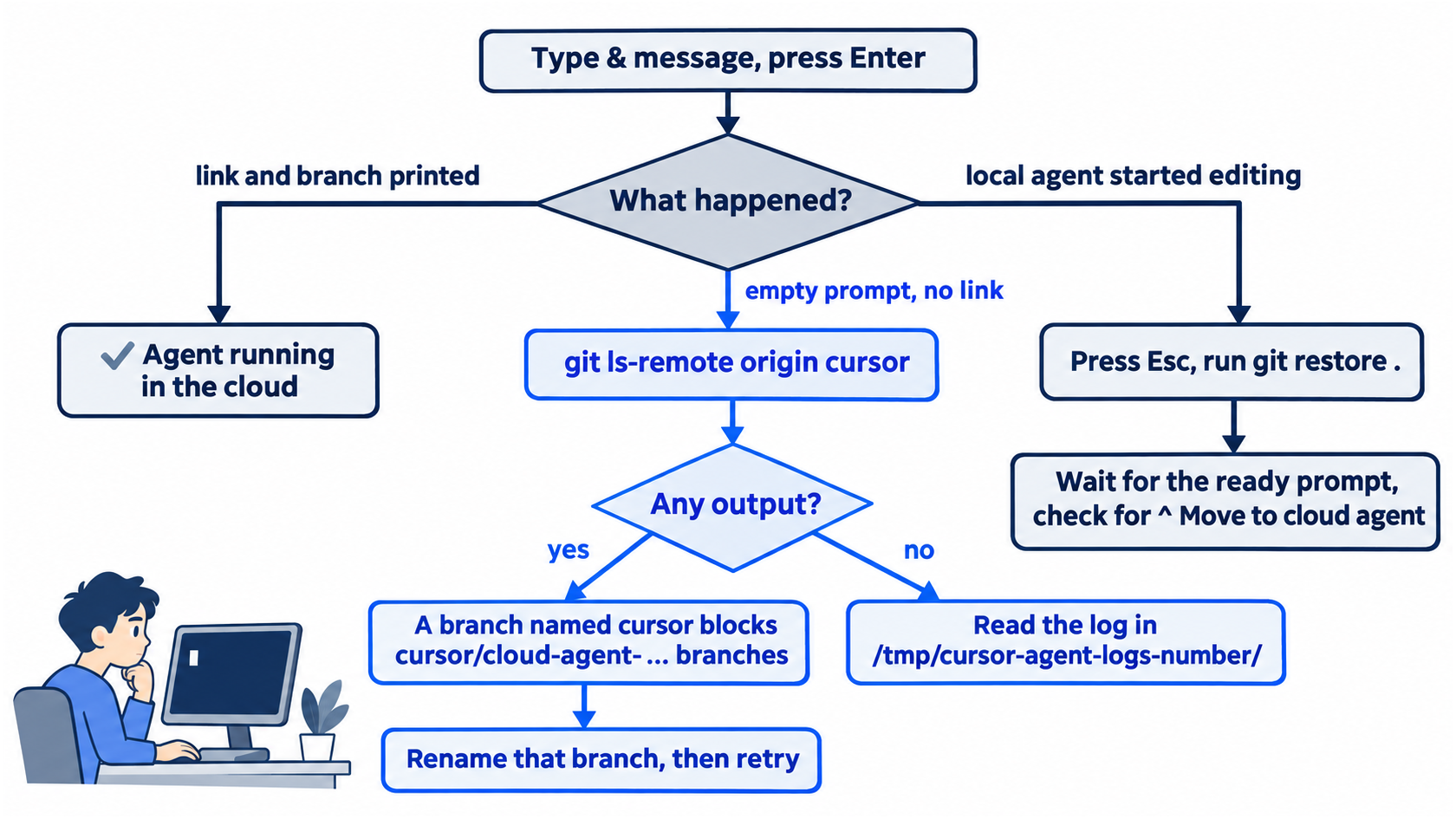
Type the message only after the session is ready. In testing, a message typed earlier went to the agent on the computer, which started to edit the files. If that happens, press Esc to stop it and run git restore . to undo its edits.
The message stops at "push your branch" because you open the pull request yourself, so GitHub shows you as its author.
The cloud machine clones plugins/tt-triage-kit/ with the rest of the repository, but nothing loads it there, because --plugin-dir works only for the session you start on your computer. For this reason, the message spells out the steps instead of naming the skill.
Allowlist: in testing, no approval prompt. The CLI showed Preparing branch and Verifying cloud agent, printed two lines, and returned to the shell:
Open Cloud Agent in: https://cursor.com/agents/bc-<id>
Cloud agent will work on branch: cursor/cloud-agent-<number>-<suffix>
Auto-review: not yet run. The docs say that a Cloud Agent never asks for approval.
The session on your computer has ended. The work continues on Cursor's machine.
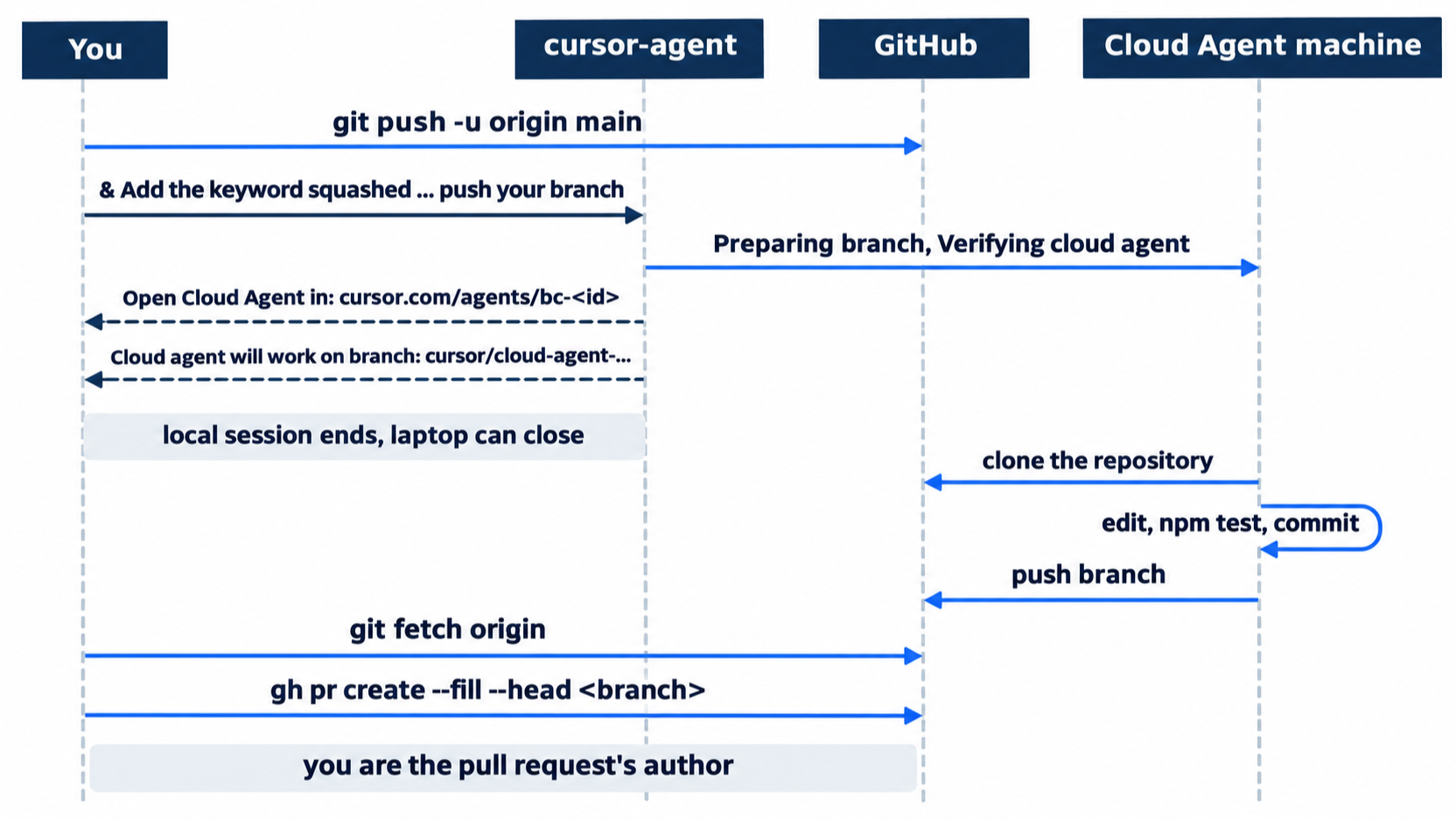
Follow it and find its branch
Open the link the CLI printed to watch the agent. The second line is the agent's branch. This part writes it as <branch>. In testing, the agent pushed its commit to that branch about 15 seconds after the handoff. Fetch it:
git fetch origin
git branch -r
git fetch origin downloads the new branch without changing your files. git branch -r lists the branches on the remote. The expected result: origin/main and origin/<branch>. If the branch is not there yet, wait a minute and fetch again.
Open the pull request yourself
Open a pull request from the agent's branch into main:
git switch <branch>
gh pr create --fill --head <branch>
git switch main
gh pr create opens a pull request on GitHub. --head names the branch that has the change, and --fill uses that branch's commit message as the pull request's title and body. The pull request goes into the repository's default branch, main. In testing, the title was Add squashed to the damaged keywords, and the author was the account that ran gh. This guide's test also added --base with the shared repository's branch; you do not need it.
If a bot named Cursor Bugbot comments on the pull request, leave the comment for now. Bugbot is Cursor's reviewer for pull requests, and Day 16 is about it.
Leave the pull request open. Do not merge it yet.
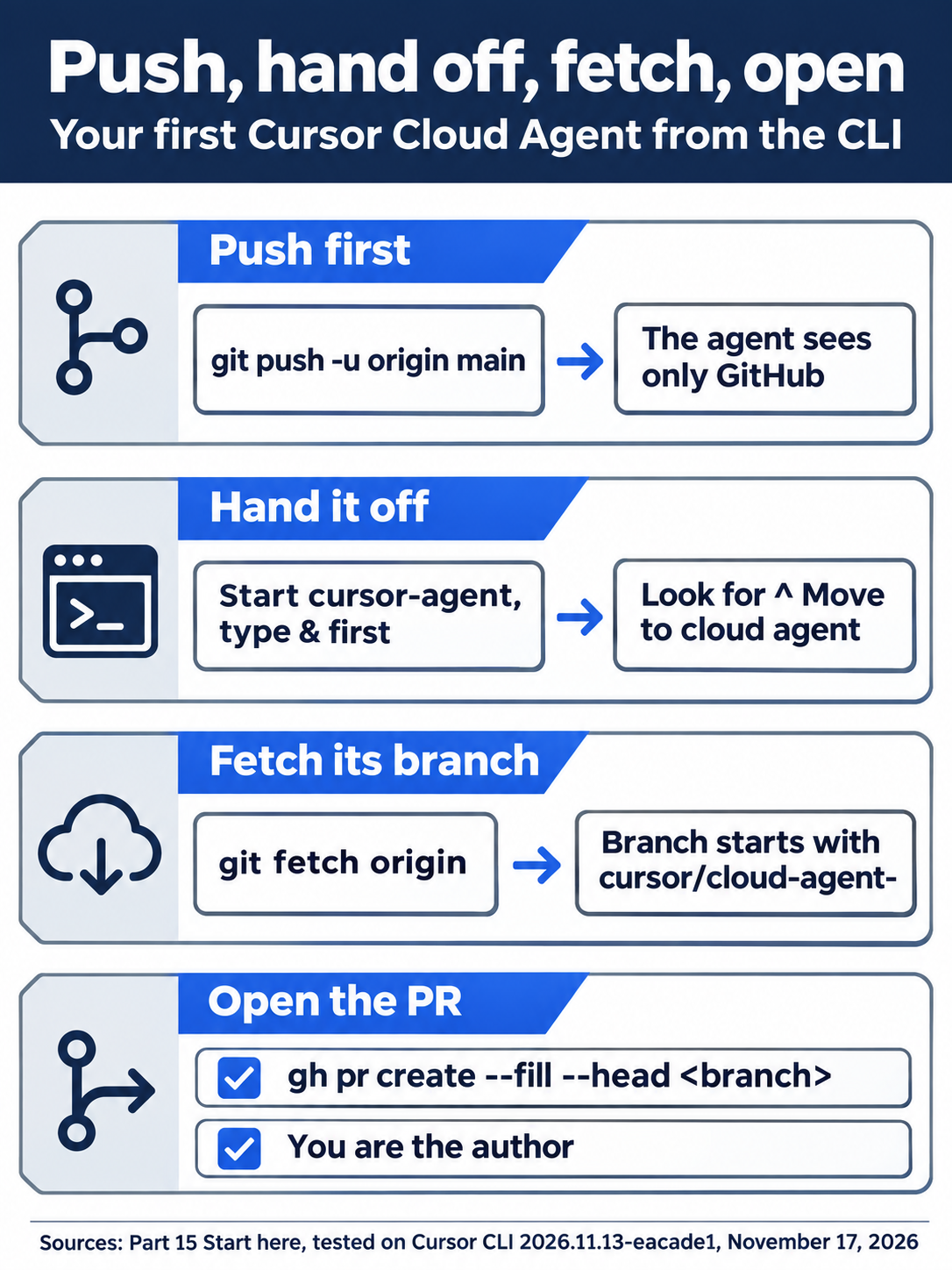
The whole loop takes four steps: push your latest commit, start cursor-agent and send the task with a leading &, fetch the branch the agent pushes, and open the pull request yourself with gh pr create so you are its author.
The same steps in the editor
The editor starts a Cloud Agent from its agent input. Every step here is written from the docs, not yet run.
- (written from the docs, not yet run) In the Agent panel, choose Cloud in the dropdown under the agent input (Cloud Agents).
- (written from the docs, not yet run) Send the same task, without the
&. - (written from the docs, not yet run) Follow it at cursor.com/agents, find its branch, and open the pull request with
gh pr createas above. Send the task from one door only, the CLI or the editor, so you get one branch and one pull request.
Your win
Run the check now. The agent's report is a claim, so run the tests on its branch yourself.
gh pr list
git fetch origin
git switch <branch>
npm test
git switch main
git log --oneline -1
gh pr list lists the open pull requests in this repository, one per line: the number, the title, and the branch. git switch <branch> makes a local copy of the agent's branch and switches to it.
The expected result: gh pr list shows one open pull request for squashed, npm test on its branch shows ℹ pass 12, and git log --oneline -1 on main still shows Add smashed to the damaged keywords with your own hash. An agent did a whole task while your computer did nothing.
The scene captures the new habit: once the branch is pushed and the task is handed off, nothing on your computer has to stay open while the agent works.
You can stop here. Going deeper explains why this works and where it breaks.
Going deeper
This section is for readers who want to know what reaches the cloud machine, who owns the agent's work, how to set up its environment, and the other ways to start a Cloud Agent. Results from this guide's test say "in testing"; the rest comes from the docs. It assumes you finished Start here in Parts 1 to 15.
This guide's repository, and a branch name that blocks the handoff
This guide's test did not create a repository. It pushed to a shared repository that holds one branch per guide, so the guide's work lives on a branch named cursor-guide, not on main. Your first push to a new repository creates main.
The branch had a different name first: cursor. With that branch on GitHub, the handoff failed with no message on screen. The CLI showed Checking git status for about a second and then an empty prompt, and no agent appeared at cursor.com/agents. The CLI's log file, under /tmp/cursor-agent-logs-<number>/, showed the cause: the handoff pushes your work to a branch named cursor/cloud-agent-<id>, and git cannot create a branch under cursor/ while a branch named exactly cursor exists. After the guide renamed the branch, the handoff worked. If & returns to an empty prompt with no link, check git ls-remote origin cursor. Any output means that branch blocks the handoff.
What reaches the cloud, and what does not
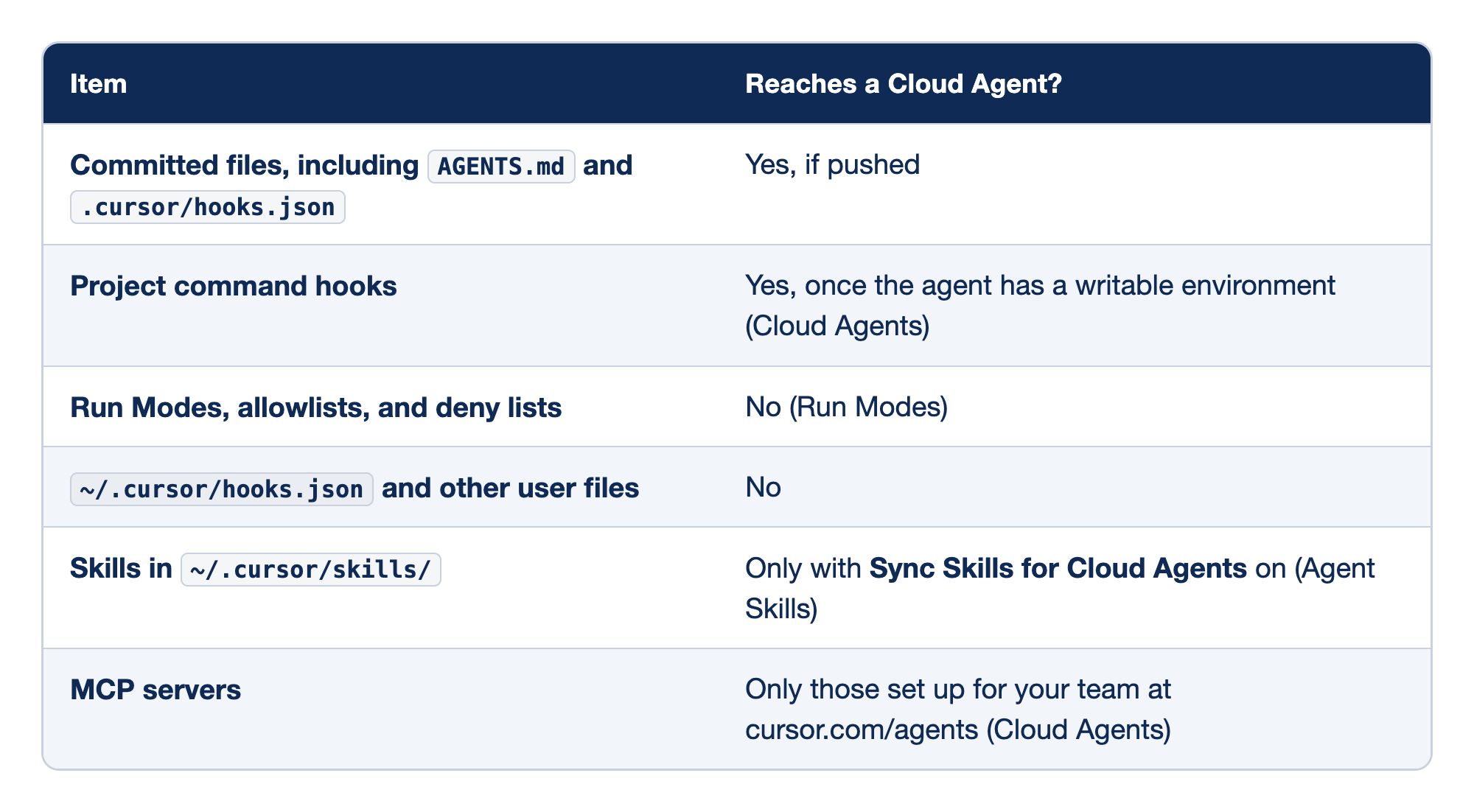
Each piece of your Cursor setup either travels to the Cloud Agent's machine or stays on yours. The Item column names a piece of setup, and the Reaches a Cloud Agent? column says whether the cloud machine gets it and under what condition.
- Committed files, including
AGENTS.mdand.cursor/hooks.json, reach the agent only if you push them; they are the agent's whole view of the project, which is why Start here pushes first. - Project command hooks reach the agent once it has a writable environment, so the docs say that your Day 11 hook runs in the cloud too, and
rm -rfstays blocked there. - Run Modes, allowlists, and deny lists do not reach it, so your Day 4 deny entry for
git pushdoes not apply; the agent must push its branch to hand the work back. ~/.cursor/hooks.jsonand other user files in your home folder do not reach it, so hooks you keep there stay on your machine.- Skills in
~/.cursor/skills/reach the cloud only when Sync Skills for Cloud Agents is on; Ticket Triage keeps its skill inside the plugin now, and nothing loads the plugin in the cloud, so the cloud agent does not use the skill. - MCP servers reach the agent only when they are set up for your team at cursor.com/agents, not in your local
mcp.json.
A Cloud Agent gets what you commit and push, and little from your machine.
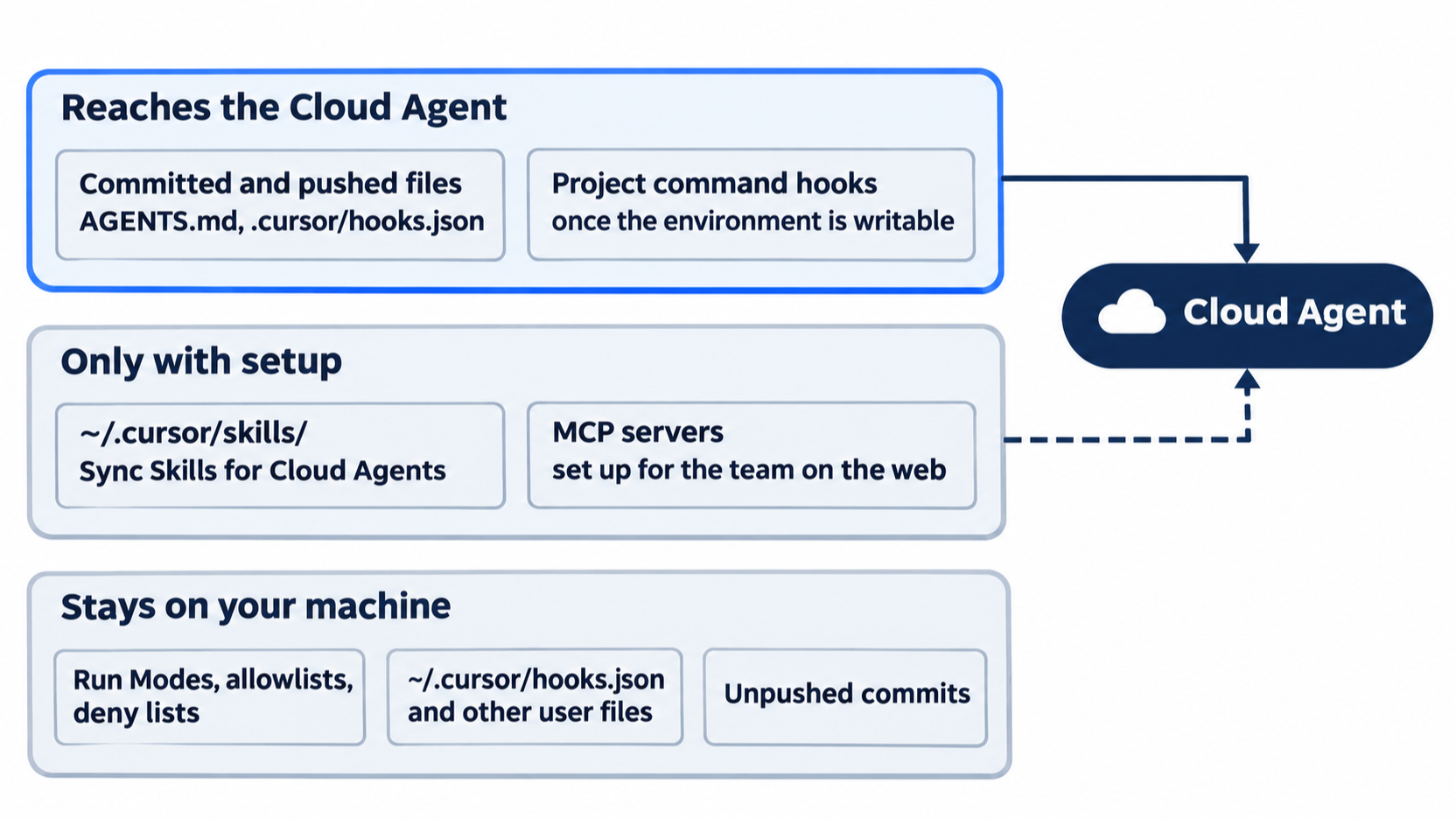
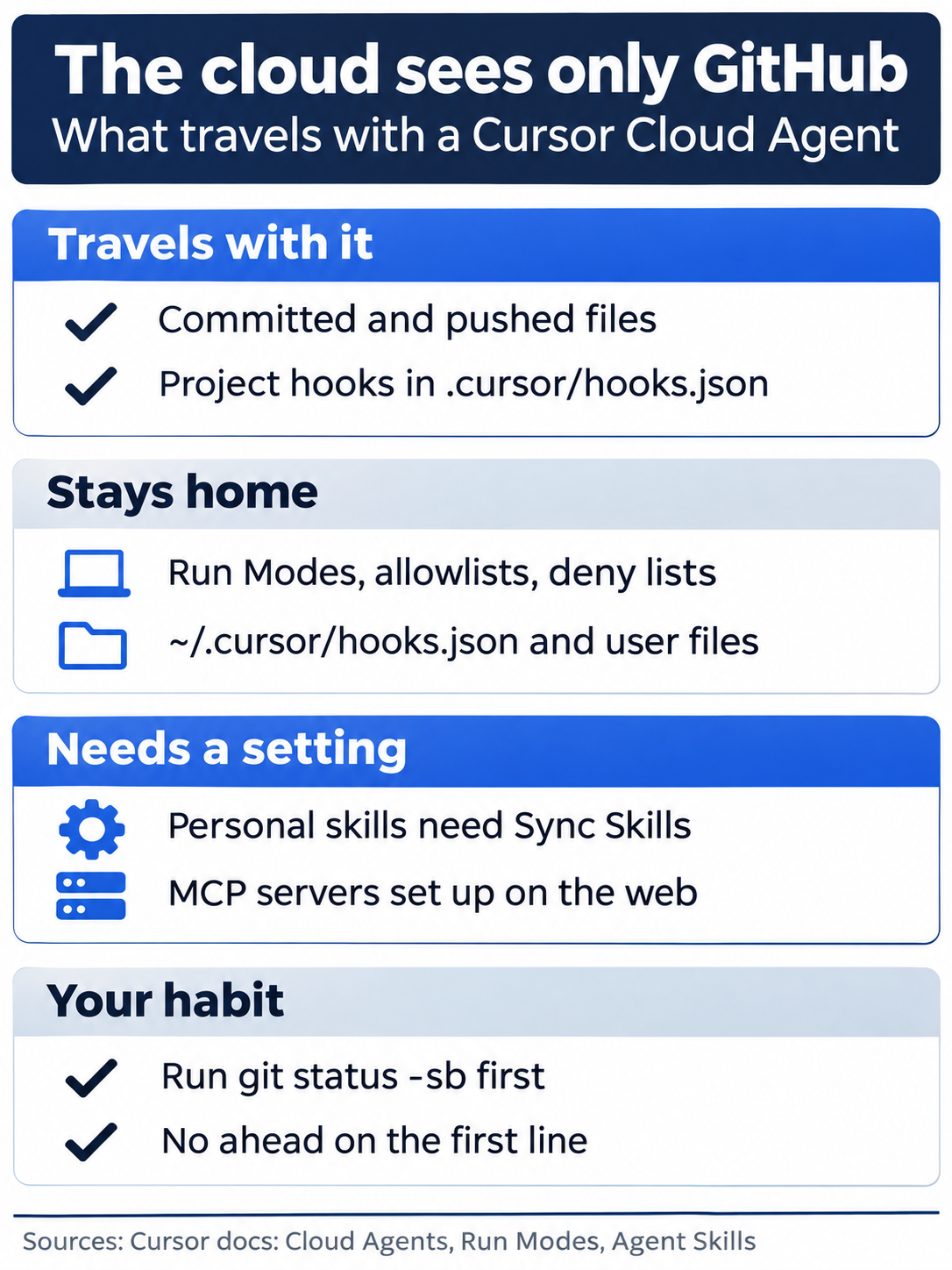
In short, pushed files and project hooks travel, your local approvals and home-folder files stay behind, and personal skills and MCP servers travel only when you set them up for the cloud.
Bugbot on Day 15
The docs say that connecting GitHub turns Bugbot on for the repository (Bugbot). In testing, no Bugbot check appeared in the 10 minutes after the pull request opened, because Bugbot was off for the repository. Day 16 turns it on.
Who owns the commits and the pull request
On GitHub, a Cloud Agent authors and commits as Cursor Agent <cursoragent@cursor.com>, not as you. When Cursor can look up the person who started the agent, it adds that person to each commit as a Co-authored-by trailer (Cloud Agent security). In testing, the trailer named the user's GitHub no-reply address, <id>+<user>@users.noreply.github.com, not their email address. The pull request has its own author: the account that opens it. Start here has you open it with gh pr create, so you are its author. On an individual plan, Bugbot reviews only pull requests you author (Bugbot).
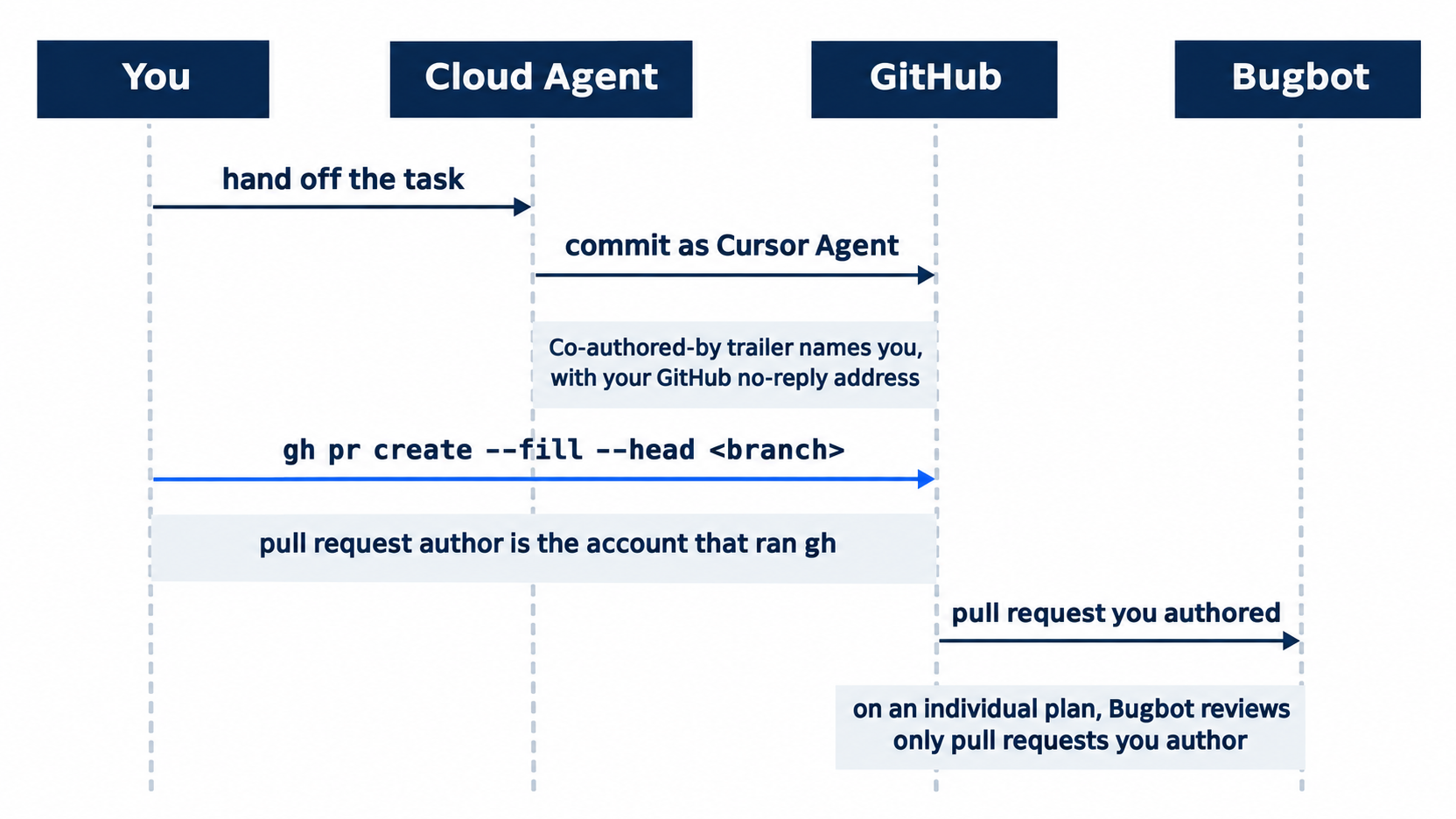
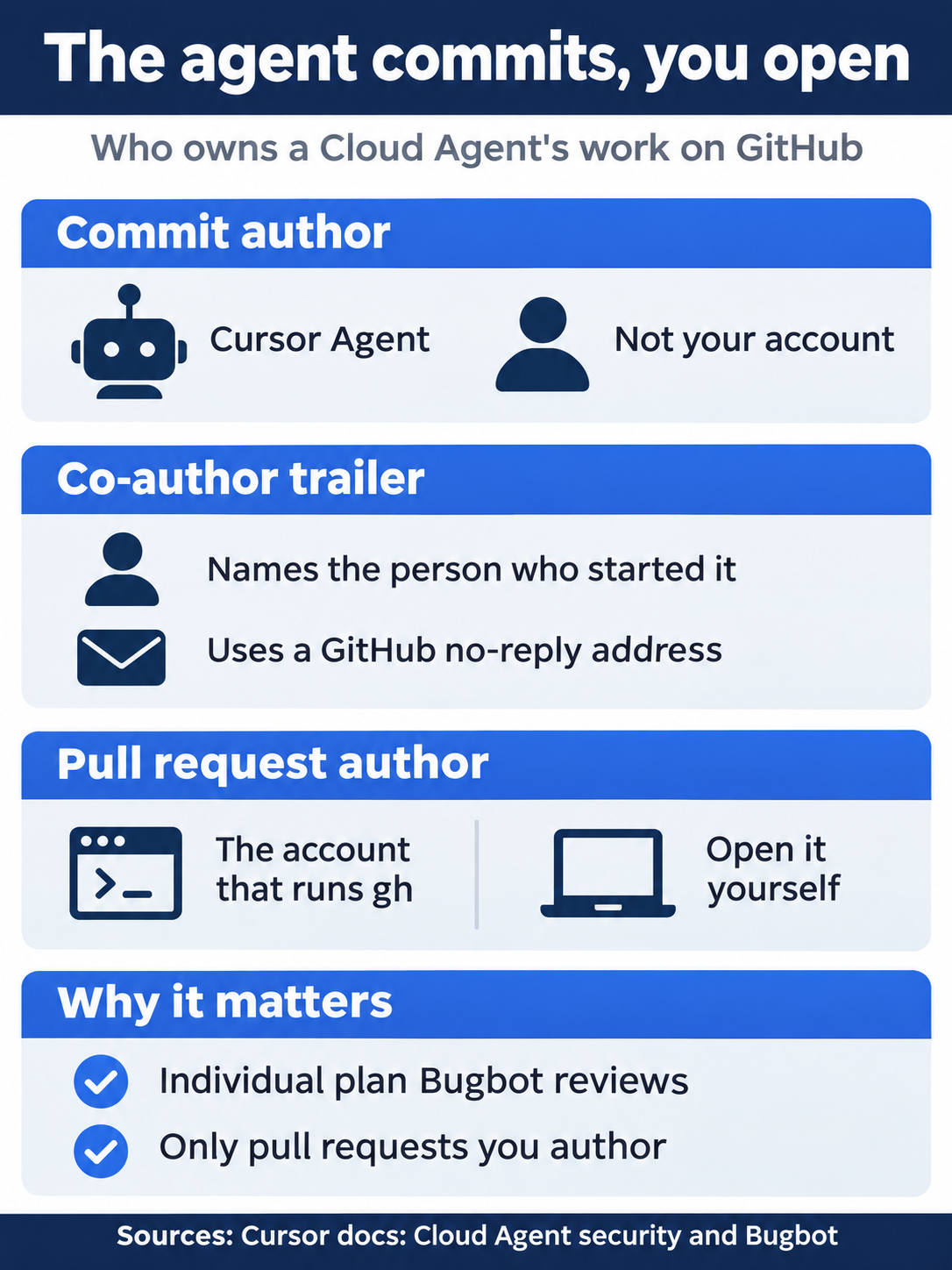
Two kinds of ownership are in play: the commit belongs to Cursor Agent with you as a co-author, the pull request belongs to whoever opens it, and opening it yourself keeps it in Bugbot's reach on an individual plan.
Team and organization repositories
Connecting GitHub needs Cursor admin access on the Cursor account and GitHub organization admin access on the organization that owns the repository (GitHub integration). For a repository in your personal GitHub account, you have both. For a repository in an organization, a Cursor admin and a GitHub organization admin must connect it. Each GitHub App installation belongs to one Cursor account or team. If another one already owns the installation, connecting fails with "GitHub installation is already connected to another Cursor target."
Environments
The cloud machine starts with your repository and the tools Cursor installs. A project that needs packages, a database, or keys needs an environment: let the agent set one up, save a snapshot, or describe it in a Dockerfile referenced from .cursor/environment.json (Cloud agent setup). Secrets go in the dashboard, not in the repository (Secrets & Network). The CLI can redeploy an environment file onto an existing Cloud Agent environment with cursor-agent env deploy --env <id> (CLI changelog). On the agent's page at cursor.com/agents, hover over the repository name at the top to see the environment that run used (Cloud Agents). Ticket Triage needs only Node.js and npm test.
Other ways to start one
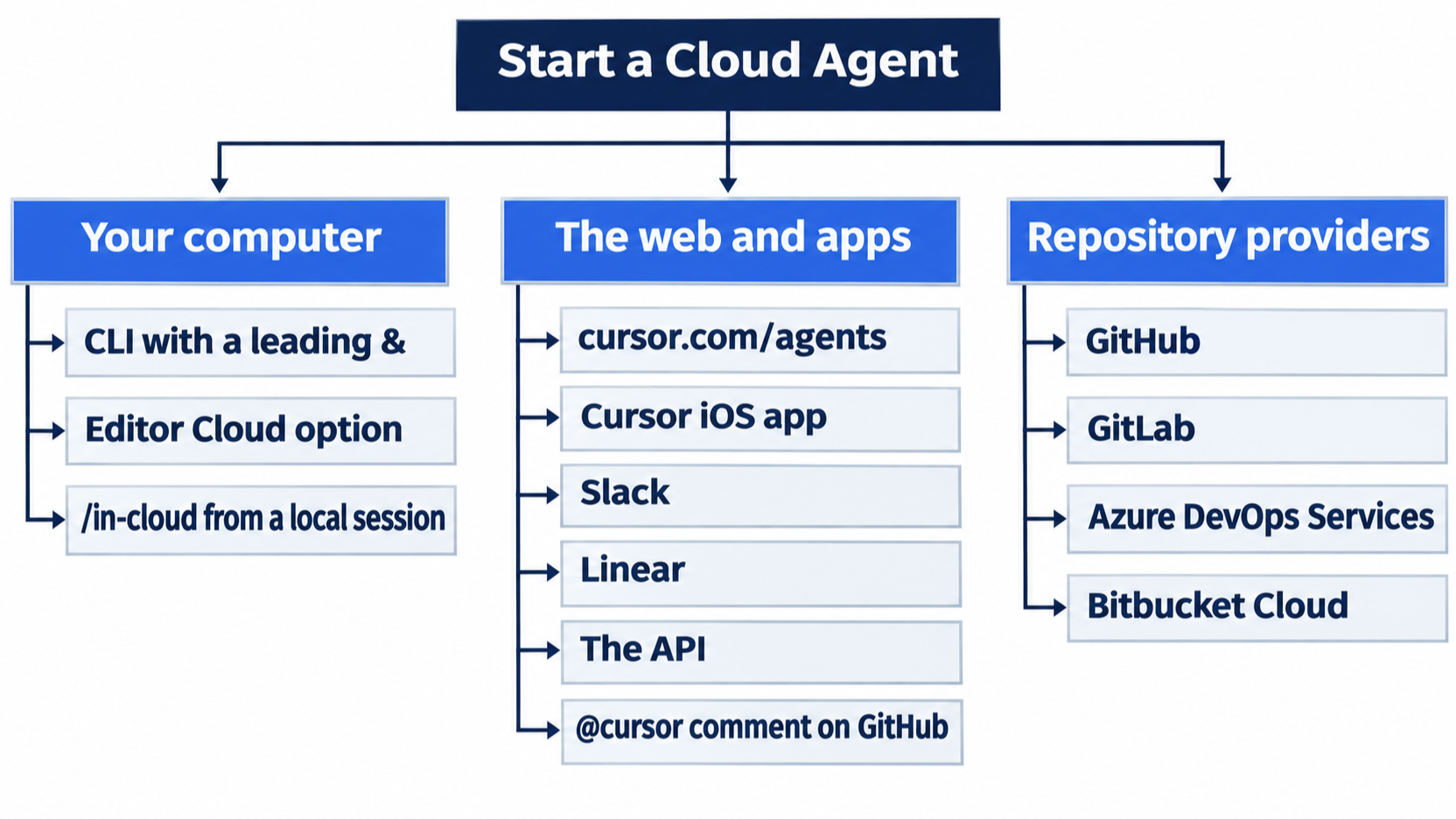
Besides & in the CLI and Cloud in the editor, you can start a Cloud Agent from cursor.com/agents, the Cursor iOS app, Slack, Linear, the API, or a comment @cursor on a GitHub pull request or issue (Cloud Agents). Inside a local session, /in-cloud sends the next task to a cloud subagent (Part 12). Cloud Agents also work with GitLab, Azure DevOps Services, and Bitbucket Cloud (Cloud Agents).
Billing
Cloud Agents use your plan's usage at the selected model's rate, like other agent work (Cloud Agents). Part 8 explains where to see it.
If you already use Claude Code: nothing on your machine runs a Cloud Agent's work, so your local hooks in ~/.cursor/hooks.json, your Claude Code hooks in ~/.claude/settings.json, and your permission settings do not apply to it. Only what is in the repository goes along.
Do this today
Everyone
-
Repeat the win. Run the check again:
gh pr list
git fetch origin
git switch <branch>
npm test
git switch main
git status --short
The expected result: one open pull request,
ℹ pass 12on its branch, and nothing fromgit status --shortonmain. -
Start one habit: push before you hand a task to the cloud. Check first:
git status -sbThe result: the first line does not say
ahead, so GitHub has your latest commit.
If you read Going deeper
Each check only reads. None of them starts an agent or a review, so none of them uses your plan's usage.
-
See who wrote the agent's commit.
git log -1 --format='%an <%ae>%n%(trailers)' origin/<branch>The expected result:
Cursor Agent <cursoragent@cursor.com>, then aCo-authored-bytrailer with your name and your GitHub no-reply address. Reset: the step only reads, sogit status --shortprints nothing. -
Check that your hook file went along.
git diff main origin/<branch> -- .cursor/hooks.jsonThe expected result: no output, because the agent's branch has the same Day 11 hook file as
main. Reset: the step only reads, sogit status --shortprints nothing. -
Check that you are the pull request's author. Use the number from the first column of
gh pr list.gh pr view <number> --json authorgh pr viewshows the details of one pull request, and--json authorlimits the output to its author. The expected result: your own GitHub user name aslogin, and"is_bot":false. Reset: the step only reads, sogit status --shortprints nothing andnpm testonmainshowsℹ pass 11.
GitHub is the handoff
The worry in the opening had three parts: what the agent can see, which rules still bind it, and whose name ends up on the work. The answers are short. It sees what you pushed. Your local approvals stay home, while your committed project hooks travel with it. The commits are the agent's, and the pull request is yours because you open it.
Everything else follows from that. Push before you hand off, check for the ^ Move to cloud agent hint before you type, fetch the branch, run the tests yourself, and open the pull request with your own account.
Your laptop can sleep. Your repository is the only desk the Cloud Agent needs.
This is Part 15 of "Cursor, Day-to-Day," an 18-part guide to using Cursor's agent every day, from the CLI and the editor.