
Your Coding Agent Only Listens Between Turns
Pi reads what you type mid-run only at the gap between turns, and once you know where that gap is, Enter, Alt+Enter, Alt+Up, and Escape become a precise way to correct, queue, and stop an agent before the wrong diff lands.
Pi reads what you type while it works, but only at one gap in its loop. Learn where that gap is, and four keys let you correct, queue, and stop a run without losing a word.
You watched the agent announce a rewrite you never asked for, and by the time you typed a correction, the edit had already landed.
In this article: Day 3 of a day-by-day guide to Pi. Start here: you sort the crushed-mug ticket into
shippingwhile you correct a run withEnter, queue the tests withAlt+Enter, and stop a run withEscapewithout losing a word. Going deeper: the agent loop behind those keys, the Claude Code habits that misfire in Pi, and the terminal, tmux, and Windows fixes for keys that never arrive.
Tested on Pi 1.5.2.
Part 2 ended with a one-line CLAUDE.md committed and a named session, crushed-mug, that pi --continue reopens.
Start here
By the end of today, Ticket Triage sorts the crushed-mug ticket into shipping, two new tests prove it, and you have corrected a run, queued a follow-up, and stopped a run without losing a word.
Starting fresh or fell behind? Run git switch -C main pi/day-02. This replaces your main with the end of Day 2; to keep your own work, run git branch my-backup first.
Check where you start
Start in the project folder with a clean tree.
cd ~/code/ticket-triage
git status --short
npm test
git status --short prints nothing, and npm test ends with tests 3, pass 3, and fail 0, as it did at the end of Part 2.
Open the work session and check the keys
Reopen the session you named in Part 2.
pi --continue
The footer ends with • crushed-mug. Today you send words to Pi while it works, and the keys for that depend on your terminal. List the keys Pi actually receives. Type this in the editor and press Enter:
/hotkeys
Pi prints a table of keys and actions. Find these three rows. On a Mac, Pi names the Alt key Option.
 │ Escape                │ Cancel autocomplete / abort streaming                │
 │ Option+Enter          │ Queue follow-up message                              │
 │ Option+Up             │ Restore queued messages                              │
On Linux the same rows say Alt+Enter and Alt+Up. On Windows and WSL they are Ctrl+Q and Alt+Q, and Going deeper has the table. This guide did not run the Windows and WSL keys.
Two words for today
Pi works in turns. A turn is one model response plus every tool call that response asks for, such as reading a file, editing a file, or running a command. A task can take several turns.
What you type while Pi works waits in a queue. Enter sends a steering message: Pi gives it to the model after the current turn, so it changes the next response of the same task. Alt+Enter (Option+Enter on a Mac) sends a follow-up: Pi holds it until the whole task is done, then starts it as the next task.
Ask for the damage rule
Ask for the change. The prompt quotes the ticket, names the damage words, and says that tests come later. The next two steps send text while Pi works, and Pi can finish in under a minute. Keep this page beside the terminal so that you can copy and paste each prompt at once.
Teach src/classify.js to spot damage. The ticket "The box showed up crushed and the mug inside is in pieces" should return shipping. The words "crushed", "broken", and "in pieces" mean damage. A damaged item whose customer also asks for money back stays refund. Do not add or change any test yet.
Press Enter. While Pi works, a line above the editor reads Working, with a spinner. Pi reads src/classify.js and the tests, and it says what it plans to do. In this guide's test run, it planned to add the damage words to the existing shipping check.
Correct it with Enter
You want the damage rule as its own check so that the shipping keywords stay as they are. classify() is a chain of if checks, one per category, and the correction keeps that chain. While the Working line still shows, paste the correction and press Enter:
Keep the existing if-chain in classify(). Add one damage check between the refund check and the shipping check.
The transcript shows the message with the label Steering:. The model reads it after the current turn and before its next response. If the Working line was already gone, Enter sent the correction as a new prompt, and the model applies it as a second task. The checks below still hold. This case was not run for this guide.
Queue the tests with Alt+Enter
The tests are the next task, not a correction to this one, so they go behind it. Still while Pi works, paste the follow-up and press Alt+Enter (Option+Enter on a Mac):
Then add exactly two tests to test/classify.test.js: "The box showed up crushed and the mug inside is in pieces" returns shipping, and "The mug arrived broken and I want my money back" returns refund. Do not change the other tests. Run npm test.
The transcript shows it with the label Follow-up:, and the line ↳ Option+Up to edit all queued messages appears under it. Alt+Up (Option+Up) would bring the queued text back into the editor. Leave it queued. If the label reads Steering: instead, your terminal sent a plain Enter. The model still writes the tests, but as a correction to the current task. "When a key never arrives" in Going deeper fixes the terminal. This guide's tests sent the keys by script through tmux, not from a physical keyboard.
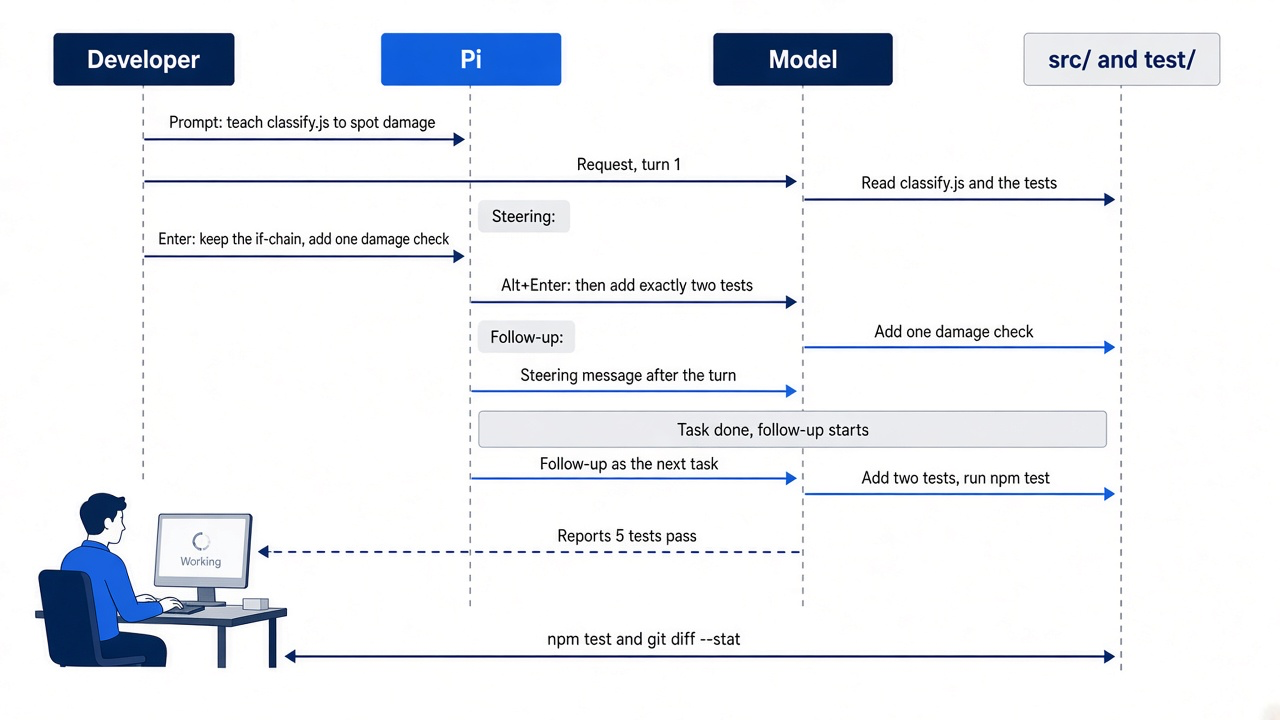
The sequence shows the order that makes this work: the correction lands between turns of the first task, and the follow-up waits until that task is finished before it starts.
Wait for the Working line to go away. In the test run, the model added one check to src/classify.js, between the refund check and the shipping check. One run wrote the comment line shown here, and a second run left it out:
// Damage words mean the item arrived damaged, a shipping problem.
if (t.includes("crushed") || t.includes("broken") || t.includes("in pieces")) return "shipping"
Then it started the follow-up on its own: it added the two tests, ran npm test, and reported that all five tests pass. Type /quit and press Enter.
Check the result yourself
A model's report is not proof. Run the tests and ask Git what changed.
npm test
git diff --stat
npm test ends with tests 5, pass 5, and fail 0. The order of the work matters here: the follow-up started only after the classifier change was finished, so the model wrote the tests against code that no longer moved. git diff --stat lists two files, src/classify.js and test/classify.test.js. If a third file appears, or the count is not 5, read git diff before you go on. If the change is wrong, put the files back with git checkout -- src test and ask again. This guide did not run that recovery step.
Stop a run with Escape
Practice the stop in a session that saves nothing so that the stopped run does not stay in your work session. --no-session from Part 2 works for an interactive start too.
pi --no-session
Send a prompt that takes a while, and queue a follow-up behind it with Alt+Enter:
Describe every file in this repository in detail.
Then list three test ideas.
Before the run finishes, press Escape. If the run ends first, send both again and press Escape sooner. The model may have read a few files by then. Reading changes nothing on disk, so a stop during reads is always safe. Pi prints Operation aborted, and the queued sentence, Then list three test ideas., comes back into the editor, word for word. You do not retype it. Press Ctrl+C to clear the editor. In Pi, Ctrl+C clears the editor, and a second press exits. Type /quit and press Enter.
Check the tree
Escape stops a run, but it never undoes an edit that already landed. Check the tree after every stop.
git status --short
The command prints two lines: M src/classify.js and M test/classify.test.js. This result, with five passing tests, is today's win: Pi made the change you asked for and not the one it first planned, the tests came after the code, and a stopped run cost you nothing. Leave the change uncommitted for now.
You can stop here. Going deeper explains why this works and where it breaks.
Going deeper
This section is for readers who want the loop behind the keys, the editor keys a Claude Code user reaches for, and the fixes for terminals that swallow keys. It assumes you finished Start here in this part and in every earlier part.
The rewrite nobody asked for
Start here went well because the correction landed early and the prompt was precise. This is the run that goes badly. Part 2 left you in a named session, crushed-mug, with Ticket Triage read and nothing changed. Now you ask for the real work.
Teach @src/classify.js about the crushed mug. "The box showed up crushed and the mug inside is in pieces." should end up as shipping.
Pi reads src/classify.js, then test/classify.test.js. Its reply says the classifier's chain of keyword checks will not scale, and that a small state machine would make new categories easy to add. The next line in the transcript is an edit call on src/classify.js. You never asked for a state machine. The categories are exactly refund, shipping, and other, and the change you wanted lives in one damage check. "Should end up as shipping" was loose enough for the model to decide the whole classifier was the problem. This story is an illustration; the test run for this part is the one in Start here. The story, including its Alt+Up step, was not run. Do not replay it on today's tree: its git checkout -- src/classify.js would remove the damage check you just made.
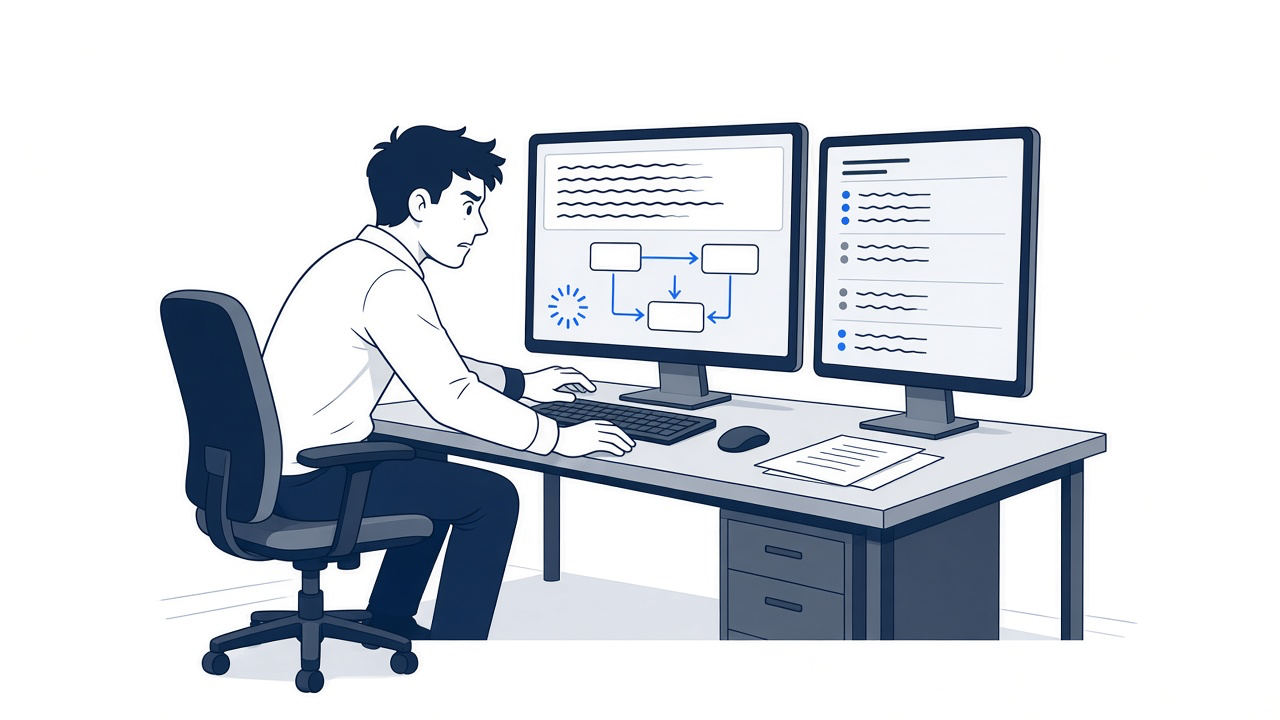
The scene is the moment this article is about: the wrong edit is already in the transcript, and the developer has a second or two to decide which key to press.
You have two old habits for this moment, and both cost you. You can wait for the run to finish and then argue with a diff that touches files you did not want touched. Or you can stop everything and retype the whole request, losing the follow-up you were about to send. Pi gives you a third option: correct the task while it runs, line up the next step behind it, and stop only when a correction is not enough. This section teaches the loop that makes those keys behave the way they do, works all of them on the state-machine rewrite, and then fixes the terminals that swallow them.
How a turn runs
Your words can land in only one place: the gap between turns.
Pi's description of its agent loop, in how Pi works, is short, and every key in this part follows from it. When you submit a message, Pi adds it to the active branch, builds a model request, and sends it to the provider. The provider streams back an assistant response, which can hold text and tool calls. Pi records the response, executes each tool call, and records the results, which completes one turn. If the tool results or a queued message needs another model request, Pi starts another turn. Otherwise the run ends.
The sketch below lays the loop out in time. It is a sketch of the loop, not a picture of Pi's screen.
you submit the prompt
  turn 1: response (text + tool calls) -> Pi runs every tool call -> results recorded
     <- steering messages enter here
  turn 2: response (text + tool calls) -> Pi runs every tool call -> results recorded
     <- steering messages enter here
  no tool results or queued messages need another request: the run ends
     <- follow-up messages enter here
The arrows on the right are the whole story. Pi's docs say that steering messages enter after the current assistant turn, that follow-up messages enter after the agent has finished its pending work, and that aborting stops the current run and returns queued messages to the editor.
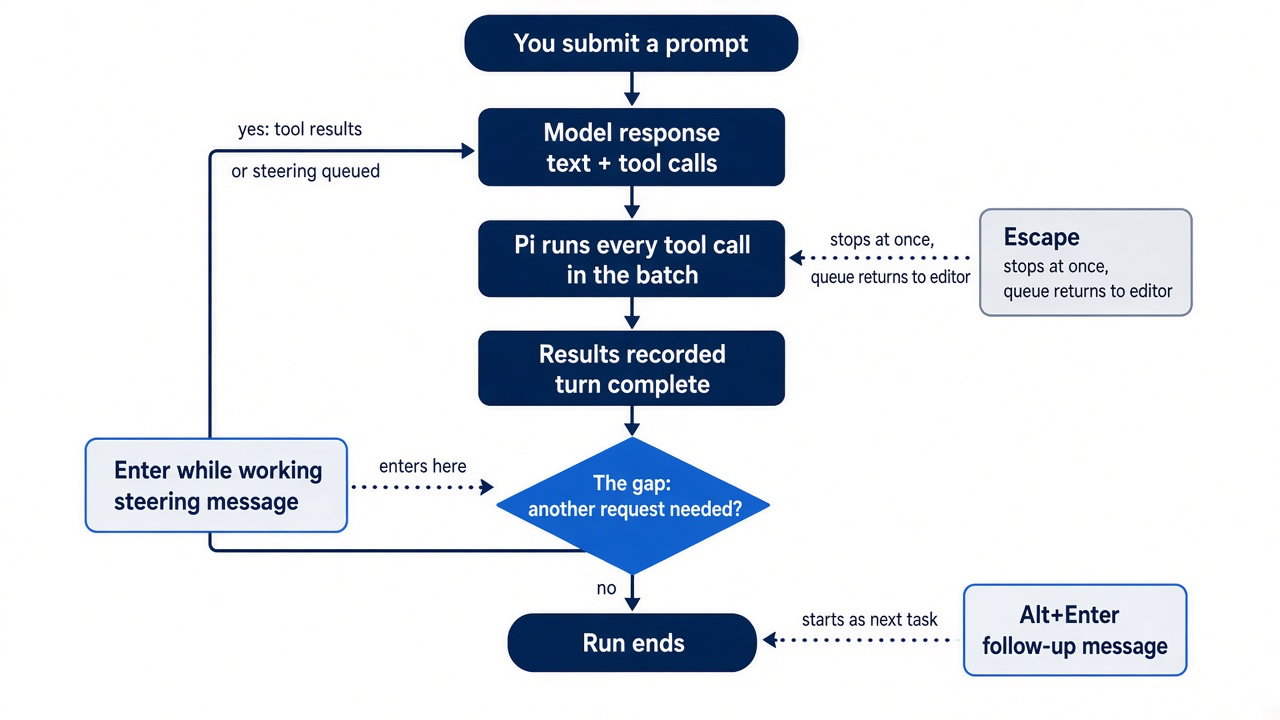
The diagram places each key on the loop. Steering enters at the gap after a turn, a follow-up waits for the run to end, and only Escape reaches into work already in motion.
The consequence is easy to miss. A correction does not cut into a batch of tool calls. If the response that issued the edit on src/classify.js also issued a bash call to run the tests, both run before the model reads anything you typed. Steering changes the next response, never the current one. Only Escape stops work that is already in motion. In the Start here test run, the edit the model had already issued still ran, and the steering message shaped the edit that followed it.
If you already use Claude Code: you redirect Claude Code by typing a new prompt while it works. Pi splits that habit in two. Enter sends a correction for the task in flight, and Alt+Enter queues new work for after the task. Pick the key by asking whether your sentence changes this task or starts the next one.
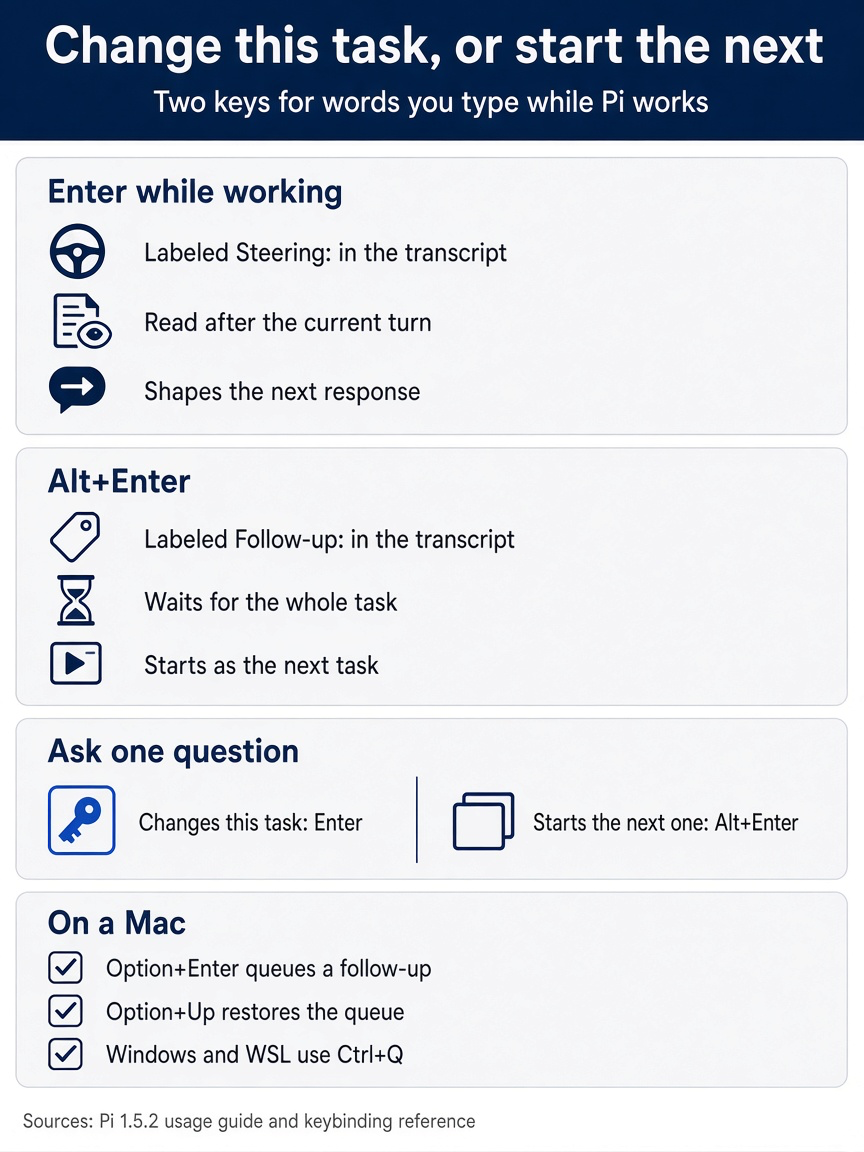
The choice comes down to one question. A sentence that changes the task in flight goes with Enter; a sentence that starts new work goes with Alt+Enter.
Four keys and the queue they share
Every message you send while Pi works waits in a queue, and the key decides where in the loop it leaves.
Pi's usage guide lists four controls for changing direction mid-run. On a MacBook, Alt is the Option key, so Alt+Enter is Option+Enter and Alt+Up is Option+Up.
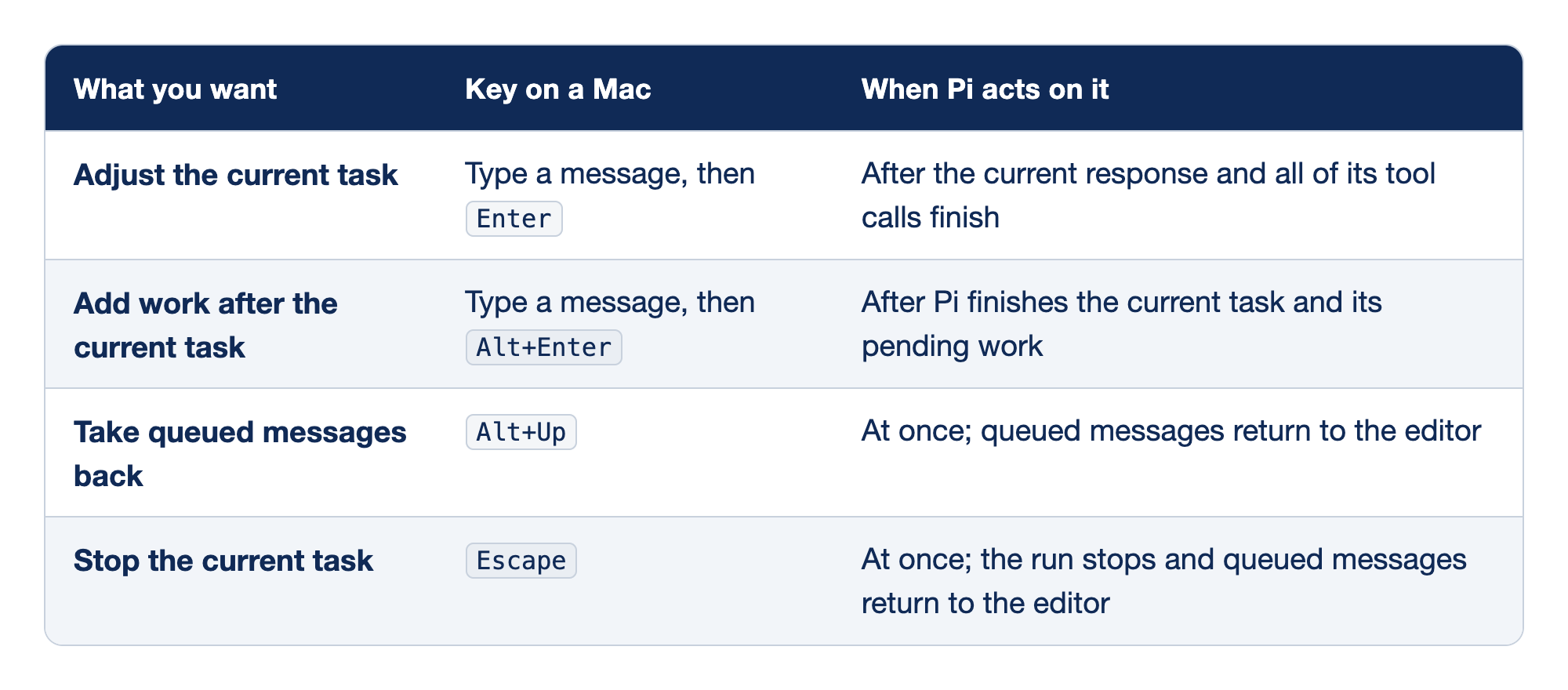
Pi's four mid-run controls each map one intent to a key and to the moment Pi acts on it. The "What you want" column names the intent, the "Key on a Mac" column names the key, and the "When Pi acts on it" column says where in the loop the key takes effect.
- To adjust the current task, you type a message and press
Enter, and Pi acts on it after the current response and all of its tool calls finish. - To add work after the current task, you type a message and press
Alt+Enter, and Pi acts on it after it finishes the current task and its pending work. - To take queued messages back, you press
Alt+Up, and the queued messages return to the editor at once. - To stop the current task, you press
Escape, and the run stops at once while queued messages return to the editor.
Two of the rows put words into the queue and two take control back. Read them as a pair of senders and a pair of brakes.
Enterwhile Pi works. The message is a steering message. It waits for the current response and its tool calls to finish, then guides the next response. When Pi is idle, the same key simply submits a prompt; the state of the run decides whatEntermeans.Alt+Enter. The message is a follow-up. It waits until Pi finishes the current task so that the work it asks for starts on a settled state instead of interleaving with work in progress.Alt+Up. Queued messages come back into the editor without stopping the run. Use it when you queued something and then thought of a better way to say it.Escape. The run stops, and anything still queued returns to the editor, so a follow-up you typed is not lost when you abort the work it was meant to follow.
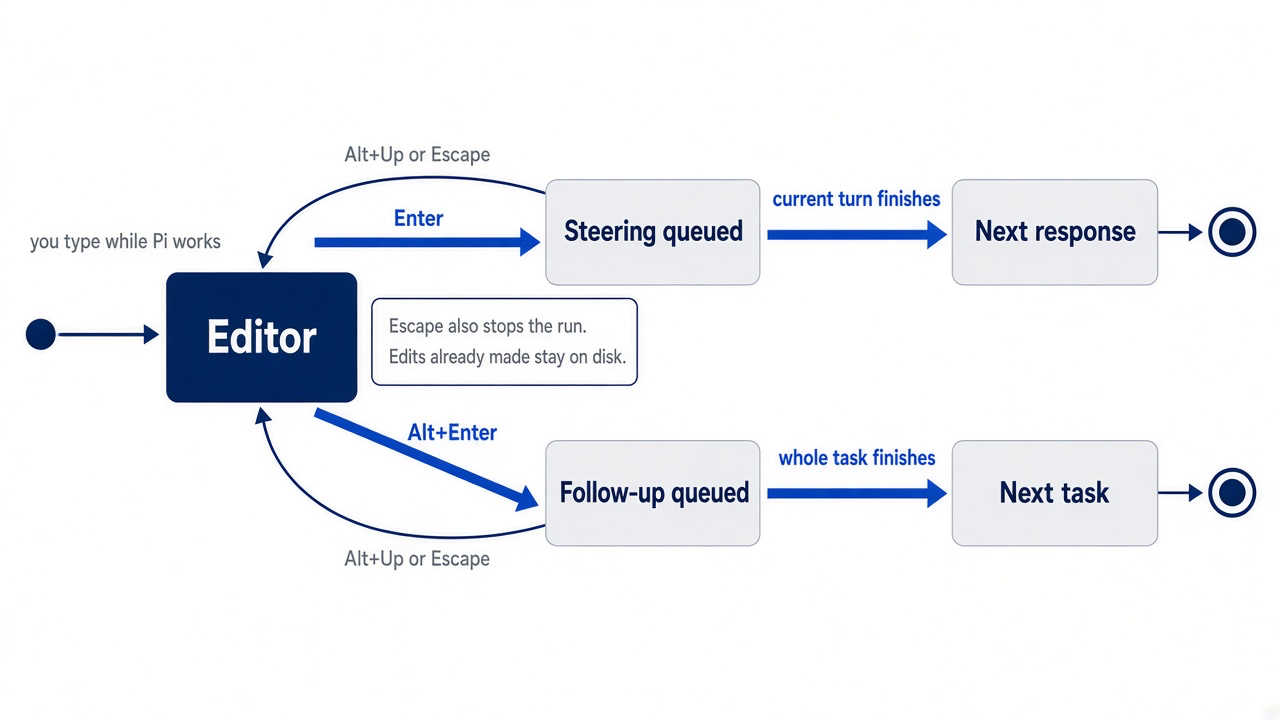
The state diagram follows one message through its life. From either queue, Alt+Up and Escape bring it back to the editor, which is why neither key ever costs you the words you typed.
Two settings in ~/.pi/agent/settings.json govern delivery when several messages wait at once: steeringMode for steering messages and followUpMode for follow-ups. Each accepts "all" or "one-at-a-time", and both default to "one-at-a-time". Leave them alone until you have a reason; the defaults are what this part describes.
Gotcha: an Enter correction cannot save a file the current batch is already editing. If you see the wrong edit call appear, the edit runs before the model reads your correction. Steer when the current batch is cheap to undo. Press Escape when it is not.
Redirect the rewrite with Enter
A good steering message names the file, what to keep, and what to stop, in one breath.
Back on Ticket Triage, the edit call on src/classify.js is already in the transcript. Type the correction into the editor while Pi works.
Stop the state machine. Revert your edit to src/classify.js and keep the existing if-chain. Add one damage check between the refund check and the shipping check, and nothing else.
Press Enter. The edit call in the current response still runs, because it was part of the batch, and so does anything else that response asked for. The next response reads your correction. If the correction holds, the model restores the if-chain and adds the one check.
Check the tree yourself rather than trusting the transcript. From a second terminal, ask Git what changed.
cd ~/code/ticket-triage
git status --short
git diff --stat
Once Pi has reverted the classifier and started on the damage check, only one file should show as modified.
M src/classify.js
The clean tree from Parts 1 and 2 is what makes this check worth anything: every line in git diff is Pi's work from this session. If src/classify.js still holds the state machine after the run ends, restore it yourself.
git checkout -- src/classify.js
The command puts the committed version back. Pi does not do this for you, and no Pi command restores files.
A steering message becomes part of the active branch like any other message. It costs context on every later request. Like any early "do not change" sentence, an hour of later material can outvote it. A correction you find yourself typing twice belongs in AGENTS.md, which Part 7 writes, or for now in the CLAUDE.md from Part 2.
Queue the test update with Alt+Enter
The test update is the next task, not a correction to this one, so it goes behind the classifier work instead of into it.
While Pi is still working on src/classify.js, type the follow-up.
Then add a test to test/classify.test.js for the crushed-mug ticket, and run npm test.
Press Alt+Enter (Option+Enter). Pi holds the message until the classifier work is finished, then starts on the tests. Had you pressed Enter, the next response would read "add a test" while the classifier change was half written, and the model would try to do both at once.
A minute later, you remember the other half of the change from Part 1: a crushed mug where the customer asks for money back should be refund, not shipping. The queued message does not say so. Press Alt+Up, and the queued text returns to the editor. Edit it.
Then add exactly two tests to test/classify.test.js: the crushed-mug ticket returns shipping, and a broken mug where the customer asks for money back returns refund. Run npm test.
Press Alt+Enter again. The run never stopped; you rewrote the next step while the current one kept going.
Gotcha: "add tests" without a number is an open invitation. In an earlier test run of this guide, a prompt that asked for the damage rule and "tests" without a count got seven new tests. The model also invented the ticket text because the prompt did not quote it. Quote the input and name the count, as Start here does.
Stop with Escape and keep the sentence
When two corrections do not hold, stop steering and start over with a better prompt.
Suppose the classifier work finishes, and before the follow-up starts, the model opens src/classify.js again and begins describing "states" for the classifier. The model read your correction, and later material outweighed it. A third correction would join the queue behind whatever batch is running now. Press Escape.
Escape
The run stops. Your queued follow-up about the two tests comes back into the editor, word for word, because aborting returns queued messages to the editor. You do not retype it.
Do not press Enter yet. Escape stopped the run, but it did not undo any edit that already landed. Check the tree from the second terminal first.
git status --short
git diff src/classify.js
If the classifier changed again, restore it with git checkout -- src/classify.js. Then turn the returned follow-up into one complete prompt. Move the cursor to the start of the editor and put the constraint first, or press Ctrl+G to finish it in your external editor.
Keep the existing if-chain in src/classify.js. Add one damage check between the refund check and the shipping check. Then add exactly two tests to test/classify.test.js: the crushed-mug ticket returns shipping, and a broken mug where the customer asks for money back returns refund. Run npm test.
Pi is idle now, so Enter submits this as a new prompt. The constraint arrives first, in the same message as the task, instead of as a late correction.
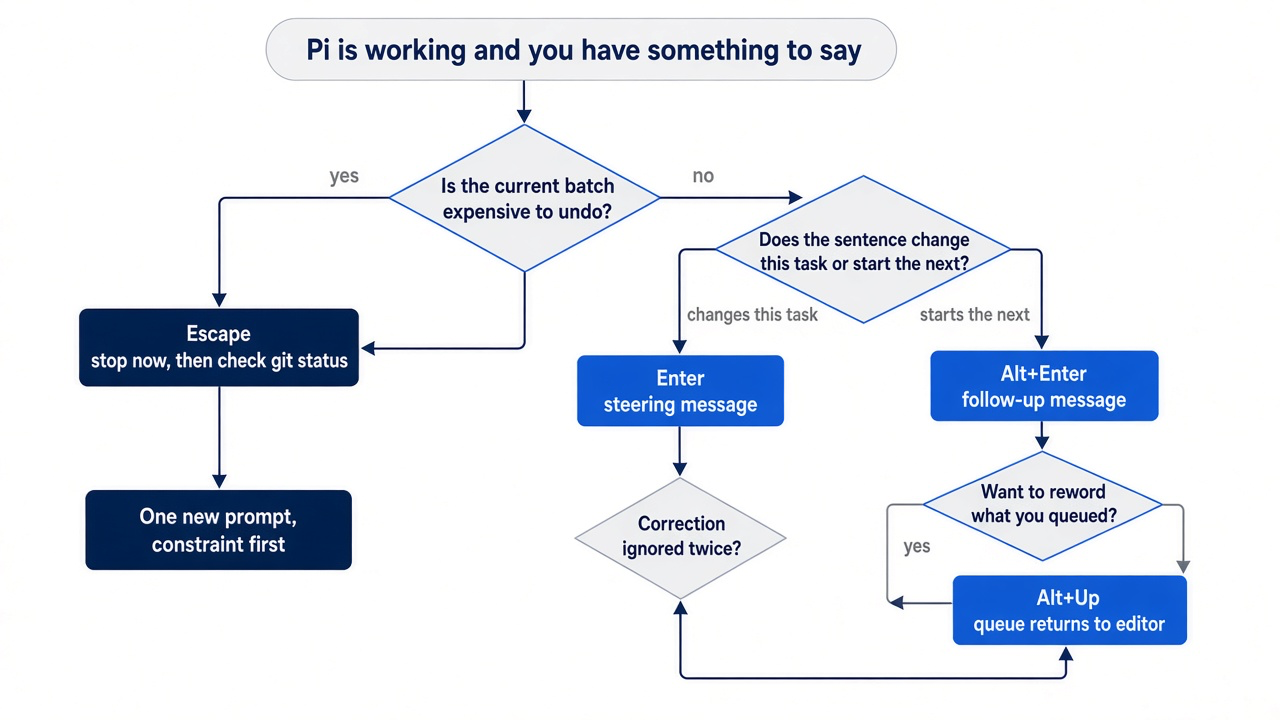
The decision flow condenses the whole walkthrough. Ask first whether the current batch is expensive to undo, then whether your sentence belongs to this task or the next, and treat a correction ignored twice as the signal to stop and rewrite.
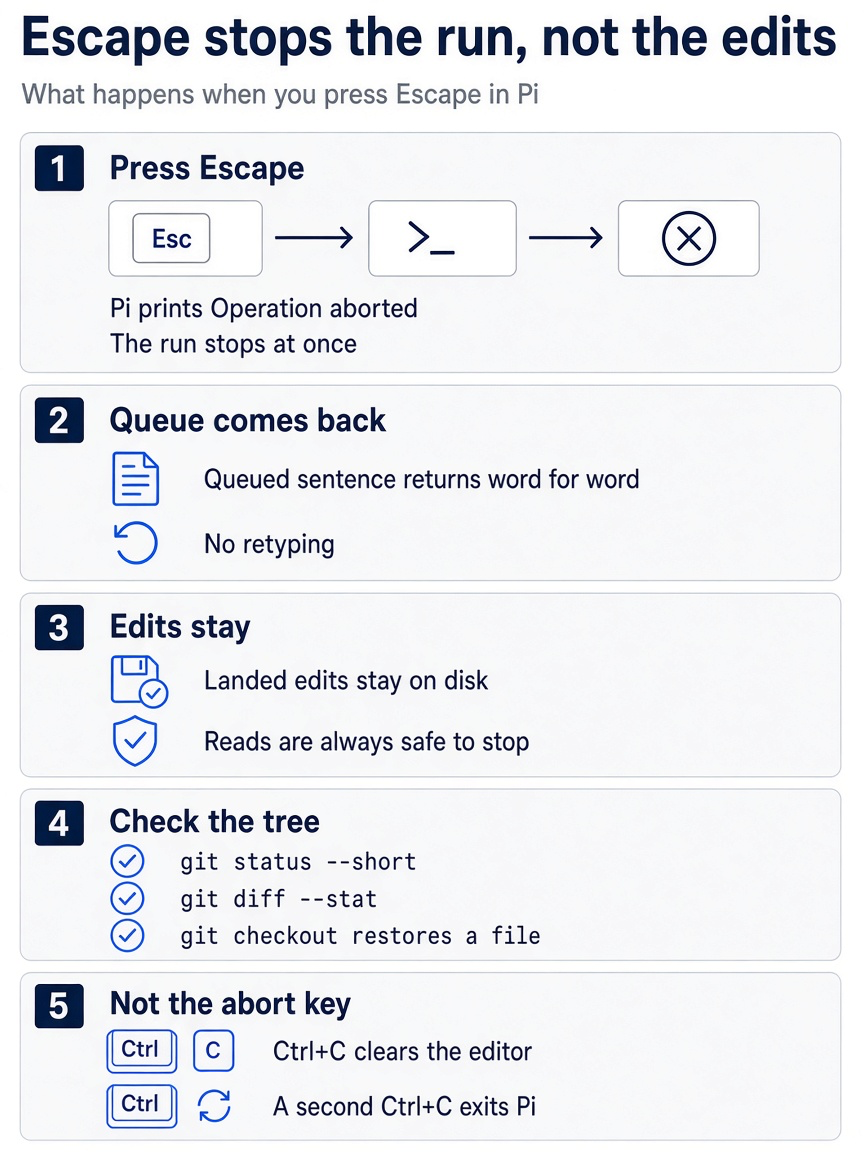
Escape protects your words, not your files. Your queued words come back; your files do not change back, and Git, not Pi, is the tool that restores them.
Gotcha: in Pi, Ctrl+C is not the abort key. The keybinding reference binds it to clearing the editor on the first press and exiting on the second. Press it twice out of habit, and you close Pi. Escape stops a run.
Gotcha: a stopped run stays in the session. In an earlier test run of this guide, a prompt stopped with Escape in the work session came back a day later: the model said it had "never answered your earlier request". Practice stops in a pi --no-session session, as Start here does, or start the next prompt by saying the stopped request is canceled.
If you already use Claude Code: Esc stops a run in both tools, but Esc Esc does not carry over. In Claude Code it rewinds. In Pi, a double Escape with an empty editor runs the action named by the doubleEscapeAction setting, which defaults to "tree" and opens the /tree navigator. The other values are "fork" and "none". /tree moves the conversation, not your files; close it without choosing an entry if you landed there by accident.
The editor keys you already reach for
If you use Claude Code, most of its editor habits carry over, and one of them changes meaning.
Pi's usage guide and keybinding reference name the keys you reach for while writing a prompt or reading a run.
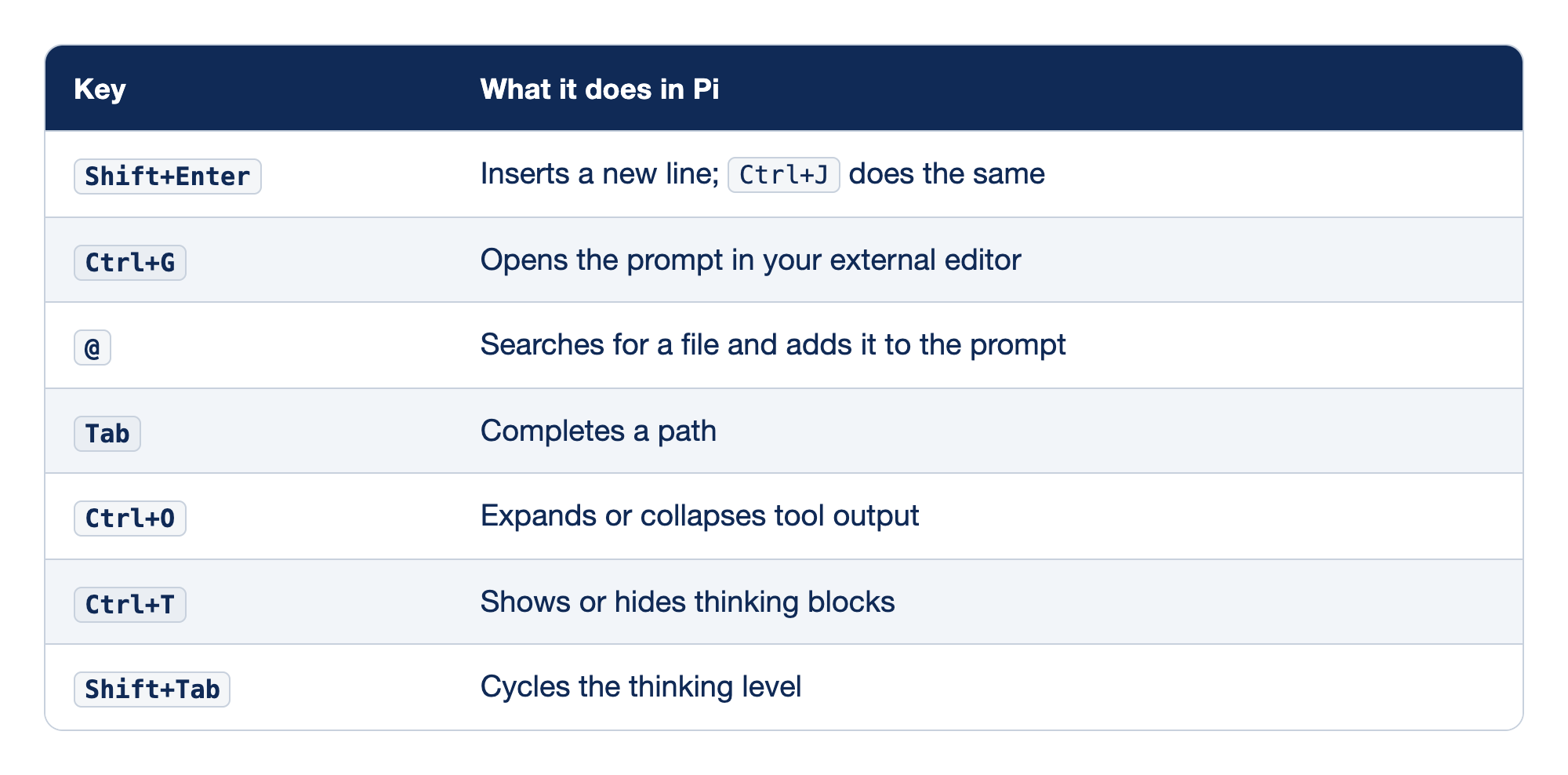
Seven editor keys cover writing a prompt and reading a run. The "Key" column names the key, and the "What it does in Pi" column says what pressing it does.
Shift+Enterinserts a new line, andCtrl+Jdoes the same.Ctrl+Gopens the prompt in your external editor.- `@` searches for a file and adds it to the prompt.
Tabcompletes a path.Ctrl+Oexpands or collapses tool output.Ctrl+Tshows or hides thinking blocks.Shift+Tabcycles the thinking level.
The first four rows shape what you send, and the last three change what you see or how the model reasons. Only the last row surprises a Claude Code user. The /hotkeys table in this guide's test run listed Ctrl+G, Ctrl+O, Ctrl+T, and Shift+Tab with these meanings. The test run did not press any of these keys.
Shift+Enter. It inserts a new line instead of submitting, so a multi-line correction stays one message.Ctrl+Jis the built-in alternative, which matters in terminals that cannot reportShift+Enter.Ctrl+G. It opens the editor contents in the command from theexternalEditorsetting, then$VISUAL, then$EDITOR, withnanoas the fallback on macOS and Linux and Notepad on Windows.@. It searches from the working folder, which is why Part 2 started Pi inside Ticket Triage. Part 4 uses@src/classify.jsas the precise way to point at one file in the window.Tab. It completes a path you are typing.Ctrl+O. It expands or collapses tool output on screen. It changes the display, not what the model already received.Ctrl+T. It shows or hides thinking blocks in the transcript.Shift+Tab. It cycles the thinking level for the current model, as the next section explains.
Shift+Tab is thinking, not permissions
In Claude Code, Shift+Tab cycles permission modes: default, acceptEdits, and plan, plus auto and bypassPermissions where they are available. Pi has no permission modes to cycle. Its keybinding reference assigns Shift+Tab to app.thinking.cycle, which cycles the thinking level.
The levels are off, minimal, low, medium, high, xhigh, and max, and Pi offers only the ones the selected model supports. The startup default comes from defaultThinkingLevel, which is "medium". The editor border shows the current level, so a glance at it tells you where the cycle left you. To pick a level directly instead of cycling, open the picker.
/thinking
Press Ctrl+S in the picker to save the chosen level as the startup level. Like the model, the thinking level is recorded in the session, so pi --continue brings back the level you left it on. Shift+Tab and /thinking were not run for this guide; the footer in every test run showed medium.
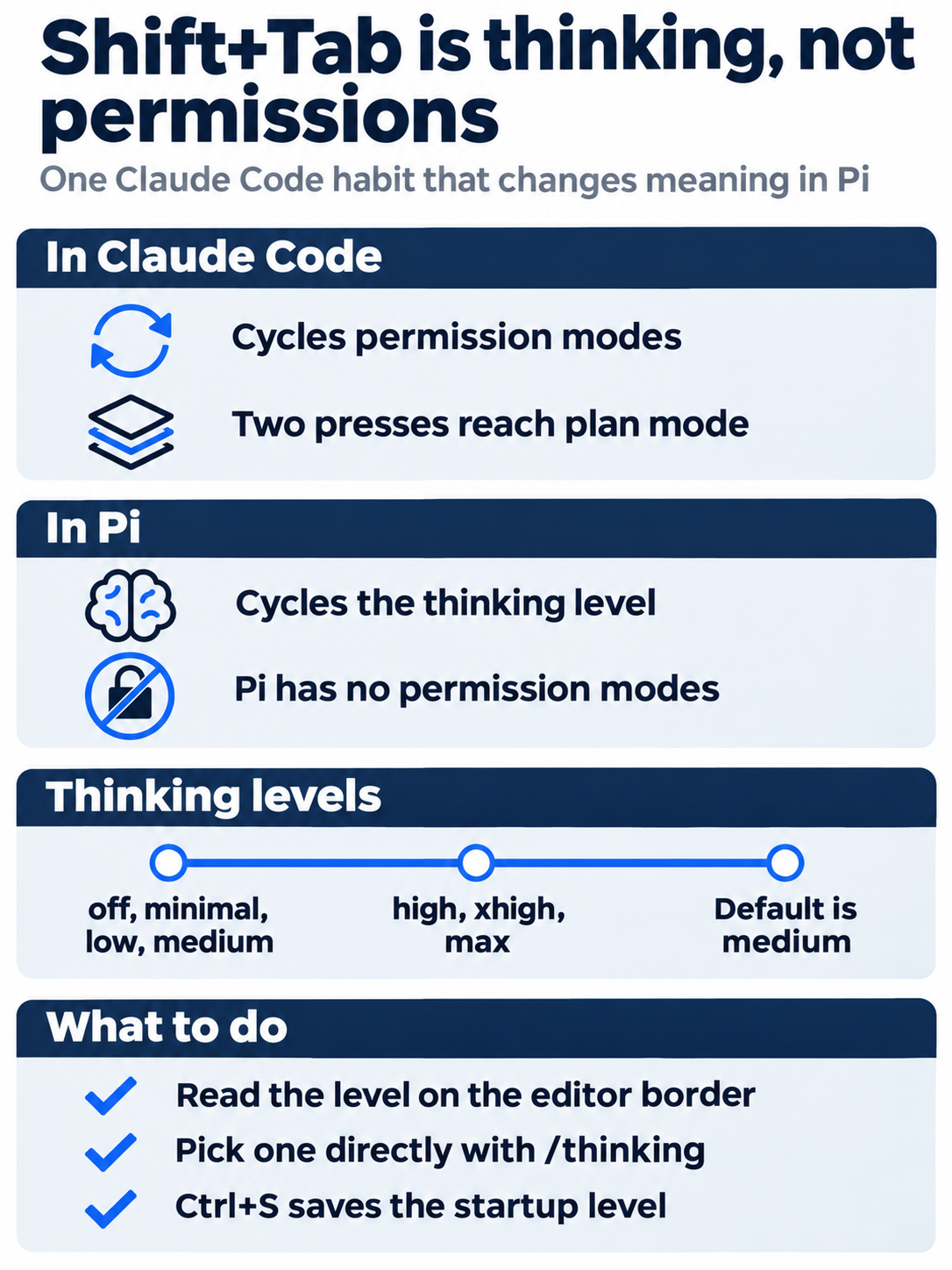
One key has two meanings. In Claude Code, Shift+Tab cycles permission modes, and two presses reach plan mode. In Pi, it cycles the thinking level, so the Claude Code habit of pressing it twice for plan mode does something entirely different.
Gotcha: pressing Shift+Tab twice to reach plan mode, out of Claude Code habit, changes how much the model reasons on every later request, and that changes token use and cost. Nothing tells you that plan mode is missing; the border just shows a different level. Pi has no built-in plan mode. A plan-mode/ example extension exists in Pi's extension examples, and Part 9 points at it.
When a key never arrives
Before you blame Pi, ask it what it receives.
Pi uses extended-key protocols so that a terminal can report Shift+Enter and Alt+Enter as different keys from plain Enter. Terminal proxies, multiplexers, and built-in IDE terminals can change or discard that information. Start by listing the shortcuts active in your session, as Start here did.
/hotkeys
The list shows Pi's active bindings, including any you changed. If Alt+Enter is listed for the follow-up queue and pressing it still submits a plain message, the terminal is the problem. Pi's terminal setup page covers each terminal separately.
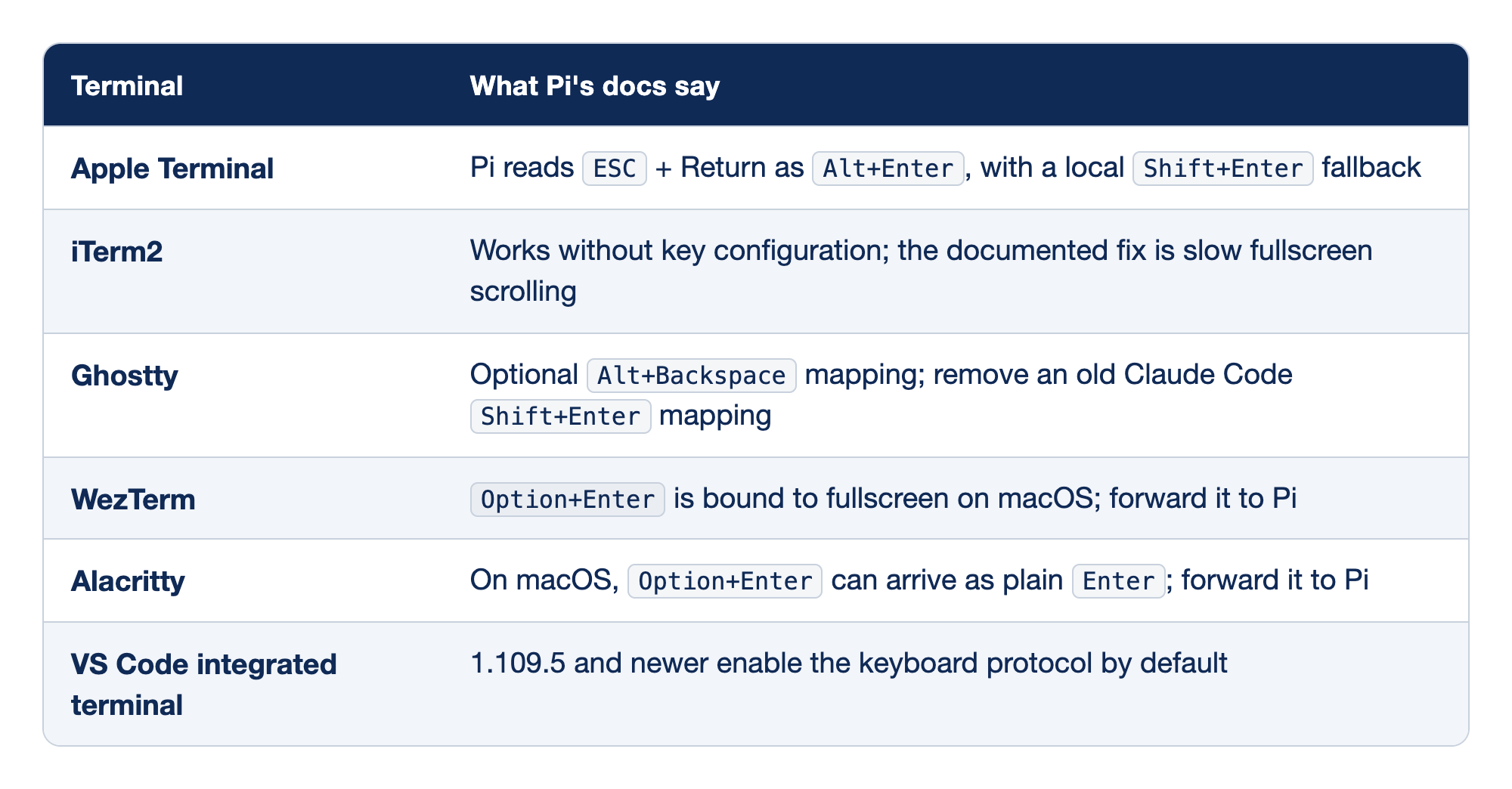
Six terminals each get a short note from Pi's terminal setup page. The "Terminal" column names the terminal, and the "What Pi's docs say" column sums up what it needs for Pi's keys.
- In Apple Terminal, Pi reads
ESC+ Return asAlt+Enterand has a localShift+Enterfallback. - iTerm2 works without key configuration, and its one documented fix is for slow fullscreen scrolling.
- Ghostty has an optional
Alt+Backspacemapping, and an old Claude CodeShift+Entermapping should come out. - WezTerm binds
Option+Enterto fullscreen on macOS, and you forward the key to Pi. - In Alacritty on macOS,
Option+Entercan arrive as plainEnter, and you forward the key to Pi. - The VS Code integrated terminal enables the keyboard protocol by default from version 1.109.5.
The table answers one question per terminal: does it need anything for Pi's keys? Most of the terminals a Mac developer uses need nothing.
- Apple Terminal. Pi enables enhanced key reporting when it is available. If Terminal.app still sends plain Return or
ESC+ Return forShift+Enter, Pi checks the local modifier state and treats it asShift+Enter, whileESC+ Return without Shift held staysAlt+Enter. The fallback works only when Pi runs on the same Mac; over SSH it cannot see the Shift key. - iTerm2. Keys work as they are. In fullscreen mode, fast trackpad gestures can scroll about one line at a time; set iTerm2 > Settings > Advanced > Trackpad scrolls fast? to No, knowing that it is an iTerm2-wide setting.
- Ghostty. If
Alt+Backspacedoes not delete a word, addkeybind = alt+backspace=text:\x1b\x7fto Ghostty's config file. - WezTerm. WezTerm takes
Option+Enterfor its own fullscreen toggle on macOS, so the follow-up key never reaches Pi until you forward it. - Alacritty. On macOS,
Option+Entercan arrive as plainEnter, which turns every follow-up into a submitted prompt until you forward it. - VS Code integrated terminal. Recent versions need nothing; older ones need a
Shift+Enterbinding in VS Code'skeybindings.json, which the terminal setup page lists.
Gotcha: an old Claude Code setup may have added keybind = shift+enter=text:\n to your Ghostty config. The mapping sends a raw linefeed, which Pi cannot tell apart from Ctrl+J. It looks as if it works, but it stops Pi and tmux from receiving a real Shift+Enter. Remove it if Claude Code was the only reason you added it.
For WezTerm, add this entry to the config.keys table in ~/.wezterm.lua.
{
  key = 'Enter',
  mods = 'ALT',
  action = wezterm.action.SendString('\x1b[13;3u'),
}
The entry sends the sequence Pi reads as Alt+Enter instead of letting WezTerm go fullscreen. For Alacritty, add this to ~/.config/alacritty/alacritty.toml and restart Alacritty.
[[keyboard.bindings]]
key = "Enter"
mods = "Alt"
chars = "\u001b[13;3u"
Both fixes forward the key with an explicit sequence. Neither asks you to change how the terminal treats the Option key, and Pi's terminal setup page asks for no such setting in any terminal. After either change, run /hotkeys and press Alt+Enter on a queued message to confirm. The terminal fixes in this section were not run for this guide.
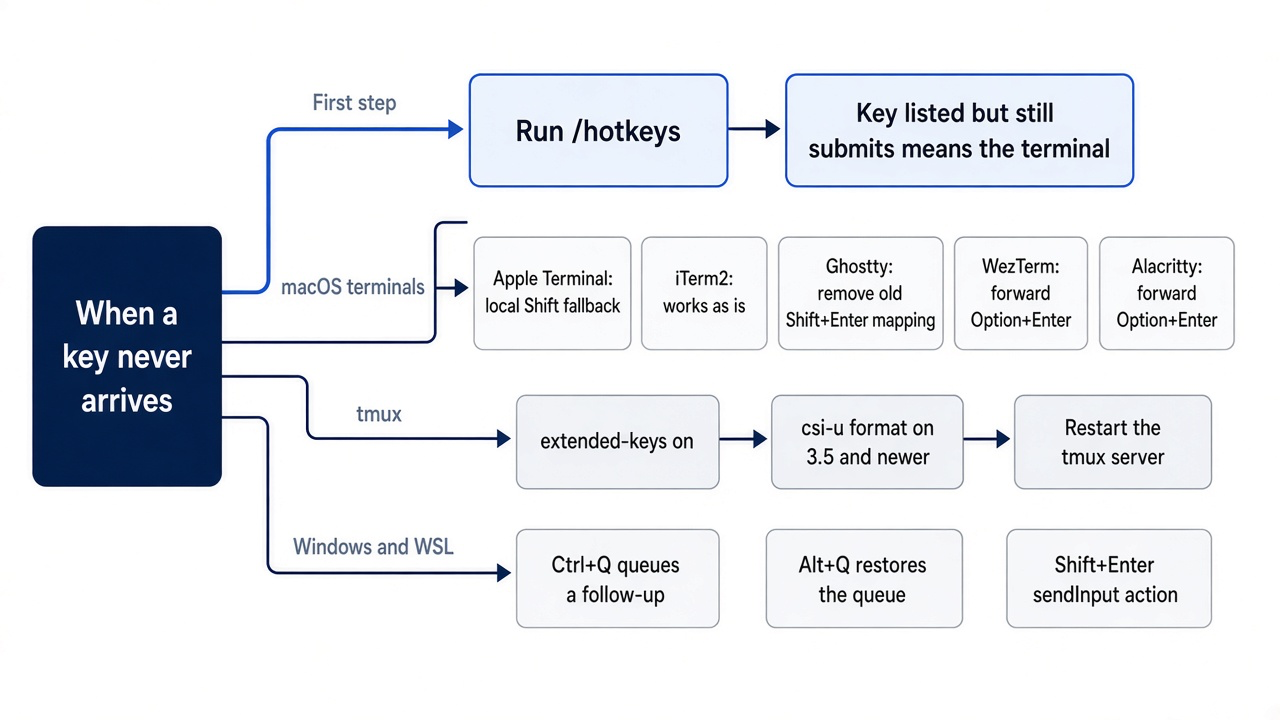
The mind map is a troubleshooting index. Find your terminal, and the branch names the one change it needs.
Inside tmux
tmux can report Shift+Enter, Ctrl+Enter, and plain Enter as the same key until you turn on extended keys. Check the version first.
tmux -V
For tmux 3.5 or newer, add both lines to ~/.tmux.conf. For tmux 3.2 through 3.4, add only the first line.
set -g extended-keys on
set -g extended-keys-format csi-u
The setting applies to the tmux server, so close your tmux sessions and start a new server. The command-line route ends every session on that server, so save your work first.
tmux kill-server
tmux
Start Pi in the new session and confirm three things: Shift+Enter inserts a new line, Enter submits, and Alt+Enter queues a follow-up. If they still act like plain Enter, check the terminal outside tmux against the previous section.
This guide's own tests ran in tmux 3.8 with extended-keys off. The test harness sent Alt+Enter with tmux send-keys M-Enter, which arrives as ESC + Return, and Pi queued it as a follow-up. This guide did not test a physical key press inside tmux. With the same setting, tmux send-keys S-Enter submitted the prompt instead of adding a line, as this section predicts, and Ctrl+J added the line.
On Windows and WSL, the queue moves to Ctrl+Q
Windows Terminal binds Alt+Enter to fullscreen, so Pi ships different defaults on native Windows and in WSL.
The keybinding reference lists a separate default wherever the Windows key would collide. These are the ones that change what you type in this part's walkthrough and the editing around it.
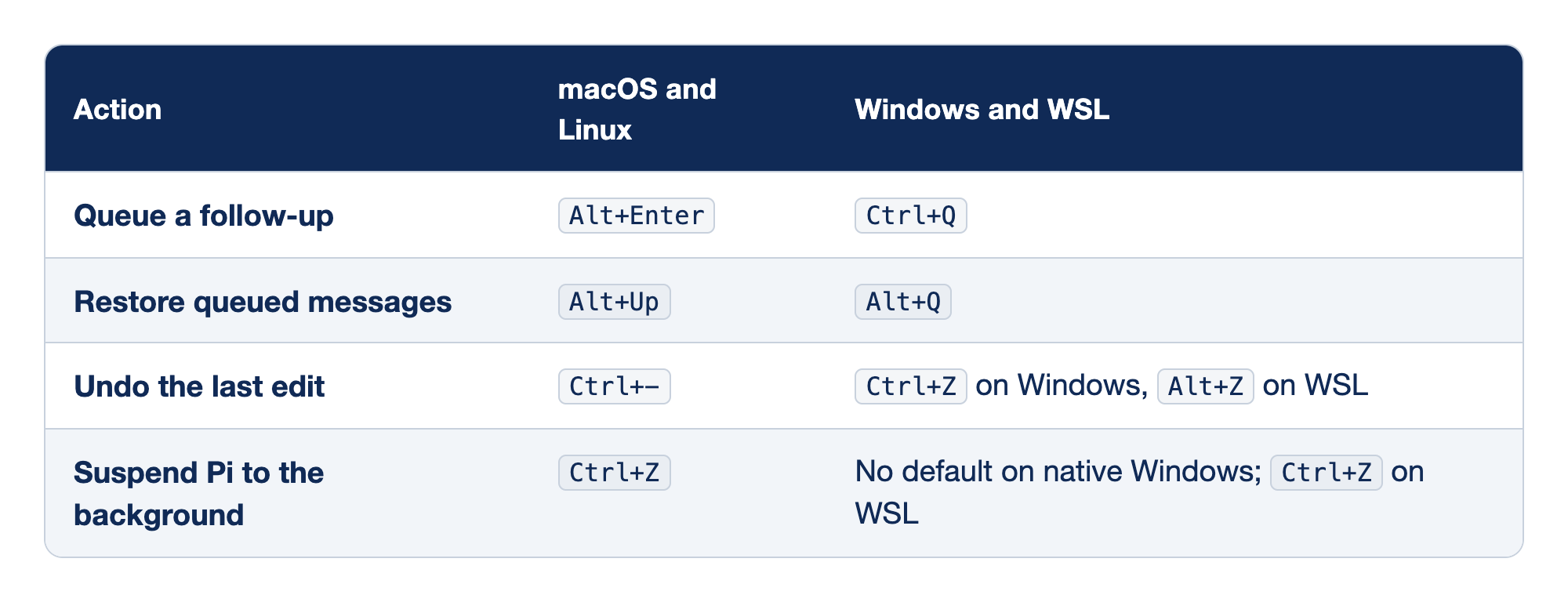
Four actions use different default keys on Windows and WSL than on macOS and Linux. The "Action" column names what you want to do, the "macOS and Linux" column gives the default key there, and the "Windows and WSL" column gives the key to press instead.
- Queuing a follow-up uses
Alt+Enteron macOS and Linux andCtrl+Qon Windows and WSL. - Restoring queued messages uses
Alt+Upon macOS and Linux andAlt+Qon Windows and WSL. - Undoing the last edit uses
Ctrl+-on macOS and Linux,Ctrl+Zon native Windows, andAlt+Zon WSL. - Suspending Pi to the background uses
Ctrl+Zon macOS, Linux, and WSL, and native Windows has no default.
Read the table as a translation for the walkthrough above. Everywhere this part says Alt+Enter, a Windows or WSL reader presses Ctrl+Q.
- Queue a follow-up.
Ctrl+QreplacesAlt+Enterbecause Windows Terminal claimsAlt+Enterfor fullscreen. - Restore queued messages.
Alt+QreplacesAlt+Up. - Undo the last edit. Native Windows uses
Ctrl+Zand WSL usesAlt+Z, becauseCtrl+-is not the default there. - Suspend Pi. Native Windows terminals do not support Unix job control, so the action has no default. WSL keeps the normal
Ctrl+Zandfgbehavior.
Enter and Escape are the same on every platform.
On Linux and WSL: Linux uses the macOS defaults, including Alt+Enter and Alt+Up. Only WSL takes the Windows defaults. When you are unsure which defaults a session got, read /hotkeys rather than guessing.
Shift+Enter can need a step of its own in Windows Terminal. Natively on Windows, Pi checks the local Shift key state and treats Return as Shift+Enter while Shift is held, but that fallback does not work in WSL or over SSH. If Shift+Enter still submits, open Windows Terminal's settings.json with Ctrl+Shift+, and add this object to its actions array.
{
  "command": { "action": "sendInput", "input": "\u001b[13;2u" },
  "keys": "shift+enter"
}
Fully close and reopen Windows Terminal, then check that Shift+Enter inserts a new line in Pi.
If you would rather keep Alt+Enter for follow-ups, the docs describe two steps: configure Windows Terminal to forward the key instead of going fullscreen, and bind the action in Pi's ~/.pi/agent/keybindings.json.
{
  "$schema": "https://pi.dev/schemas/keybindings.schema.json",
  "app.message.followUp": "alt+enter"
}
A configured value replaces the default for that action. Run /reload to apply it, then confirm the change with /hotkeys. The Windows and WSL steps were not run for this guide.
Do this today
Everyone
-
See what Pi receives. Start Pi in your repository with
pi --no-sessionand list the active shortcuts. Find the follow-up and restore keys for your platform. Their actions are namedQueue follow-up messageandRestore queued messages./hotkeys -
Prove the modified keys. Start
pi --no-sessionand type a few words. In the editor, pressShift+Enterand confirm it adds a line. The cursor moves to a second line, and nothing is sent. If the words are sent instead, pressEscape, then tryCtrl+J, which adds a line in every terminal; Going deeper fixes the terminal. PressCtrl+Cto clear the editor. -
Queue one follow-up, then abort on purpose. In a
pi --no-sessionsession, give Pi the long prompt from Start here, queue the next step withAlt+Enter(Ctrl+Qon Windows and WSL), pressEscapebefore the task finishes, and watch the queued sentence come back to the editor. Pi printsOperation aborted.Describe every file in this repository in detail.Then list three test ideas. -
Check the tree after the abort.
Escapedoes not undo edits that already landed, so look before you continue. The tree still shows only the two files from Start here.git status --short git diff --stat
If you read Going deeper
-
Check tmux, if you work in it. If you work in tmux, check the version and set up extended keys first. The version decides which lines go in
~/.tmux.conf. The command prints a version such astmux 3.5a.tmux -V -
Steer one real task. In a repository of your own, give Pi a small change, and while it works, send a one-sentence correction with
Enterthat names a file to leave alone. The transcript shows your message with the labelSteering:, andgit diff --statafterward does not list that file.Keep the existing tests unchanged; only edit the source file.This step uses your own repository, so it was not run for this guide.
The gap is where you steer
The wrong diff in the opening was not a failure of the keys. It was a failure of timing. A correction typed while a batch of tool calls runs can only shape the next response, so the batch you were trying to stop finishes first. Once you see the loop as turns separated by gaps, every key falls into place: Enter speaks at the next gap, Alt+Enter waits for the run to end, Alt+Up takes your words back, and Escape is the only key that reaches into work already in motion.
The habits that follow from that are small. Quote the input and name the count so the model has less room to wander. Steer early, while the batch is cheap. Queue the next task instead of cramming it into the current one. Stop when two corrections fail, and put the constraint first in the prompt that replaces them. After every stop, ask Git, not the transcript, what changed.
You cannot interrupt a turn, but you can always be waiting at the gap.
This is Part 3 of "Pi, Day to Day," a 12-part guide to running the Pi coding agent with the same daily discipline as Claude Code.