Claude Code Remote Control: Code From Your Phone
Learn how Claude Code's Remote Control feature lets you continue coding sessions running on your workstation from your phone. Setup guide, security deep dive, and real-world workflows.
Originally published on Medium.
Learn how Claude Code's Remote Control feature lets you continue coding sessions running on your workstation from your phone. Setup guide, security deep dive, and real-world workflows.
Your phone buzzes at dinner. A production alert. Six months ago, this meant a rushed drive home and twenty minutes reconnecting to your development environment. Today, you pull out your phone, scan a QR code, and connect to the Claude Code session already running on your workstation. You describe the symptom. Claude reads your logs, traces the root cause through your actual codebase, patches the fix, and runs your test suite. Dinner resumes. The food is still warm.
This is Remote Control, the newest Claude Code feature announced on February 24, 2026. It lets you continue any local Claude Code session from your phone, tablet, or any browser. Your files never leave your machine. Your MCP servers keep running locally. Only the conversation flows through the cloud.
Here is how to set it up, how it works under the hood, and how to make the most of it.
What Remote Control Actually Does
Remote Control connects a second screen to a Claude Code session running on your machine. Think of it as a lightweight screen-share for your AI coding assistant, purpose-built for mobile use.
The key distinction is this: Claude Code keeps running locally. Your files, your MCP server configurations, your project credentials, and your .claude/ settings all stay on your machine. What travels through Anthropic's servers is limited to two things: the messages you type and the tool results Claude generates.
This makes Remote Control fundamentally different from Claude Code on the Web, where your code runs on Anthropic's cloud VMs. With Remote Control, your local environment is the environment. You get the same behavior you would get sitting in front of your terminal.
Requirements:
- Claude Code v2.1.51 or later
- Pro or Max subscription (Team and Enterprise coming later)
- The Claude mobile app (iOS or Android) or any browser
How it Works Under the Hood
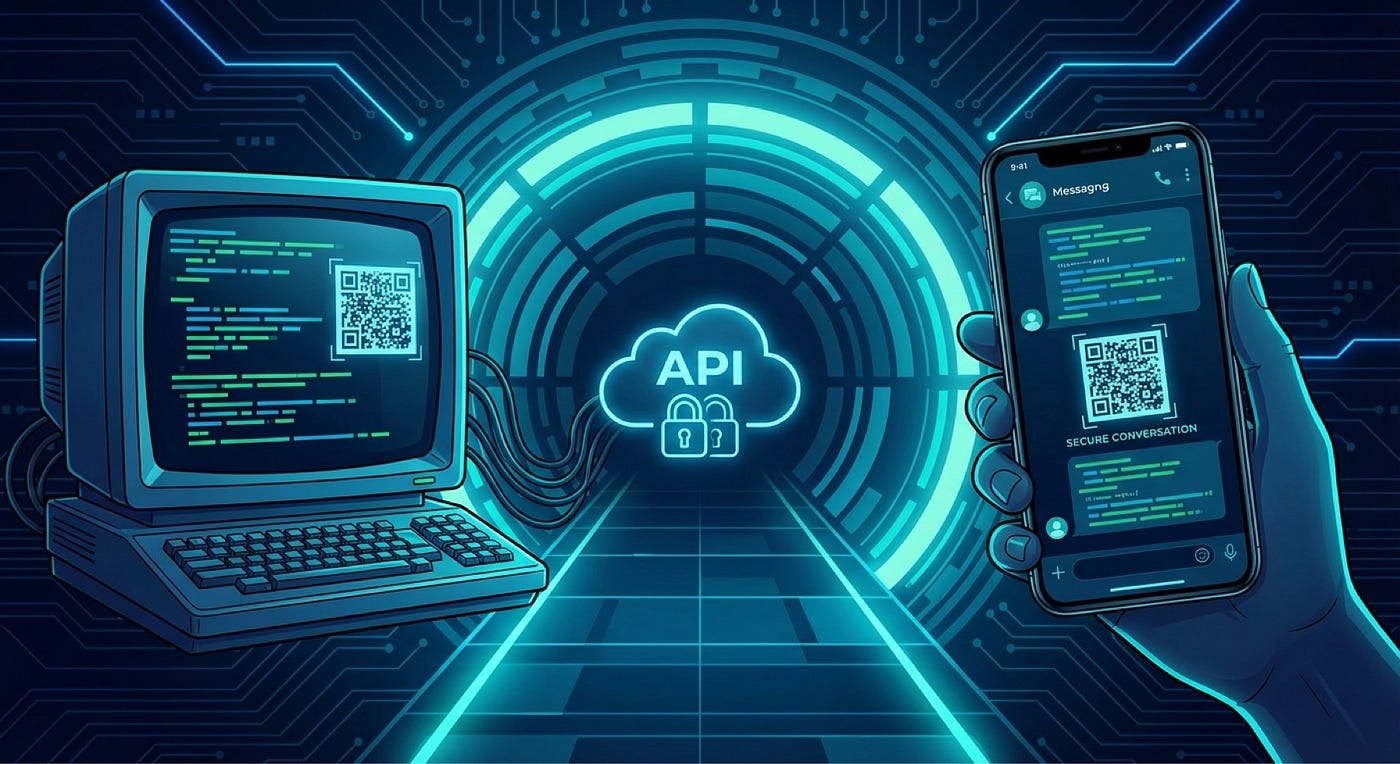
The architecture is deliberately simple and secure.
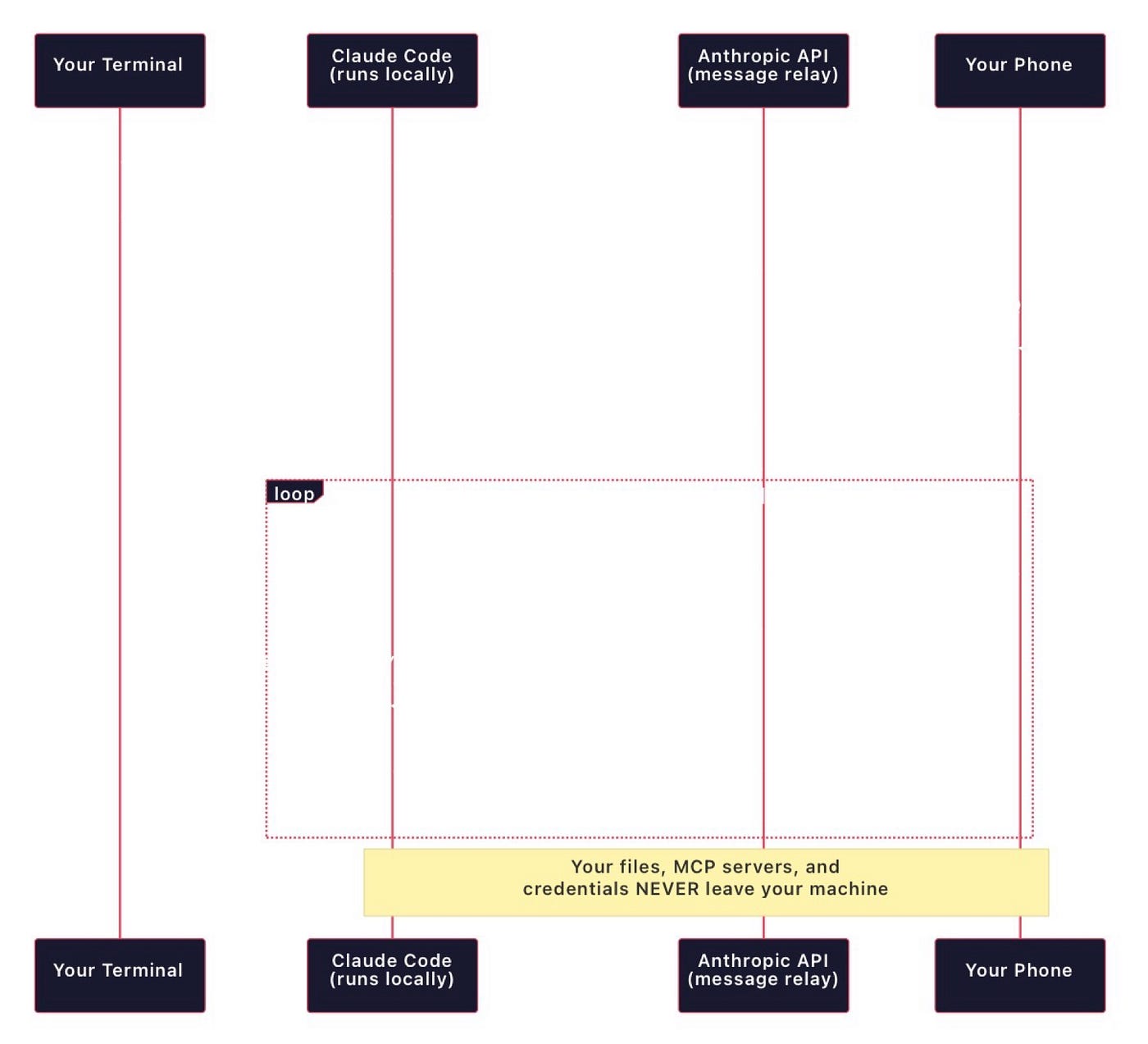
Every connection in this diagram is outbound from your machine. Claude Code never opens an inbound port. It establishes an outbound HTTPS connection to Anthropic's API, which acts as a message relay. Your phone connects to the same API endpoint from the other side.
This is the same pattern used by Tailscale and ngrok tunnels. It means Remote Control works behind NAT, corporate firewalls, and home routers without any configuration changes. No port forwarding. No firewall rules. No VPN required.
Getting Started in 60 Seconds
Start a New Remote Session
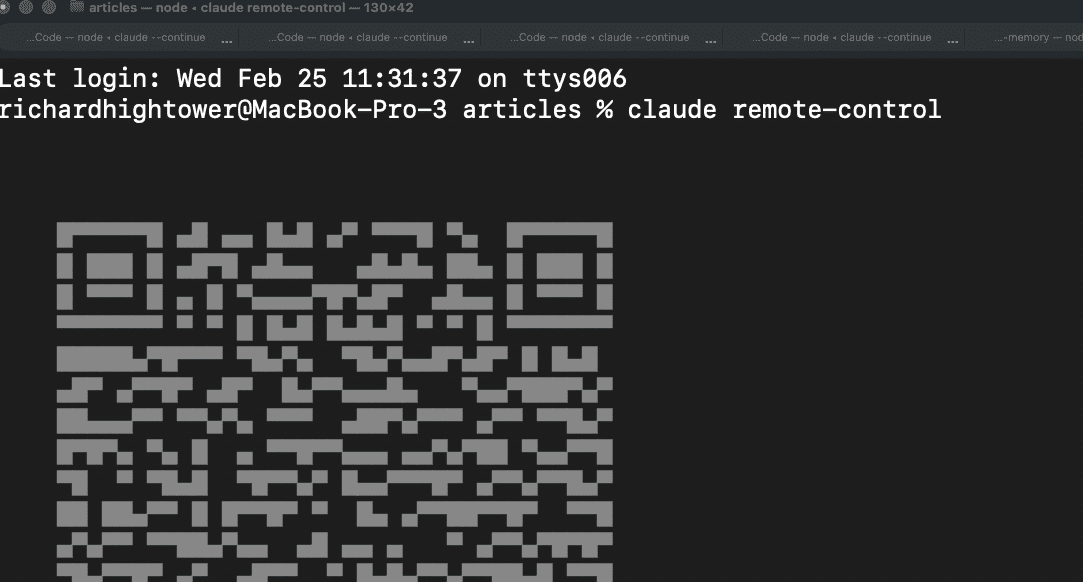
claude remote-control
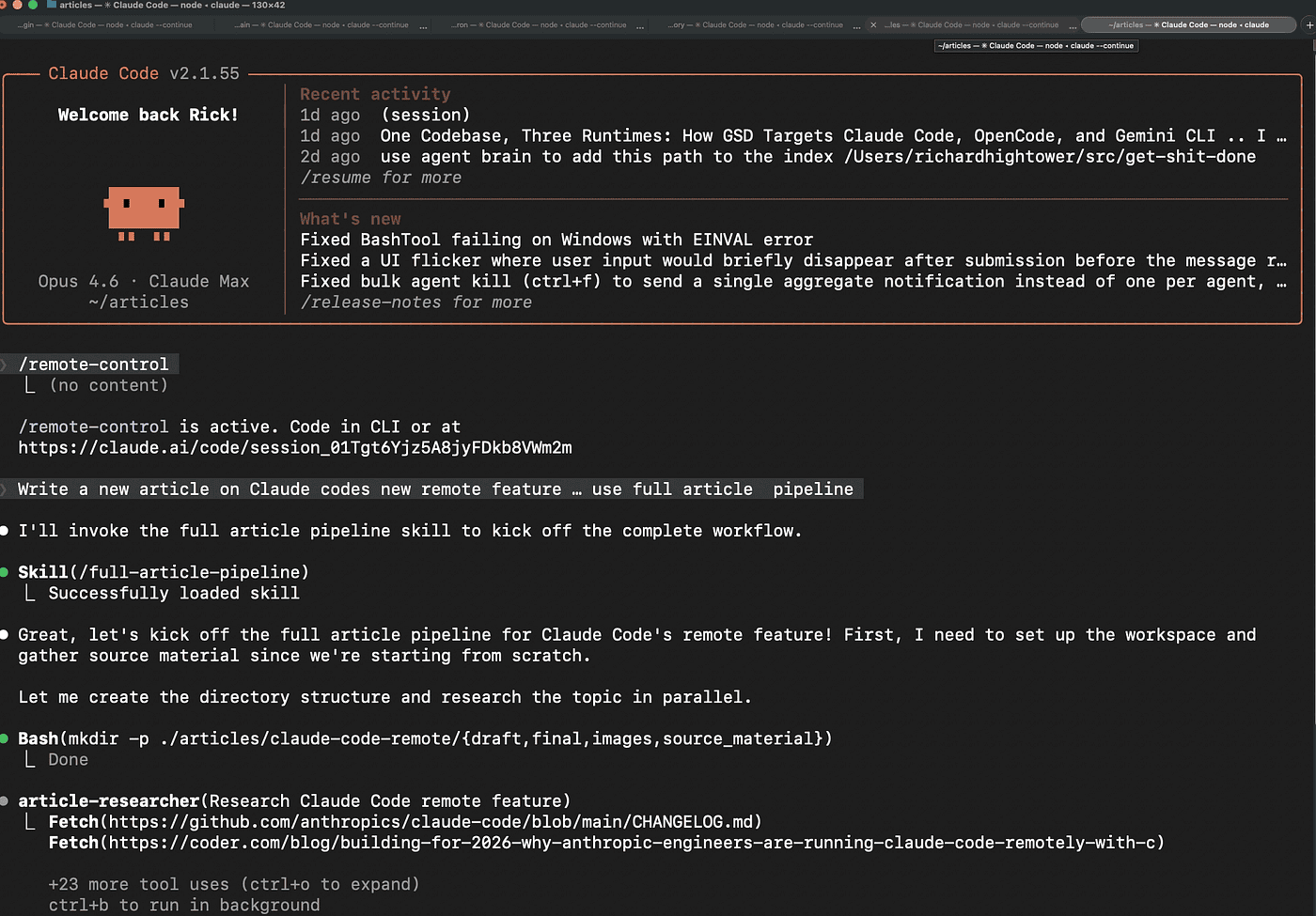
That is it. Claude Code generates a session URL, displays a QR code in your terminal, and registers the session with Anthropic's API. Press spacebar to toggle the QR code display. (Currently, I just get a URL no QR code but this is new so your results might vary).
Go Remote from an Existing Session
If you are already working with Claude Code and want to continue from your phone, run one of these commands inside the active session:
/remote-control
or the shorthand:
/rc
This carries over your full conversation history, every file Claude has read, and all work done so far. You are not starting a new session; you are extending the one you already have.
Connect from Your Phone
Three ways to connect:
- Scan the QR code with your phone camera. Opens directly in the Claude app.
- Open the URL in any browser to connect via claude.ai/code.
- Open the Claude app and find the session by name (look for the computer icon with a green dot).
Need the Claude app? Run /mobile in any session for an install QR code.
Enable for Every Session Automatically
Then toggle "Enable Remote Control for all sessions" to true. I have not tried this one yet.
Now every session is remotely accessible from the moment it starts. You will never need to remember to run /rc before heading out.
Real-World Workflows
Remote Control is not just a novelty. Here are the workflows developers are already using.
On-Call Response
The scenario from the opening is the most obvious use case. You get an alert, connect from your phone, and Claude has full access to your logs, your monitoring tools (via MCP), and your codebase. You can diagnose and fix issues without leaving wherever you are.
Pro tip: Keep a tmux session running with Claude Code so the process survives terminal disconnects:
tmux new -s oncall

claude remote-control
Use Ctrl+B, D to detach -- session keeps running.
Commute Coding
Start a task at your desk. Detach and head to the train. Reconnect from your phone and keep directing Claude while you commute. The session remembers everything, so you pick up exactly where you left off.
Couch Code Reviews
Your teammate pushes a PR at 9 PM. Instead of opening your laptop, name your session and go remote before leaving your desk.
Before you leave your desk:
/rename pr-review-frontend

/rc
From the couch, ask Claude to review the diff, check for security issues, or suggest improvements. Named sessions make it easy to find the right one when you have multiple running.
Pair Debugging from Anywhere
A junior developer is stuck on a bug. They share their Remote Control URL with you, or you walk them through running /rc. You connect from your device and collaborate through the same Claude session, both seeing the same context and conversation history.
Pair programming in the AI era. This assumes you are on the same enterprise team, and this as far as I know isn't working yet but the vision is cool.
Security Deep Dive
Remote Control's security model has four properties worth understanding.
Outbound only: Your machine never accepts inbound connections. It polls the Anthropic API over TLS. This eliminates the most common attack vector in remote access tools: exposed ports.
Short-lived credentials: Multiple credentials are generated, each scoped to a single purpose and expiring independently. A compromised session token cannot be replayed after expiry.
Local execution: Files, MCP servers, and project configuration never leave your machine. The API relay sees conversation text and tool results, nothing else.
Same-account auth: The remote device must be authenticated with the same claude.ai account as the local session. There is no anonymous or shared access.
The threat model is clear: if Anthropic's relay were compromised, an attacker would see your conversation messages and tool outputs. They would not see your files, credentials, project structure, or MCP server data. The relay is a stateless message pipe, not a data store.
Tips and Tricks
Name Your Sessions
/rename auth-refactor

/rc
When you have three sessions running and you are on your phone, names like "auth-refactor" and "pr-review-frontend" are far more useful than timestamps.
Pair with tmux for Persistence
Remote Control requires the terminal to stay open. Wrap it in tmux so the process survives if your terminal app closes:
tmux new -s claude-rc

claude remote-control
Reconnect later with tmux attach -t claude-rc if you need to see the terminal output.
Use with Plan Mode
Start in plan mode to explore and strategize with full local context, then keep directing execution from your phone.
claude --permission-mode plan
# Explore the codebase, discuss approach...
/rc
# Continue from phone:
# "Go ahead and implement the plan we discussed"
This pattern works especially well for large refactors where you want to think through the approach carefully before committing to any changes.
Set Up a Notification Hook
Know when Claude finishes a long task while you are away:
#!/bin/bash
# .claude/hooks/notify.sh
if [ -n "$CLAUDE_REMOTE_SESSION" ] || [ -n "$SSH_CONNECTION" ]; then
  curl -s -d "Claude done: $(basename $(pwd))" ntfy.sh/your-topic
fi
This sends a push notification via ntfy whenever Claude completes work during a remote session. No more checking your phone every few minutes.
Limitations and When to Use Something Else
Every tool has tradeoffs. Here is where Remote Control falls short and what to use instead.
One session per connection. Each Claude Code instance supports one active remote viewer. You cannot have two phones watching the same session simultaneously.
Terminal must stay open. If the process exits, the remote session ends. Use tmux or screen as described above.
Network timeout. Extended outages of roughly 10 minutes cause the session to time out. For truly unreliable connections (spotty mobile on a train), the community SSH + mosh + tmux stack handles intermittent connectivity more gracefully.
Pro and Max only. Team and Enterprise plans are not yet supported during the research preview.
No full terminal access. Remote Control shows you the Claude conversation, not a raw terminal. If you need to run arbitrary commands, SSH + tmux gives you a full shell.
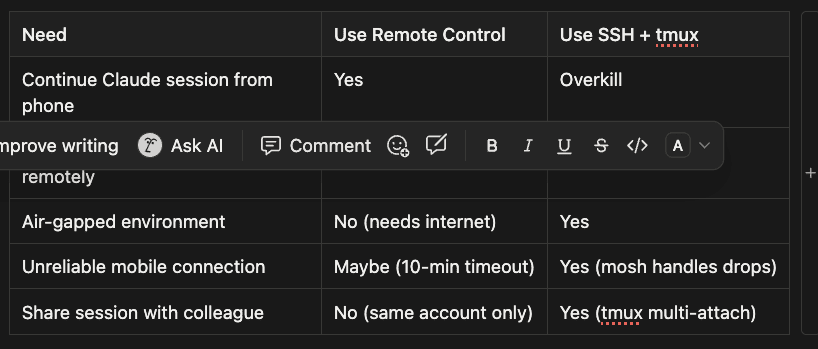
- Continue Claude session from phone: Use Remote Control | SSH + tmux is overkill
- Run arbitrary terminal commands remotely: Remote Control no | Use SSH + tmux
- Air-gapped environment: Remote Control no (needs internet) | Use SSH + tmux
- Unreliable mobile connection: Remote Control maybe (10-min timeout) | SSH + tmux (mosh handles drops)
- Share session with colleague: Remote Control no (same account only) | SSH + tmux (tmux multi-attach)
Get Started Now
# Update to the latest version
claude update

# Start Remote Control
claude remote-control
# Or from an existing session
/rc
Remote Control does one thing well: it lets you continue working with Claude Code from wherever you are, without giving up your local environment. Your files stay on your machine. Your tools stay connected. Your credentials stay safe. The only thing that changes is which screen you are looking at.
Scan the QR code. Keep coding.
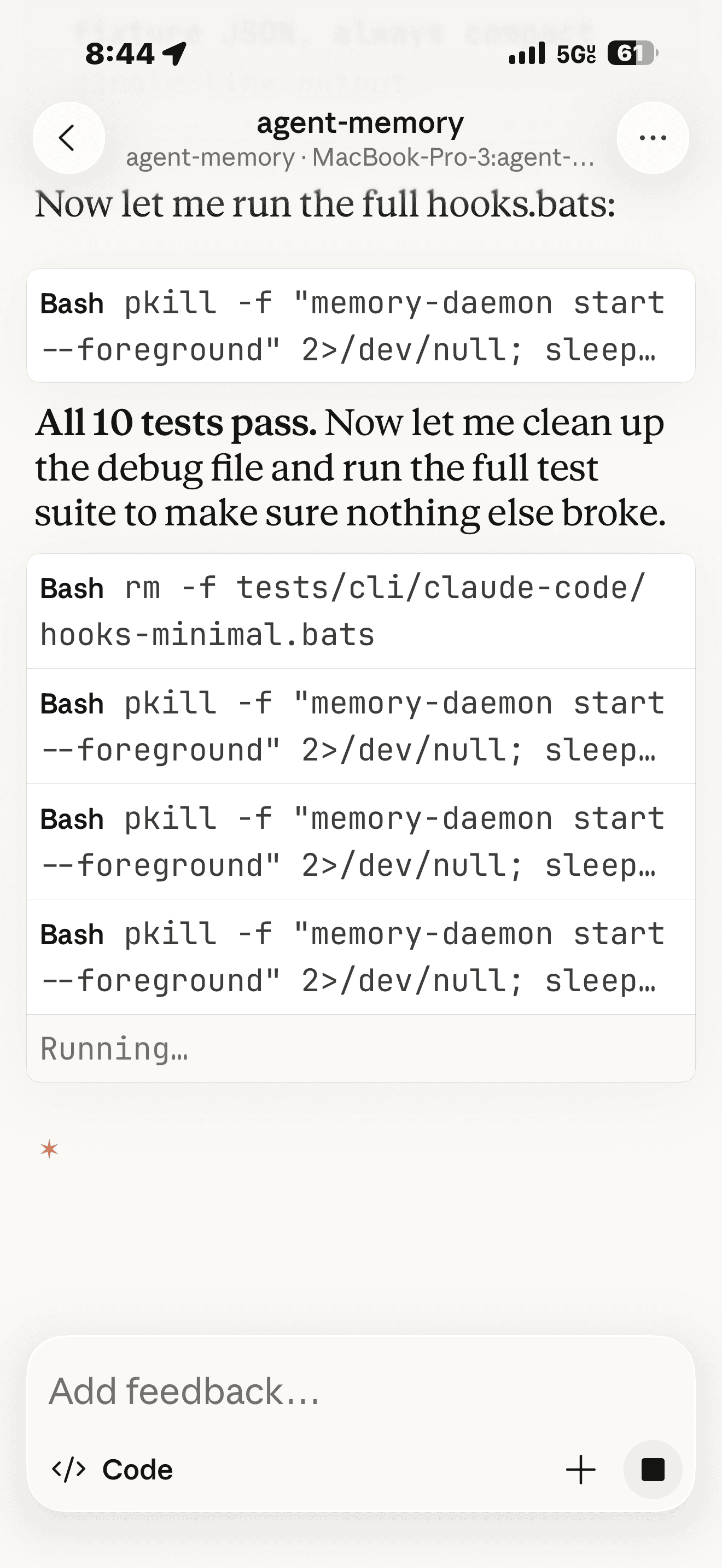
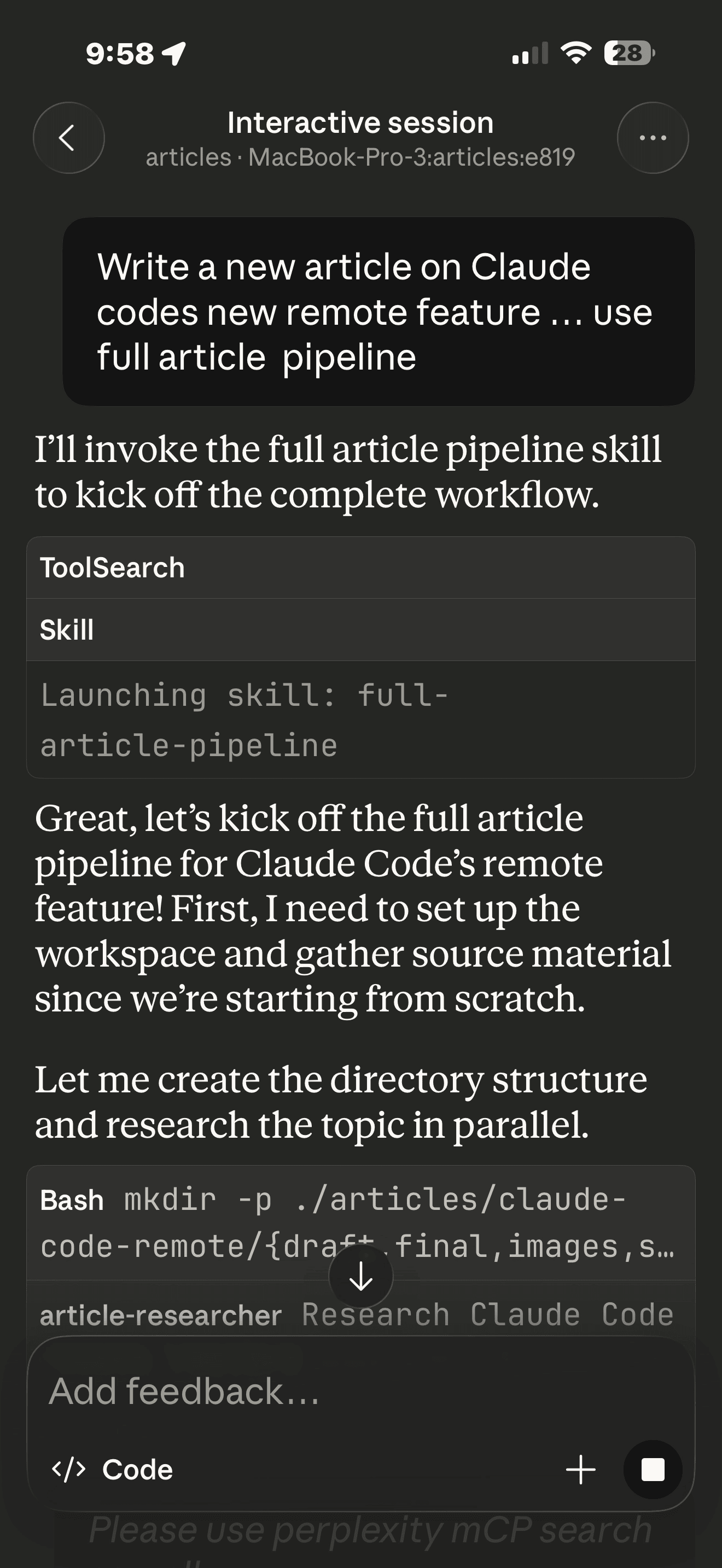
I've tried it and it works pretty good but it does disconnect a lot when I am not on WIFI, and I can't seem to remotely start the same session. It just came out so assume they will iron some stuff out shortly. It is interesting.
About the Author
Rick Hightower is a technology executive and data engineer who led ML/AI development at a Fortune 100 financial services company. He created skilz, the universal agent skill installer, supporting 30+ coding agents including Claude Code, Gemini, Copilot, and Cursor, and co-founded the world's largest agentic skill marketplace. Connect with Rick Hightower on LinkedIn or Medium. Rick has been doing active agent development, GenAI, agents, and agentic workflows for quite a while. He is the author of many agentic frameworks and tools. He brings core deep knowledge to teams who want to adopt AI.