Claude Code's Automatic Memory: No More Re-Explaining Your Project
Claude now takes notes for itself. Here is how it works and where it falls short.
Originally published on Medium.

Claude now takes notes for itself. Here is how it works and where it falls short.
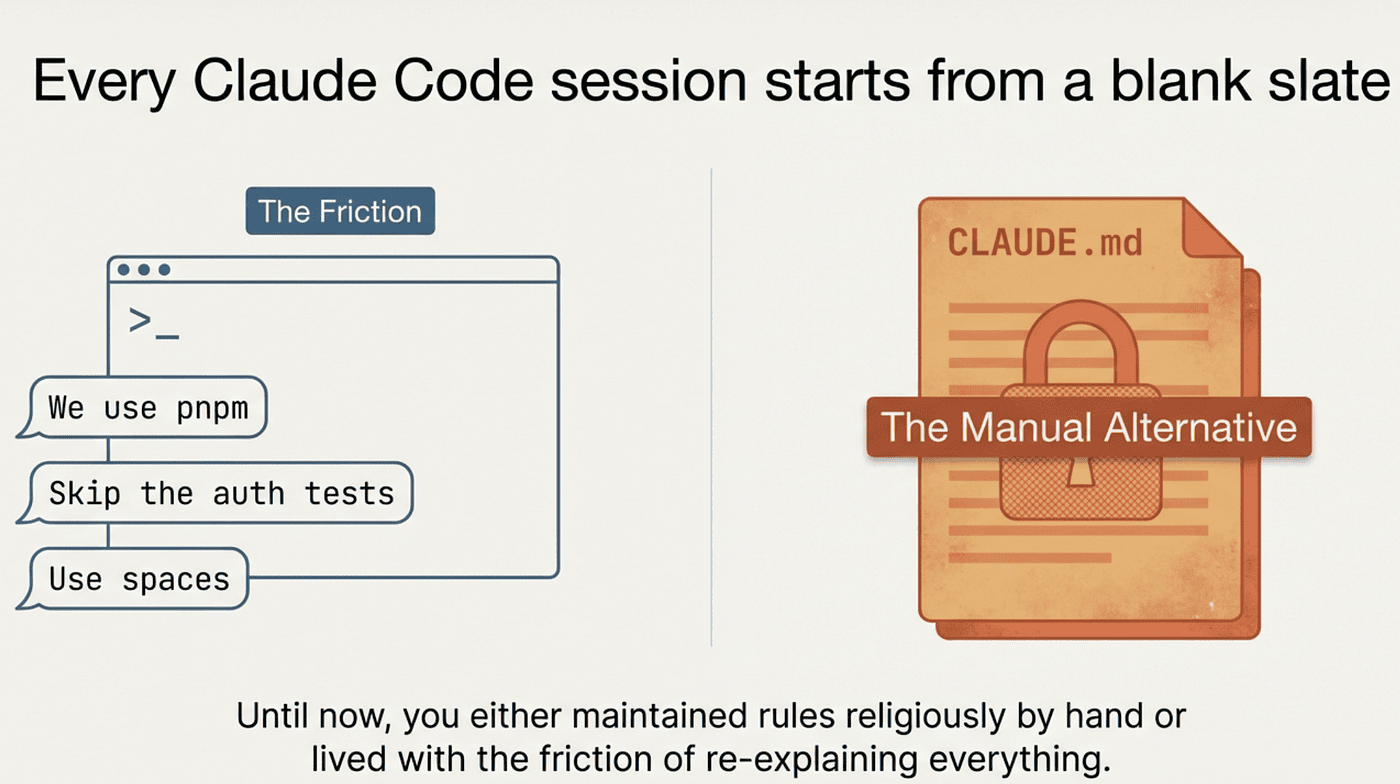
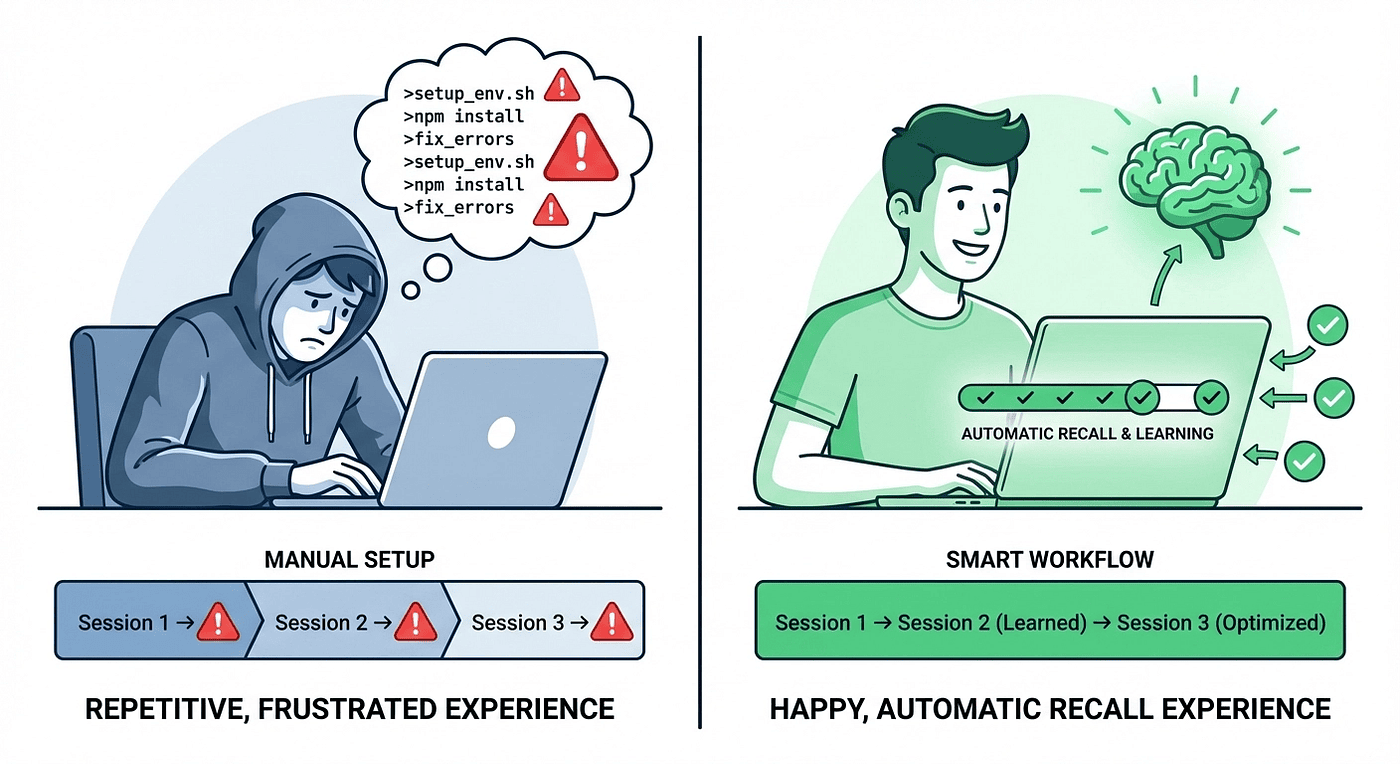
Every Claude Code session starts with a blank slate. A fresh context window with no memory of yesterday's debugging session, last week's architecture decisions, or the build command you have typed forty times. You open a session, and Claude greets you like a stranger who has never seen your codebase.
Until now, the only fix was CLAUDE.md: a file you wrote and maintained by hand, listing everything Claude needed to know about your project. It worked, but it required discipline. You had to notice when Claude made the same mistake twice, figure out what instruction would prevent it, and then add that instruction to the file. Most developers never bothered, and who could blame them?
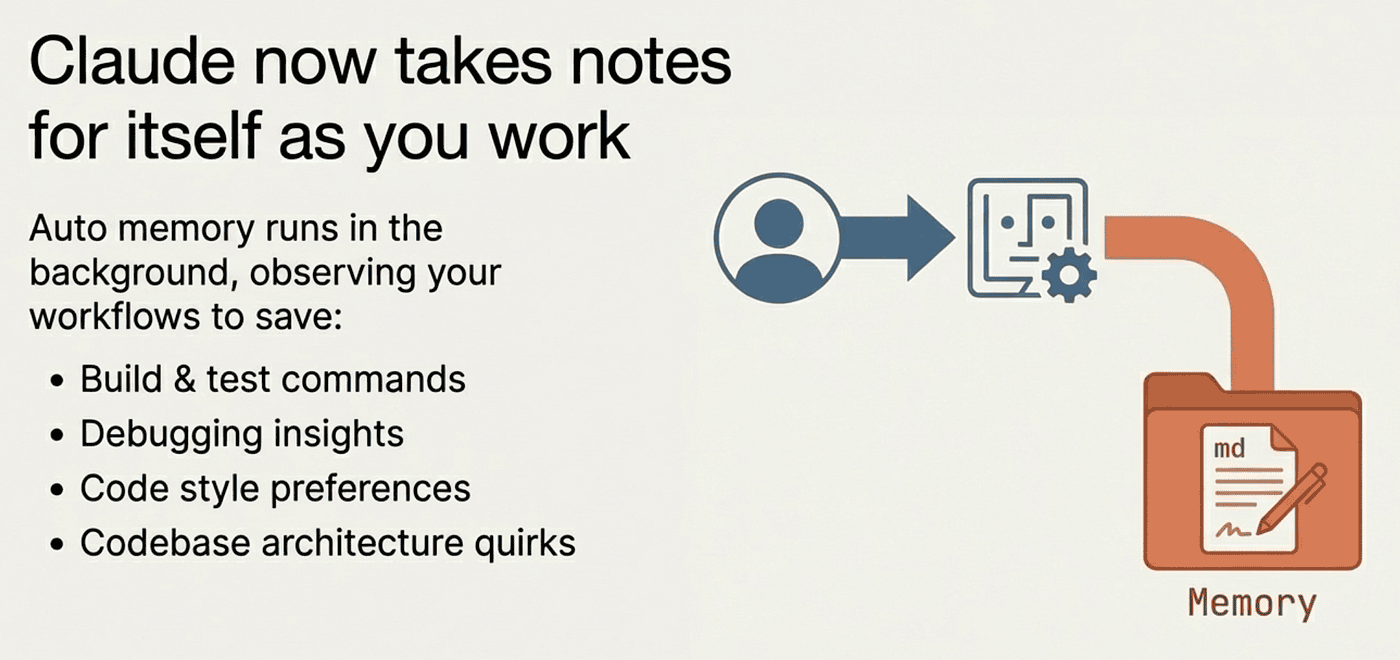
Claude Code now handles this automatically. The auto memory feature lets Claude take notes for itself as it works. Build commands, debugging insights, code style preferences, architecture patterns: Claude saves what it learns and loads it at the start of future sessions. You correct Claude once, and it remembers. No manual file editing required.
This article covers how auto memory works, what it does well, what it does not do, and how to get the most out of it.
Two Memory Systems, Not One
Claude Code has two complementary memory systems. Understanding the distinction matters because they serve different purposes and behave differently.
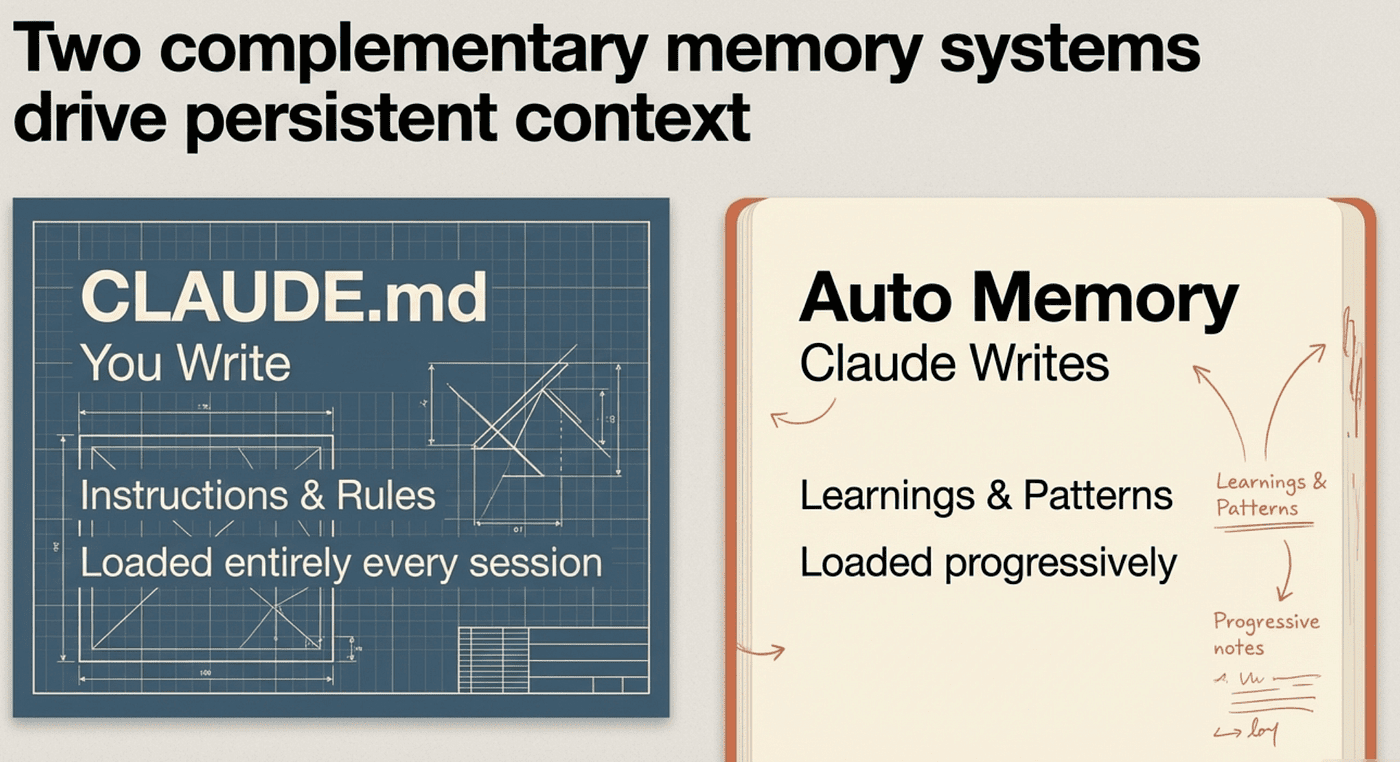
CLAUDE.md files are instructions you write. They define coding standards, project architecture, build commands, and workflows. Claude loads them in full at the start of every session. You commit them to version control and share them with your team.
Auto memory is notes Claude writes for itself. As you work, Claude observes your corrections, preferences, and patterns. It saves useful context to a memory directory and loads it in future sessions. You never have to write anything; Claude decides what is worth remembering.
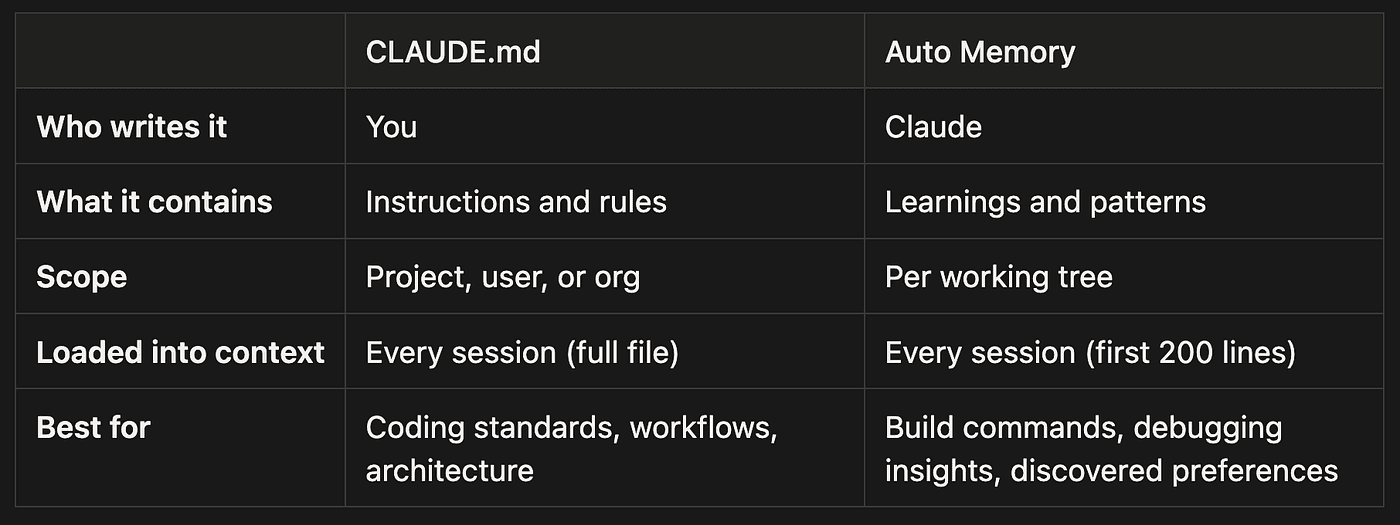
- Who writes it: You write CLAUDE.md; Claude writes auto memory
- What it contains: CLAUDE.md has instructions and rules; auto memory has learnings and patterns
- Scope: CLAUDE.md is project, user, or org-level; auto memory is per working tree
- Loaded into context: CLAUDE.md loads every session (full file); auto memory loads every session (first 200 lines)
- Best for: CLAUDE.md is best for coding standards, workflows, architecture; auto memory is best for build commands, debugging insights, discovered preferences
The two systems are complementary. CLAUDE.md is for stable rules you want enforced. Auto memory is for dynamic knowledge that Claude discovers through working with you.
How Auto Memory Works
Auto memory is enabled by default. When Claude learns something useful during a session, it writes a note to your project's memory directory:
~/.claude/projects/<project>/memory/
├── MEMORY.md          # Concise index (loaded every session)
├── debugging.md       # Detailed debugging notes
├── api-conventions.md # API design decisions
└── patterns.md        # Code patterns Claude discovered
The <project> path is derived from your git repository, so all worktrees and subdirectories within the same repo share one auto memory directory.
The 200-Line Rule
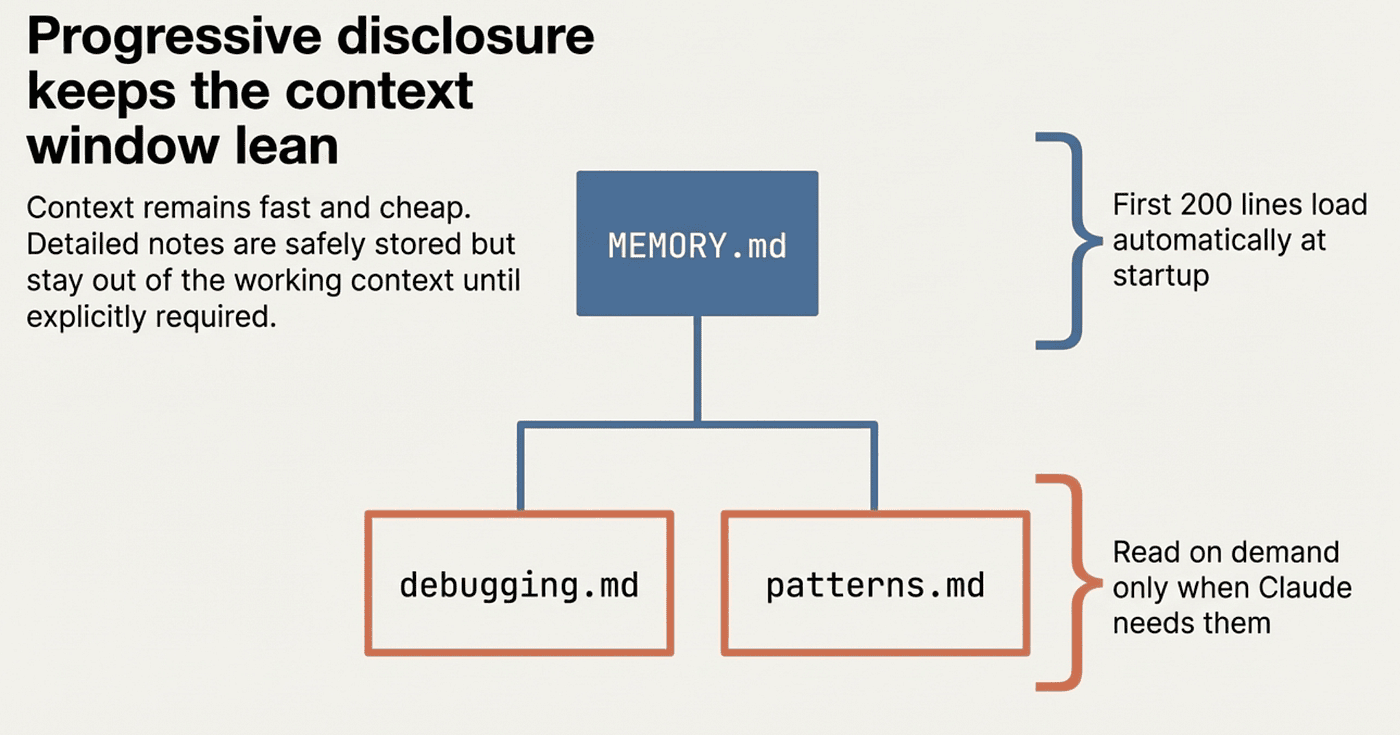
At the start of every conversation, Claude loads the first 200 lines of MEMORY.md. Content beyond line 200 is not loaded automatically. This is a deliberate constraint; it keeps the context window lean while still providing orientation.
Claude manages this limit by keeping MEMORY.md concise and moving detailed notes into separate topic files. The topic files (debugging.md, patterns.md, and others) are not loaded at startup. Claude reads them on demand when it needs the information, using its standard file-reading tools.
This is the same progressive disclosure pattern used in the skills system: load summaries by default, load details on demand.
What Claude Saves
Claude does not save something every session. It decides what is worth remembering based on whether the information would help in a future conversation. Common examples include:
- Build commands: "This project uses
pnpm testfor testing andpnpm build:prodfor production builds" - Debugging insights: "The flaky test in auth.spec.ts is caused by timezone sensitivity; use UTC fixtures"
- Architecture notes: "API handlers live in src/api/handlers/ and follow the repository pattern"
- Code style preferences: "This developer prefers explicit type annotations over inferred types"
- Workflow habits: "Always run linting before committing; the pre-commit hook is unreliable"
When you see "Writing memory" or "Recalled memory" in the Claude Code interface, Claude is actively updating or reading from the memory directory.
You Can Also Ask Directly
Auto memory works in the background, but you can also tell Claude what to remember explicitly:
- "Remember that the API tests require a local Redis instance"
- "Always use pnpm, not npm, in this project"
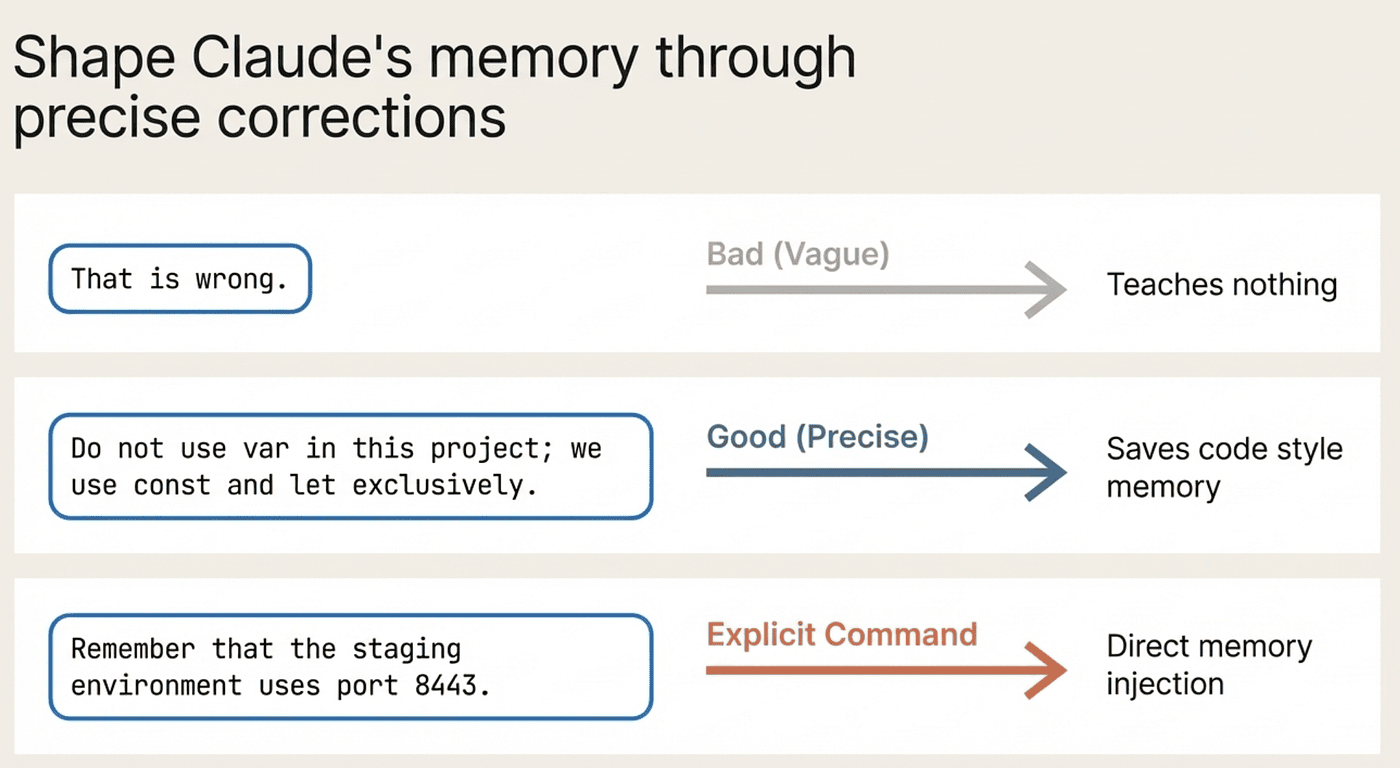
- "Remember that the staging environment uses port 8443"
Claude saves these to auto memory. If you want the instruction to go into CLAUDE.md instead (where it is shared with your team via version control), say so explicitly: "Add this to CLAUDE.md."
Managing Your Memories
The /memory command is your dashboard. It lists all CLAUDE.md and rules files loaded in your current session, lets you toggle auto memory on or off, and provides a link to open the auto memory folder directly.
Select any file to open it in your editor. Everything is plain markdown. You can read, edit, or delete any memory file at any time.
Auditing What Claude Saved
Audit your auto memory periodically. This step matters more than it might seem. Claude's judgment about what is worth saving is usually reasonable, but not always perfect. It might save something irrelevant, miss something important, or record something that was true at the time but is now outdated.
Run /memory, open the memory folder, and scan what is there. Delete entries that are wrong or stale. Edit entries that are almost right. This takes two minutes and prevents Claude from acting on bad information in future sessions.
Toggling Auto Memory
If you prefer full manual control, you can disable auto memory.
Via the /memory command: Toggle the auto memory switch.
Via project settings (.claude/settings.local.json):
{
  "autoMemoryEnabled": false
}
Via environment variable:
export CLAUDE_CODE_DISABLE_AUTO_MEMORY=1
With auto memory disabled, Claude still reads any existing memory files. It just does not write new ones.
The CLAUDE.md Side: What You Should Still Write Yourself
Auto memory handles the learnings that accumulate over time. But stable, authoritative instructions still belong in CLAUDE.md. Here is the division:
Put in CLAUDE.md (you write, team shares):
- Coding standards and conventions
- Project architecture decisions
- Build and test commands
- Naming conventions
- Required workflows (PR process, review requirements)
- Security and compliance rules
Let auto memory handle (Claude writes, you audit):
- Build quirks Claude discovers
- Debugging insights from specific sessions
- Your personal coding preferences
- Pattern observations about the codebase
- Environment-specific notes
The rule of thumb: if it is a standard the whole team should follow, write it in CLAUDE.md. If it is something Claude learned by working with you, let auto memory handle it.
CLAUDE.md Best Practices
Since auto memory covers the dynamic stuff, your CLAUDE.md can stay focused.
Keep it under 200 lines. Longer files consume more context and reduce how consistently Claude follows them. If your instructions are growing, split them into .claude/rules/ files.
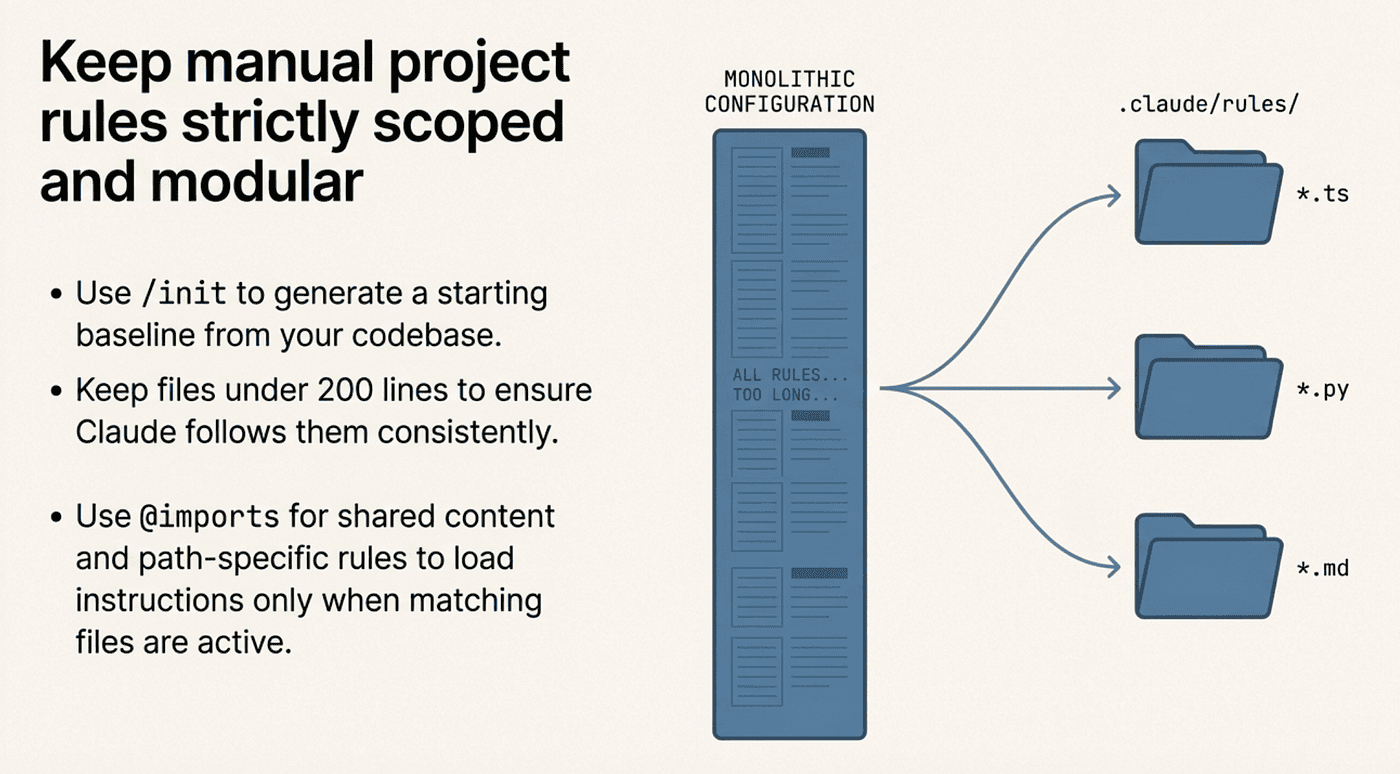
Use /init to generate a starting point. Claude analyzes your codebase and creates a CLAUDE.md with build commands, test instructions, and project conventions it discovers. Refine from there.
Use path-specific rules for large projects. Files in .claude/rules/ can use paths frontmatter to scope instructions to specific file types:
---
paths:
  - "src/api/**/*.ts"
---

# API Development Rules
- All endpoints must include input validation
- Use the standard error response format
These rules only load when Claude works with matching files, saving context space.
Use @imports for shared content. CLAUDE.md files can import other files with @path/to/file syntax, up to five levels deep. This is useful for pulling in README content or shared standards.
The Memory Hierarchy
Claude Code's full memory hierarchy runs from broadest to most specific:
Managed Policy     /Library/Application Support/ClaudeCode/CLAUDE.md
    ↓                (org-wide, cannot be excluded)
User Instructions  ~/.claude/CLAUDE.md
    ↓                (personal, all projects)
User Rules         ~/.claude/rules/*.md
    ↓                (personal rules)
Project CLAUDE.md  ./CLAUDE.md or ./.claude/CLAUDE.md
    ↓                (team-shared via git)
Project Rules      ./.claude/rules/*.md
    ↓                (path-specific, team-shared)
Local Instructions ./CLAUDE.local.md
    ↓                (personal, gitignored)
Auto Memory        ~/.claude/projects/<project>/memory/
                     (Claude-written, machine-local)
More specific levels take precedence over broader ones. If your project CLAUDE.md says "use tabs" and your user CLAUDE.md says "use spaces," the project instruction wins.
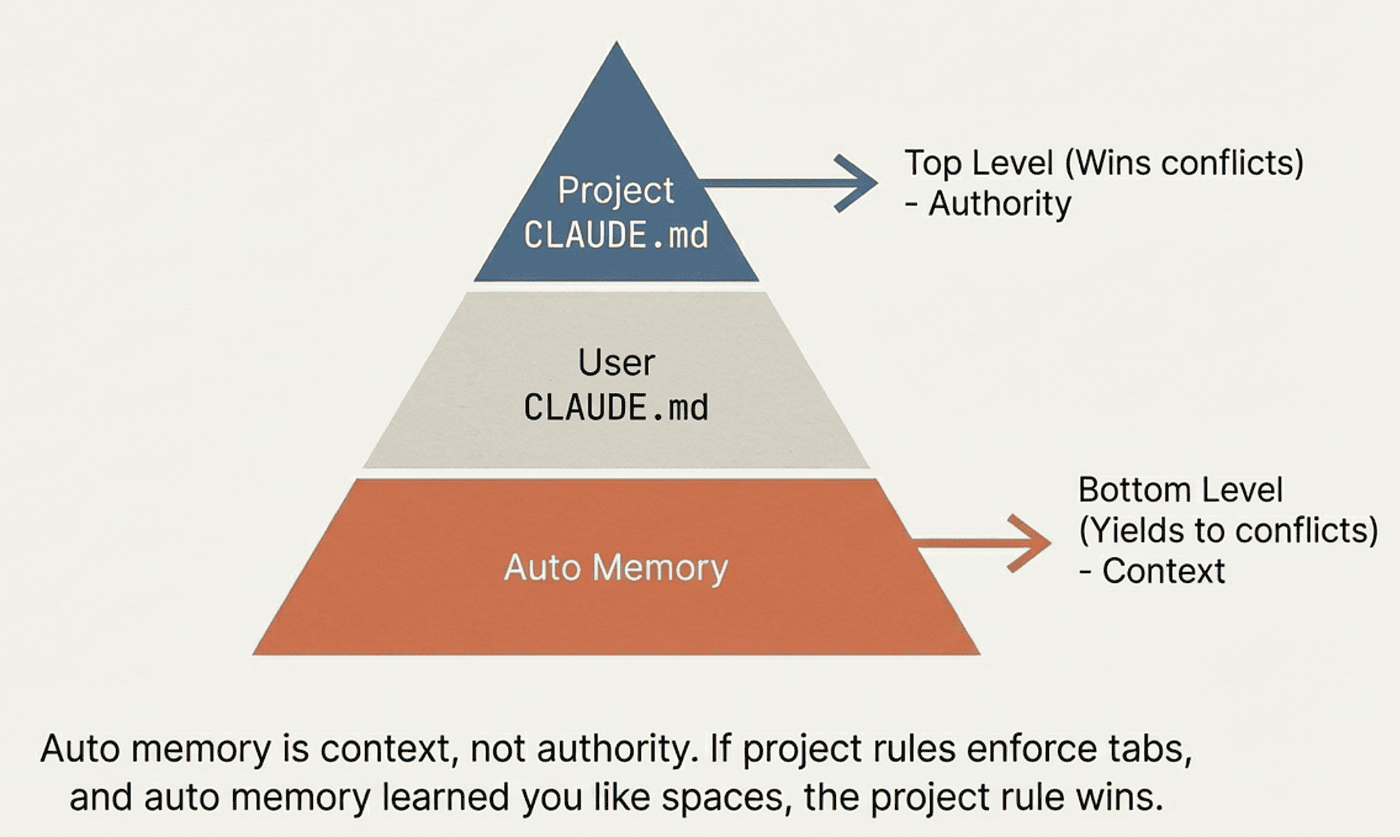
Auto memory sits at the bottom of the hierarchy. It is context, not authority. If auto memory says one thing and CLAUDE.md says another, CLAUDE.md wins.
What Auto Memory Does NOT Do
Understanding the limitations is as important as understanding the features. Here is what auto memory does not provide.
It does not sync across machines
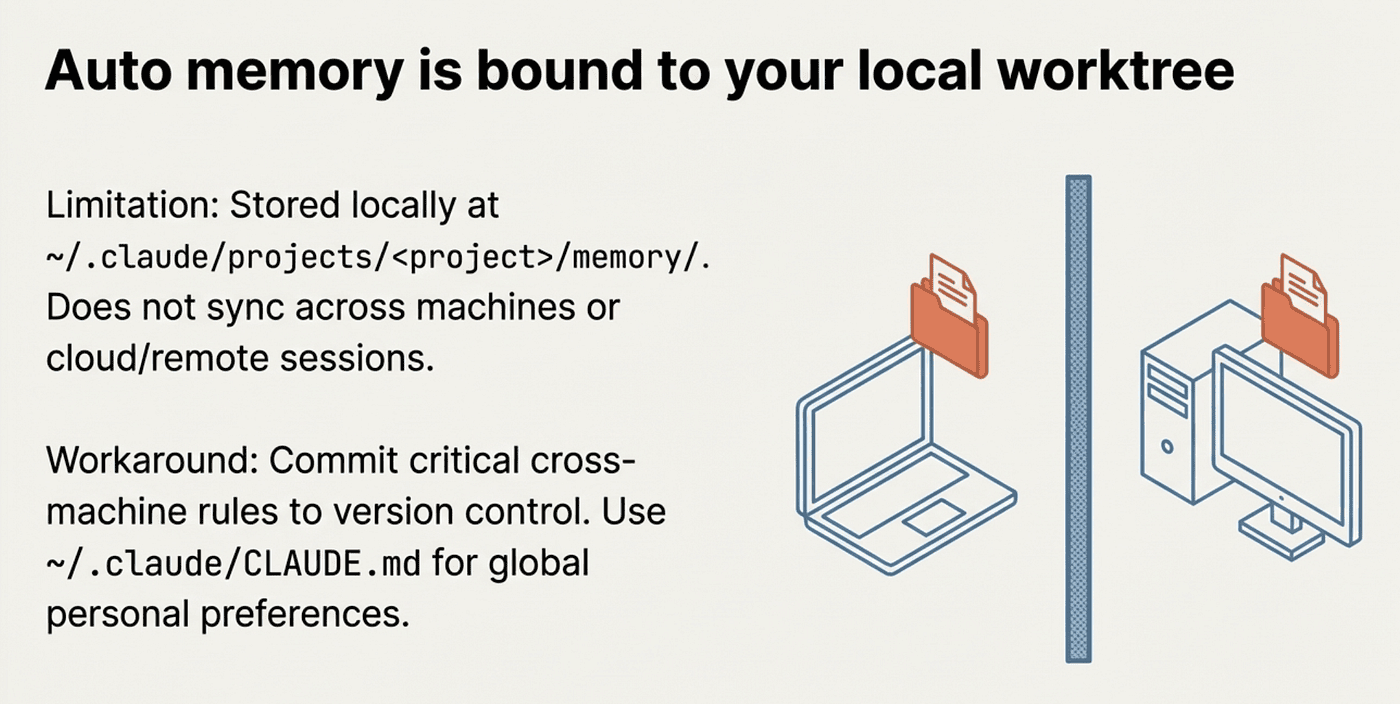
Auto memory is stored locally at ~/.claude/projects/<project>/memory/. If you work on a laptop and a desktop, each machine has its own separate memory. There is no sync mechanism.
Workaround: For critical information that needs to follow you between machines, put it in CLAUDE.md and commit it to version control.
It does not share between projects
Each git repository gets its own memory directory. Knowledge Claude learns in Project A is not available in Project B, even if the projects are related.
Workaround: Use ~/.claude/CLAUDE.md for personal preferences that apply to all your projects.
It does not guarantee perfect recall
Claude decides what to save and what to skip. It might miss something you consider important, or save something you consider trivial. The 200-line MEMORY.md limit means only the index loads automatically; detailed topic files require Claude to look them up on demand.
Workaround: For critical instructions, do not rely on auto memory. Write them in CLAUDE.md where they load in full every session.
It does not enforce behavior
Both CLAUDE.md and auto memory are context, not configuration. Claude reads them and tries to follow them, but there is no strict enforcement mechanism. Vague instructions are more likely to be ignored than specific ones.
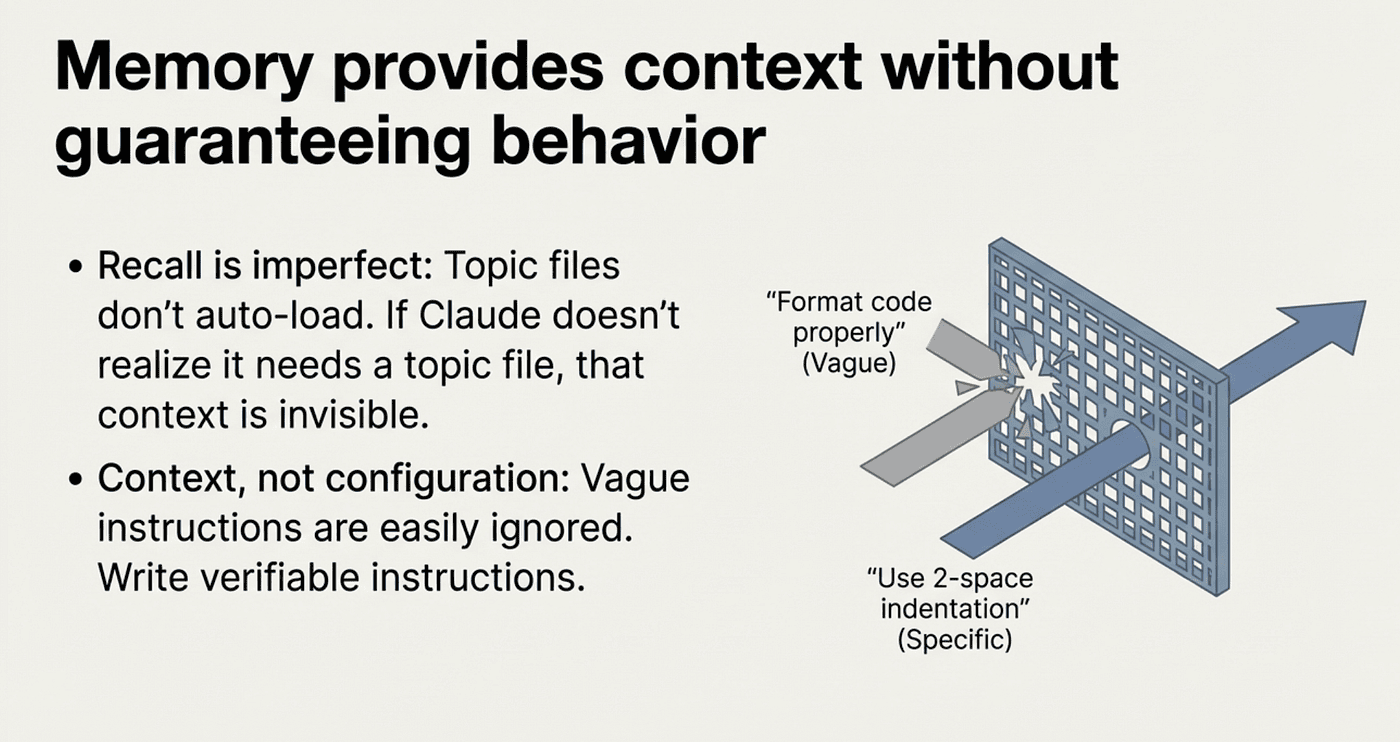
Workaround: Write specific, verifiable instructions. "Use 2-space indentation" works better than "format code properly."
It does not work in cloud or remote sessions
Since auto memory is stored on your local filesystem, it is not available in cloud-based Claude Code sessions or remote environments unless you manually copy the files.
It does not replace CLAUDE.md
Auto memory supplements CLAUDE.md; it does not replace it. CLAUDE.md is for authoritative team standards. Auto memory is for accumulated personal learnings. Using only auto memory means your team gets no shared standards. Using only CLAUDE.md means you re-explain personal preferences every time.
Topic files do not auto-load
Only MEMORY.md (first 200 lines) loads at session start. Topic files like debugging.md or patterns.md are read on demand. If Claude does not realize it needs to check a topic file, the information in that file is effectively invisible for that session.
Practical Tips
Start with /init
If you do not have a CLAUDE.md yet, run /init. Claude analyzes your codebase and generates a starting point with build commands, test instructions, and conventions it discovers. This gives auto memory a solid foundation to build on.
Correct Claude Once, Thoroughly
When Claude makes a mistake, correct it with specifics: "Do not use var in this project; we use const and let exclusively." Claude saves this correction to auto memory. A vague correction like "that is wrong" teaches nothing.
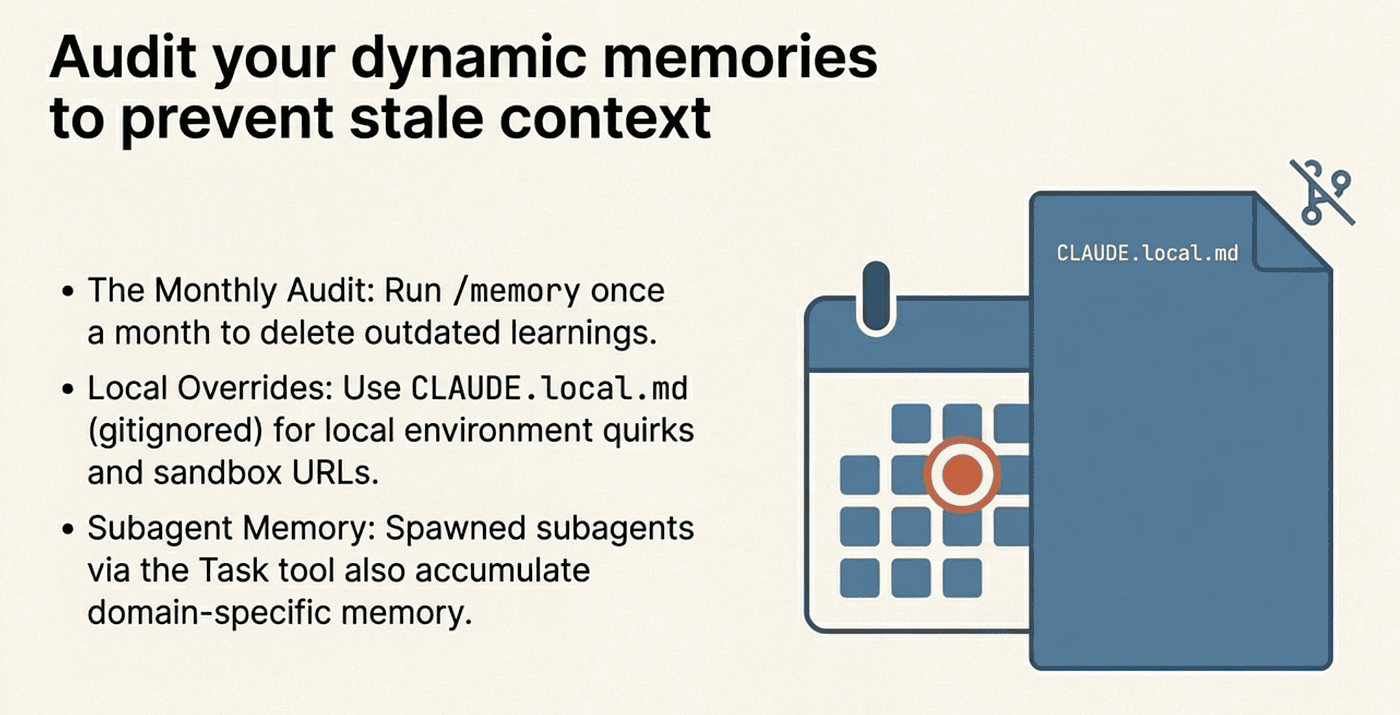
Review Memory Monthly
Set a reminder to run /memory and scan your auto memory folder once a month. Delete stale entries. Edit entries that need updating. Two minutes of maintenance prevents Claude from acting on outdated information.
Use CLAUDE.local.md for Personal Overrides
CLAUDE.local.md should be gitignored by default. Use it for personal preferences that should not be shared with your team: your preferred test data, sandbox URLs, or local environment quirks.
Combine with Subagent Memory
Subagents can maintain their own auto memory. If you use skills with context: fork or the Task tool to spawn subagents, those agents can also accumulate memory. This is useful for specialized workflows where the subagent needs to remember domain-specific knowledge.
The Bottom Line
Auto memory solves a real problem. Before this feature, every Claude Code session started from zero. You either maintained CLAUDE.md religiously or re-explained context repeatedly. Most developers did neither and just lived with the friction.
Now Claude takes notes for itself. It remembers your build commands, your debugging discoveries, your coding preferences, and the quirks of your codebase. It loads those notes at the start of every session, so you correct it once and it stays corrected.
The feature is not magic. It is plain markdown files that Claude reads and writes. You can edit them, delete them, or disable the feature entirely. The 200-line MEMORY.md limit keeps context lean. The topic file pattern keeps details accessible without bloating every session.
What makes it work is the combination: auto memory for dynamic learnings, CLAUDE.md for stable standards. Neither system alone is sufficient. Together, they give Claude persistent context without requiring you to maintain everything by hand.
The best part: it is already on. If you are running a recent version of Claude Code, auto memory is working in the background right now. Run /memory to see what Claude has learned about your project.
Claude Code memory documentation: code.claude.com/docs/en/memory. Auto memory requires Claude Code v2.1.59 or later.
About the Author
Rick Hightower is a technology executive and data engineer who led ML/AI development at a Fortune 100 financial services company. He created skilz, the universal agent skill installer, supporting 30+ coding agents including Claude Code, Gemini, Copilot, and Cursor, and co-founded the world's largest agentic skill marketplace. Connect with Rick Hightower on LinkedIn or Medium. Rick has been doing active agent development, GenAI, agents, and agentic workflows for quite a while. He is the author of many agentic frameworks and tools. He brings core deep knowledge to teams who want to adopt AI.