Claude Cowork: Chat Tells You What to Do. Cowork Does It.
Part 1: You have had great AI conversations that ended with you opening a spreadsheet by hand. Claude Cowork closes that last mile.
Originally published on Medium.
Part 1: You have had great AI conversations that ended with you opening a spreadsheet by hand. Claude Cowork closes that last mile.
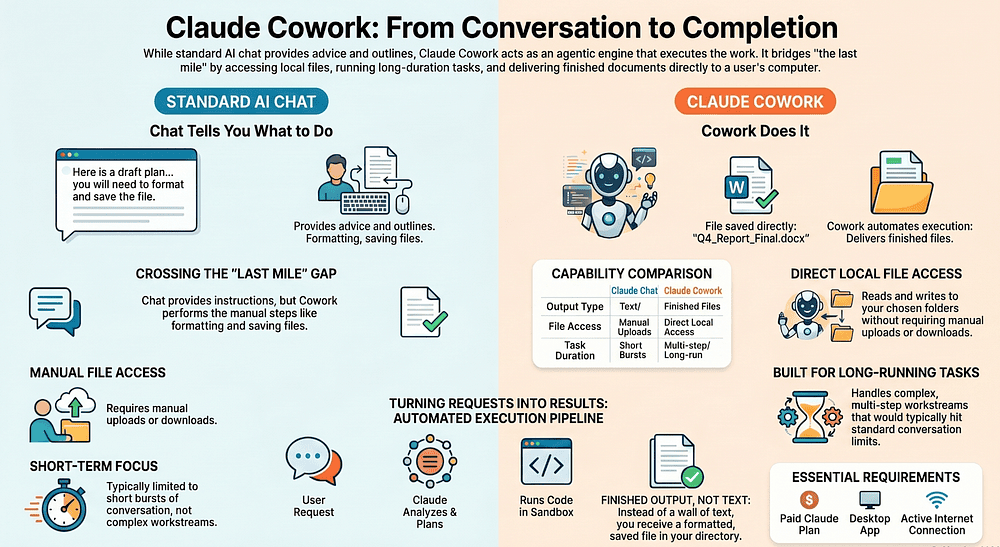
You have been doing the manual part yourself after every Claude conversation. That gap has a name now, and it is Claude Cowork.
In this article: You will learn what Claude Cowork actually is, why it is fundamentally different from Claude Chat, and how to run your first real task with it today.
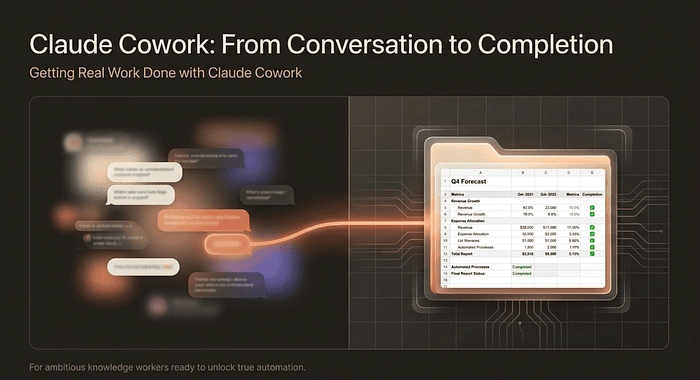
Companion Video:
You have had this moment. You ask Claude to help with something real, a competitive analysis, a cleaned-up dataset, a report ready to send. Claude produces a brilliant response. You feel like you got somewhere. And then you do it yourself.
You open the spreadsheet, copy the numbers across, reformat the cells, save the file, attach it to the email.
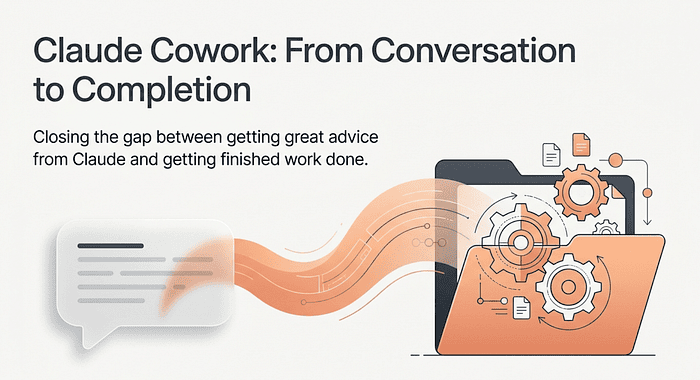
That gap is the whole reason Claude Cowork exists. Chat is a brilliant thinking partner that cannot touch your files, cannot run for more than a few minutes, and cannot take action in the world. Cowork can.
What Claude Cowork actually is
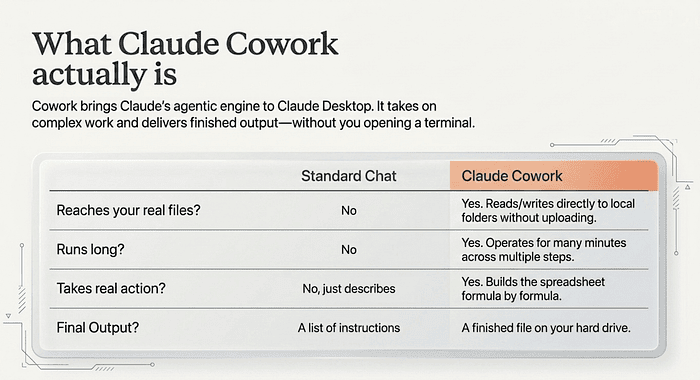
Here is the one-line version: Cowork brings Claude's agentic engine to Claude Desktop, so Claude can work alongside you on real tasks, not just answer questions.
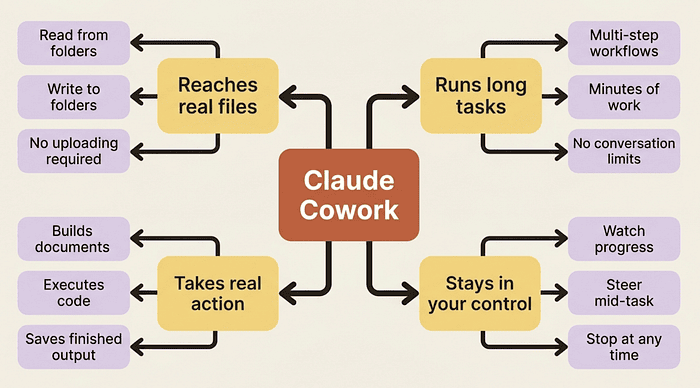
The practical difference between chat and Cowork comes down to three things that chat simply cannot do.
First, Cowork reaches your real files. It reads from and writes to the folders you choose to share with it. No copying and pasting. No downloading and reuploading.
Second, Cowork runs long. A complex task can run for many minutes across multiple steps without you babysitting it. You hand it the task and come back to finished work.
Third, Cowork takes real action. It does not just describe the spreadsheet. It builds the spreadsheet, saves it to your folder, and tells you it is done.
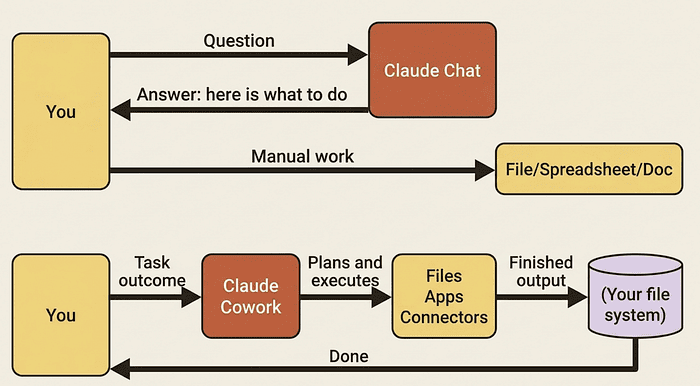
How a task moves through Cowork
When you hand Cowork a task, Claude works through a clear sequence: analyzes your request and creates a plan, runs web research if needed, writes and executes code in an isolated virtual machine, reads and writes files in your shared folders, and delivers a finished output.
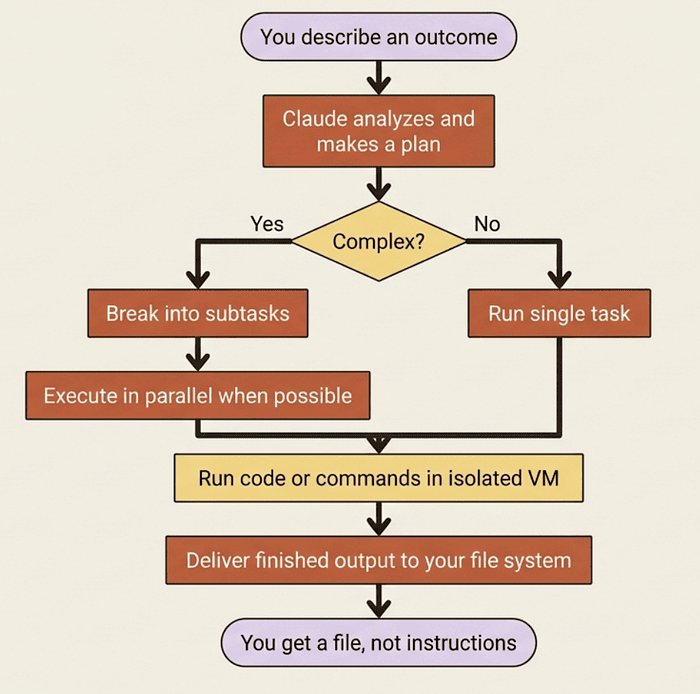
The isolated virtual machine is worth one sentence of attention: any code Claude writes runs in a sandboxed environment, not on your actual system. The outputs come to your files. The execution risk stays contained.
The capabilities Cowork adds
Before you start Cowork: the requirements
Cowork has a short list of hard requirements.
- A paid Claude plan. Cowork is available on Pro, Team, and Enterprise plans. It is not available on the free tier.
- Claude Desktop installed and running. Cowork lives inside the desktop app. It does not run in the browser version of Claude.
- A Mac or Windows computer with at least 8 GB of RAM. Cowork runs local compute alongside the remote model. Older or low-memory machines may not qualify.
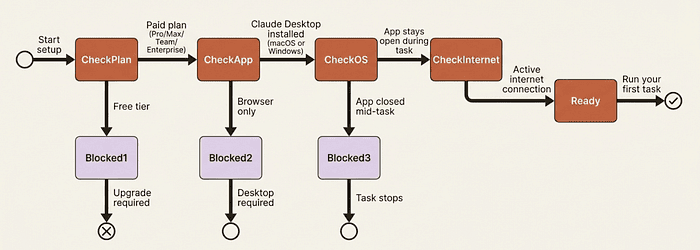
One quiet gotcha lives in that second requirement: the desktop app must stay open and your computer must stay awake for Cowork to finish a long task. If your laptop goes to sleep mid-run, the task pauses. Plan for that when you are handing off anything that will take more than a few minutes.
You can check whether your machine is up to the job with Anthropic's readiness-check program:
Finding Cowork
Once the desktop app is installed and updated, Cowork is easy to reach: open Claude Desktop, find the tab or icon labeled Cowork in the sidebar or top navigation, and you are in.
Your first Cowork task
Every article in this series builds one workflow: competitive intelligence. It is a perfect fit for Cowork because it involves research, writing, formatting, and file output — exactly the work that chat leaves you to finish yourself.
Open a new task in the Cowork tab and give it this:
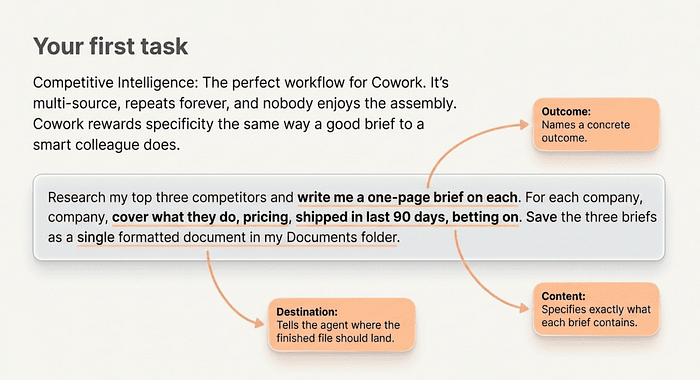
Research my top three competitors and write me a one-page brief on each. For each competitor, cover: what they do, what they charge, what customers say about them, and one thing they do better than us. Save the briefs as a single Word document in my Documents folder.
Notice what that prompt does: it names a concrete outcome (three briefs, one document), it specifies a format (one-page each), it lists exactly what to cover, and it tells Cowork where to put the finished file. That specificity is how you get Cowork to come back with work you can actually use.
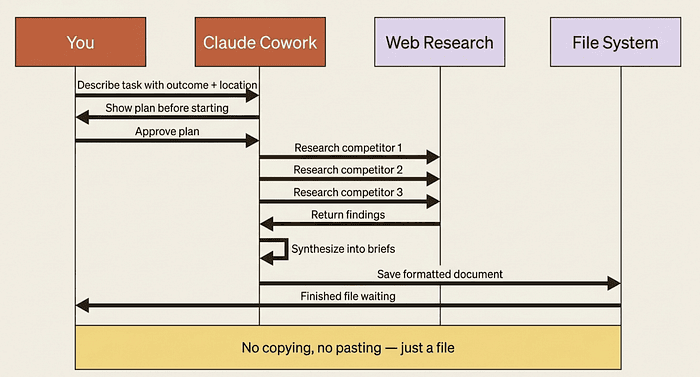
When you submit it, Claude will lay out a plan, then go to work: running web research, synthesizing findings, writing each brief, formatting the document, and saving it to your Documents folder. You will see it working. You can watch or walk away.
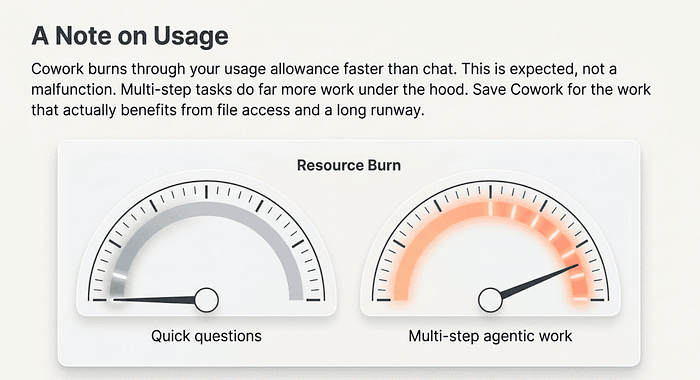
A note on usage: Cowork burns through your usage allowance faster than chat, because multi-step tasks consume more compute. If you are on the Pro plan, budget your tasks accordingly and save Cowork for work that actually benefits from file output or long execution. Use chat for questions, drafts, and thinking. Use Cowork for output.
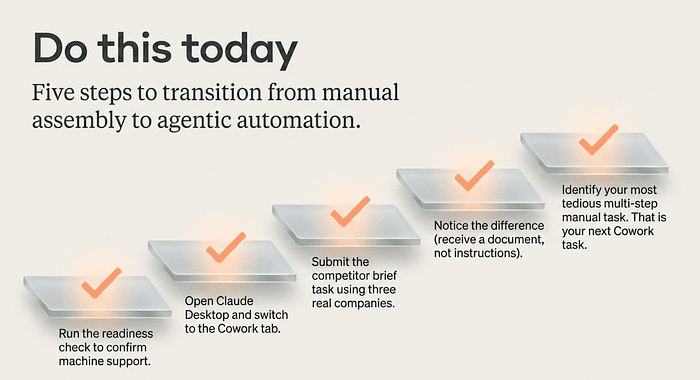
Do this today
- Run the readiness check to confirm your machine supports Cowork
- Install or update Claude Desktop if you have not already
- Open the Cowork tab and spend two minutes exploring the interface before giving it a task
- Try the competitive intelligence prompt above, substituting your own competitors
- Notice what Cowork does that you have been doing manually after every chat session
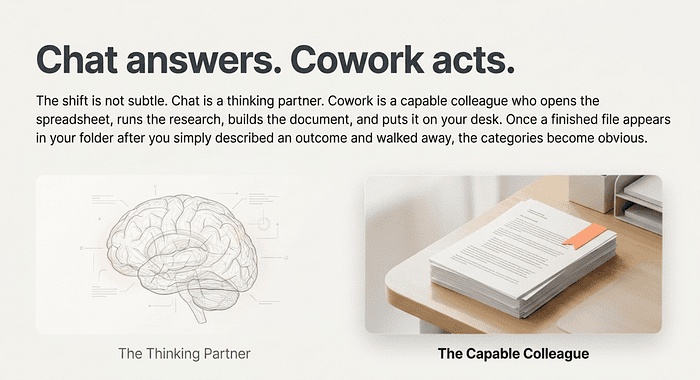
Chat answers. Cowork acts.
The shift this article describes is not subtle. Chat and Cowork are different categories of tool. Chat is for thinking through problems. Cowork is for completing them. The moment you hand Cowork something and come back to a finished file in your folder, the difference becomes obvious.
Everything else in this series is about making that pattern more powerful: connecting Cowork to your tools, giving it standing instructions, automating recurring work, and building workflows that keep running after you log off.
Please subscribe to my newsletter.
This is Part 1 of "Getting Real Work Done with Claude Cowork," a 12-part guide to using Claude Cowork effectively. Each article builds a specific workflow you can run the same day.
About the Author: Rick Hightower, Claude Certified Architect

Rick Hightower helps companies become AI-first through practical mentoring, executive and team training, hands-on workshops, and guided implementation. He is the founder of Spillwave, an AI consulting and training firm focused on making AI adoption real and measurable.
Subscribe to Rick's newsletter to see videos and guides.
Rick is a Claude Certified Architect, AI systems practitioner, and builder of production multi-agent systems. He has spoken at developer conferences and written extensively about practical AI adoption.
Today, Rick and the Spillwave team works with leaders and teams who want to move beyond AI experimentation and into AI-first operations.
Ready to make your company AI-first? Connect with Rick on LinkedIn or visit Spillwave to learn how we work with clients.