Claude Cowork Live Artifacts: From Static Report to Living Dashboard
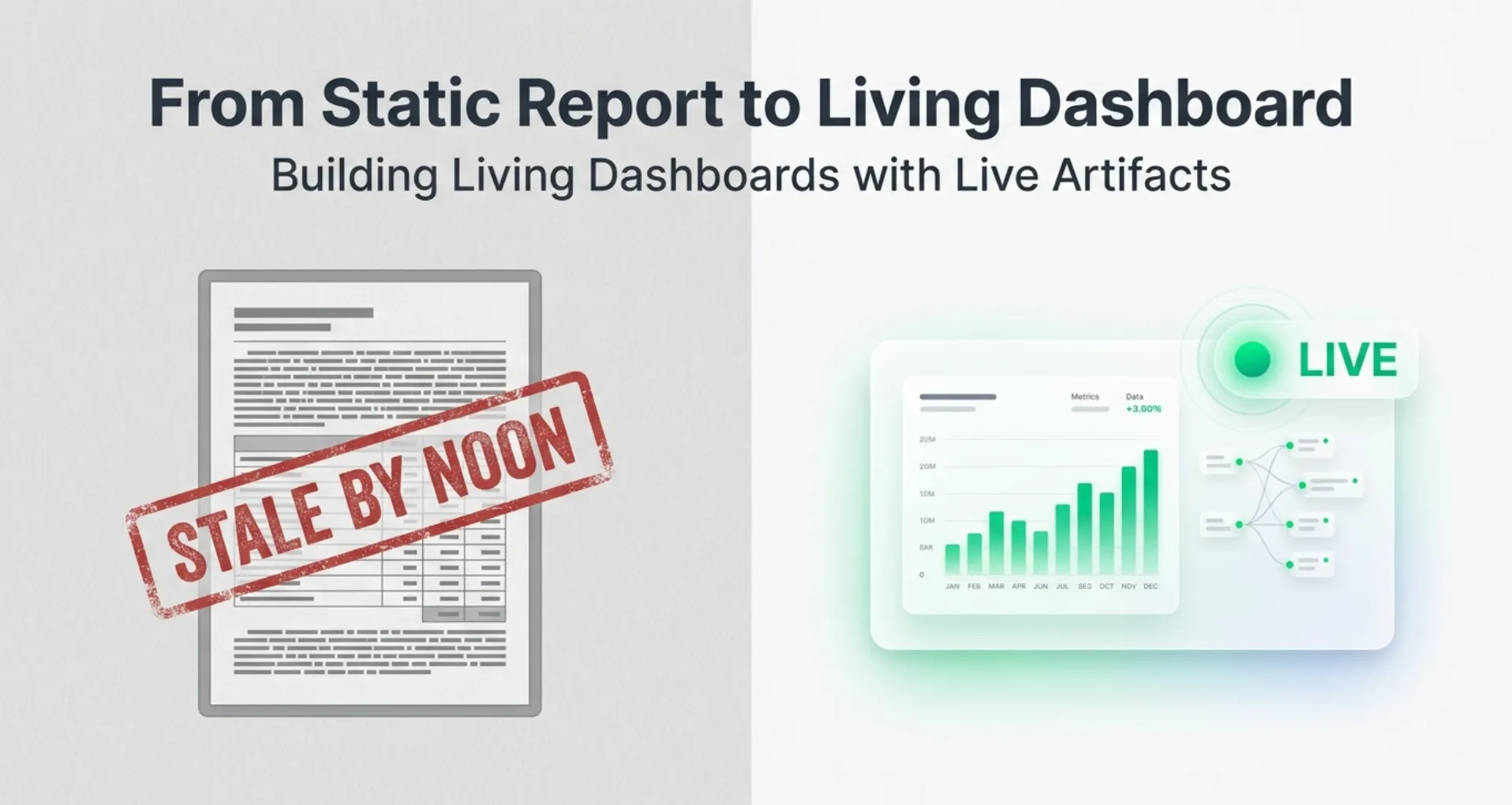
Part 9: A scheduled brief is accurate the moment it runs and stale by lunch. A live artifact is current every time you open it. Here is how to build dashboards that refresh themselves.
Originally published on Medium.
Part 9: A scheduled brief is accurate the moment it runs and stale by lunch. A live artifact is current every time you open it. Here is how to build dashboards that refresh themselves.
In this article: You will learn what a live artifact is and how it differs from the reports you have been generating, how to build one from a Cowork task or from the Live Artifacts tab, how to open, refresh, and iterate on it safely using version history, and the one safety rule you must not skip before you connect a live artifact to a write-capable integration.
Part 9 of "Getting Real Work Done with Claude Cowork," a 12-part guide to using Claude Cowork for real professional work.
Companion Video
The scheduled competitor brief from the previous article has a built-in expiration date. It runs at 7am and it is perfect at 7am. By 11am someone has shipped a release, a competitor has posted a job listing that signals a new direction, and the brief is already lying about the present tense. You keep using it anyway because regenerating it costs time and attention you do not have.
Live artifacts are the opposite. Instead of a document that captures a moment, you get a dashboard that reflects the current state of your data every time you open it. No regeneration required.
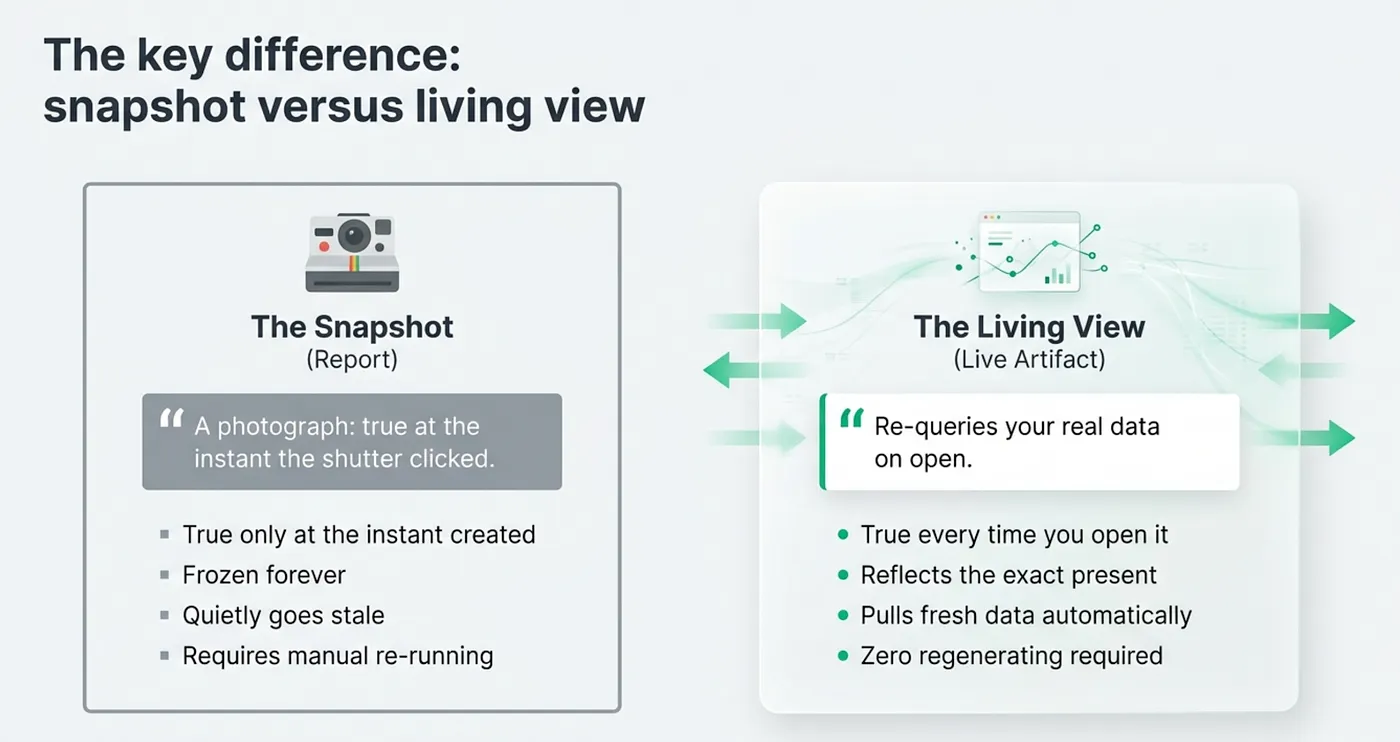
The key difference: snapshot versus living view
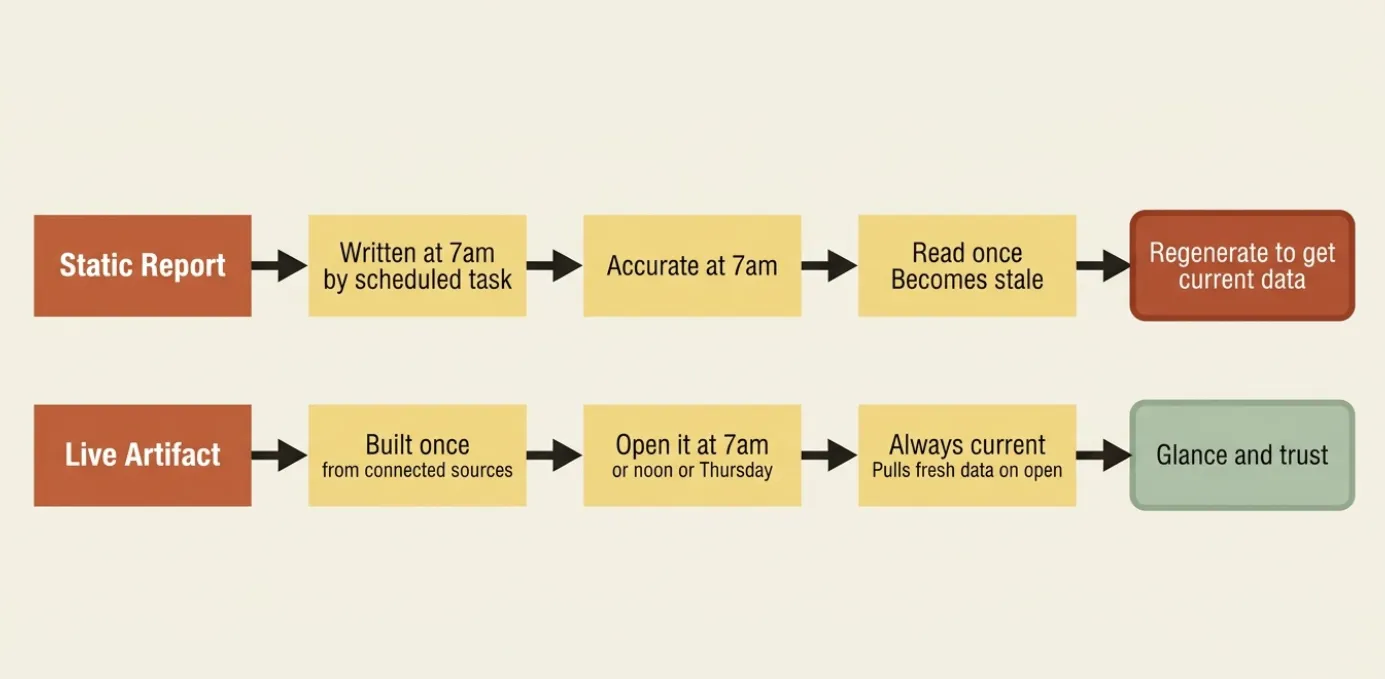
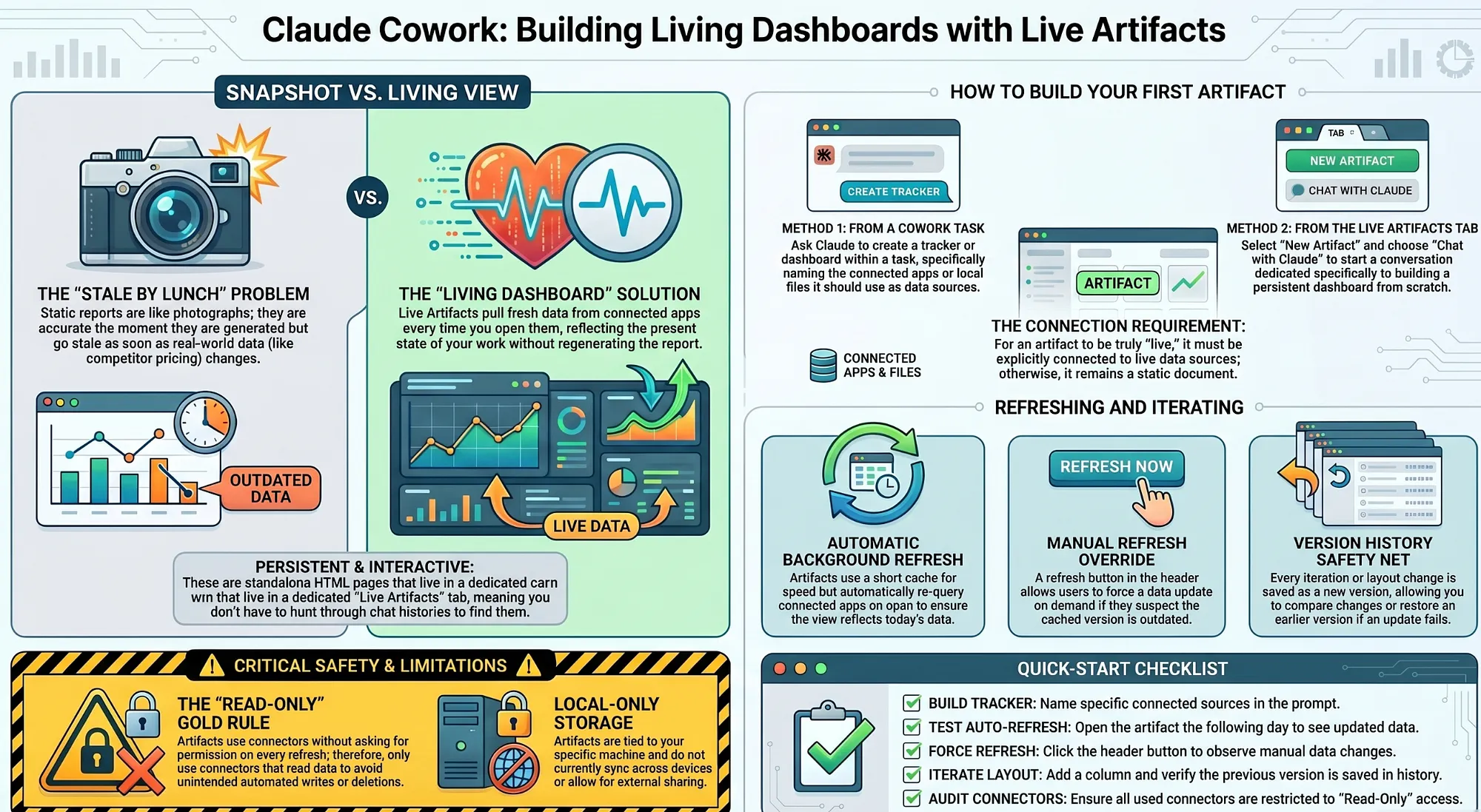
A chat artifact is frozen at creation. A live artifact re-queries your real data on open, which is the difference between a photograph and a window.
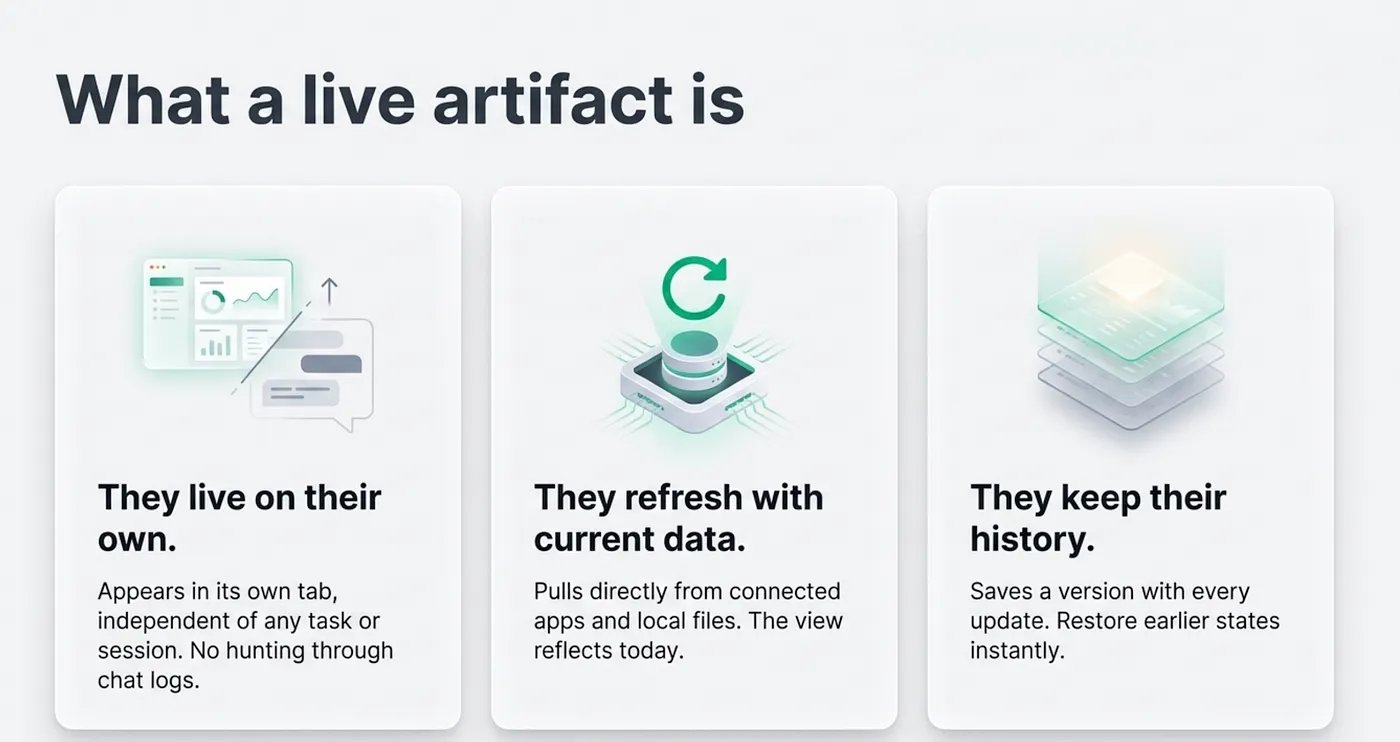
What a live artifact is
A live artifact is a persistent, interactive HTML page that Claude builds for you in Cowork: a tracker, a dashboard, a status board, a data explorer. It lives in Cowork's own storage, not in a task or a chat thread.
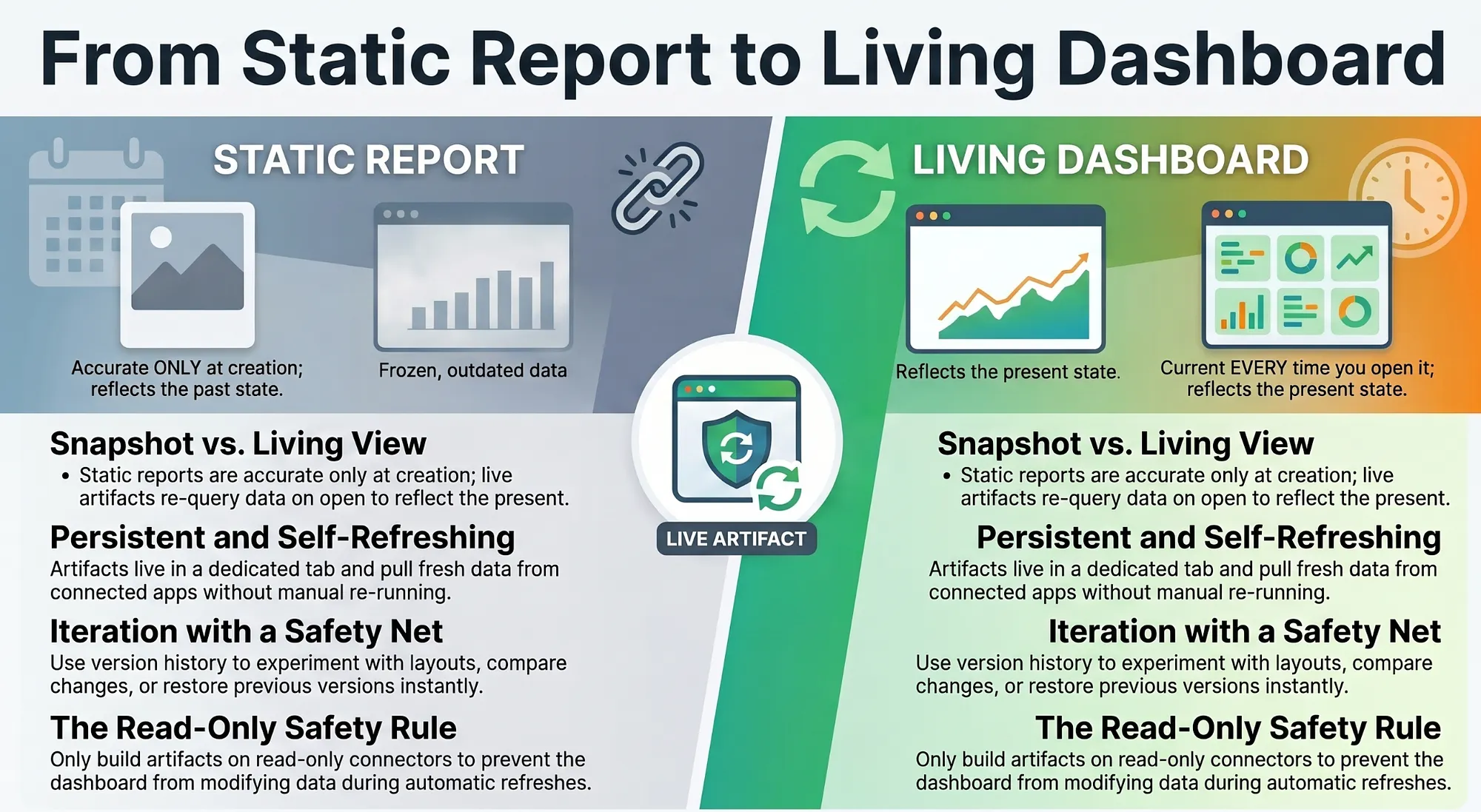
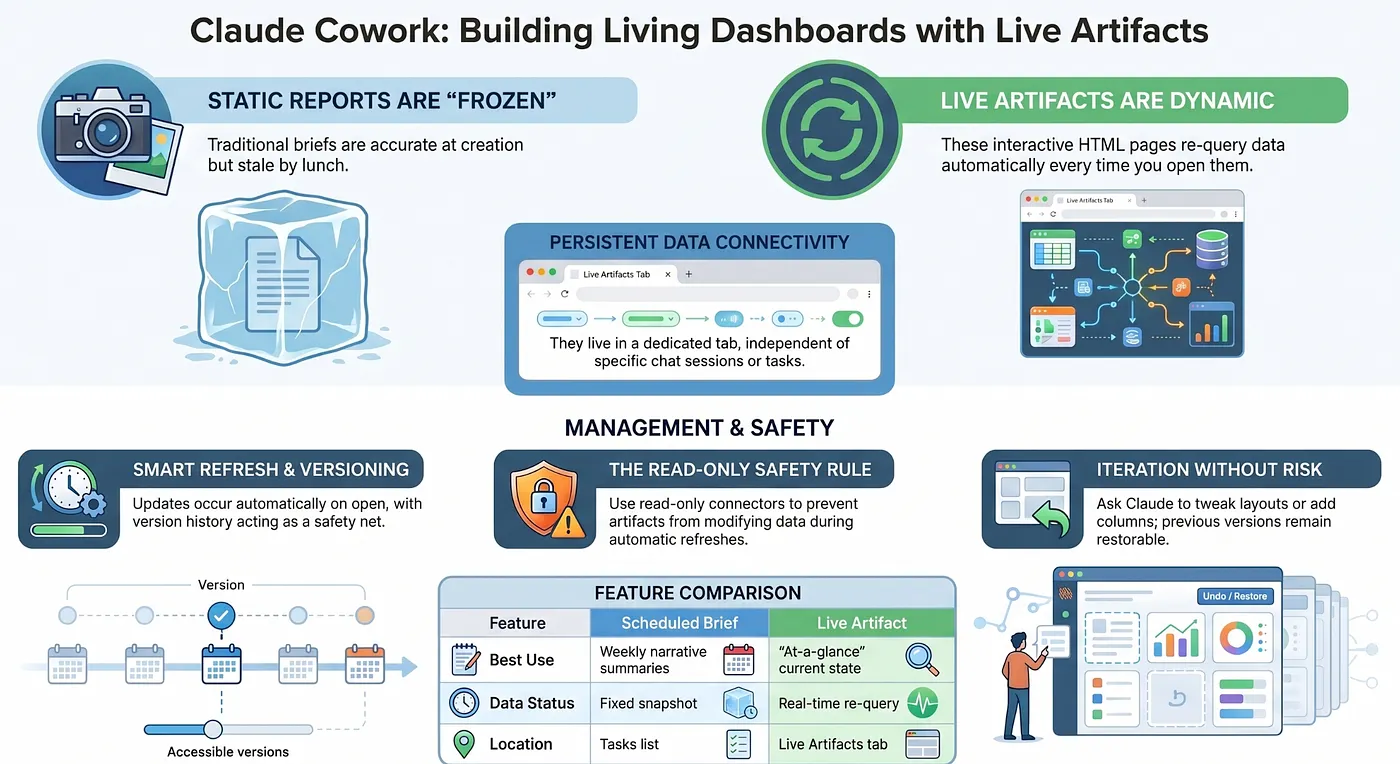
They live on their own. Every live artifact appears in the Live artifacts tab, independent of any task or session. You can open it tomorrow without the context of the conversation that created it.
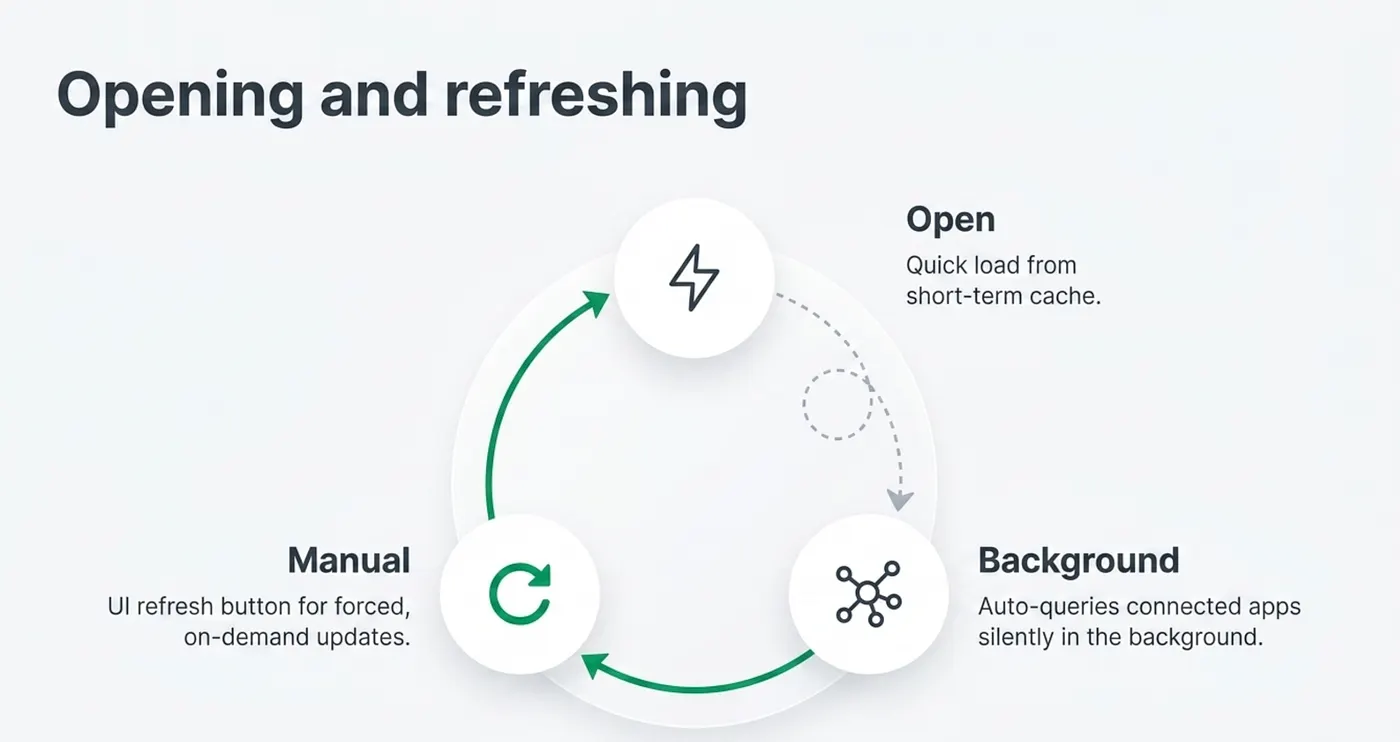
They refresh with current data. When you open one, it pulls from your connected apps and local files, so the view reflects now rather than the moment the artifact was built.
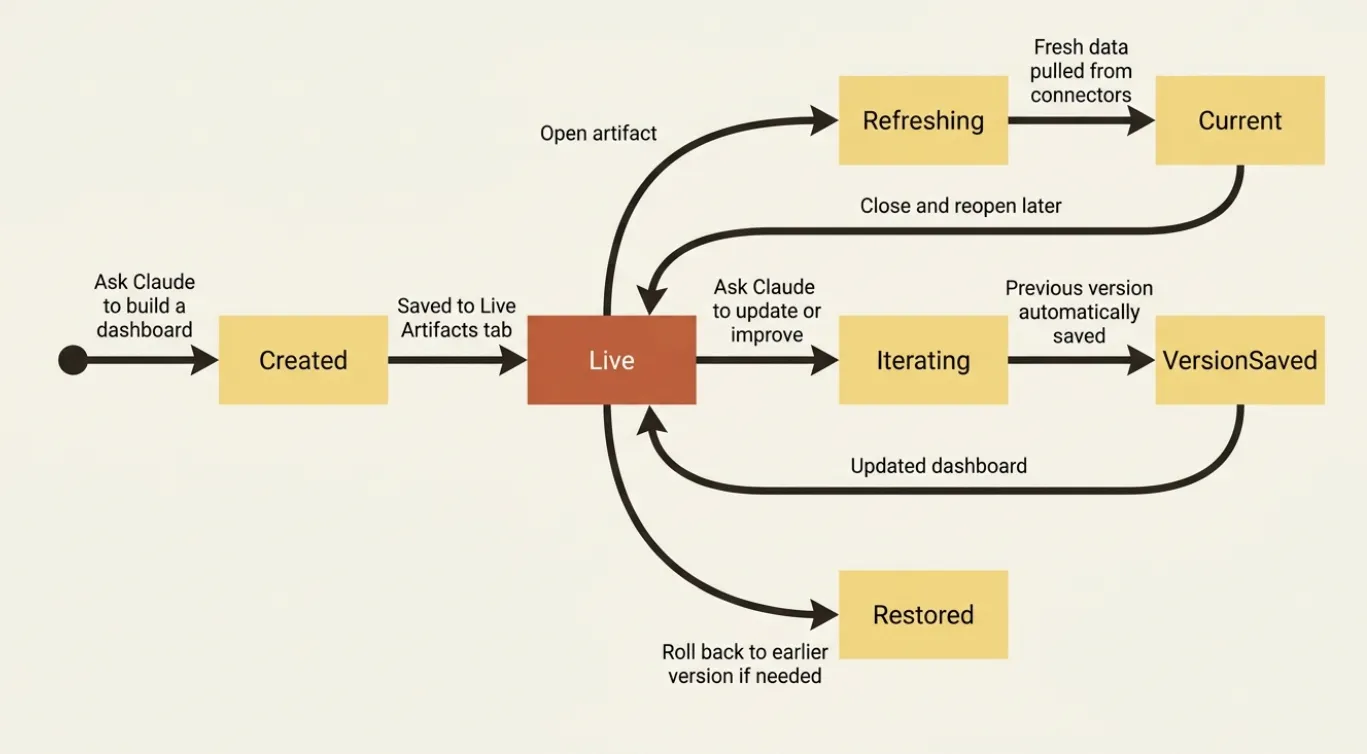
They keep their history. Each update saves a version, so you can see how the artifact evolved and restore an earlier state if a change breaks something.
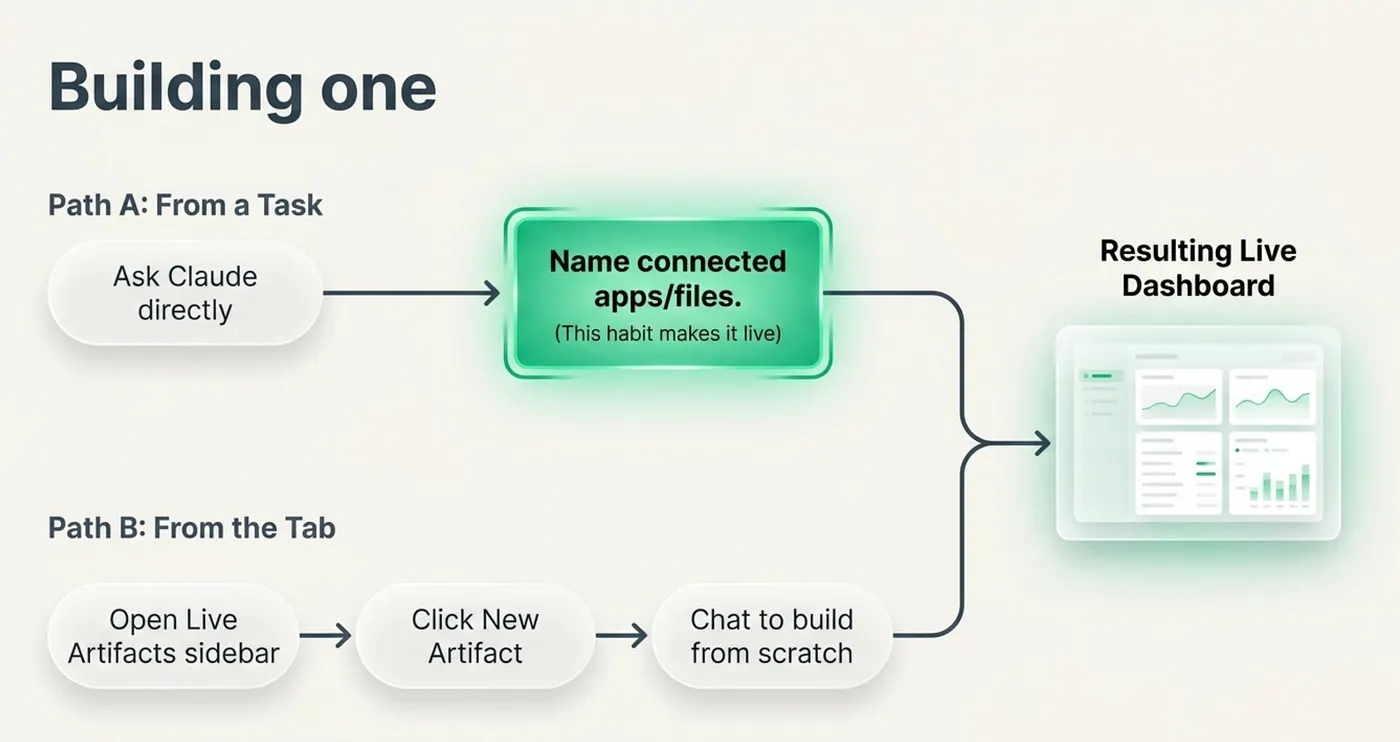
Building a Cowork Live Artifact
There are two ways to create a live artifact.
From a Cowork task. Just ask: "Create a tracker that monitors my top five competitors: recent releases, blog posts, and job listings." Claude will build the artifact during the task and surface it in your Live Artifacts tab when it is done.
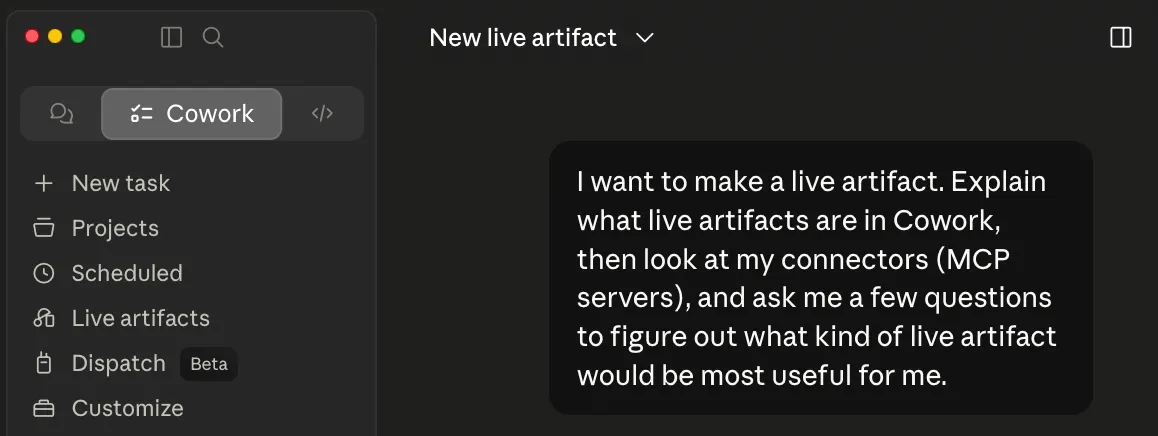
From the Live Artifacts tab. Open Cowork, select Live artifacts from the sidebar, click New artifact in the top-right corner, and describe what you want. This path skips the task context and goes straight to artifact creation.
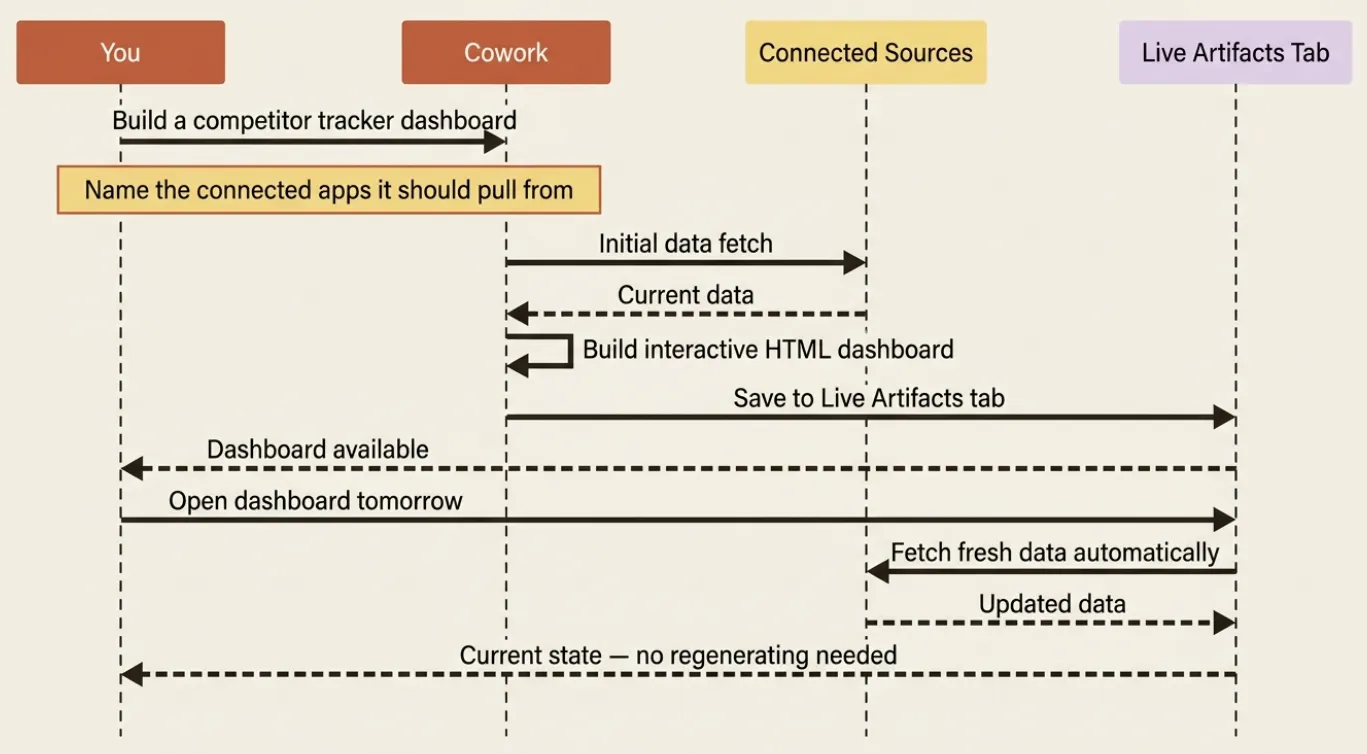
For the running example, this is where the competitor brief grows up. Ask Claude to build a competitor-tracking dashboard that pulls from the same sources the brief used: your connected web search, your notes folder, your calendar for upcoming launch windows.
Opening and refreshing
Reopening a live artifact is simple: select Live artifacts from the sidebar and click the one you want. The artifact loads and immediately queries its sources. There is no manual refresh button; opening it is the refresh.
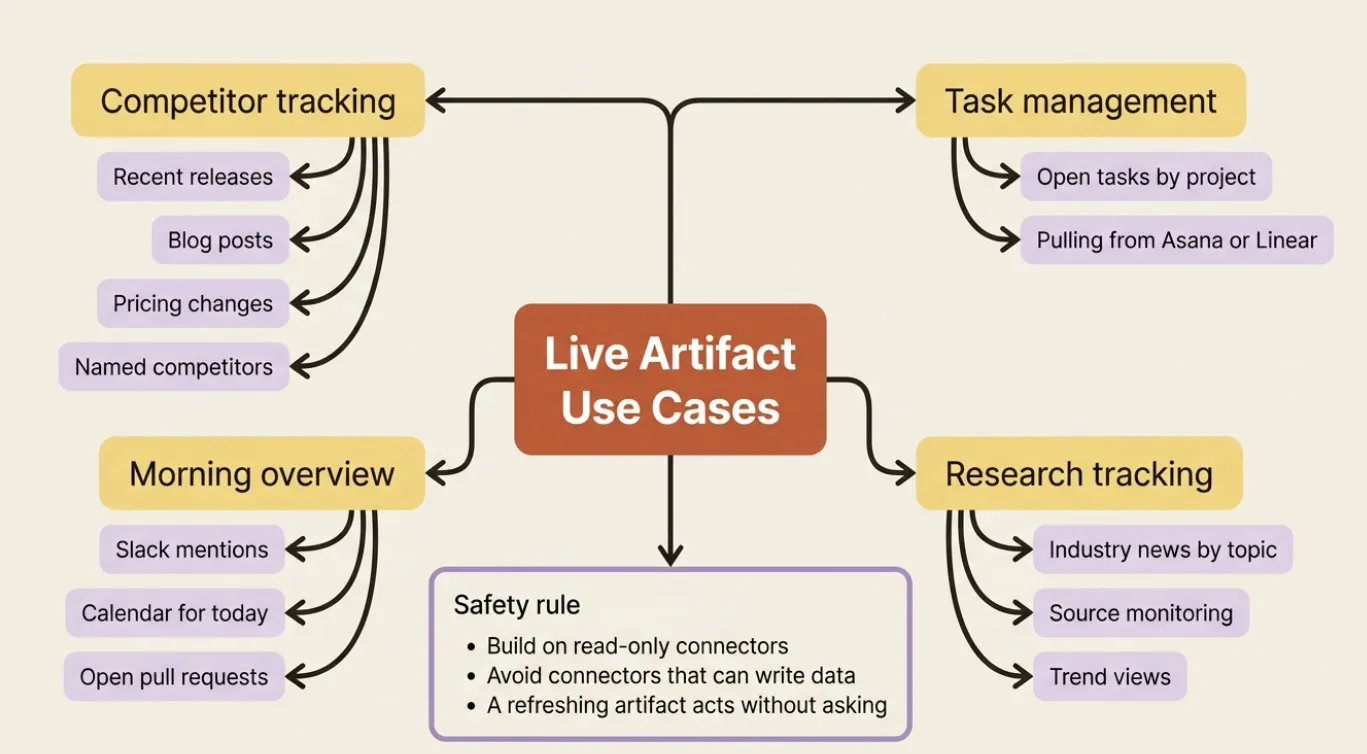
What to build live artifacts on
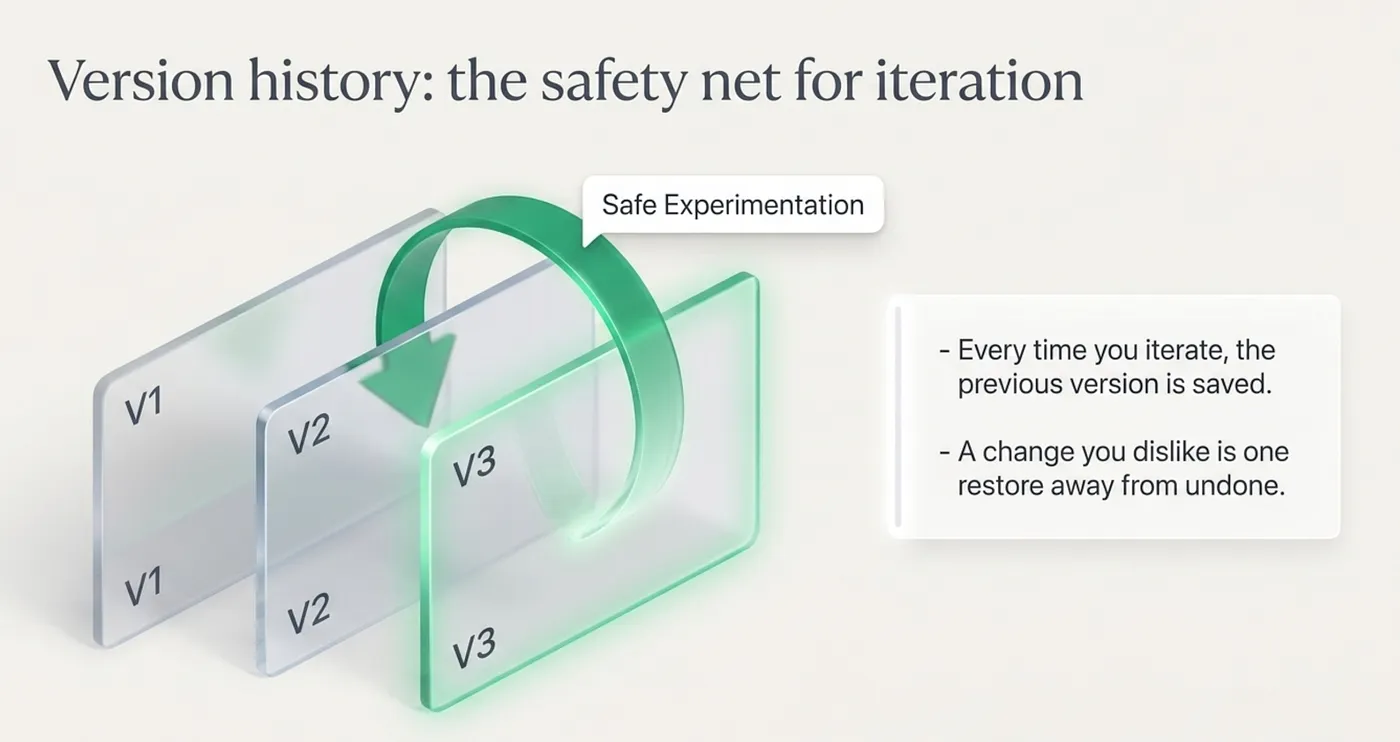
Version history: the safety net for iteration
Live artifacts are meant to be iterated on. You will open the competitor dashboard next week and want to add a column, change the layout, or narrow the sources. Each time you ask Claude to update the artifact, it saves the previous state as a version before applying your change.
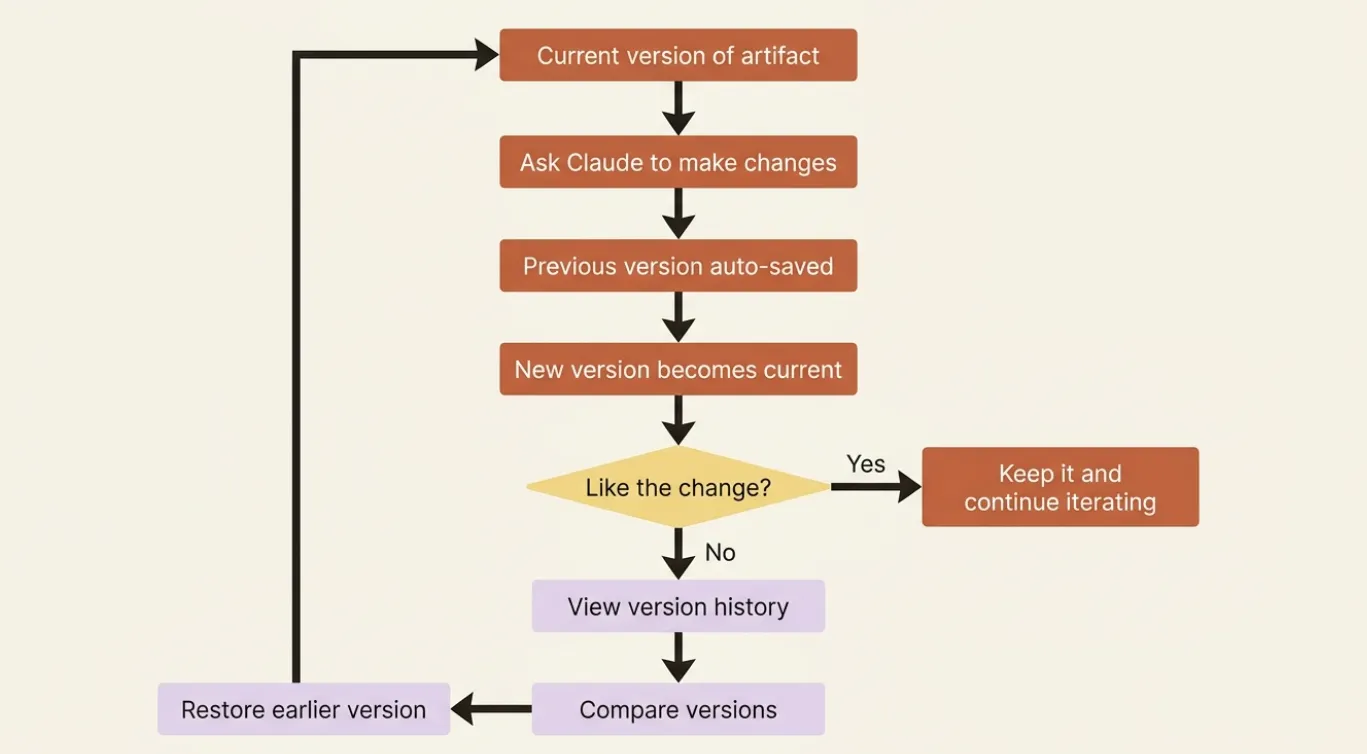
From version history you can see how the artifact has changed over time, compare an earlier version against the current one, and restore a previous state with a single click. This is the difference between confident iteration and the anxiety of editing something you cannot undo.
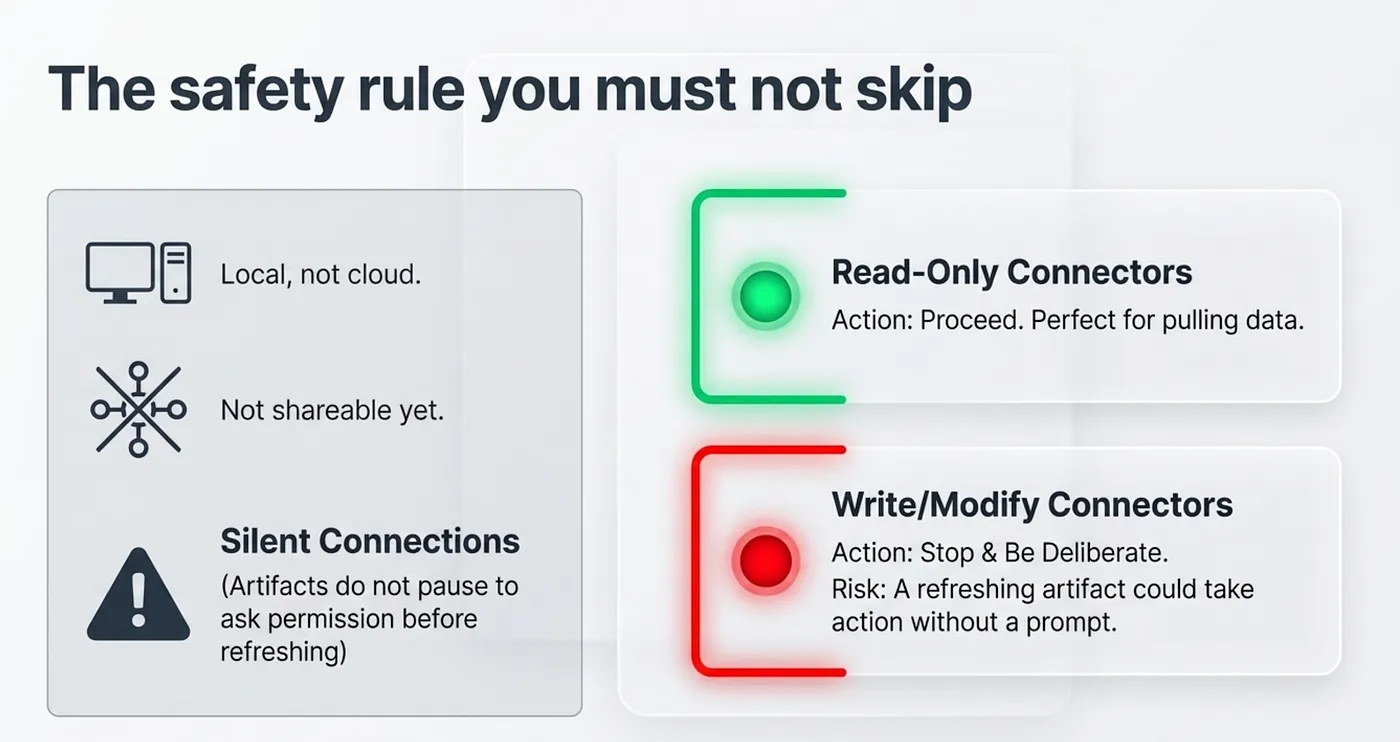
The safety rule you must not skip
Three limitations belong on your radar.
Local, not cloud. Live artifacts live on your computer. Switch devices and they do not come with you. This mirrors how Cowork projects work: everything is local unless you explicitly export it.
Not shareable yet. At launch, live artifacts are for your own use. Sharing is on the roadmap but not here today. If you need a colleague to see your competitor dashboard, export it and send the export.
They use your connectors without asking. This one needs real attention. Live artifacts can only use the connectors you have already authorized, and they act on those connectors automatically every time you open the artifact.
That is fine for read-only connectors that pull data. It is a genuine risk for connectors that can change your data, send messages, or create records. Before you wire a live artifact to a write-capable integration, review what actions it is authorized to take. If it can send a calendar invite or post to Slack, it will do that on open unless you have constrained it explicitly.
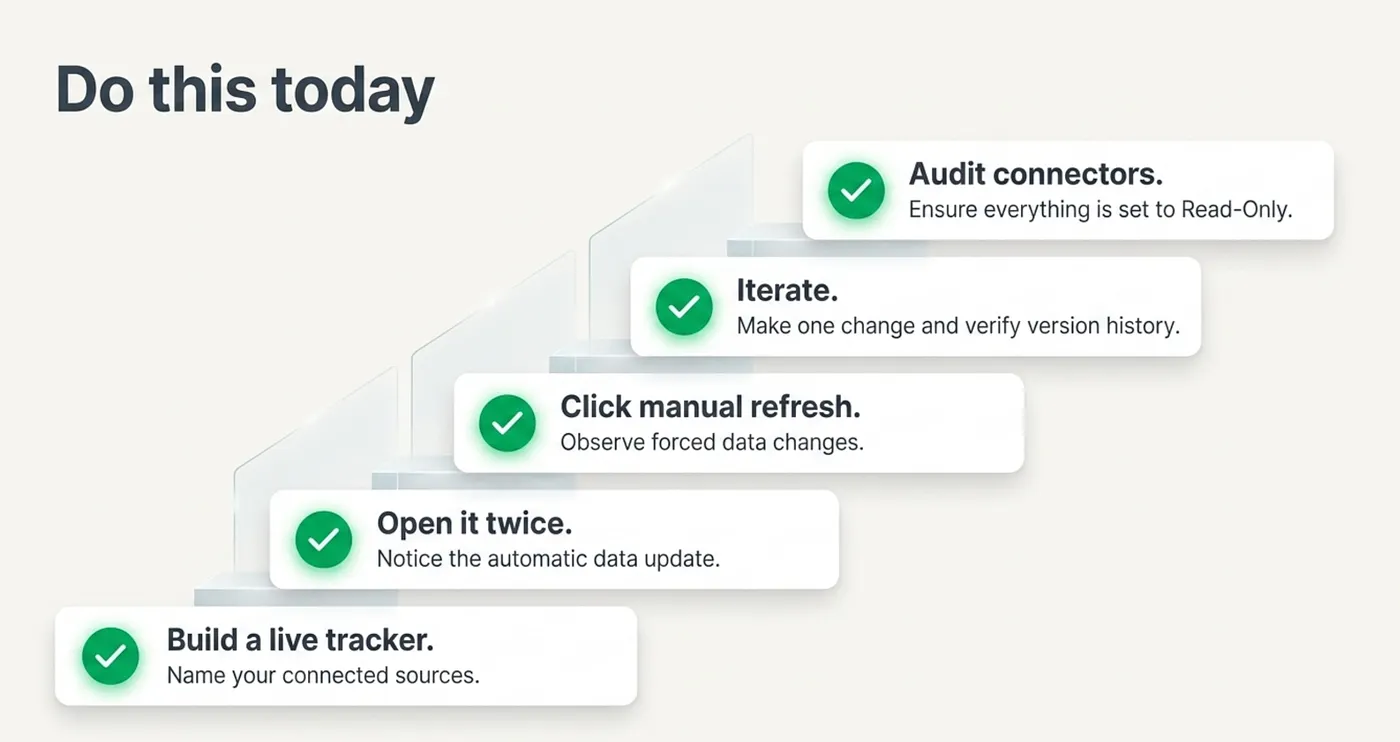
Do this today
- Ask Claude to build a live competitor tracker from inside your Competitive Intelligence project. Name the connected sources explicitly: web search for release notes, your notes folder for internal research, and your calendar for launch windows.
- Open the artifact, verify it pulls live data, then ask Claude to add one column you wish the scheduled brief had included.
- Check the version history. Confirm the pre-change version is there and restorable.
- If you have a write-capable connector authorized in Cowork, open the artifact's settings and verify what actions it is permitted to take before you let it run automatically.
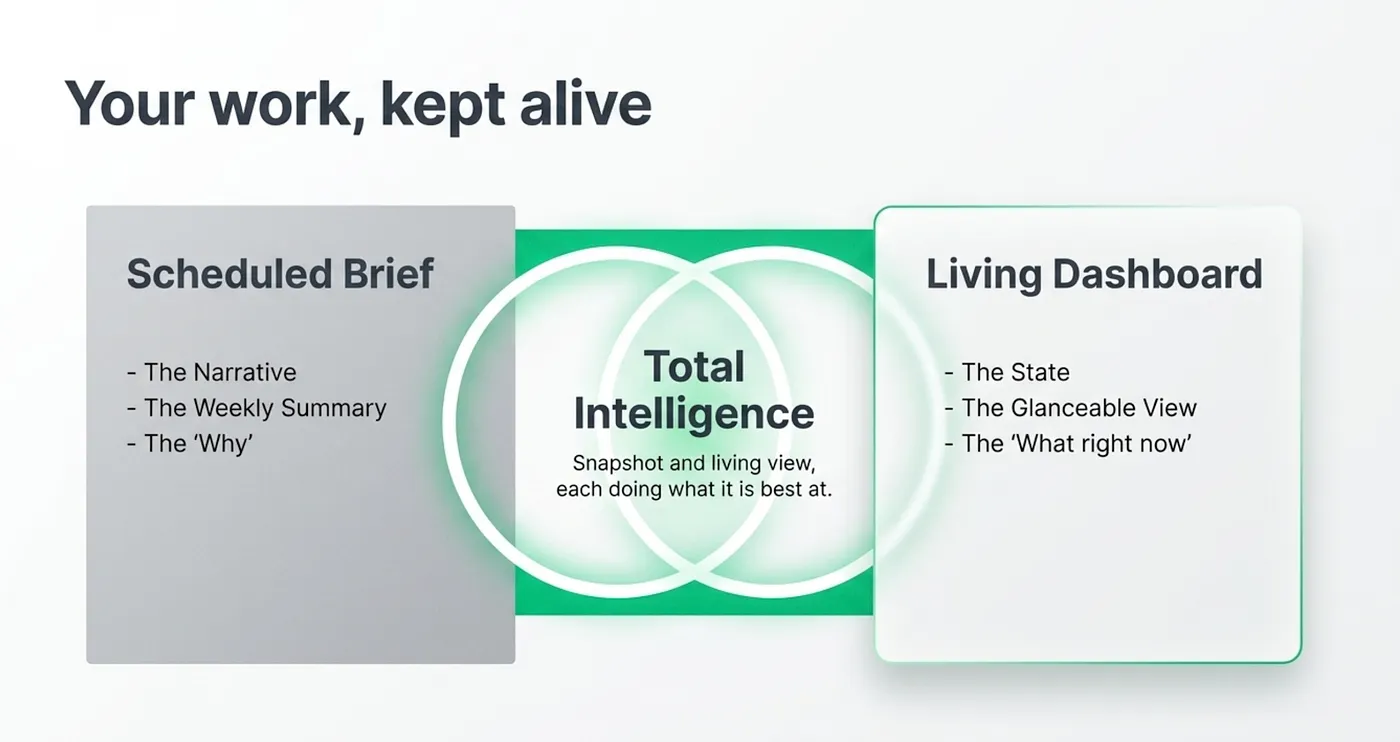
Your work, kept alive
For eight articles, Cowork produced outputs you collected: documents, organized files, a scheduled brief waiting in your inbox. This article closes the loop on outputs that do not age.
The competitor work is now both a weekly narrative brief and a living dashboard you glance at whenever you want the current picture. One is a document. One is a window. You need both.
This is Part 9 of "Getting Real Work Done with Claude Cowork," a 12-part guide to using Claude Cowork for real professional work.
About the Author — Claude Certified Architect
Rick Hightower is a former Senior Distinguished Engineer at a Fortune 100 company, focusing on delivering ML / AI infrastructure at scale.

Rick Hightower helps companies become AI-first through practical mentoring, executive and team training, and custom AI solutions. He leads Spillwave, an AI-first consultancy dedicated to making enterprise teams genuinely productive with AI.
Subscribe to Rick's newsletter to see videos and guides.
Rick is a Claude Certified Architect, AI systems practitioner, and builder of production multi-agent systems. He is the creator of the AI Harness Engineering methodology and author of the AI-First Company series.
Today, Rick and the Spillwave team works with leaders and teams who want to move beyond AI experiments and build real AI systems that produce measurable results.
Ready to make your company AI-first? Connect with Rick on LinkedIn, Substack, or visit Spillwave.com.