Claude Cowork Projects: Give Your Work Memory
Instructions tell Claude how you like things. A project lets a body of work remember its own history, and that difference is everything for recurring work.
Originally published on Medium.
Instructions tell Claude how you like things. A project lets a body of work remember its own history, and that difference is everything for recurring work.
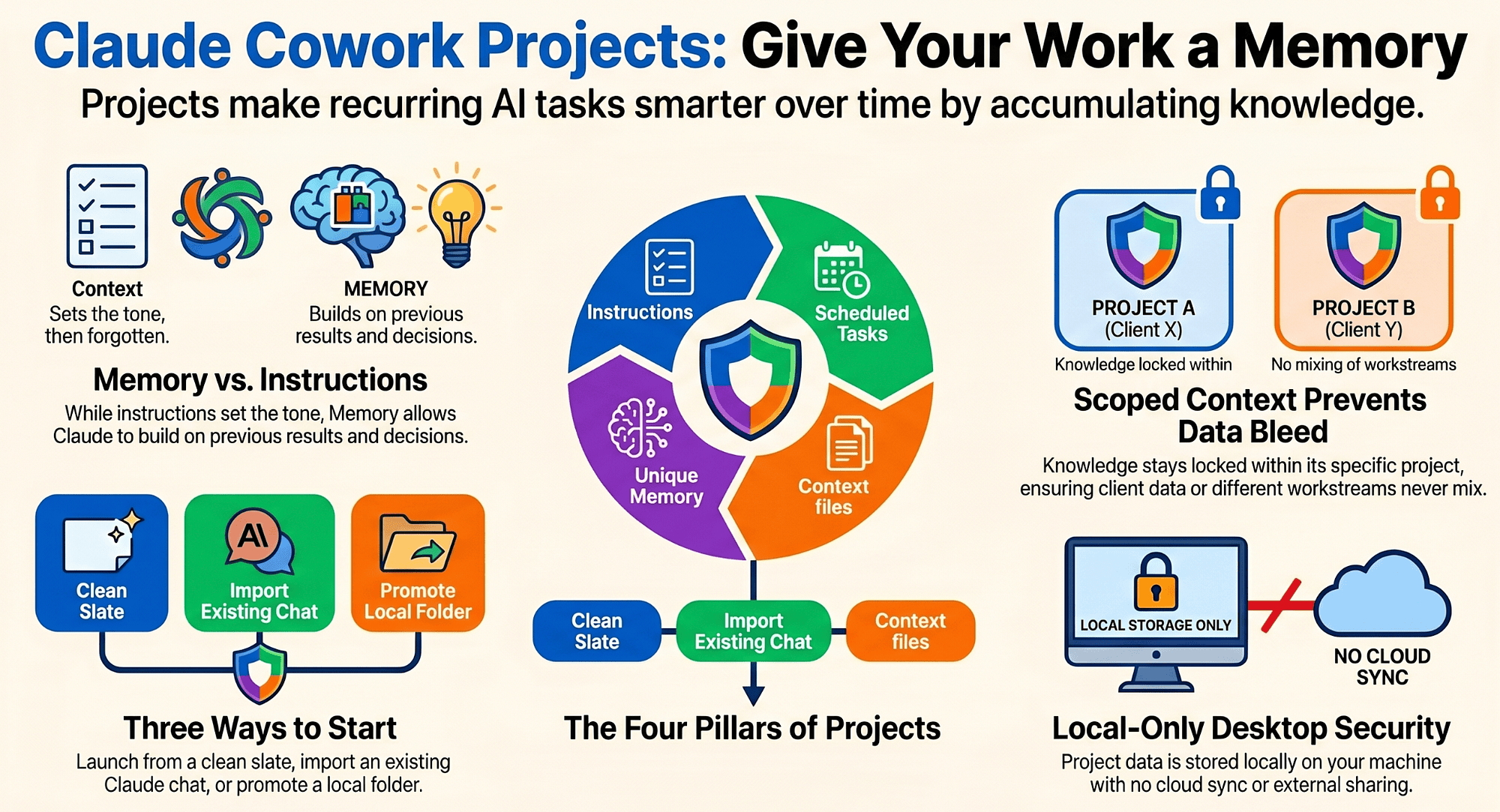
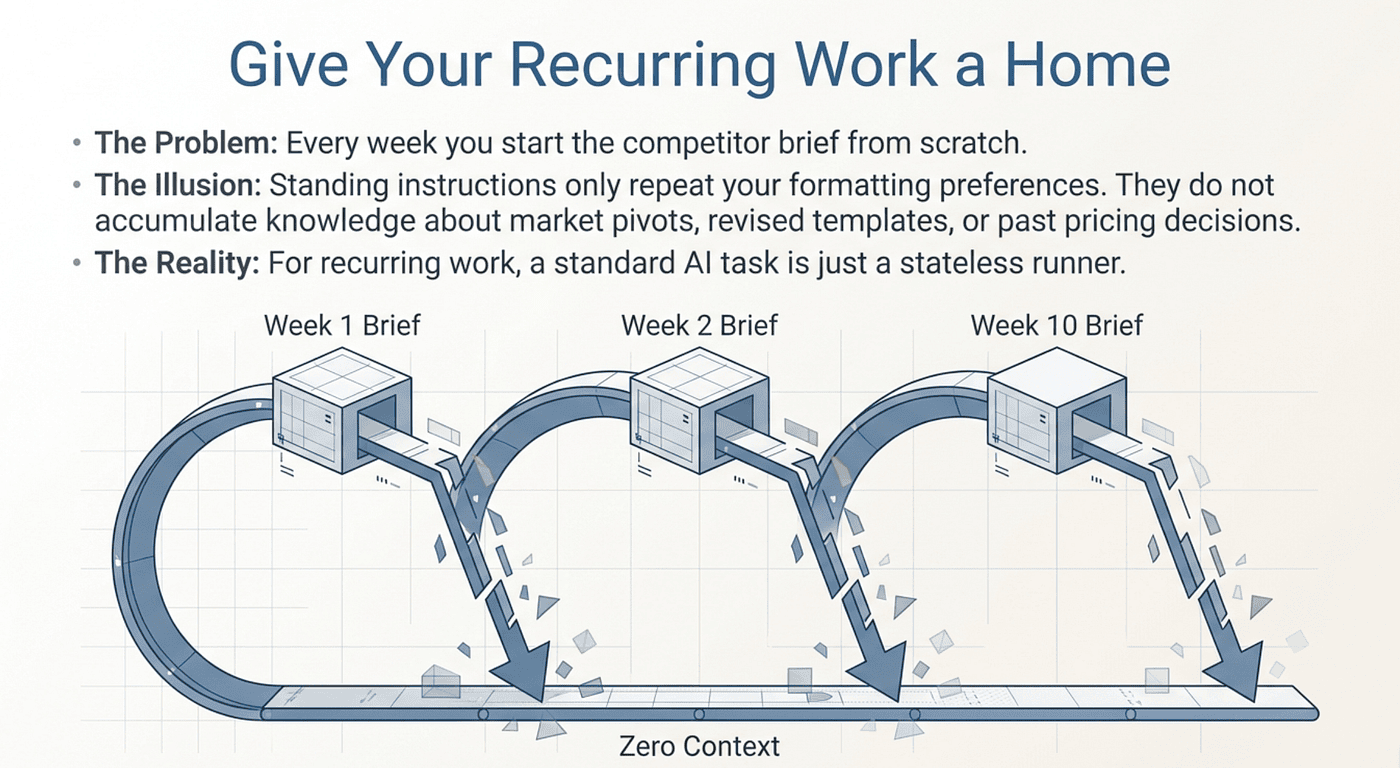
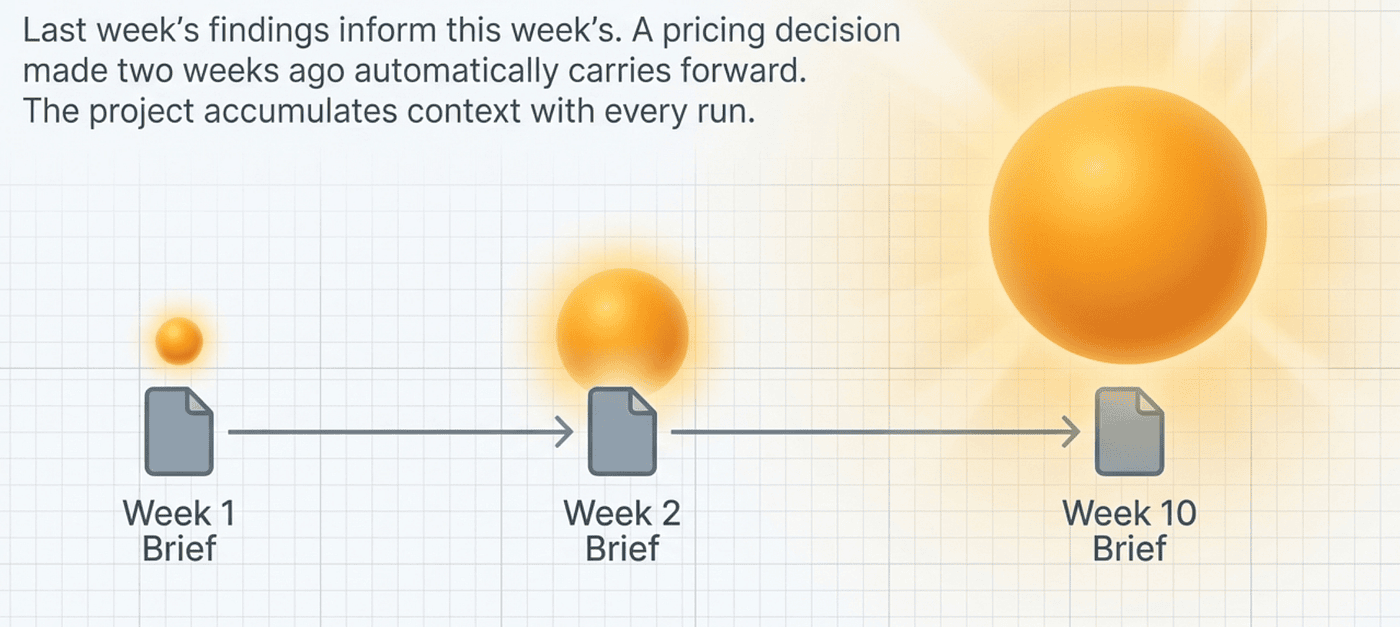
Every week you start the competitor brief from scratch. The project feature means the tenth brief is better than the first because it remembers the previous nine. Instructions tell Claude how you like things. A project lets a body of work remember its own history, and that difference is everything for recurring work.
In this article: You will learn what a Cowork project actually is, why memory is the feature that makes projects worth it, how to create one from scratch or from existing materials, and what the real limits are (local-only, no sharing, memory scoped to the project). This is where Cowork stops being a task runner and becomes a place your ongoing work actually lives.
Part 7 of "Getting Real Work Done with Claude Cowork," a 12-part guide to using Claude Cowork for real knowledge work. Start with Part 1 if you are new.
Companion Video
In the previous article you taught Cowork your preferences, and we ended on an honest observation: global instructions are powerful but blunt. They apply everywhere. They have no memory of what you did last Tuesday, or last month, or last year.
Projects do. A project in Cowork is a dedicated workspace that groups related tasks, files, instructions, and — the part that matters — memory of everything that has happened inside it. It is how recurring work stops starting over.
What a project actually is
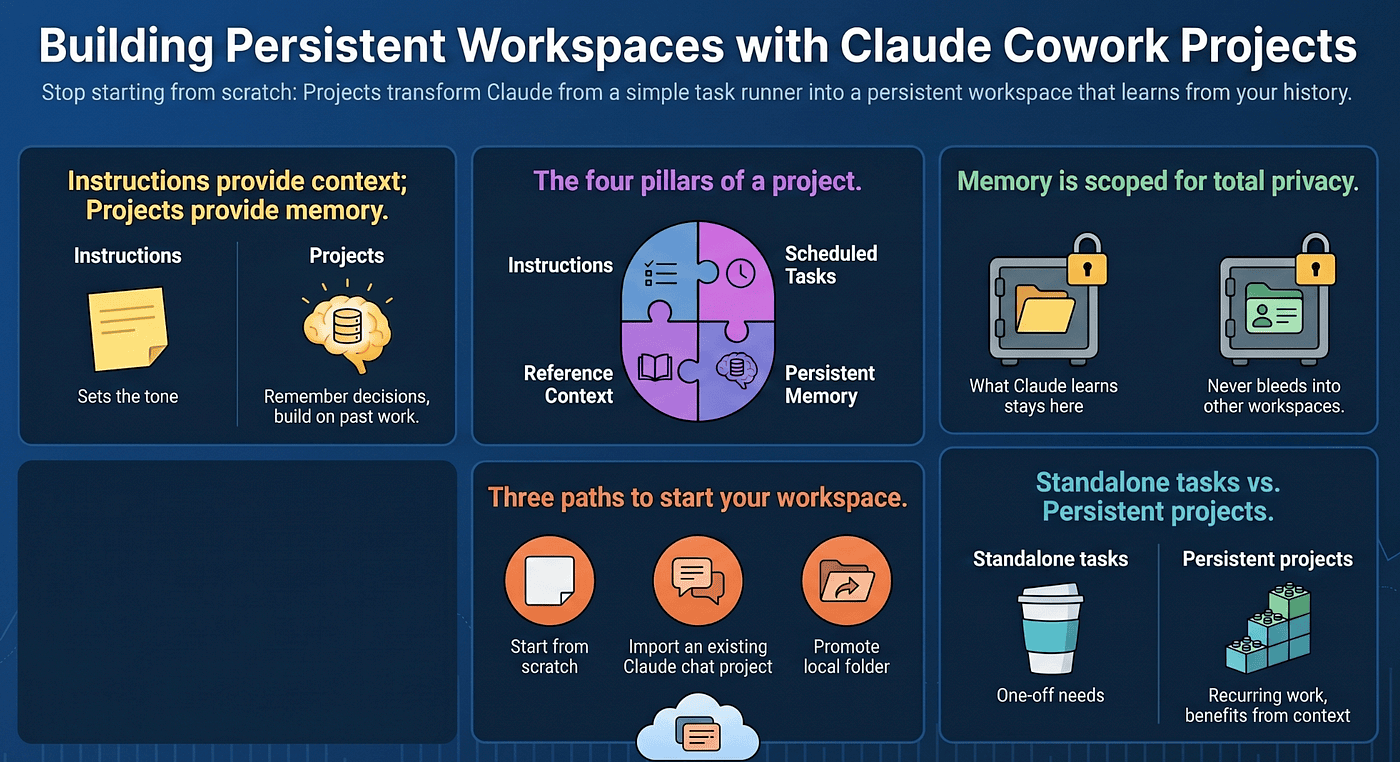
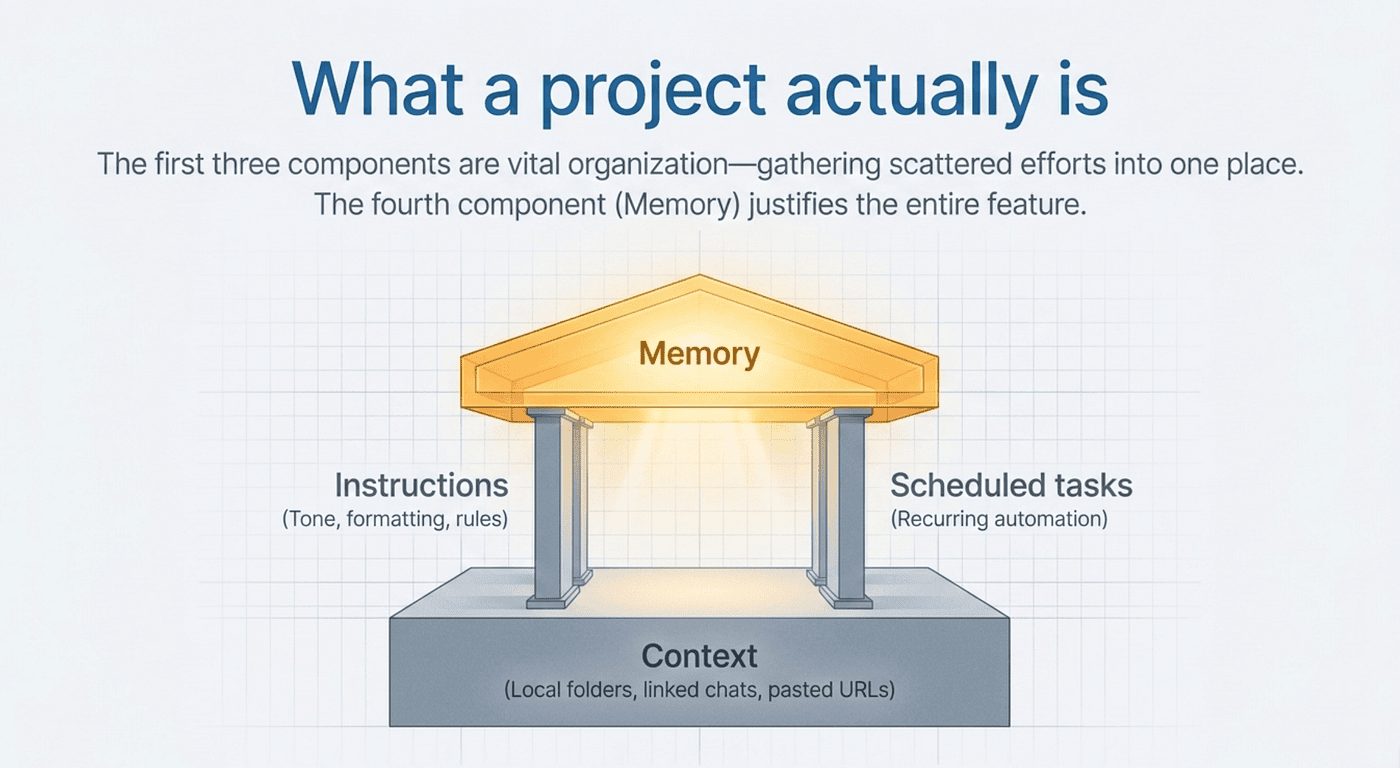
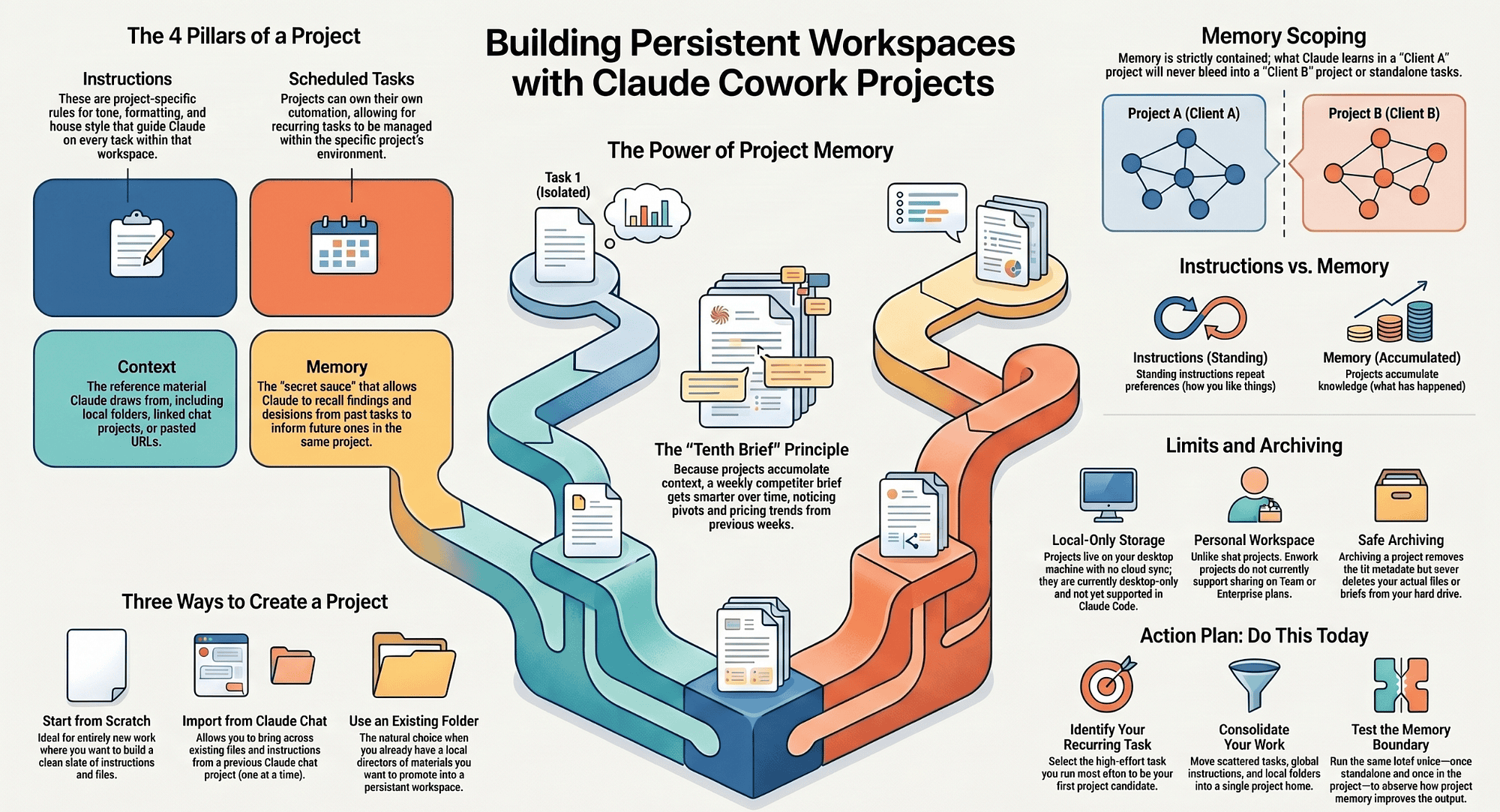
A project carries four components.
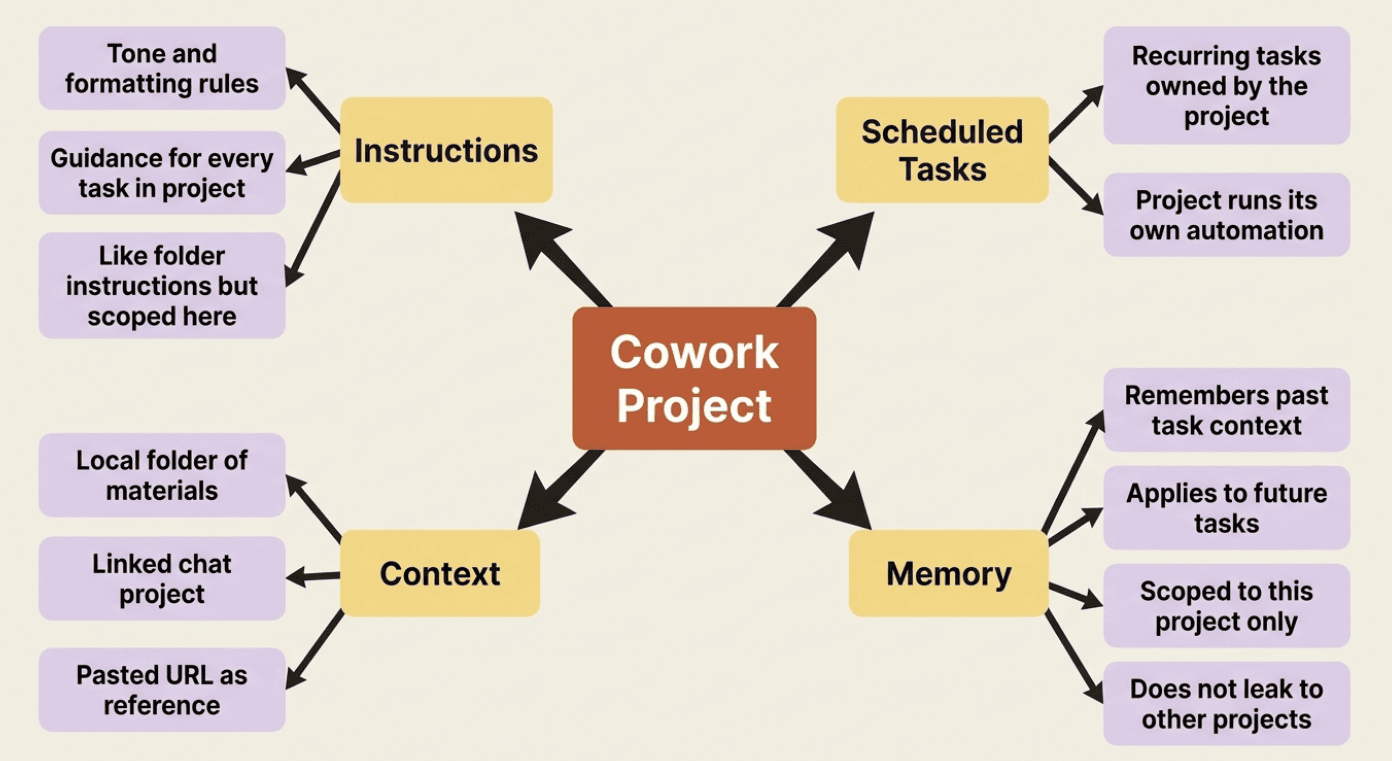
Instructions. Tone, formatting, and rules that guide how Claude works on every task in the project. This is folder-scoped, so it can be narrower and more specific than global instructions.
Scheduled tasks. Recurring tasks specific to the project. A project can own its own automation.
Context. The reference material Claude draws on: a local folder, a linked chat project, or a pasted URL.
Memory. Claude remembers context from the tasks you run in the project and applies it to future ones.
The first three are organization, and they are genuinely useful: everything about your competitor research in one place, with instructions tuned for that work, and a scheduled weekly run. But the fourth is where the character of the tool changes.
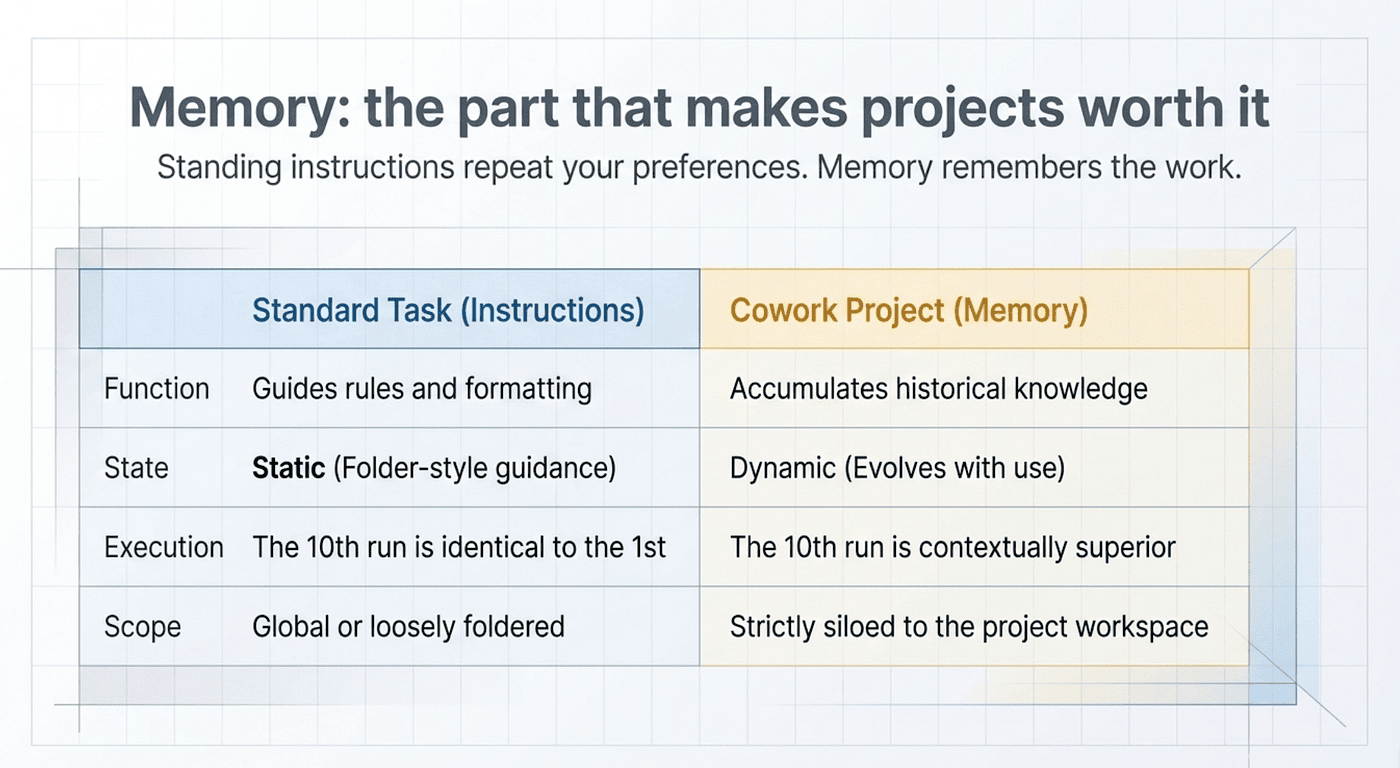
Memory: the part that makes projects worth it
Memory is enabled for Cowork projects. This means Claude can remember context from the tasks you run in the project and apply it to future ones.
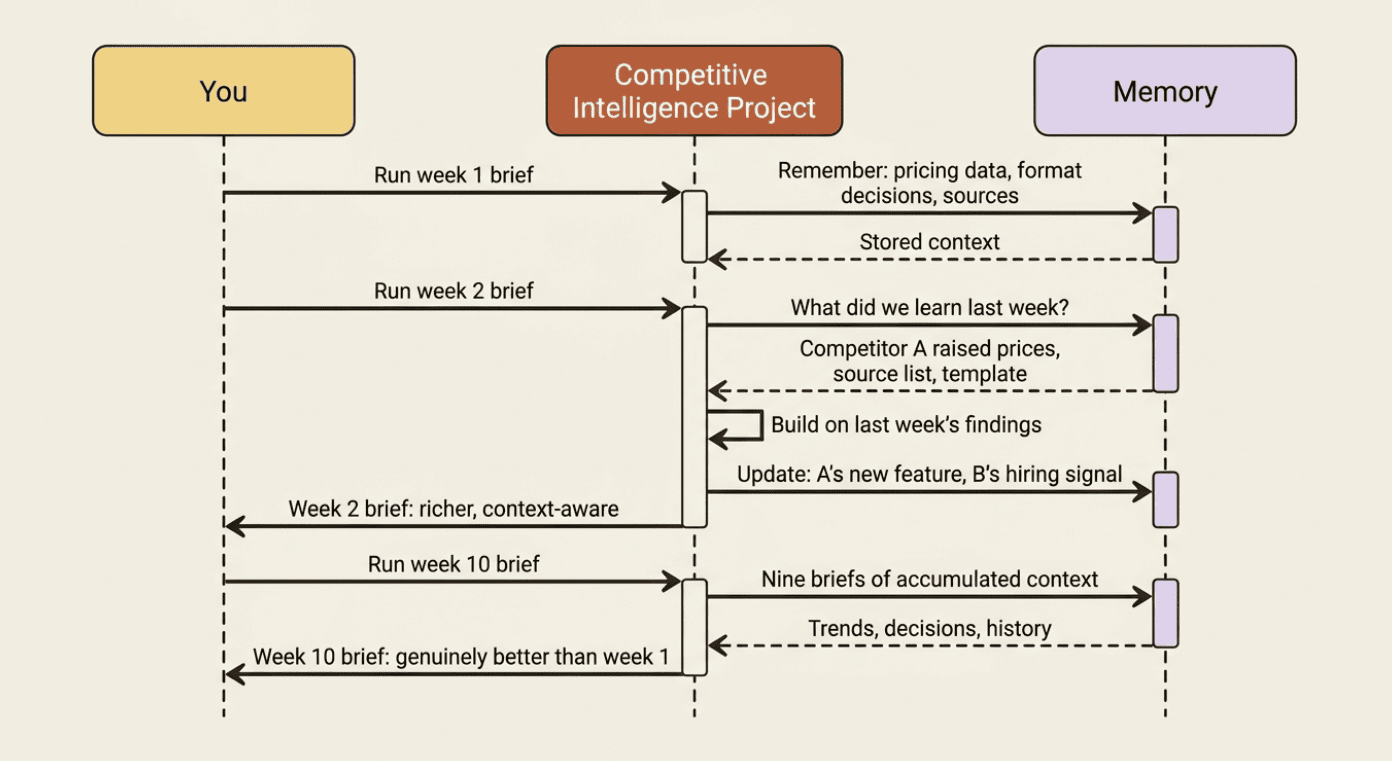
The competitive-intelligence project does not just know your preferred format; it knows which companies you track, how their positioning shifted last quarter, and what you flagged as important in prior runs. Every output from inside the project is available to future tasks inside the project.
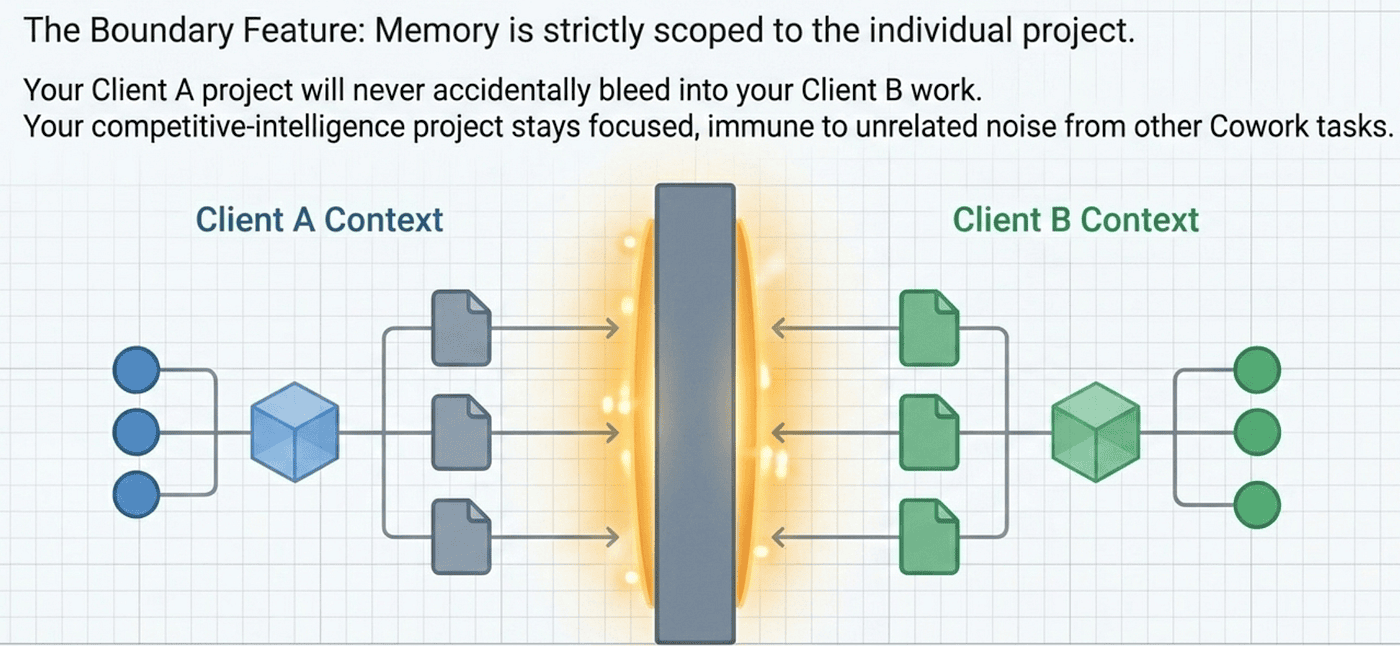
There is a crucial boundary on this, and it is a feature rather than a limitation: memory is scoped to the project. What happens in the competitor-research project stays in the competitor-research project. A task from a different project cannot reach in and read it.
The scoping cuts both ways, and both are good. Your client-A project never accidentally pulls in context from client B. Your personal journaling project is invisible to your professional ones. Isolation is built in.
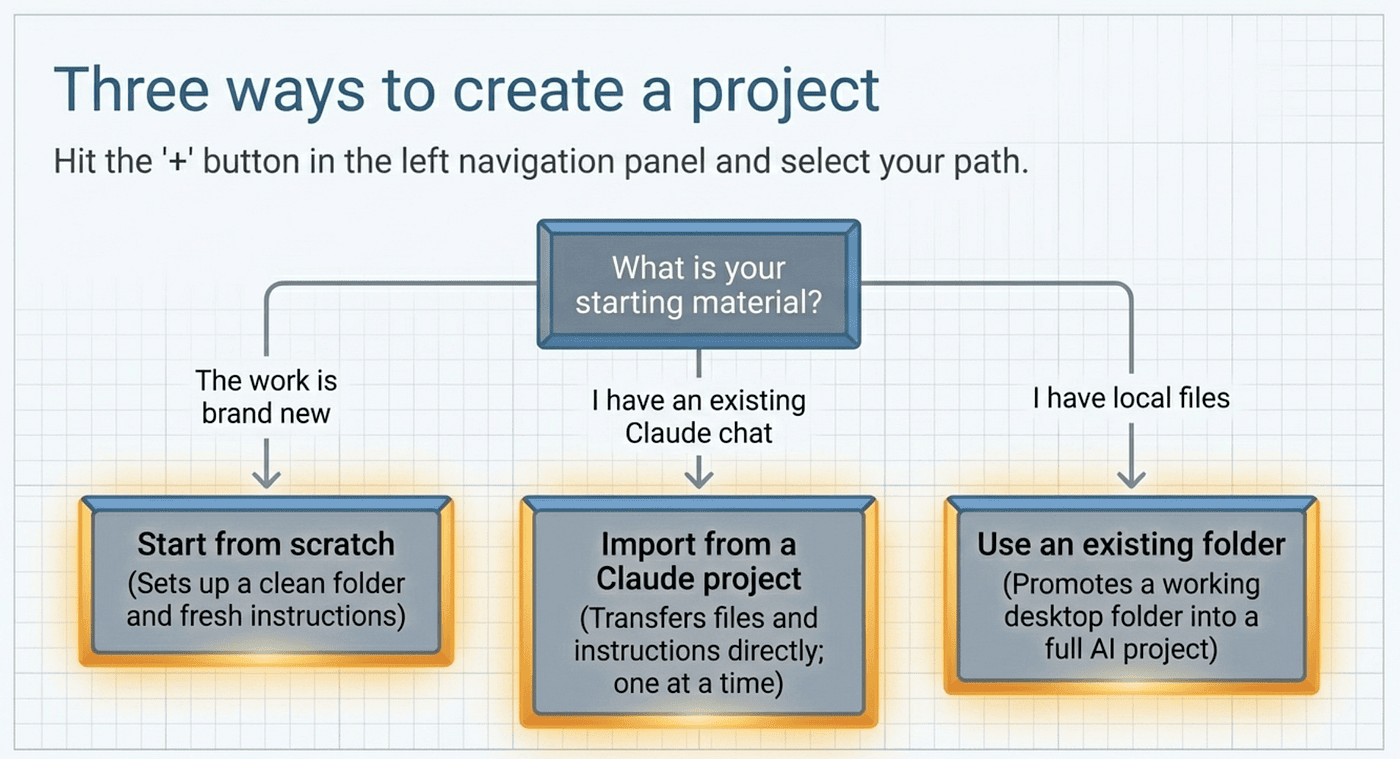
Three ways to create a project
To create a project, find Projects in the left navigation panel and click the + button. A creation modal appears with three options.
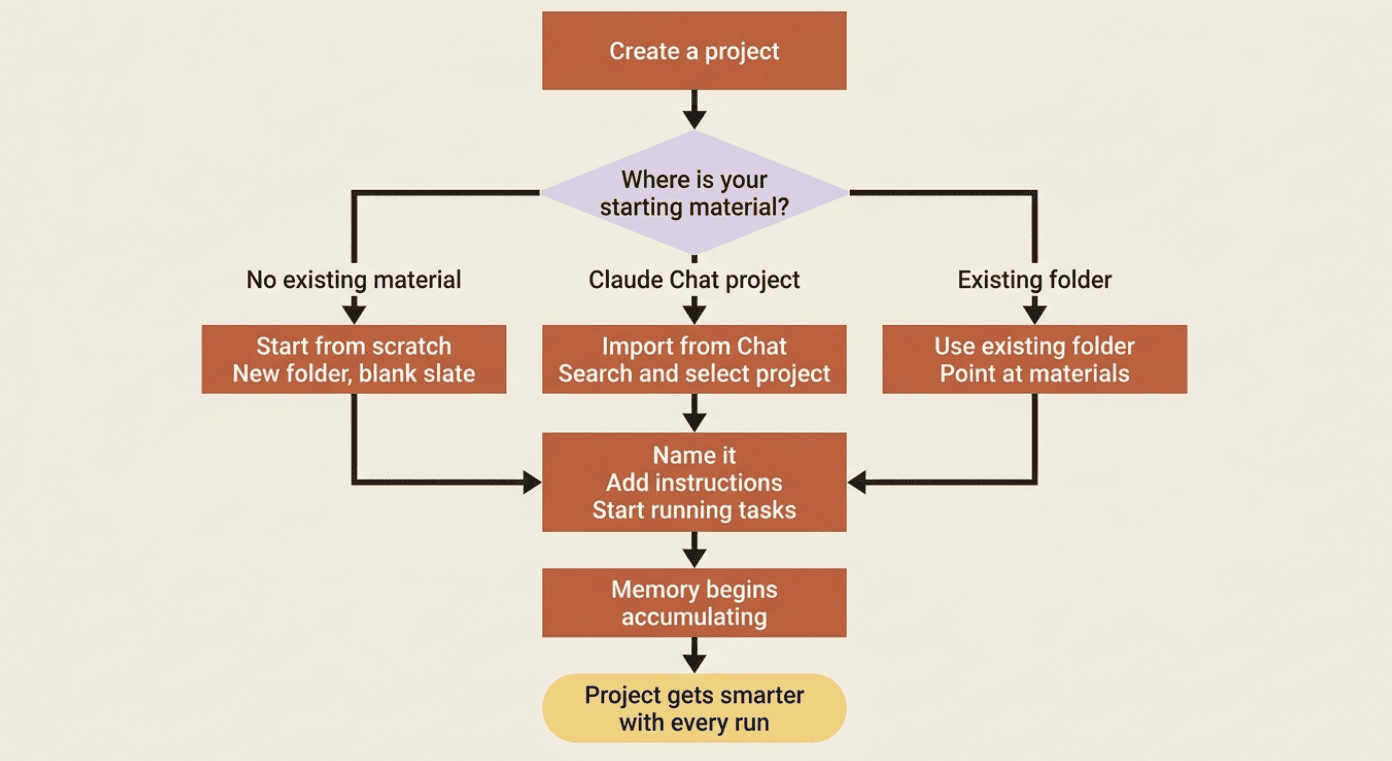
Start from scratch. Sets up a new folder with instructions and files from a clean slate. The right choice when the work is new.
Import from a Claude project. If you already have a project in Claude chat, this brings it across. Select Import from Claude project, authenticate, and your existing project becomes a Cowork project with its instructions and files intact.
Use an existing folder. If the material already lives in a folder on your computer, point Cowork at it. This is the fastest path when the raw material exists but is not yet organized around a workflow.
For the running example, if your competitor research has been a series of loose files in a folder, Use an existing folder is the right choice. If it has been a Claude chat project, Import from a Claude project is cleaner.
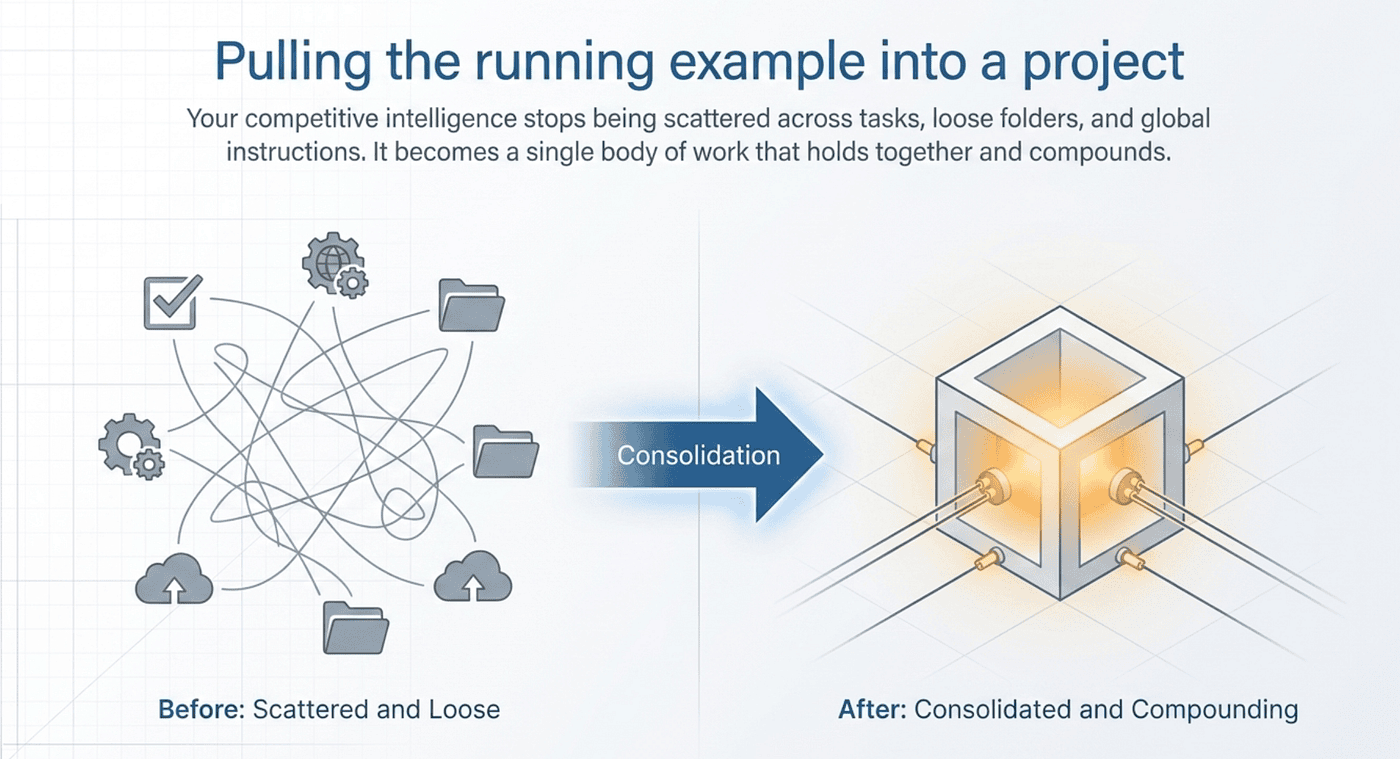
Pulling the running example into a project
This is the moment the series has been setting up. Across the last six articles, the running example has built up a competitor-research workflow with a named task, a custom instruction set, a scheduled run, and a set of files. All of that has been floating at the top level of Cowork.
Pulling it into a project gathers all of it into one workspace. The project's instructions and context replace the global-level setup for this work. Memory starts accumulating the moment you run the first task inside the project.
That consolidation is the practical payoff. Not just tidiness, though it is tidier. The memory is what you cannot get any other way. When you run the tenth weekly brief inside the project, Claude knows the shape of the previous nine. It knows what you found interesting, what you skipped, what changed. The brief gets sharper over time without you doing anything extra.
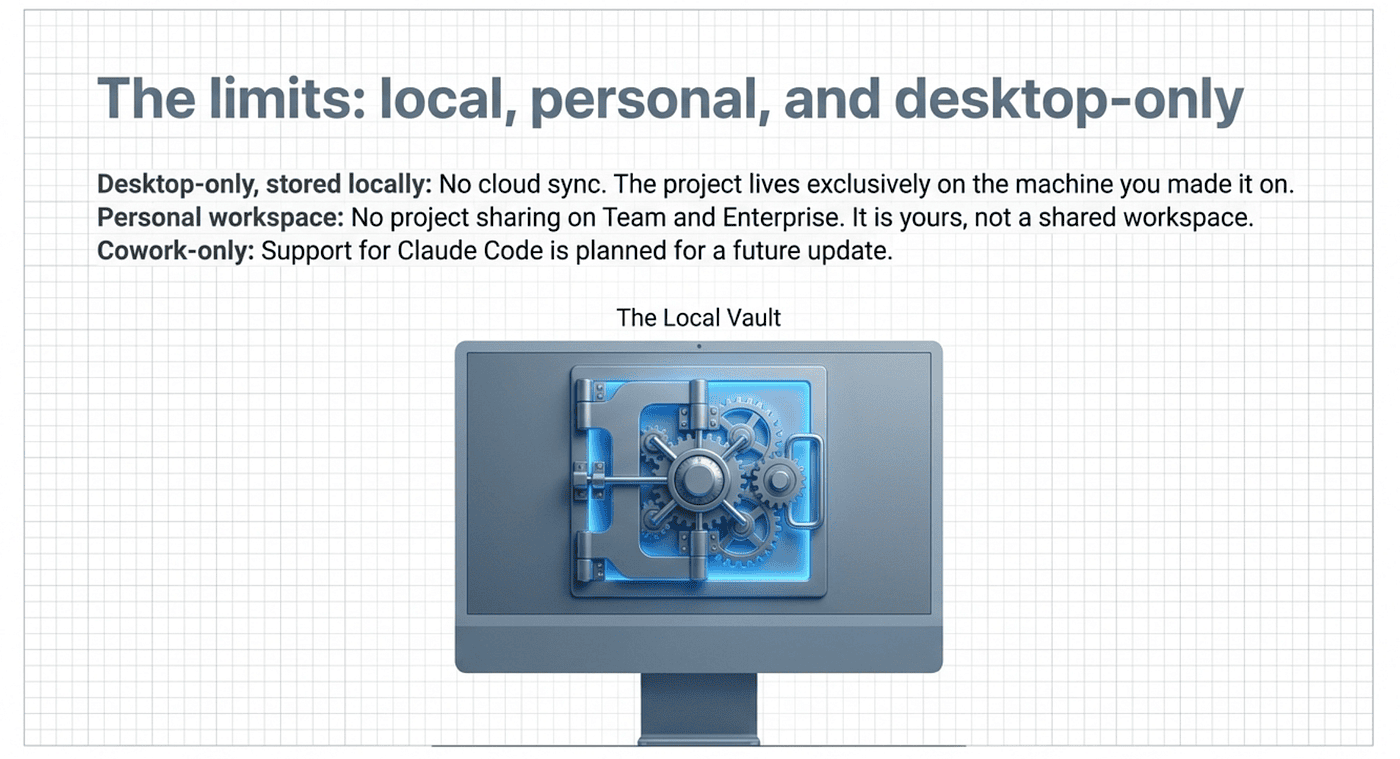
The limits: local, personal, and desktop-only
Projects live on your desktop, stored locally, and that has consequences worth knowing before you decide how to structure your work.
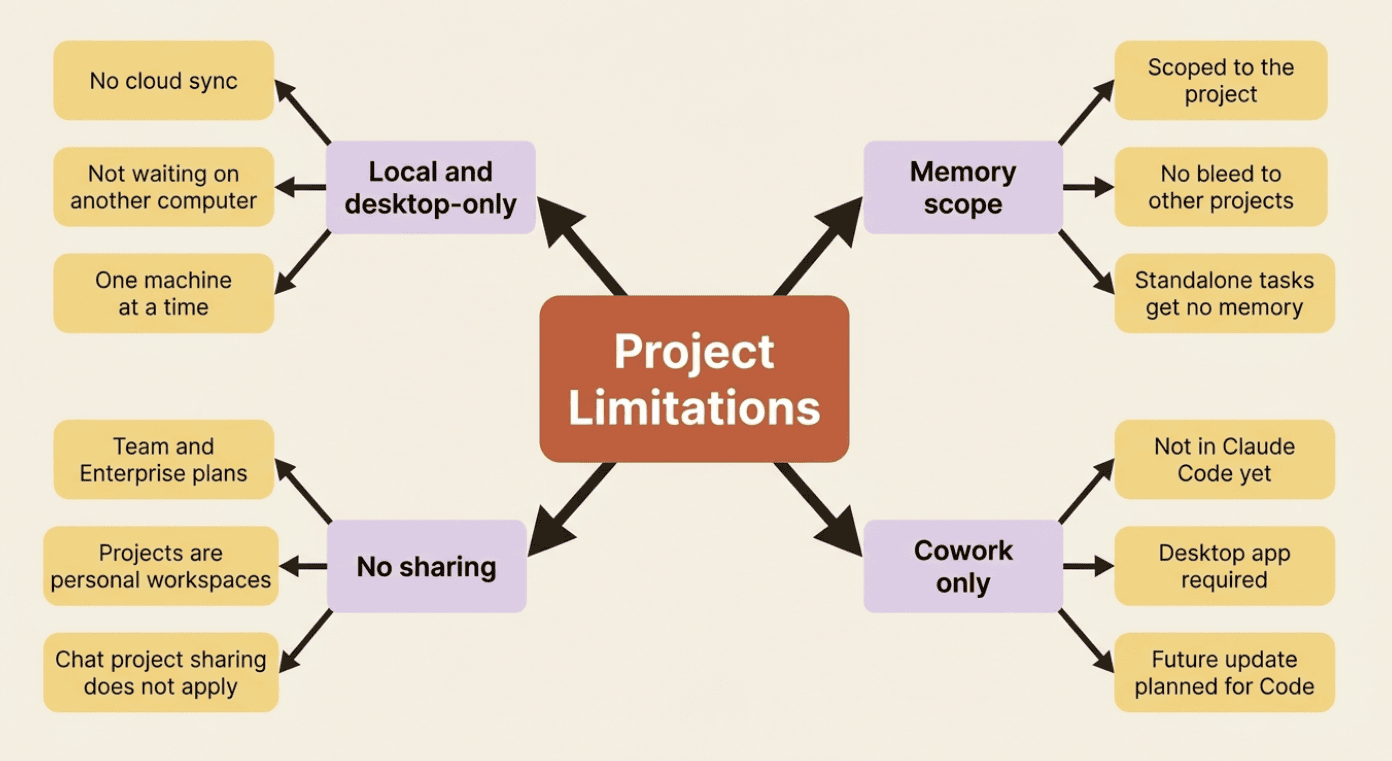
Desktop-only, stored locally. There is no cloud sync for project data at this time. A project lives on the machine you created it on. If you work across devices, plan for that.
Cowork-only for now. Projects are available in Cowork but not in Claude Code. Support for Claude Code is planned for a future release.
No project sharing on Team and Enterprise. Cowork projects do not support the project sharing that chat projects offer. If you need to share a project with a colleague, you are working in Claude chat, not Cowork — for now.
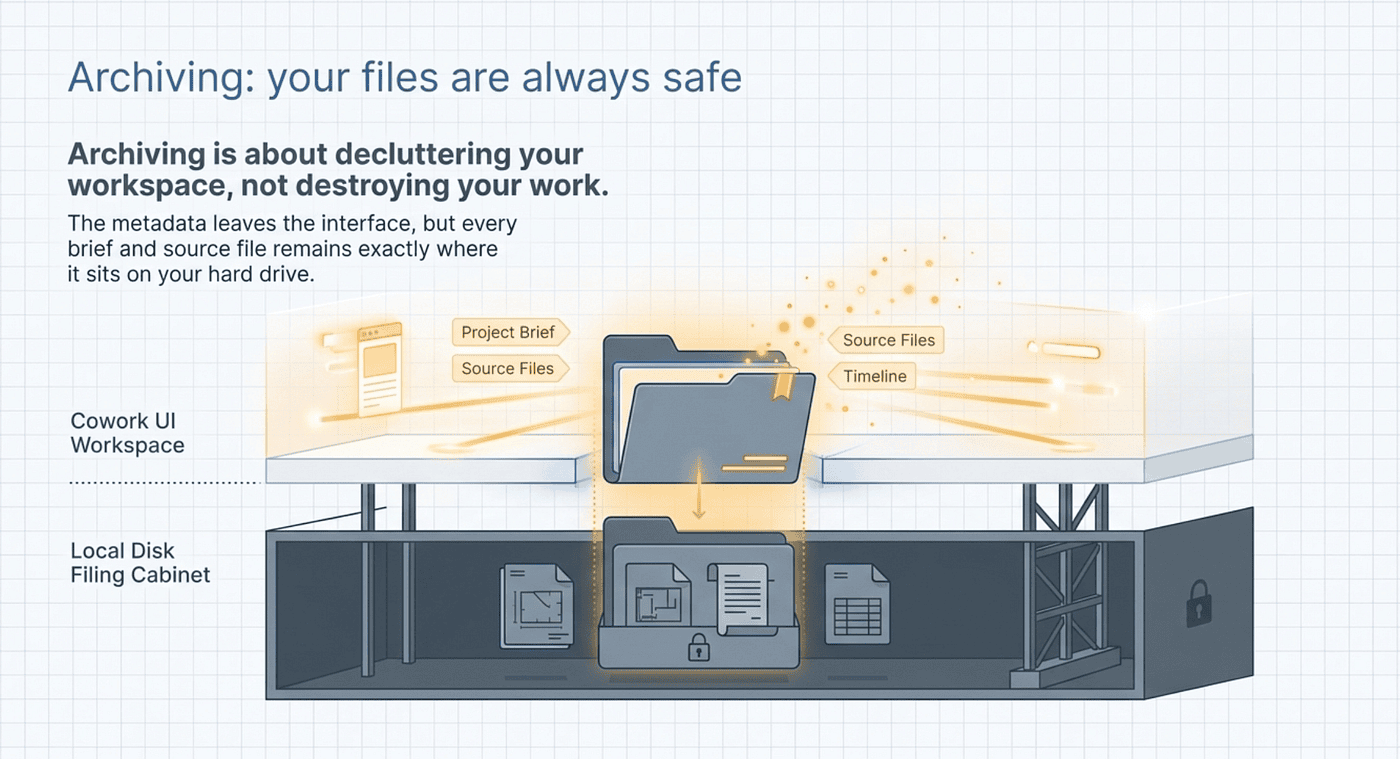
Archiving: your files are always safe
When you are done with a project, you archive it. Archiving removes the project's tasks from the active interface.
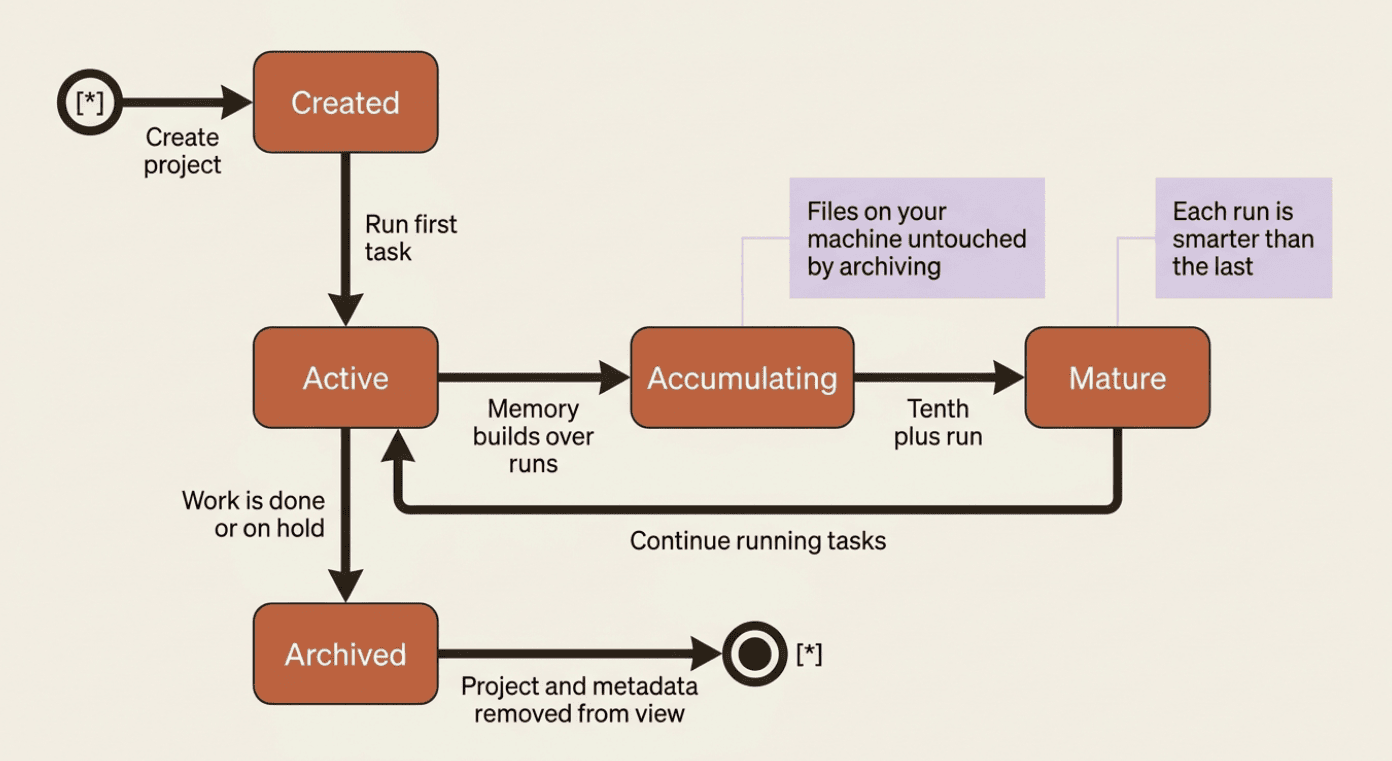
Archiving is about decluttering your workspace, not destroying your work. The content in the project folder is untouched. Your files remain exactly where they were. The folder does not move, delete, or change. You can reopen the folder in Finder at any time.
Do this today
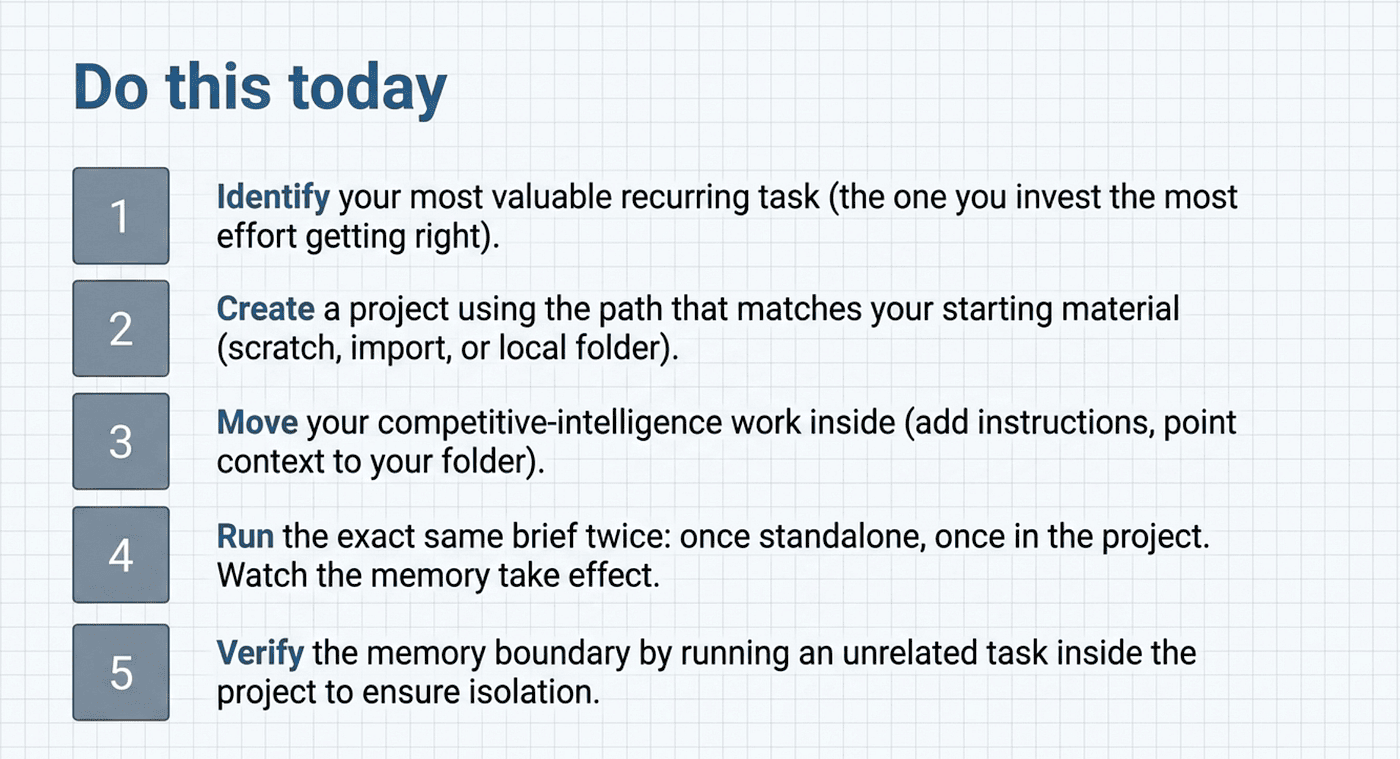
- Identify your most valuable recurring task: the one you run most often, the one where starting from scratch costs you the most.
- Create a project for it. Use an existing folder if the material is there. Start from scratch if it is not.
- Move the task into the project. Set the project instructions to match what you have been doing globally, but tuned for this specific work.
- Run it once inside the project. The memory clock starts.
- Leave it. Come back next week and see what the second run knows that the first one did not.
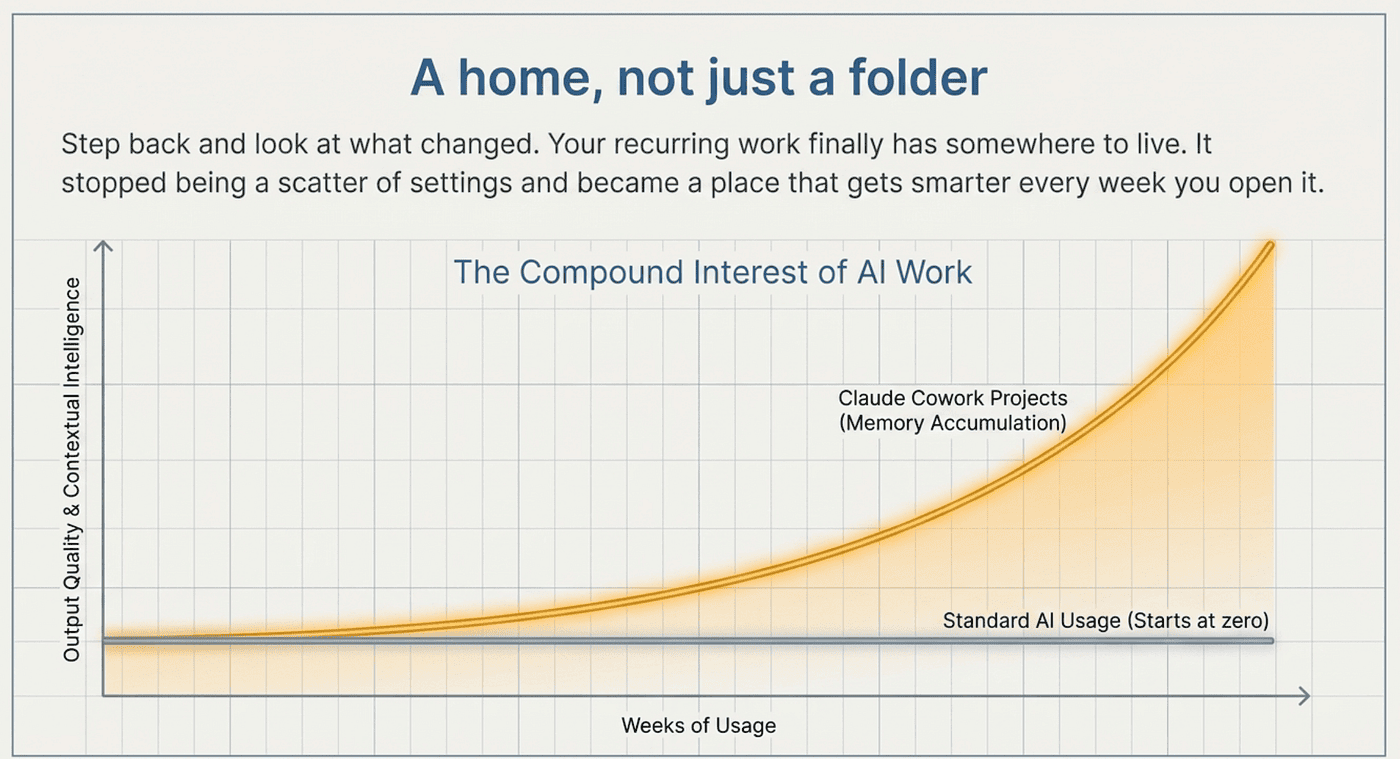
Give your Cowork Task A home and a memory, not just a folder
Step back and look at what changed. For six articles you have been running tasks and configuring how Claude handles them. That is all about telling Claude what to do and how to do it. Projects add a third axis: Claude starts to know what you have been working on. That is not configuration. That is continuity.
The competitor-brief example is one instance of a general pattern. Any recurring knowledge task, any body of work with a history, any domain where this week's output should benefit from last week's — that is where a project earns its place. The format preference is nice. The memory is what matters.
This is Part 7 of "Getting Real Work Done with Claude Cowork," a 12-part guide to using Claude Cowork for real knowledge work.
About the Author — Claude Certified Architect
Rick Hightower is a former Senior Distinguished Engineer at a Fortune 100 company, focusing on delivering ML / AI insights at scale, and has been creating AI-first workflows since 2023.

Rick Hightower helps companies become AI-first through practical mentoring, executive briefings, and hands-on workflow design.
Subscribe to Rick's newsletter to see videos and guides.
Rick is a Claude Certified Architect, AI systems practitioner, and builder of production AI pipelines. He is also the founder of Spillwave, an AI strategy and implementation firm.
Today, Rick and the Spillwave team works with leaders and teams who want to move beyond demos and deploy AI that actually works.
Ready to make your company AI-first? Connect with Rick on LinkedIn, Substack or email spillwave.com.