Mastering Google Vertex AI Model Garden: The Three-Client Pattern Framework
A Practical Guide to Simplifying Gemini, Claude, and Open-Source Model Integration with Production-Ready Code
Originally published on Medium.
 Mastering Google Vertex AI Model Garden
A Practical Guide to Simplifying Gemini, Claude, and Open-Source Model Integration with Production-Ready Code
Version Note: This article uses the latest SDKs as of January 2025:
- google-genai SDK (latest)
- anthropic[vertex] ~1.5.x
- openai client with Vertex AI integration
Introduction: The Vertex AI Complexity Challenge {#introduction}
Google's Vertex AI promises something developers dream about: access to the world's best AI models on a single platform. You get Google's own Gemini models, Anthropic's Claude, and powerful open-source models like DeepSeek and Qwen, all in one place.
But when you start writing code, reality hits hard. You're suddenly juggling:
- Completely different SDKs
- Multiple client libraries
- Conflicting authentication methods
It feels less like one unified platform and more like wrangling four separate systems at once.
But here's the secret: Stop thinking about dozens of different models. Instead, focus on just three client patterns. Master these three patterns, and you unlock the entire Vertex AI Model Garden.
TL;DR -- Quick Start
Skip the complexity. Learn these three patterns:
- Native Client (google-genai) -> Gemini models
- Partner SDK (anthropic[vertex]) -> Claude models
- OpenAI-Compatible (openai + OAuth token) -> Open-source models
Each pattern takes five lines of code. That's it.
This article shows you:
- The three repeatable patterns that work for any model
- Production-ready code for each pattern
- Critical architectural decisions for production systems
- A troubleshooting guide that saves you hours of debugging
The Three-Client Pattern Framework {#framework}
The key insight that simplifies everything: Think in terms of client patterns, not individual models.
Here are the three patterns that unlock every model on Vertex AI:
Pattern 1: Native Client Pattern
For Google's Gemini models
- Uses: google-genai SDK
- Authentication: Application Default Credentials (ADC) automatic
- Best for: Gemini 2.0, Gemini 2.5 Flash, Gemini 2.5 Pro
Pattern 2: Partner SDK Pattern
For partner-provided models
- Uses: Provider-specific SDKs (e.g., anthropic[vertex])
- Authentication: Google credentials via provider SDK
- Best for: Anthropic Claude (Claude 3.5 Sonnet, Claude Haiku)
Pattern 3: OpenAI-Compatible Pattern
For open-source and compatible models
- Uses: Standard openai library
- Authentication: Google OAuth tokens (programmatically generated)
- Best for: DeepSeek, Qwen, Mistral, Llama, and other open-source models
Visual Framework: Choosing Your Pattern
This decision tree helps you quickly identify which pattern to use based on your chosen AI model:
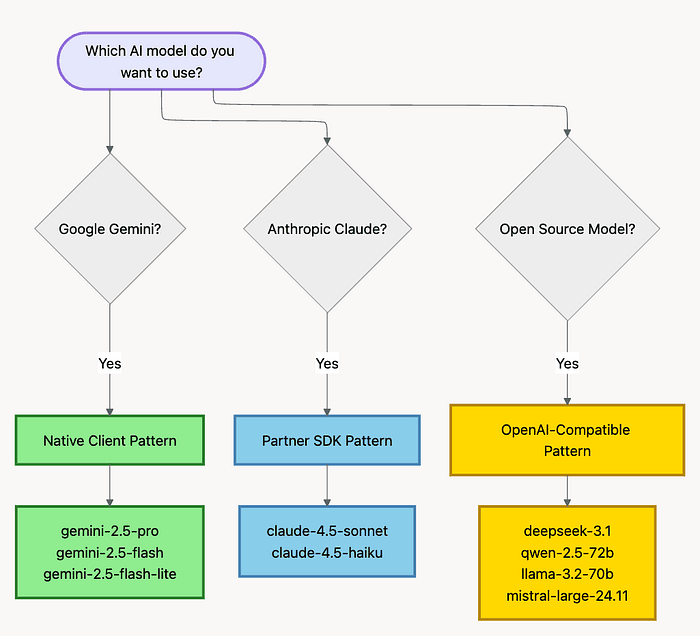 Which models do you want to use? Gemini, Claude, Qwen?
Why this mental model matters: Instead of memorizing API syntax for 20+ models, you learn three patterns. Each new model maps to one of these three patterns. That's the power of the framework.
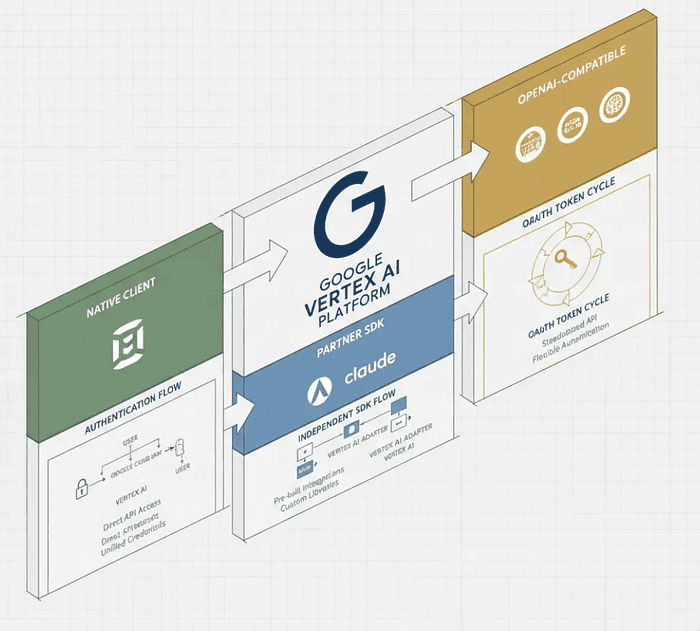
Pattern 1: Native Client (Google Gemini Models) {#pattern-1-native}
This is the gold standard for simplicity. Google's own models work exactly as you'd expect on a Google platform.
Why This Pattern Works
Google designed Vertex AI with Gemini models as first-class citizens. The SDK handles authentication automatically, finds your credentials, and sets up the connection. You write three lines of code, and it works.
The Process
It's a clean three-step process:
- Initialize the client
- Specify the model
- Make the request
The native Vertex AI SDK handles all the heavy lifting, automatically finding your credentials and setting up the connection.
Architecture Diagram For Gemini
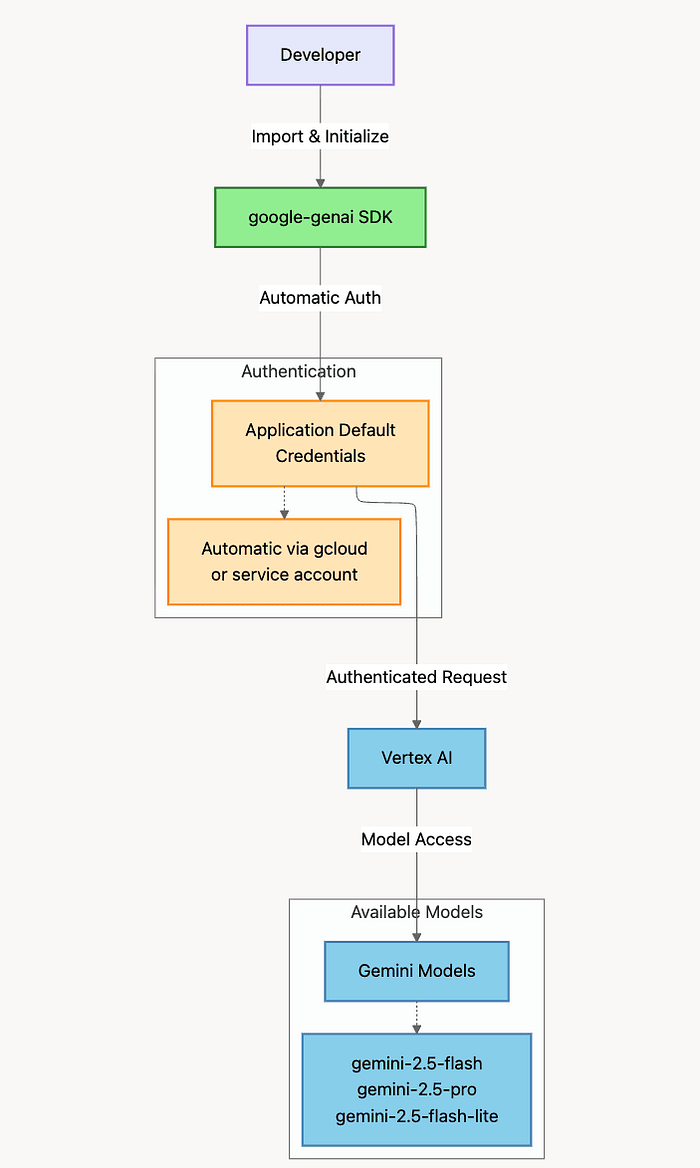 Using Gemini with Vertex AI
How Authentication Works: The SDK automatically discovers your credentials through Google's Application Default Credentials (ADC) mechanism. If you've run gcloud auth login or deployed to Google Cloud, your credentials are already in place. No manual token management required.
Gemini Code Example
from google import genai
from google.genai.types import HttpOptions

# Step 1: Initialize client for Vertex AI
# The vertexai=True flag tells the SDK to use Vertex AI instead of direct Gemini API
client = genai.Client(
    vertexai=True,
    project='your-project-id',        # Your Google Cloud project
    location='us-central1',            # Region where models run
    http_options=HttpOptions(api_version='v1')
)

# Step 2: Generate content with a single method call
# The SDK handles authentication, routing, and response parsing
response = client.models.generate_content(
    model='gemini-2.5-flash',
    contents='Explain quantum computing in simple terms'
)

# Step 3: Access the response text directly
print(response.text)
Code Walkthrough:
- Line 1-2: Import the SDK and configuration options
- Line 5-10: Create a client pointing to your Vertex AI project
- Line 14-17: Call the model with a simple prompt
- Line 20: Extract and print the generated text
Key Details
- SDK: google-genai (install:
pip install google-genai) - Authentication: Uses Application Default Credentials (ADC) automatically
- Models Available:
gemini-2.5-flash- Fast, efficient, cost-effective (best for most use cases)gemini-2.5-pro- Most capable, highest quality (best for complex tasks)gemini-2.5-flash-lite- Super fast, light weight and inexpensive. Good for simple tasks.
Pro Tip: Model Selection
Start with gemini-2.5-flash for development. It's 10x cheaper than Pro and handles 90% of use cases. Only upgrade to Pro when you need the absolute best quality for complex reasoning tasks.
When to Use
Use this pattern whenever you work with Google's Gemini models. It's the simplest and most straightforward approach on Vertex AI.
Real-World Use Cases:
- Content generation and summarization
- Code analysis and generation
- Multimodal tasks (text + images)
- Any application primarily using Gemini models
Common Pitfall: Region Selection
Don't pick a random region. Check model availability first. Some Gemini models are only available in specific regions. Use us-central1 as a safe default for most models.
Pattern 2: Partner SDK (Anthropic Claude) {#pattern-2-partner}
For major AI providers like Anthropic, you use their specialized SDK, which works seamlessly with Vertex AI.
The Crucial Distinction
Important: You do NOT use the generic Vertex AI client. Instead, you initialize the partner's client directly (e.g., AnthropicVertex) and pass your Google Cloud project and region to it.
Think of it this way: Anthropic built a special version of their SDK that knows how to talk to Vertex AI. You're using Anthropic's code, but it runs on Google's infrastructure.
The key point: It operates completely independently from the native Google SDK. You don't import google-genai at all.
Why This Pattern Exists
Anthropic wanted to give developers a consistent experience across all platforms. Whether you use Claude on Anthropic's API, AWS Bedrock, or Google Vertex AI, the code looks nearly identical. Only the client initialization changes.
This design choice means:
- You can port code between platforms easily
- Claude-specific features work consistently everywhere
- The API matches Anthropic's documentation exactly
Architecture Diagram For Partner Anthropic Claude
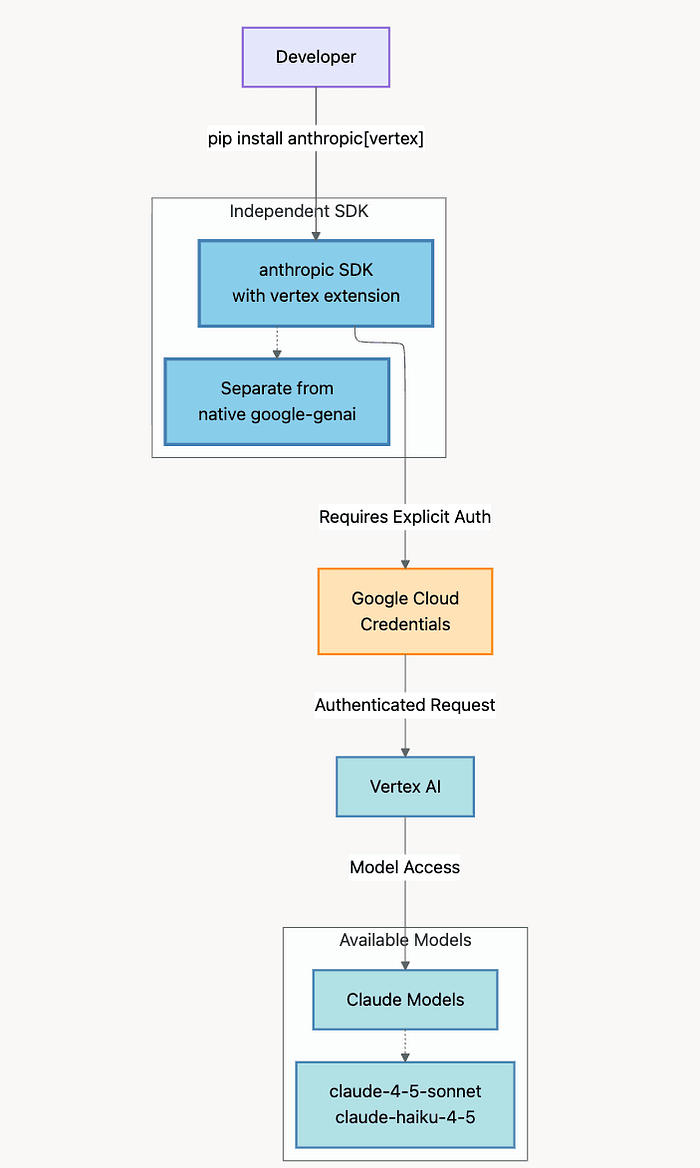 Using Claude with Vertex AI
How This Differs from Pattern 1: The Anthropic SDK finds your Google credentials automatically (via ADC), but it's not using Google's SDK at all. It's Anthropic's client library with special Vertex AI integration built in.
Claude Code Example with Vertex AI
from anthropic import AnthropicVertex

# Step 1: Initialize Anthropic Vertex client
# Notice: We're importing from 'anthropic', not 'google'
client = AnthropicVertex(
    project_id='your-project-id',    # Your Google Cloud project
    region='us-central1'              # Region must support Claude models
)

# Step 2: Create message using Anthropic's API format
# This syntax matches Anthropic's standard API, not Google's
message = client.messages.create(
    model='claude-4-5-sonnet@20251020',
    max_tokens=1024,
    messages=[
        {
            'role': 'user',
            'content': 'Explain the theory of relativity in simple terms'
        }
    ]
)

# Step 3: Extract text from Anthropic's response format
print(message.content[0].text)
Code Walkthrough:
- Line 1: Import AnthropicVertex, not the standard Anthropic client
- Line 5-8: Initialize with Google Cloud project details
- Line 12-20: Use Anthropic's message API format (not Google's generate_content)
- Line 23: Access response using Anthropic's content structure
Key Difference: Notice the response format. Anthropic returns message.content[0].text, while Google returns response.text. Each partner preserves their own API conventions.
Key Details
- SDK: anthropic[vertex] (install:
pip install anthropic[vertex]) - Authentication: Google Cloud credentials detected automatically by Anthropic SDK
- Models Available:
claude-opus-4-1@20250805- Most capable Claude model (best for complex analysis)claude-sonnet-4-5@20240928- Fast agentic reasoning, complex code generation and multi-file editing, autonomous long-horizon planning, and practical browser/desktop task orchestration.claude-3-5-haiku@20241022- Latest Haiku variant. Fast, efficient responses (best for high volume)
Pro Tip: Model Versions
Notice the @20240928 suffix? That's the model version timestamp. Always use the latest version for the best performance. Check Anthropic's documentation for current versions.
When to Use
Use this pattern for Anthropic's Claude models on Vertex AI. The Anthropic SDK provides complete access to Claude-specific features while running on Google Cloud infrastructure.
Real-World Use Cases:
- Long-context analysis (Claude excels at 200K+ token contexts)
- Structured output generation
- Complex reasoning tasks
- Applications requiring Anthropic's specific model capabilities
Common Pitfall: API Format Confusion
Don't mix Google and Anthropic API formats. If you're using AnthropicVertex, use Anthropic's message format. Don't try to use Google's generate_content syntax.
Pattern 3: OpenAI-Compatible (DeepSeek, Qwen, and Open Source Models) {#pattern-3-openai}
This is the most powerful and least obvious pattern. It's how you use the familiar OpenAI client to access a wide range of open-source models on Vertex AI.
The Clever Workaround
The concept is brilliant but requires understanding: We "hijack" the OpenAI client. Here's how:
- Feed it a Google OAuth token instead of an OpenAI API key
- Point it to a Vertex AI endpoint instead of OpenAI's servers
- Use standard OpenAI syntax to call models running on Google Cloud
Why this works: The OpenAI client doesn't care where requests go. It needs an API key and a base URL. We swap OpenAI's credentials for Google's and swap OpenAI's endpoint for Vertex AI's. The client happily sends requests to Google's infrastructure.
The Token Refresh Challenge (Critical Understanding)
This is where most developers hit a wall. Let's be clear about what's happening:
The Problem: Google OAuth tokens expire in approximately one hour.
What This Means:
- At 12:00 PM, you generate a token and it works perfectly
- At 1:05 PM, the same token returns 401 Unauthorized
- Your code hasn't changed. The token died.
The Solution: Generate a fresh token programmatically every time you initialize the client. Never cache the token. Never hard-code it. Treat it as a disposable, short-lived credential.
Think of it like this: It's similar to a temporary password that expires every hour. You need to request a new one each time.
Reader Question: Have you ever been burned by an expiring OAuth token in production? What was your debugging journey like? Share your war story in the comments!
Architecture Diagram For Open Source Models like DeepSeek, Qwen, Llama, Mistral
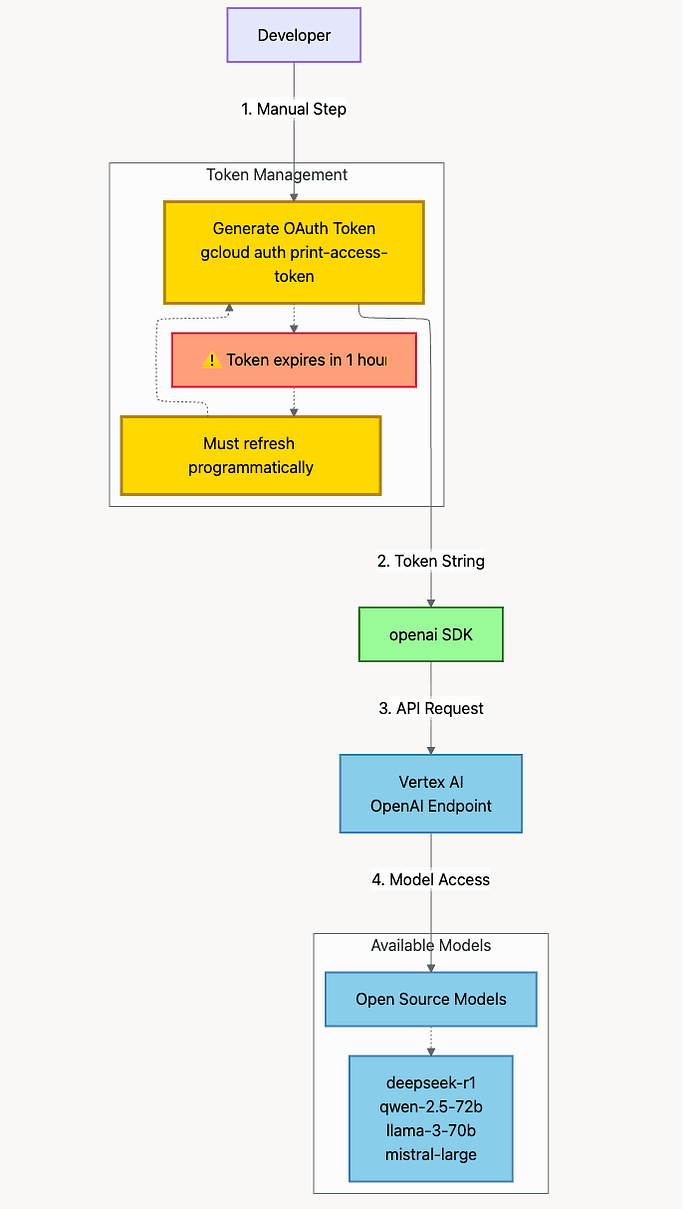 Using open source model Qwen, DeepSeek, Llama with Vertex AI OpenAI Endpoint
How Token Flow Works: Every request follows this cycle: generate token -> create client -> make request -> discard client. On the next request, repeat the entire cycle. This ensures you always have a valid token.
Critical Authentication Warning
IMPORTANT: Do NOT hard-code the Google access token.
The token expires in approximately one hour. Hard-coding it guarantees mysterious 401 errors that only appear after your code has been running for a while.
Your code must programmatically refresh the token. This is not optional. This is not a best practice. This is a requirement.
Simple Code Example for Using OpenAI open source clients
import subprocess
from openai import OpenAI

# Step 1: Generate fresh Google OAuth token
def get_google_oauth_token():
    """
    Generate a fresh Google OAuth token programmatically.

    This function calls gcloud CLI to get a current access token.
    The token is valid for approximately 1 hour.

    Returns:
        str: Fresh OAuth access token
    """
    result = subprocess.run(
        ['gcloud', 'auth', 'application-default', 'print-access-token'],
        capture_output=True,
        text=True,
        check=True
    )
    return result.stdout.strip()

# Step 2: Initialize OpenAI client with Google credentials
# The api_key is actually a Google OAuth token, not an OpenAI key
# The base_url points to Vertex AI's OpenAI-compatible endpoint
token = get_google_oauth_token()

client = OpenAI(
    api_key=token,  # Use Google OAuth token, not OpenAI key
    base_url=f'https://us-central1-aiplatform.googleapis.com/v1/projects/your-project-id/locations/us-central1/endpoints/openapi'
)

# Step 3: Use standard OpenAI syntax
# The API looks identical to OpenAI's but runs on Google infrastructure
response = client.chat.completions.create(
    model='deepseek-r1',
    messages=[
        {'role': 'user', 'content': 'Explain machine learning in simple terms'}
    ]
)

print(response.choices[0].message.content)
Code Walkthrough:
- Line 5-21: Helper function that shells out to gcloud to get a fresh token
- Line 26: Call the function to get current token
- Line 28-31: Initialize OpenAI client with Google token and Vertex endpoint
- Line 36-40: Use standard OpenAI API syntax
- Line 43: Extract response using OpenAI's response structure
Why subprocess.run(): We call the gcloud command-line tool because it handles all the complexity of Google authentication for us. It finds your credentials, refreshes them if needed, and returns a valid token.
Production Token Management
For production systems, use Google's authentication libraries for better error handling and automatic refresh:
from google.auth import default
from google.auth.transport.requests import Request

def get_oauth_token():
    """
    Production-grade token generation with automatic refresh.

    This approach uses Google's auth library to handle token lifecycle:
    - Automatically finds credentials (ADC, service account, etc.)
    - Checks if token is still valid
    - Refreshes expired tokens automatically

    Returns:
        str: Valid OAuth access token
    """
    credentials, project = default()

    # Refresh token if expired or not yet obtained
    if not credentials.valid:
        credentials.refresh(Request())

    return credentials.token
Why this is better for production:
- Handles token expiration automatically
- Works with service accounts in production environments
- Provides better error handling
- No subprocess calls (more efficient)
Key Details
- SDK: openai (install:
pip install openai) - Authentication: Google OAuth token (refresh programmatically)
- Token Generation:
gcloud auth application-default print-access-token - Token Lifetime: Approximately 1 hour
- Models Available:
deepseek-3.1- Reasoning-focused model (best for complex problem-solving)qwen-2.5-72b-instruct- Powerful multilingual model (best for non-English tasks)llama-3.2-70b-instruct- Meta's Llama 3 (best for open-source standardization)mistral-large-24.11- Mistral's flagship model (best for European data residency)
Pro Tip: Token Caching for Performance
If you're making multiple requests in quick succession, you can cache the token with expiration tracking:
from datetime import datetime, timedelta

class TokenManager:
    def __init__(self):
        self.token = None
        self.expires_at = None

    def get_token(self):
        # Refresh if token is None or about to expire (5 min buffer)
        if self.token is None or datetime.now() >= self.expires_at - timedelta(minutes=5):
            self.token = get_oauth_token()
            # Tokens last ~1 hour, but refresh after 55 minutes to be safe
            self.expires_at = datetime.now() + timedelta(minutes=55)
        return self.token
When to Use
Use this pattern for any open-source or OpenAI-compatible models on Vertex AI. It gives you access to the broader ecosystem while keeping everything on Google Cloud infrastructure.
Real-World Use Cases:
- Multi-model comparison (testing different open-source models)
- Cost optimization (open-source models are typically cheaper)
- Custom model serving (if you've deployed your own model)
- Applications requiring specific open-source model capabilities
Common Pitfall: Hard-Coding Tokens
The number one mistake with this pattern is hard-coding the token. You generate it once, paste it into your code, and it works great. Then one hour later, it mysteriously breaks. Always generate tokens programmatically.
Production Architecture: Regional vs Global Endpoints {#production-architecture}
Once you know how to call the models, you face a critical architectural decision: Where should you send your API calls?
This choice has massive implications for availability, latency, quota limits, and compliance. Get it wrong, and you fight quota errors. Get it right, and your app scales smoothly.
The Two Options Explained
Regional Endpoints: You pick a specific Google Cloud region (like us-central1 or europe-west1), and all requests go there.
Global Endpoints: You use a special "global" endpoint that automatically routes requests to the optimal region.
The key question: Should you control exactly where requests go, or let Google's infrastructure handle routing?
Decision Framework For Picking Regional or Global Vertex AI Endpoints
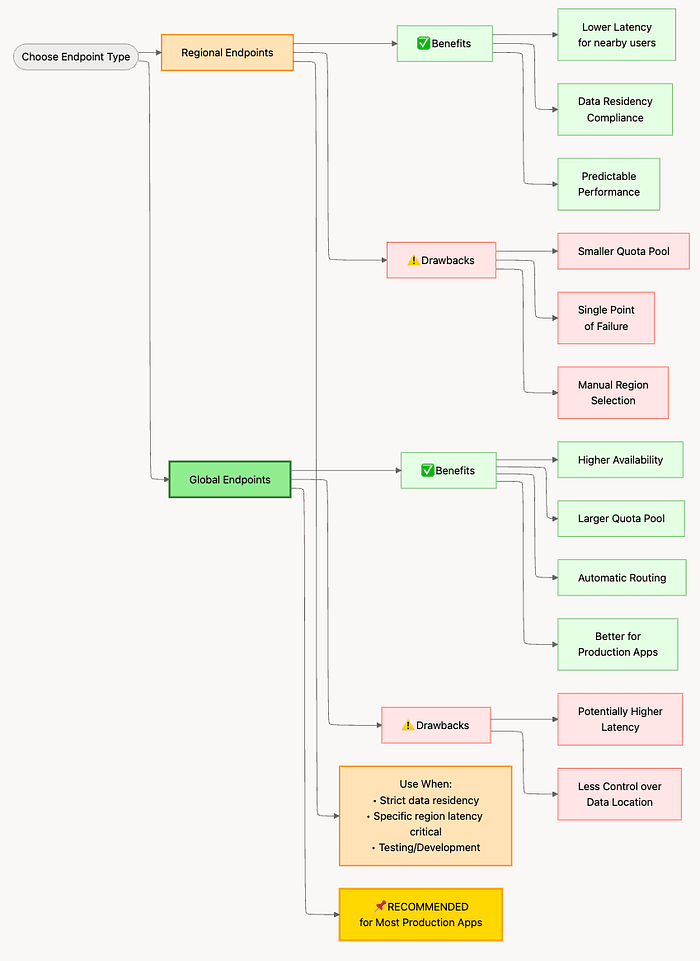 Decision Framework For Picking Regional or Global Vertex AI Endpoints for OpenAI clients
Vertex AI Regional Endpoints
Format: https://REGION-aiplatform.googleapis.com/v1/...
Example: https://us-central1-aiplatform.googleapis.com/v1/...
Pros:
- Data residency compliance (GDPR, HIPAA, etc.) -- You can prove data never leaves a specific region
- Lower latency if users are geographically close -- Requests to nearby data centers are faster
- Predictable data location -- You know exactly where processing happens
Cons:
- Smaller quota pools -- Each region has separate, limited quotas
- Potential for more rate limiting -- You hit quota limits faster
- Regional availability varies by model -- Not all models are available in all regions
Use Cases:
- Regulatory compliance requirements (healthcare, finance, government)
- Latency-sensitive applications with localized users (gaming, real-time chat)
- Specific data sovereignty needs (European data must stay in Europe)
Real Example: A German healthcare company must use europe-west1 to comply with GDPR requirements that patient data never leaves the EU.
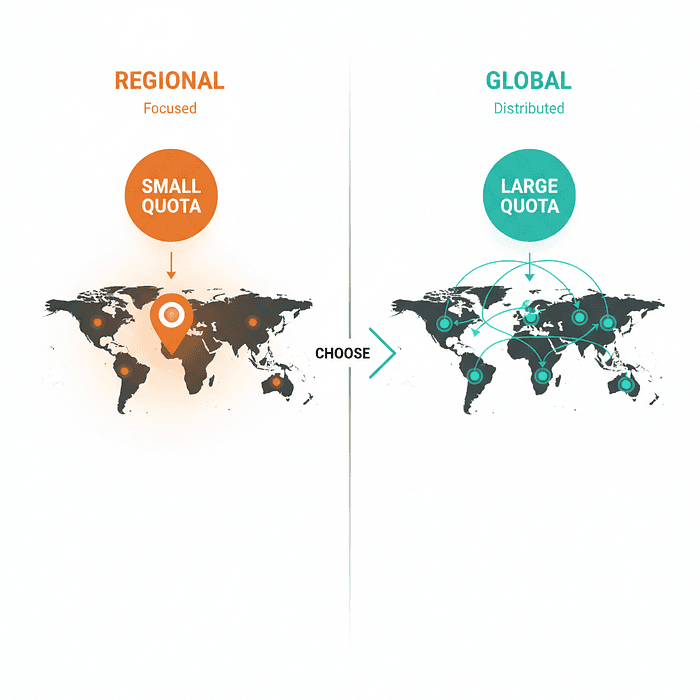 Vertex AI API and API Endpoint regions vs. Quotas
Global Endpoints
Format: https://aiplatform.googleapis.com/v1/...
Pros:
- Much higher availability -- Automatic failover if one region has issues
- Access to a completely separate, much larger quota pool -- Quotas are typically 10x higher
- Significantly fewer rate limit errors -- You can scale much further before hitting limits
- Automatic routing to optimal regions -- Google routes to the best-performing region automatically
Cons:
- Less control over data location -- You don't know which region processes each request
- May not meet strict residency requirements -- Can't prove data stays in a specific geography
Use Cases:
- Most production applications
- High-volume services (chatbots, content generation at scale)
- Applications without strict data residency requirements
- Startups focused on growth over compliance
Real Example: A SaaS company building an AI writing assistant uses the global endpoint to handle traffic spikes without quota errors and benefits from automatic routing to the fastest available region.
The Quota Pool Difference (Why This Matters)
This is the single most important technical detail about endpoint choice:
Regional quotas: Each region has a limit of 60 requests per minute for a specific model.
Global quota: The global endpoint has a limit of 600 requests per minute for the same model.
What this means in practice: If you're building a production app that needs to scale, the global endpoint gives you 10x more headroom before you need to request quota increases.
Recommendation
For most production applications, use the global endpoint.
The substantially larger quota pool and higher availability typically outweigh regional considerations unless you have specific compliance requirements.
Exception: Use regional endpoints if:
- You have regulatory requirements (GDPR, HIPAA, data sovereignty laws)
- You need to prove data residency for compliance audits
- Your entire user base is in one region, and latency is critical
Code Comparison: Regional vs Global
Vertex AI Regional Endpoint:
# Regional endpoint example
# Use this when data must stay in a specific region
client = genai.Client(
    vertexai=True,
    project='your-project-id',
    location='us-central1',  # Specific region
    http_options=HttpOptions(api_version='v1')
)
Vertex AI Global Endpoint:
# Global endpoint example (RECOMMENDED for most production apps)
# Use this for better availability and larger quota pools
client = genai.Client(
    vertexai=True,
    project='your-project-id',
    location='global',  # Global routing
    http_options=HttpOptions(api_version='v1')
)
The only difference: The location parameter. One word changes your quota pool, availability, and compliance posture.
Pro Tip: Environment-Based Configuration
Use different endpoints for dev vs production:
import os

# Development: Use regional for testing
# Production: Use global for scale
location = 'global' if os.getenv('ENVIRONMENT') == 'production' else 'us-central1'

client = genai.Client(
    vertexai=True,
    project='your-project-id',
    location=location,
    http_options=HttpOptions(api_version='v1')
)
Troubleshooting Common Errors {#troubleshooting}
Learning to identify these errors quickly saves you hours of debugging. 99% of the time, these are configuration issues, not bugs in your code.
Here's your field guide to the three most common errors and how to fix them in under 5 minutes.
Troubleshooting Flowchart
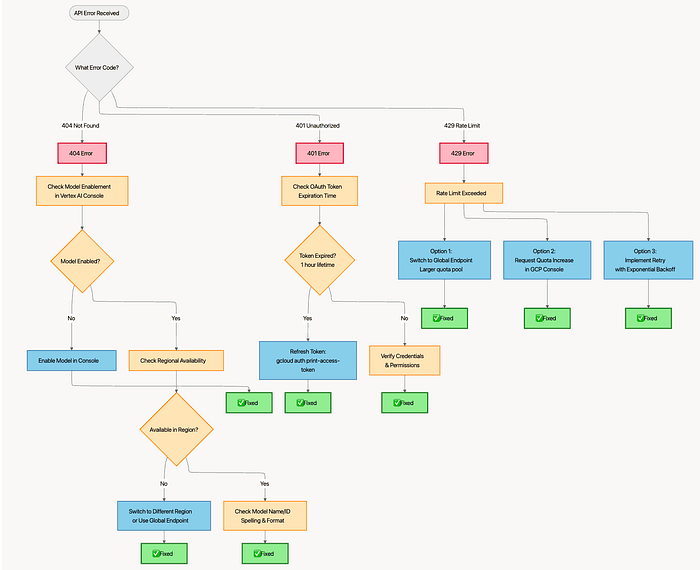 Trouble shooting guide for working with Vertex AI and open source models
Error 1: 404 Not Found
Symptom: 404: Model not found or 404: Endpoint not found
Stop debugging your code immediately. This is a configuration issue, not a code issue.
What's Really Happening: Vertex AI can't find the model you're requesting. This happens for two reasons: either the model isn't enabled in your project, or it's not available in your chosen region.
Think of it like this: You're asking for a product that's either not in stock or not sold in your store location.
Check These Two Things:
Check 1: Model Enablement
Did you enable this specific model in the Google Cloud Console?
How to fix:
- Go to Vertex AI -> Model Garden
- Find the model (search by name)
- Click "Enable"
- Wait for provisioning to complete (can take a few minutes)
Why this happens: Vertex AI requires explicit enablement for each model to control costs and access.
Check 2: Regional Availability
Does your specified location support this model?
How to fix:
- Check the Vertex AI documentation for model availability by region
- Some models are only available in specific regions (e.g., us-central1, us-east4)
- Newer models may require the global endpoint
- Switch to a supported region or use
location='global'
Example Fix:
# Before (fails with 404)
client = genai.Client(
    vertexai=True,
    project='your-project-id',
    location='europe-west1',  # Model not available here
)

# After (works)
client = genai.Client(
    vertexai=True,
    project='your-project-id',
    location='us-central1',  # Model available here
)
Common Pitfall: New Model Releases
When Google releases a new model (like gemini-2.5-pro), it's initially available only in specific regions or the global endpoint. Regional rollout happens over weeks. If you get 404 on a brand-new model, try the global endpoint first.
404 Error Resolution Flow
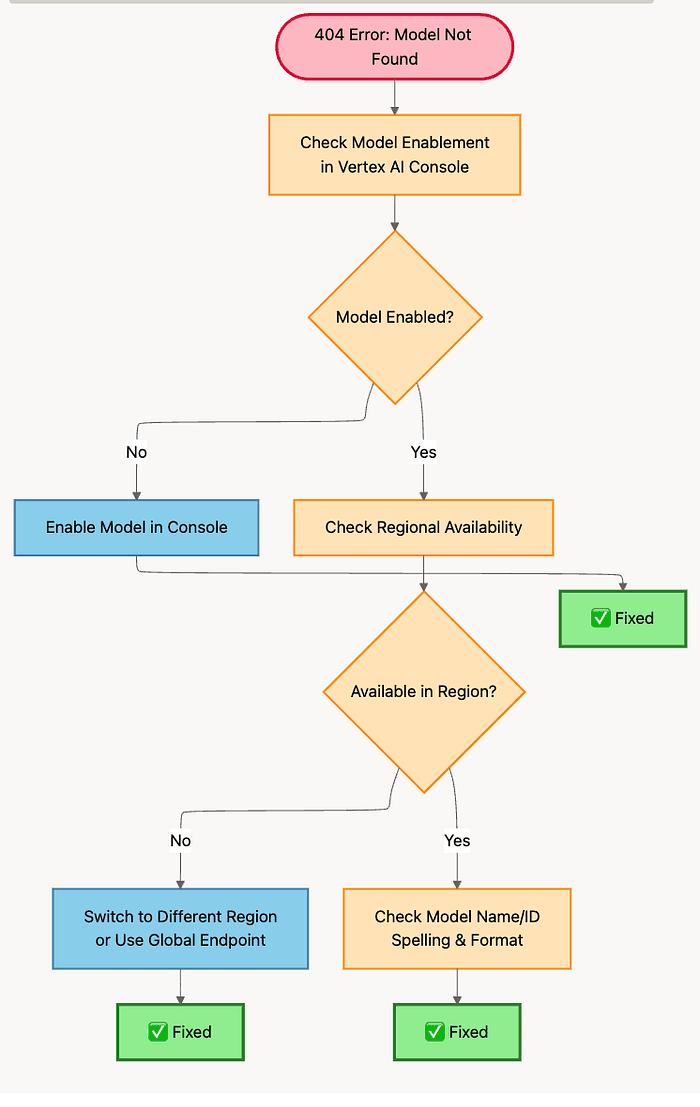 Debugging Vertex AI Endpoint API error for 404 region or bad model name
Error 2: 401 Unauthorized
Symptom: 401: Unauthorized or 401: Invalid authentication credentials
This is almost exclusively a problem with the OpenAI-Compatible Pattern (Pattern 3).
What's Really Happening: Your temporary Google OAuth token has expired. The token was valid when you generated it, but Google invalidated it after approximately one hour.
Think of it like this: You had a valid ticket to enter a building, but the ticket was only good for one hour. After that, security won't let you in anymore.
Root Cause: OAuth tokens expire in approximately one hour. If you hard-coded the token or cached it too long, this is your problem.
The Fix: Always refresh the token programmatically before each request (or implement proper token caching with expiration tracking).
Example Fix:
# WRONG - Hard-coded token (will fail after ~1 hour)
# This works great at 12:00 PM, mysteriously breaks at 1:05 PM
client = OpenAI(
    api_key='ya29.c.b0Aaekm1K...',  # Don't do this!
    base_url='https://us-central1-aiplatform.googleapis.com/...'
)

# RIGHT - Programmatic token generation
# This generates a fresh token every time
def get_fresh_token():
    result = subprocess.run(
        ['gcloud', 'auth', 'application-default', 'print-access-token'],
        capture_output=True,
        text=True,
        check=True
    )
    return result.stdout.strip()

client = OpenAI(
    api_key=get_fresh_token(),  # Fresh token every time
    base_url='https://us-central1-aiplatform.googleapis.com/...'
)
Advanced Solution: Use Google's auth libraries for automatic token refresh:
from google.auth import default
from google.auth.transport.requests import Request

def get_oauth_token():
    """
    Production-grade token management.

    This function:
    1. Finds your Google credentials automatically
    2. Checks if the current token is valid
    3. Refreshes it if expired
    4. Returns a valid token
    """
    credentials, project = default()

    # This check prevents unnecessary API calls
    if not credentials.valid:
        credentials.refresh(Request())

    return credentials.token
Why the advanced solution is better:
- Handles expiration automatically
- Works with service accounts in production
- No subprocess calls (more efficient)
- Better error handling
Common Pitfall: "But It Worked Yesterday!"
If your code worked yesterday and mysteriously started failing today with 401 errors, this is almost certainly an expired token. The code didn't change. The token died.
401 Error Resolution Flow
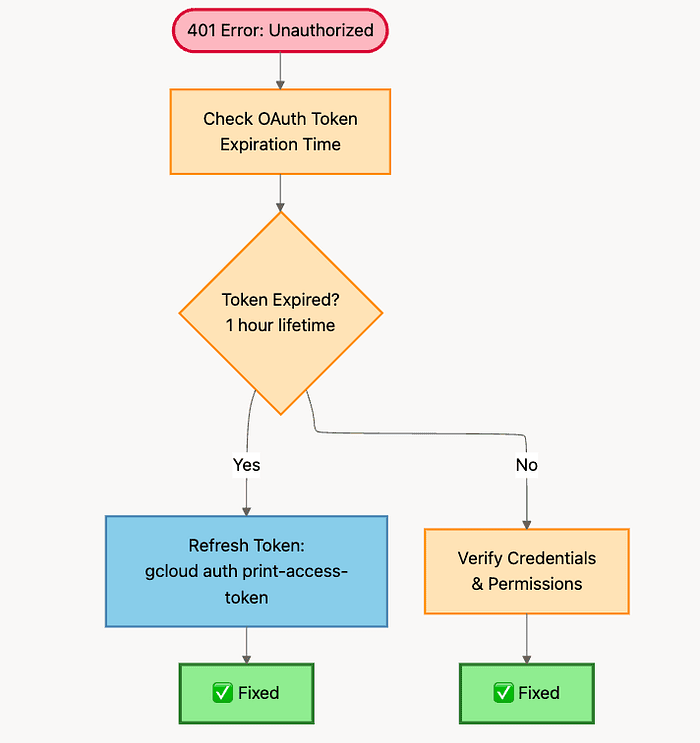 Debugging Vertex AI API 401 Error Token Validation or Credentials
Error 3: 429 Quota Exceeded
Symptom: 429: Quota exceeded or 429: Rate limit exceeded
What's Really Happening: You're sending too many requests for your current quota allocation. Google is throttling you to prevent abuse and ensure fair usage.
Think of it like this: You've used up your monthly data plan, and your carrier is slowing you down until the next billing cycle.
Root Cause: You're exceeding the API rate limit for your project. This can happen during:
- Load testing
- Viral traffic spikes
- Inefficient request patterns (e.g., making 1000 serial requests)
- Using a regional endpoint with small quota pool
Three Solutions (listed from fastest to slowest):
Solution 1: Switch to Global Endpoint (Fastest)
This is usually the quickest fix. Switching from a regional to global endpoint instantly gives you access to a completely different and much larger quota pool.
# Before (hitting quota limits)
client = genai.Client(
    vertexai=True,
    project='your-project-id',
    location='us-central1',  # Limited regional quota
    http_options=HttpOptions(api_version='v1')
)

# After (access to larger quota pool)
client = genai.Client(
    vertexai=True,
    project='your-project-id',
    location='global',  # Larger global quota pool
    http_options=HttpOptions(api_version='v1')
)
Why This Works: Regional and global endpoints have separate quota allocations. The global endpoint typically has significantly higher limits (often 10x higher).
Time to fix: Immediate (just change one parameter)
Solution 2: Request Quota Increase
If the global endpoint isn't enough, or you must use a regional endpoint for compliance, request a quota increase from Google.
How to do it:
- Go to Google Cloud Console -> IAM & Admin -> Quotas
- Search for "Vertex AI API"
- Find the specific quota you're hitting (e.g., "Generate Content Requests per Minute")
- Click "Edit Quotas"
- Request an increase with business justification
- Wait for Google approval (can take 1-3 business days)
Time to fix: 1-3 business days
Solution 3: Implement Retry with Exponential Backoff
Handle the error gracefully in code by retrying with increasing delays.
import time
from openai import OpenAI, RateLimitError

def call_with_retry(client, model, messages, max_retries=5):
    """
    Call API with exponential backoff retry logic.

    This function:
    1. Tries the API call
    2. If it gets 429, waits and retries
    3. Doubles the wait time after each failure
    4. Gives up after max_retries attempts
    """
    for attempt in range(max_retries):
        try:
            return client.chat.completions.create(
                model=model,
                messages=messages
            )
        except RateLimitError:
            if attempt == max_retries - 1:
                raise  # Give up after max retries

            # Wait with exponential backoff: 1s, 2s, 4s, 8s, 16s
            wait_time = 2 ** attempt
            print(f"Rate limited. Waiting {wait_time}s before retry {attempt + 1}/{max_retries}")
            time.sleep(wait_time)

# Usage
response = call_with_retry(
    client,
    model='deepseek-r1',
    messages=[{'role': 'user', 'content': 'Hello'}]
)
Time to fix: Immediate (but requests become slower)
When to use each solution:
- Global endpoint: Use if you can (fastest, easiest)
- Quota increase: Use if global isn't enough or you need regional for compliance
- Retry logic: Use as a defensive measure in production (combine with other solutions)
Pro Tip: Monitor Your Quotas
Set up Google Cloud Monitoring alerts to notify you when you're approaching quota limits. This gives you time to act before hitting 429 errors in production.
429 Error Resolution Flow
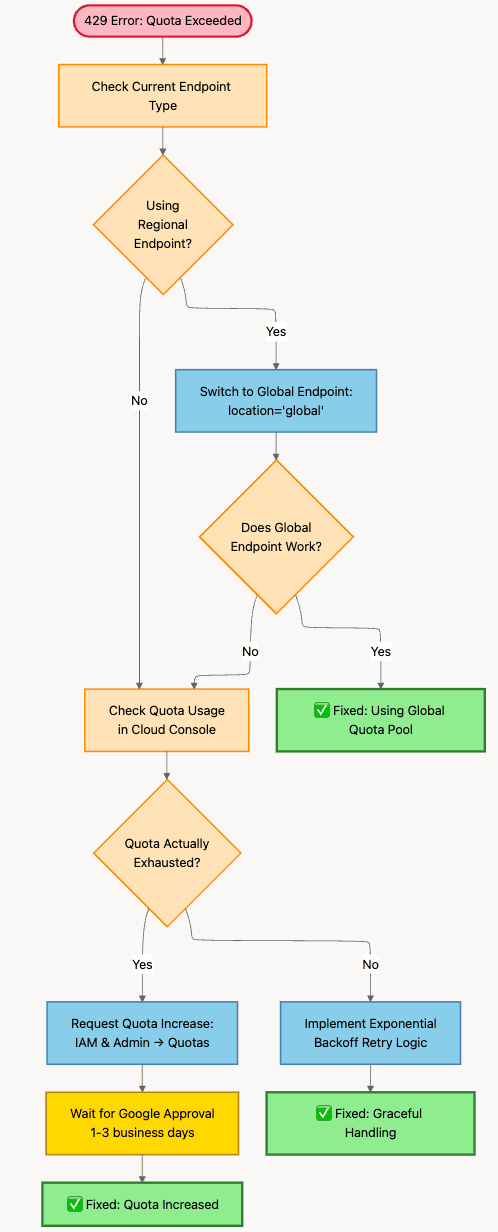 Debugging Vertex AI Quota Error 429
Quick Reference: Error Checklist
| Error Code | Likely Cause | Quick Fix | Time to Fix |
|---|---|---|---|
| 404 | Model not enabled OR wrong region | Enable model in console; Check regional availability | 2-5 minutes |
| 401 | Expired OAuth token (Pattern 3) | Refresh token programmatically | Immediate |
| 429 | Quota exceeded | Switch to global endpoint OR request quota increase | Immediate to 3 days |
| 403 | Permissions issue | Check IAM roles (need Vertex AI User) | 5-10 minutes |
| 500 | Service issue | Check Google Cloud Status Dashboard | Wait for Google |
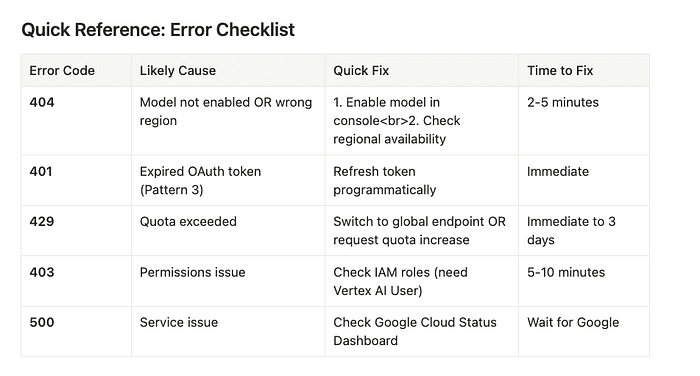 Debugging Vertex AI Endpoints
Debugging Mindset
When you hit an error, follow this mental checklist:
- Read the error message carefully -- It usually tells you exactly what's wrong
- Check your configuration first -- 99% of errors are misconfiguration
- Don't debug your code yet -- The logic is probably fine
- Look at the error code -- 404/401/429 are almost always config issues
- Check the troubleshooting flowchart -- Follow the decision tree
- Only then debug your code -- If configuration is correct
Remember: Vertex AI errors are almost never about your code. They're about enablement, authentication, quotas, and regions.
Conclusion {#conclusion}
Let's solidify this framework with a final recap and mental model.
The Three Patterns (Mental Model)
Think of Vertex AI like a parking garage with three different entrances:
1. Native Client (Green Entrance) -- Google Gemini models
- You have a Google parking pass
- The gate opens automatically
- Smooth, simple, no friction
2. Partner SDK (Blue Entrance) -- Anthropic Claude
- You have a partner pass
- A different gate system, but it knows your Google credentials
- Works independently from the green entrance
3. OpenAI-Compatible (Yellow Entrance) -- Open-source models
- You need a temporary hourly pass
- You borrow someone else's gate system (OpenAI's)
- More complex but gives you the widest access
Critical Reminders
Here's what you need to remember:
For the OpenAI pattern:
- Your "API key" is a temporary Google OAuth token, not an OpenAI key
- Programmatically refresh the token -- never hard-code it
- Tokens expire in one hour -- this is not optional
For production architecture:
- Use the global endpoint unless you have specific compliance requirements
- Global endpoint = 10x larger quota pool
- Regional endpoint = data residency compliance
For troubleshooting:
- 404 and 401 errors are your friends -- they tell you to check your configuration, not your code
- 99% of Vertex AI errors are configuration issues
- Follow the troubleshooting flowchart -- it saves you hours
What You've Unlocked
This framework transforms Vertex AI from a confusing maze into a clear, three-lane highway. You now have:
- A mental model that works for any model -- Three patterns cover everything
- Production-ready code patterns -- Copy, paste, modify, deploy
- An architectural decision framework -- Global vs regional endpoints
- A troubleshooting guide that saves you hours -- Field-tested error solutions
Your Action Plan
Here's what to do next:
- Choose your first pattern based on which model you want to use
- Copy the code example from the appropriate section
- Replace the placeholders (project ID, region) with your values
- Run it and see it work (or debug using the troubleshooting guide)
- Expand to other patterns as your needs grow
The only question left is: What are you going to build with this power?
Final Thought
Vertex AI gives you access to the world's best AI models -- Google's Gemini, Anthropic's Claude, and cutting-edge open-source models -- all on one platform. The complexity isn't in the models themselves. It's in the authentication, configuration, and architectural decisions.
You now have the framework to navigate all of it. Three patterns. Three client libraries. Unlimited possibilities.
Go build something amazing.
Join the Conversation
What's the biggest challenge you've faced integrating AI models into your production applications? Have you dealt with mysterious 401 errors, quota limits, or authentication nightmares?
Share your experience in the comments below; your story might help another developer avoid the same pitfall!
Connect with Richard on LinkedIn or Medium for additional insights on enterprise AI implementation.
Additional Resources {#resources}
Official Documentation
- Google Vertex AI Documentation -- Comprehensive official docs
- Vertex AI Model Garden -- Browse all available models
- Vertex AI Pricing -- Cost calculator and pricing details
SDKs and Libraries
- google-genai Python SDK -- Native Gemini client
- Anthropic Vertex AI Integration -- Claude on Vertex
- OpenAI Python SDK -- OpenAI-compatible client
Authentication and Security
- Google Application Default Credentials -- How ADC works
- Service Account Authentication -- Production auth setup
- OAuth 2.0 for Google APIs -- Understanding OAuth tokens
Operational Excellence
- Vertex AI Quotas and Limits -- Current quota limits by region
- Model Regional Availability -- Which models work where
- Best Practices for Production Deployments -- Google's recommendations
Community and Support
- Stack Overflow -- Vertex AI Tag -- Community Q&A
- Google Cloud Community -- Official forums
- GitHub Discussions -- SDK-specific discussions
About the Author
I am Rick Hightower, a seasoned professional with experience as an executive and data engineer at a Fortune 100 financial technology organization. My work there involved developing advanced Machine Learning and AI solutions designed to enhance customer experience metrics. I maintain a balanced interest in both theoretical AI concepts and their practical applications in enterprise environments.
My professional credentials include TensorFlow certification and completion of Stanford's Machine Learning Specialization program, both of which have significantly contributed to my expertise in this field. I value the integration of academic knowledge with practical implementation. My professional experience encompasses work with supervised learning methodologies, neural network architectures, and various AI technologies, which I have applied to develop enterprise-grade solutions that deliver measurable business value.
Connect with Richard on LinkedIn or Medium for additional insights on enterprise AI implementation.