When Claude Code's Browser Plugin Wasn't Enough: A Journey to Reliable Browser Automation with Brave Profiles
How CDP, AppleScript window fingerprinting, and agent-browser solve overnight browser automation for multi-profile consultants -- WebLog (blog) of my trials and tribulations
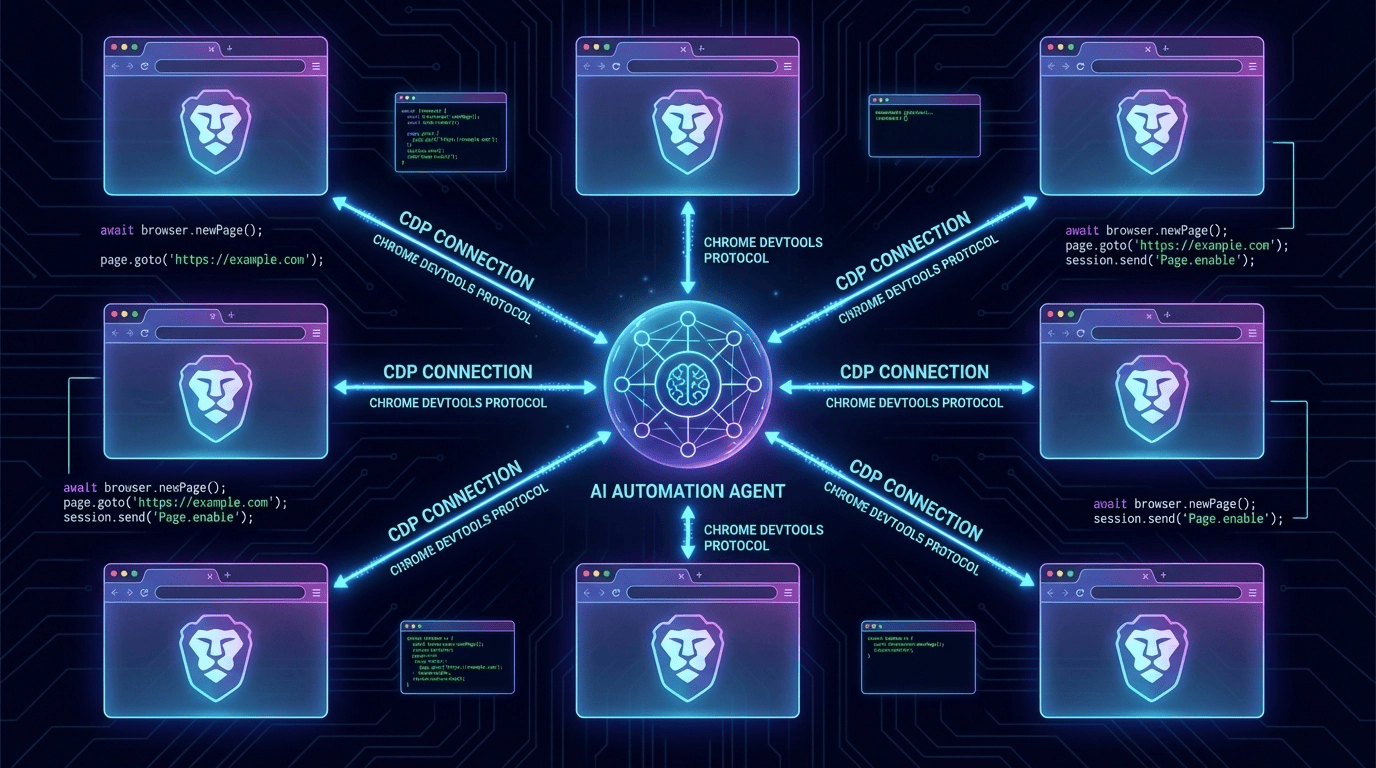
How CDP, AppleScript window fingerprinting, and agent-browser solve overnight browser automation for multi-profile consultants -- WebLog (blog) of my trials and tribulations
Claude Code's browser plugin works great for interactive sessions, but falls apart for overnight cron jobs: wrong browser instance, session drops, no profile awareness. This article walks through the journey of building reliable browser automation using CDP, AppleScript window fingerprinting, and Vercel's agent-browser to solve multi-profile browser control for scheduled tasks. This is my journey to get browser automation cron jobs to run at 4 AM, 5 AM, etc. in the middle of night.
Your overnight cron job fires at 3am. The browser extension is dead. The wrong profile is frontmost. And Claude Code has no idea which client's dashboard it is looking at.
I use different Brave browser profiles for the different companies I work with. As a consultant, this is non-negotiable. Each profile is a window into a distinct workflow: one for my personal accounts (Medium, LinkedIn, GitHub), one for NovaTech (Teams, Outlook, Jira), one for GreenField Labs (Harvest timecards, their internal tools), and one for my own company SpillWave (X, product repos). I never want a tab from one client's intranet surfacing in another client's browser session. Profiles keep credentials, cookies, and browsing history completely isolated.
Brave and Chrome are both Chromium based browsers. I prefer Brave but the same techniques are compatible with Chrome, just as the Claude Plugin for Chrome works for the Brave browser.
This setup worked perfectly until I tried to use Claude Code's /loop and /schedule features for overnight automation (from the Claude Code desktop app).
The Problem: Cron Jobs at 3am Need a Reliable Browser
The /loop command in Claude Code is genuinely transformative. You can tell Claude to check a deployment every five minutes, babysit a PR, or scan error logs on a recurring schedule. I wrote about these features in a previous article. The possibilities are exciting.
The most useful scheduled tasks require browser access. "Check our staging environment every hour and screenshot the dashboard." "Monitor the CI pipeline and ping me if something breaks." "Pull the latest metrics from our analytics dashboard every morning." These are exactly the kinds of tasks you want running while you sleep.
For that, Claude Code needs to control a browser. The Claude Browser Plugin (Claude in Chrome) is the obvious starting point, and it works well for interactive sessions. When I started using for overnight automation, three problems surfaced quickly:
- Wrong browser instance. The plugin sometimes connected to the wrong profile's browser window, pulling data from NovaTech's dashboard when I wanted GreenField's. (NovaTech and GreenField are profile names for my Brave Browser If you use Chrome or Chromium, all of this will work for your browser too).
- Session drops. The extension would silently lose its connection during long idle periods overnight. A cron job that fires at 3am finds a dead extension.
- No profile awareness. The plugin has no concept of which Brave profile it is connected to. It sees whatever browser window happens to be frontmost.
I needed something more reliable: a connection that could target a specific browser profile, maintain stability overnight, and require no babysitting. So I went down the rabbit hole. (So far down the rabbit hole that I already wrote part 2 of this article.)
The Insight: Brave Speaks Chrome DevTools Protocol
The key realization is straightforward. Brave is Chromium-based, so it natively supports CDP (Chrome DevTools Protocol). Any tool that speaks CDP can connect to a running Brave instance. You just need to launch that Brave profile with the remote debugging port enabled.
The --remote-debugging-port flag opens a debugging port on localhost. The --profile-directory flag tells Brave which profile to load, complete with all its cookies, login sessions, and extensions. Combine the two, and you have a programmatically accessible browser session that is already logged into everything you need.
For Brave on macOS, the launch command looks like this:
/Applications/Brave\ Browser.app/Contents/MacOS/Brave\ Browser \
  --remote-debugging-port=9222 \
  --remote-allow-origins="*" \
  --profile-directory="Default"
The --remote-allow-origins="*" flag is required by newer Chromium versions to allow WebSocket connections to the debug port. Without it, CDP clients are silently rejected with no error message to help you diagnose the problem.
Understanding CDP and Why It Matters
Before going further, it helps to understand what CDP is and why it solves the overnight reliability problem.
What It Does: CDP is a debugging protocol built into every Chromium-based browser. It exposes a WebSocket interface that lets external programs observe and control the browser at a low level: navigate pages, click elements, read the DOM, take screenshots, intercept network requests, and more.
Why This Approach: Unlike a browser extension, a CDP connection lives outside the browser process. It does not depend on the extension staying installed, staying connected, or even being installed at all. The browser listens on a port, and your tool connects to that port. If the connection drops, you reconnect. There is no extension state to corrupt and no extension to go stale overnight.
When to Use It: Any time you need automation that must survive process restarts, idle periods, or overnight runs. Also useful when you need to automate against a specific logged-in session without re-authenticating.
Step 1: Discovering My Profiles
Brave stores profile metadata in a Local State JSON file. A short Python script extracts the mapping between directory names and human-readable profile names:
import json

local_state_path = (
    "~/Library/Application Support/"
    "BraveSoftware/Brave-Browser/Local State"
)
with open(local_state_path) as f:
    profiles = json.load(f)['profile']['info_cache']
    for key, val in profiles.items():
        print(f"{key}: {val.get('name')}")
My output mapped to port assignments (Brave Browser profile names):
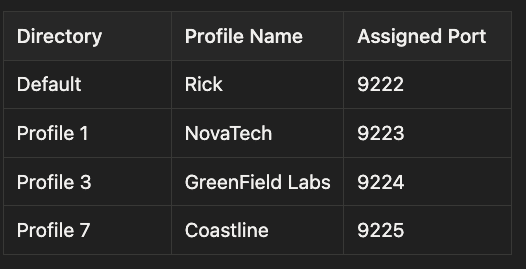
- Default -> Rick -> Port 9222
- Profile 1 -> NovaTech -> Port 9223
- Profile 3 -> GreenField Labs -> Port 9224
- Profile 7 -> Coastline -> Port 9225
I chose sequential ports starting at 9222 because they sit above the privileged range and are unlikely to conflict with other local services. The specific numbers do not matter as long as they are consistent. The wise web devs have already spotted a major problem. Shhhh.. don't ruin the surprise.
Step 2: Shell Aliases
I added aliases to ~/.zshrc so launching any profile also arms its debug port:
alias brave-rick='/Applications/Brave\ Browser.app/Contents/MacOS/Brave\ Browser \
  --remote-debugging-port=9222 --remote-allow-origins="*" \
  --profile-directory="Default" &'

alias brave-novatech='/Applications/Brave\ Browser.app/Contents/MacOS/Brave\ Browser \
  --remote-debugging-port=9223 --remote-allow-origins="*" \
  --profile-directory="Profile 1" &'
alias brave-greenfield='/Applications/Brave\ Browser.app/Contents/MacOS/Brave\ Browser \
  --remote-debugging-port=9224 --remote-allow-origins="*" \
  --profile-directory="Profile 3" &'
alias brave-coastline='/Applications/Brave\ Browser.app/Contents/MacOS/Brave\ Browser \
  --remote-debugging-port=9225 --remote-allow-origins="*" \
  --profile-directory="Profile 7" &'
The trailing & backgrounds the process so the terminal does not hang. After sourcing ~/.zshrc, typing brave-novatech launches the NovaTech profile with debugging enabled on port 9223. Clean, predictable, easy to remember or so I thought. I should add a nohup, but there is always room for improvement.
Step 3: Installing the CDP MCP Server
The CDP MCP server I use is chrome-devtools-mcp from Google's Chrome DevTools team. It connects to a running browser via the debug port and gives Claude Code full access to the browsing session through the MCP protocol.
One prerequisite: it requires Node >= 22.12.0. I was on v20.18.3 via nvm, so I upgraded:
nvm install 22
nvm alias default 22
Then I added MCP server entries to ~/.claude.json, using the full npx path to avoid nvm path resolution issues:
{
  "mcpServers": {
    "brave-rick": {
      "command": "/Users/rick/.nvm/versions/node/v22.22.1/bin/npx",
      "args": ["chrome-devtools-mcp@latest",
               "--browserUrl=http://127.0.0.1:9222"]
    },
    "brave-novatech": {
      "command": "/Users/rick/.nvm/versions/node/v22.22.1/bin/npx",
      "args": ["chrome-devtools-mcp@latest",
               "--browserUrl=http://127.0.0.1:9223"]
    },
    "brave-greenfield": {
      "command": "/Users/rick/.nvm/versions/node/v22.22.1/bin/npx",
      "args": ["chrome-devtools-mcp@latest",
               "--browserUrl=http://127.0.0.1:9224"]
    },
    "brave-coastline": {
      "command": "/Users/rick/.nvm/versions/node/v22.22.1/bin/npx",
      "args": ["chrome-devtools-mcp@latest",
               "--browserUrl=http://127.0.0.1:9225"]
    }
  }
}
Why the Full npx Path?
Using the full absolute path to the nvm-managed npx binary matters more than it seems. When Claude Code spawns a subprocess, it does not inherit your shell's PATH or nvm environment. If you write "command": "npx", the subprocess finds whatever npx is in the system PATH, which may be an older Node version that fails the >= 22.12.0 requirement silently. The full path bypasses this problem entirely.
The First Test: It Works
After quitting Brave completely (Cmd+Q, not just closing windows) and relaunching with brave-rick, I verified the debug port was live:
curl -s http://127.0.0.1:9222/json/version
{
  "Browser": "Chrome/145.0.7632.109",
  "Protocol-Version": "1.3",
  "webSocketDebuggerUrl": "ws://127.0.0.1:9222/devtools/browser/..."
}
CDP was responding. Claude Code could now connect to my browser session through the MCP server, with full access to my logged-in accounts. No extension needed. No session drops. No ambiguity about which browser instance it was talking to.
Or so I thought. The devil is in the details.
The Plot Twist: Chromium Is Single-Instance
Here is where the plan hit a wall.
I launched all four profiles with their respective aliases. Then I tested each port:
Port 9222 -> RESPONDS
Port 9223 -> CONNECTION REFUSED
Port 9224 -> CONNECTION REFUSED
Port 9225 -> CONNECTION REFUSED
What happened?
Chromium-based browsers are single-instance applications. The first process you launch becomes the parent. Every subsequent launch, even with a different --profile-directory and --remote-debugging-port, just sends an IPC message to the already-running parent saying "open this profile." The new process exits immediately. The parent opens the profile window but ignores the new port flag entirely.
So when all four profiles are running, only port 9222 is active. All four profiles' tabs are accessible through that single port, but they appear as one flat list with no profile identification:
curl -s http://127.0.0.1:9222/json/list
# No profileName, no profileId, no way to tell them apart
The CDP target objects have a browserContextId field that differs per profile, but it is an opaque hex string with no mapping to profile names. Nothing in the CDP spec tells you "this tab belongs to the NovaTech profile." At least none that I could find, but please let me know if there is a way.
My clean per-port architecture was dead on arrival. Womp. Womp! WOMP!
Why Single-Instance Exists
This behavior is not a bug. Chromium uses a single-instance model deliberately to share resources, ensure consistent profile locking, and prevent two processes from writing to the same profile data simultaneously. It is the right design for normal browser use. For automation with multiple profiles, it is a significant obstacle.
The Workaround: AppleScript Window Fingerprinting
I needed a side channel: something that could identify which browser window belonged to which profile, entirely outside of CDP.
Luckily, macOS provides one: AppleScript. Brave exposes its windows through the AppleScript scripting interface. Each profile runs in its own window, and AppleScript can enumerate windows and read every tab's URL. The key insight is that each profile reliably keeps certain "signature" sites open, and those URLs can serve as fingerprints.
My profile signatures:
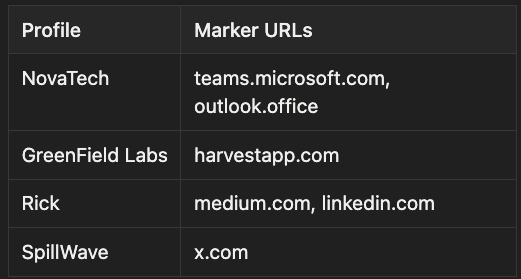
- NovaTech: teams.microsoft.com, outlook.office
- GreenField Labs: harvestapp.com
- Rick: medium.com, linkedin.com
- SpillWave: x.com
Is this a hack? Yes. Yes it is. But it works for now until I get a better solution. All of the automation is geared toward the "Rick" profile and I don't even want the other profiles touched.
Choose marker URLs that you always keep open in each profile and that are unlikely to appear in any other profile. Again, if you know of a better way, please share.
The Two-Phase Pattern
After several failed attempts that opened tabs in the wrong profile windows, I discovered a critical rule: never identify and act in the same loop. Opening a new tab changes which window is frontmost, which shifts window indices. You must complete the identification scan first, then act using the confirmed indices.
Phase 1: Identify
# AppleScript - Phase 1: Identify windows by signature URLs
tell application "Brave Browser"
    repeat with i from 1 to (count of windows)
        set w to window i
        set tabURLs to URL of tabs of w
        set profileName to "Unknown"

    repeat with u in tabURLs
            set urlText to u as text
            if urlText contains "teams.microsoft.com" or
               urlText contains "outlook.office" then
                set profileName to "NovaTech"
                exit repeat
            end if
        end repeat
        if profileName is "Unknown" then
            repeat with u in tabURLs
                if (u as text) contains "harvestapp.com" then
                    set profileName to "GreenField"
                    exit repeat
                end if
            end repeat
        end if
        -- ... similar passes for Rick and Coastline
    end repeat
end tell
Phase 2: Act (using the confirmed window indices)
# AppleScript - Phase 2: Act on confirmed window indices
tell application "Brave Browser"
    tell window 1 to make new tab with properties
        {URL:"https://gemini.google.com/"}
    tell window 2 to make new tab with properties
        {URL:"https://www.google.com/"}
    tell window 3 to make new tab with properties
        {URL:"https://claude.ai/"}
    tell window 4 to make new tab with properties
        {URL:"https://chatgpt.com/"}
end tell
Lessons Learned the Hard Way
Use separate scan passes per profile. A single if/else chain checks every URL against every profile in order. If a window has a tab URL that partially matches the wrong profile's marker, it claims the window incorrectly. Separate passes with explicit contains checks eliminate this ambiguity.
Close tabs in reverse order. Closing tab 3 of 10 shifts tabs 4 through 10 down by one, breaking your index references. Always iterate from high to low when closing multiple tabs. It is the same principle as deleting array elements by index: go backward.
Window order is unstable. It changes when tabs are opened, windows are focused, or profiles are switched. Never rely on window index as a stable identifier across separate script invocations. Always re-identify by scanning tab URLs before each action sequence.
This core logic is encoded in the skills I wrote that the cron jobs infrastructure invokes. I schedule this new cron job with the Claude Code Desktop (and CoWork) /schedule command.
Adding agent-browser: The Token-Efficient Layer
With the CDP and AppleScript foundation in place, I added one more tool: Vercel's agent-browser. It is a Rust/Node CLI that speaks CDP natively and comes with a Claude Code skill that teaches Claude the interaction workflow. (This will become the start of the show in the second article).
The key advantage is token efficiency. Traditional browser automation tools, including chrome-devtools-mcp, send the full DOM into Claude's context window. A typical page costs 3,000 to 5,000 tokens just to identify a button. When you run /loop tasks that interact with a browser every five minutes, those tokens add up fast. You burn through your context budget and Claude starts dropping earlier conversation history.
The vercel agent-browser takes a fundamentally different approach. It generates a compact accessibility snapshot with element references (@e1, @e2, @e3), and you interact using those references. The same page costs 200 to 400 tokens. That is a 90% reduction in token usage per interaction, which matters considerably when you are running overnight loops that fire dozens of times. If you want to know more about Vercel's agent browser tech, read this article Agent-Browser: AI-First Browser Automation That Saves 93% of Your Context Window (written by my mom's favorite AI tech author).
Why Accessibility Snapshots Instead of Full DOM?
The full DOM of a modern web page contains enormous amounts of noise: invisible divs, analytics scripts, ad containers, CSS class strings, deeply nested layout elements. Almost none of it is relevant to "click the Submit button." An accessibility snapshot walks only the accessibility tree, which modern frameworks maintain specifically to describe interactive elements. It is tighter, faster to generate, and much cheaper to send to an LLM.
Installation
# Install the CLI
npm install -g agent-browser

# Install the Claude Code skill
cd ~
npx skills add https://github.com/vercel-labs/agent-browser \
  --skill agent-browser -y
The Snapshot-Ref Workflow
# Connect to Brave on port 9222
agent-browser connect 9222

# Take a snapshot to get element refs
agent-browser snapshot -i

# Output:
# @e1 [input type="email"] placeholder="Email"
# @e2 [input type="password"] placeholder="Password"
# @e3 [button] "Sign In"
# Interact using refs
agent-browser fill @e1 "[email protected]"
agent-browser fill @e2 "password123"
agent-browser click @e3

# After navigation, always re-snapshot (refs are invalidated)
agent-browser wait --load networkidle
agent-browser snapshot -i
The re-snapshot step after navigation is important. Element references are tied to the current page state. After a navigation or a significant DOM update, the old references are invalid and you must take a fresh snapshot before interacting again. You don't need to interact direct with the CLI, there is a skill from vercel that allows your cron agent to deal with the CLI so you can just use natural language.
What agent-browser Adds
Beyond token efficiency, agent-browser provides capabilities that neither the Chrome plugin nor chrome-devtools-mcp offer:
- Auth vault. Save credentials encrypted at rest. The LLM never sees the plaintext password.
- Named sessions. Run isolated browser sessions simultaneously (--session site1, --session site2).
- State persistence. Save and restore cookies and localStorage across restarts.
- Video recording. Record sessions as WebM files for debugging or auditing.
- Visual diffing. Compare page states before and after an action to detect unexpected changes.
- Device emulation. Simulate mobile devices at the protocol level.
- Network interception. Mock API responses or block specific requests.
The auth vault is worth highlighting for automated workflows. When a cron job runs at 3am and encounters a login page, you want credentials available without storing them in plaintext in a script file.
The Complete Stack
Here is how all the pieces fit together:
+-------------------------------------------------+
|  Claude Code                                    |
|  +------------------------------------------+   |
|  |  agent-browser skill                     |   |
|  |  (teaches Claude the workflow)            |   |
|  +------------+-----------------------------+   |
|               | bash commands                   |
|  +------------v-----------------------------+   |
|  |  agent-browser CLI                       |   |
|  |  snapshot -> @refs -> interact            |   |
|  +------------+-----------------------------+   |
|               |                                 |
|  +------------v-----------------------------+   |
|  |  chrome-devtools-mcp                     |   |
|  |  (MCP server, deeper DevTools)            |   |
|  +------------+-----------------------------+   |
|               | CDP                             |
+-----------+---+---------------------------------+
            |
   +--------v---------------------------------+
   |  Brave Browser (port 9222)               |
   |  All profiles' tabs accessible           |
   |                                          |
   |  AppleScript identifies which            |
   |  window = which profile                  |
   +------------------------------------------+
Each layer has a distinct responsibility:
- AppleScript handles profile targeting. It answers "which window belongs to which client associated with which Browser Profile" using tab URL fingerprinting. (In this case, fingerprinting is a fancy term for duct tab, bubble gum and bailing wire.)
- CDP handles everything inside the page: clicking, filling forms, reading content, taking screenshots.
- agent-browser provides the token-efficient interaction layer using accessibility snapshots and element refs.
- chrome-devtools-mcp provides deeper DevTools access when needed: performance traces, Lighthouse audits, and memory snapshots.
Comparison: What You Get with Each Tool
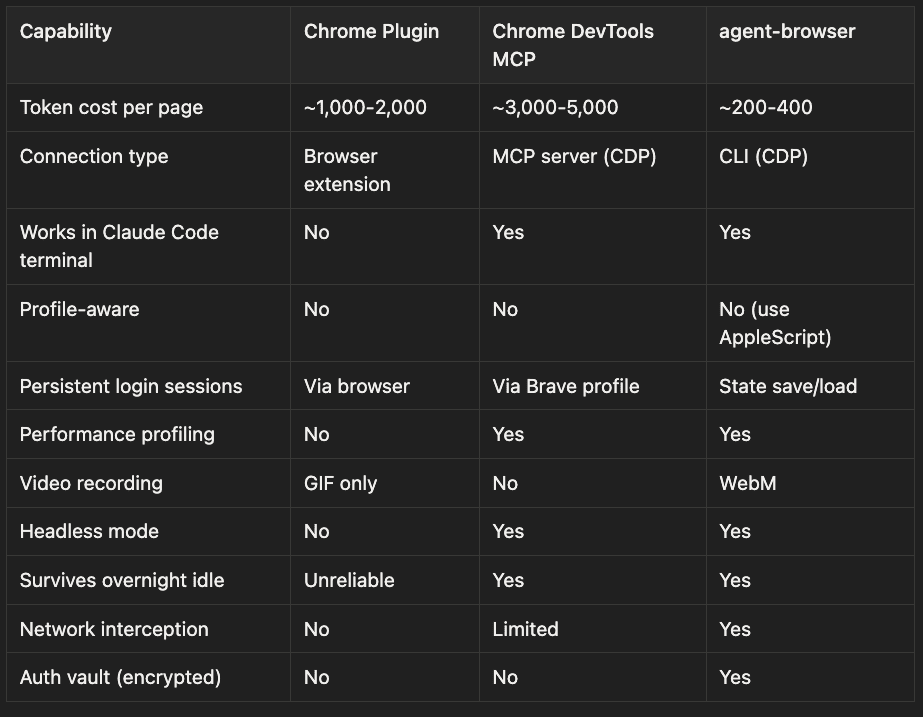
Chrome Plugin from Claude
- Token cost per page: ~1,000-2,000
- Connection type: Browser extension
- Works in Claude Code terminal: No
- Profile-aware: No
- Persistent login sessions: Via browser
- Performance profiling: No
- Video recording: GIF only
- Headless mode: No
- Survives overnight idle: Unreliable
- Network interception: No
- Auth vault (encrypted): No
Chrome DevTools MCP
- Token cost per page: ~3,000-5,000
- Connection type: MCP server (CDP)
- Works in Claude Code terminal: Yes
- Profile-aware: No
- Persistent login sessions: Via Brave profile
- Performance profiling: Yes
- Video recording: No
- Headless mode: Yes
- Survives overnight idle: Yes
- Network interception: Limited
- Auth vault (encrypted): No
agent-browser
- Token cost per page: ~200-400
- Connection type: CLI (CDP)
- Works in Claude Code terminal: Yes
- Profile-aware: No (use AppleScript)
- Persistent login sessions: State save/load
- Performance profiling: Yes
- Video recording: WebM
- Headless mode: Yes
- Survives overnight idle: Yes
- Network interception: Yes
- Auth vault (encrypted): Yes
As you can see, the agent-browser from Vercel is quite the performance ninja and as I stated before becomes the star / super hero in article 2 of my journey in Claude Code browser automation running in a Claude Code Desktop managed cron job.
The Chrome Plugin might still the right choice for quick interactive sessions during the day. Zero setup, zero friction. The CDP-based tools earn their complexity only when you need automation that runs unattended. But for Cron jobs that run in the middle of the night, agent-browser owns the night.
What I Actually Use Now
For interactive work during the day, the Claude Browser Plugin still works fine. It is zero-friction and requires no special setup. I do not regret learning the CDP approach, but I also do not replace tools that are working.
For overnight cron jobs and /loop tasks that need browser access, I use agent-browser connected to Brave, my chromium based browser of choice, via CDP on port 9222. FWIW: I mostly use the /schedule and the desktop Claude Code environment as my cron jobs are persistent. There are some limitations with /loop lasting beyond a session where /schedule does, but it really part of CoWork/Claude Desktop incarnation of Claude Code. The point is that the connection is stable, survives idle periods, and does not require an extension to stay alive, which seem to log themselves out at the most inopportune time. The token efficiency means my overnight monitoring scripts can run for hours without exhausting the context window.
When I need to target a specific profile, I use the AppleScript two-phase pattern: identify windows by their signature tabs, then act on the confirmed indices. It is not elegant. It is a workaround built on URL fingerprinting and unstable window indices. Ok. Ok. It is a horrible hack. But it works reliably as long as you follow the rules: identify first, act second, close tabs in reverse.
The dream would be for Chromium to support multiple debug ports for multiple simultaneous profiles. Until that happens, the AppleScript bridge is a functional workaround that gets the job done. Or be able to identify which profile a tab comes form via CDP. I have a dream. It is a simple dream.
Quick Reference
# Launch Brave with CDP
brave-rick    # port 9222, Default profile

# Verify CDP is live
curl -s http://127.0.0.1:9222/json/version

# Connect agent-browser
agent-browser connect 9222

# Snapshot and interact
agent-browser snapshot -i
agent-browser click @e3
agent-browser fill @e1 "text"

# Save/restore browser state
agent-browser state save session.json
agent-browser state load session.json

# Identify profile windows (AppleScript)
osascript -e 'tell application "Brave Browser"
    repeat with i from 1 to (count of windows)
        set urls to URL of tabs of window i
        log "Window " & i & ": " & (urls as text)
    end repeat
end tell'
The browser automation landscape for AI coding tools is evolving fast. By the time you read this, some of these workarounds may have cleaner solutions. But the underlying architecture of CDP, profile isolation, and the single-instance limitation of Chromium browsers will remain relevant for any developer building automated workflows that need to interact with authenticated browser sessions.
This is my journey to get browser automation cron jobs to run at 4 AM, 5 AM, etc. in the middle of night. I am not quite sure the world exists at these hours. I heard it does, but I just can't be sure as I have never seen it. But all jesting aside, getting the right tools for browser automation to select the right Profile was just half the battle. The other half of the battle was getting passed the permission fatigue. Permissions fatigue in an interactive Claude Code terminal is annoying but permission fatigue in a cron job that is suppose to run without human interaction is murder. I could write a whole article on this alone, and let me know if this interests you. Spoiler alert, I use /debug a lot, edit settings local json a lot and create subagents with the correct permissions a lot. There is also a lot of iteration with slight amounts of profanity. Article 2 is in the can, so if you want to read it, like, comment and subscribe.
About the Author
Rick Hightower is a technology executive and data engineer who led ML/AI development at a Fortune 100 financial services company. He created skilz, the universal agent skill installer, supporting 30+ coding agents including Claude Code, Gemini, Copilot, and Cursor, and co-founded the world's largest agentic skill marketplace. Connect with Rick Hightower on LinkedIn or Medium. Rick has been doing active agent development, GenAI, agents, and agentic workflows for quite a while. He is the author of many agentic frameworks and tools. He brings core deep knowledge to teams who want to adopt AI.