Stop Picking a Favorite: Where to Actually Run Claude Code
CLI, IDE, desktop, or web: choosing where to run Claude Code is a per-task decision, not a one-time loyalty oath.
CLI, IDE, Desktop, or web. Each surface runs the same engine, and the engineers who get the most out of Claude Code switch between them mid-task without thinking twice.
In this article: Claude Code, Anthropic's agentic coding tool, runs on six different surfaces: terminal CLI, VS Code, JetBrains, a Desktop app, the web, and mobile. They share one model and one loop, so the choice is never about quality. It is about ergonomics. This article gives you a clear decision framework for where to run Claude Code, what each surface is genuinely good at, and how to switch surfaces mid-task without losing your place.
There is a question that quietly stalls a lot of new Claude Code users: "Which version should I actually use?" They install the CLI, hear a coworker rave about the Desktop app, see the VS Code extension in the marketplace, and freeze. They treat it like choosing a text editor, a decision you live with for years.
That instinct is wrong, and it is worth correcting early. Deciding where to run Claude Code is not a loyalty oath. It is the same engine everywhere: the same model, the same three-phase loop of gather context, take action, verify. What changes between surfaces is ergonomics. How fast can you switch modes? Can you see the running app while Claude works? Does the session survive closing your laptop? How easily can you script it?
The right move is not to crown a favorite. It is to learn the six surfaces well enough that you switch the moment a task calls for it. Switching mid-task is the workflow, not a sign of indecision.
The same engine, six different surfaces
Before the decision framework, internalize the foundation: Claude Code runs identically across all of these. The model is the same. The agentic loop is the same. Your project configuration is the same. Differences are all about the interface you sit in front of.
Here is the capability landscape at a glance.
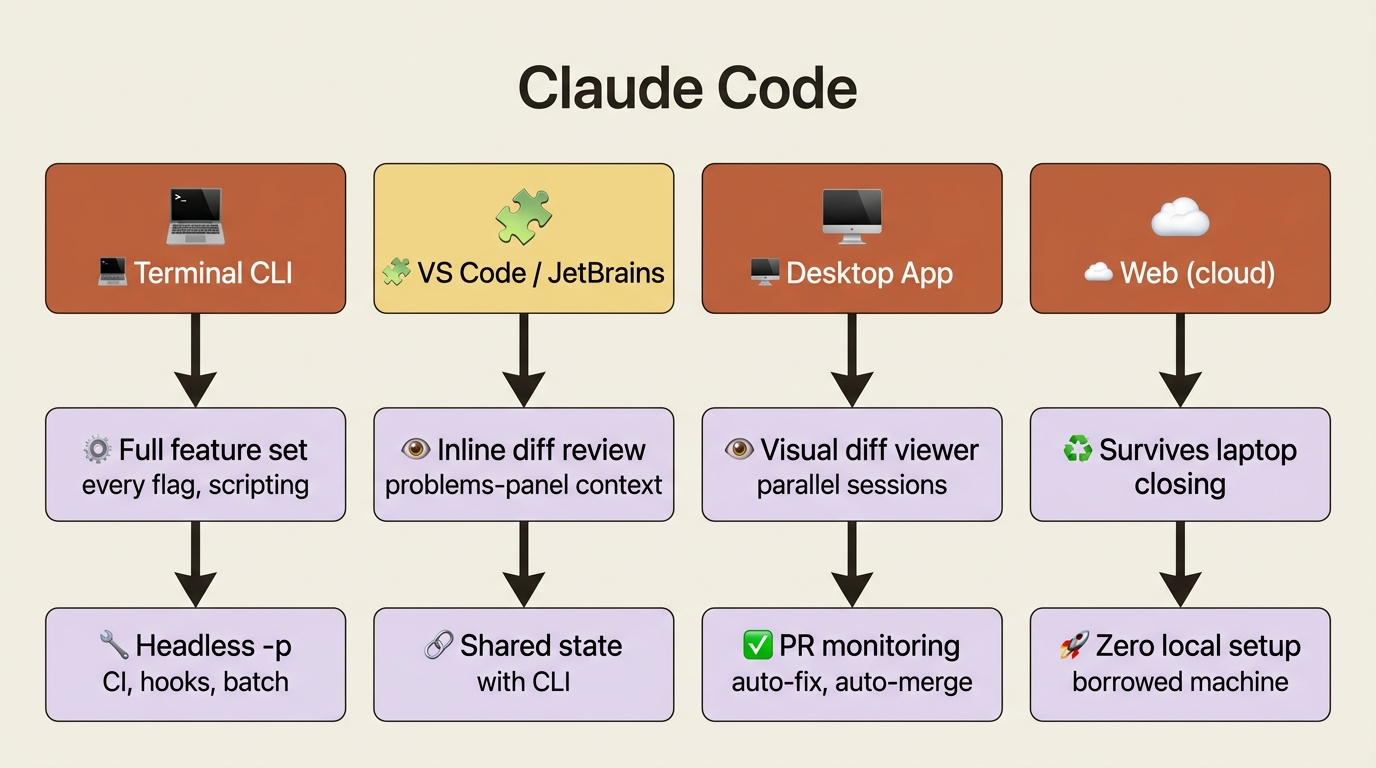
Read that as a map, not a ranking. The CLI has the deepest feature set. The IDE extensions give you inline review. Desktop gives you visual, parallel work. The web gives you reach. None of them is "the best." They are best at different things.
The terminal CLI: the daily driver
The terminal CLI is the native experience and the foundation everything else builds on. For most working developers, it is the daily driver.
Use the terminal when you want the full feature set: every flag, every command, the fastest Shift+Tab mode cycle, scripting, and the Agent SDK. Use it when you are already there for git, build, and deploy anyway. Use it when you need fine-grained control through flags like --worktree, --fork-session, --permission-mode, --add-dir, --agent, and --bg. Use it when you are working over SSH on a remote server, inside a Docker container, in WSL, or in a Codespace, because the CLI runs anywhere that ships a shell. And use it for headless automation: CI integrations, pre-commit hooks, and batch scripts. The headless claude -p invocation is CLI-only.
What makes the terminal special is not features the other surfaces lack, since most are catching up. It is the integration with everything else you already do in the terminal. Switching to Claude is one command, claude. Switching out is Ctrl+D. The same shell that ran your last test runs the next prompt. There is no application switching and no copy-paste.
Two terminal-only moves are worth committing to memory:
The ! bash mode. Type ! at the start of a prompt and Claude treats the rest as a shell command. It runs the command and includes both the command and its output in the next message. Typing !git status puts the real state of your working tree into Claude's context as actual git status output, not a paraphrase.
The /desktop command. Also available as /app, this sends your current terminal session to the Desktop app and continues it there. It works on macOS and Windows. Same conversation, same context, different UI. Reach for it when you have been working in the terminal and decide you want the diff viewer for review.
The IDE extensions: don't switch apps to use Claude
If you live in an editor all day, leaving it to use Claude is friction you do not need.
The VS Code extension is the same engine as the terminal, rendered inside VS Code. Use it when you want automatic problems-panel context: TypeScript errors, ESLint warnings, and test failures flow into Claude's context without you copying anything, because the extension reads VS Code's diagnostic API directly. Use it when you want inline diff review, where Claude's proposed changes appear as Git-style diffs in the editor and you accept or reject with one click. Use it for UI-heavy work where you need the editor, the running app, and Claude all visible at once. And Cmd/Ctrl+Esc launches Claude from whatever file you have open.
The JetBrains plugin does the same job for IntelliJ IDEA, PyCharm, WebStorm, GoLand, Rider, and the rest of the lineup. It runs Claude Code in the IDE's integrated terminal, with diff viewer integration and selection-sharing. Shift+Tab works identically.
One JetBrains gotcha is worth surfacing because it burns people. In JetBrains Remote Development, install the plugin on the remote host, not the local client. Installing it on the client looks like it works, the plugin shows up in the IDE, but it cannot reach the project on the remote machine, so prompts fail mysteriously. Install on the remote host, next to the project, and everything works.
The key fact about both extensions: they share state with the CLI for the same project. Start in the CLI, hop to VS Code to review a diff, hop back. CLAUDE.md loads in both. Auto memory accumulates from both. The surfaces compose; they do not compete. The trade-off is small: VS Code loses a handful of CLI-only features such as --worktree, --fork-session, and headless -p. Need one mid-session? Hop to the terminal. Project state is shared, so it just works.
The Desktop app: when you want to watch
The Claude Code Desktop app is a standalone application for macOS and Windows. It is the right choice when you want to see what Claude is doing rather than read it from a transcript.
Reach for Desktop when visual diff review is your default. The Code tab's diff viewer is the cleanest way to scan a multi-file change, and you can click any line to leave a comment that Claude reads and acts on. Reach for it when you want to run several sessions in parallel with a visual sidebar: each session is its own conversation, its own context, and, for Git repositories, its own automatically created Git worktree. You switch between four parallel tasks the way you switch between four chat threads. Reach for it when you want an embedded preview of your running app side by side with Claude, so you modify a component, watch the page update, and Claude takes a screenshot to verify.
Desktop is also where the research-preview features live, things like computer use, Dispatch, and scheduled tasks that the CLI has no direct UI for. And it has PR monitoring with auto-fix and auto-merge: after Claude opens a pull request, Desktop polls CI, reads any failure and fixes it, and optionally merges when checks pass.
There is one more reason Desktop matters. It is the graphical, low-typing way to set things up. Connectors, permission modes, statuslines, and MCP servers all have configurable UI instead of JSON editing. For teammates who do not live in the terminal, Desktop is the right onramp.
One note: Desktop is not available on Linux. On Linux, use the CLI.
The web: when the task should outlive your laptop
claude.ai/code is Claude Code running in a cloud sandbox, with no local install required. This is the surface that changes what "running Claude Code" even means, because the work no longer depends on your machine staying awake.
Use the web when you are on someone else's machine or a Chromebook, or when you want zero setup before getting started. Use it for long-running tasks that survive closing your laptop: large refactors, doc generation, exploring an unfamiliar codebase. The session keeps running in Anthropic's cloud whether you are watching or not. Use it when you start a task on the train and plan to pick it up at your desk. And use it for Remote Control, the move that lets you drive a local CLI session from a browser. With Remote Control, the actual editing happens on your laptop and the browser is just the steering wheel, so your code never leaves your machine.
A few honest caveats about the web. Permission modes are limited: cloud sessions get acceptEdits and plan only, Remote Control adds default back, and auto and bypassPermissions are not available on the web for security reasons. It is also not where you do serious editing. The web UI is built for kick-off-and-monitor and quick fixes, not the fine-grained back-and-forth that defines a real coding session. For that, switch to the CLI or VS Code. The web pairs well with the mobile app, though: cloud sessions started in the browser keep running and are reachable from the Claude iOS or Android app.
The mobile app: a steering wheel, not a cockpit
The Claude apps for iOS and Android are not a serious coding surface, and pretending otherwise will only frustrate you. They are a useful steering wheel for sessions running somewhere else.
Use mobile to kick off a task and walk away: a research session, a /loop polling task, a long refactor started before you close the lid. Use it to check on a session in progress from your phone. Use it for Remote Control of a local CLI session through the mobile browser. And use it for Dispatch, available on Pro and Max plans, where you text or email a task description and Dispatch spawns a Desktop session on your machine and reports back.
Mobile is not where you read large diffs or write careful code. It is where you confirm that the deploy task you kicked off this morning actually finished.
Where the code runs, and where the context lives
The single most important distinction across all six surfaces is local versus cloud. It determines what configuration Claude can see.
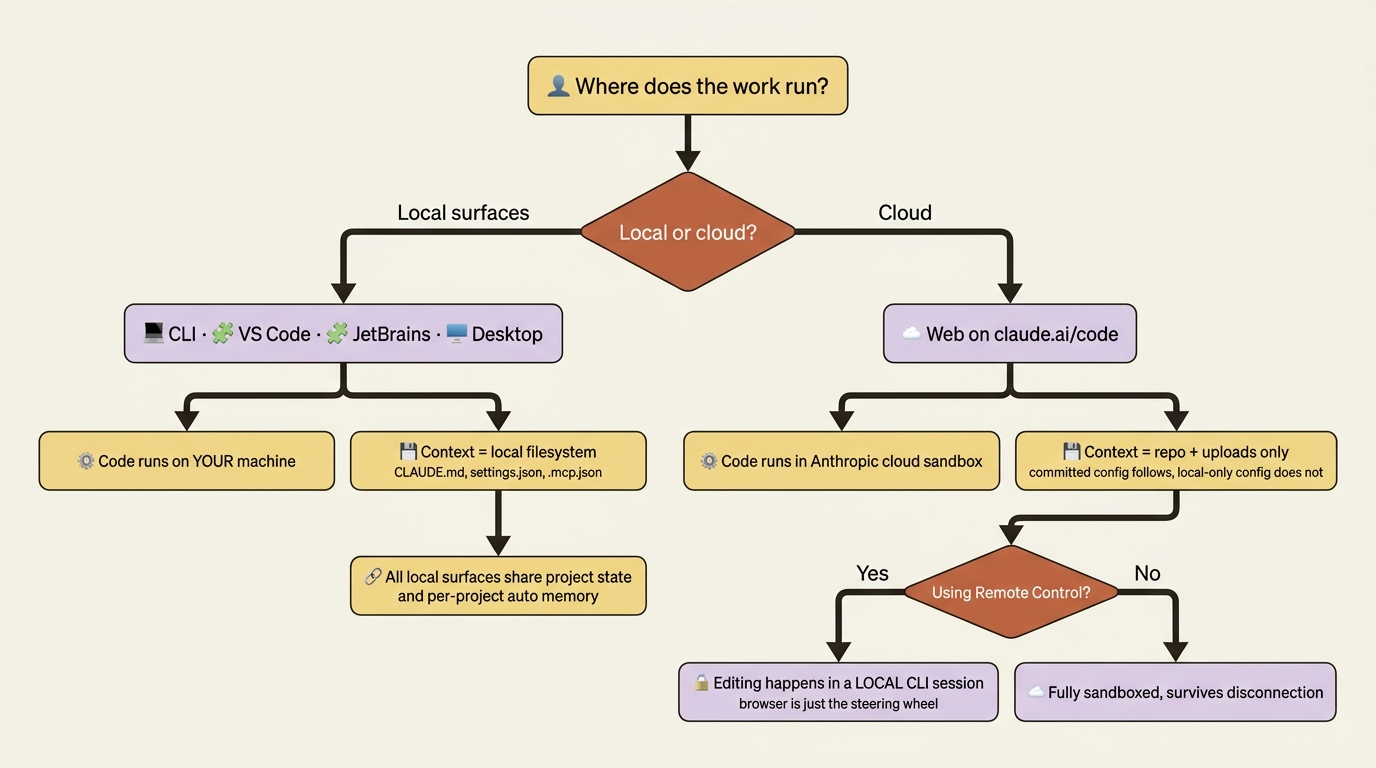
All the local surfaces, CLI, VS Code, JetBrains, and Desktop, run on your machine and read the same project configuration. CLAUDE.md loads in all of them. .claude/settings.json applies in all of them. MCP servers configured in .mcp.json connect from all of them. Skills, agents, hooks, and rules behave identically. Auto memory is per-project, not per-surface, so what this morning's CLI session learned is available to this afternoon's Desktop session.
The web is the exception. It runs in Anthropic's cloud, not on your local filesystem, so it sees only what you upload or what your repository carries in version control. Project-shared, committed configuration follows you to the web: a committed CLAUDE.md, .mcp.json, and .claude/skills/ files. Local-only configuration does not: .claude/settings.local.json, CLAUDE.local.md, and user-scope skills in ~/.claude/ stay behind.
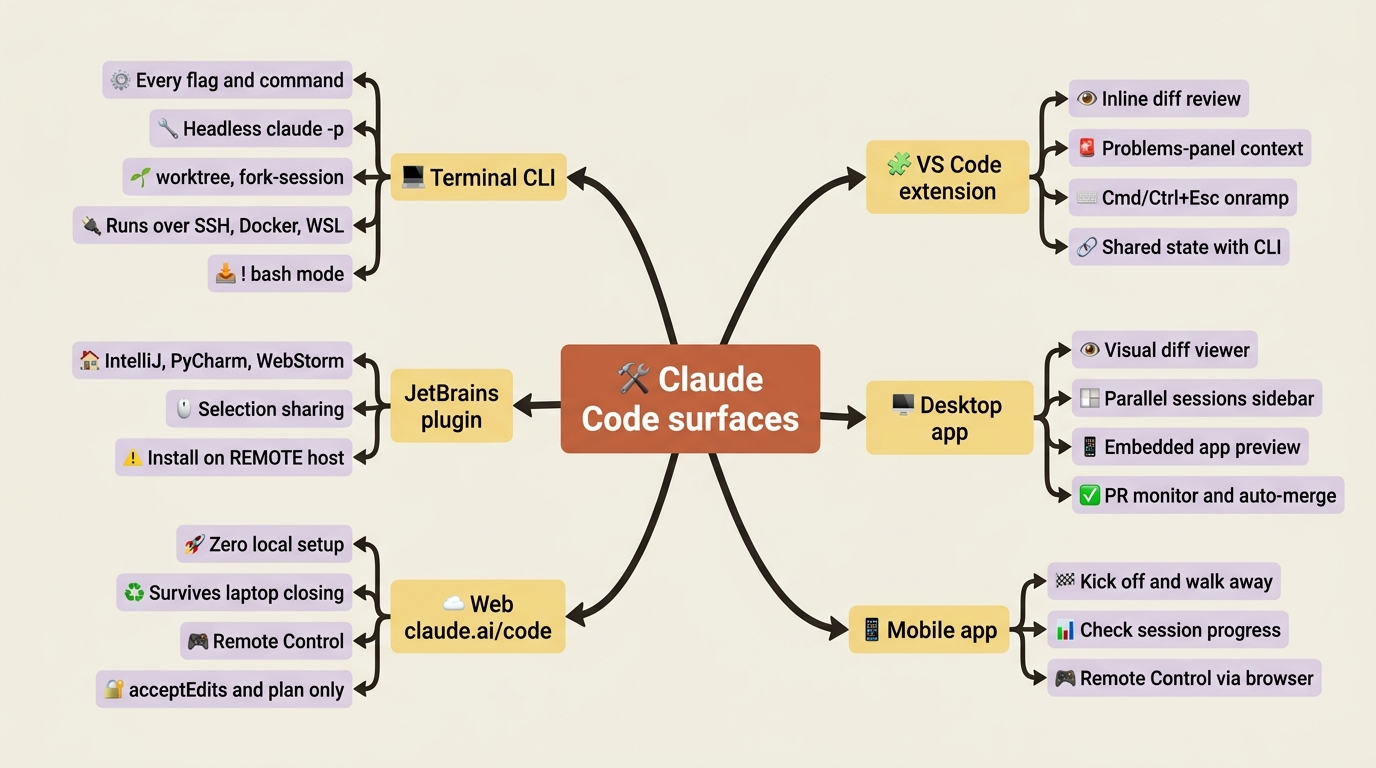
Here is the full feature map across surfaces, so you can see at a glance what each one carries.
The decision: match the surface to the moment
You do not need to decide your surface up front. Set up the project once, then pick the surface that fits the task in front of you. This decision tree captures the logic.
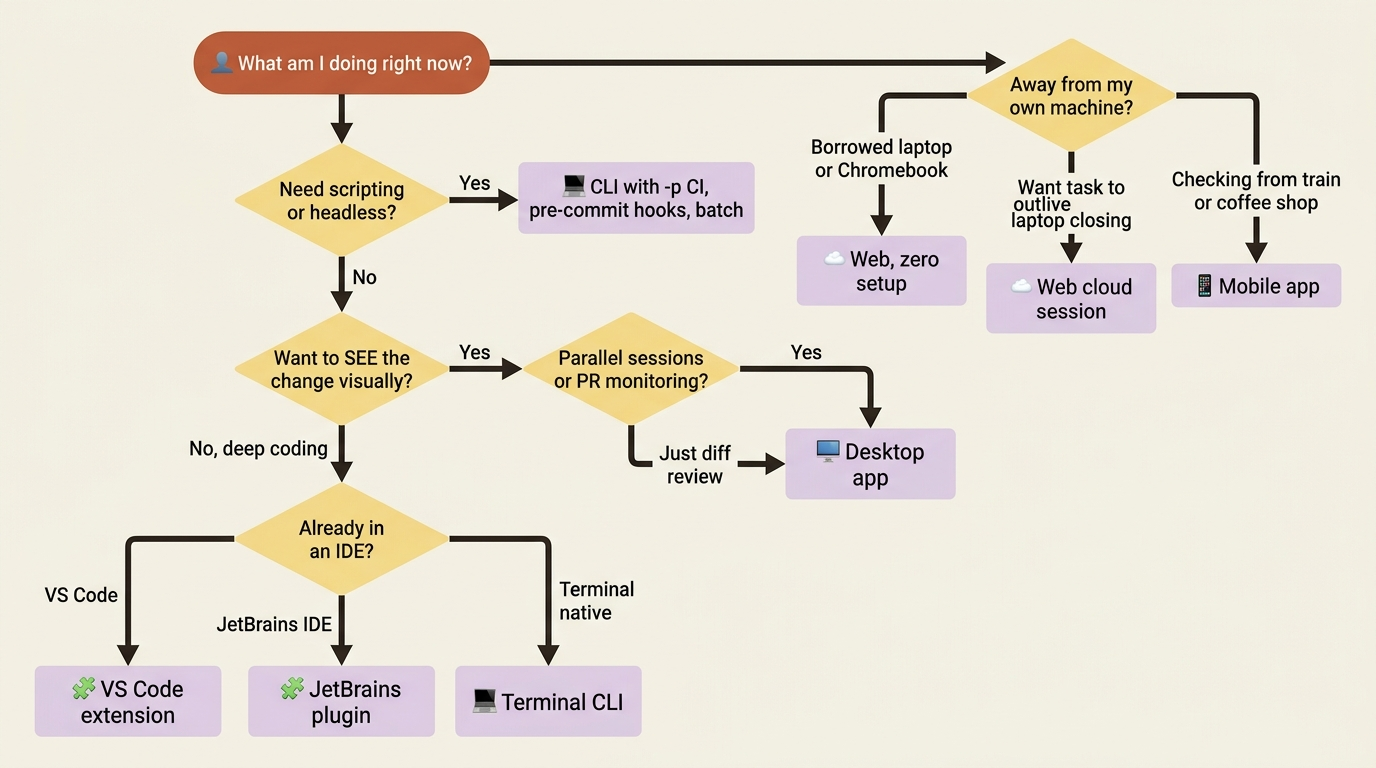
In words: if you are coding all day in a terminal, use the CLI for its native speed and full feature set. If you are already in VS Code or a JetBrains IDE and do not want to leave, use the matching extension for inline diffs, problems-panel context, and shared state with the CLI. If you want visual diff review and parallel sessions, use Desktop. If you are on a borrowed machine or a Chromebook, use the web for its zero-setup reach. If you want a task to outlive your laptop closing, use a web cloud session. If you want to steer a local session from a browser, use the web with Remote Control. If you are checking a task from a coffee shop or train, use mobile. And if you are writing CI, pre-commit hooks, or batch scripts, use the CLI's headless -p.
A real working day touches several of these without any drama.
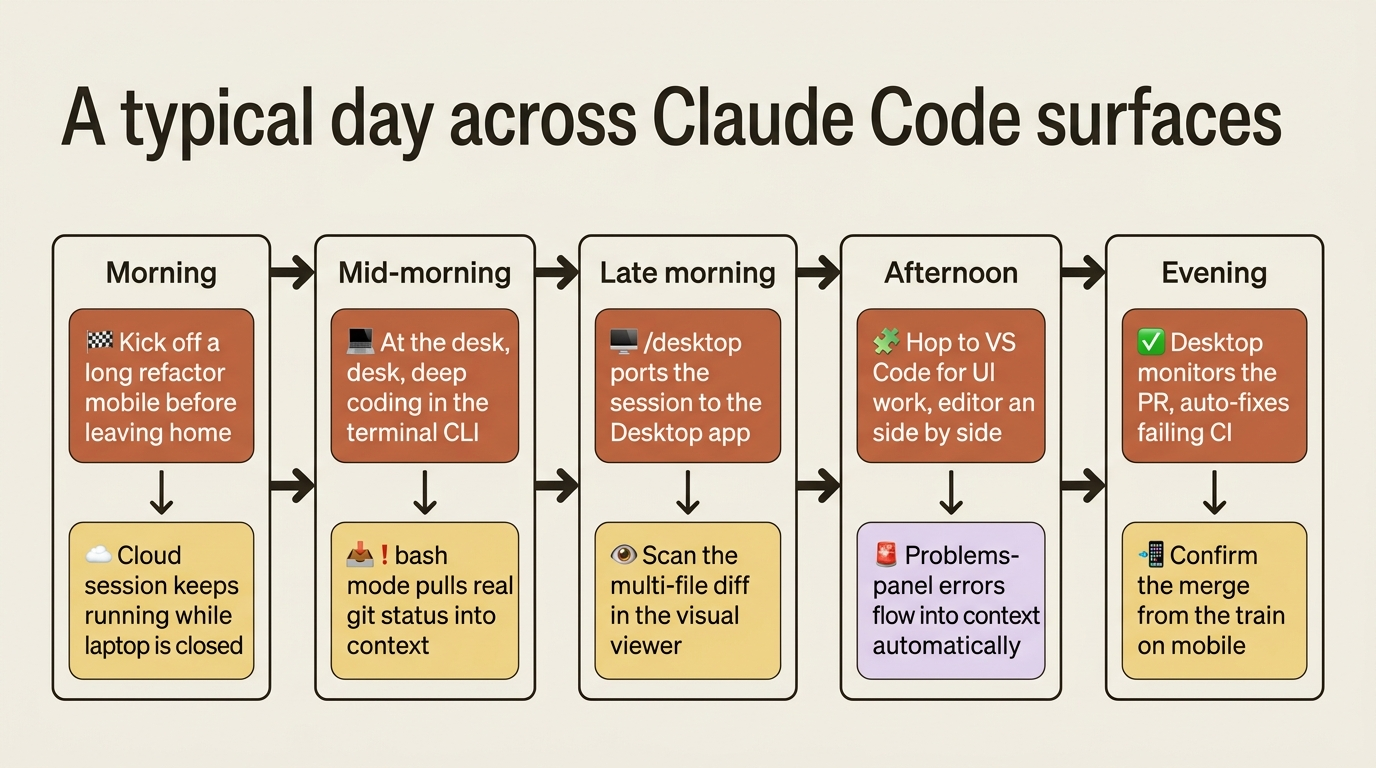
The reason that day flows is that switching mid-task costs you nothing. The session itself does not migrate automatically, since each surface starts its own session, but the project state, memory, and configuration do. /desktop from the CLI ports the active session straight into Desktop. From other surfaces, the convention is summarize-and-handoff: ask Claude for "a one-paragraph status I can paste into a fresh session," then start the new surface with that paragraph.
There is also a category beyond the six surfaces, the connective tissue for work that happens between sessions: Claude running in GitHub Actions or GitLab CI/CD for PR review and scheduled maintenance, automatic GitHub Code Review on every PR, @Claude mentions in Slack, push events through Channels from Telegram or Discord, scheduled tasks on a recurring cron, and Dispatch on Pro and Max. You will not need these on day one. But when you catch yourself thinking "I wish Claude could just start working when X happens," the answer is one of those, not another surface.
Do this today
Three concrete moves, in order:
1. Pick your primary surface. If you are a terminal native, use the CLI. If you live in VS Code, use the extension. If you live in JetBrains, use the plugin. If you want visual review and parallel sessions, use Desktop. There is no wrong answer here. There is only the one that fits how you already work. If you genuinely cannot decide, install the CLI, run claude in a project directory, and treat it as the foundation.
2. Install the Desktop app as a secondary surface, even if your primary is the CLI. The diff viewer alone earns its place for the moment right after a multi-file change when you want to scan everything visually. /desktop from the CLI is the one-command bridge.
3. Bookmark claude.ai/code. Even if you never use the web as a primary surface, the day you need it, a borrowed laptop, a train, a task you want to kick off before closing the lid, you will want it one click away.
The surface is a window, not a wall
The mistake is treating "where to run Claude Code" like a fork in the road where you commit forever. It is not. All six surfaces are different windows onto the same engine, the same model, the same gather-context, take-action, verify loop. Your project configuration travels with you. Your memory travels with you. The only thing that changes is the ergonomics of the moment.
So stop picking a favorite. Set your project up once, learn what each surface is genuinely good at, and let the task decide. The CLI for deep work and scripting. An IDE extension so you never leave your editor. Desktop when you want to watch and review. The web when the work should outlive your laptop. Mobile when you just need to check.
The right move is not to use all six. The right move is to know which surface fits which moment, and switch the instant the moment calls for it.
This is Part 11 of "Claude Code, Day-to-Day," a 19-part guide to mastering Claude Code for working engineers.