
Stop Walking Back to Your Laptop: Push the World into a Running Claude Session
External events like CI failures and bug reports should arrive inside the Claude session that already has your project loaded, not in an email that sends you walking back to your laptop.
Claude Code channels turn CI failures, bug reports, and deploy alerts into messages that arrive inside the session that already knows your codebase. Here is how to set up Telegram, Discord, iMessage, and your own webhooks.
In this article: You will learn how Claude Code channels, a research-preview feature, push external events (including chat messages, webhooks, and alerts) into a running session that already has your project loaded. We cover the four supported channels (iMessage, Telegram, Discord, and fakechat) with full setup steps, the security model that stops prompt injection, permission relay from your phone, the build-your-own webhook path, and the always-on pattern that makes the whole thing practical. By the end you will have at least one channel working and a clear sense of which one fits your team.
Your CI fails at 9pm. You see the email on your phone. You sigh, walk back to your laptop, find the right terminal, find the right project, ask Claude what went wrong, paste the failure log, wait for Claude to read it, then start the actual debugging. By the time you have answers it is 11pm, and you have spent forty minutes on context-switching that did not need to happen.
There is a version of that evening where the CI failure arrives directly inside the Claude session that already had your project loaded, and you are in bed twenty minutes earlier. That version is what Claude Code channels are for.
A channel pushes events from an external system into the Claude Code session you already have open. Same files, same MCP servers, same .claude/ config, same permissions. The event lands where Claude already understands the problem, so the five minutes you usually spend recreating context simply disappears. This article walks through what channels are, how to set up each one, and how to run them safely.
The mental model: transport, not a cloud agent
The single most important fact about channels is that they are not a separate cloud agent. They are message transport into your local session. The session has to be running, because the channel is just a bridge between an external platform and the Claude already sitting on your machine.
That constraint is also the whole point. When an event arrives, Claude already has the context that would otherwise take five minutes to recreate. The CI failure shows up where Claude already knows your project structure. The bug report from a teammate arrives where Claude already has access to your authentication module. The deploy alert lands where Claude has the runbook loaded.
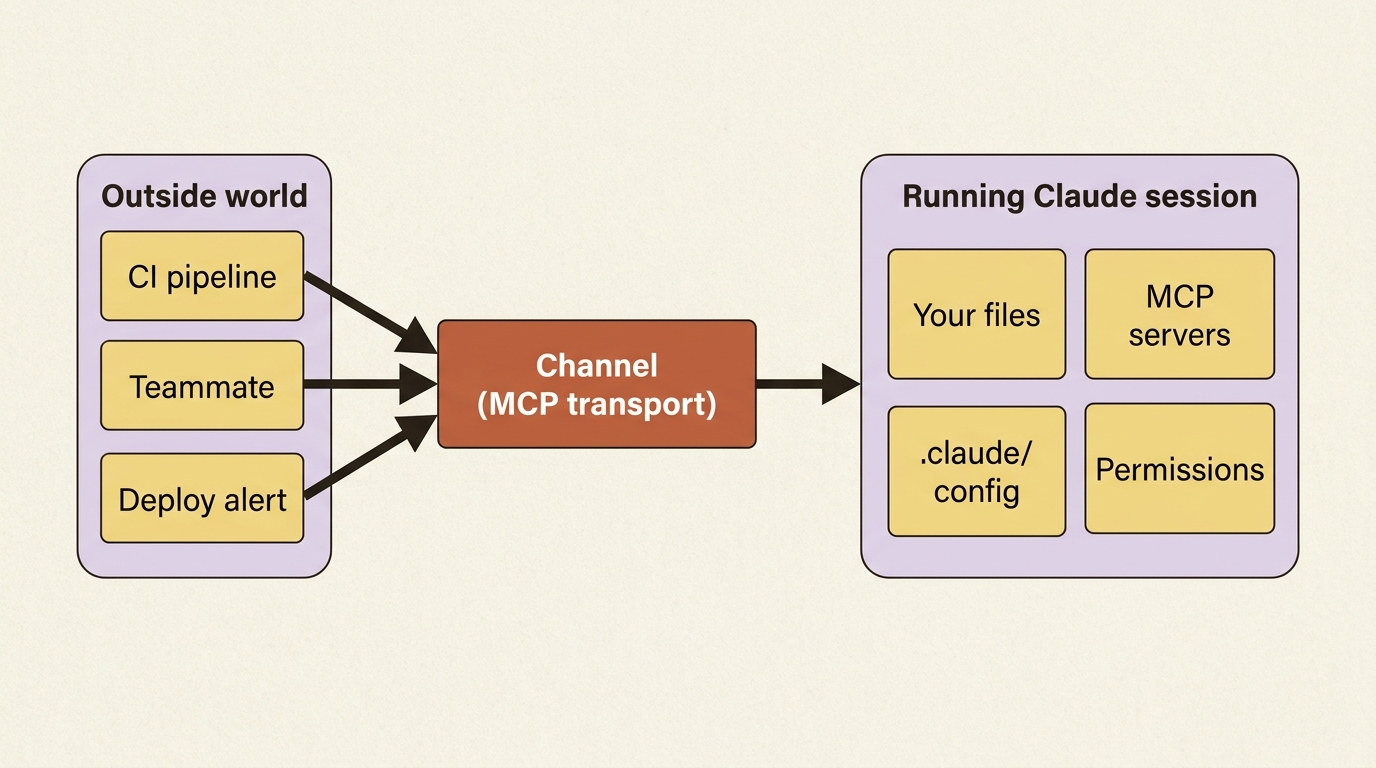
Three properties are worth internalizing before you set up your first channel:
The session must stay running. Close the terminal and the channel goes offline. Messages sent during downtime are typically lost. The always-on pattern, covered at the end, is how you make this practical.
Permission prompts still block. A channel can hand Claude a task, but if Claude needs to run a Bash command that requires approval, the session pauses until you confirm. Permission relay lets you approve remotely, but the default is still that approvals happen at the terminal.
Channels are MCP servers under the hood. Each channel plugin is an MCP server that runs on your machine and bridges between an external platform and Claude Code. That detail matters when you decide to build your own.
A few requirements before you start. Channels are a research-preview feature, so expect the contract to shift. They currently need Claude Code v2.1.80 or later, Anthropic authentication through claude.ai or a Console API key, and Bun installed, because the official channel plugins are Bun scripts. They are not available on Amazon Bedrock, Google Vertex AI, or Microsoft Foundry. Team and Enterprise organizations must explicitly enable them in admin settings.
Four channels, plus a fifth you build yourself
There are four supported channels and one build-your-own path. The right starting point depends on your platform and your team.
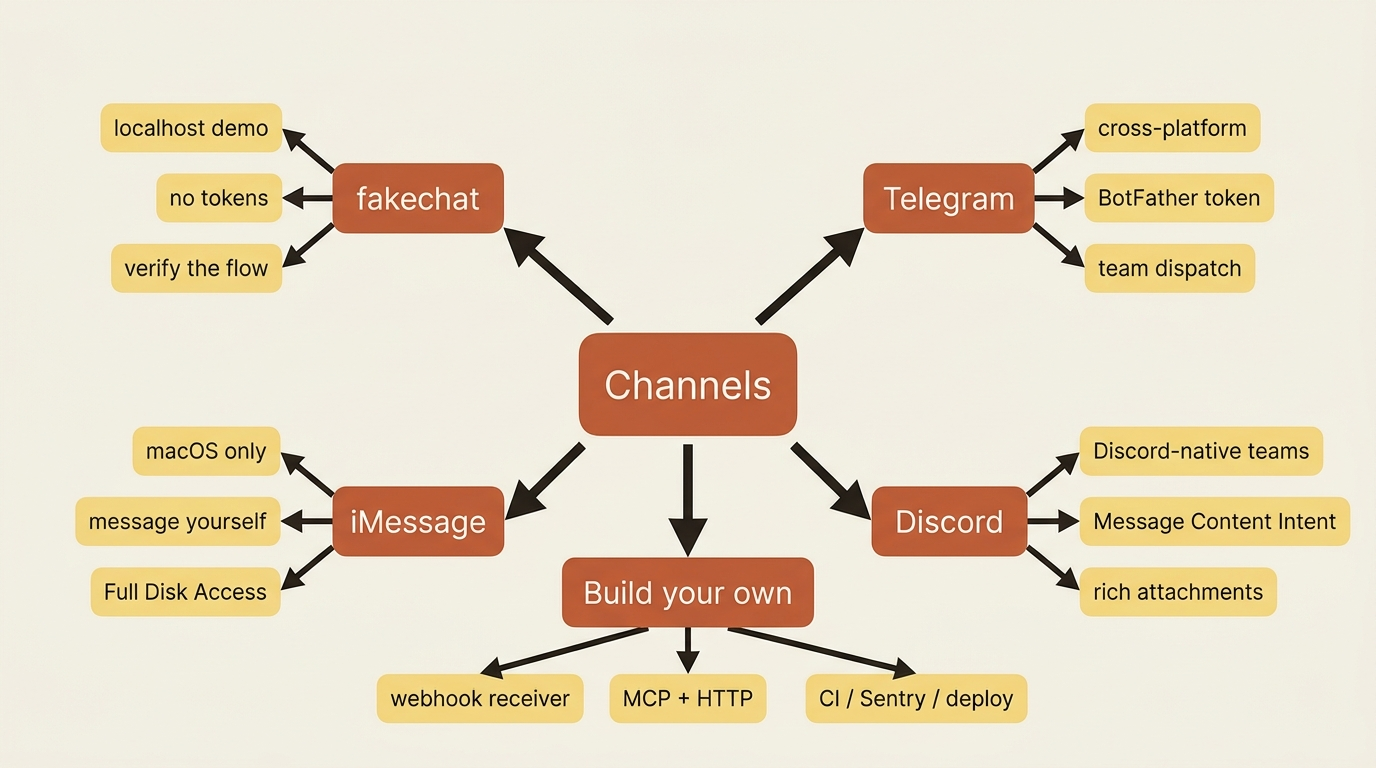
fakechat: start here
Before you wire up a real platform, install fakechat. It is the localhost demo channel that lets you verify the plugin flow without bot tokens, OAuth permissions, or external services.
Install the plugin:
/plugin install fakechat@claude-plugins-official
If Claude Code reports that the plugin is not found, your marketplace is missing or outdated. Run /plugin marketplace update claude-plugins-official to refresh it, or /plugin marketplace add anthropics/claude-plugins-official if you have not added it before.
Then exit Claude Code and restart with the channel flag:
claude --channels plugin:fakechat@claude-plugins-official
Open the fakechat UI at http://localhost:8787 in a browser and type a message:
hey, what's in my working directory?
The message arrives in your session as a <channel source="fakechat"> event. Claude reads it, runs whatever tools it needs, and calls fakechat's reply tool. The reply shows up back in the browser. If this works, the plugin flow on your machine works. If it does not, the problem is almost always one of three things: the marketplace is not added, Bun is not installed, or a Team or Enterprise admin has not enabled channels.
iMessage: the easiest real channel on macOS
If you are on macOS and want the fastest path to a real channel, install iMessage. No bot tokens, no OAuth, no external service. You message yourself from any Apple device and Claude responds inline.
The trade-off is that it requires Full Disk Access for your terminal app, so the channel server can read the Messages database at ~/Library/Messages/chat.db. This feels uncomfortable the first time. Grant it anyway, because the alternative is that the channel server cannot read incoming messages and exits immediately with authorization denied.
The first time the server tries to read chat.db, macOS pops a prompt asking whether your terminal can access Messages. Click Allow. The prompt names whatever app launched Bun, such as Terminal, iTerm, Ghostty, or your IDE. If you click Don't Allow, or the prompt never appears, grant it manually under System Settings, Privacy and Security, Full Disk Access and add your terminal.
Then install the plugin in an active session and restart with the flag:
/plugin install imessage@claude-plugins-official
claude --channels plugin:imessage@claude-plugins-official
Send yourself a message from any device signed into your Apple ID. Self-chat bypasses access control and reaches Claude immediately. The first reply Claude sends triggers a one-time macOS Automation prompt, "Terminal wants to control Messages." Click OK.
By default only your own messages reach Claude. To allow another contact, add their handle:
/imessage:access allow +15551234567
Handles are phone numbers in +country format or Apple ID emails like [email protected]. Watch what you allow: anyone you allow can inject text directly into Claude's context. That is the entire iMessage setup, roughly five minutes including a smoke test.
Telegram: cross-platform and team-friendly
Telegram is the right choice when you want cross-platform access across iOS, Android, desktop, and web, when your team is not all on Apple devices, or when you want shared channels for lightweight team dispatch like "run the test suite" or "summarize CI failures."
Start by creating a bot. Open BotFather in Telegram and send /newbot. Give it a display name and a unique username ending in bot. BotFather returns a token. Copy it.
Install the plugin and reload:
/plugin install telegram@claude-plugins-official
/reload-plugins
The /reload-plugins step activates the plugin's configure command without restarting your session. Now configure your token:
/telegram:configure <token>
This saves it to ~/.claude/channels/telegram/.env. You can also set TELEGRAM_BOT_TOKEN in your shell environment before launching Claude Code. Then exit and restart with the channel flag:
claude --channels plugin:telegram@claude-plugins-official
Pair your account. Open Telegram, send any message to your bot, and the bot replies with a pairing code. Back in Claude Code:
/telegram:access pair <code>
The default after pairing is permissive, so lock it down to your allowlist:
/telegram:access policy allowlist
If your bot does not respond when you try to pair, the most common cause is that Claude Code is not running with --channels. The bot can only reply while the channel is active.
Discord: team chat and public servers
Discord makes sense when your team already uses Discord, when you want public-server access patterns, or when you need richer message attachments and reactions than Telegram supports.
Create a Discord bot at the Discord Developer Portal (https://discord.com/developers/applications). Click New Application and name it. In the Bot section, create a username, click Reset Token, and copy the token.
Next, enable Message Content Intent. In your bot's settings, scroll to Privileged Gateway Intents and enable Message Content Intent. Without this, the bot cannot read the content of incoming messages.
Invite the bot to your server. Go to OAuth2, URL Generator, select the bot scope, and enable these permissions:
- View Channels
- Send Messages
- Send Messages in Threads
- Read Message History
- Attach Files
- Add Reactions
Open the generated URL to add the bot to your server. Then install, configure, and restart:
/plugin install discord@claude-plugins-official
/reload-plugins
/discord:configure <token>
claude --channels plugin:discord@claude-plugins-official
Finally, pair and lock down: DM your bot, get the pairing code, run /discord:access pair <code>, then /discord:access policy allowlist.
The security model: gate on sender, not channel
This is the section that decides whether your channel setup is safe or compromised.
An ungated channel is a prompt-injection vector. Anyone who can reach your endpoint can put text directly in front of Claude. Claude treats incoming channel messages as instructions in the conversation, the same way it treats your typed prompts. If a malicious party can send messages to your channel, they can tell Claude to do things.
The gating mechanism is a sender allowlist. Before the channel server emits a notification to Claude, it checks whether the sender is on the allowed list. If not, the message is dropped silently: no reply, no notification, no record in Claude's context.
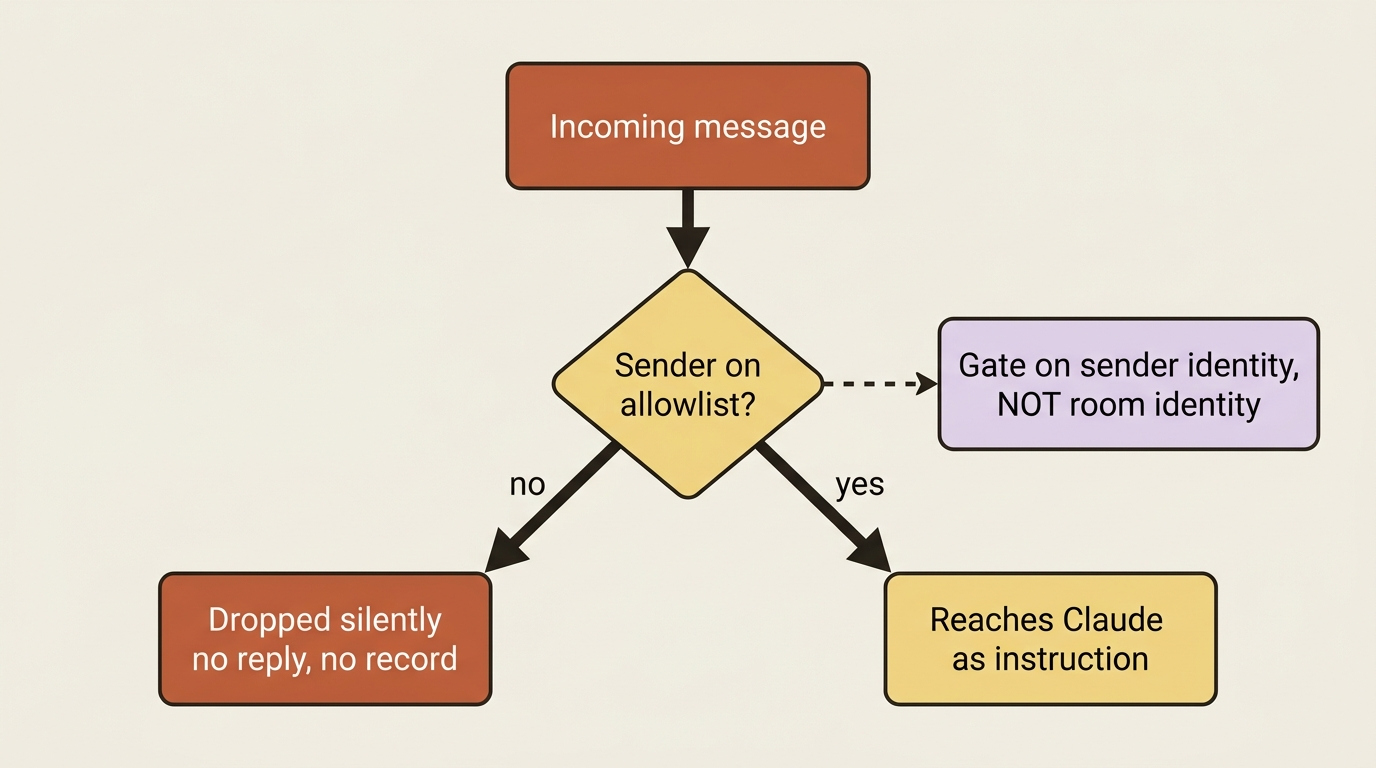
The critical detail is to gate on sender identity, not chat or room identity. In Telegram and Discord, group chats let many people send messages into one room. If you gate on the room identifier, anyone in an allowlisted group can inject messages into your Claude session. Gate on the individual sender's identifier instead.
The Telegram and Discord plugins do this correctly out of the box. The pairing flow you ran in setup is exactly the mechanism that adds your account to the allowlist: you DM the bot, the bot returns a pairing code, you approve it from inside Claude Code, and your platform ID joins the allowlist. After pairing, set the policy to allowlist so that only paired senders can reach Claude.
The iMessage plugin uses a different approach. It detects your own Apple addresses from the Messages database at startup and lets them through automatically. Other senders must be added explicitly with /imessage:access allow <handle>. Self-chat is the fast path because the channel knows the messages came from you.
A few moves strengthen the security model:
Periodically audit the allowlist. Run /<channel>:access list to see who is currently allowed. Remove old paired devices, former teammates, or anything you do not recognize.
Treat the allowlist as a security boundary. Adding someone is the equivalent of giving them keyboard access to your Claude session. Do it deliberately.
Lock the access policy to allowlist explicitly. The default after pairing may be permissive. Running /<channel>:access policy allowlist is the move that actually enforces the boundary.
Permission relay: approve tool use from your phone
When Claude calls a tool that requires approval, the local terminal pops a prompt and the session waits for your response. If you are away from your terminal but on your phone, this is a dead-end: the session is paused and there is no way to approve from the channel.
Permission relay solves this. A two-way channel can opt in to receive the same approval prompt in parallel and forward it to you on whatever device the channel runs on. You answer "yes" or "no" in the chat platform, and Claude Code applies the verdict.
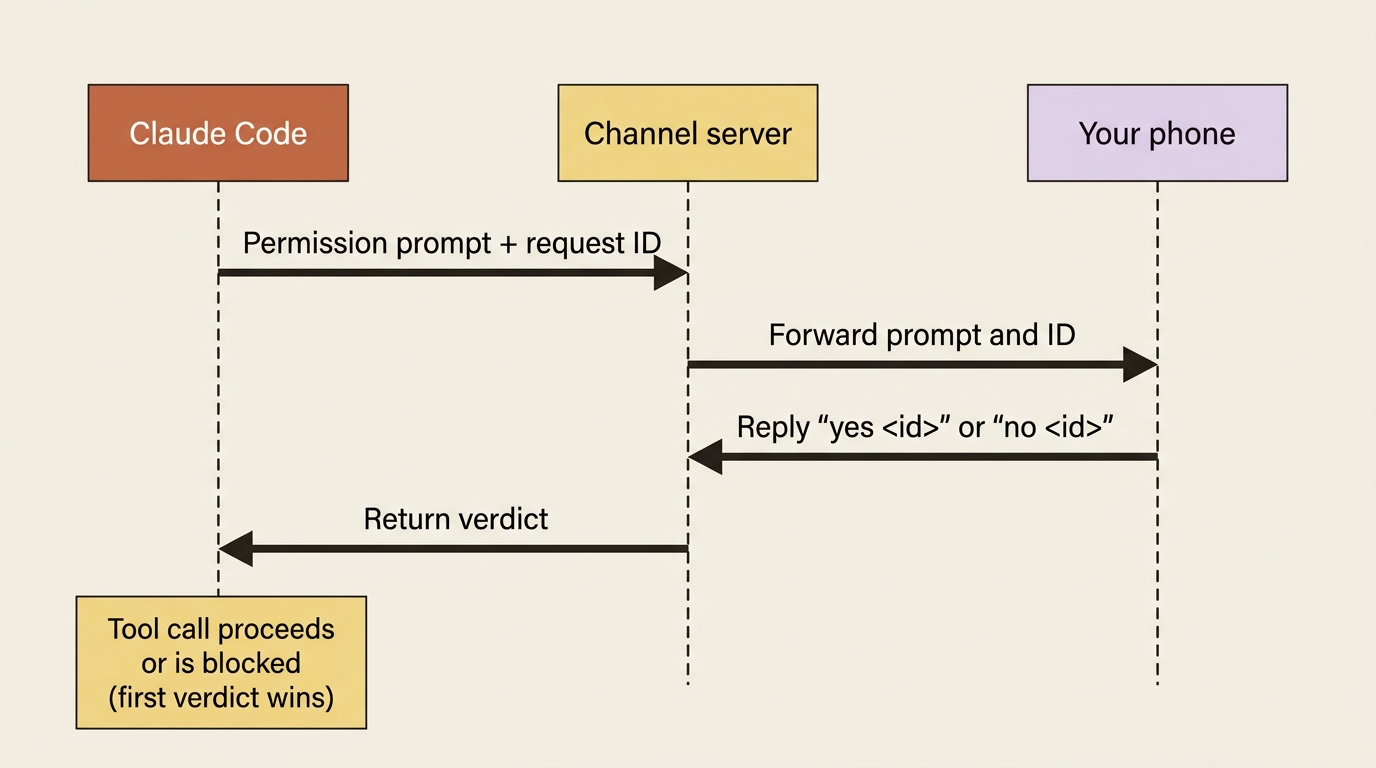
The relay loop runs in four steps:
- Claude Code generates a short request ID and notifies your channel server when a permission prompt opens.
- Your channel server forwards the prompt and ID to your chat app.
- You reply with "yes
" or "no " on your phone. - The channel parses the reply, returns the verdict to Claude Code, and the tool call proceeds or is blocked.
Both the local terminal dialog and the remote prompt stay live. If you happen to be at your terminal when the relay request arrives, you can answer locally. Whichever verdict arrives first wins, and the other is dropped automatically.
Permission relay requires Claude Code v2.1.81 or later. It covers tool-use approvals for Bash, Write, and Edit. It does not cover project trust dialogs or MCP server consent dialogs; those still require local approval. The Telegram, Discord, and iMessage channels in the official marketplace all support permission relay out of the box.
For unattended scenarios where you genuinely cannot approve remotely, such as a webhook channel running in a server environment, --dangerously-skip-permissions bypasses prompts entirely. Use it only in environments you trust. The "dangerously" prefix exists for a reason.
Build your own: webhook receivers
Chat platforms are not the only useful event source. CI systems, error trackers, deploy pipelines, monitoring tools, and your own internal services all generate events that benefit from arriving in a context-loaded Claude session. The build-your-own path covers all of these.
A channel is an MCP server built on the standard @modelcontextprotocol/sdk package, with one extra capability that marks it as a channel. To build a webhook receiver:
- Stand up an HTTP server that listens for POST requests on a local port.
- Create an MCP
Serverthat declares theclaude/channelexperimental capability, then connect it to Claude Code over stdio. - When an event arrives, call
mcp.notification()with the methodnotifications/claude/channelto push it into the Claude session. - Optionally implement a reply tool so Claude can send messages back through the channel.
This listing is one complete channel server, doing two jobs at once. It stands up the MCP side, declaring the claude/channel capability and connecting over stdio so Claude Code registers a notification listener, and it stands up an authenticated localhost HTTP endpoint that turns each inbound webhook into a notifications/claude/channel push.
#!/usr/bin/env bun
import { Server } from '@modelcontextprotocol/sdk/server/index.js';
import { StdioServerTransport } from '@modelcontextprotocol/sdk/server/stdio.js';

// Create the MCP server and declare it as a channel. The experimental
// 'claude/channel' capability is what makes Claude Code register a
// notification listener for this server.
const mcp = new Server(
  { name: 'ci-webhook', version: '0.0.1' },                          // ①
  {
    capabilities: { experimental: { 'claude/channel': {} } },        // ②
    instructions:
      'Events from the CI webhook arrive as <channel source="ci-webhook" ...>. They are one-way: read them and act, no reply expected.',
  },
);

// Connect to Claude Code over stdio (Claude Code spawns this process).
await mcp.connect(new StdioServerTransport());                       // ③

// HTTP endpoint for inbound webhooks, bound to localhost only.
Bun.serve({
  port: 4000,
  hostname: '127.0.0.1',                                             // ④
  async fetch(req) {
    if (req.method !== 'POST') return new Response('Method not allowed', { status: 405 });

    // Gate on a shared secret in the Authorization header.
    const auth = req.headers.get('Authorization');
    if (auth !== `Bearer ${process.env.CI_WEBHOOK_SECRET}`) {        // ⑤
      return new Response('Unauthorized', { status: 401 });
    }

    const body = await req.json();

    // Push the event into Claude as a channel notification. content
    // becomes the body of the <channel> tag; each meta key becomes an
    // attribute on it.
    await mcp.notification({                                         // ⑥
      method: 'notifications/claude/channel',                        // ⑦
      params: {
        content: `Build failed: ${body.commit} on ${body.branch}. ${body.failureUrl}`,  // ⑧
        meta: { branch: body.branch },                               // ⑨
      },
    });

    return new Response('OK');
  },
});
① The Server constructor's first argument is the server's identity; the name here becomes the source attribute on the <channel> tag Claude sees.
② The claude/channel experimental capability is the one extra declaration that distinguishes a channel from an ordinary MCP server: it is what makes Claude Code register a notification listener for this process.
③ Connecting over StdioServerTransport wires the server to the stdin and stdout pipe of the process Claude Code spawned, which is how a channel talks to the session.
④ Binding the HTTP listener to 127.0.0.1 keeps the webhook endpoint local, so only processes on this machine, or a tunnel you control, can reach it.
⑤ Every inbound request is gated on a shared secret in the Authorization header; an unauthenticated webhook is an open prompt-injection vector.
⑥ mcp.notification() is the call that pushes an event into the running Claude session; this is the data-plane surface of the channel.
⑦ The method notifications/claude/channel is the channel notification contract Claude Code listens for; any other method would not surface as a <channel> event.
⑧ The params.content string becomes the body text inside the <channel> tag that Claude reads.
⑨ Each key in params.meta becomes an attribute on the <channel> tag, so structured fields like branch arrive alongside the message.
Note: The full extracted listing at code/claude_code_advanced/part-2-channels/listings/01-ci-webhook-receiver.ts shows the complete runnable server with the marker comments removed.
The shape that matters is an MCP server that declares the claude/channel capability and connects over stdio, an authenticated POST endpoint, and a notifications/claude/channel call into Claude Code. Your CI pipeline POSTs to your local server when a build fails, the event arrives in your Claude session with the failure URL, and Claude can investigate. The same idea applies to error trackers such as Sentry and Datadog, deploy pipelines, monitoring systems, or any internal service that generates events you want Claude to react to.
A few practical notes:
- Register and run the server. Add it to your
.mcp.json({ "mcpServers": { "ci-webhook": { "command": "bun", "args": ["./webhook.ts"] } } }) so Claude Code spawns it as a subprocess. During the research preview, custom channels are not on the approved allowlist, so start the session withclaude --dangerously-load-development-channels server:ci-webhookto load it. - Run the server somewhere reliable. If your laptop sleeps, the webhook server is unreachable. Either expose your laptop to the internet through a tunnel such as ngrok or Cloudflare Tunnel, or run the webhook server on a separate machine that points back at your local Claude Code session.
- Authenticate every inbound request. Use a shared secret, an HMAC signature, or mTLS. Webhook endpoints with no authentication are open invitations to prompt-injection attacks.
- Test with fakechat first. The fakechat plugin is a useful reference implementation: it ships the same MCP server contract, and you can study its source to understand the shapes.
- Package and distribute. Once your channel works, wrap it in a plugin and publish to a marketplace. Other people in your org can then install it with
/plugin install <name>.
The Channels reference docs cover the full contract: capability declaration, notification format, reply tool implementation, sender gating, and permission relay. If you are building a serious webhook receiver, read that page in full before you ship.
Operational limits to internalize
Five things every channel user runs into eventually:
The session must stay running. Close the terminal and the channel goes offline. Messages sent while it is down are typically lost. This is the biggest practical limit.
Permission prompts still block. Even with permission relay, the session can pause if Claude needs an approval and you are not reachable.
Channel servers consume your machine's resources. Each channel is a long-running process. Running five channels at once is fine on a modern laptop, but the cost is not zero.
iMessage is macOS-only. The chat.db reading and AppleScript-driven sending only work on macOS. Telegram and Discord work everywhere.
Approvals can drift the allowlist. Pairing a new device, approving a one-off teammate, then forgetting to revoke: the allowlist grows over time. The periodic audit is the discipline that keeps it tight.
The always-on pattern
Channels are only useful if the session is open. For most readers, the practical answer is to run Claude Code in a persistent terminal multiplexer, such as tmux, screen, or zellij, on your main work machine.
# In tmux:
tmux new -s claude-always-on
cd ~/projects/main-project
claude --channels plugin:imessage@claude-plugins-official \
        --channels plugin:telegram@claude-plugins-official
# Detach with Ctrl-b d
The session keeps running after you detach. Claude waits for events from any of the channels you configured. You reattach with tmux attach -t claude-always-on whenever you want to see what happened.
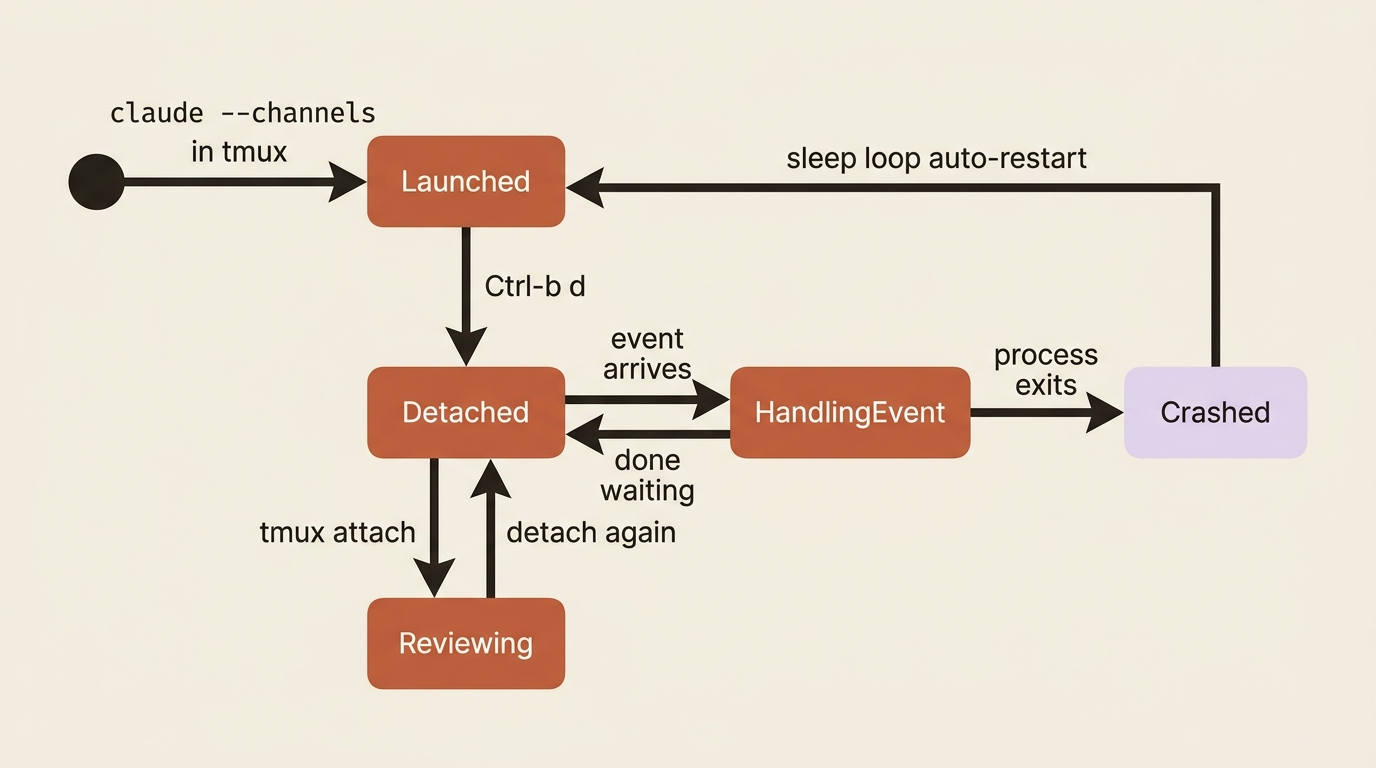
Two refinements make this production-ready:
Auto-restart on crash. Wrap the claude command in a shell loop so that it restarts if it exits. For tmux, use a one-liner: while true; do claude --channels ...; sleep 5; done. For more robust setups, use a process manager, such as systemd on Linux or launchd on macOS.
Log to a file. Redirect stdout and stderr to a log so you can see what events arrived and what Claude did, even if you were not watching. The session itself shows the activity, but the log is what you go back to if something went wrong.
This pattern is the difference between "I tried channels and they were annoying because the session kept stopping" and "channels are part of my workflow." The always-on session is mandatory infrastructure.
Do this today
Three concrete moves:
- Install fakechat and verify the plugin flow. This is fifteen minutes of work and confirms that channels work on your machine. Debugging a plugin-flow problem with fakechat is far less painful than debugging it with a real channel.
- Pick one real channel based on your team. On Mac with no real team chat, use iMessage. Cross-platform team, use Telegram. Discord-native team, use Discord. Webhook-driven event source, build your own. Install it, run through the pairing flow, and lock down the allowlist.
- Set up the always-on pattern. Run Claude Code with your channel in tmux or screen, detach, and verify that a message from your phone arrives in the session. That is the moment channels start being useful.
The leverage channels exist to create
The compounding effect shows up over weeks. Every event that used to interrupt your day, whether a CI failure, a bug report, a deploy alert, or a status check, becomes a message Claude can answer in the context you already have loaded. The friction of "stop what I am doing, switch to terminal, recreate context, address the thing" disappears.
The work happens where the work was already happening, while you are still where you were. That is the leverage channels exist to create, and it is why the five minutes you spend installing fakechat tonight pays back every evening your CI decides to fail at 9pm.
This is Part 2 of "Claude Code Away from the Terminal," a 7-part guide to using Claude Code beyond the terminal session in front of you.