Drive Your Local Claude Code Session From Your Phone, Your Browser, Anywhere
Your Claude Code session is tied to the surface, not the work. Remote Control breaks that link so the same local session follows you to your phone, your browser, and another machine.
The session runs on your machine the whole time. Remote Control just gives you a new pair of eyes and a new keyboard, on whatever device is in your hand.
In this article: You will learn what Claude Code Remote Control actually is (and what it is not), the three ways to start a remote session, how to pair your phone in fifteen seconds, the "work from two surfaces at once" pattern that makes it worth using, how the session survives sleep and dropped networks, and the security model that keeps all of it safe. By the end you will have a session running on your machine that you can reach from anywhere.
It is 9:30pm. You finally cornered the failing build, you have a fix in progress, and you want to be on the couch. But closing the laptop kills the session. Moving to a tablet means abandoning all the context you just spent an hour building. So you stay at the desk, tired, finishing the work in the worst chair in the house.
The whole problem is that the session was tied to the surface, not the work. Claude Code Remote Control breaks that link. The session keeps running on your machine, with all your files, MCP servers, and config exactly where they were. What changes is where you sit. The browser at claude.ai/code and the Claude mobile app become windows into the session you already have open.
This is not a cloud feature, and that distinction is the entire point. Let me show you.
The "your code stays put" framing
The single most important thing to understand about Remote Control is that nothing leaves your machine. Your session runs locally. Your files stay on your filesystem. Your MCP servers, your hooks, your .claude/ config, and your local environment all stay exactly where they were.
What changes is the surface. You can type messages in the terminal, in the browser, and on your phone, and they all go to the same Claude. The conversation stays in sync across surfaces. Type something at your desk and walk away, and your phone shows that same conversation when you open it.
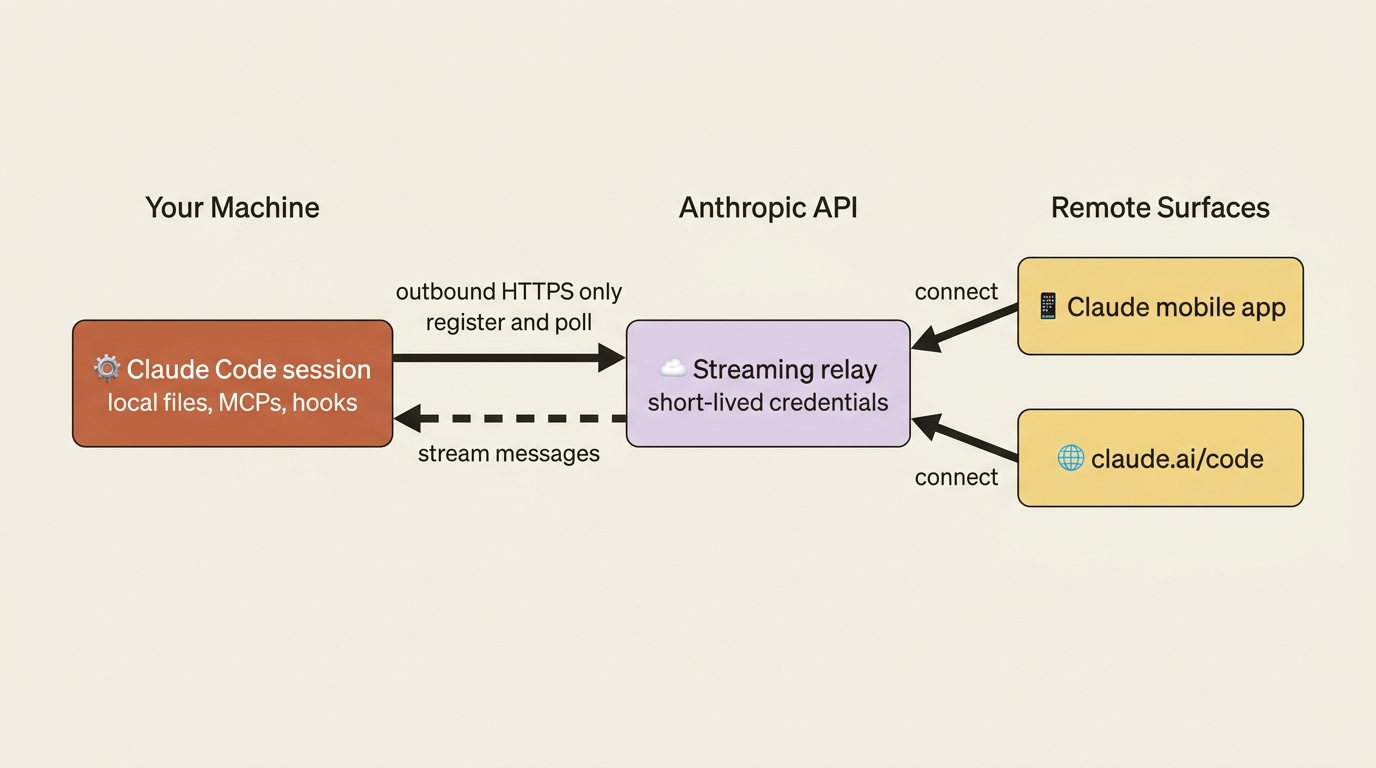
This is what separates Remote Control from Claude Code on the web. Claude Code on the web runs a fresh session in Anthropic's cloud, with a cloned copy of your repository, no local files, no local MCPs, no local config. With Remote Control, the work happens locally. The remote device is just a remote pair of eyes and a remote keyboard.
A few properties are worth internalizing:
Outbound HTTPS only. Your local session never opens an inbound port. It registers with the Anthropic API and polls for work. When you connect from your phone, messages route through Anthropic's API to your local session over a streaming connection. This means Remote Control works through almost any firewall or NAT, because there is nothing inbound to block.
Multiple short-lived credentials. Each piece of the connection (session registration, device pairing, and message streaming) uses a separate credential scoped to a single purpose and expiring independently. There is no long-lived token that, if leaked, hands someone full access.
No API key support. Remote Control requires Anthropic authentication through claude.ai or the Claude app. You cannot use it with a Console API key. The credential model is built around the consumer auth flow.
Plan and version requirements. Remote Control is available on Pro, Max, Team, and Enterprise plans. It is not available to Pay-As-You-Go API users, and it requires Claude Code v2.1.51 or later. Team and Enterprise organizations have it off by default, so an admin must flip the Remote Control toggle in admin settings before users can start sessions.
The three ways to start a session
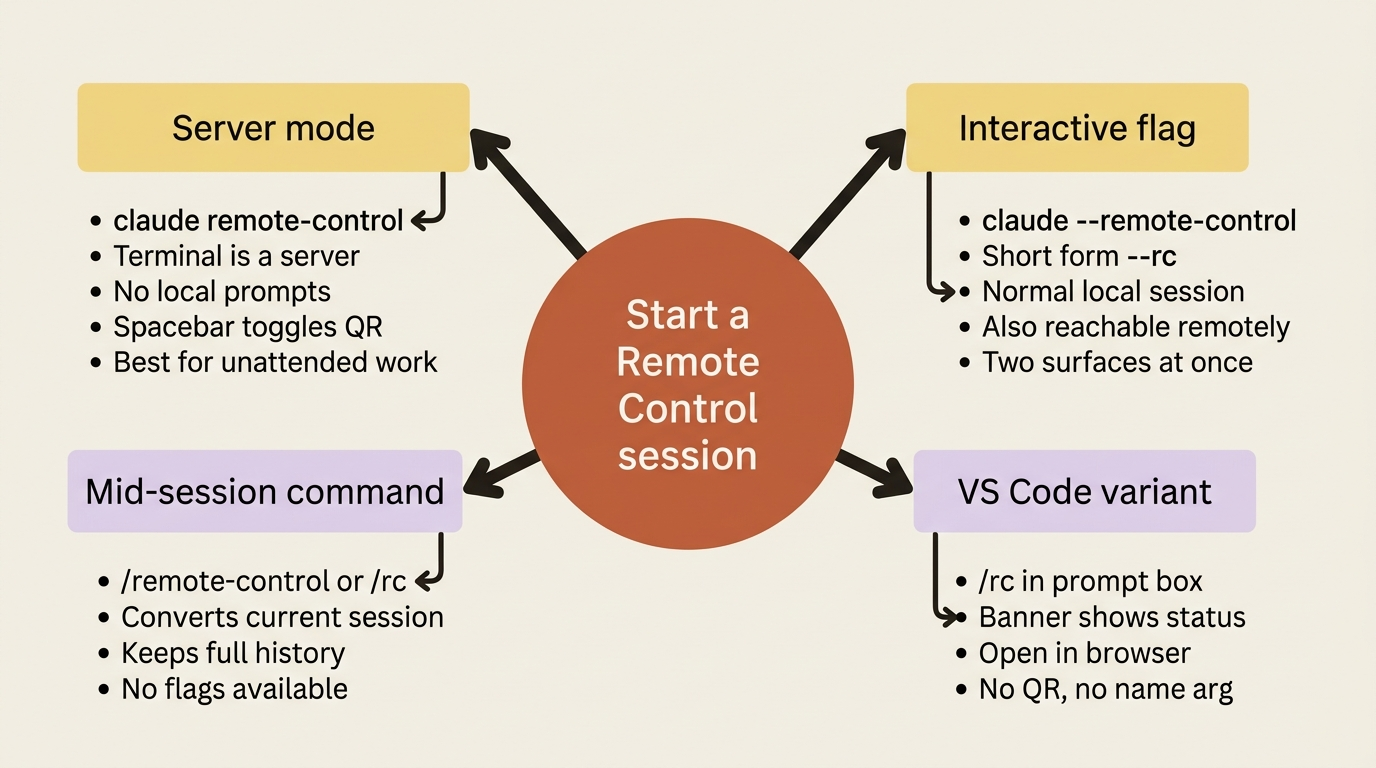
Remote Control offers three ways to start a session from the CLI, plus a VS Code variant. Each has a different ergonomic profile.
Server mode: claude remote-control
Dedicated server mode is the right choice when you want a session that is only for remote work. Run it from your project directory:
claude remote-control
The process stays running in your terminal as a server, waiting for remote connections. The terminal shows the session URL, connection status, and tool activity, but you do not type prompts here. All input comes from the remote device. Press the spacebar to toggle a QR code; scan it from your phone to open the session in the Claude app.
This mode shines for two scenarios. The first is dedicated remote-work sessions: start it on your desk machine before leaving home, then reconnect from anywhere, with nothing locally fighting you for the terminal. The second is long-running unattended work: pair it with a tmux or screen session so it survives logout.
A few flags are worth knowing:
claude remote-control --name "Auth refactor"
The --name flag sets a custom session title in your session list. Without it, you get an auto-generated name like myhost-graceful-unicorn. You can customize the hostname prefix with --remote-control-session-name-prefix <prefix> or the CLAUDE_REMOTE_CONTROL_SESSION_NAME_PREFIX environment variable.
claude remote-control --sandbox
The --sandbox flag enables filesystem and network isolation, which is useful for remote sessions you cannot watch in real time. Sandboxing is off by default.
Interactive mode: claude --remote-control
The interactive flag gives you a normal Claude Code session in your terminal that is also available remotely:
claude --remote-control
Or the short form:
claude --rc
This is the most common starting point. You sit at your terminal, type prompts locally, and the same session is also reachable from claude.ai/code or the mobile app. Anyone connecting from another device sees what you are typing, can send their own messages, and sees Claude's responses. You can pass a session name as a positional argument: claude --remote-control "My Project".
Mid-session: /remote-control
If you are already in a session and decide partway through that you want it remote-accessible, run the command:
/remote-control
Or the short form, /rc. This converts your current session to a Remote Control session, carrying over your full conversation history. The session URL and QR code appear in the conversation. Pass a name as an argument to set a title: /remote-control Auth refactor.
This is the command to remember when you start a normal session at your desk, get pulled away mid-task, and want to keep going from somewhere else. No restart, no lost context. Note that the --verbose, --sandbox, and --no-sandbox flags are not available with /remote-control. If you need those, exit and restart with claude remote-control or claude --remote-control.
VS Code variant
Inside the Claude Code VS Code extension (v2.1.79 or later), type /remote-control or /rc in the prompt box, or open the command menu with / and select it. A banner appears above the prompt box showing connection status; click Open in browser to go directly to the session. Unlike the CLI version, the VS Code command does not accept a name argument or display a QR code, and the session title comes from your conversation history or first prompt. To disconnect, click the close icon on the banner or run /remote-control again to toggle it off.
Pairing another device
Once a session is active, there are three ways to connect.
Open the session URL in any browser. The URL appears in the terminal when the session starts, and in the conversation if you started it mid-session. This is handy when you want the session in a tab on another computer.
Scan the QR code. This is the fastest path to mobile. With claude remote-control, press the spacebar to toggle the QR display. With claude --remote-control or /remote-control, the QR code shows up automatically. Point your phone camera at it and tap the notification that opens the Claude app to the session.
Find the session by name. Open claude.ai/code or the Claude mobile app and look in the session list. Remote Control sessions show a computer icon with a green status dot when online. In the mobile app, tap Code in the navigation to reach the list.
If you do not have the Claude mobile app installed yet, run /mobile inside Claude Code to display a download QR code for iOS or Android. One friendly default: if the environment already has an active session, Claude asks whether to continue it or start a new one, which catches the common case of a previous session still alive in a tmux window somewhere.
Working from two surfaces at once
This is the pattern that makes Remote Control feel valuable rather than merely convenient.
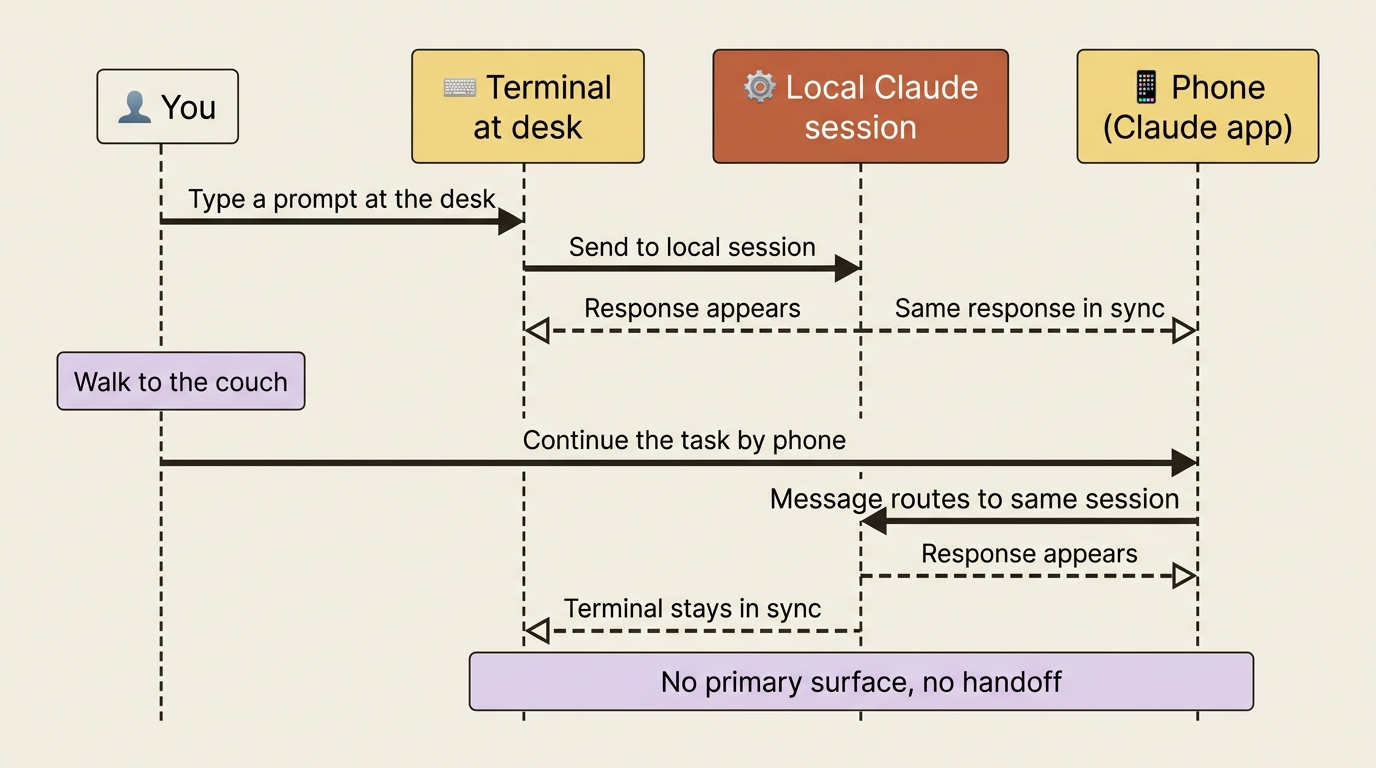
Open the session at your desk in the terminal. Open the same session in your phone's Claude app. Type a prompt in the terminal, and it appears on the phone immediately. Type one on the phone, and it appears in the terminal immediately. Claude responds in both places. The session is genuinely shared.
That unlocks a handful of real workflows:
- Continue from another room. Start a task at your desk, walk to the couch with your phone, and keep going. The mid-task state moves with you.
- Review while away. Kick off a long-running task before leaving for lunch, then watch progress and make follow-up decisions from your phone while you eat.
- Two-surface debugging. Read logs in the terminal at your desk while typing prompts on your phone. Use whichever surface fits the moment, sentence by sentence.
- Hand off mid-pair. A teammate connects to your session URL from their laptop, sees what you have been doing, and asks Claude a clarifying question. Their messages show up alongside yours in the conversation.
The crucial property is that there is no "primary" surface. The terminal is not more authoritative than the browser. Both can write to the conversation, and both reflect everything that happens.
Survival across interruptions
Real workflows involve laptops sleeping, networks dropping, and phones losing signal. Remote Control is designed to survive these.
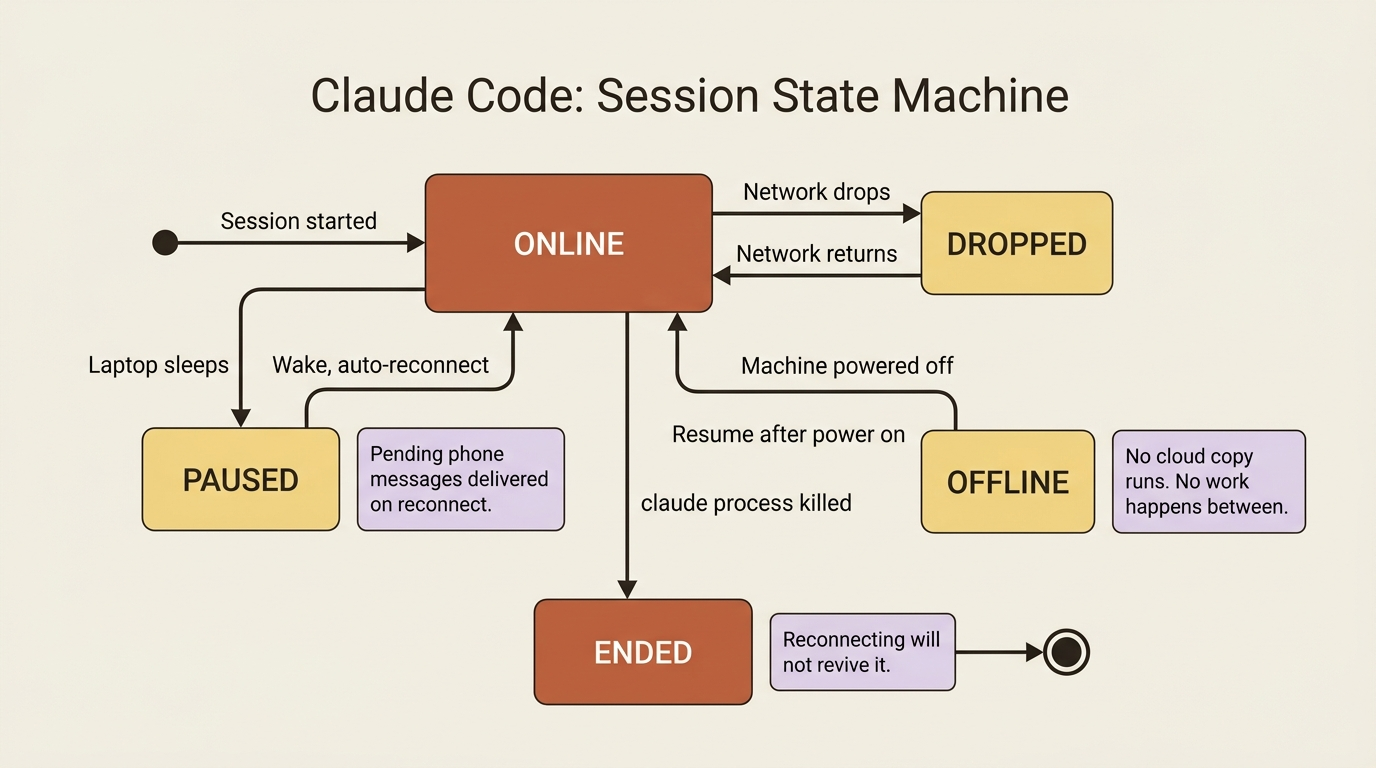
Laptop sleep. When your machine sleeps, the local session pauses. When it wakes, the session reconnects to the Anthropic API automatically. Messages sent from your phone while the laptop slept arrive once it comes back online, within reason. Messages sent days later may be lost depending on retention.
Network drops on your machine. Same behavior: the session reconnects when the network returns, and pending messages from remote surfaces are delivered.
Network drops on the remote device. The browser or mobile app reconnects when the network returns. The session, which ran on your machine the whole time, lost no state.
Page refresh on the browser. Refreshing claude.ai/code re-attaches to the running session. History loads, and you continue from where you left off.
Two exceptions are worth knowing. If your machine is off, not just asleep, the session goes offline; there is no cloud copy that keeps running, so when you turn the machine back on you can resume but no work happened in between. And if you killed the claude process explicitly, the session ends, and reconnecting from a remote surface will not bring it back. For workflows where "your machine being on" cannot be assumed, the right tool is a cloud Routine, which runs in Anthropic's infrastructure and survives anything happening to your laptop.
Mobile push notifications
When Remote Control is active, Claude can send push notifications for events that matter, such as a long-running task finishing or a decision needed to continue.
Claude decides when to push by default. Tests finishing after a fifteen-minute run will typically generate one. A tool prompt that requires approval will too. You can also explicitly request a push in your prompt: "notify me when the deploy completes."
Setup, in order:
- Install the Claude mobile app on iOS or Android.
- Sign in with the same account and organization you use for Claude Code.
- Accept the notification permission prompt from the operating system.
- In Claude Code, run
/configand enable Push when Claude decides.
Mobile push notifications require Claude Code v2.1.110 or later. If notifications do not arrive, three causes are common: /config showing No mobile registered (open the Claude app so it refreshes its push token), iOS Focus modes or notification summaries suppressing pushes (check Settings, Notifications, Claude), or the session simply not being active anymore. This is the feature that lets you genuinely walk away from a long task. The work runs, the notification arrives when it matters, and you come back to a finished job.
Auto-enable for every session
If you find yourself wanting Remote Control on most sessions, flip the auto-enable switch instead of remembering the flag. Run /config and set Enable Remote Control for all sessions to true. In the Desktop app, the same toggle lives at Settings, Claude Code, Enable remote control by default.
With this on, every interactive Claude Code process automatically registers a remote session. If you run multiple instances, such as several terminals or several worktrees, each one gets its own remote session with its own URL. One subtle gotcha: this setting affects interactive sessions only. Headless invocations like claude -p do not register remote sessions, because there is no live interaction to drive. The "one process, one remote session" rule is per-process; if you want multiple concurrent sessions from a single process, use server mode and a tmux setup.
Common pitfalls
Five things first-time users hit:
- Workspace trust not accepted. If you run
claude remote-controlin a directory you have never used Claude in before, the workspace trust dialog blocks the session. Run plainclaudeonce there first, accept the trust dialog, then start Remote Control. - API key authentication. If you signed in with a Console API key, Remote Control will not start. Sign out and log back in through claude.ai with
/login. - Admin toggle off. Team and Enterprise admins must enable Remote Control in admin settings. Until they do, the flag and command both error out with a clear message.
- Pre-2.1.51 version. Run
claude --versionto verify, and update if needed. - Firewall blocking outbound HTTPS. Corporate firewalls that block arbitrary outbound HTTPS will prevent Remote Control from registering. Verify that traffic to
api.anthropic.comis allowed. Inbound is never an issue, because Claude never opens an inbound port, but outbound must work.
Remote Control versus Claude Code on the web
This distinction is the one most readers confuse, so it is worth a side-by-side.
| Remote Control | Claude Code on the web | |
|---|---|---|
| Where Claude runs | Your machine | Anthropic cloud |
| Local files | Available | Not available (cloud repo clone) |
| Local MCPs | Available | Not available |
| Local environment | Available | Cloud sandbox only |
| Your machine on? | Required | Not required |
| Best for | Continuing local work from another device | Starting fresh tasks without local setup |
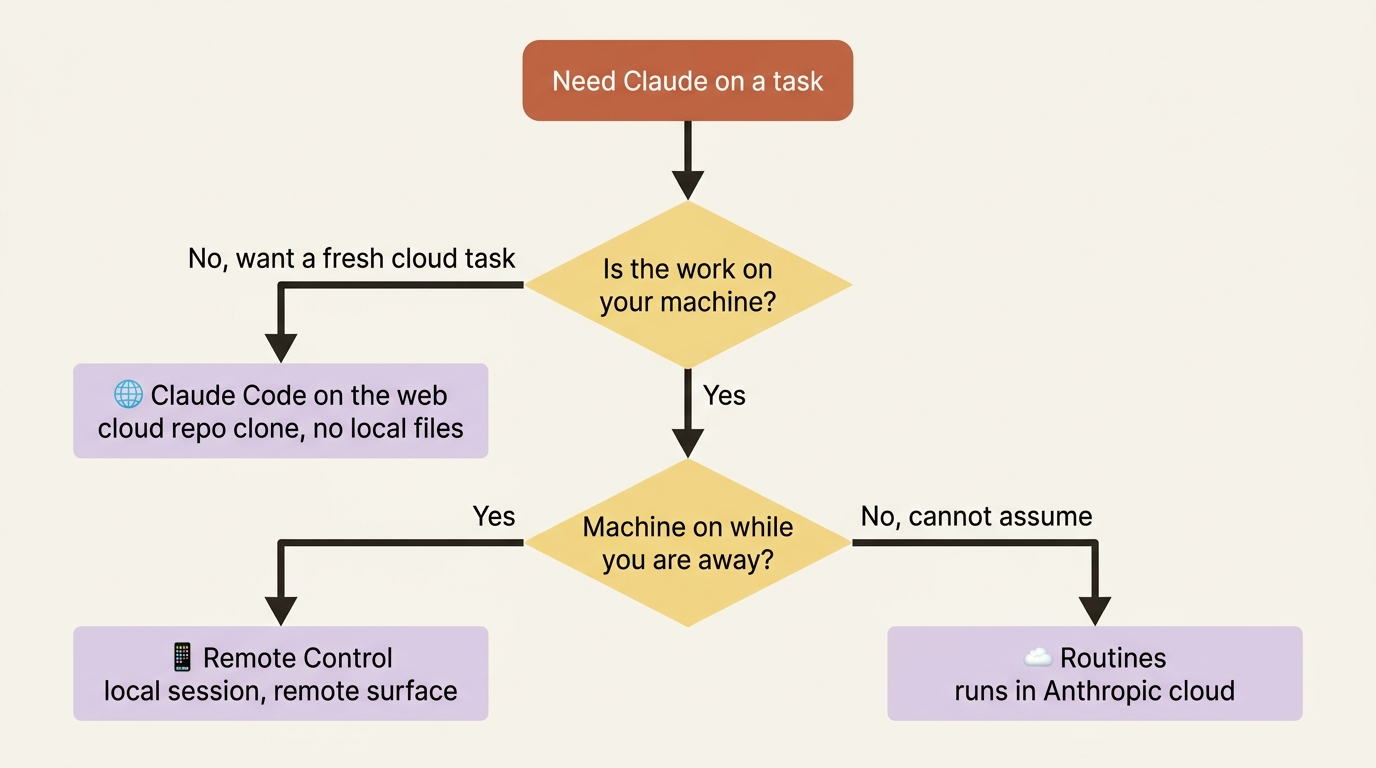
The rule of thumb: use Remote Control when the work is on your machine and you want to access it remotely. Use Claude Code on the web when you want work to happen in the cloud, independent of your machine.
Do this today
Three concrete moves:
- Try
claude --remote-controlon a project you are actively working on. Pair from your phone with the QR code, type a prompt from the phone, type one from the terminal, and feel the two-surface property. The "oh, this actually works" moment is fifteen seconds away. - Enable mobile push notifications. Even if you never start a remote session intentionally, push notifications become a useful default for long-running work the moment you do.
- Decide whether you want auto-enable. If most of your sessions would benefit from being remote-accessible and you are comfortable with the security model, flip the switch. If only some would, leave it off and reach for
--remote-controldeliberately.
The friction that quietly disappears
The compounding effect over weeks is that you stop thinking about whether a session is remote-accessible. It just is. You start a task at your desk, glance at it from your phone in another room, and come back to finish. The nagging "I have to be at my desk to use Claude on this" simply goes away.
Most days you will not even notice you have it. But on the night you have a fix half-built and the couch is calling, you would not give it up. The session was never tied to the desk. It was only ever tied to the work, and now the work follows you.
This is Part 3 of "Claude Code Away from the Terminal," a 7-part guide to making Claude work for you when your hands are not on the keyboard.