Text a Task to Claude and Walk Away: A Practical Guide to Dispatch
Dispatch turns the 'I'll do it when I get back' tax into a text message: fire a coding task from your phone, walk away, and let Claude Code finish it on your own machine.
The most overlooked Claude Code feature is also the simplest: message a coding task from your phone, and a session spins up on your own machine to handle it while you are out getting coffee.
In this article: You will learn how Claude Code Dispatch turns a stray thought into finished work without a context switch. We cover how Dispatch decides whether your task is coding work, how to pair your phone with Desktop, the short-lived approval expiry that makes Dispatch sessions safer than ordinary ones, and the honest limits (Pro and Max only, no Linux). By the end you will know whether Dispatch fits your day and exactly how to set it up.
You are walking back from lunch when you remember the dependency audit that was supposed to run this morning. You will not reach your desk for thirty minutes. By then you will be in a meeting. By the time the meeting ends it is late afternoon, and you have forgotten again. The third time this happens in a week, you start wishing you could just text the task to your computer and let it run while you are away.
That wish has a name. It is called Dispatch, and it is the simplest of Claude Code's away-from-terminal trigger surfaces. You message a task from the Claude mobile app, Dispatch decides whether it is coding work, and if it is, Dispatch spawns a session on your own machine to handle it autonomously. No laptop open. No context switch. Just a text and a push notification when it is done.
This article is the practical version of that promise: the mental model, the setup, the one quirk that trips up first-time users, and a clear-eyed look at where Dispatch fits and where it does not.
The Dispatch mental model
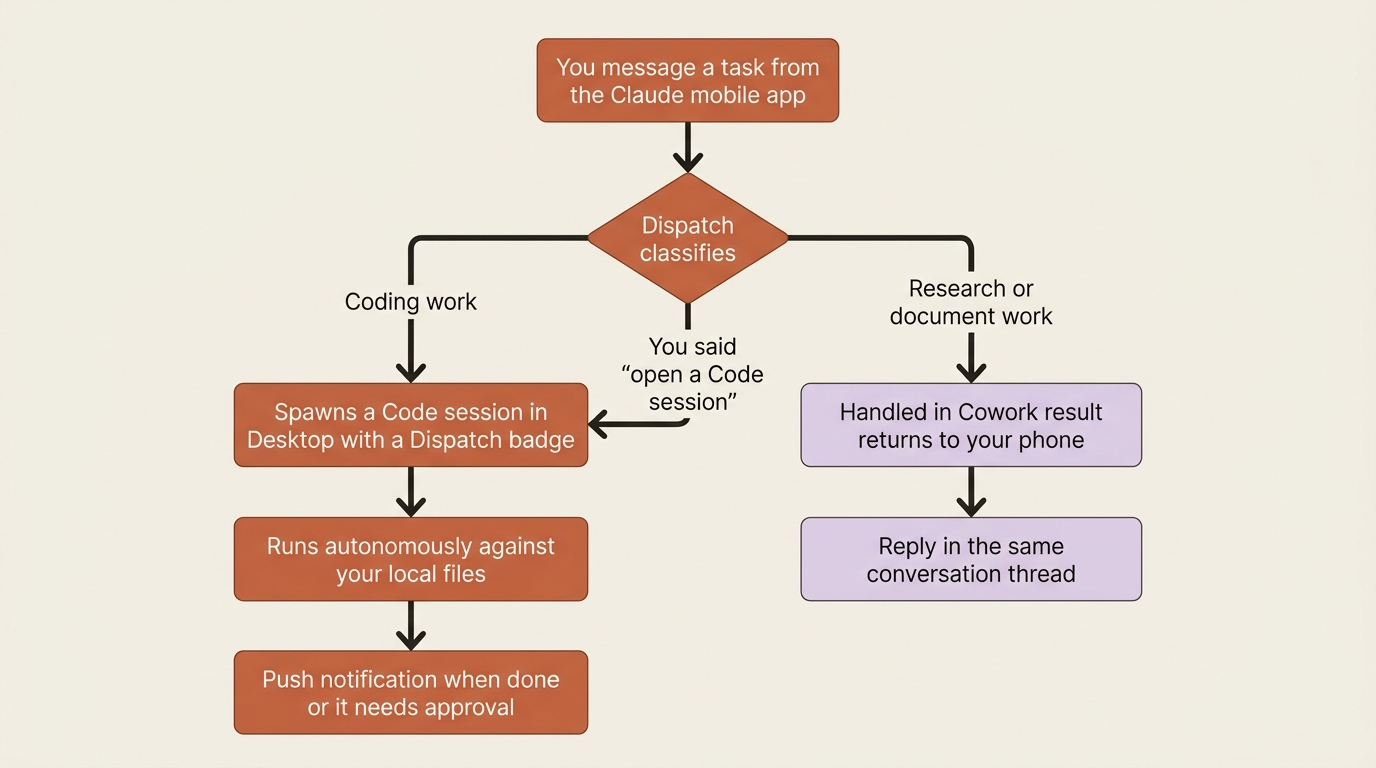
Dispatch is a persistent conversation with Claude that lives in the Cowork tab of the Claude mobile app and the Claude Desktop app. You message it a task, and it decides what to do. There are three possible outcomes.
It is research or document work. Dispatch handles the task in Cowork itself: research a topic, summarize a document, draft an email, edit a spreadsheet. The result comes back in the same conversation thread on your phone.
It is coding work. Dispatch decides the task belongs in Claude Code and spawns a new session in the Code tab of your Desktop app. The session carries a Dispatch badge in the sidebar, runs autonomously against your local files, and pushes a notification to your phone when it finishes or needs your approval.
It is ambiguous and you said so. If you explicitly ask for a Code session, for example "open a Claude Code session and fix the login bug," Dispatch routes it that way no matter how it would have classified the task on its own. That override is exactly what you want when the classifier guesses wrong.
This is the property that sets Dispatch apart from the other away-from-terminal surfaces. With event-driven surfaces, the work arrives where you already are. With interactive remote sessions, you are actively driving. With Dispatch, you fire a task off and forget about it. The session runs without your hands or eyes on it until it pings you to say it is done.
A few things to internalize before you set up:
Dispatch requires Desktop on macOS or Windows. The session that handles coding work runs in the Code tab of your Desktop app. Desktop is not available on Linux, which means Dispatch is not either. CLI-only users do not have this option.
Dispatch requires a Pro or Max plan. It is not available on Team or Enterprise plans, and it is not available to Pay-As-You-Go API users. This is the most restricted of the away-from-terminal surfaces.
The session runs on your machine. Your files, your MCP servers, your .claude/ config, and your environment are all in play. Nothing moves to the cloud. The difference from working at your desk is who starts the session (Dispatch, automatically, on your behalf) and who drives it (Claude alone, until it pings you).
The Code session is independent. Dispatch-spawned sessions live in the Desktop sidebar alongside any others. They use git worktrees the same way regular Desktop sessions do, so they cannot trip over your other work even when several sessions run in parallel.
What routes to a Code session
The routing logic is deliberately simple. Coding-shaped work goes to Code. Everything else stays in Cowork.
Tasks that typically route to a Code session:
- Fixing bugs ("the auth flow breaks when the user has no profile picture, fix it")
- Updating dependencies ("update React to 19 in the frontend repo")
- Running tests ("run the full test suite and tell me what fails")
- Opening pull requests ("write a PR description for my current branch")
- Reviewing diffs ("review my changes on the auth-refactor branch")
- Refactoring code ("rename the
validatefunction tovalidateUseracross the codebase") - Investigating CI failures ("look at the failing build on main and tell me what is wrong")
Tasks that typically stay in Cowork:
- Research ("summarize the recent changes to the Apple Push Notification spec")
- Document editing ("polish this draft email")
- Spreadsheet work ("calculate the running total in column G")
- Open-ended questions that do not touch a codebase
The classifier is reasonable, not perfect. When it routes wrong, you tell it explicitly. The phrase "open a Code session and..." forces a Code session. Nothing forces Cowork, because Cowork is the default for everything not classified as coding.
When a task does spawn a Code session, that session appears in the Code tab sidebar of Desktop with a Dispatch badge. It looks like any other session, with two important differences covered below.
Setup: pairing your phone with Desktop
Setup is a one-time operation. Once it is done, every Dispatch message you send routes correctly.
- Install Claude Desktop on your macOS or Windows machine. It is available at claude.com/download.
- Install the Claude mobile app on iOS or Android and sign in with the same account.
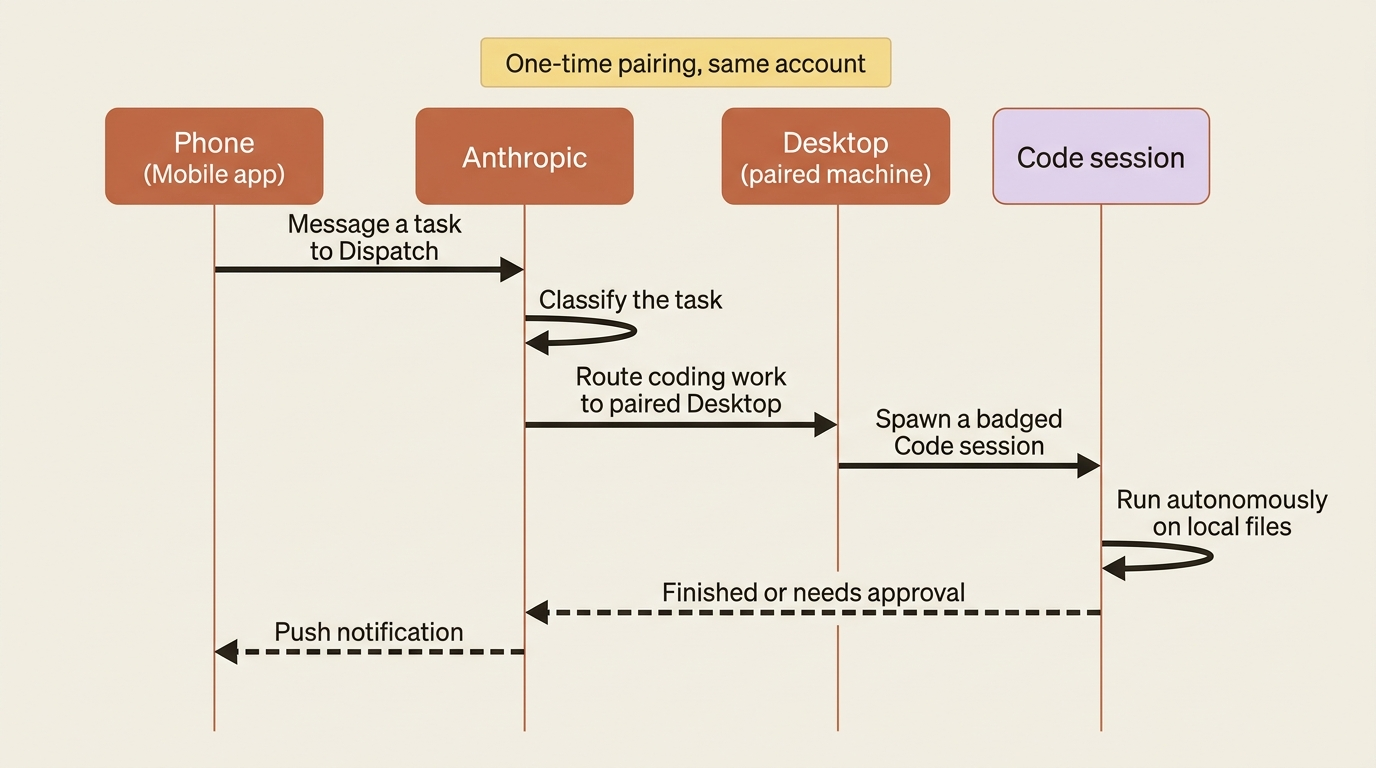
- Open the Cowork tab in either app. The first time you message Dispatch from your phone, it prompts you to pair with a machine. Tap the name of yours. The machines available for pairing are the ones where you have signed into Desktop with the same account.
- Keep Desktop running on the paired machine. Dispatch can only spawn Code sessions while Desktop is open. If Desktop is closed, the task stays in Cowork until you reconnect.
That is the entire setup. From here on, any message you send to Dispatch routes through Anthropic, Dispatch decides whether to handle it in Cowork or spawn a Code session on your paired machine, and you get a push notification when something needs your attention or the work is finished.
For the official pairing flow and troubleshooting, see the Dispatch help article at support.claude.com/en/articles/13947068.
The short-lived approval expiry
This is the Dispatch-specific quirk that catches first-time users off guard, so understand it before you lean on Dispatch in earnest.
Regular Desktop Code sessions remember tool approvals for the lifetime of the session. You approve Claude to read your terminal once, and that approval lasts until the session ends. The reasoning is that you are sitting there watching, and the friction of re-approving every time would be unbearable.
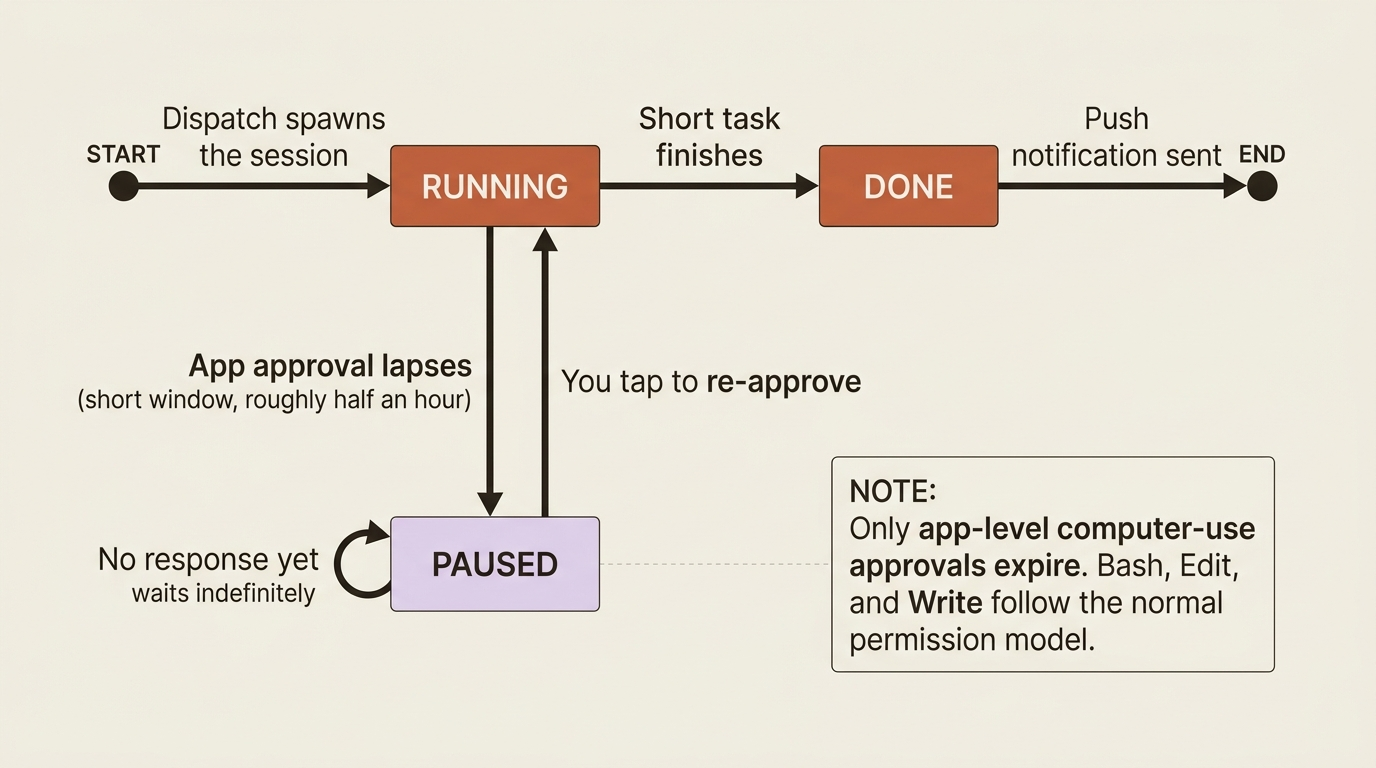
Dispatch-spawned sessions are different. App-level approvals, the kind that govern Claude's access to specific applications during computer use, expire after a short window, roughly half an hour in practice, and then re-prompt. Treat that duration as approximate rather than a documented guarantee, since it is not a published number and may change. The reasoning is the opposite of the desk case. You are not sitting there. You messaged a task and walked away. If Claude held a stale approval to control your terminal, anyone who walked up to your laptop could exploit that latent permission. The short expiry caps the blast radius of an approval to a window in which you are likely still reachable.
What this means in practice:
Short tasks finish before re-approval is needed. Dispatch a five-minute task and you never see this behavior. The session finishes, sends a push notification, and is done.
Longer tasks may pause for re-approval. If Claude needs to control an app whose approval has expired, the session pauses and pushes a notification asking for re-approval. You tap to approve, and the session resumes. If you do not approve, the session waits indefinitely until you do.
This only applies to app-level approvals. Tool-use approvals (Bash, Edit, Write) follow the same permission model as any session. This short expiry is specific to computer-use app approvals.
The implication is real if you have computer use enabled. A Dispatch task that involves Claude clicking around in your browser to verify something may pause partway through once that approval window lapses. Plan accordingly. For long-running tasks that should need no further input once started, computer use is often the wrong tool. The right tool is task-shaped logic Claude can execute through its regular tools, such as Bash and Edit, without controlling external apps.
Dispatch versus interactive remote sessions
Both Dispatch and an interactive remote session let you reach Claude from your phone. The difference is which direction the work flows.
| Dispatch | Interactive Remote Session | |
|---|---|---|
| Who starts the session | Dispatch, automatically | You, deliberately |
| Who drives the work | Claude alone | You, from the remote device |
| What you do on the phone | Send the task, walk away | Type prompts, watch responses |
| When you find out it is done | Push notification | You see it in real time |
| Plan requirements | Pro or Max only | Pro, Max, Team, Enterprise |
| Surface | Desktop (Code tab) | CLI or VS Code |
| Best for | Fire-and-forget tasks | Active steering of ongoing work |
The mental model: Dispatch is delegation; an interactive remote session is presence.
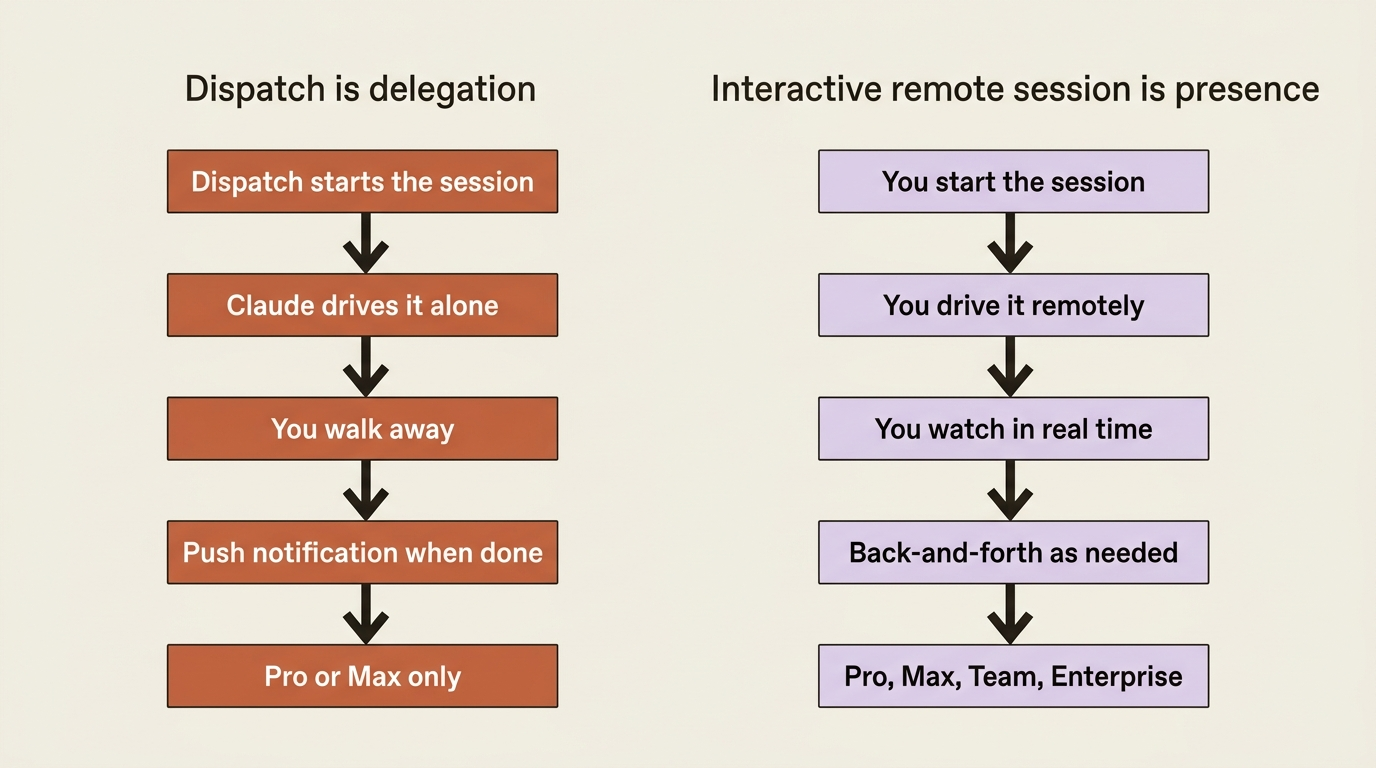
With Dispatch you delegate a task. It runs without you watching, and you get the result when it is done. This works best for tasks with a clear specification ("update React to 19") and a clear notion of done ("the upgrade compiles, tests pass, and a PR is open").
With an interactive remote session you are present, just remote. You drive the session the same way you would at your desk. This works best for tasks that need ongoing decisions and back-and-forth.
For most developers, the two are complementary rather than competitive. Dispatch handles the "I thought of this while I was out" cases. Interactive sessions handle the "I started this at my desk and want to keep going from elsewhere" cases. Different surfaces for different shapes of remoteness.
Dispatch with computer use
If you enable computer use on Desktop (Settings, General, Computer Use on macOS or Windows), Dispatch-spawned sessions inherit that capability. Claude can open apps, click, scroll, and type. The same tier-based permission model applies: view-only for browsers, click-only for terminals and IDEs, and full control for everything else.
This combination is what makes Dispatch genuinely powerful. A task like "verify the deploy went through by opening the staging URL in Safari and checking that the homepage renders" needs computer use to actually work. Without it, Claude can run Bash commands but cannot interact with the running app the way a human would. With it, Claude can open the browser, navigate, screenshot, and report back.
The trade-off is the one above: the short approval expiry means long-running computer-use tasks may pause for re-approval. Plan tasks that fit inside a reasonable approval window, or break long tasks into shorter pieces.
Limits and pitfalls
Five things to know before you commit to Dispatch:
Pro or Max plan only. Team and Enterprise users do not have access. The most common confusion is an organization upgrading to Team and expecting everything Pro includes, only to find Dispatch missing. Anthropic's plan tiers handle research-preview features differently from established ones.
Desktop must be running. If Desktop is closed, your Dispatch message stays in Cowork until Desktop comes back online. In practice you need to treat Desktop as something that stays running on your work machine, the way you would treat an always-on terminal.
Push notifications must be enabled. Without them you have no way to know when a session is done or needs input. Setup follows the same push-notification flow as interactive remote sessions, and the same Claude Code v2.1.110+ requirement applies.
Computer use is opt-in. If you want Dispatch tasks to interact with applications on your machine, you must enable computer use in Desktop settings. By default, Dispatch tasks can run Bash, edit files, and use MCP servers, but cannot click around in your other apps.
Linux is not supported. Dispatch requires the Desktop app, which is macOS or Windows only. Linux users fall back to event-driven surfaces, interactive remote sessions, or scheduled routines.
When Dispatch is the right choice (and when it is not)
Here is the honest version, because Dispatch is the most opinionated of the away-from-terminal surfaces.
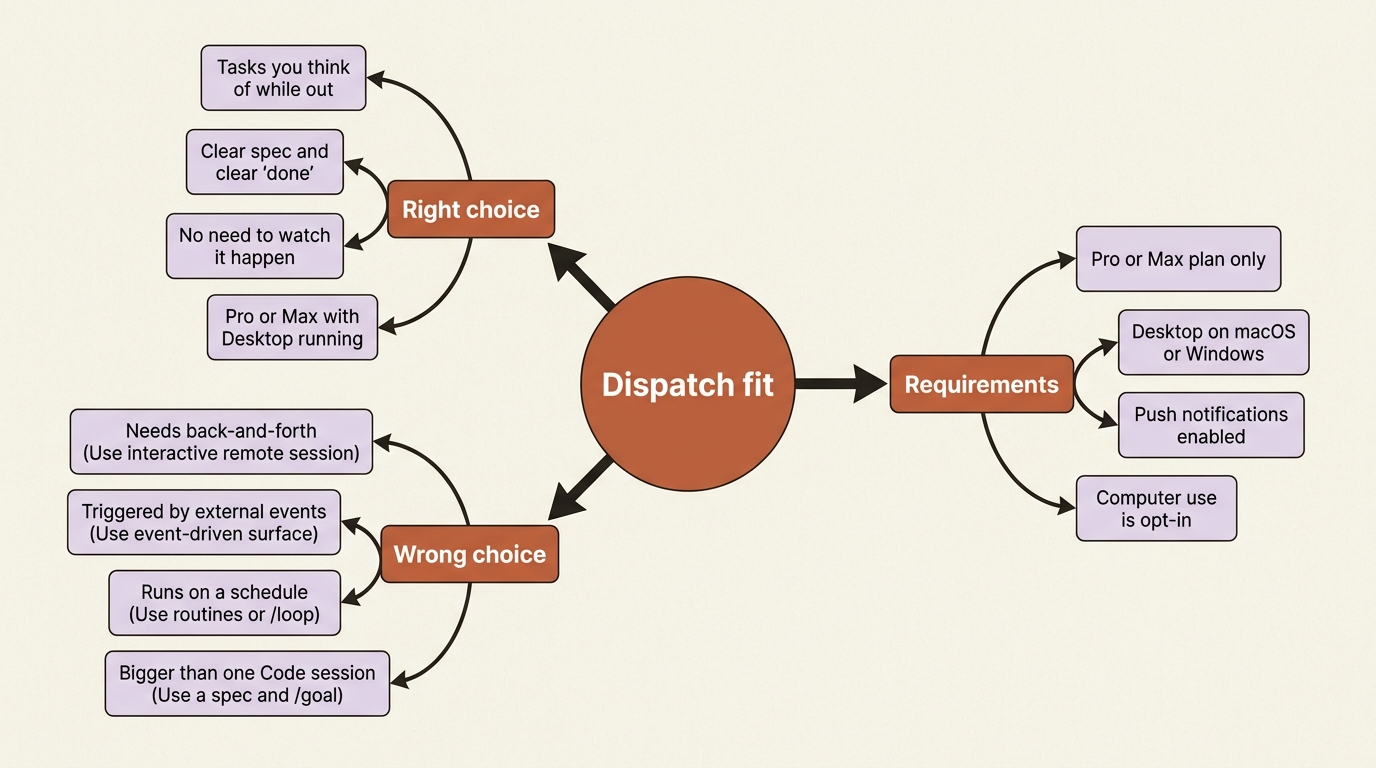
Dispatch is the right choice when:
- You think of tasks intermittently through the day and want to capture them without a context switch.
- The tasks have clear specifications and obvious "done" criteria.
- You do not need to watch them happen. You just need them to happen.
- You are on Pro or Max, and your work machine runs Desktop.
Dispatch is the wrong choice when:
- Your tasks need ongoing back-and-forth. Use an interactive remote session.
- Your tasks are triggered by external events, not by you. Use an event-driven surface or a scheduled routine.
- Your tasks need to run on a schedule. Use routines or
/loop. - You are on Team or Enterprise, or on Linux. Pick a different surface.
- The tasks are bigger than a single Code session can finish in one go. Use a spec and
/goalinstead.
Dispatch is the easiest away-from-terminal surface to start using, but it covers the narrowest slice of the space. Many readers will find that other surfaces fit more of their day, and that is fine. The point is not to adopt every surface; it is to adopt the right one for your shape of work.
Do this today
Three concrete moves:
- Check your plan. If you are on Team, Enterprise, or Pay-As-You-Go, Dispatch is not available, and you can stop here. Scheduled routines have no plan restriction and may suit you better.
- Install Desktop and the mobile app if you do not already have them. Both are at claude.com/download. Pairing takes about two minutes.
- Send one small task. Pick something genuinely small, such as "run the linter on the main branch and tell me if it fails." Send it from your phone while you are away from your desk. Watch the Code session appear in Desktop with the Dispatch badge. Get the push notification when it is done. That "this works" moment locks the workflow in.
The leverage Dispatch exists to create
The compounding effect over weeks is quiet but real: the friction of "I will do that when I get back" simply goes away. You think of a task while standing in line for coffee, you fire it off, and it is finished by the time you sit back down. Not every task fits this pattern, but the ones that do start landing in the right place at the right time, instead of evaporating somewhere between lunch and your next meeting.
That is the whole point. Dispatch does not make Claude smarter or faster. It removes the gap between having an idea and acting on it, and for the kind of small, well-specified work that fills a developer's day, closing that gap is leverage you feel every week.
So the next time a task pops into your head at the worst possible moment, do not file it under "later." Text it to your computer and keep walking.
This is Part 4 of "Claude Code Away from the Terminal," a 7-part guide to triggering and steering Claude Code when you are not at your desk.