From Static Report to Living Dashboard
A scheduled brief is accurate the moment it runs and stale by lunch. A live artifact is current every time you open it.
A scheduled brief is accurate the moment it runs and stale by lunch. A live artifact is current every time you open it. Here is how to build dashboards that refresh themselves.
In this article: You will learn what a live artifact is and how it differs from the reports you have been generating, how to build one from a task or from the Live Artifacts tab, how automatic refresh works, how version history gives you a safety net when iterating, and the one safety rule you must follow when building artifacts on top of your connected apps.
The scheduled competitor brief from the previous article has a built-in expiration date. It runs at 7am and it is perfectly accurate for about an hour. By noon a competitor has shipped something, by Wednesday the pricing page you cited has changed, and the document sitting in your Tasks list is quietly going stale. A report is a photograph: true at the instant the shutter clicked, frozen ever after.
Live artifacts are the opposite. Instead of a document that captures a moment, you get a dashboard that reflects the present, pulling fresh data from your connected apps every time you open it. The competitor tracker you built last month shows this morning's state when you look at it this morning: no regenerating, no re-running.
The key difference: snapshot versus living view
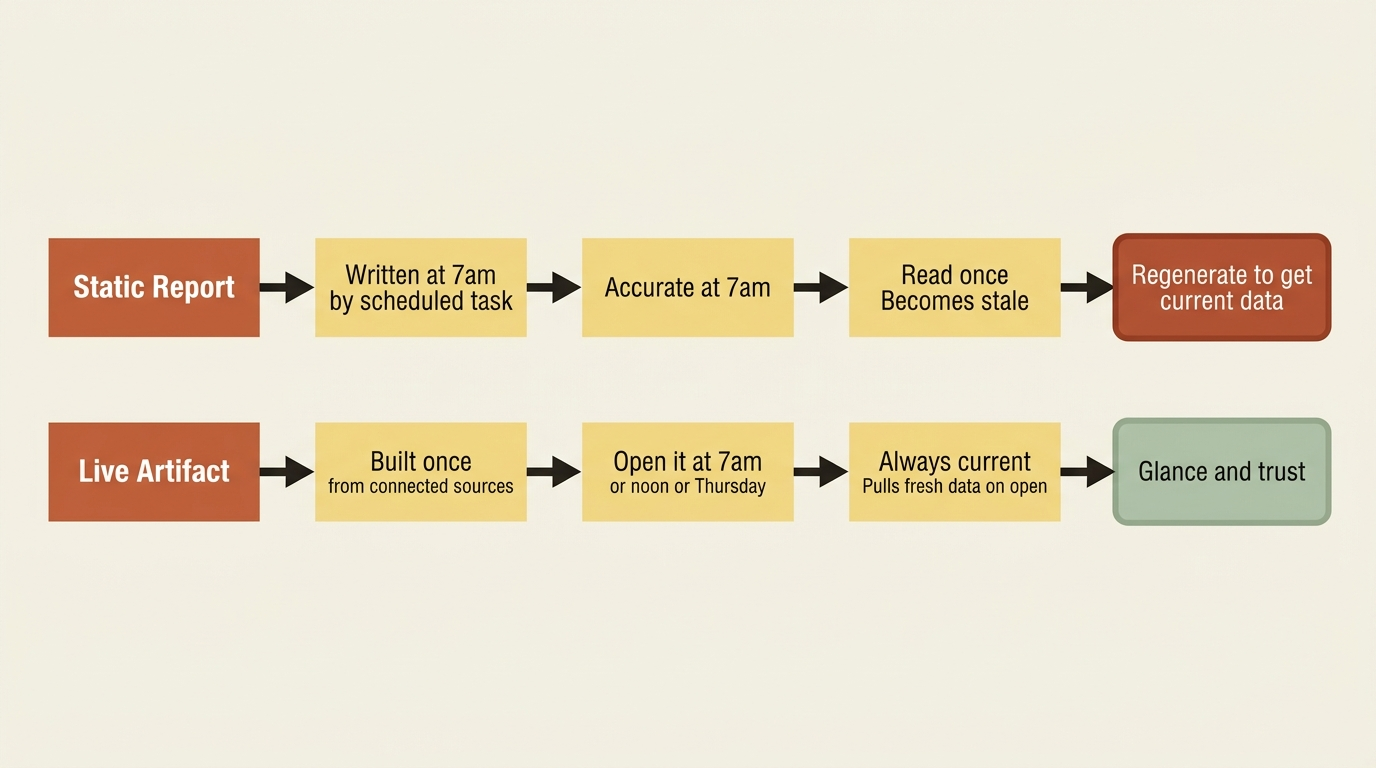
A chat artifact is frozen at creation. A live artifact re-queries your real data on open, which is the difference between a screenshot of your dashboard and the dashboard itself.
What a live artifact is
A live artifact is a persistent, interactive HTML page that Claude builds for you in Cowork: a tracker, a dashboard, a comparison tool, or a reference, shaped around your specific work. Three things make it distinct from a one-time document.
They live on their own. Every live artifact appears in the Live artifacts tab, independent of any task or session. You do not hunt for the chat that produced it.
They refresh with current data. When you open one, it pulls from your connected apps and local files, so the view reflects today, not the day it was built.
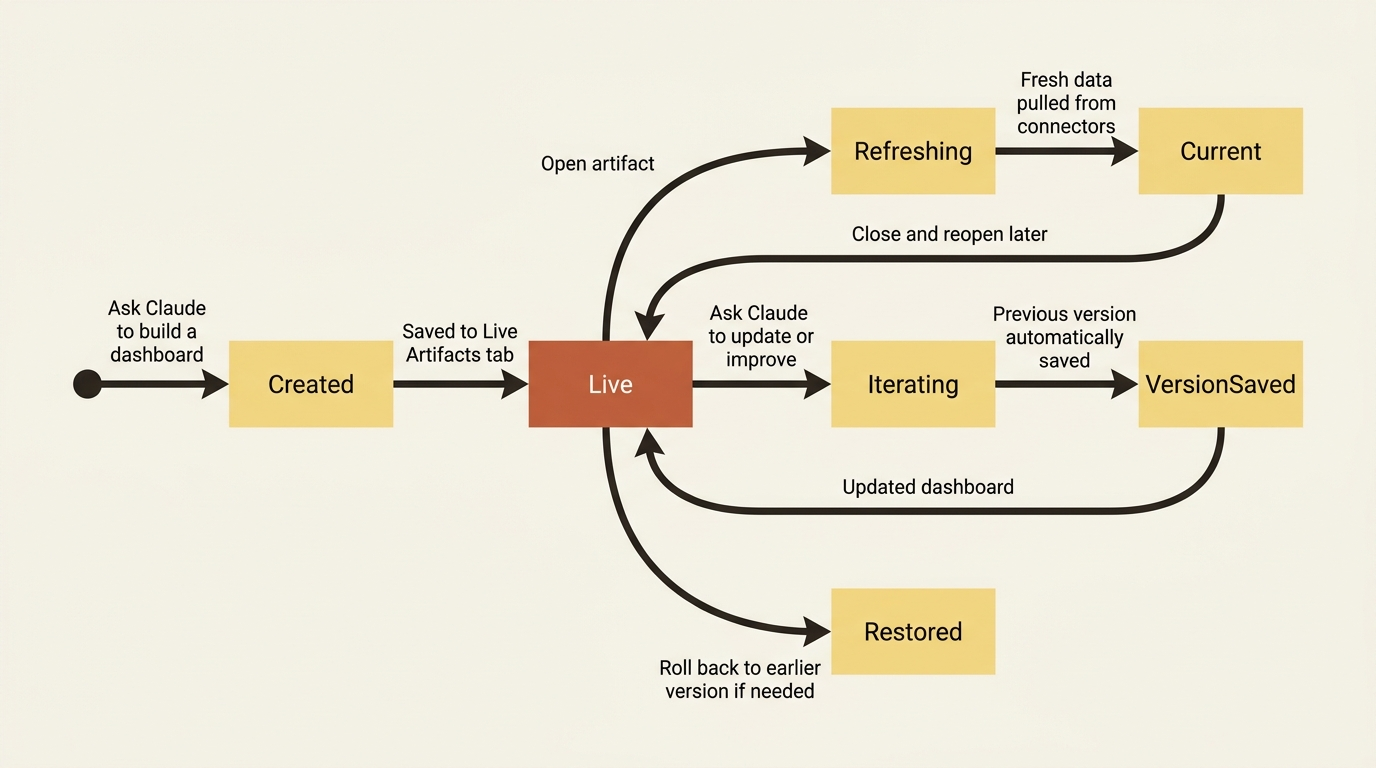
They keep their history. Each update saves a version, so you can see how the artifact evolved and restore an earlier one if a change did not work out.
Building one
There are two ways to create a live artifact.
From a Cowork task. Just ask: "Create a tracker that monitors my top five competitors: recent releases, blog posts, and pricing changes." The habit that matters: name the connected apps or local files Claude should use, because those connections are what make the artifact live rather than static.
From the Live Artifacts tab. Open Cowork, select Live artifacts from the sidebar, click New artifact in the top right, and choose Chat with Claude to start a conversation focused on building the artifact from scratch.
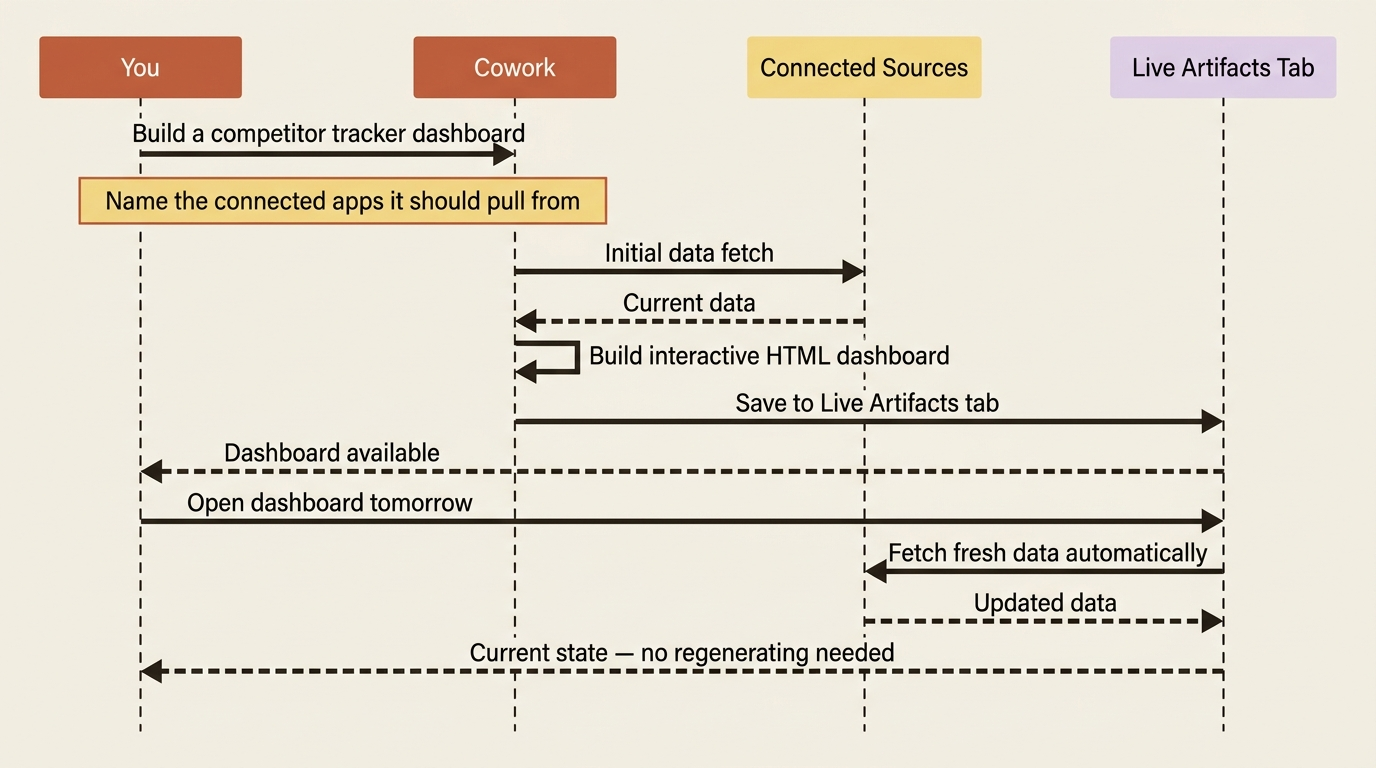
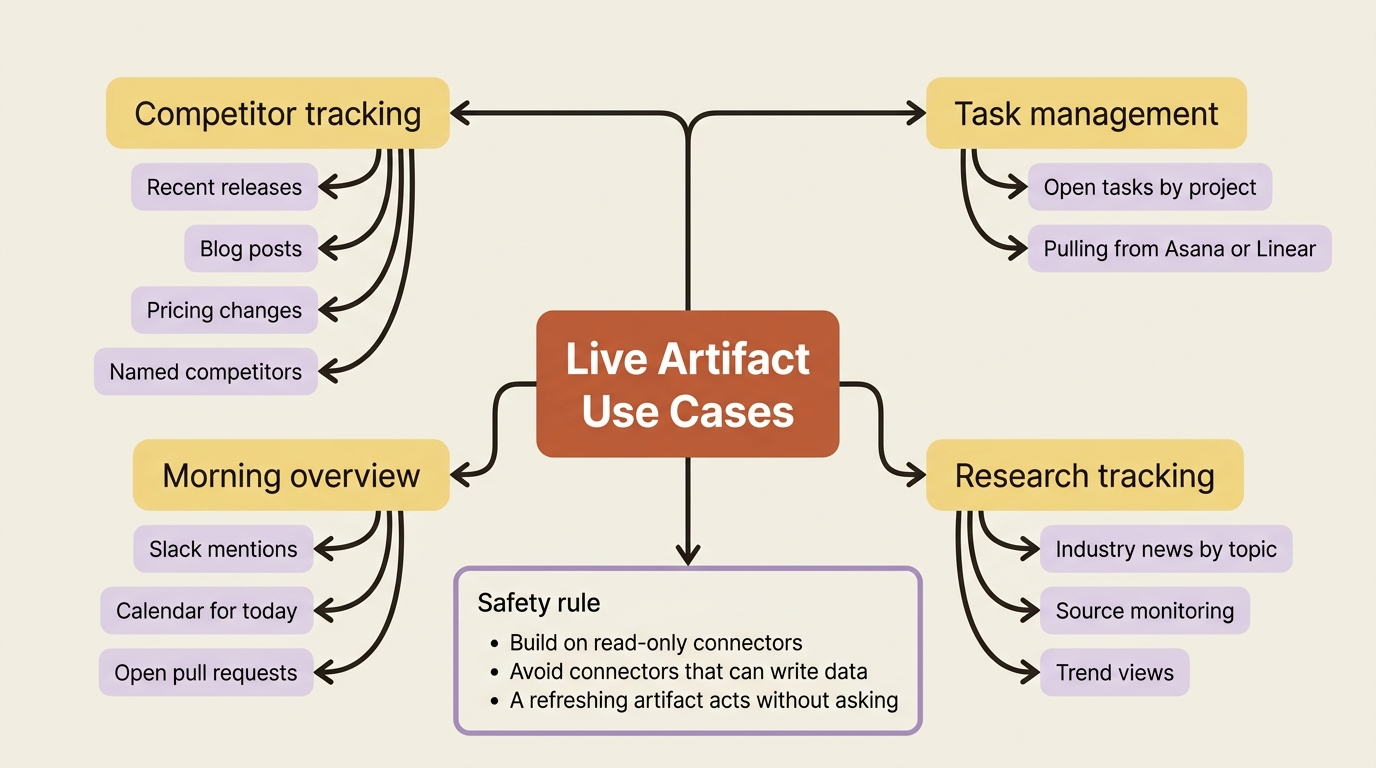
For the running example, this is where the competitor brief grows up. Ask Claude to build a competitor-tracking dashboard that pulls recent releases, blog posts, and pricing changes for your named competitors, drawing on the same connected sources your project already uses. The scheduled brief handles the narrative weekly summary. The live dashboard handles the "what is the current state right now" glance. Snapshot and living view, each doing what it is best at.
Opening and refreshing
Reopening a live artifact is simple: select Live artifacts from the sidebar and click the one you want. The artifact pulls fresh data from your connected apps automatically on open, so most of the time you do not refresh anything by hand. A short cache holds recent data so the artifact loads quickly, and it re-queries your connected apps on its own behind that. When you do want to force entirely new data, the refresh button in the artifact's header does it on demand.
What to build live artifacts on
Version history: the safety net for iteration
Live artifacts are meant to be iterated on. You will open the competitor dashboard next week and want to add a column, change how something is grouped, or tweak the layout, and you do that by asking Claude, the same conversational way you built it. Every time you iterate, the previous version is saved.
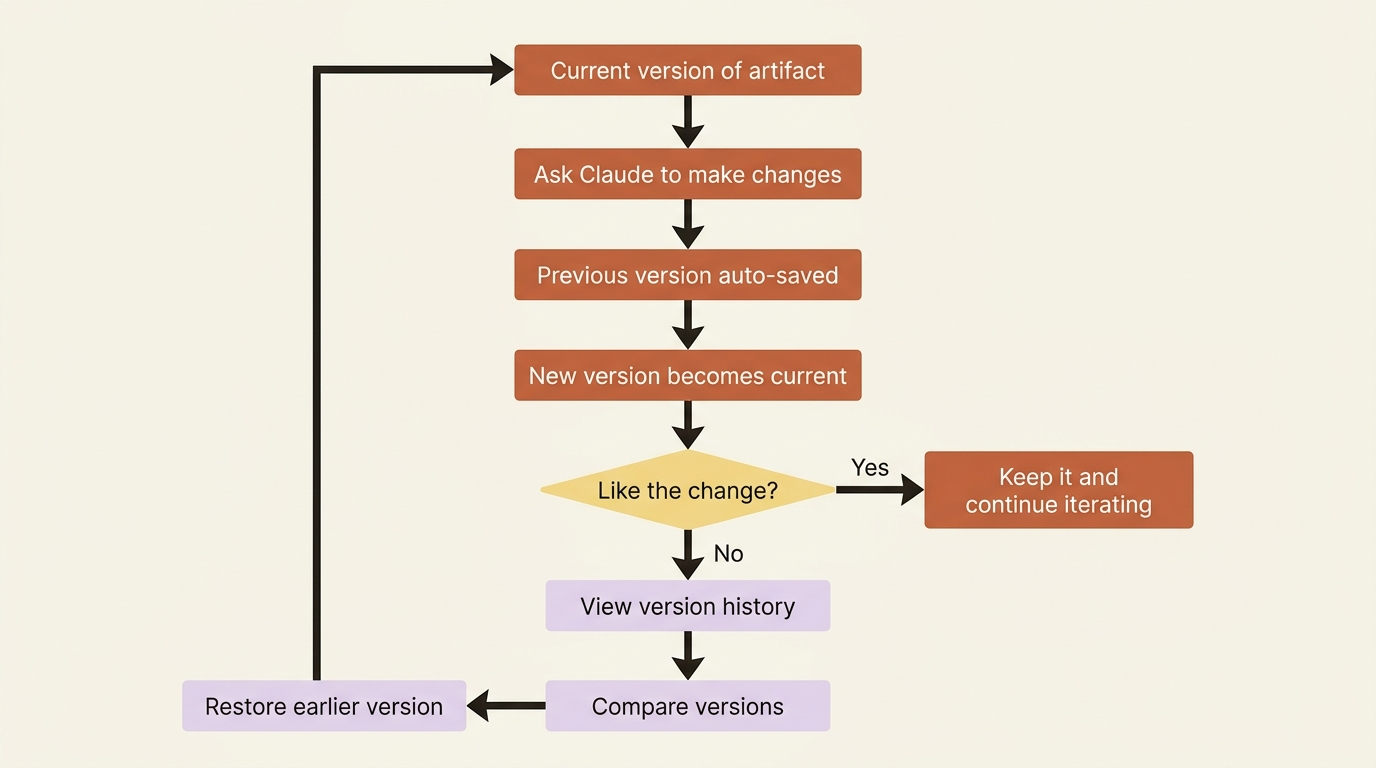
From version history you can see how the artifact has changed over time, compare an earlier version against the current one, and restore an earlier version if an update did not work out. Experimenting with a live artifact is safe because a change you dislike is one restore away from undone.
The safety rule you must not skip
Three limitations belong on your radar.
Local, not cloud. Live artifacts live on your computer. Switch devices and they do not come with you. This mirrors projects: powerful, personal, and tied to a machine.
Not shareable yet. At launch, live artifacts are for your own use. Sharing is on the roadmap but not here today.
They use your connectors without asking. This one needs real attention. Live artifacts can only use the connectors you approved during creation or update, but unlike normal Cowork sessions, an artifact does not pause to ask permission before using those connectors each time it refreshes.
That is fine for read-only connectors that pull data. It is a genuine risk for connectors that can change your data, because a refreshing artifact could take action through them without a prompt. The rule: build live artifacts on connectors that read, and be very deliberate before building one on a connector that can write or modify anything.
Do this today
- Ask Claude to build a live competitor tracker from inside your Competitive Intelligence project. Name the connected sources it should pull from.
- Open it twice, once when you build it and once the next day, and notice whether the data has updated automatically.
- Click the refresh button manually and observe whether the data changes.
- Make one iteration to the artifact, such as adding a column or changing the layout, and then use version history to confirm the previous version was saved.
- Check the connectors your artifact uses and confirm they are all read-only sources. If any can write data, rebuild the artifact on read-only alternatives.
Your work, kept alive
For eight articles, Cowork produced outputs you collected: documents, organized files, a scheduled brief waiting in your Tasks list. Useful, but static; each one true at the moment it was made. Live artifacts give you the other kind of output entirely: a view that stays current, lives in its own tab, refreshes itself on open, remembers its own versions, and is one click from rolling back.
The competitor work is now both a weekly narrative brief and a living dashboard you glance at whenever you want the current picture.
This is Part 9 of "Getting Real Work Done with Claude Cowork," a 12-part guide to using Claude Cowork for real knowledge work.