
Your Monday Report Can Write Itself While You Sleep
Scheduled tasks turn a prompt you run by hand into work that happens on its own, with one constraint that explains every 'why didn't it run' question.
Scheduled tasks turn a prompt you run by hand into work that happens on its own. Here is how to set one up, and the one constraint that explains every 'why didn't it run' question.
In this article: You will learn how to schedule a Cowork task to run automatically, the critical constraint you must understand (your computer must be awake and the app must be open), what a scheduled task can actually do, how to set one up from an existing task or from scratch, and how to manage what you have automated. This is the payoff the previous seven articles were building toward: work that happens without you.
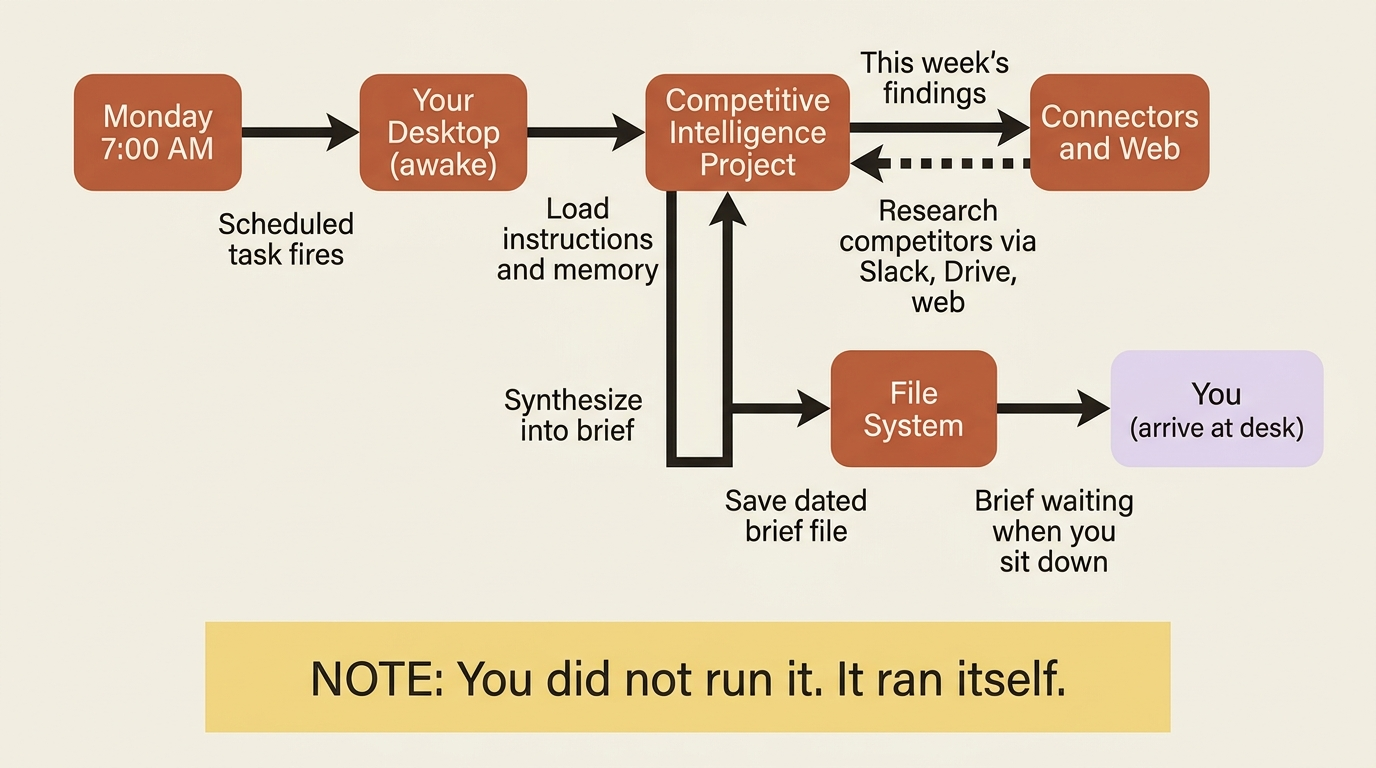
Here is the moment the entire series has been building toward. You open your laptop on Monday morning, and the competitor brief is already done. You did not run it. You did not remember to run it. It ran itself at 7am, pulled this week's news and your team's latest notes, formatted itself the way you like, and landed in your Tasks list before you sat down.
That is what scheduled tasks do. They take a prompt you have been running by hand and turn it into work that happens automatically, on whatever cadence you choose. Everything in the last seven articles was assembling the thing that now runs on its own.
The one thing to understand first: awake and open
Before anything else: scheduled tasks only run while your computer is awake and the Claude Desktop app is open.
This is not a server-side cron job firing in a data center. It is your desktop doing the work. If your computer is asleep or the app is closed at the scheduled time, the task does not run on time.
Now the reassuring half: a missed run is not a lost run. If your machine is asleep when a task was due, Cowork skips it, then runs it automatically once your computer wakes up or you reopen the desktop app. When it re-runs a skipped task, you get a notification telling you so, and the skipped run shows up in the task's history. The system self-heals.
This single fact resolves the entire category of "why didn't my task run" confusion. The answer is almost always "the computer was asleep or the app was closed," and the fix is almost always "it will run when you wake the machine."
What a scheduled task can actually do
A scheduled task is not a stripped-down version of a real task. Each one runs as its own full Cowork session, with access to the same capabilities as anything you run by hand: your connected tools, your skills, and your installed plugins.
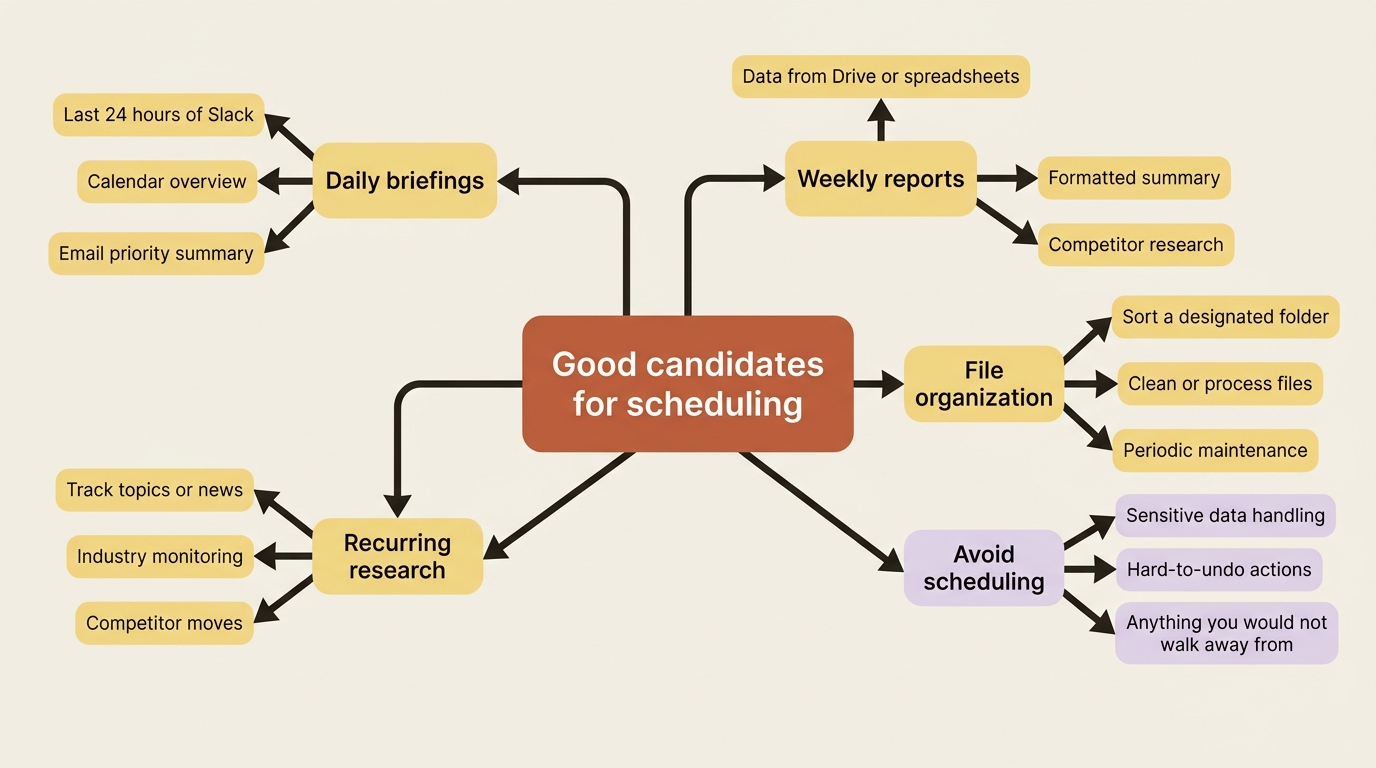
Whatever the brief could do when you ran it manually, it can do on a schedule, because it is the same machinery firing on a timer instead of on a click. Daily briefings, weekly reports, recurring research, file organization, team updates: these are all appropriate automation candidates.
What Monday morning looks like
Two ways to schedule a task
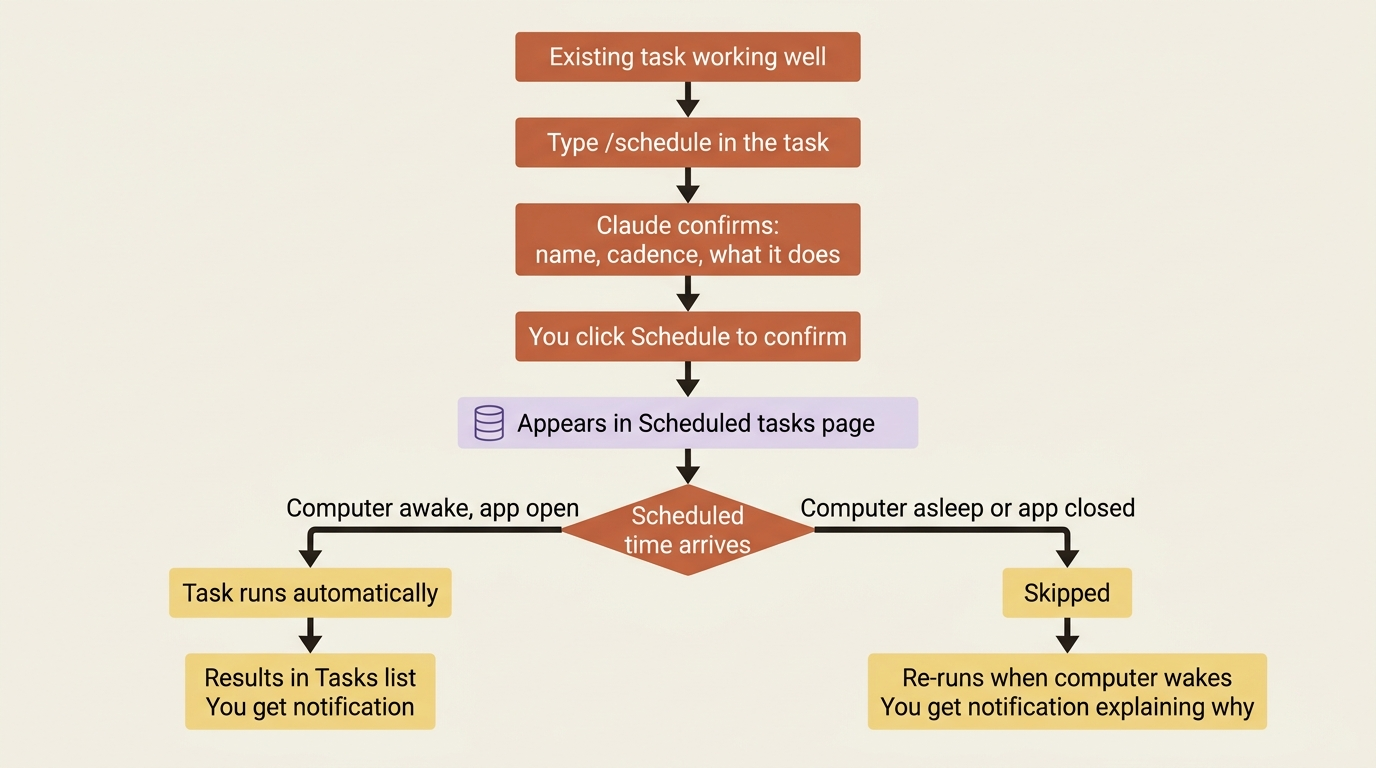
From any task, with the /schedule skill. This is the natural path when you already have a task working the way you want. Open the task, type /schedule in the chat input, and add details about the cadence. Claude may ask a few questions to pin down what you mean. Once it has what it needs, it shows you the task's name, schedule, and exactly what it does, then waits for you to click Schedule to confirm. Nothing gets scheduled until you explicitly approve it.
From the Scheduled tasks page, from scratch. Click Scheduled in the left sidebar, then + New task. The modal asks for a task name, a description, the prompt, and how often it runs. Two optional fields let you choose the model and the folder Claude should work in.
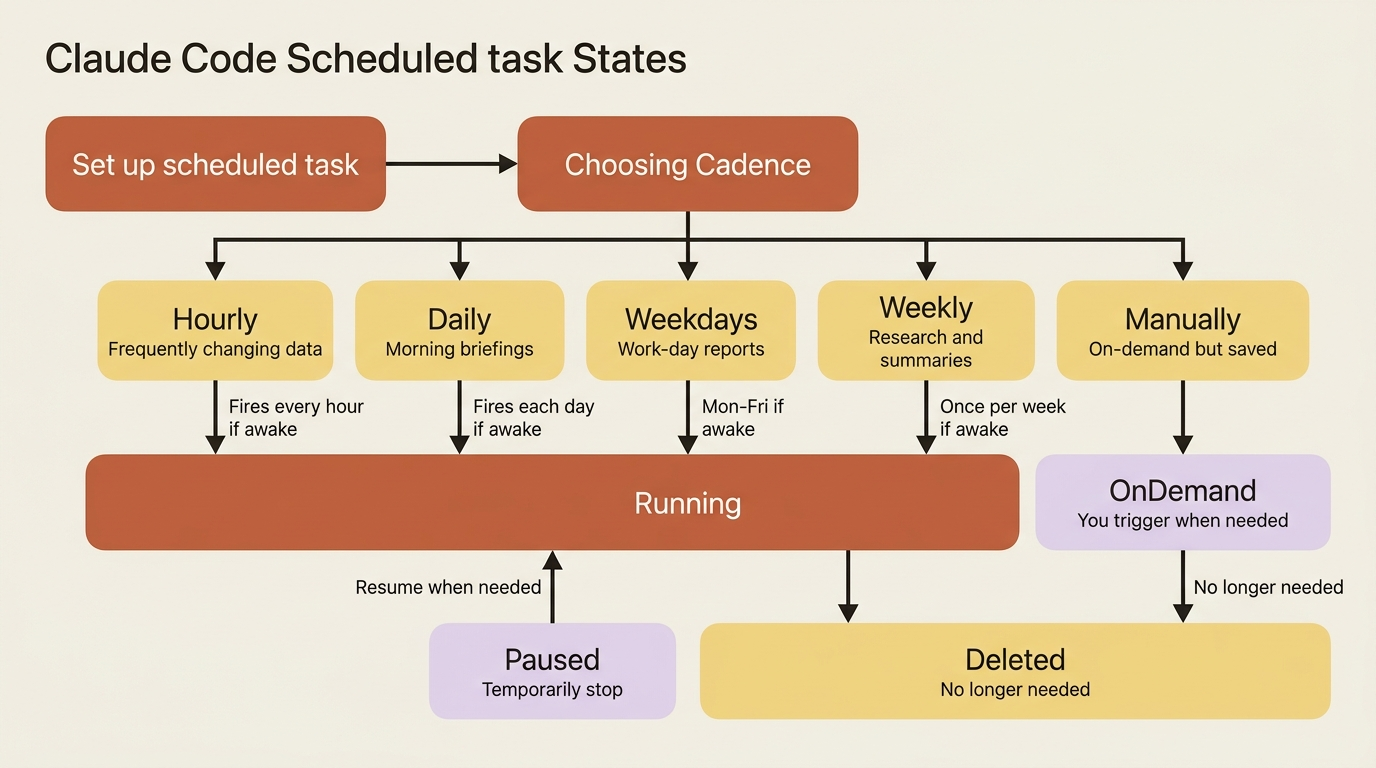
The cadences available are hourly, daily, weekly, weekdays, or manually. That last one is worth noticing: "manually" means the task is saved and ready but only runs when you trigger it: a way to keep a polished task on the shelf to run on demand without committing it to a recurring clock.
For the competitor brief, the /schedule route is the obvious one. Open it, type /schedule, ask for weekly on Monday mornings, confirm. Because the task lives in your Competitive Intelligence project, each scheduled run inherits the project's instructions, context, and memory automatically.
The available cadences
Managing what you have automated
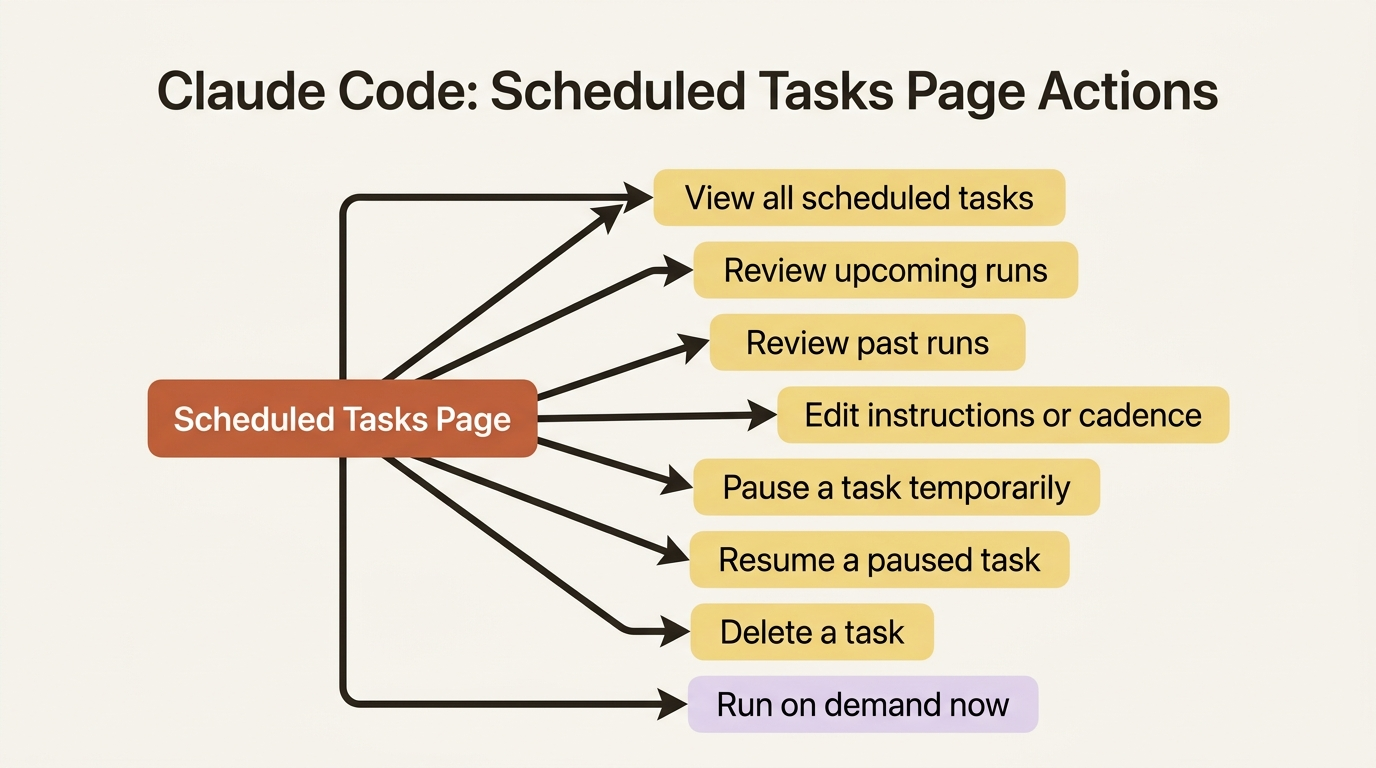
Click Scheduled in the left sidebar and you can view every scheduled task, review upcoming and past runs, edit instructions or cadence, pause a task, resume a paused one, delete a task, or run any task on demand.
Pause and resume is the right tool when a task is temporarily irrelevant, such as the competitive-intelligence brief during a quiet holiday week, because it stops the runs without throwing away the task you built. And run on demand means every scheduled task doubles as a saved manual task: need this week's brief a day early for an unexpected meeting? Trigger it now, off-schedule, without disturbing the Monday cadence.
Automating responsibly
Scheduling removes your real-time supervision, which raises the stakes on the safety habits from the safety article. Real-time monitoring was one of your best defenses against a task going wrong, and a scheduled task runs precisely when you are not watching.
Favor low-risk, well-understood tasks for automation: summaries, research, reports, and file tidying, all work where a bad run is an inconvenience, not a disaster. Be cautious about scheduling anything that touches sensitive data or takes hard-to-undo actions. Review the outputs of your scheduled tasks, especially the first few runs. And pause tasks you are not actively using rather than letting them run forever in the background.
The competitor brief is an ideal automation candidate precisely because it is read-only research that produces a document. The stakes of an odd run are low, and you will read the output anyway.
Do this today
- Open your best-performing Cowork task (the competitor brief if you have been following along) and type
/schedulein the task input. - Set a weekly cadence for Monday morning, confirm the task name and description, and click
Schedule. - Navigate to the Scheduled Tasks page and confirm the task is listed there with the right cadence.
- Run the task on demand from the Scheduled Tasks page to verify it works as expected before the scheduled time arrives.
- Set your computer to stay awake on Sunday nights so the Monday run actually fires.
Work that happens without you
For seven articles you have been the one starting the work: writing the prompt, watching the loop, refining the task, and organizing the project. With scheduled tasks, the work starts itself. The competitor brief you built up over the whole series now runs every Monday at 7am inside its project, pulling from your connected tools, remembering last week, formatting itself the way you like, and waiting for you when you arrive.
You did not just automate a task. You handed off a recurring piece of your job, and got the time back.
This is Part 8 of "Getting Real Work Done with Claude Cowork," a 12-part guide to using Claude Cowork for real knowledge work.