
Give Your Recurring Work a Home
Instructions tell Claude how you like things. A project lets a body of work remember its own history, and that difference is everything for recurring work.
Instructions tell Claude how you like things. A project lets a body of work remember its own history. For anything you do more than once, that difference is everything.
In this article: You will learn what a Cowork project actually is, why memory is the feature that makes projects worth it, how to create one from scratch or from existing materials, and what the real limits are (local-only, no sharing, memory scoped to the project). This is where Cowork stops being a task runner and becomes a place your ongoing work actually lives.
In the previous article you taught Cowork your preferences, and we ended on an honest limit: instructions are context, not memory. They tell Claude how you like your briefs formatted, but they do not let your competitive-intelligence work remember which competitor pivoted last quarter, which report template you settled on after three revisions, or what you decided about pricing comparisons two weeks ago. Standing instructions repeat your preferences. They do not accumulate knowledge.
Projects do. A project in Cowork is a dedicated workspace that groups related tasks and gives them their own files, context, instructions, and, the part that changes everything, memory. For work you do once, a plain task is fine. For work you do every week, a project is the difference between starting fresh each time and building on everything that came before.
What a project actually is
A project carries four components.
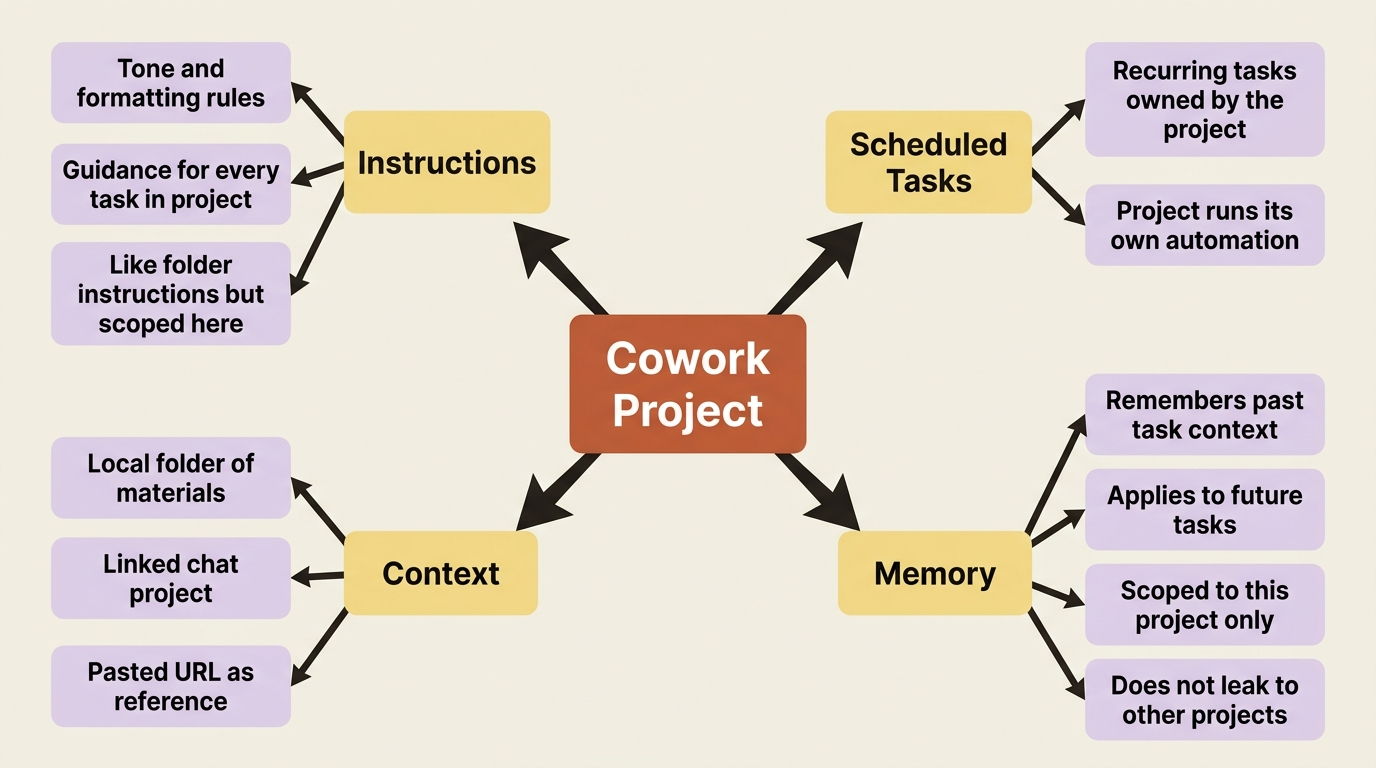
Instructions. Tone, formatting, and rules that guide how Claude works on every task in the project. This is folder-style guidance, now scoped to the project instead of a loose folder.
Scheduled tasks. Recurring tasks specific to the project. A project can own its own automation.
Context. The reference material Claude draws on: a local folder, a linked chat project, or a pasted URL.
Memory. Claude remembers context from the tasks you run in the project and applies it to future ones.
The first three are organization, and they are genuinely useful: everything about one effort, gathered in one place instead of scattered across loose tasks and global settings. But the fourth is the one that justifies the whole feature.
Memory: the part that makes projects worth it
Memory is enabled for Cowork projects. This means Claude can remember context from the tasks you have run in a project and apply that context to future tasks in the same project.
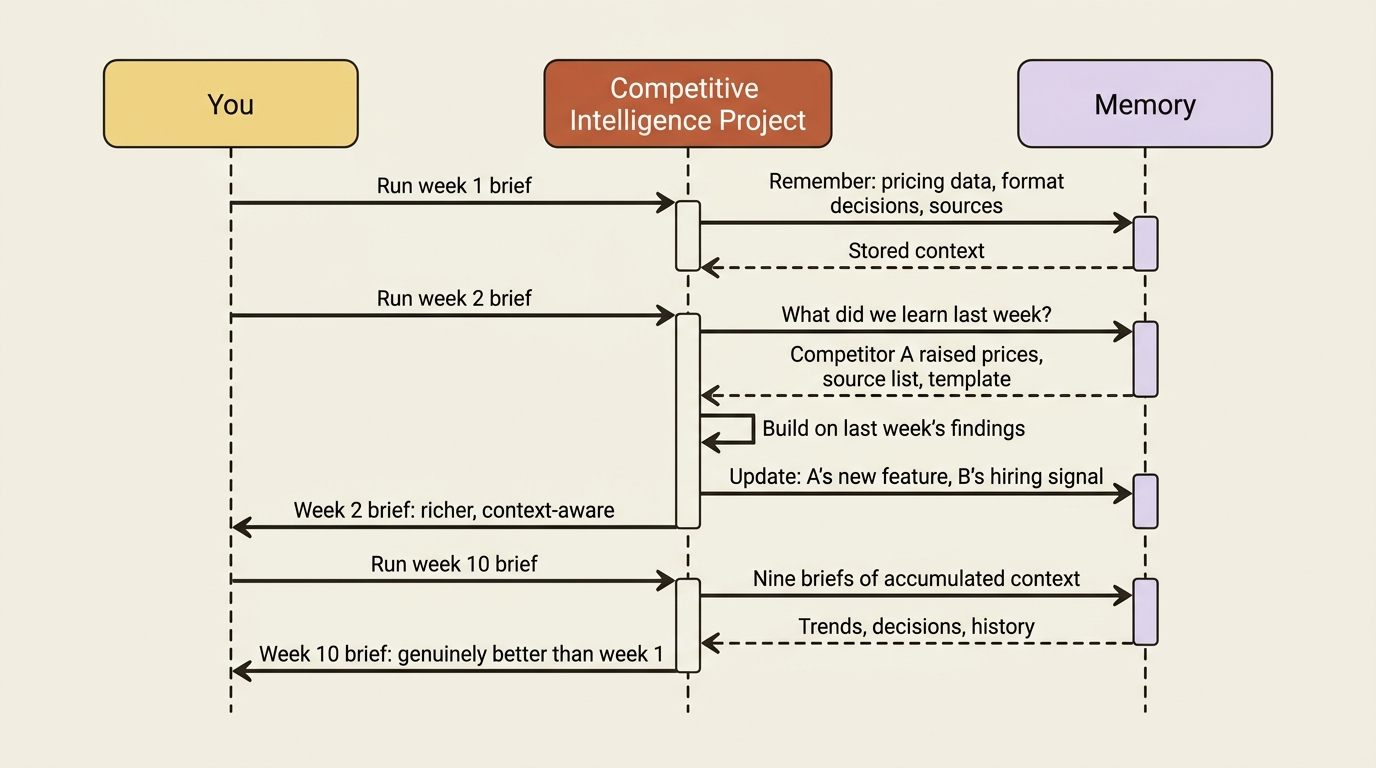
The competitive-intelligence project does not just know your preferred format; it remembers the work. Last week's findings inform this week's. A decision you made about how to handle a competitor's pricing carries forward. The tenth brief is genuinely better than the first, because the project accumulated nine briefs worth of context along the way.
There is a crucial boundary on this, and it is a feature rather than a limitation. Memory is scoped to the project. What Claude learns in one project does not carry over to another. And standalone tasks outside any project do not get memory at all. If you run your competitor research as a loose one-off task instead of inside a project, every run starts from zero no matter how many times you do it. The fix is simple: if work is recurring, give it a project.
The scoping cuts both ways, and both are good. Your client-A project never accidentally bleeds context into your client-B work. And your competitive-intelligence project stays focused on competitive intelligence rather than absorbing unrelated noise from everything else you do in Cowork.
Three ways to create a project
To create a project, find Projects in the left navigation panel and click the + button. You will see three options.
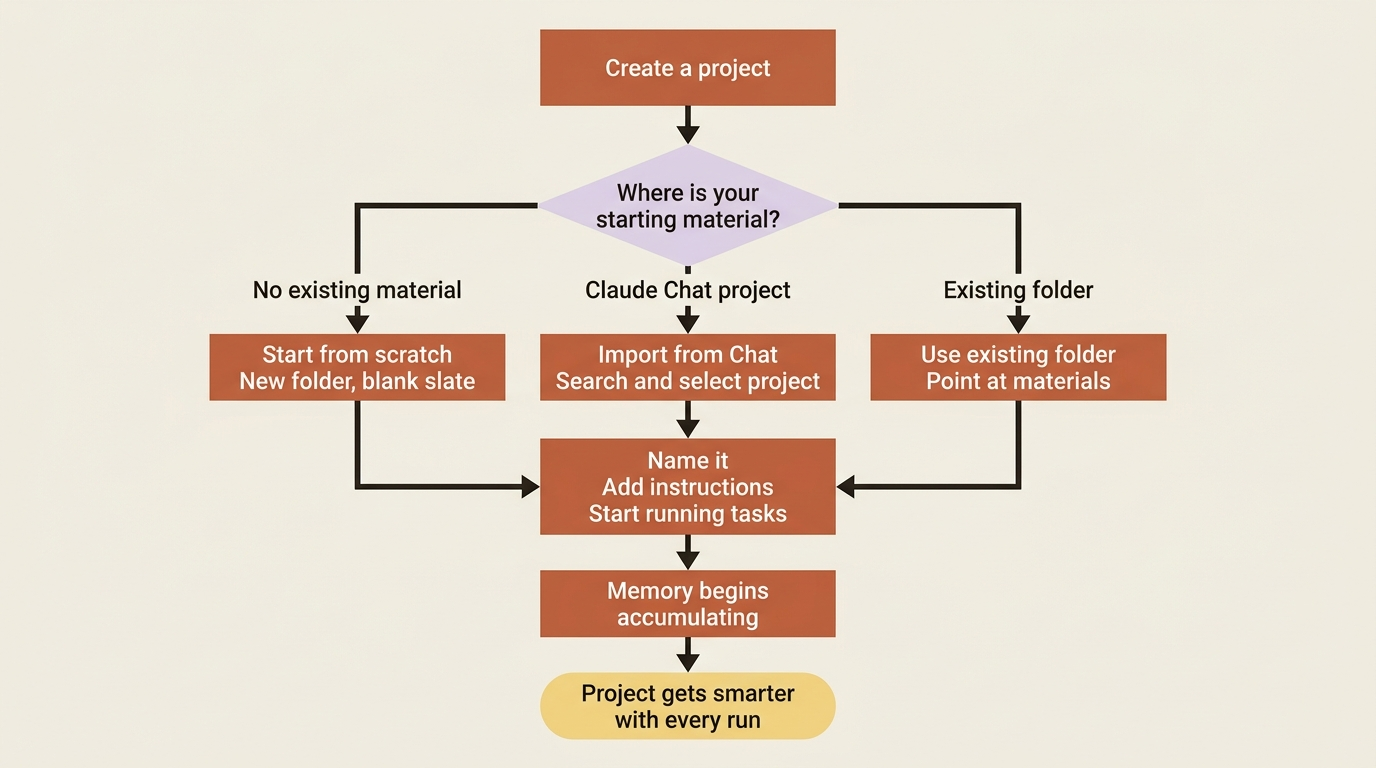
Start from scratch. Sets up a new folder with instructions and files from a clean slate. The right choice when the work is new and you do not have existing material to bring in.
Import from a Claude project. If you already have a project in Claude chat, this brings it across. Select Import from project, search for it, and the files and instructions transfer. Note that bulk import is not supported: one project at a time.
Use an existing folder. If the material already lives in a folder on your computer, point Cowork at it. This is the natural choice when you have a working folder you want to promote into a full project.
For the running example, if your competitor research has been a series of loose Cowork tasks, start from scratch and let memory begin accumulating. If you have a Competitive Intelligence folder full of past briefs and notes, build the project around that folder so Claude starts with all of it as context.
Pulling the running example into a project
This is the moment the series has been setting up. Across the last six articles, your competitive-intelligence work has been spread out: a reusable task in your Tasks list, format preferences in global instructions, some context in a folder, and a Drive or Slack connector for your own data. It works, but it is scattered, and none of it remembers anything.
Pulling it into a project gathers all of it into one workspace. The project's instructions hold the report template and house style. Its context points at your competitor materials folder and your connected sources. Its memory means each weekly brief builds on the last, so the project notices trends across weeks rather than treating every run as the first.
That consolidation is the practical payoff. Not just tidiness, though it is tidier, but a body of work that holds together and compounds.
The limits: local, personal, and desktop-only
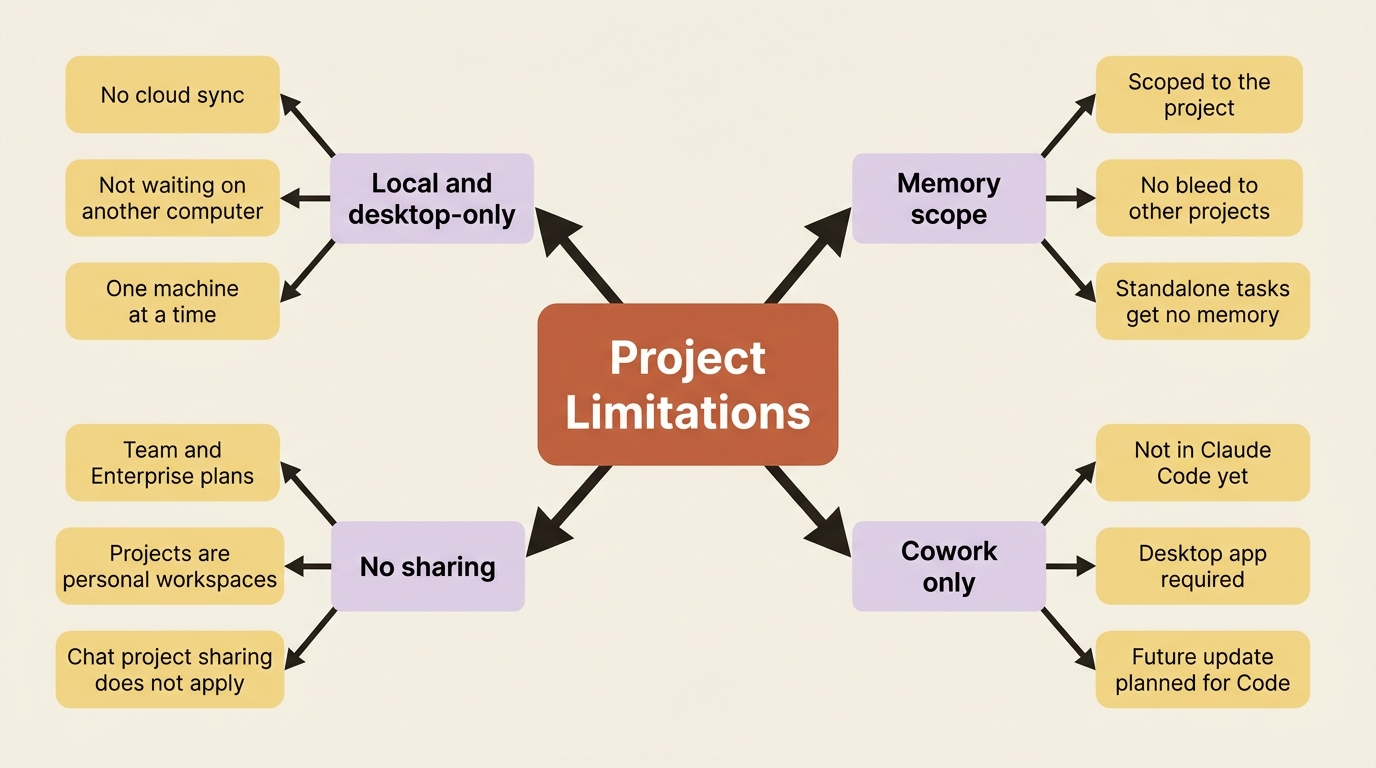
Projects live on your desktop, stored locally, and that has consequences worth knowing.
Desktop-only, stored locally. There is no cloud sync for project data at this time. A project lives on the machine you made it on.
Cowork-only for now. Projects are available in Cowork but not in Claude Code. Support for Claude Code is planned for a future update.
No project sharing on Team and Enterprise. Cowork projects do not support the project sharing that chat projects offer. A project is yours, on your machine, not a shared team workspace.
Archiving: your files are always safe
When you are done with a project, you archive it. Archiving removes the project's metadata from the interface, but it does not delete anything from your machine.
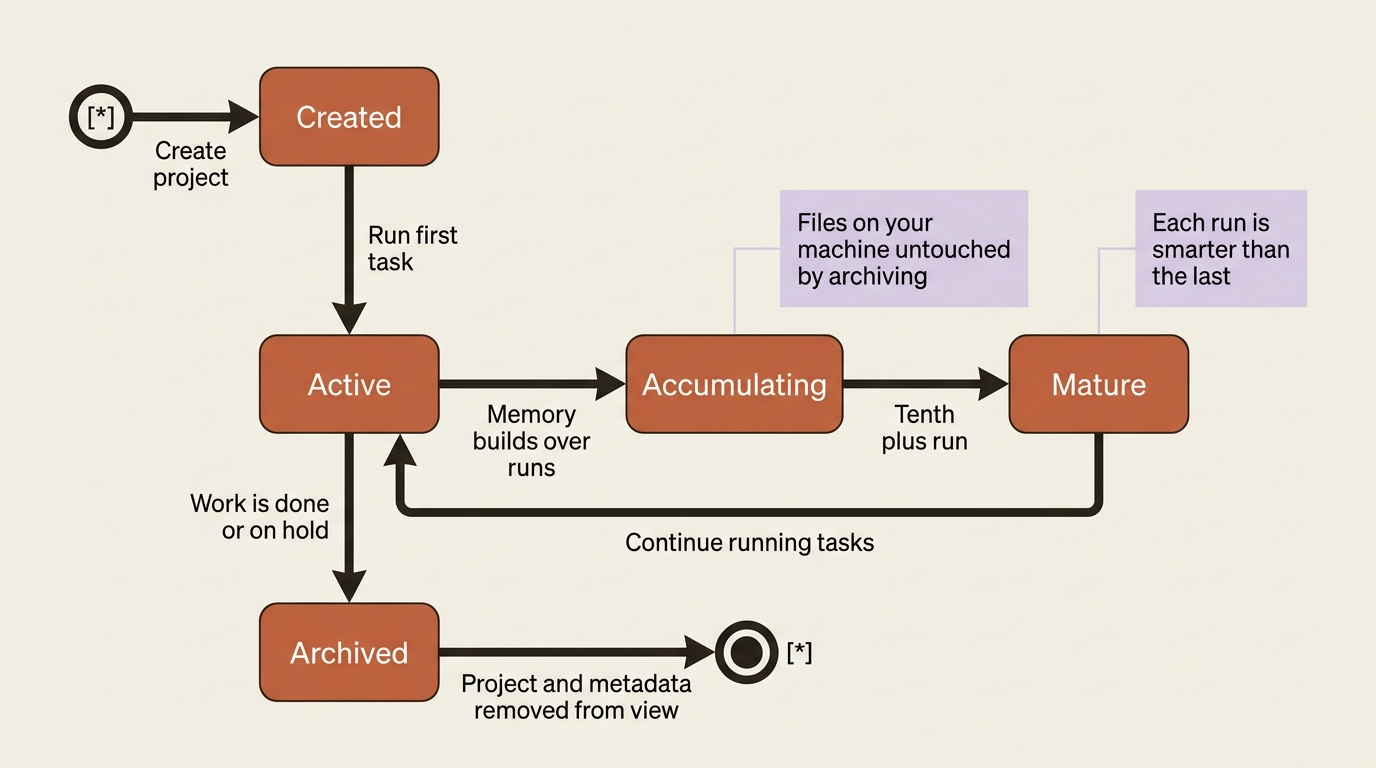
Archiving is about decluttering your workspace, not destroying your work. The competitive-intelligence project you archive at the end of a quarter leaves all its briefs and source files exactly where they sit on disk. You lose the organized workspace from your sidebar, not the output.
Do this today
- Identify your most valuable recurring task: the one you run most often and invest most effort getting right. That is your first project candidate.
- Create a project using the path that matches your starting material: scratch if it is new, import from chat if you have a chat project, existing folder if you have accumulated materials.
- Move your competitive-intelligence work into a project: add instructions for the report format, point the context at your materials folder, and run the next brief from inside the project.
- Run the same brief twice: once standalone and once from the project. Compare whether the project run shows any memory of previous work (it will after a few runs).
- Note the memory boundary: run an unrelated task from inside the project and check whether it picks up competitive-intelligence context incorrectly. It should not, because memory is scoped.
A home, not just a folder
Step back and look at what changed. For six articles you have been running tasks and configuring how Claude handles them. With projects, your recurring work finally has somewhere to live: a workspace that holds its files and context, carries its own instructions, can run its own scheduled work, and, above all, remembers. The competitive-intelligence effort stopped being a scatter of settings and became a place that gets smarter every week you open it.
This is Part 7 of "Getting Real Work Done with Claude Cowork," a 12-part guide to using Claude Cowork for real knowledge work.