
GitHub Copilot CLI Can Change This Repo. Today You Only Ask for a Plan.
Install the tested GitHub Copilot CLI, switch to plan mode, and leave Ticket Triage with a plan on screen and no file changes.
Install the tested 1.0.x build, switch to plan mode, and leave with a plan on screen and no file changes.
A terminal agent can look idle while it rewrites the one file you meant to leave alone. The relief comes from refusing the plan and checking the tree yourself.
In this article: You install GitHub Copilot CLI, confirm a 1.0.x version, and open it inside a small project called Ticket Triage. You switch to plan mode, ask for a plan that pins one crushed-mug sentence as
other, and refuse every edit. You leave with the plan unapproved, an emptygit status --short, and the same three tests passing.
Preview: written November 16, 2026, before Microsoft Ignite. Some paid steps are not yet tested live; this guide will be updated November 21, 2026.
GitHub Copilot CLI can read the repository you launch it in, change files, and run commands there. The command is copilot. The package is @github/copilot. It is not the editor chat. The build this series tested on November 16, 2026, is 1.0.112.
Plan mode is the review before implementation: files, steps, and verification, on screen, before any edit. Approving that plan leaves plan mode, and the session may then change the project. Ticket Triage is the check. classify() returns shipping only for shipping, delivery, or package, so the sentence "The box showed up crushed and the mug inside is in pieces" returns other. You do not add that test, and you do not change src/classify.js. The win is a 1.0.x version written down, an unapproved plan, empty git status --short, and npm test still showing # pass 3 and # fail 0.
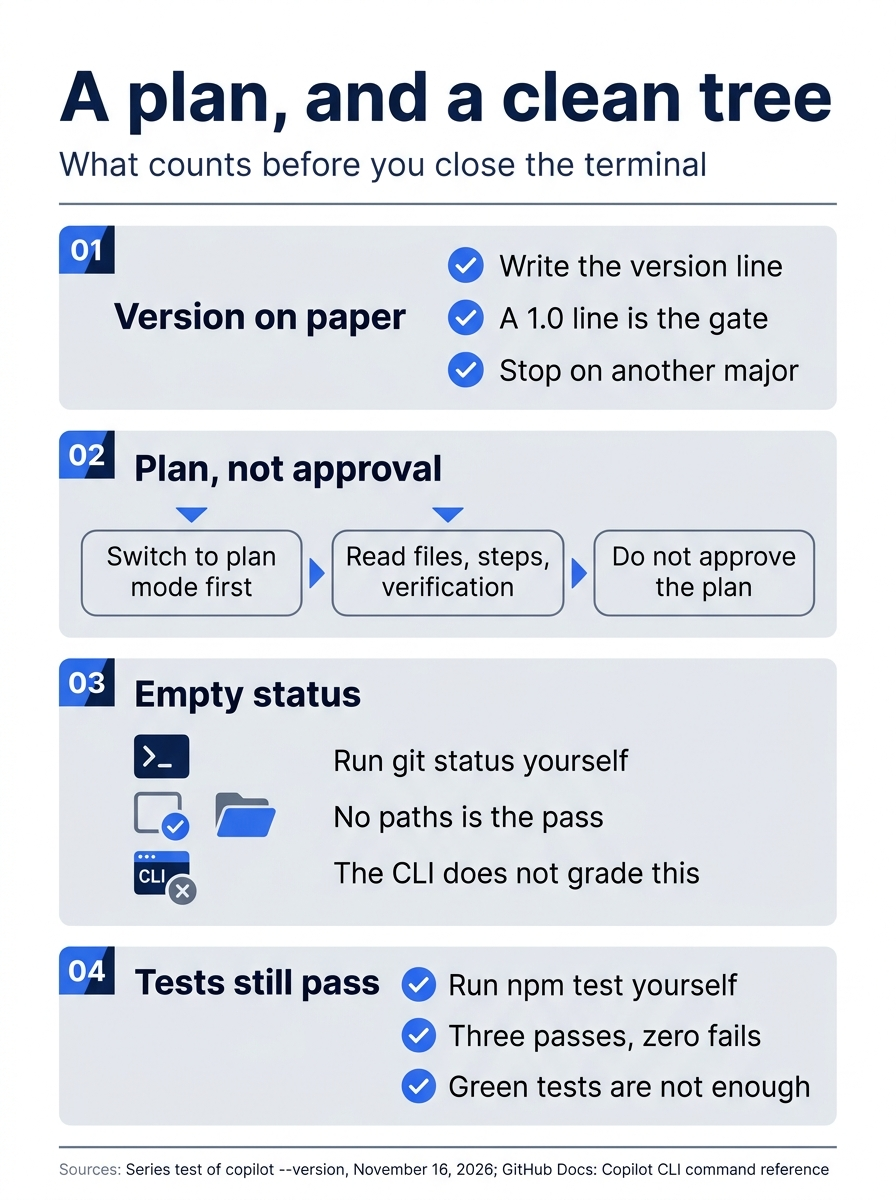
Write the version down, read a plan you do not approve, then run git status --short and npm test yourself. A green test run does not prove the file was untouched. An empty status does not prove the tests still pass.
Starting fresh or fell behind? Run git switch -C main copilot/day-01. This replaces your main with the end of Day 1; to keep your own work, run git branch my-backup first.
Install GitHub Copilot CLI, then read the version
The documented npm install needs Node.js 22 or later. Check before you install.
node --version
The line must start with v22 or a higher major version. v20 is a stop, and anything older is a stop. If node is missing or too old, install Node.js 22 or later from the Node.js site, open a new terminal, and run node --version again. This install does not name a version manager. Do not continue until the line is v22 or later.
Use the command on the install page. One setup: npm, then an interactive session in Ticket Triage. Do not add other flags.
npm install -g @github/copilot
Wait until npm exits without an error. There is no sample npm log. If npm reports an error, including a failure to write its global directory, stop. Do not switch installers in the middle of a failed npm install.
On Windows, the install page requires PowerShell v6 or higher and does not give an installer command for an older host. This article does not invent one. If your terminal is older than v6, install current PowerShell, open a new terminal, and only then treat copilot as ready to debug.
Confirm the binary before you open a session.
copilot --version
You want a 1.0.x line. On November 16, 2026, a local test of copilot --version reported 1.0.112. Write down the line you see. Another 1.0.x build is fine if you wrote it down. If the line is not 1.0 at all, stop. If the shell cannot find copilot, stop. Do not open a session.
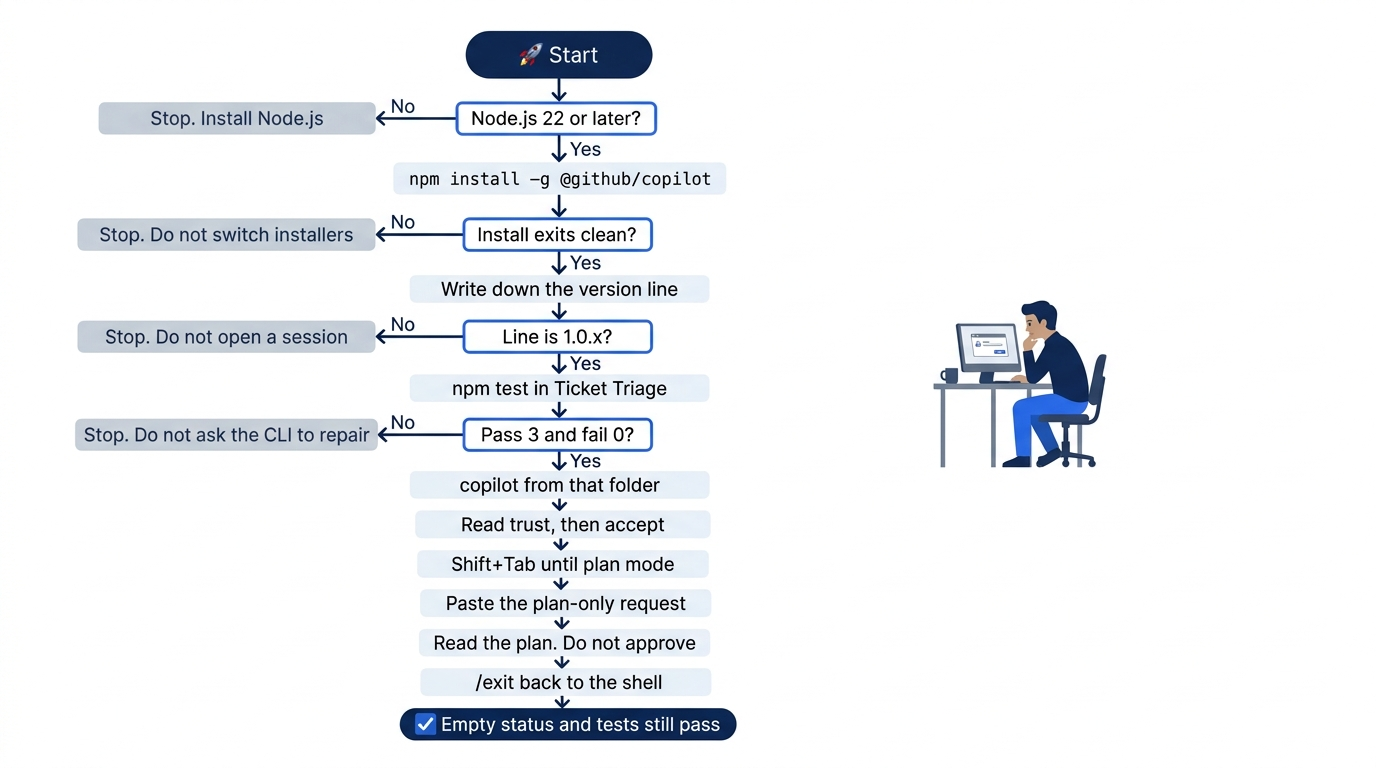
Any failed check is a stop. You do not open a planning session, and you do not ask the CLI to repair the tree.
Open Ticket Triage and read folder trust
Change to the project and run the tests before you start the agent.
cd ~/code/ticket-triage
npm test
You see # pass 3 and # fail 0. src/classify.js stays unchanged. If the folder is missing, create that local project before this session and return. If the tests fail, stop. Do not ask the CLI to repair the tree, and do not recreate the three source files inside the agent session. On Windows, cd to the Ticket Triage folder you already use. If you followed the usual path, it is C:\code\ticket-triage.
Start the interactive CLI from that folder, not from your home directory.
copilot
If you are not already signed in, the install page says the first launch prompts you to use /login and to follow the on-screen instructions. /login is the slash command that page names for signing in. Use it when asked. This article did not run a paid plan turn on November 16, 2026, and it does not include a device-code transcript. Re-run sign-in on your account before you trust the wording.
The session asks you to trust the folder, sometimes before sign-in. Read that prompt before you accept. The Copilot CLI concept page says you are confirming trust in the files in, and below, the directory you launched from. Trusted directories scope where the CLI may read, modify, and execute files. Scoping is heuristic, and GitHub does not guarantee that every file outside a trusted directory stays protected. Launch only from ~/code/ticket-triage.
Accept admits workspace configuration, hooks, and integrations. A hook is a command a repository can set to run around agent actions. Ticket Triage has none, and you are not adding integrations. Folder trust is not permission to run every tool. A later edit question is separate, and trusting the folder does not answer it.
--trust-folder is not this prompt. The command reference says it admits hooks, workspace MCP servers, and repository plugin settings for one new non-interactive session. Prompt mode means one non-interactive prompt you already chose, not this interactive session. The flag does not save that trust, and it does not grant tools, paths, or URLs. An MCP server is an external tool connection. Ticket Triage does not add one today. Leave the flag off. Do not add it on a retry to skip the questions.
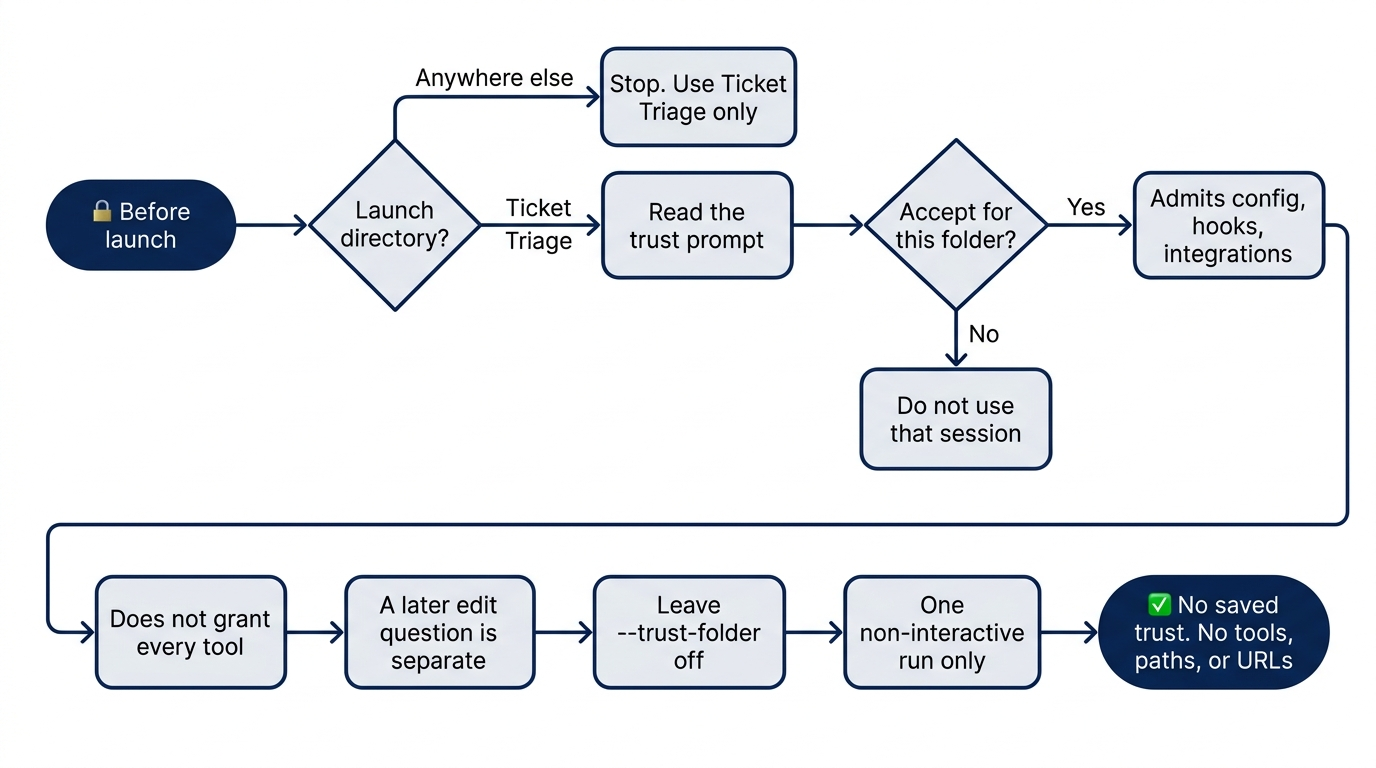
Launch from Ticket Triage or do not launch. Accepting trust does not answer a later question about writing a file.
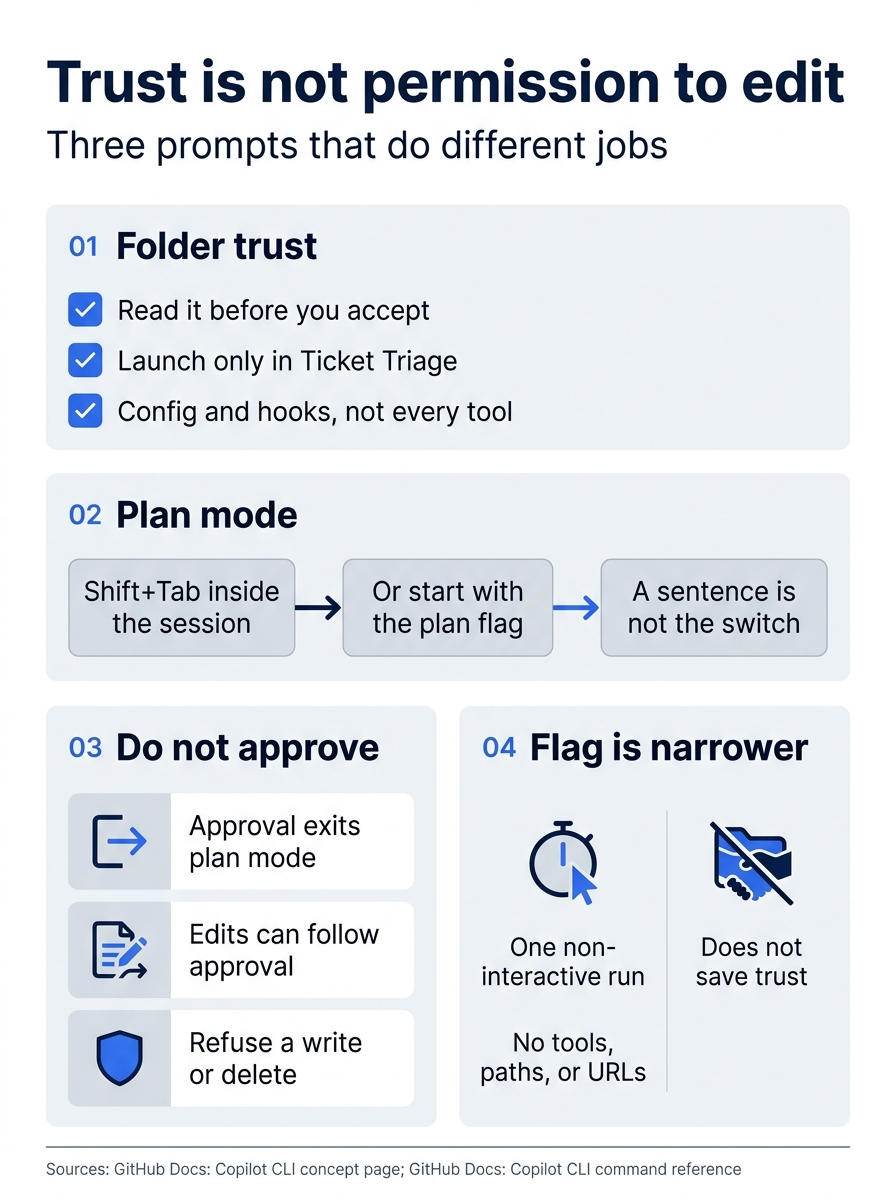
Folder trust is the directory. Plan mode is the review. Approval exits that review and allows changes. The words "plan only" do not open any of those gates.
Switch to plan mode before you type the request
A natural-language request does not change permissions. Typing "plan only" is not the switch.
In this CLI, Shift+Tab switches to plan mode. Press it before you type the request. If the session does not show plan mode, press Shift+Tab again until it does. Do not stay in a mode whose name you do not recognize. Do not assume this key does the same thing in every IDE.
--mode plan is the flag form. --plan is a shorthand for --mode plan. If the key is unclear, close the session and start again from ~/code/ticket-triage.
copilot --mode plan
Read the trust prompt if it appears. Do not add other flags. Shift+Tab is enough when you are already inside the session.
Ask for the plan and refuse every edit
You are pinning a behavior, not changing it. The plan should say that a later test will expect the crushed-mug sentence to keep returning other, and that classify.js must not change. You are not adding that test in this session.
Paste this only after the session is in plan mode.
Plan only. Do not edit files. Do not create files. Do not commit.
Pin the crushed-mug behavior with a test that is not added in this session.
The sentence "The box showed up crushed and the mug inside is in pieces" should keep returning other.
classify.js must not change.
Show the files, the steps, and the verification for that future test.
Read the reply for files, steps, and a verification plan. You want a future test, the return value other, and no change to classify.js. The command reference says that approving a plan exits plan mode and lets Copilot make the changes. Do not approve. If the CLI asks to write, create, or delete a file, refuse. If you cannot tell which answer refuses, stop.
Plan mode may ask clarifying questions. Repeat the same limits: one future test, other for that sentence, no edit to classify.js, and no edits now. Answer no to a question about changing the classifier. There is no sample plan. This article did not run a paid plan turn on November 16, 2026. Re-run this on your account before you trust the wording. The CLI may keep plan notes in a private planning workspace. The planning note is not a Ticket Triage change you accept. You still do not approve.
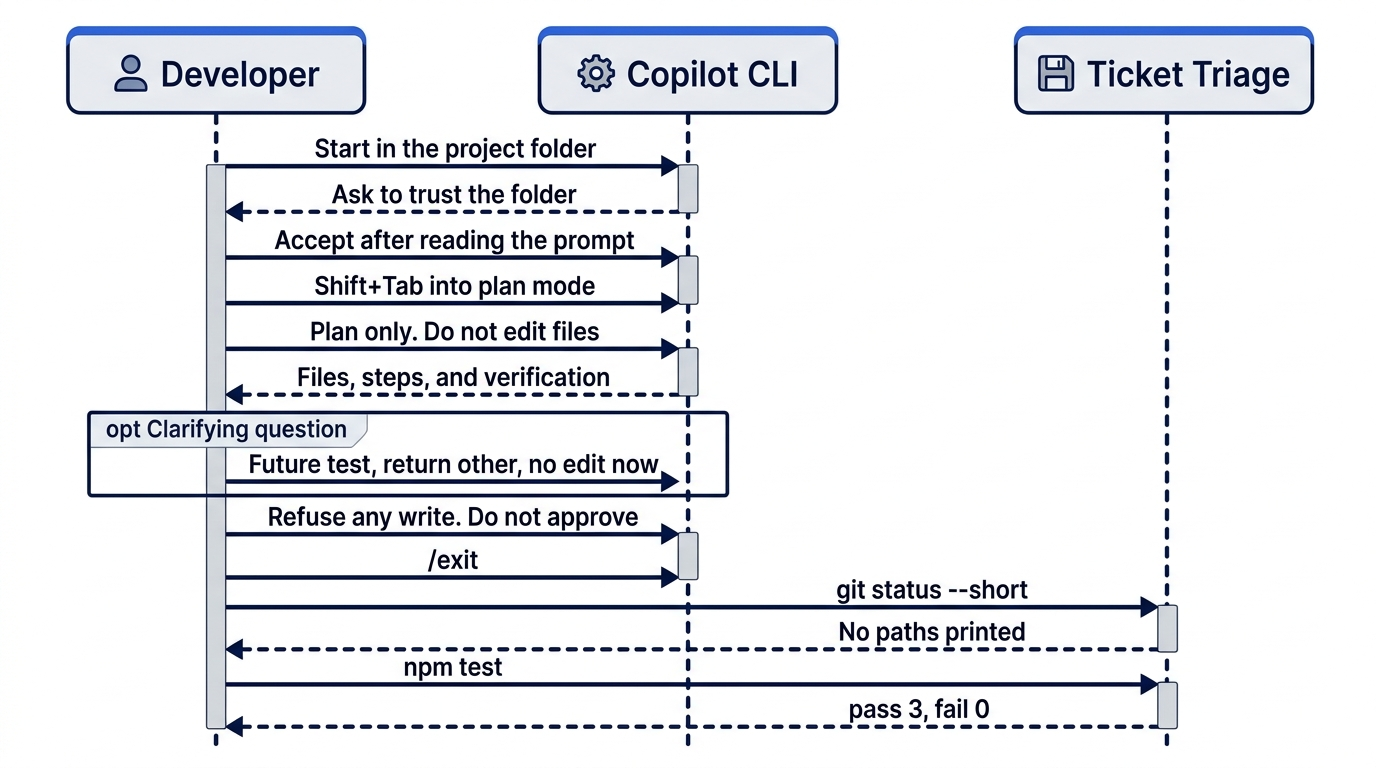
/exit comes before either shell check. Do not ask the CLI whether it edited.
/exit closes the session. /quit closes it the same way.
/exit
Wait until the CLI is gone and you are back at the shell. Do not leave a turn running while you check the tree. /context shows token use, a view of how full the context window is. You do not need it to judge today's plan, and you do not run it as part of the win.
Prove the tree is still clean
Run both checks yourself.
cd ~/code/ticket-triage
git status --short
Nothing prints. Empty output is the pass. If you see any path, the session changed the repo. Restore the commit you started from, and only inside Ticket Triage.
git restore .
git clean -fd
git status --short
npm test
git clean -fd deletes untracked files in this repository. Never run it from your home directory. After a restore, git status --short prints nothing, and npm test shows # pass 3 and # fail 0. Do not commit. When the session did not edit, skip the restore and run npm test once. You still need both the empty status and the three passes.

The blank status is the relief, not the wording of the plan. A passing test run does not replace the status check.
One install route, not three at once
npm is the route above, on every platform. The install page also documents Homebrew and WinGet. Use one of them only when you are not already on a working npm install, or when you have read why npm failed. Do not stack a second installer on a copilot that already prints 1.0.x.
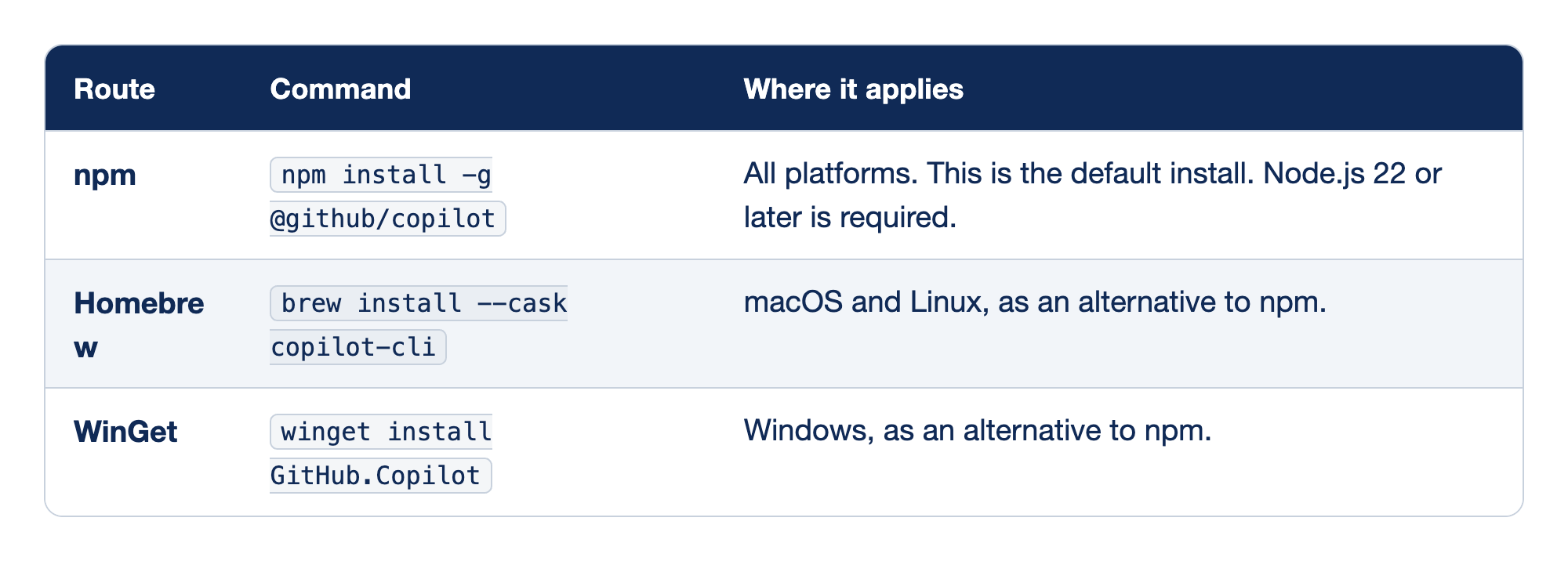
These three rows are the install routes to use for Copilot CLI. The Route column names the installer. The Command column is the command from the install page, not a guessed package name. The Where it applies column says which machines that route is for, and whether it is the default or a substitute.
- npm is the cross-platform command already used above. If
ignore-scriptsis set in npm config, the install page's variant isnpm_config_ignore_scripts=false npm install -g @github/copilot. A finished npm install still has to putcopiloton yourPATH. - Homebrew is
brew install --cask copilot-clifor macOS and Linux. The install page also shows a prerelease cask. Do not install the prerelease. You want a 1.0.x line fromcopilot --version. - WinGet is
winget install GitHub.Copiloton Windows. The page also shows a prerelease package id. Do not install that id. PowerShell v6 or higher is still required.
npm stays the default. Homebrew and WinGet are substitutes, not extras. The same page documents an install script and a direct download from GitHub releases. This guide does not use either one. Do not copy the sample version in that script's example.
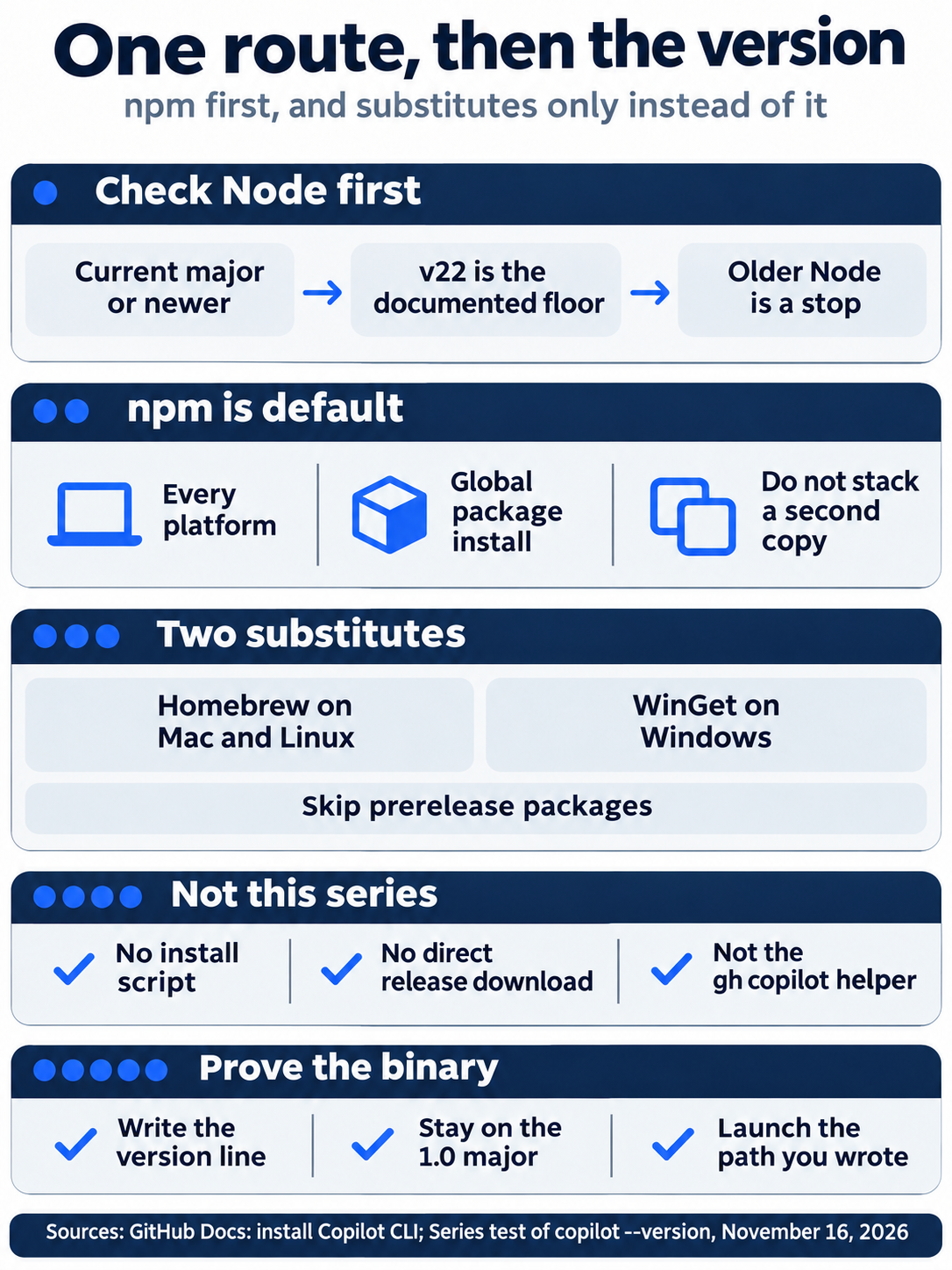
After Homebrew or WinGet, run copilot --version again. The rule is unchanged: write down a 1.0.x line, or stop. Then return to Ticket Triage and run npm test so you know the installer did not touch the repo.
Two installs are a real failure. The shell can find a different copilot than the one you just added. On macOS or Linux, write down both lines.
command -v copilot
copilot --version
On Windows PowerShell, ask for the path and the version.
Get-Command copilot
copilot --version
The check is a path plus a 1.0.x line. If two paths exist, launch the one you wrote down. Do not uninstall anything today. Do not follow a command against a binary whose version is not 1.0.
When an employer supplies Copilot
When an employer supplies Copilot, the CLI policy has to be enabled, or the CLI will not run. The install page says you cannot use Copilot CLI if an organization owner or enterprise administrator has disabled it, and it points at managing policies. This article does not invent the admin click path. If copilot says the CLI is disabled, stop. Write down the message and the account you signed in with. An owner or enterprise admin has to enable the policy. A prompt cannot do that.
Sign-in stays the /login flow when the CLI asks. Follow the screen, and re-run it on your account before you trust the wording. The install page also documents a fine-grained personal access token. This article does not walk through that setup, and it did not run a paid plan turn on November 16, 2026. The local test that day was copilot --version reporting 1.0.112.
The binary this series expects
Copilot CLI was in public preview in September 2025. It became generally available on February 25, 2026. The announcement was corrected on February 27, 2026, to say all Copilot subscribers. A blog date is not a promise that your employer policy is on. A preview binary, a 0.x line, or a prerelease package is the wrong tool for the steps above.
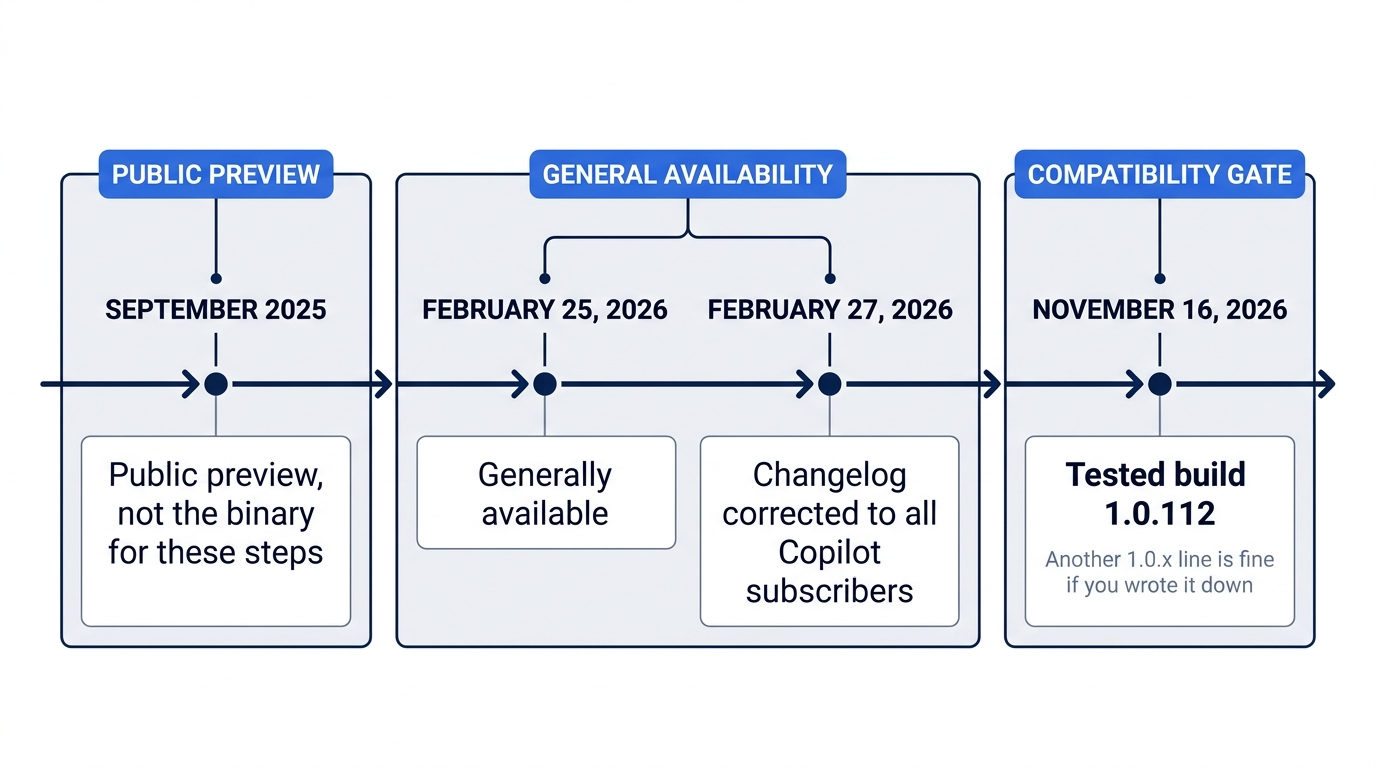
A blog date does not replace the version line you already wrote down.
Gotcha: gh copilot is a different product. It is the GitHub CLI extension people used for shell help. The command in this guide is copilot, from @github/copilot, Homebrew cask copilot-cli, or WinGet id GitHub.Copilot. Do not install gh copilot for these steps. If that extension is already on your machine, leave it installed, and do not type gh copilot when a step says copilot.
Where plan mode breaks
Plan mode is not a lock you can stop watching. The command reference says plan mode blocks clear, direct attempts to edit project files, and that the CLI enforces the block rather than leaving it as a suggestion in the prompt. The same section says the protection is a safety net, not a guarantee. It names cases the block does not treat as an airtight lockdown: shell commands whose effect cannot be known in advance, and calls to external tools you have connected. Changes require your review before applying. Re-run this on your account before you trust the wording of any prompt.
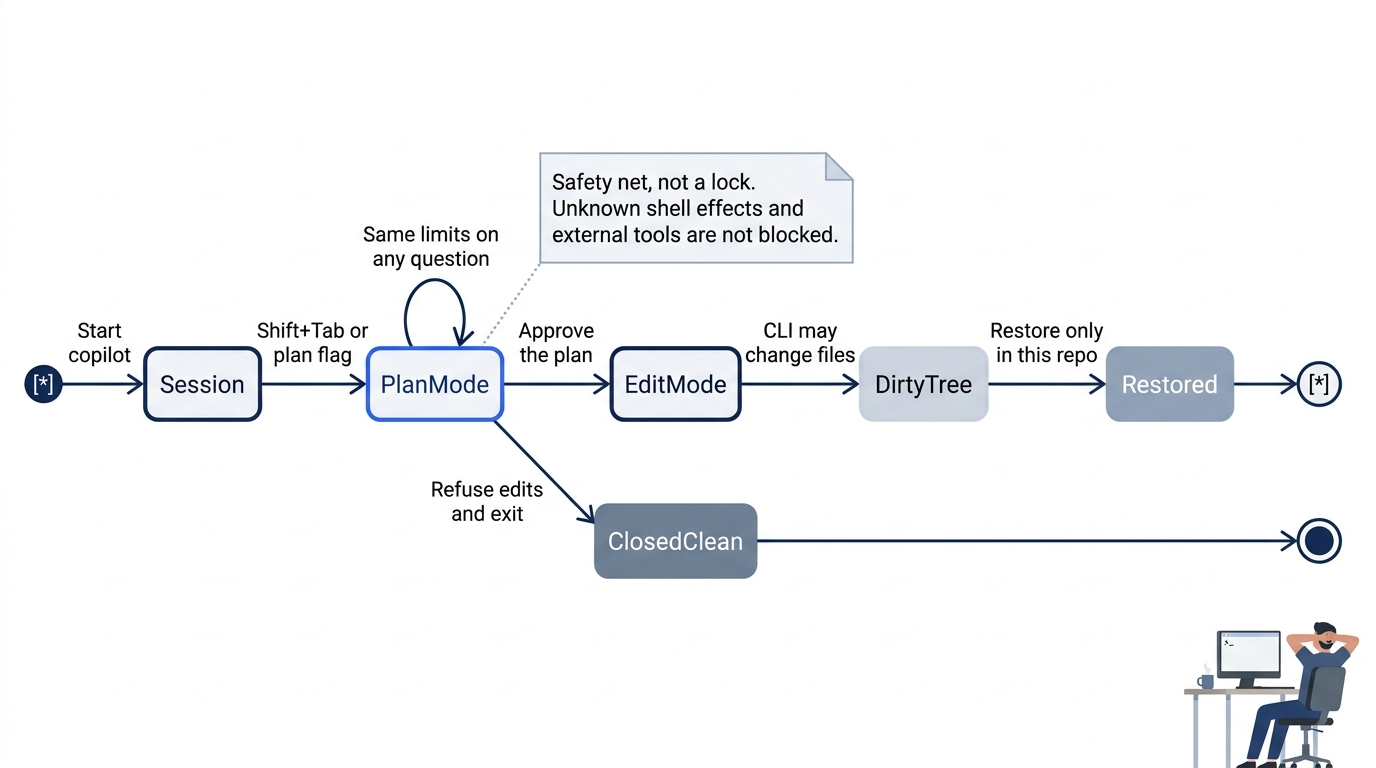
Gotcha: approving the plan is the break. Once you approve, you exit plan mode and Copilot may make the changes. A tidy plan, an approval, and a quiet edit to classify.js can still show # pass 3, because the three existing tests never send the crushed-mug sentence. git status --short would not be empty. Do not approve. If you already approved and the status is dirty, the restore commands return you to the commit you started from. Do not commit that edit.
A sentence in the prompt does not replace the mode switch. Shift+Tab, or starting with --mode plan, is what changes plan mode in this CLI. VS Code and JetBrains have plan controls of their own. This article only teaches the CLI.
If you have used Claude Code, do not import that key's job. Shift+Tab there cycles permission mode, and the default cycle includes plan. In Copilot CLI, Shift+Tab changes plan mode. You still read the plan, refuse an edit, and run git status --short yourself.
Do this today
Everyone
- Write down the
copilot --versionline. The check is a 1.0.x version in that note. The build this series tested on November 16, 2026, is 1.0.112. Another 1.0.x line is acceptable when it is the line you wrote down. A version that is not 1.0 is a stop. - Keep the plan on screen long enough to read files, steps, and a verification plan. Do not approve it. You should be able to say the intent: a future test keeps the crushed-mug sentence returning
other, andclassify.jsdoes not change. There is no sample transcript to match. - From
~/code/ticket-triage, rungit status --short. The check is no output. On Windows, run it from the Ticket Triage folder you used before. - Run
npm test. The check is# pass 3and# fail 0. After you leave the CLI, you rungit status --shortyourself. The plan text is not the check.
If you read the later sections
- Write which install route you used: npm, Homebrew, or WinGet. The check is one of those three names, plus the
copilotpath if you rancommand -v copilotorGet-Command copilot. - Write whether you accepted folder trust, and the directory. The check is yes or no, and the path is
~/code/ticket-triageor your Windows Ticket Triage folder. A yes for your home directory is a mistake. Undo it by not using that session.
The plan is not the receipt
GitHub Copilot CLI is not a safer chat window. It can read, modify, and execute files under the directory you trusted. Plan mode lets you look before that happens. Approval is also how a quiet edit gets in, because the three existing tests never send the crushed-mug sentence.
You wrote down a 1.0.x version, read a plan you did not approve, and proved the repository with git status --short and npm test. The plan text is not the check. The empty status and the three passes are. Leave the session closed. The test that pins the crushed mug can wait until you mean to add it.
This is Part 2 of "GitHub Copilot, Day-to-Day," a 16-part guide to using GitHub Copilot as a daily coding agent.