
The Two Claude Code Schedulers That Run on Your Machine, and When to Use Each
Cloud Routines have a one-hour floor, so the two schedulers that run on your own machine, /loop and Desktop tasks, are the ones you actually reach for, and picking the wrong one costs you frustration, missed runs, or surprise spend.
Cloud Routines stop at a one-hour floor. For recurring work tied to your local files, you have /loop and Desktop scheduled tasks. Here is how to pick the right one the first time.
In this article: You will learn the two Claude Code scheduling tools that run locally instead of in the cloud:
/loopfor polling inside a live session, and Desktop scheduled tasks for recurring work that does not need a session open. We cover the three modes of/loop, the missed-run catch-up behavior on both, worktree isolation, cron expressions, and a clear rule for choosing each one. By the end you will stop guessing which scheduler fits a job.
You set up a cloud Routine last week for the nightly dependency audit. It works. Then you go to schedule something smaller, "check the local dev server every five minutes during a deploy window," and you hit the wall. The Routine has a one-hour minimum interval. Five minutes is not on the menu.
So you reach for another tool, and you find yourself wondering which one. There are three ways to schedule work in Claude Code, and the wrong choice produces one of three flavors of pain: constant frustration when the cadence does not fit, missed runs when a cap or a sleeping laptop swallows them, or surprise cloud spend when all you needed was local polling.
This article is about the two schedulers that run on your machine, not in the cloud. They are the ones you reach for most, and the ones easiest to confuse. Get the mental model straight and the right answer is usually obvious before you finish reading the prompt.
Three schedulers, one decision
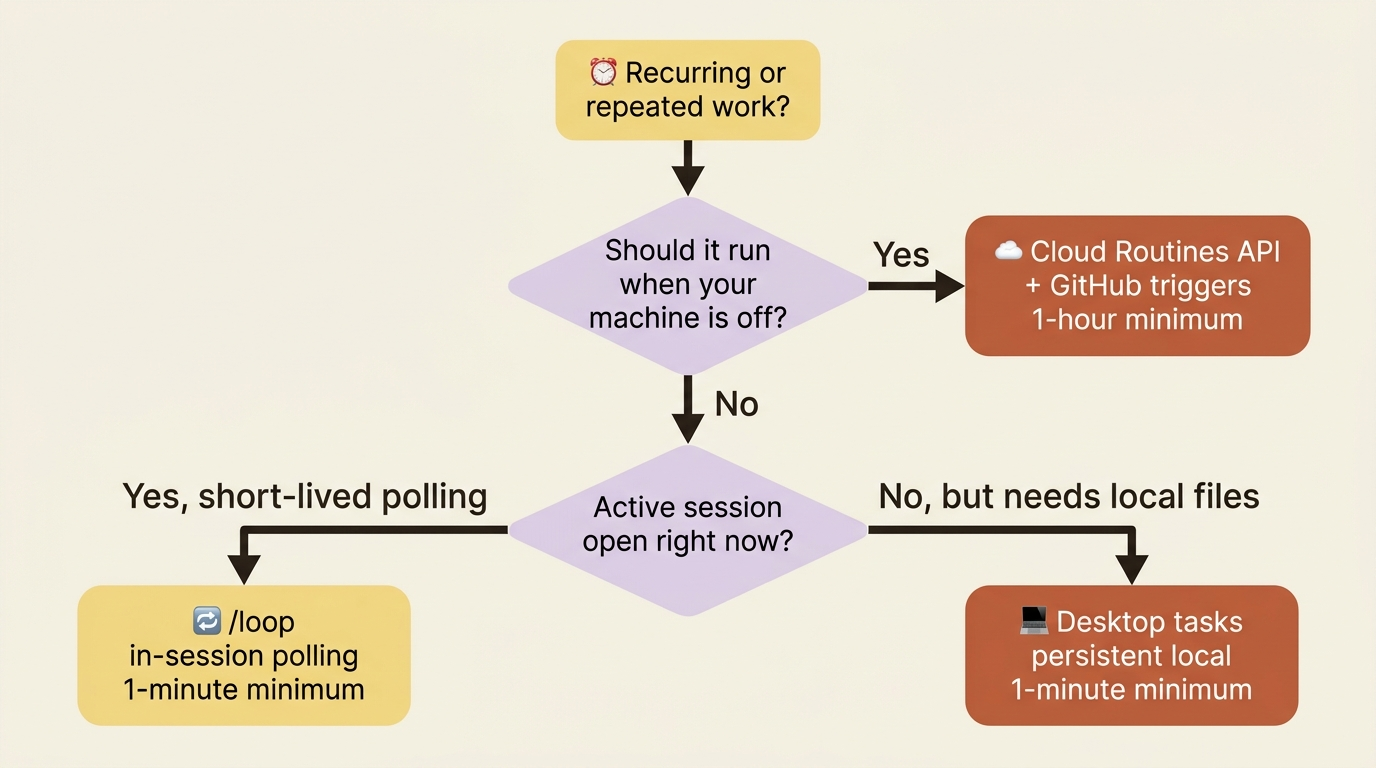
Cloud Routines run on Anthropic's infrastructure and fire even when your machine is off. The other two run locally. /loop runs prompts inside a live session. Desktop scheduled tasks run on your machine without an open session. Here is the full picture so this article stands on its own.
| Cloud Routines | Desktop scheduled tasks | /loop |
|
|---|---|---|---|
| Runs on | Anthropic cloud | Your machine | Your machine |
| Requires machine on | No | Yes | Yes |
| Requires open session | No | No | Yes |
| Access to local files | No (fresh clone) | Yes | Yes |
| MCP servers | Per routine | Local config + connectors | Inherits from session |
| Permission prompts | No (autonomous) | Configurable per task | Inherits from session |
| Triggers beyond time | Yes (API, GitHub) | No (time only) | No (time only) |
| Minimum interval | 1 hour | 1 minute | 1 minute |
| Run cap | Daily account cap | None | None |
Three short rules capture the decision:
- Cloud Routines when the work should run reliably without your machine, or when you need API or GitHub triggers.
- Desktop scheduled tasks when the work needs your local files or sub-hour frequency, but should not require an interactive session.
/loopwhen the work is short-lived polling during an active session.
Most teams end up using all three for different things. This article covers the latter two.
/loop: the in-session polling tool
/loop is the quickest way to run a prompt on repeat while a session stays open. It is a bundled skill, so there is nothing to install. It requires Claude Code v2.1.72 or later. Both the interval and the prompt are optional, and what you supply decides how the loop behaves.
| What you provide | Example | What happens |
|---|---|---|
| Interval and prompt | /loop 5m check the deploy |
Your prompt runs on a fixed schedule |
| Prompt only | /loop check the deploy |
Claude picks a delay each iteration |
| Nothing, or interval only | /loop |
Claude runs the built-in maintenance prompt |
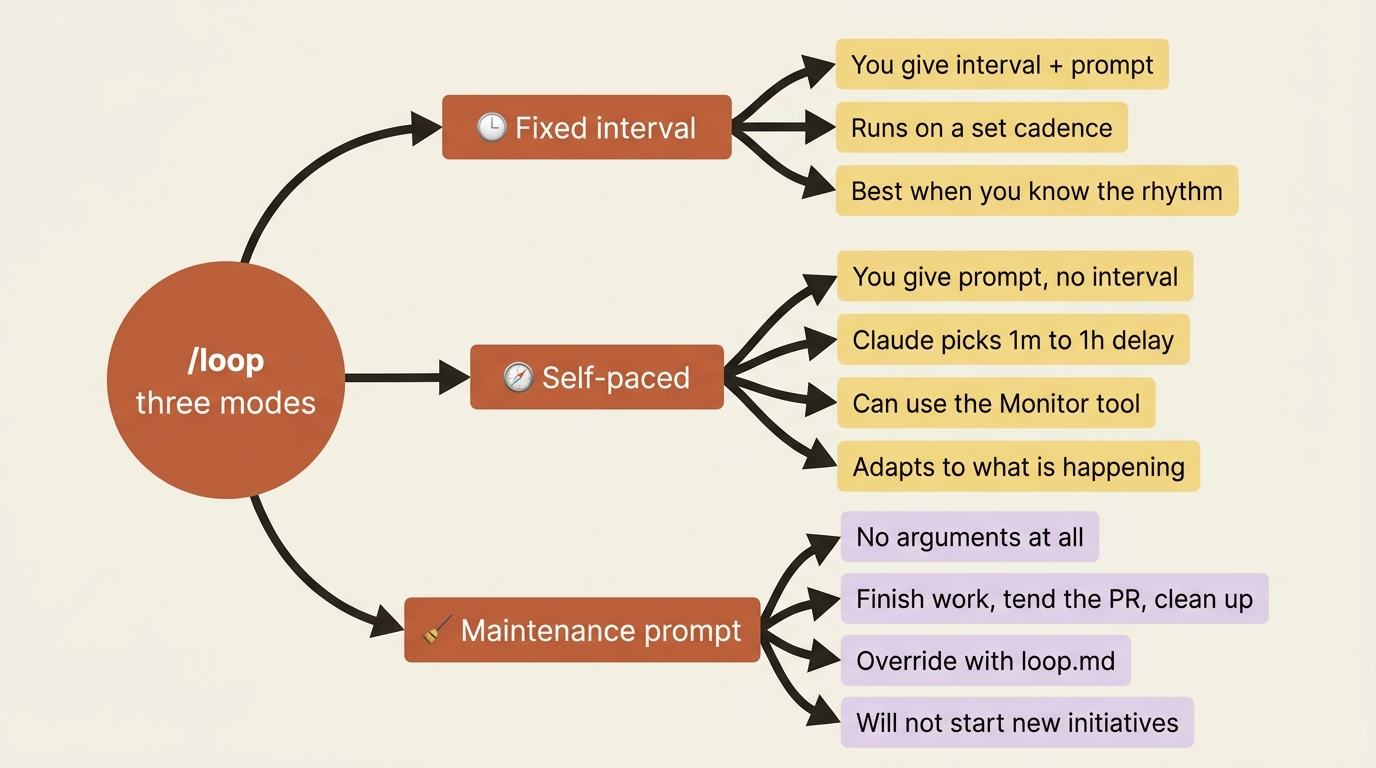
Those three inputs map to three modes.
Mode 1: fixed interval
Supply both an interval and a prompt:
/loop 5m check if the deployment finished and tell me what happened
Claude converts the interval to a cron expression and confirms the cadence. Supported units are s (seconds), m (minutes), h (hours), and d (days). The interval can lead the prompt as a bare token (30m) or trail it as a clause (every 2 hours).
Seconds round up to the nearest minute, because cron has one-minute granularity. Intervals that do not map cleanly to cron steps, such as 7m and 90m, round to the nearest valid one, and Claude tells you what it picked.
Fixed interval is the right mode when you already know the cadence: poll a deploy every five minutes during a release window, check a build every minute during a known-broken pipeline, or ping a status endpoint every thirty seconds during a debug session.
Mode 2: self-paced
Supply a prompt but no interval:
/loop check whether CI passed and address any review comments
Claude picks a delay between one minute and one hour after each iteration, based on what it observed. Short waits when a build is finishing or a PR is active. Longer waits when nothing is pending. The chosen delay and the reason print at the end of each iteration.
This mode is often more useful than fixed interval because it adapts. You do not waste polls when nothing has moved, and you do not miss state changes when things are happening fast.
In self-paced mode, Claude may use the Monitor tool directly instead of re-running the prompt. Monitor runs a background script and streams output lines back. That is more token-efficient and more responsive than polling at a fixed cadence. Instead of "ask every minute whether the build finished," Monitor watches the log and tells Claude the moment a relevant line appears.
Mode 3: the maintenance prompt
Run /loop with no arguments at all:
/loop
Claude uses a built-in maintenance prompt instead of one you supply. On each iteration it works through these in order:
- Continue any unfinished work from the conversation.
- Tend to the current branch's pull request (review comments, failed CI runs, merge conflicts).
- Run cleanup passes like bug hunts or simplification when nothing else is pending.
Claude does not start new initiatives outside that scope, and irreversible actions like pushing or deleting only proceed when they continue something the transcript already authorized. That is the safety property: a maintenance loop will not surprise you with unrelated work.
To replace the built-in prompt with your own default, drop a loop.md file:
| Path | Scope |
|---|---|
.claude/loop.md |
Project level. Wins when both files exist. |
~/.claude/loop.md |
User level. Applies in any project without its own. |
The file is plain Markdown with no required structure. For example:
Check the release/next PR. If CI is red, pull the failing job log,
diagnose, and push a minimal fix. If new review comments have arrived,
address each one and resolve the thread. If everything is green and
quiet, say so in one line.
Edits to loop.md take effect on the next iteration, so you can refine instructions while a loop is running.
Stopping a loop, and the limits to internalize
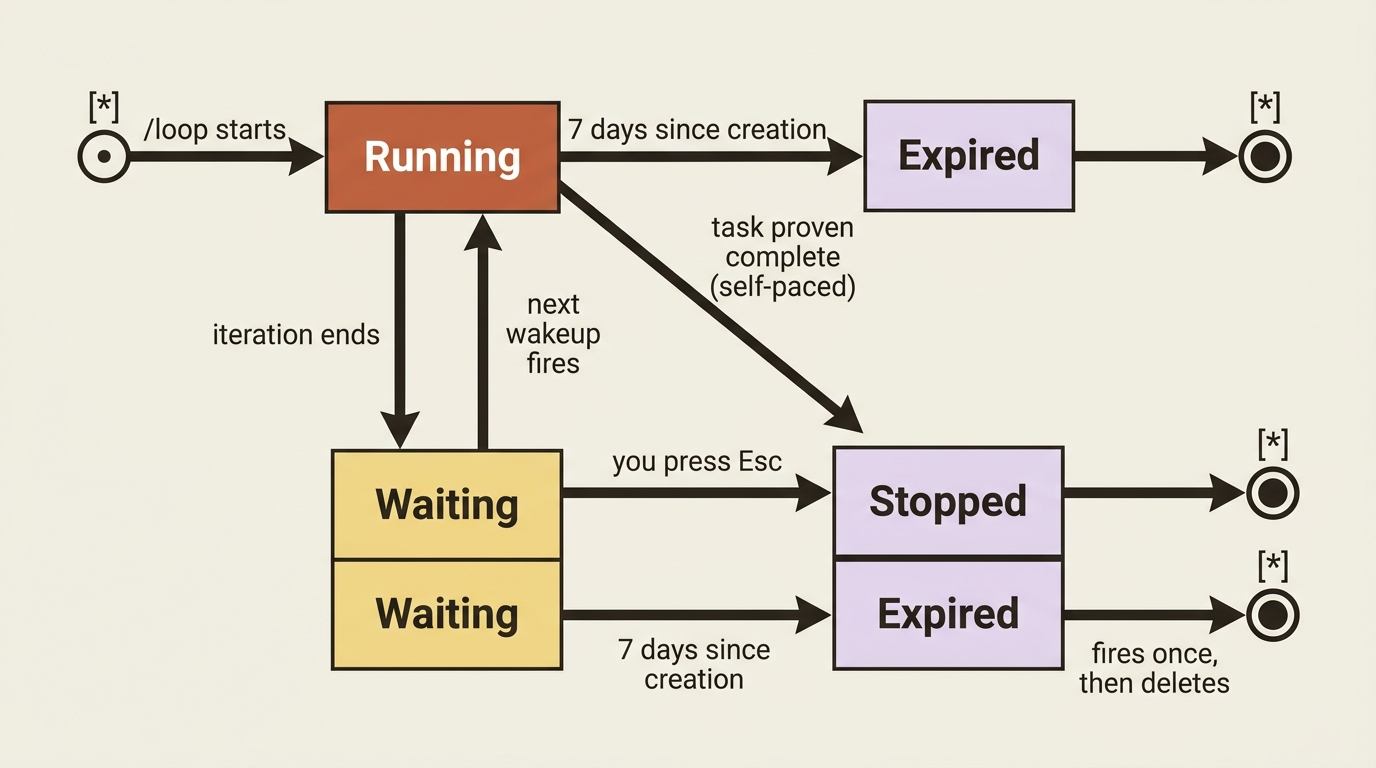
Press Esc while waiting for the next iteration. That clears the pending wakeup so the loop does not fire again. In self-paced mode, Claude can also end the loop on its own once the task is provably complete, and the next wakeup never gets scheduled. Fixed-interval loops keep running until you stop them, or until the seven-day expiry hits.
A few realistic limits are worth holding in your head:
Seven-day auto-expiry. Recurring /loop tasks fire one final time, then delete themselves seven days after creation. This bounds how long a forgotten loop can run. For something durable, cancel and recreate it before it expires, or use Routines or Desktop scheduled tasks instead.
Session-scoped. Tasks live in the current conversation and stop when you start a new one. Resuming with --resume or --continue restores tasks that have not expired.
No catch-up for missed fires. If a scheduled time passes while Claude is busy on a long request, it fires once when Claude becomes idle, not once per missed interval.
50-task limit. A session can hold up to 50 scheduled tasks at once. Tasks fire between turns, not mid-response, so a scheduled prompt waits until the current turn ends.
The most common pitfall is forgetting to stop a fixed-interval loop. The seven-day expiry is the safety net, but a loop polling every five minutes for a week generates 2,016 prompts. Cheap individually, expensive in aggregate. Press Esc when you are done.
One-time reminders
For one-shot reminders, describe what you want in natural language instead of using /loop. Claude schedules a single-fire task that deletes itself after running.
remind me at 3pm to push the release branch
in 45 minutes, check whether the integration tests passed
Claude pins the fire time to a specific minute and hour using a cron expression, then confirms when it will fire. One-time reminders inherit the same session-scoped behavior as /loop: they live in the current conversation, do not catch up on missed fires, and respect the seven-day expiry for any duration past a week.
Desktop scheduled tasks: the persistent local option
Desktop scheduled tasks are the right tool when:
- You want recurring work that does not require a session to stay open.
- The work needs your local files, tools, and uncommitted changes.
- An hourly minimum (Routines) is too coarse, but you do not need cloud-grade reliability.
They are available on macOS and Windows. They are not available on Linux, because Desktop is not available there.
Click Routines in the Desktop app sidebar, then New routine, and choose Local. The form has four fields. Name becomes the on-disk folder (lowercase kebab-case, unique across your tasks). Description is a short summary in the task list. Instructions are what Claude should do when the task runs, written the same way you write any message in the prompt box, with pickers for permission mode and model, plus the working folder and a worktree toggle. Schedule is a preset (Manual, Hourly, Daily, Weekdays, Weekly) or a custom cadence you describe to Claude.
A folder is required before you can save the task. If you have not trusted that folder yet, Desktop prompts you to trust it first.
You can also create a task by describing it in any Desktop session. "Set up a daily code review that runs every morning at 9am" creates a recurring task; "remind me at 3pm tomorrow to check the deploy" creates a one-time task that disables itself after firing.
How Desktop tasks actually run
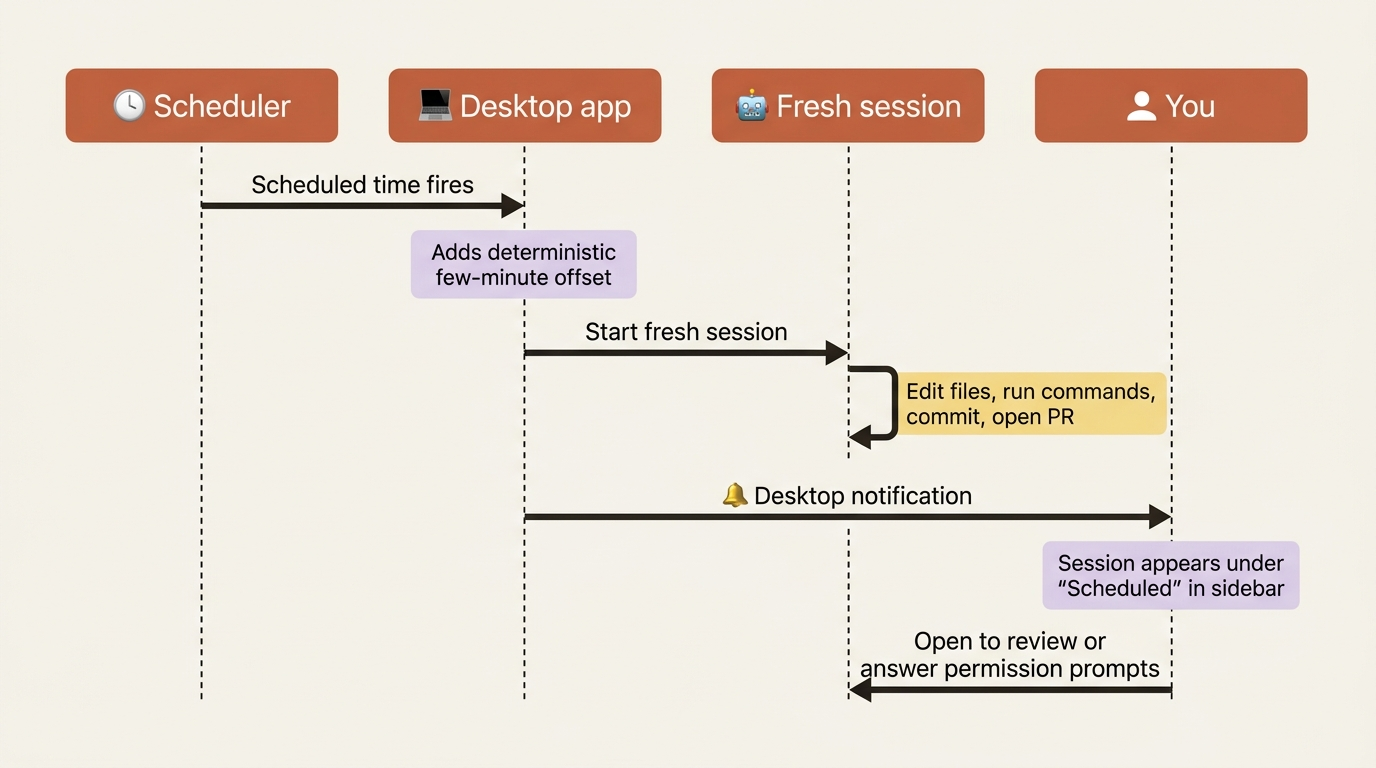
When the schedule fires, Desktop starts a fresh session automatically, independent of any manual sessions you have open. The task gets a small delay of a few minutes after the scheduled time to stagger API traffic. The delay is deterministic: the same task always starts at the same offset.
You get a desktop notification, and a new session appears under a Scheduled section in the sidebar. Open it to see what Claude did, review changes, or respond to permission prompts. The session works like any other: Claude can edit files, run commands, create commits, and open pull requests.
The critical constraint: tasks only run while the Desktop app is running and your computer is awake. If your computer sleeps through a scheduled time, the run is skipped. To prevent idle-sleep, enable Keep computer awake in Settings under Desktop app, General. Closing the laptop lid still puts it to sleep regardless.
This is the practical reason most teams need both Desktop scheduled tasks and cloud Routines: laptops sleep. If timing matters, the work belongs in a Routine. If local files matter and the laptop is reliably awake during the work hours, Desktop is fine.
Missed runs and catch-up
When the app starts or your computer wakes, Desktop checks whether each task missed any runs in the last seven days. If it did, Desktop starts exactly one catch-up run for the most recently missed time. Older missed runs are discarded.
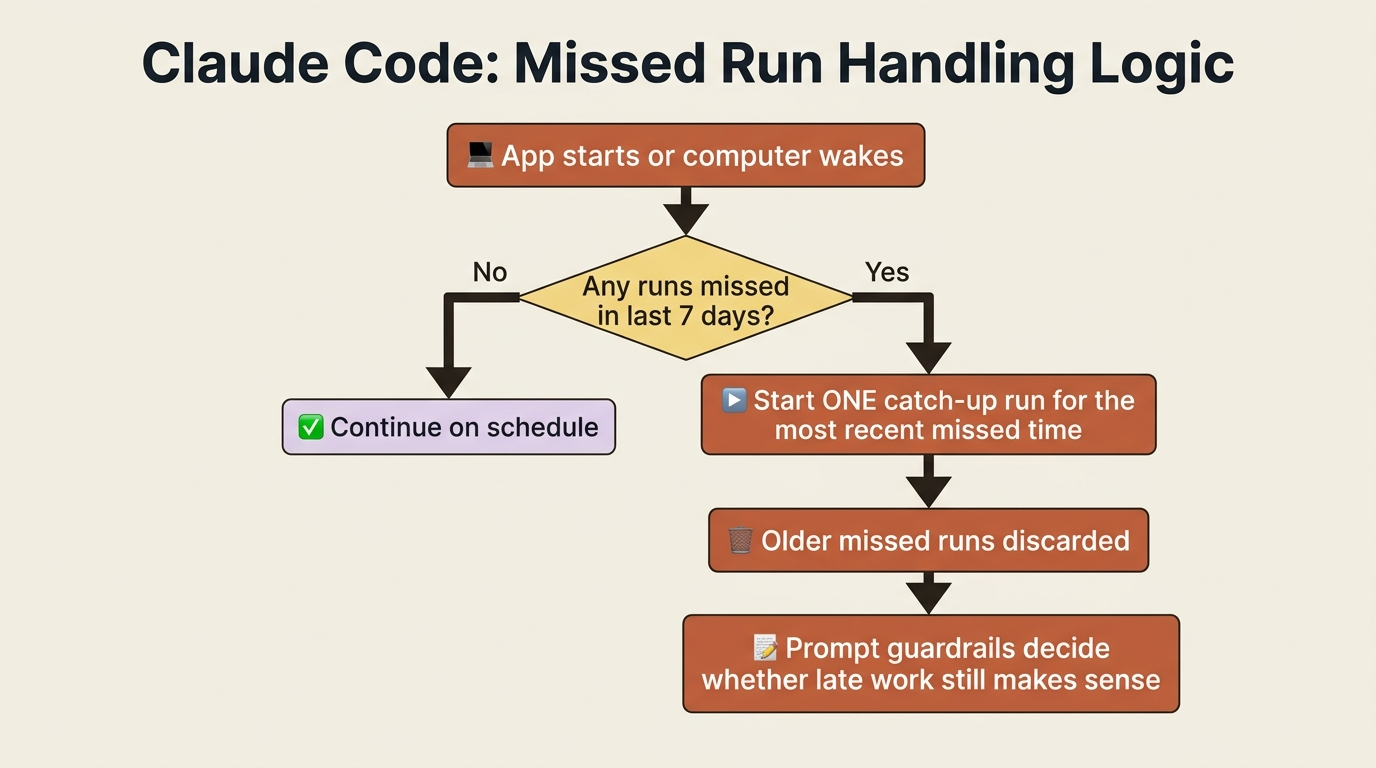
This matters for prompt writing. A task scheduled for 9am might run at 11pm if your computer was asleep all day. If timing matters, put guardrails in the prompt itself:
Only review today's commits. If it is after 5pm, skip the review and
just post a summary of what was missed.
Catch-up runs are a useful safety net for "this should happen even if I forgot to wake my laptop." They are a liability for "this should happen at a specific time of day or not at all." Match the prompt to the catch-up behavior, not the other way around.
Worktree isolation
By default, scheduled tasks run against whatever state your working directory is in, including uncommitted changes. That can be a problem if you have pending work the scheduled task should not see.
Enable the worktree toggle when creating the task to give each run its own isolated Git worktree, the same way parallel sessions work. The task runs against a clean checkout, and your pending work stays untouched.
Use the worktree option whenever the task touches the same files you actively work on. Skip it when the task operates on its own files, such as a doc audit or a separate config file, or when it genuinely benefits from seeing uncommitted state, such as a "what is my current state" task.
Permissions, and the 3am stall
Each task has its own permission mode, set when creating or editing it. Allow rules from ~/.claude/settings.json also apply.
If a task runs in Ask mode and needs a tool it lacks permission for, the run stalls until you approve it. The session stays open in the sidebar so you can answer later. This is a real failure mode: a task that needs git push permission runs at 3am while you sleep, stalls until morning, and then either runs against stale state or fails outright.
To avoid stalls:
- Click Run now after creating a task.
- Watch for permission prompts during the first run.
- Select always allow for each prompt that fires.
- Future runs of that task auto-approve the same tools without prompting.
You can review and revoke these approvals from the task's detail page.
Managing scheduled tasks
Click a task in the Routines list to open its detail page. From there you can Run now, toggle Status to pause or resume without deleting, Edit instructions or schedule or folder, Review history to see every past run including skipped ones (hover for the reason: sleep, prior run still in progress, and so on), Review allowed permissions to revoke saved approvals, and Delete to remove the task and archive its sessions.
You can also manage tasks by asking Claude in any Desktop session: "pause my dependency-audit task," "show me my scheduled tasks," "delete the morning-briefing task."
A running task can even modify its own schedule or prompt using the update_scheduled_task MCP tool. That lets a task reschedule itself based on what it finds. A code review, for example, reschedules earlier when it detects a release branch. To edit a task's prompt directly on disk, open ~/.claude/scheduled-tasks/<task-name>/SKILL.md, which uses YAML frontmatter for name and description with the prompt as the body. Changes take effect on the next run.
Cron expressions for fine-grained scheduling
Both /loop (under the hood) and Desktop scheduled tasks accept standard 5-field cron expressions when you need finer control than the presets offer:
minute hour day-of-month month day-of-week
All fields support wildcards (*), single values (5), steps (*/15), ranges (1-5), and comma-separated lists (1,15,30).
| Example | Meaning |
|---|---|
*/5 * * * * |
Every 5 minutes |
0 * * * * |
Every hour on the hour |
7 * * * * |
Every hour at 7 minutes past |
0 9 * * * |
Every day at 9am local |
0 9 * * 1-5 |
Weekdays at 9am local |
30 14 15 3 * |
March 15 at 2:30pm local |
Day-of-week uses 0 or 7 for Sunday through 6 for Saturday. Extended syntax like L, W, ?, and name aliases such as MON or JAN is not supported. All times are interpreted in your local timezone.
One useful detail: the scheduler adds a deterministic offset to fire times so every session does not hit the API at the same wall-clock moment. Recurring tasks fire up to 30 minutes after the scheduled time, or up to half the interval for tasks more frequent than hourly. If exact timing matters, pick a minute that is not :00 or :30. Use 3 9 * * * instead of 0 9 * * * and the jitter is less visible.
When to choose which
The decision table at the top covers the mechanics. Here is the practical guidance.
Use /loop when you are actively in a session and want short-lived polling, when you need sub-minute precision (Claude's Monitor tool in self-paced mode is the closest you get), when the work is exploratory rather than durable, or when you want the lowest-friction setup: type one command and polling starts.
Use Desktop scheduled tasks when the work runs daily or more often on your local files while your machine is reliably awake, when you do not want to keep a session open, when sub-hour frequency matters (every 15 minutes is fine here, impossible with Routines), and when uncommitted state on disk is what the task should see (or worktree isolation lets you opt out of that).
Use Routines when the work should run while your machine is off, when you need API or GitHub triggers rather than just time, when the work can use connectors instead of local tools, and when a one-hour minimum interval is acceptable.
For most teams the right combination is: Routines for off-hours and event-triggered work, Desktop scheduled tasks for local-file-dependent recurring work, and /loop for in-session polling. Each fills a different gap, and trying to force one tool to do all three creates friction.
Do this today
- If you have an active polling situation right now, use
/loop. A deploy in progress, a debugging session, a build pipeline you are watching./loop check the deploy every 2 minutesis twenty seconds of setup, and the "this just works" feel locks in the habit. - Set up one Desktop scheduled task for something recurring and local. A daily morning briefing that pulls your calendar and inbox, a nightly dependency audit, a weekly cleanup over your downloads folder. Click Run now to verify it, approve any permission prompts as "always allow," then leave it alone.
- Add prompt guardrails to any time-sensitive Desktop task. Tell it to skip or summarize if it fires late, so a catch-up run at 11pm does not do the wrong thing.
- Press
Escon every fixed-interval/loopwhen you are done. The seven-day expiry is a safety net, not a habit. - Decide whether you actually need both Routines and Desktop tasks. Most readers will. But if all your recurring work is local and your laptop is reliably awake, Desktop alone may be enough; if it all needs to fire on weekends when you are away, Routines alone is enough.
The leverage is in the combination
The decision is small per task and large in aggregate. Every piece of recurring local work that moves into a Desktop scheduled task is one more thing you stop doing by hand. Every active-session poll that moves into /loop is one more "is it done yet?" prompt you never type. Layer Routines on top for the work that genuinely belongs in the cloud, and the three schedulers cover the whole spectrum of recurring work.
The trap is trying to make one tool serve all three jobs. Routines choke on five-minute cadences. /loop cannot outlive its session. Desktop tasks sleep when your laptop sleeps. Each limitation is exactly the reason another tool exists. Pick by where the work lives and when it must fire, and the right scheduler is almost always obvious.
That is what the three scheduling options exist to create: recurring work that runs itself, at the right place, at the right time, without you in the loop.
This is Part 6 of "Claude Code Away from the Terminal," a 7-part guide to running Claude Code beyond an interactive terminal session.