
Run Claude Code on a Schedule, Even with Your Computer Off
A cloud scheduled task runs your prompt on Anthropic's servers against your GitHub repository, so you can schedule the tests for every weekday, run them once now, read the counts from your terminal, and delete the task, all without changing a file on your computer.
A cloud scheduled task clones your repository from GitHub and runs your prompt on Anthropic's servers. Create one that tests Ticket Triage every weekday, run it once now, read its counts, and delete it.
Your /loop stopped the moment you closed the terminal, and the check you wanted every morning only runs when you remember to open your laptop.
In this article: Day 21 of a day-by-day guide to Claude Code. Start here: you create a cloud scheduled task that runs Ticket Triage's tests every weekday, run it once now, read its counts from your terminal, and delete it. Going deeper: how cloud, Desktop, and
/loopscheduling compare, the GitHub event and API triggers, and what a cloud run can reach, what it costs, and why it can do things that you did not ask for.
Tested on Claude Code 2.1.326.
Yesterday you started a task away from your desk, with Dispatch or with Remote Control from your phone, and checked at the desk that it changed nothing.
Start here
At the end of today, you can create a scheduled task that runs Ticket Triage's tests in the cloud every weekday, run it once now, read its counts, and delete it.
Starting fresh or fell behind? Run git switch -C main claude-code/day-20. This replaces your main with the end of Day 20; to keep your own work, run git branch my-backup first.
On Day 8, /loop ran a prompt on a schedule inside your open session. When you closed the terminal, the loop stopped. A cloud scheduled task works another way. Each run starts a cloud session, a Claude Code session on Anthropic's servers. The session clones your repository from GitHub, runs your prompt, and ends. Your computer can be off.
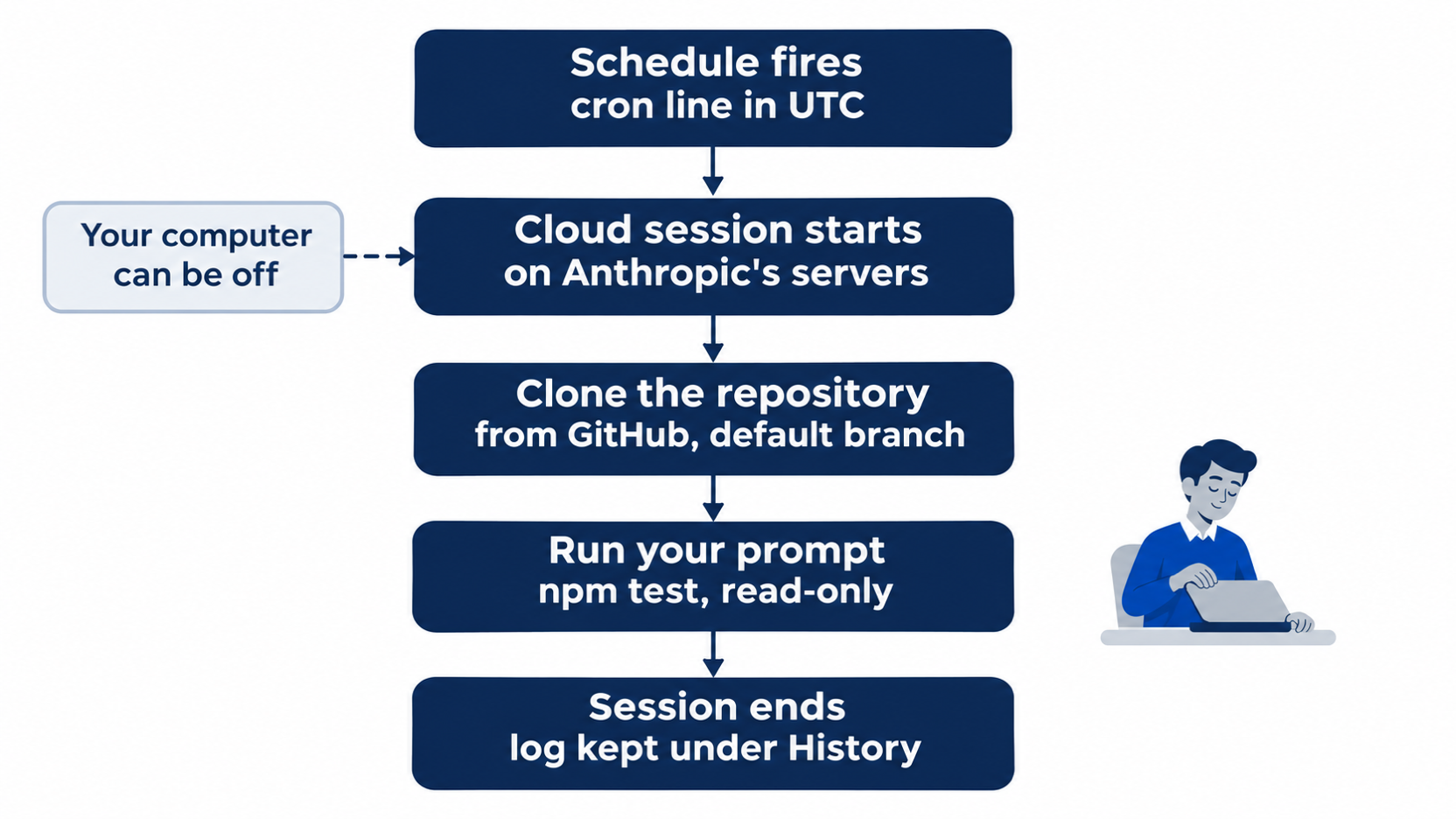
Each run starts fresh in the cloud and ends on its own, so nothing on your computer has to stay open.
The docs call it a "scheduled task, formerly a routine". Claude Code 2.1.326 still says routine in many places, such as its replies to /schedule, so this guide uses both names for the same thing. The docs say that a scheduled task belongs to your claude.ai account, is not shared with teammates, and uses your plan's usage like any other session. The feature is a research preview: the docs say that its behavior and limits can change.
What you need
From the docs:
- A claude.ai sign-in on a Pro, Max, Ultra, Team, or Enterprise plan. The
/schedulecommand needs it. With a Console API key, the command is not available. IfANTHROPIC_API_KEYis set in your shell, unset it. - Ticket Triage on GitHub, and Claude allowed to clone it. The next section does both. The docs say that
/schedulechecks your GitHub access. If the access is missing, it adds a setup note that names how to grant it.
Put Ticket Triage on GitHub
This guide did not test the steps in this section, because the test used a repository that already existed. The steps use the GitHub CLI, gh, a command-line tool for GitHub. If gh --version says command not found, install it from https://cli.github.com. Then check that it is signed in:
gh auth status
If it says that you are not logged in, run gh auth login and answer its questions. Then make a private repository from your folder:
cd ~/code/ticket-triage
gh repo create ticket-triage --private --source=. --remote=origin --push
--private keeps the repository to you. --source=. uses this folder. --remote=origin names the link to GitHub origin, and --push uploads your commits.
Last, let Claude clone it. Start claude in Ticket Triage, type /web-setup, and follow its steps. The docs say that it sends your local gh CLI token to your Claude account, so a cloud run can reach any repository that token can reach. You do this once. Type /exit when it is done. On a Team or Enterprise plan, the docs say that /web-setup stays hidden until an Owner turns on Quick setup. If the command is missing, use the Claude GitHub App, which Going deeper describes.
Check the starting state
cd ~/code/ticket-triage
git status
npm test
git remote -v
Git prints nothing to commit, working tree clean. Day 20 changed no file, so the tests show ℹ fail 0 and the pass count from Day 18. Day 18 ended at 22 tests on the auto chain and 23 on the Manual chain. Write your number down. A run tests what is on GitHub. If you made commits since you created the repository, run git push too.
git remote -v prints two origin lines, one that ends in (fetch) and one that ends in (push), with your repository's address. If it prints nothing, go back one step.
Create the task
Start claude in Ticket Triage. /schedule creates, lists, runs, and changes cloud scheduled tasks, and the text after it describes the task. Type:
/schedule Every weekday at 9am, check out the main branch of this repository, run npm test, and reply with the pass and fail counts. Do not change any files.
This is the tested prompt with only the branch name changed. The test named this guide's own branch, and Going deeper explains why. If your branch has another name, such as master, use it. Do not change any files. keeps the task read-only.
Claude ran git remote -v | head -2 to find the repository, and then opened a form with questions. The tested account got four. Yours can get fewer. Its tabs read ☐ Environment ☐ Schedule ☐ Connectors ☐ Model ✔ Submit. Enter selects an answer.
Which cloud environment should the weekday npm-test routine run in?A cloud environment sets what a cloud session can reach on the network. ChooseDefault. The docs say that it allows package registries and common development sites. Ticket Triage needs no install, so it is enough.- The schedule. Claude converts 9am in your time zone to a cron line in UTC, the five-field schedule from Day 8, and notes that
Cron runs in UTC and doesn't follow daylight saving. Choose the first choice, marked(Recommended). For example,0 8 * * 1-5means minute 0 of hour 8 in UTC, on any day of any month, Monday to Friday. Your hour depends on your time zone. Because the UTC hour is fixed, the run moves one hour on your clock when daylight saving starts or ends. The second choice fits the other half of the year. Today it does not matter, because you delete the task. Should it run with no connectors?A connector is a service, such as Slack, that you linked to your claude.ai account and that a cloud session can use. Claude explained that the task would otherwise get every connector on your account. Choose1. No connectors (Recommended).Which model should the routine use?Choose1. claude-sonnet-5-5 (Recommended).
Review your answers lists your answers. Choose 1. Submit answers.
Manual mode: two prompts after Submit. The first is a Bash command, on the tested run uuidgen | tr A-Z a-z, which makes an ID. Yours can differ. The second is Tool use, with Claude wants to create a routine that runs Claude under your claude.ai account. and RemoteTrigger(create: {...}). RemoteTrigger is the tool that manages cloud scheduled tasks. The box holds the full prompt that each run gets, which Claude wrote from your words. Read it, then choose 1. Yes at each prompt. git remote -v asked nothing.
Auto mode: creating a task was tested only in Manual mode. If a prompt appears, choose 1. Yes.
Read the result
On the tested run, Claude replied I created the routine ticket-triage daily test report. Claude picks the name, so yours can differ. The reply listed the schedule, the repository, the model, and that the task has only the Bash, Read, Glob, and Grep tools. One line matters most:
Bash can still write files, so the prompt is what actually prevents changes.
The last line links to the task's own page:
To view, pause or delete it: https://claude.ai/code/routines/trig_<id>
Your link has its own ID. Keep it for the last step.
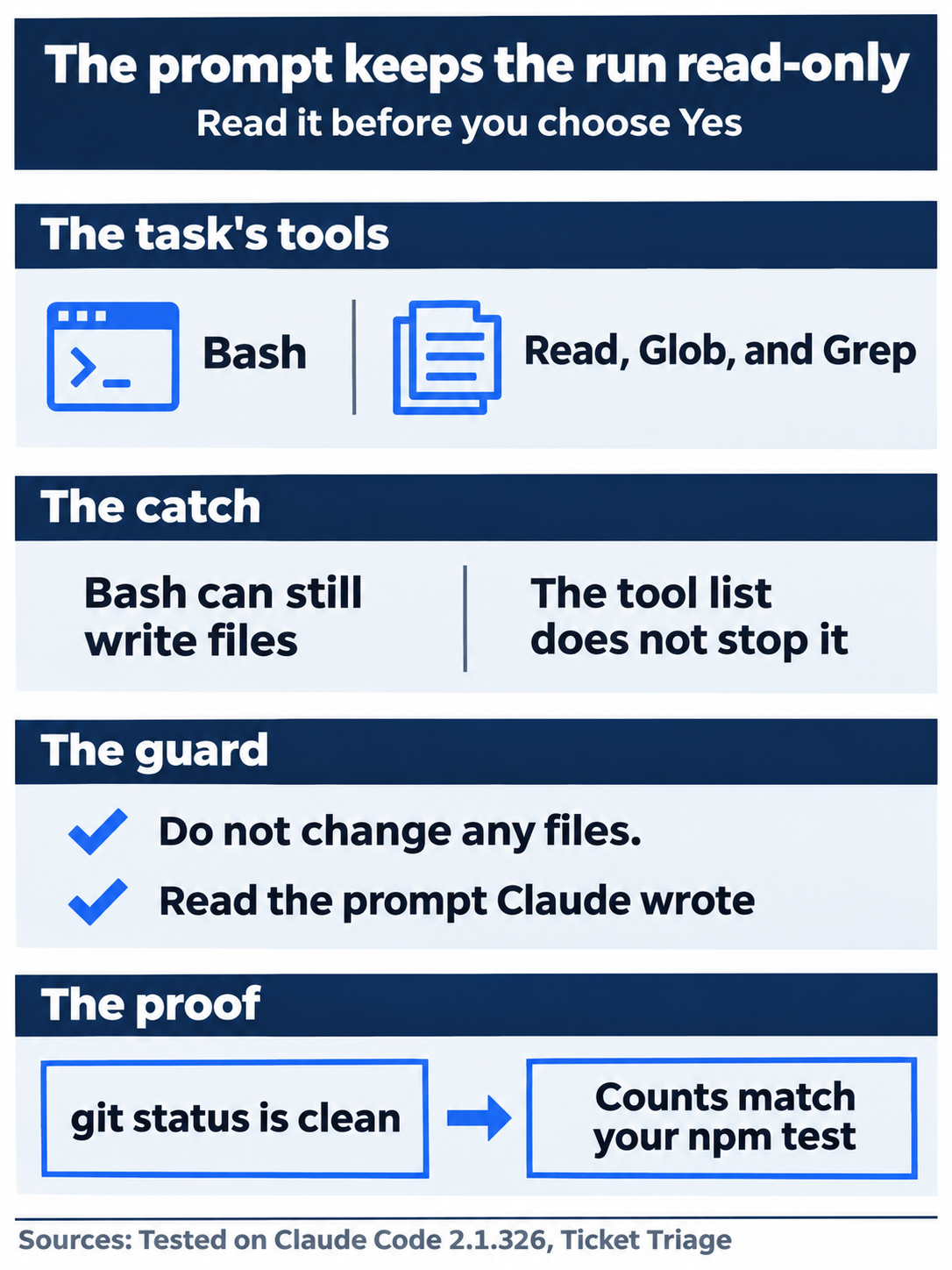
The tool list still includes Bash, so the sentence in the prompt is the only thing that keeps a run from changing files. Read it before you approve the task.
Run it once now
You do not have to wait for tomorrow. Type, with your task's name:
/schedule run ticket-triage daily test report
Claude starts a run. On the Manual run, it said This run is extra; the weekday schedule doesn't change and The run is still going, so I don't have the pass and fail counts yet.
Manual mode: one prompt, Tool use, with Claude wants to run a routine now, under your claude.ai account. and RemoteTrigger(run trig_<id>). Choose 1. Yes. In auto mode, the screen showed Allowed by auto mode and no prompt.
Wait about a minute, then ask:
What were the pass and fail counts from that run?
Claude reads the run's log with the RemoteTrigger tool. The Manual run replied The run passed: 22 tests, 22 passed, 0 failed. The auto run replied All 22 tests passed and none failed. with the line Tests: 22 Pass: 22 Fail: 0. Both cloud runs tested the same branch, which holds the auto chain's state, so both said 22. Claude chooses its own words, but your counts must match your number from this morning.
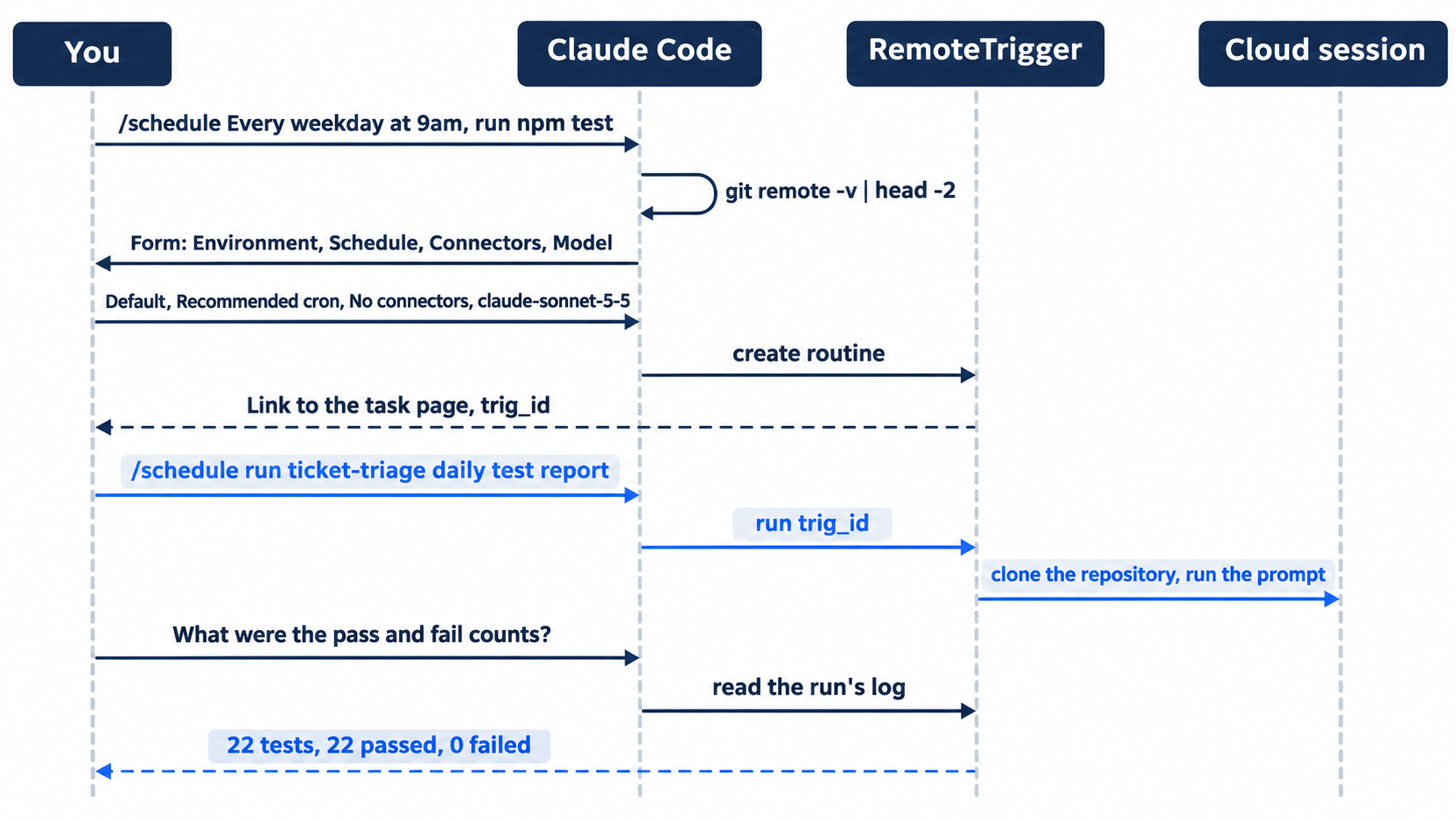
Every step after the form goes through the RemoteTrigger tool, from creating the task to reading the counts back.
Manual mode: no prompts. Reading the log asked nothing.
Delete the task
Left alone, the task runs every weekday and uses your plan. /schedule cannot delete it. On the tested run, /schedule list ended with (I can't delete routines from here). Delete it on its page:
- Open the link from the result. The page shows the task's name, Run now, an Active switch,
Next run tomorrow at 9:00 AMin your local time, and a History list with your run. - Open the menu next to the task's name. It has Rename, Edit, and Delete. Click Delete.
- A dialog,
Delete scheduled task?, asks:Delete "ticket-triage daily test report"? Its past runs will be deleted, and chats made from its runs may be too. This can't be undone.Click Delete.
The page returns to the list of scheduled tasks, and the task is gone. The repository on GitHub stays.
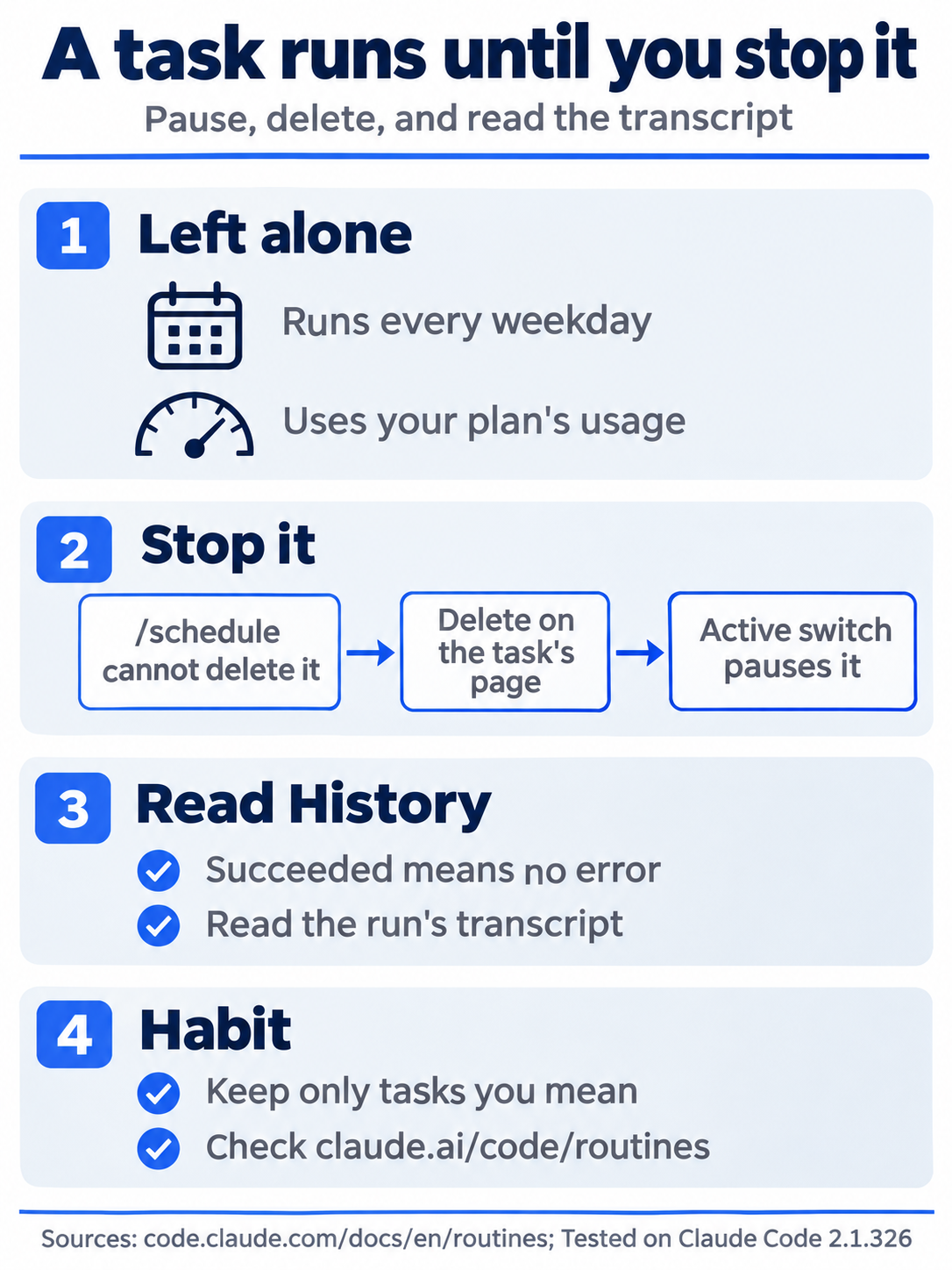
A task that you forget keeps running on your plan. Delete it on its page, or pause it with the Active switch if you want to keep it.
Check the win
In the terminal:
git status
npm test
Git prints nothing to commit, working tree clean. The tests show ℹ fail 0 and the same pass count as this morning, which matches the counts from the cloud run. The task ran in the cloud, so it changed nothing on your computer. There is nothing to commit. Tomorrow starts from this state.
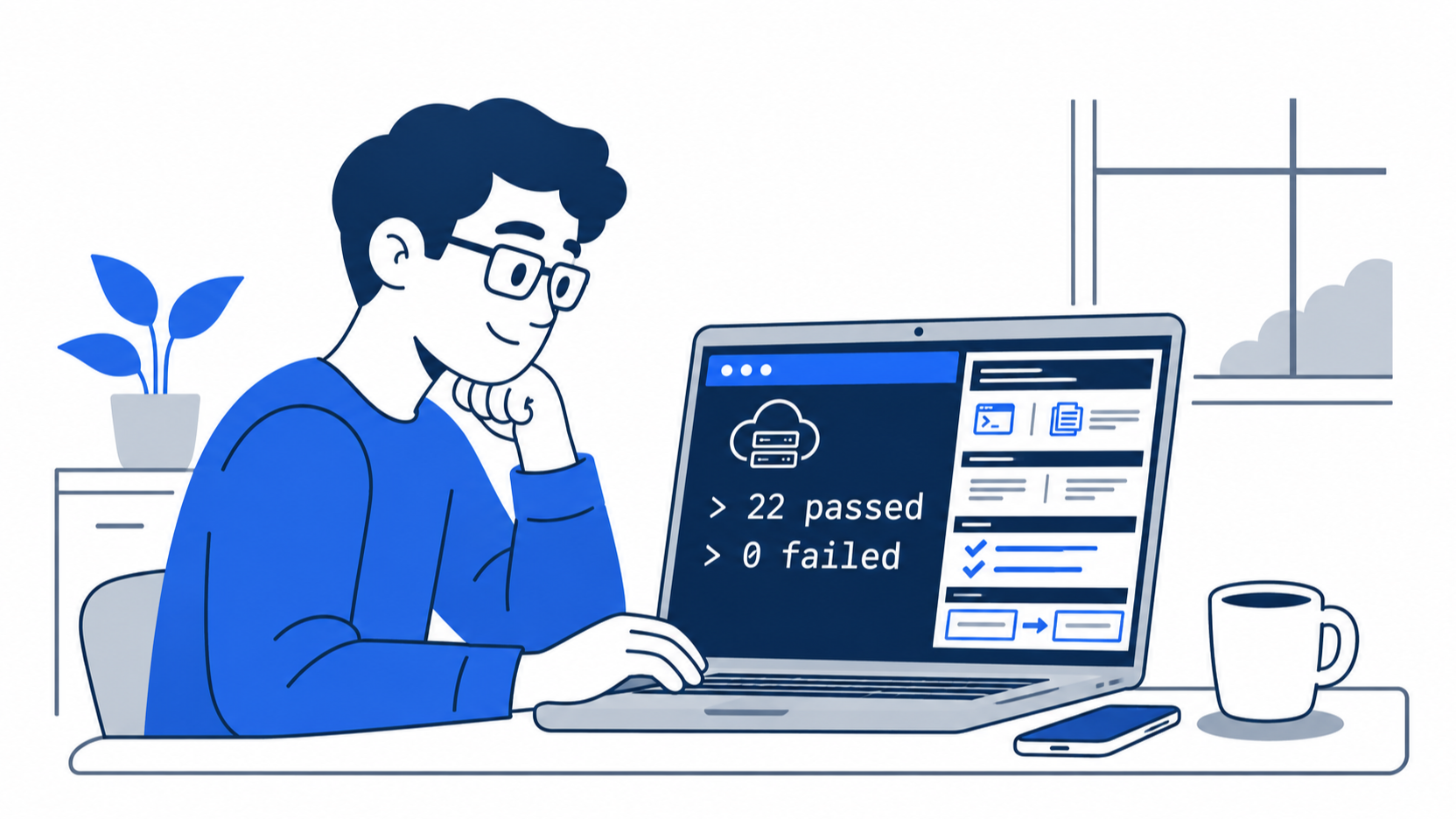
The counts from the cloud match the local tests, and the working tree is still clean.
You created a scheduled task that runs in the cloud, ran it once, read its result from your terminal, and deleted it.
You can stop here. Going deeper explains why this works and where it breaks.
Going deeper
This section is for readers who want to compare the three ways to schedule work, add other triggers, and know what a cloud run can reach, what it costs, and why it can do things that you did not ask for. It assumes that you finished Start here in Parts 1 to 21. Unless a line says that this guide tested it, everything here comes from the docs.
The name: scheduled tasks, formerly routines
The docs renamed routines to scheduled tasks and list the places where the old name stays: some app pages and the New routine button, the web address claude.ai/code/routines, the /routines alias for /schedule, Claude's replies while it sets up a task, the API endpoint and its beta header, and the organization setting Scheduled tasks (Was Routines). The tested session used the tool name RemoteTrigger, and the delete dialog and the list page said "scheduled task".
Day 8 also used the words "scheduled task", for a /loop task inside a session. The docs keep that use too. When the place where a task runs matters, say "cloud scheduled task", "Desktop scheduled task", or "/loop".
Cloud, Desktop, or /loop
The Desktop scheduled tasks page compares the three:
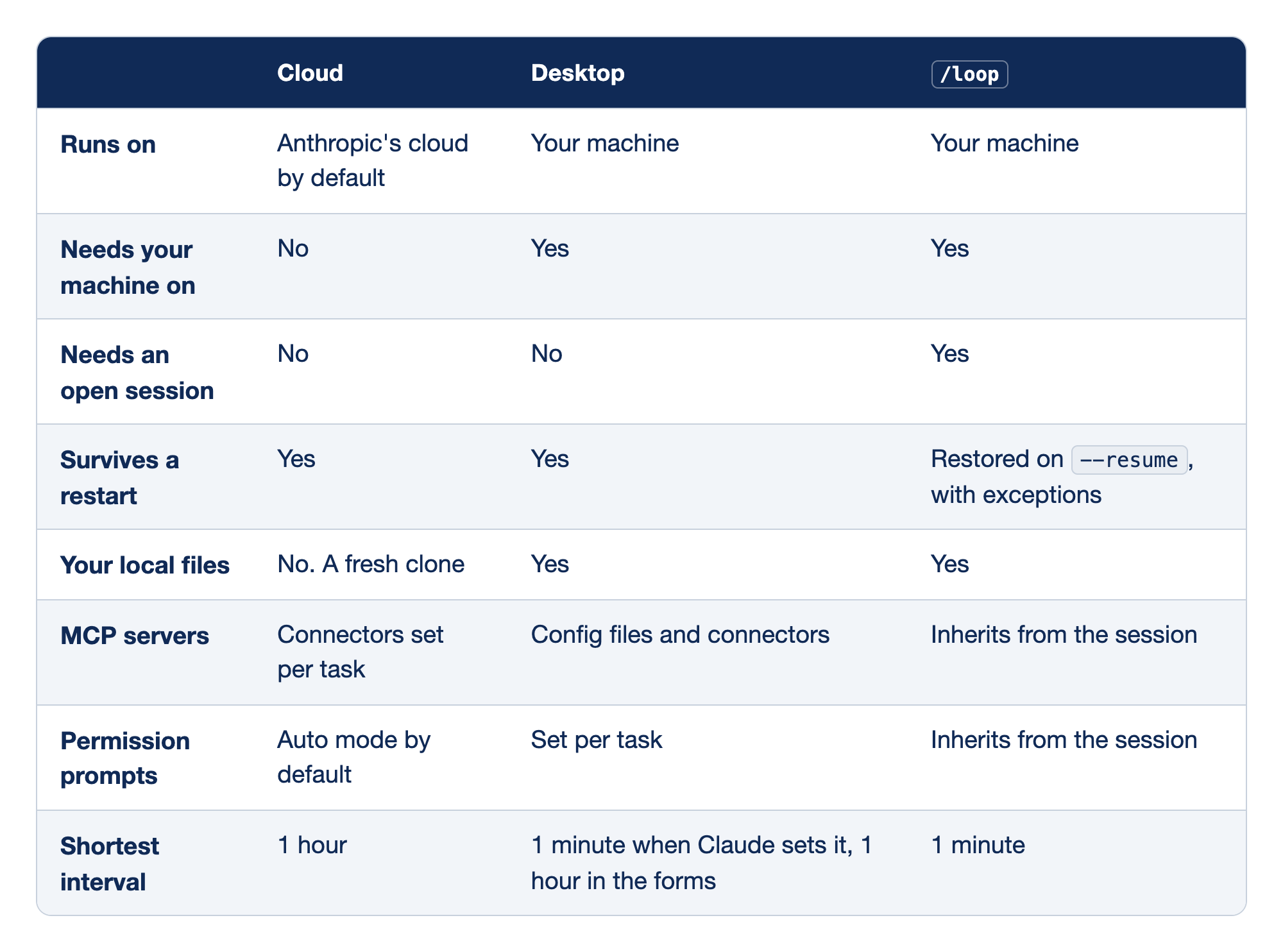
The comparison sets the three ways to schedule work side by side. The first column names a property. The Cloud column holds the answer for a cloud scheduled task, the Desktop column holds it for a Desktop scheduled task, and the /loop column holds it for a /loop task inside a session.
- Runs on: a cloud task runs on Anthropic's cloud by default, while a Desktop task and
/looprun on your machine. - Needs your machine on: a cloud task does not, while a Desktop task and
/loopboth do. - Needs an open session: only
/loopdoes. A cloud task and a Desktop task do not. - Survives a restart: a cloud task and a Desktop task do, and
/loopis restored on--resume, with exceptions. - Your local files: a cloud task gets no local files, only a fresh clone, while a Desktop task and
/loopboth see your files. - MCP servers: a cloud task uses connectors set per task, a Desktop task uses config files and connectors, and
/loopinherits them from the session. - Permission prompts: a cloud task runs in auto mode by default, a Desktop task sets its mode per task, and
/loopinherits it from the session. - Shortest interval: a cloud task can run at most once an hour, a Desktop task once a minute when Claude sets it or once an hour in the forms, and
/looponce a minute.
The docs' rule of thumb: cloud tasks for work that must run without your machine, Desktop tasks for work that needs local files and tools, and /loop for quick polling during a session. One more difference: /loop reads its cron line in your local time zone, as Day 8 said. A cloud cron line with five fields alone is in UTC. The docs say that a cron line that opens with a CRON_TZ= prefix uses that zone instead.
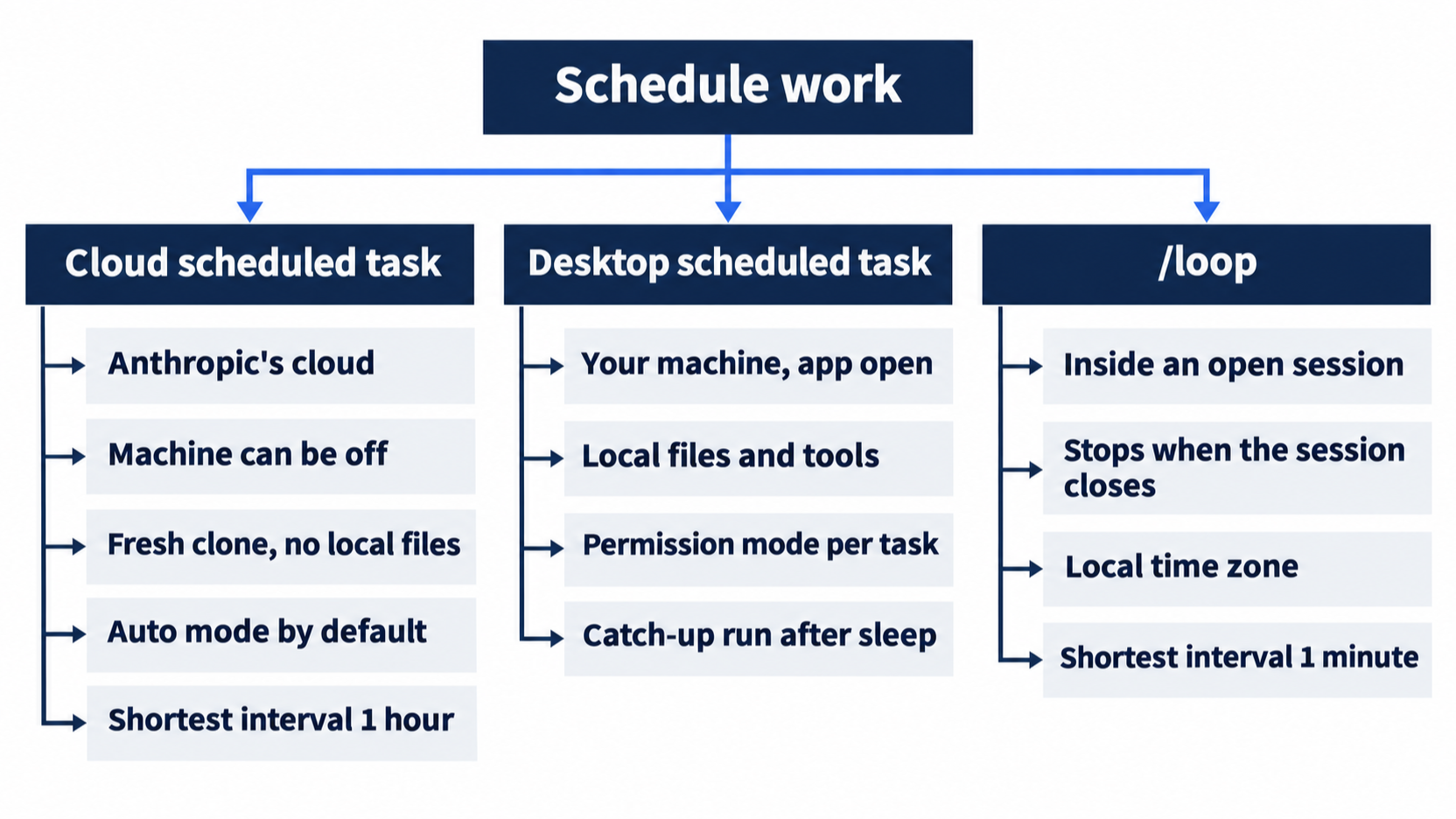
Each branch groups what one kind of task needs and what it can reach.
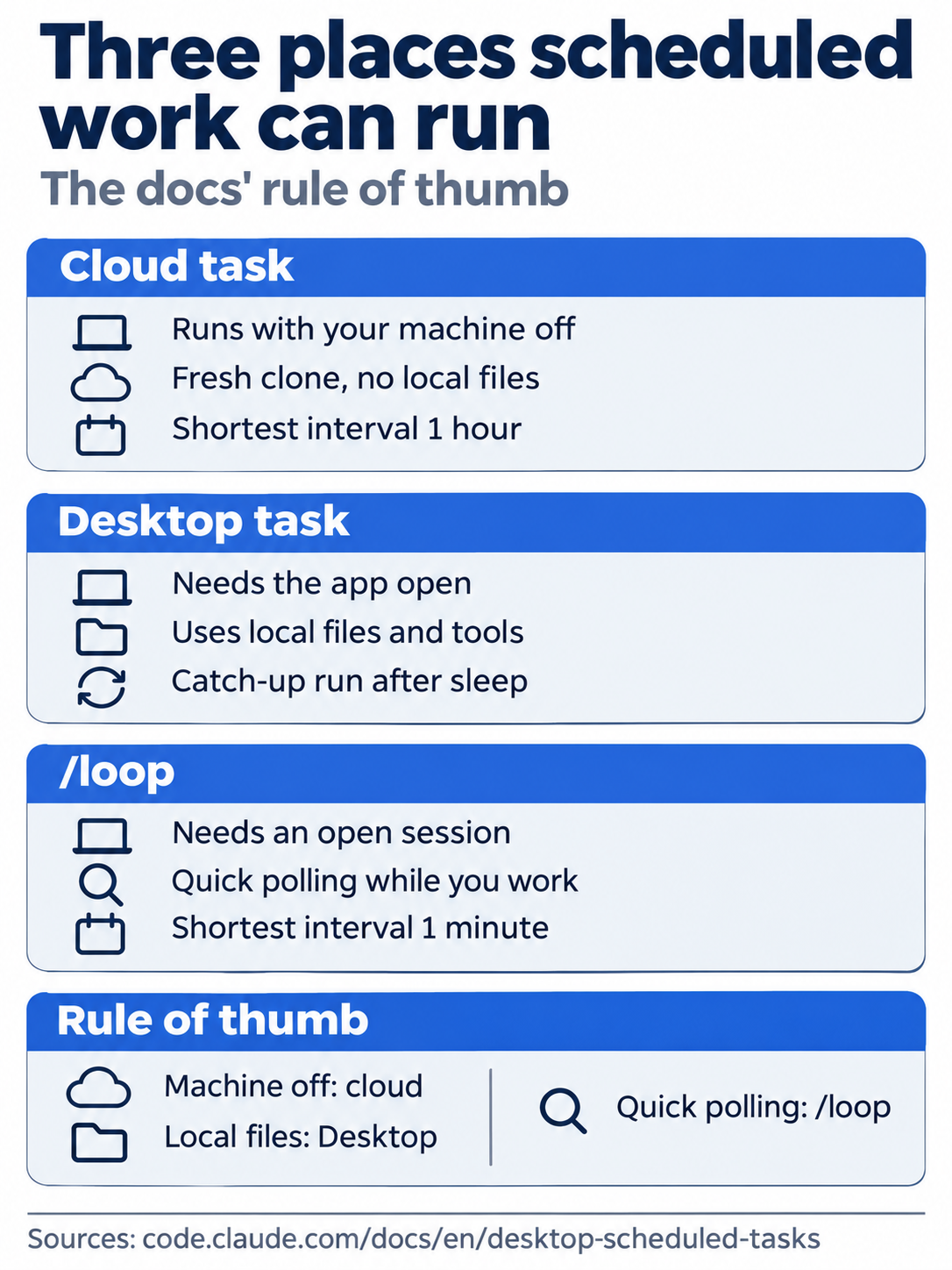
Pick the kind of task by what the work needs: your machine off, your local files, or a quick check while you work.
Desktop scheduled tasks
A Desktop scheduled task runs on your computer, in the Desktop app from Day 15, with your files and tools. This guide did not test one. From the docs:
- It needs Desktop 1.1.5368 or later. In the Code tab, click Scheduled in the sidebar, then New task. Under Advanced settings, turn on Only on this computer and pick a Local folder. A repository, a GitHub event, or an API trigger makes the task a cloud task instead.
- The schedules are Hourly, Daily, Weekdays, and Weekly. After you create the task, its Edit form adds Manual, which runs only on Run now, and Custom, a cron line in your local time.
- It runs only while the app is open and the computer is awake. After a sleep, Desktop starts one catch-up run for the most recent missed time in the last seven days and drops the older ones. A 9am task can run at 11pm, so the docs suggest that the prompt check the time.
- Each task has its own permission mode. Allow rules from
~/.claude/settings.jsonapply too. The docs suggest Run now right after you create a task, to answer its prompts once with "always allow". - By default, a run works in the folder as it is, uncommitted changes included. Select Worktree in the Edit form to give each run its own worktree, as on Day 16.
- The prompt lives on disk in
~/.claude/scheduled-tasks/<task-name>/SKILL.md. Delete archives the task's sessions and leaves that folder, which you delete yourself.
GitHub event and API triggers
A cloud task can start on events instead of, or as well as, a schedule. /schedule creates a task with a schedule trigger. This guide tested no other trigger.
- GitHub events. A task can run when a pull request, a release, or an issue changes. Pull request triggers take filters, such as base branch, labels, or "is draft". The Claude GitHub App must be installed on the repository. The docs say that
/web-setupgrants access for cloning but does not install the app or turn on webhooks. Each event starts its own session, and the docs say that events past the hourly caps are dropped. Add the trigger on the web, under the task's Edit menu, or ask/scheduleto add one. - API. On the web, the task's Edit dialog adds an API trigger with a Fire URL and a Token that is shown once. A POST to the URL with the token starts a run and returns the session's address. The request can carry a
textfield, such as an alert. The docs say that the run receives it wrapped in a<routine-fire-payload>block and marked as untrusted. The task's own prompt must therefore say to act on it. You cannot add an API trigger from the CLI.
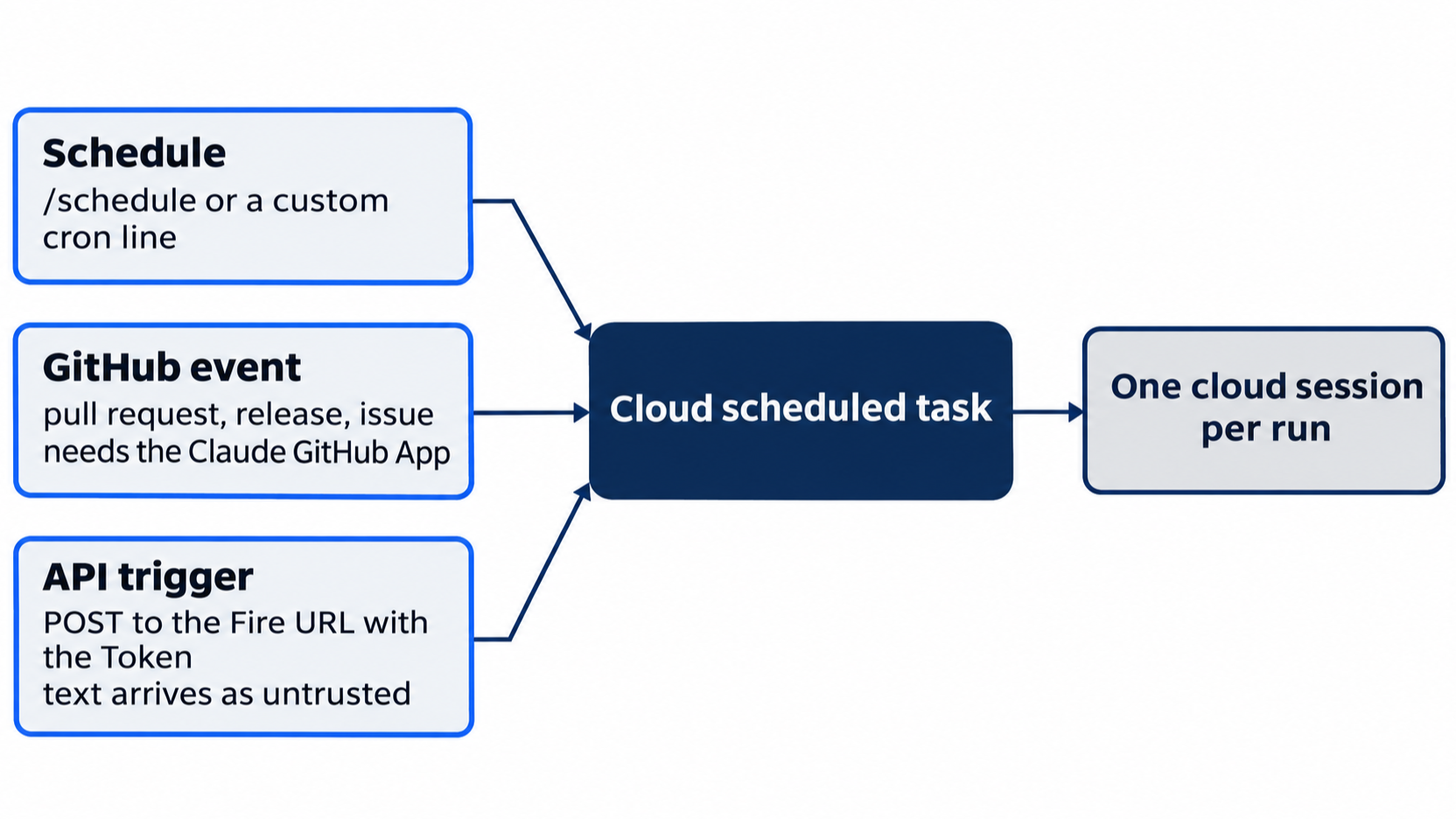
Any trigger starts the same task, and each run gets its own cloud session.
Other ways to set up GitHub
This guide tested neither path. From the docs:
- The GitHub website. Create an empty private repository on github.com. Its page then shows the commands to push an existing repository from the command line. Run them in
~/code/ticket-triage. A run still needs/web-setup, or the app below, before it can clone the repository. - The Claude GitHub App. The Claude GitHub App is an app that you install on a GitHub repository to let Claude reach it. GitHub authentication options lists it and
/web-setupas the two ways to grant access. GitHub event triggers, above, need the app, and/web-setupis not enough for them. On Team and Enterprise plans, the docs say that an Owner of your Claude organization turns on each method first.
Cloud environments
A cloud environment sets three things for each run: network access, environment variables, and a setup script whose result is cached. Default uses Limited network access with Allow package managers checked. A request to a host outside its list fails with an error such as 403 or ENOTFOUND. The docs warn that environment variables are visible to anyone who uses the environment, so store API keys as network secrets. Connectors reach their services through Anthropic's servers and need no network change.
The tested repository and the default branch
The test used a private repository that several guides share, SpillwaveSolutions/ticket-triage-day-by-day. Its default branch, main, belongs to another guide. This guide added the branch claude-code-daily, which holds this guide's real Day 20 end state, with the last commit 5ea70ea Rate return tickets as refund. The test clone came from that branch, so it had a GitHub link, as yours does. On the tested run, git remote -v printed:
origin  https://github.com/SpillwaveSolutions/ticket-triage-day-by-day.git (fetch)
origin  https://github.com/SpillwaveSolutions/ticket-triage-day-by-day.git (push)
For this reason, the tested prompt said check out the claude-code-daily branch of this repository, whereas yours names your own branch.
The docs say that each run clones the repository again and starts on its default branch, unless the prompt says otherwise. A run also uses the skills committed to the cloned repository. Both tested runs ended their answers with Ticket Triage: refund first; tests checked., which the prompt did not ask for. The auto session said that the line may come from a skill on the default branch, because the run's starting commit was Add Ticket Triage readiness skill, from the shared repository's main. A plausible path: the run starts on main, its CLAUDE.md and skills load, and only then does the prompt check out claude-code-daily. This guide did not test that cause. In your own repository, the default branch is the one that you work on, so a run follows your own CLAUDE.md.
When Claude pushes from a run, it uses a branch that starts with claude/, unless the prompt names another branch. To limit which branches a run can push to, the docs point to branch protection rules on GitHub.
Permission prompts in a run
The docs say that a run starts in auto mode when it can. The run stops and waits when an action matches an ask rule or when auto mode blocks actions too many times. You answer from the run's page. You do not pick a permission mode for a cloud task. The tested task listed four tools: Bash, Read, Glob, and Grep. Claude's own reply said that the prompt, not the tool list, kept the run from writing files.
Usage and limits
Runs use your plan's usage, like a session that you type into. The docs add hourly limits, with no overage:
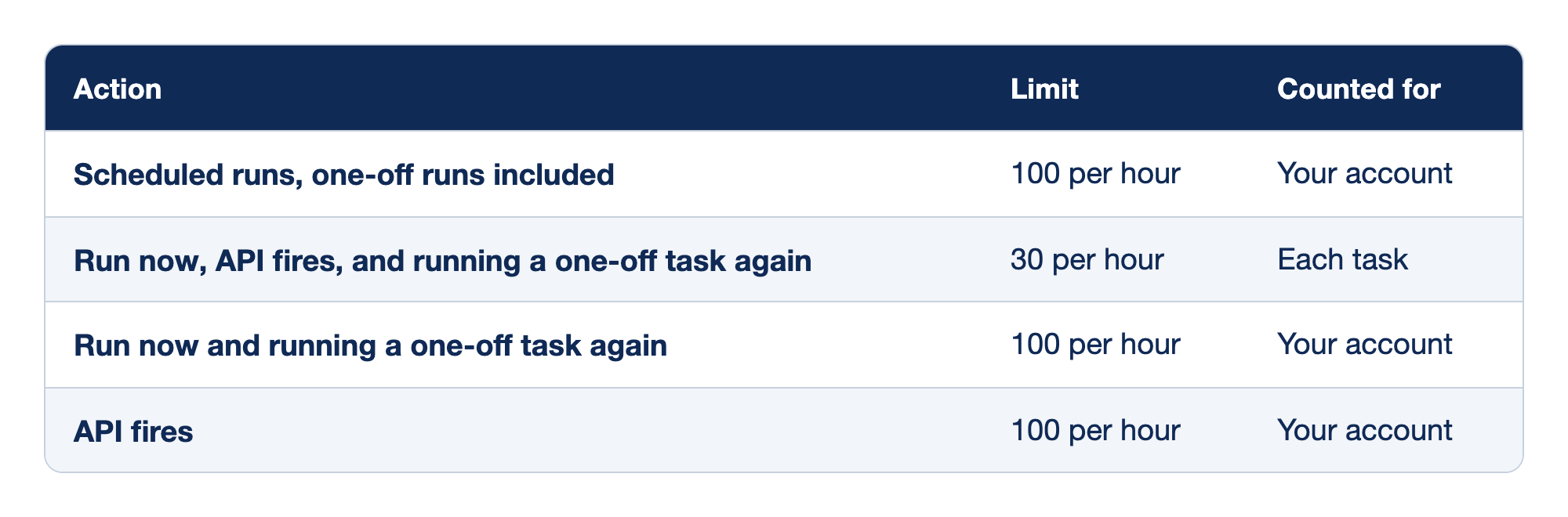
The limits list the hourly caps on cloud runs. The Action column names what starts a run, the Limit column gives the hourly cap, and the Counted for column says whether the cap applies to your whole account or to each task.
- Scheduled runs, one-off runs included: up to 100 per hour, counted for your account.
- Run now, API fires, and running a one-off task again: up to 30 per hour, counted for each task.
- Run now and running a one-off task again: up to 100 per hour, counted for your account.
- API fires: up to 100 per hour, counted for your account.
When a run reaches your plan's usage limit, more runs are rejected until the window resets, unless your account has usage credits turned on. If your GitHub connection expires, the task skips runs for up to 72 hours and turns itself off after that. Under History, a run that Succeeded only ended without an error. The docs say to read the run's transcript to see whether it did the work.
Change a task from the CLI
/schedule list shows your tasks, /schedule update changes one, and /schedule run starts one now. /schedule update also sets a custom cron line, and the docs say that a line that runs more often than once an hour is rejected. You can ask about a task's runs, as in /schedule why did my nightly review do nothing this morning?, and Claude reads the run's log. A one-off task takes a time in plain words, such as /schedule tomorrow at 9am, summarize yesterday's merged PRs, and turns itself off after it runs. Since v2.1.317, /schedule warns when a new cloud task gets connectors that you did not ask for. On the web, the menu next to the task's name has Edit for the same changes. This guide tested /schedule list and /schedule run.
Pause a task
The task's page has an Active switch at the top. The docs say that when you turn it off, the task keeps its settings but does not run until you turn it back on. This guide saw the switch but did not test it. Pause a task that you want to keep but not run, and delete one that you no longer need.
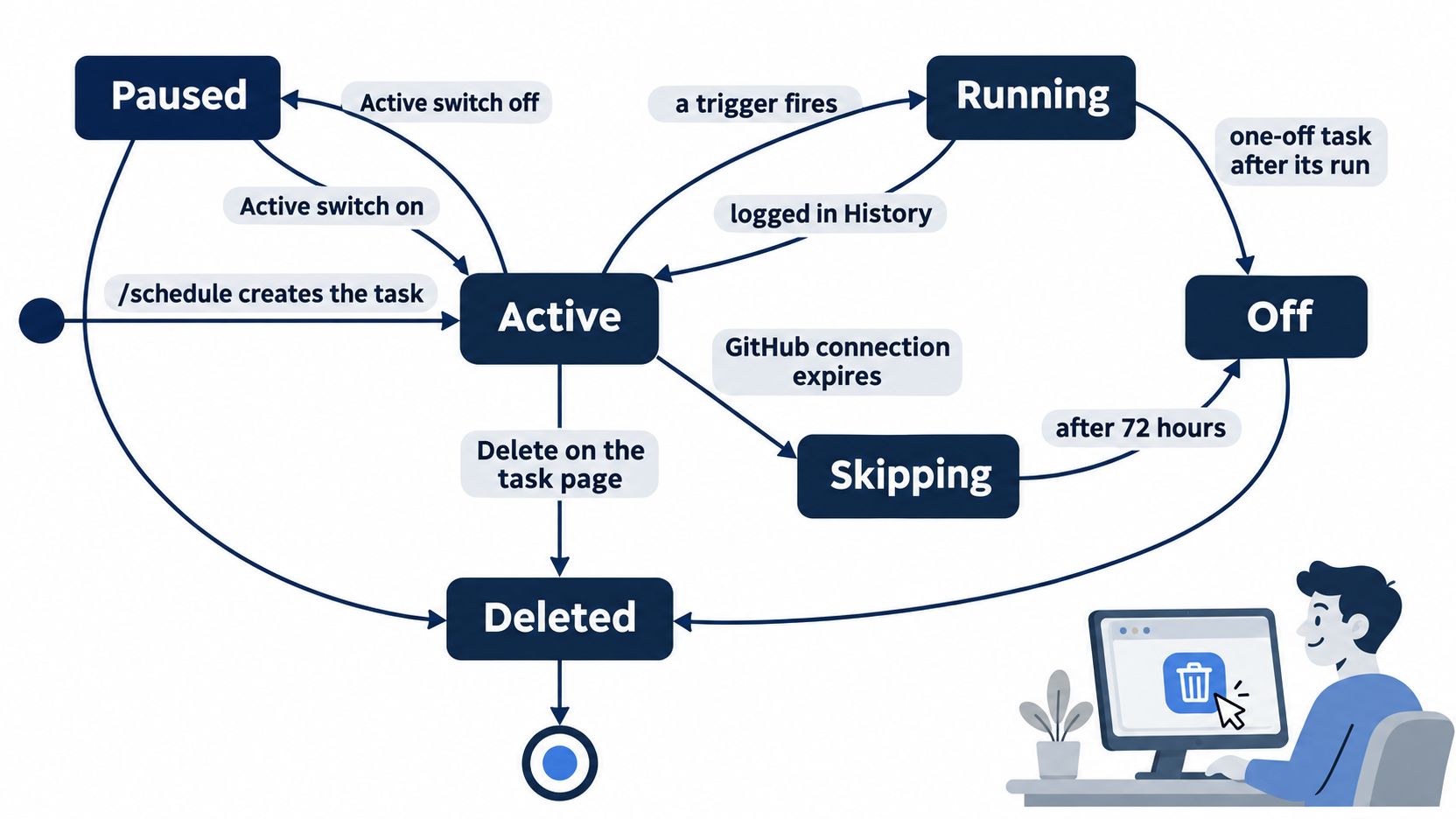
Only a delete on the task's page ends a task for good. A paused or turned-off task still sits in your list.
Artifacts from a run
A run can publish an artifact, a web page on claude.ai. The docs say that in auto mode, a run publishes one without asking once auto mode allows it, and that a new artifact is visible only to you until you share it. Since v2.1.292, scheduled and Run now runs publish a new private artifact without asking. An artifact that asks for connectors or other access still asks first. For a task whose job is to keep a page current, the docs suggest that you give it an artifact that you already published.
Corrections to the first edition
"Claude Code Away from the Terminal", Part 5, was written before these changes. Checked against the docs on November 17, 2026:
- Routines are now called scheduled tasks. The web button reads New task, except in accounts that still show the old name.
- The first edition said that a run has no approval prompts. Today a run starts in auto mode and can stop at a permission prompt.
- The first edition described a daily run cap that depends on your plan. Today's limits are hourly, and one-off runs count toward them.
- The plans now include Ultra.
- The first edition named an Allow unrestricted branch pushes switch. Today's docs do not mention it, and point to GitHub branch protection instead.
- GitHub triggers now include issue events.
- The
textsent to an API trigger is no longer added to the prompt as plain context. It arrives marked as untrusted. - In the Desktop app, a cloud task is now Cloud, not Remote, and the Desktop forms reject intervals shorter than one hour.
Go further: Claude Code Routines: Running Your Agent on Anthropic's Clock, Not Yours adds five example routines, a comparison with GitHub Actions, and a list of pitfalls. Read its permission, cap, and branch-push lines with the corrections above, because today's docs say that a run starts in auto mode and can stop to ask.
Do this today
Everyone
- Put Ticket Triage on GitHub and run
/web-setup. Run/schedule Every weekday at 9am, check out the main branch of this repository, run npm test, and reply with the pass and fail counts. Do not change any files., with your own branch name, and answer the four questions. Run the task once with/schedule runand its name, askWhat were the pass and fail counts from that run?, and delete the task on its page. Check the win: the counts from the cloud run match yournpm test,git statusprintsnothing to commit, working tree clean, and the task is gone from the list at claude.ai/code/routines. - Habit: before you approve a cloud task, read the prompt that Claude wrote for it and look for the line that says what it must not change. Delete each task that you no longer need. Check: the list at claude.ai/code/routines shows only the tasks that you mean to keep.
If you read Going deeper
- List your tasks from the CLI. Run
/schedule list. Check: the list does not show today's task. If it lists a task that you no longer need, delete it on its page. This guide tested/schedule list. It changes nothing on your computer. Check thatgit status --shortprints nothing. - Make a one-off task. Run
/schedule tomorrow at 9am, check out the main branch of this repository, run npm test, and reply with the pass and fail counts. Do not change any files.Check: Claude confirms a date and time before it saves, and the task appears at claude.ai/code/routines. This guide did not run this step. Keep the task for the next exercise. - Look at the Default environment's network setting. On the web, open the one-off task's Edit dialog, then Advanced settings > General > Cloud environment, and open the settings of Default. Check: Network access reads Limited, and Allow package managers is checked. This guide did not run this step. Reset: close the dialogs without Save changes, then delete the one-off task on its page before it runs, and check that the list no longer shows it.
A schedule you can see and delete
A cloud scheduled task moves a recurring check off your computer. The run clones your repository, follows the prompt you approved, and ends, whether your laptop is open or not.
Keep two habits with it. Read the prompt that Claude wrote, because that sentence, not the tool list, keeps the run from changing files. Delete each task that you no longer need, because a task that you forget keeps running on your plan.
This is Part 21 of "Claude Code, Day-to-Day (second edition)," a day-by-day guide to Claude Code in which each day takes 20 to 40 minutes. Part 21 is Day 21. All 28 days are out now.