
The Link Failed, the Session Didn't: Where OpenCode Actually Runs
Your OpenCode session never lived in the terminal window; a server owns it, every surface is a client of some server, and the questions that matter are which server a client talks to and who else can reach it.
The OpenCode server owns your sessions, not the terminal window. Learn which server each client talks to, how to reach it from another device, and how not to hand it to the internet by accident.
You scanned a QR code on the way to standup, the page would not load twice in a row, and you assumed the background review died with the link. It did not; the session lived on a server the whole time, and the link was the only thing that failed.
In this article: Day 15 of a 17-day guide. Start here runs a foreground
opencode servewith a password you chose, shows a client without the password refused, and continues one Ticket Triage session from a second terminal, which proves the session lives on the server and not in the window. Going deeper covers the OpenCode server model behind every surface: the shared background server that the TUI,opencode mini, the web UI, and scripts use, pairing a browser withopencode pair, three ways to reach a session from another device and who else can reach it after each, Desktop and ACP editors with servers of their own, the service settings, and the client libraries.
Part 14 ended with a commit: the guard plugin in .opencode/plugins/guard/index.ts, and a rule that package.json, opencode.jsonc, and everything under .opencode/ change only by hand. Today shows where your sessions live, and who can reach them.
Start here
By the end of today you can reach one OpenCode server from several terminals: you run the server on purpose, protect it with a password you chose, and continue one session from a second terminal, which proves that the session lives on the server and not in the window you typed in.
Starting fresh or fell behind? Run git switch -C main opencode/day-14. This replaces your main with the end of Day 14; to keep your own work, run git branch my-backup first.
A session lives on a server
Part 1 described OpenCode as a server with clients. By default, the first opencode command starts one shared background server for your user account, and every later command connects to it. A client is any program that talks to a server: the TUI, opencode run, a browser, or an editor. The server, not the client, holds your sessions, so any client that can reach the server can open any session on it. Closing a terminal does not end a session, because the terminal was only a client.
The shared server runs out of sight, which makes that hard to see. Today you start a server of your own, in a terminal where you can watch it, and connect three clients to it. Three pieces are new.
opencode serveruns a server in the foreground of one terminal. It keeps running until you pressCtrl+Cin that terminal.OPENCODE_PASSWORDis the environment variable that holds the server password. On the server it sets the password, and on a client it supplies it. "The same variable gives the password toopencode --server." Without it,servemakes up a new random password every time it starts.--server <url>tells a client to use the server at that address instead of the shared one.
Start a server with your own password
Open a terminal, called terminal 1 below, and start the server from the project folder. Replace a-long-secret with a long password of your own, and use the same value in every command that follows.
cd ~/code/ticket-triage
OPENCODE_PASSWORD="a-long-secret" opencode serve --port 4096
The server prints one line and keeps running.
server listening on http://127.0.0.1:4096
127.0.0.1 means the server listens only on this machine, so no other device can reach it. --port 4096 fixes the port, so the address is the same every time. Leave terminal 1 open.
Check that the password is required
Open terminal 2. First ask the server who it is, the way any other HTTP program would. curl -u sends a user name and password with the request, and for an OpenCode server "the username is always opencode."
curl -u opencode:a-long-secret http://127.0.0.1:4096/api/info
The answer is one line of JSON that starts with the version. Your process ID and host name differ.
{"version":"2.3.0","pid":...,"hostname":"...","urls":["http://127.0.0.1:4096"],...}
Now send a prompt from an OpenCode client that does not have the password. The model is google/gemini-4-hydrogen (tested on OpenCode 2.3.0 on November 16, 2026).
cd ~/code/ticket-triage
opencode run --server http://127.0.0.1:4096 -m google/gemini-4-hydrogen "Reply OK."
The client stops before any model call.
Error: Server at http://127.0.0.1:4096 requires a password; set OPENCODE_PASSWORD
One session, two clients
Still in terminal 2, set the password for this terminal and start a read-only session on your server.
export OPENCODE_PASSWORD="a-long-secret"
opencode run --server http://127.0.0.1:4096 -m google/gemini-4-hydrogen "Read src/classify.js and list the categories classify() can return. Do not edit any file."
You should see one → Read src/classify.js line, then the three categories: refund, shipping, and other. The answer printed in terminal 2, but the session it belongs to is stored on the server in terminal 1.
Open terminal 3. It is a new client, with no memory of what terminal 2 did. List the sessions on the server, then continue the most recent one. --continue sends the prompt into the most recent session instead of starting a new one, and --format json prints the list as JSON. --max-count 5 keeps only the five newest sessions.
cd ~/code/ticket-triage
export OPENCODE_PASSWORD="a-long-secret"
opencode session list --server http://127.0.0.1:4096 --max-count 5 --format json
opencode run --server http://127.0.0.1:4096 --continue -m google/gemini-4-hydrogen "Which file did you read for your last answer? Answer with the path only."
The list can also hold older sessions from this project, so find the entry whose title describes the prompt from terminal 2; the server writes the title from that first prompt. Check two more of its fields: an id that starts with ses_, and a directory that ends in ticket-triage. The second command answers with one line.
src/classify.js
Terminal 3 never read that file. It knew the answer because it continued the session that terminal 2 started, and that session lives on the server.
The same rules hold for the shared server
Everything you just did also holds for the shared background server that your daily commands use. One opencode run can continue a session that another started, as the --continue experiment in Part 6 showed, because both commands are clients of the same server. The difference between a server and a risk is reach. Your server in terminal 1 listened on 127.0.0.1, so only this machine could connect, and the password stopped every client that did not know it. Keep both of those true by default: a server listens on 127.0.0.1, and it gets a long password before any other device can reach it. A server runs shell commands and edits files with your user's authority, so once another device can reach it, the password is the only thing between that device and your files.
Stop the server and check the tree
Go back to terminal 1 and press Ctrl+C to stop the server. In terminals 2 and 3, clear the password, so later commands go to the shared server as usual, then check the tree.
unset OPENCODE_PASSWORD
git status --short
git status --short prints nothing, because both prompts were read-only. Today's win is two results: the Error: ... requires a password line for a client without the password, and src/classify.js from a terminal that never read the file.
You can stop here. Going deeper explains why this works and where it breaks.
Going deeper
This section is for readers who want every surface OpenCode offers, the shared server behind them, pairing a browser or a phone, editors through ACP, the service settings, and the client libraries. It assumes you finished Start here in this part and in the parts before it.
The phone that could not load the page
At 9:40 you start a read-only review in Ticket Triage, a small Node.js service that sorts support tickets into refund, shipping, or other. The build agent hands the job to a reviewer subagent that runs in the background, and the parent says a report will arrive when the child goes idle. Standup is at 9:45. You run opencode pair in a second terminal, scan the QR code with your phone, and walk to the meeting room.
The page does not load. Ten minutes later it fails again. This is a scenario, not a recorded run, but both failures come straight from the docs. The printed link was http://127.0.0.1:49374/auth/connect/..., and 127.0.0.1 on your phone is your phone. A phone that could reach your laptop would still have failed the second time, because pairing links "work once and expire in 5 minutes."
Nothing about the review was lost. The session never lived in the terminal or in the link; it lives on the OpenCode server, and the terminal was one client of it. Back at your desk, a browser and opencode mini both show the same history. This article explains every surface as a client of a server, then the server itself: how to find it, how to reach it from somewhere else, and how to keep it off the internet.
The scene is the moment the panic ends: back at the desk, the developer finds the review session intact in a browser tab, because it ran on the server the whole time and only the phone link failed.
Every surface is a client of a server
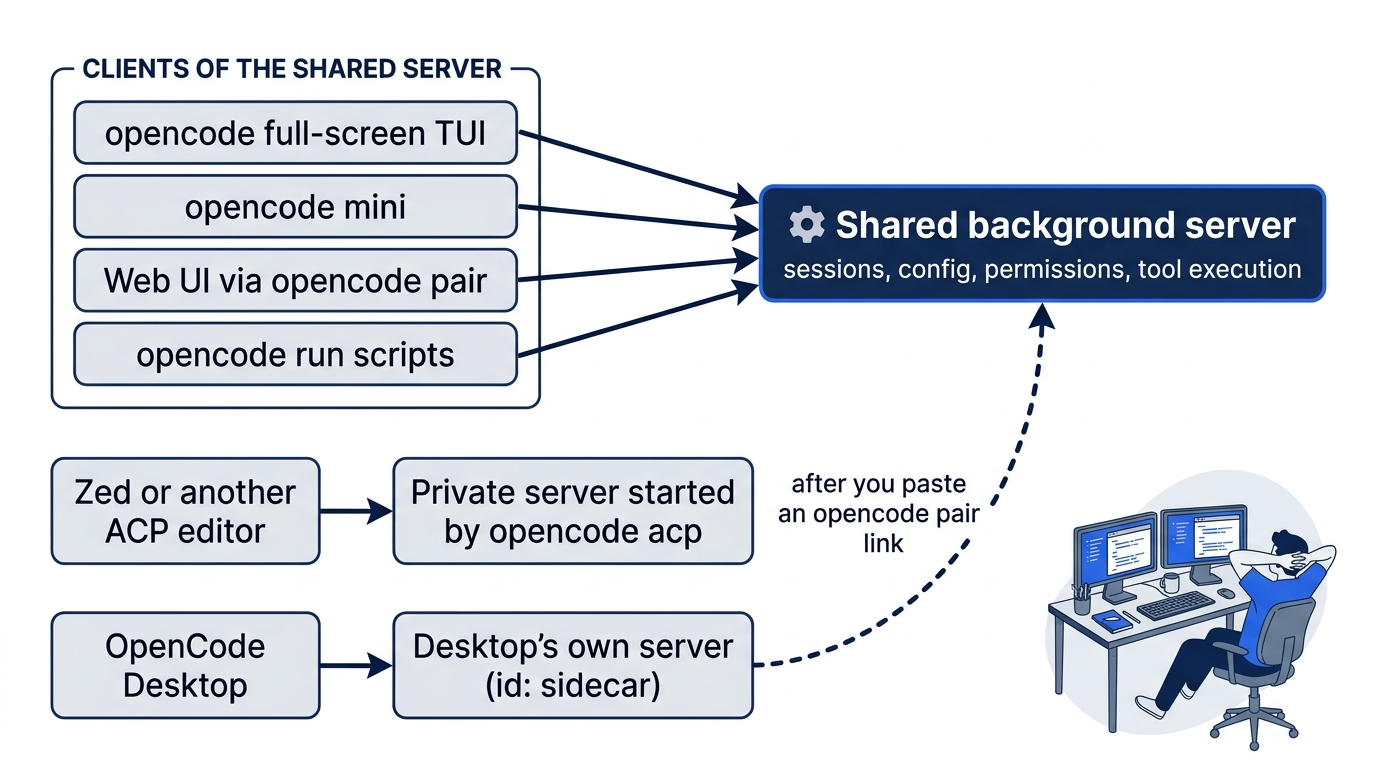
The CLI docs put the architecture in two sentences: "By default, OpenCode discovers or starts one shared background server for your user account. Every local OpenCode client connects to that server, which owns sessions, configuration, integrations, permissions, and tool execution." The full TUI, opencode mini, the web UI, and scripts share that one server. Two surfaces do not. opencode acp starts a private server for the editor, and OpenCode Desktop runs its own background server, which the docs give the ID "sidecar".
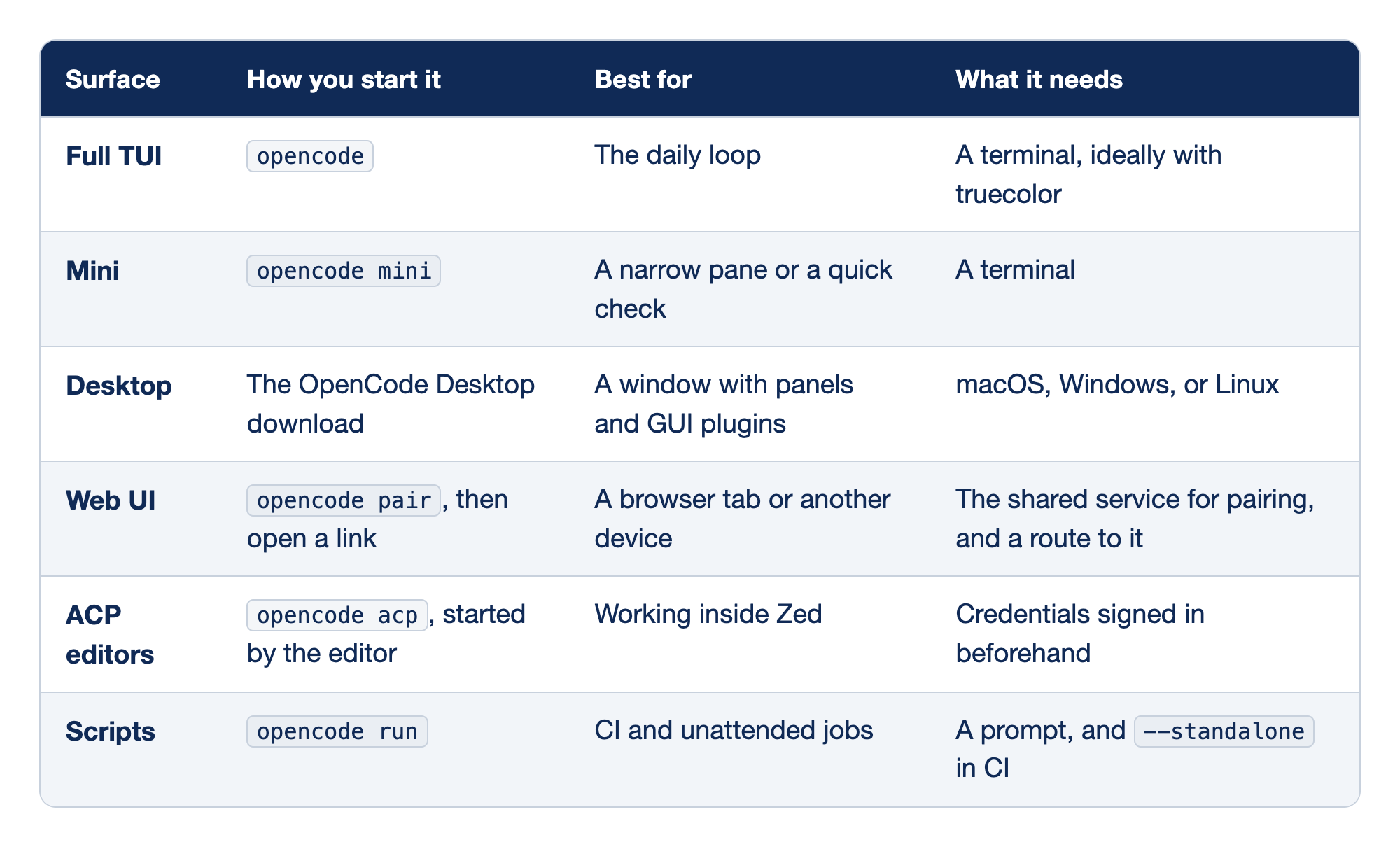
The six OpenCode surfaces are entry points, not a ranking. The "How you start it" column gives the command or download, "Best for" names the job each one suits, and "What it needs" names the thing that breaks the surface when it is missing.
- Full TUI starts with
opencode, or with a directory argument to open a project without acd. It suits the daily loop and wants a terminal with truecolor, such as Ghostty, WezTerm, Alacritty, or Kitty. - Mini starts with
opencode miniand gives the same server and sessions a minimal interface. It needs only a terminal, which makes it the lightest way to resume a session. - Desktop is a native download for macOS, Windows, and Linux. It is where GUI plugins run, and it talks to its own server first.
- Web UI comes from
opencode pair, which prints a sign-in link. Pairing needs the shared service, and the link helps only if the device that opens it can reach the server. - ACP editors start
opencode acpthemselves and talk to it over stdin and stdout. It uses the credentials OpenCode already has, so you sign in from a terminal first. - Scripts use
opencode runto send one message and print the reply. In CI you add--standalone, so the job does not depend on a background service.
One command is missing on purpose. The author's 2.3.0 test lists opencode web among the commands that are not present. Blog posts written against V1 still show it. In V2 you use opencode pair for the shared service, or opencode serve for a foreground server.
Find the server and the session
Before you open a second client, confirm which server the first one used.
opencode service status
On macOS, Linux, and WSL the docs show this output.
http://127.0.0.1:49374
The server listens on 127.0.0.1, so only programs on this machine reach it. Native Windows uses port 28894 instead, because "Windows reserves ports from 49152 up," as the web page explains. Read the real port from opencode service status rather than hard-coding one in a script or an SSH command. A health check through the same discovery flow confirms the API answers, with one caveat: opencode api "may start the background service when no compatible healthy service is available."
opencode api get /api/info
Sessions live on the server side, in its database, not in any client. List them from the shell, and copy the ID of the morning's session, the parent that launched the review, in the ses_... form. In my 2.3.0 test, each entry held six fields: id, title, updated, created, projectId, and directory.
opencode session list --max-count 5 --format json
To read a session's details without opening a client at all, export it. The author's 2.3.0 test found that opencode session export <id> "prints the session as JSON with info (agent, model, cost, tokens, outcome, parentID) and messages." The parentID field tells a child session, such as the reviewer's, apart from the parent that started it.
opencode session export ses_4f2a1c > /tmp/review-session.json
opencode mini for a narrow pane
The TUI takes the whole terminal. When you want the session in a pane beside your editor, opencode mini gives you the same session with less chrome. Its help text on 2.3.0 reads "Start the minimal interactive interface," and its flags match the top-level ones.
opencode mini --continue
opencode mini --session ses_4f2a1c
opencode mini --model anthropic/claude-sonnet-5-5 --prompt "Summarize this repository"
The first line resumes the last session, the second attaches to the morning's review by ID, and the third starts a new session with its own model. The 2.3.0 help also lists --replay, which restores "session history on resume and resize," with --no-replay and a --replay-limit that defaults to 200. Lower the limit when a long session redraws slowly in a small terminal. The help lists --fork as well, but neither the help nor the docs describe it for mini, so check opencode mini --help before you script it.
The web UI and opencode pair
"OpenCode ships with a web UI that is served from the same server that powers the TUI." By default that is the shared server, so there is nothing to install. A foreground opencode serve serves the web UI too, since it "Starts the API and web server," but pairing is the part that needs the shared service.
opencode pair
The command prints one-time links and a QR code of the first one.
  Open a link to connect. Links work once and expire in 5 minutes.

  http://127.0.0.1:49374/auth/connect/...

  █▀▀▀▀▀█ ...
"Opening a link in a browser signs it in with a session cookie and loads the web UI." The link is spent the moment it works, and the browser stays signed in through its cookie. "Sessions last 30 days," so you pair a browser about once a month.
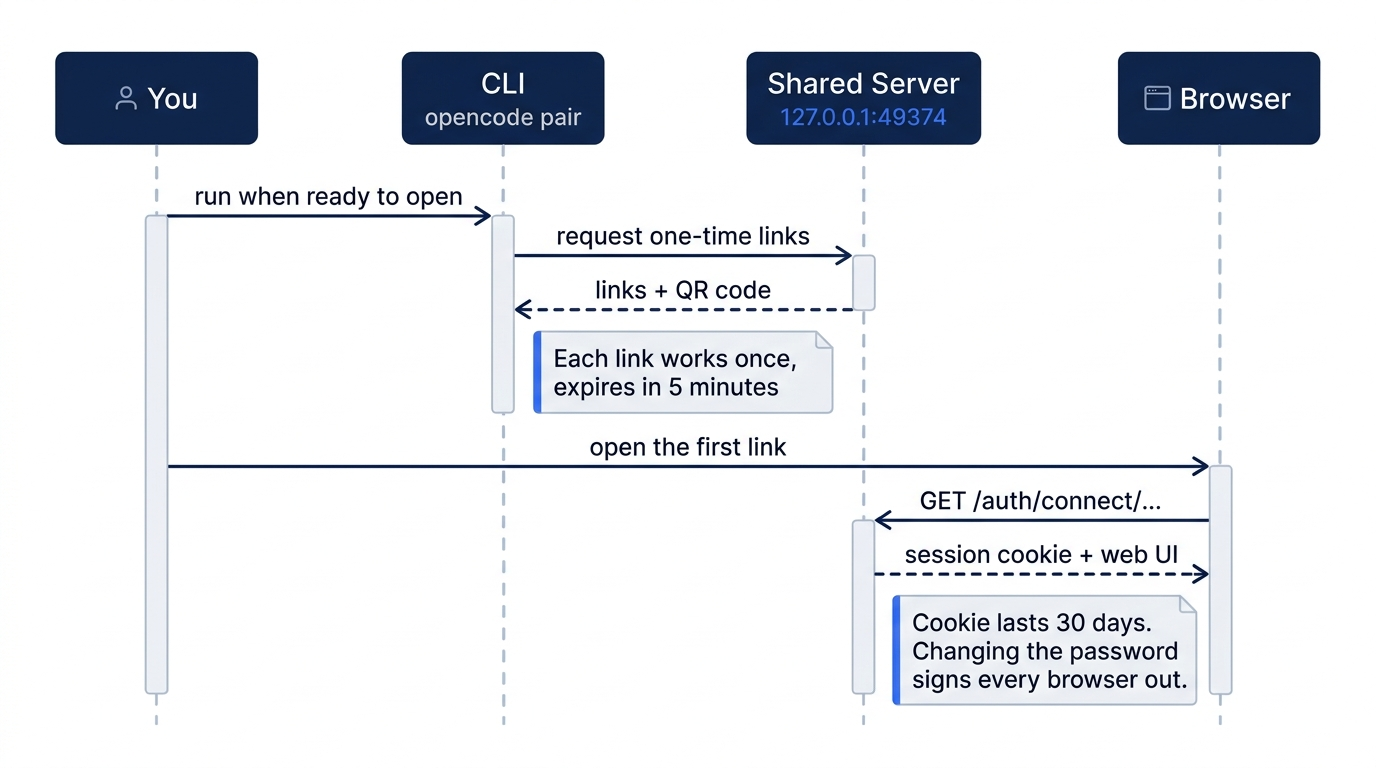
Each pairing rule from the docs explains one failure from the opening.
- A link works once, for five minutes. Run
opencode pairwhen you are ready to open the link, not before you walk to a meeting. - A link points at the server's own address. On a default install that is
127.0.0.1, which only this machine can reach. - Pairing needs the shared service. With the service disabled, "Pairing requires the shared service and is unavailable while it is disabled."
- Changing the password is the revoke button. "Changing the server password signs every session out."
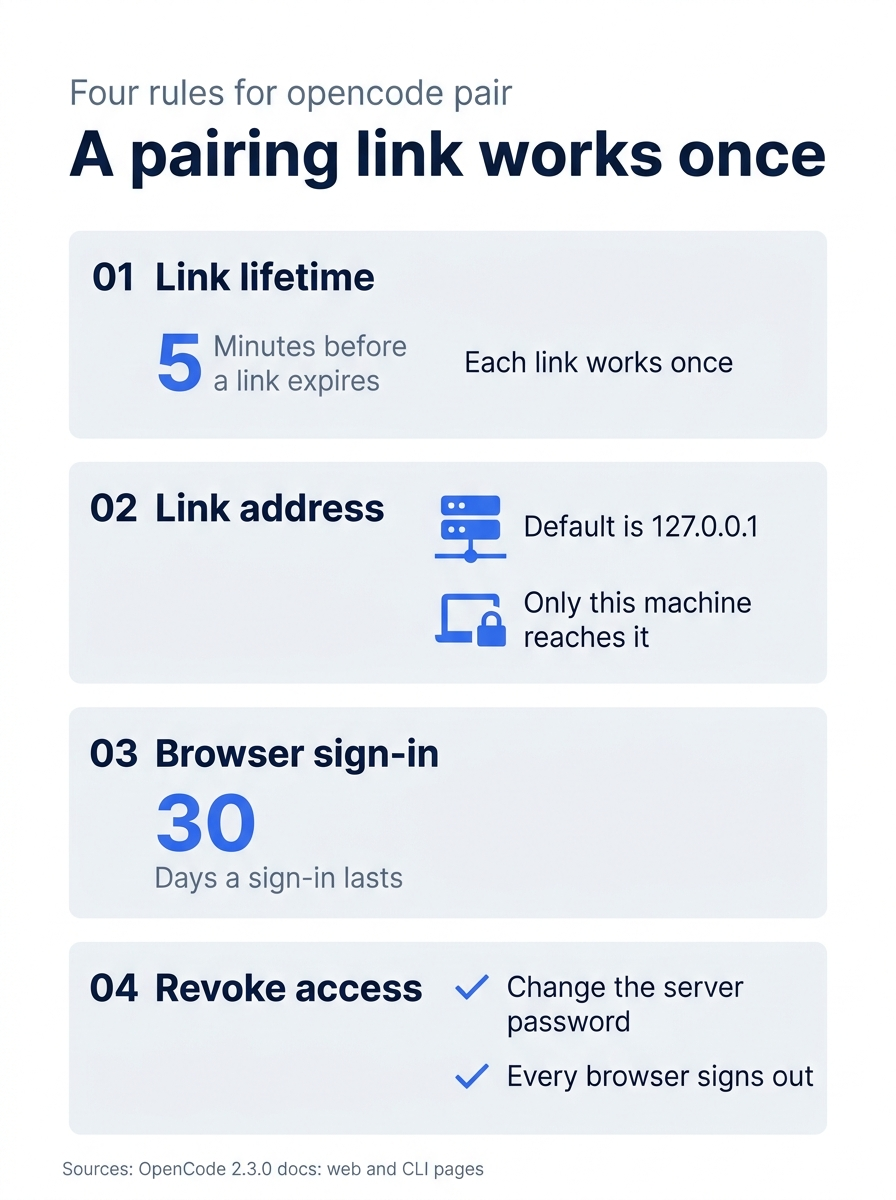
Pairing comes down to four facts: a five-minute, single-use link; an address that only the server's own machine can reach by default; a browser sign-in that lasts 30 days; and a password change that revokes every paired browser at once.
The shared service starts with a generated password. Replace it with one you control, so you know which value to change when a borrowed laptop needs signing out.
opencode service set password "a-long-secret"
opencode service start
The second command matters, because "Changing a setting stops the background server," and the next start applies the new value.
If you learned V1: in V2 "the username is always opencode," OPENCODE_SERVER_USERNAME "is no longer supported," and OPENCODE_PASSWORD sets the password, with OPENCODE_SERVER_PASSWORD still accepted, as the V1 migration guide says.
Three ways to reach the session from somewhere else
The opening's real question was how to reach a server on your laptop from a device that is not your laptop. The docs give three routes, and they differ in who else can reach the server once you take them.
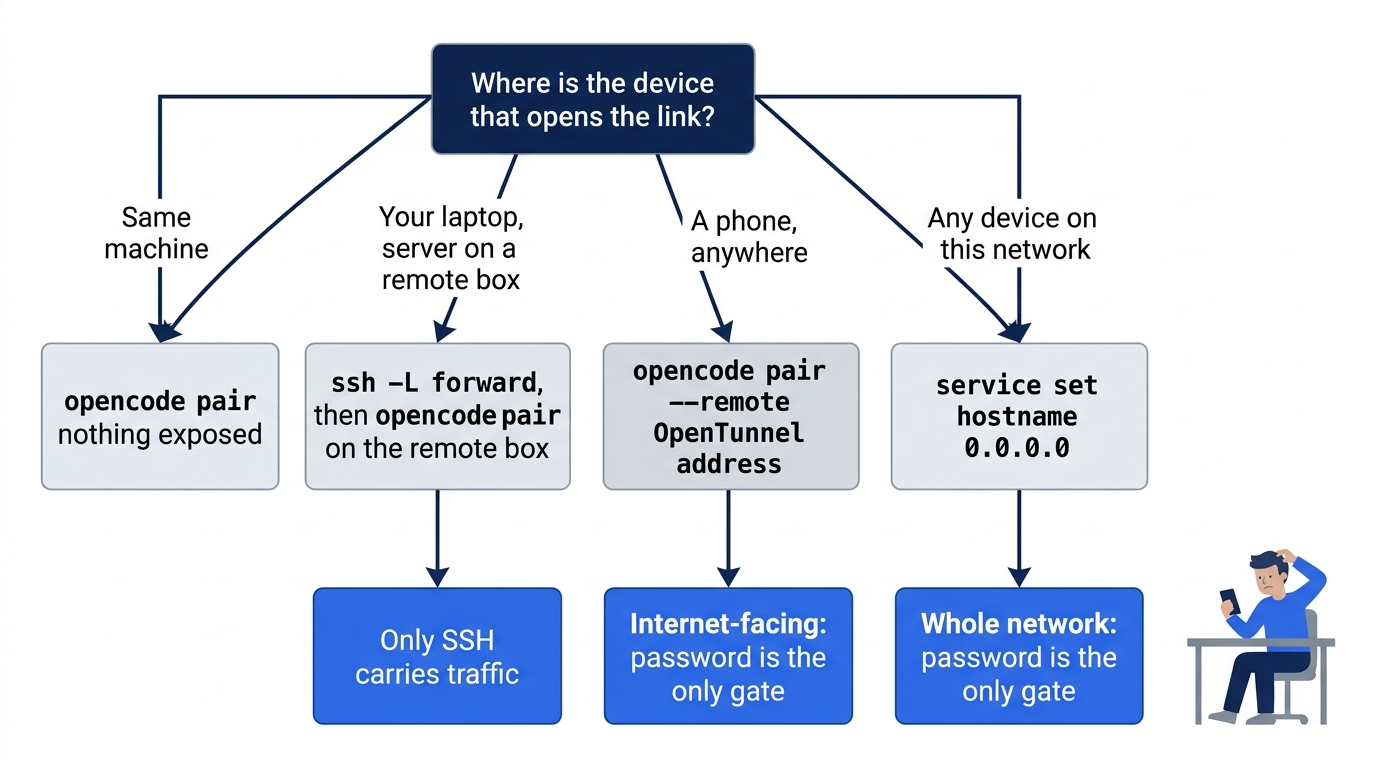
SSH forwarding is the safest route, and it fits when the server runs on a development box or a cloud VM you SSH into. The remote server listens only on localhost, so you forward its port and open the printed link locally. If your own laptop already runs OpenCode, its shared service may hold port 49374, so forward a different local port and use --url to put that port in the link. The docs describe --url as "Use an external URL in the links."
# On your laptop
ssh -L 50374:127.0.0.1:49374 my-server

# On the remote box, inside that SSH session
opencode pair --url http://127.0.0.1:50374
Run the second command on the remote box; on the laptop it would pair the laptop's own server. The docs show --url https://dev.example.com; this forwarded-port variant is a reasonable reading of them that the author has not run end to end. Nothing listens on a public interface, and SSH carries the traffic.
Remote pairing is the route the phone needed. opencode pair --remote pairs "through an OpenTunnel remote address," so a link works from anywhere. The first time, it asks before it turns remote access on.
▲  This will expose your OpenCode server to the internet.
│  Traffic is end-to-end encrypted, and access requires your server password.
│  To pair locally instead, run `opencode pair` without the --remote flag.
│
◆  Expose your server to the internet?
│  ● Yes / ○ No
Gotcha: that server runs shell commands, edits files, and reads anything your user can read. The tunnel is encrypted and still requires the server password, so the password becomes the only thing between the internet and your shell. Set a long one before you accept. Consent is sticky: "Once accepted, later runs skip the prompt, even after remote access has been turned off with opencode service set remote false." When the meeting ends, turn remote access off and change the password to sign out every paired device.
opencode service set remote false
opencode service set password "a-new-long-secret"
opencode service start
Listening on the network is the third route, and the setting carries its own warning.
# Listen on every network interface
opencode service set hostname 0.0.0.0
Every device on the same network can now reach the port, and the password is the only gate. On a home network you may defend that choice; on conference Wi-Fi it is a shell for anyone who guesses or sniffs the password.
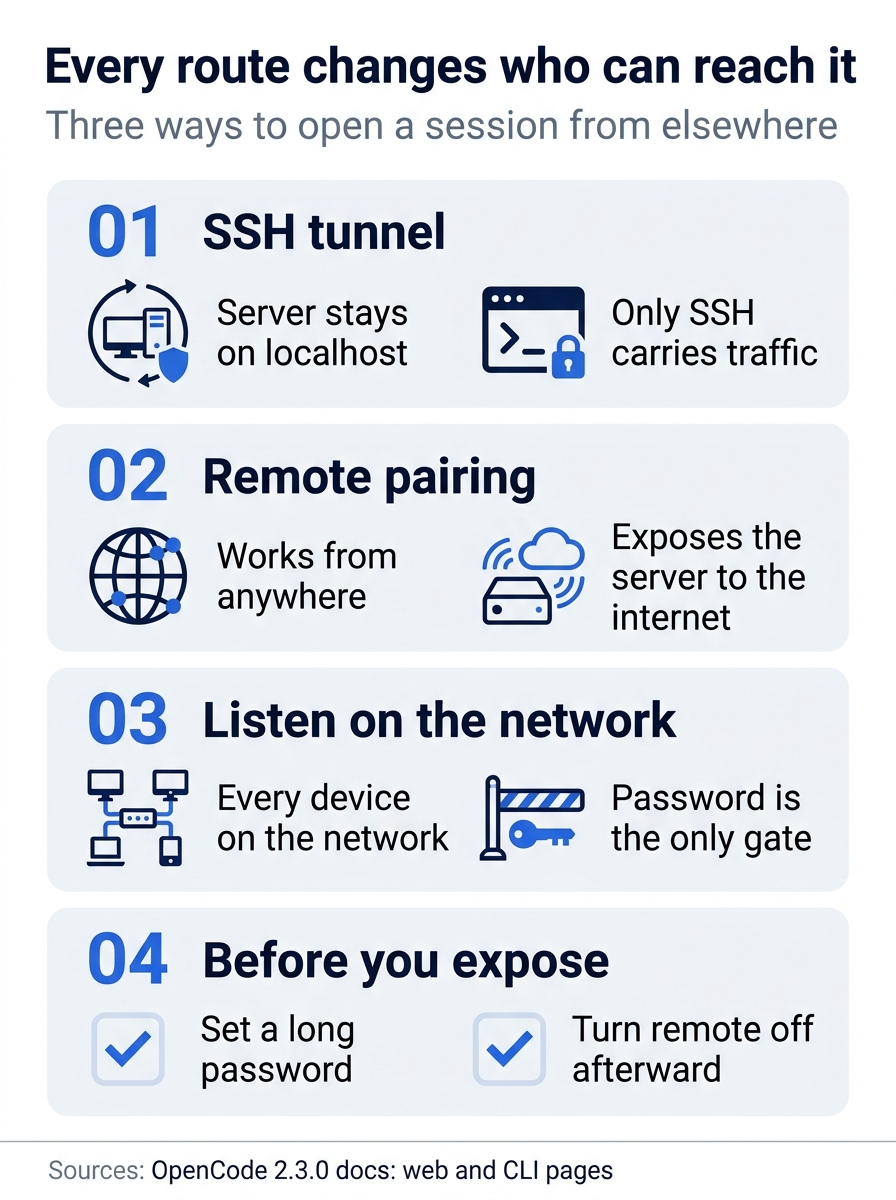
Each route changes who can reach the server: the SSH tunnel keeps the server on localhost, remote pairing makes it reachable from the internet, and listening on 0.0.0.0 opens it to the local network. For either exposed route, set a long password first, and turn remote access off afterward.
One limit applies to all three. The server runs on your laptop, so the review keeps going only while the laptop is awake. Close the lid on the way to standup, and no link reaches anything. Work that must keep running away from your desk belongs on a machine that stays on, which is the first use case the docs give for opencode serve.
Desktop and ACP editors run their own servers
Desktop is the surface people assume is "the TUI in a window." The GUI plugin docs describe "the desktop app's own server" with the ID "sidecar", and say that "OpenCode Desktop loads GUI entries from its own background server." To see the shared service's sessions in Desktop, you pair it like any other client: "Scanning the QR code from the OpenCode app, or pasting the link into its server address field, connects the app the same way." Two more documented differences matter. The TUI reads its plugins from cli.json, "but the desktop app reads only opencode.json(c)," and Desktop's file picker allows selections up to 20 MiB, according to the attachments page.
Editors that speak the Agent Client Protocol, such as Zed, run OpenCode inside the editor. The editor starts opencode acp as a child process and talks to it over stdin and stdout. The docs' Zed example goes in ~/.config/zed/settings.json.
{
  "agent_servers": {
    "OpenCode": {
      "command": "opencode",
      "args": ["acp"]
    }
  }
}
Two failures are predictable. A graphical app launched from the Dock often has a shorter PATH than your shell, so "If a graphical client can't find opencode, set command to the absolute path that which opencode prints." And ACP "uses the provider credentials it already has," so run opencode auth login from a terminal before you open the editor.
The line that matters most is this one: "opencode acp starts a private OpenCode server for its own use. It doesn't connect to the shared background service, and it doesn't open a network port for ACP." Three consequences follow.
- Project config still applies. OpenCode uses the directory's configuration, "including its models, agents, commands, skills, instructions, plugins, and MCP servers," so Ticket Triage's permission rules and guard plugin load in Zed.
- Sessions are tied to directories. The working directory "must be an absolute path," and to load a session the editor "must pass that session's directory as
cwd." Open the project itself in Zed, not its parent folder. - Environment keys may not follow you. The network docs say
--standaloneandserve"use the environment of their own process," so a private server the editor starts probably sees the editor's environment rather than your shell's, though the author has not tested this for ACP. A provider key you onlyexportin.zshrcmay be missing there. Keys saved withopencode auth loginlive in the database and avoid the problem.
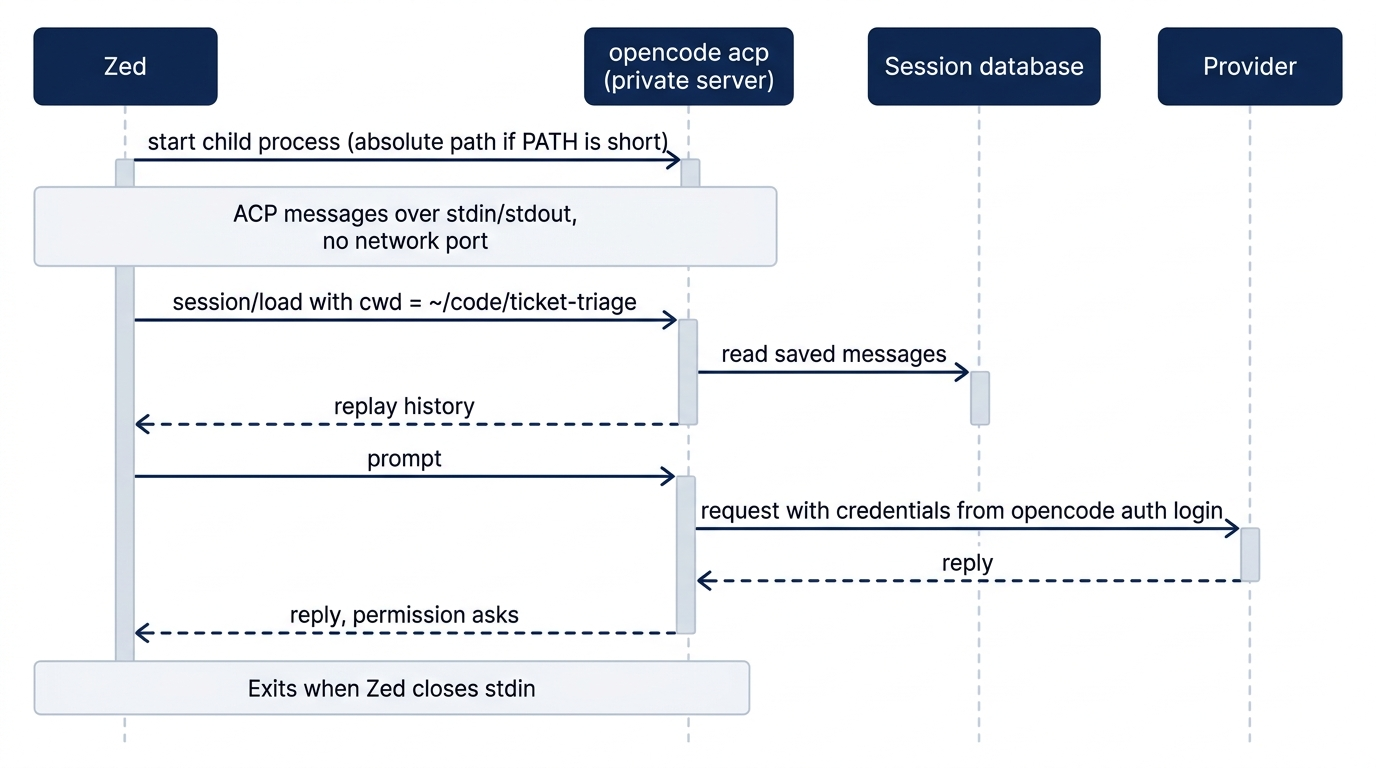
The protocol supports opening a past session: "session/load replays the saved messages," and the docs describe grants that "also apply when another OpenCode client uses the session." Whether Zed's picker shows the morning's review, and what happens if the shared service is still running a turn in it, has not been tested, so load a session in Zed only after the TUI turn is idle. Inside the editor, permission requests offer "Allow once," "Always allow," and "Reject," and a session "runs one prompt at a time."
When the editor reports that the agent exited or "wrote invalid protocol output," add --print-logs before acp in the editor's arguments, and OpenCode writes its logs to stderr. Do not test opencode acp by running it in a terminal; it "waits for ACP messages on stdin, so it looks stuck."
The server itself: service, standalone, and serve
Every surface so far used a server you did not start on purpose. Two flags change that per command: --standalone runs a private server for one client, and --server <url> connects to a server you name. opencode service set disabled true makes CLI commands use private servers by default, and pairing goes with it.
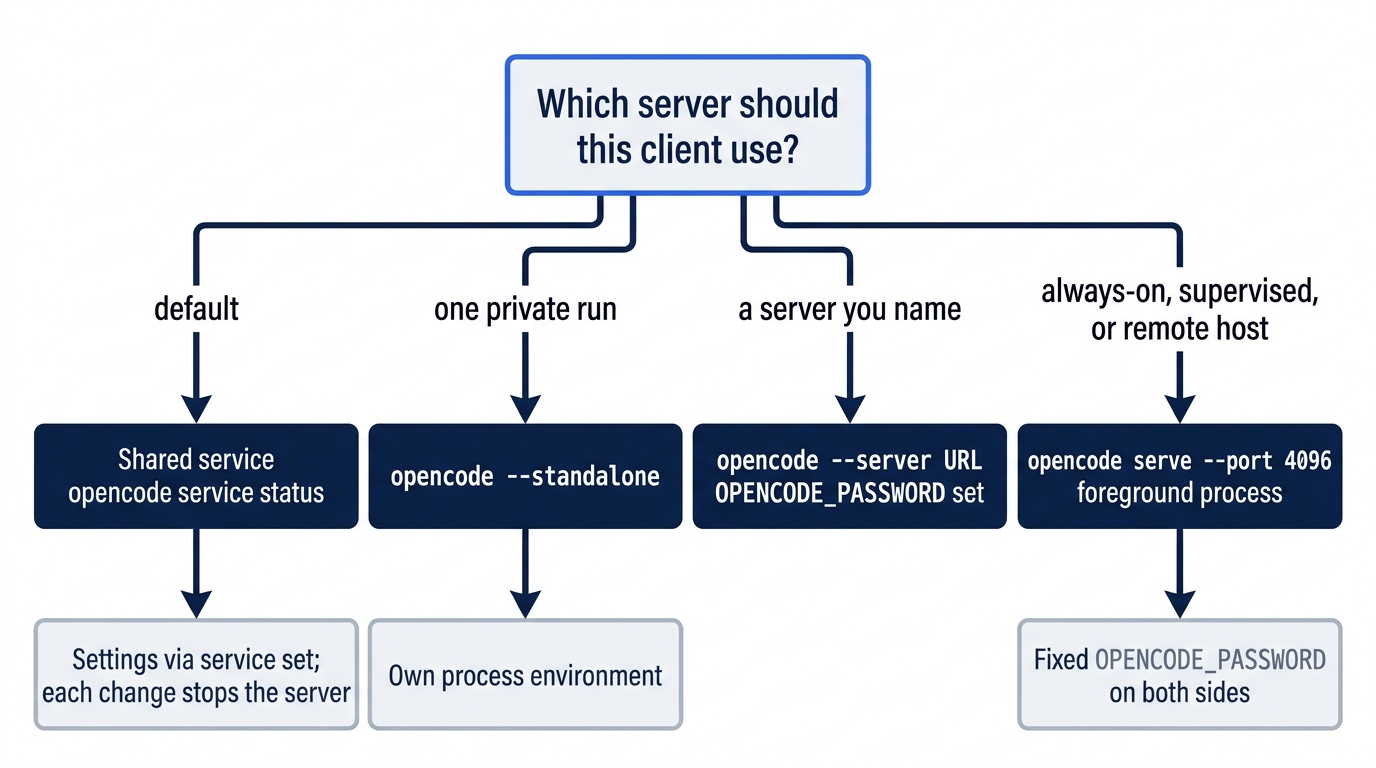
opencode service manages the shared server, with the subcommands start, restart, status, stop, get, set, and unset on 2.3.0.
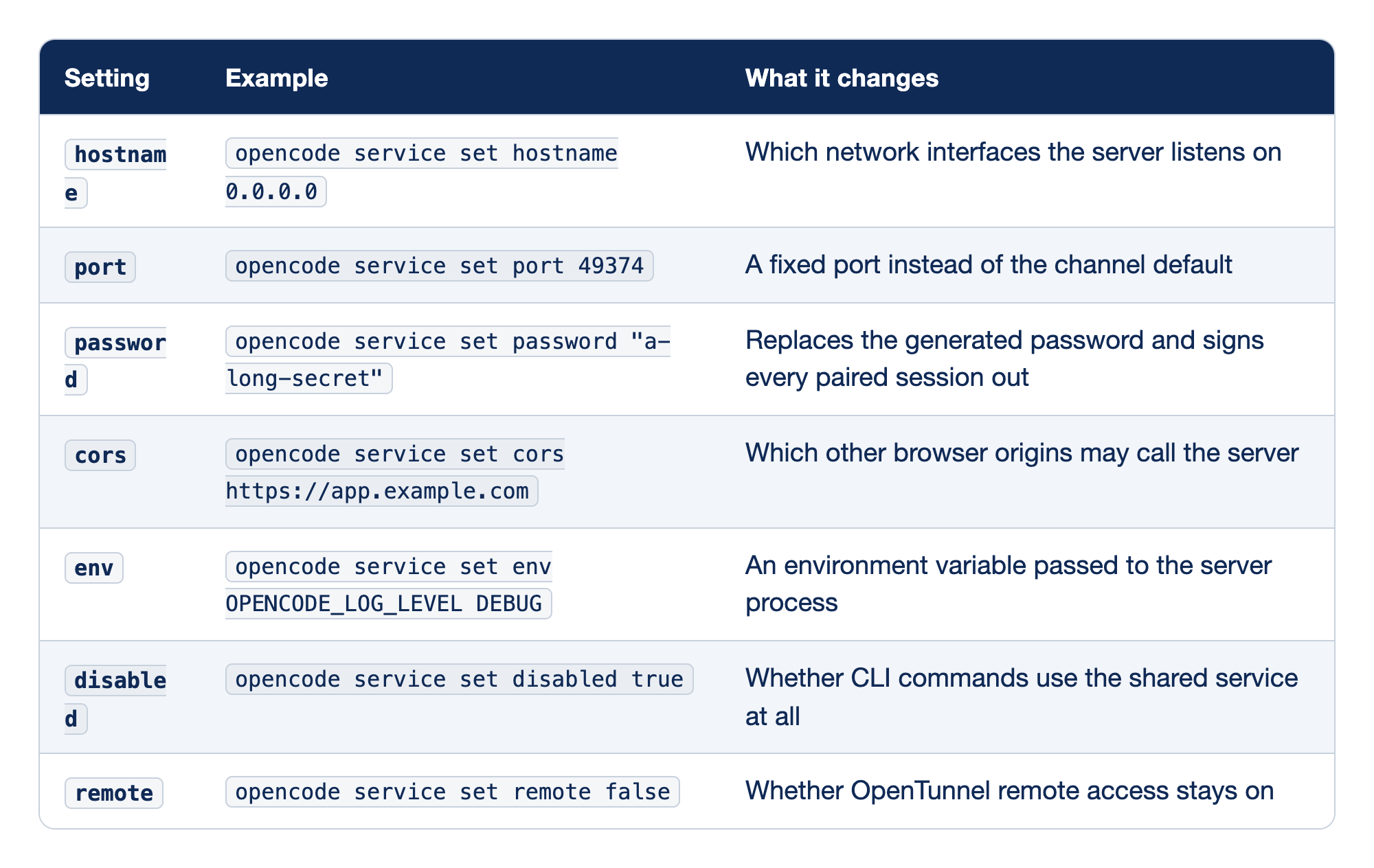
The shared service has seven settings worth knowing. The Setting column names each one, the Example column shows the exact command, and the last column says what the setting controls. Every change "stops the background server," and opencode service start brings it back with the new value.
hostnamesets which interfaces the server listens on. It is localhost by default, and0.0.0.0is the network exposure described earlier.portpins a fixed port instead of the channel default, which helps when a firewall rule or an SSH forward expects one.passwordreplaces the generated password and signs every paired browser out, which makes it both the gate and the revoke button.corslists other browser origins that may call the server, as exact origins without a path, as inopencode service set cors https://app.example.comfrom the table. It "does not change the listening address or bypass server authentication," as the troubleshooting page says.envpasses an environment variable, such as a provider key or a proxy, to the server process.opencode service get envprints stored values, so do not paste its output anywhere.disableddecides whether CLI commands use the shared service at all; with it on, they use private servers and pairing is unavailable.remoteturns OpenTunnel remote access off. It does not reset the consent you gave the first time.
Use opencode service get <name> before you change a setting, and opencode service unset <name> to return it to its default.
opencode serve for a server you run on purpose
opencode serve "runs the same server in the foreground instead of through the shared background service." The docs give four reasons to want one: a shared, always-on, or remote host; control over hostname, port, and CORS for one process; a supervisor such as systemd or Docker; and a dedicated server separate from the shared one. The server prints a generated password at start, and the author's 2.3.0 test confirmed that it refuses a client without it.
Server at http://127.0.0.1:47123 requires a password; set OPENCODE_PASSWORD
The port in that message came from the test's random port. A generated password changes on every start, which is wrong for anything you script, so set a fixed one with OPENCODE_PASSWORD on both sides, as Start here did. In my November 16, 2026 test, a server started with OPENCODE_PASSWORD set printed only server listening on http://127.0.0.1:4796 on the port that test used, and no password line, and a curl without -u got HTTP status 401.
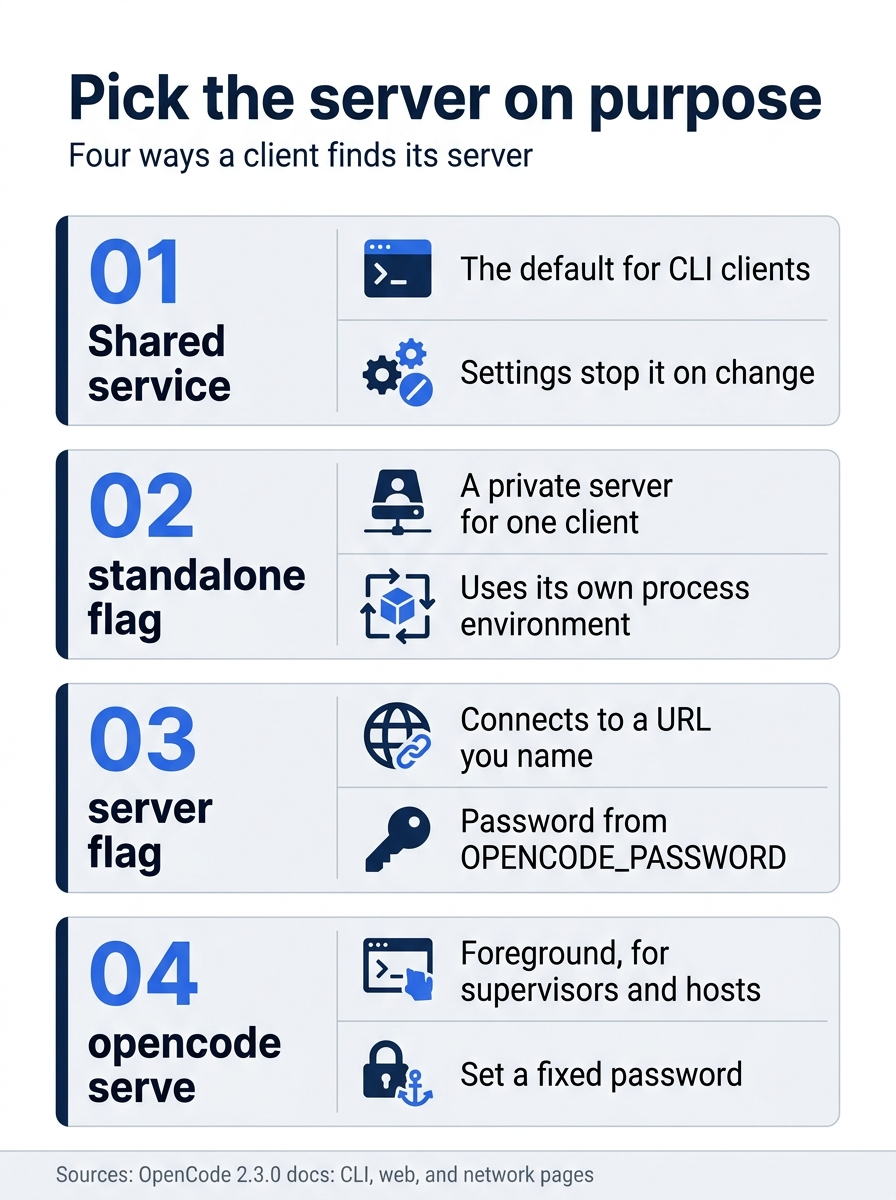
A client finds its server in four ways, each with the one fact that decides when to use it: the shared service as the default, --standalone for a private run, --server for a named URL, and opencode serve for a foreground process under a supervisor.
Gotcha: opencode serve --hostname 0.0.0.0 and opencode service set hostname 0.0.0.0 both bind the server to every network interface, and that server runs shell commands with your user's authority. Keep it on localhost and forward the port over SSH. Permission rules and plugins govern what the agent does, not who can talk to the server.
Corporate networks add one more layer. Set HTTP_PROXY, HTTPS_PROXY, and a NO_PROXY that excludes localhost,127.0.0.1,::1, because the CLI talks to its own service over local HTTP. Persist the same variables for the shared server with opencode service set env, and pass them on the command line for --standalone and serve, which use their own process environment. When HTTPS scanning replaces certificates and requests fail with SELF_SIGNED_CERT_IN_CHAIN, exclude opencode.ai, *.opencode.ai, and, if you connect to a provider directly, its API host from scanning, or point NODE_EXTRA_CA_CERTS at the inspection authority's PEM file.
Building your own client
Every surface in this article is a program that talks to the server's HTTP API, and you can write one too. @opencode/client is "the TypeScript client for the OpenCode HTTP API," and the build docs call it "the same client used by the TUI and desktop app." Its service entrypoint finds the shared server and builds the authentication headers, so you never handle the password. Based on the client docs, a script that prints every event type looks like this; the author has not run it against 2.3.0.
import { OpenCode } from "@opencode/client"
import { Service } from "@opencode/client/service"

const endpoint = await Service.ensure()
const client = OpenCode.make({
  baseUrl: endpoint.url,
  headers: Service.headers(endpoint),
})

for await (const event of client.event.subscribe()) {
  console.log(event.type)
}
Subscriptions "are live-only, with no replay or automatic reconnection," so a script that must not miss events subscribes before it starts work. The other package, @opencode/sdk, "hosts OpenCode directly inside your application": OpenCode.create() assembles the server in memory and "opens no HTTP listener." Use the client for a script beside OpenCode and the SDK to build a product on it.
If you already use Claude Code: its surfaces are separate entry points: the terminal CLI, the IDE extensions for VS Code and JetBrains, the Desktop app, and claude.ai/code, which runs in Anthropic's cloud. They share project configuration, but each keeps its own session list, with some bridges: /desktop ports the terminal session into the Desktop app, claude --resume can continue a VS Code extension conversation in the CLI, and Remote Control drives a local CLI session from a browser or the Claude mobile app. The VS Code page says the extension and the CLI share the same conversation history, which is why claude --resume works there, and the Remote Control page covers the phone. The Spillwave guide's platforms chapter and the advanced guide's Remote Control chapter walk through both. In OpenCode, the local entry points are clients of a server on your machine, so the session is the shared object. The habit that misfires is expecting a hosted web surface. OpenCode's web UI is served by your own server, so "open it on my phone" is a networking decision you make.
Do this today
Everyone
-
Continue one session from a second client. Start a server with your own password in terminal 1, send a read-only prompt from terminal 2, and continue it from terminal 3. Terminal 3 answers
src/classify.js, andgit status --shortprints nothing. Stop the server withCtrl+Cin terminal 1.cd ~/code/ticket-triage OPENCODE_PASSWORD="a-long-secret" opencode serve --port 4096cd ~/code/ticket-triage export OPENCODE_PASSWORD="a-long-secret" opencode run --server http://127.0.0.1:4096 -m google/gemini-4-hydrogen "Read src/classify.js and list the categories classify() can return. Do not edit any file."cd ~/code/ticket-triage export OPENCODE_PASSWORD="a-long-secret" opencode run --server http://127.0.0.1:4096 --continue -m google/gemini-4-hydrogen "Which file did you read for your last answer? Answer with the path only." unset OPENCODE_PASSWORD git status --short -
Start one habit: before you open a session from somewhere new, ask who else can reach the server. A server on
127.0.0.1is reachable only from this machine. Anything else needs a long password first.
If you read Going deeper
-
Find the server and the session. Read the shared server's address, then list the sessions it holds.
opencode service status opencode session list --max-count 5 --format json -
Open one session in a browser. Run
opencode pair, open the link on the same machine within five minutes, and find today's session. -
Resume it in a second terminal client. Run
opencode mini --session <id>with an ID from the list. -
Replace the shared service's generated password. Run
opencode service set passwordandopencode service start, so you know which value to change when you need to sign every paired device out.
The session was never in the window
The phone link failed twice, and the review never noticed. The link was a five-minute key to an address only your laptop could reach; the session sat on the shared OpenCode server, doing its work, waiting for any client that could reach it.
Once you see OpenCode as a server with clients, the surfaces stop being separate tools. The TUI, opencode mini, the web UI, and scripts are windows onto the same server. Desktop and ACP editors bring their own servers, which is worth knowing before you trust one with the morning's session. And every route from another device answers the same question: who else can reach this server now?
Ask that question before you scan the QR code.
This is Part 15 of "OpenCode, Day-to-Day," a 17-part guide to using OpenCode V2 as a daily, provider-neutral coding agent.