
Use a Blocked Command to Understand Codex Permissions
Make permission behavior observable through bounded probes and a successful comparison rather than inferring a cause from one error.
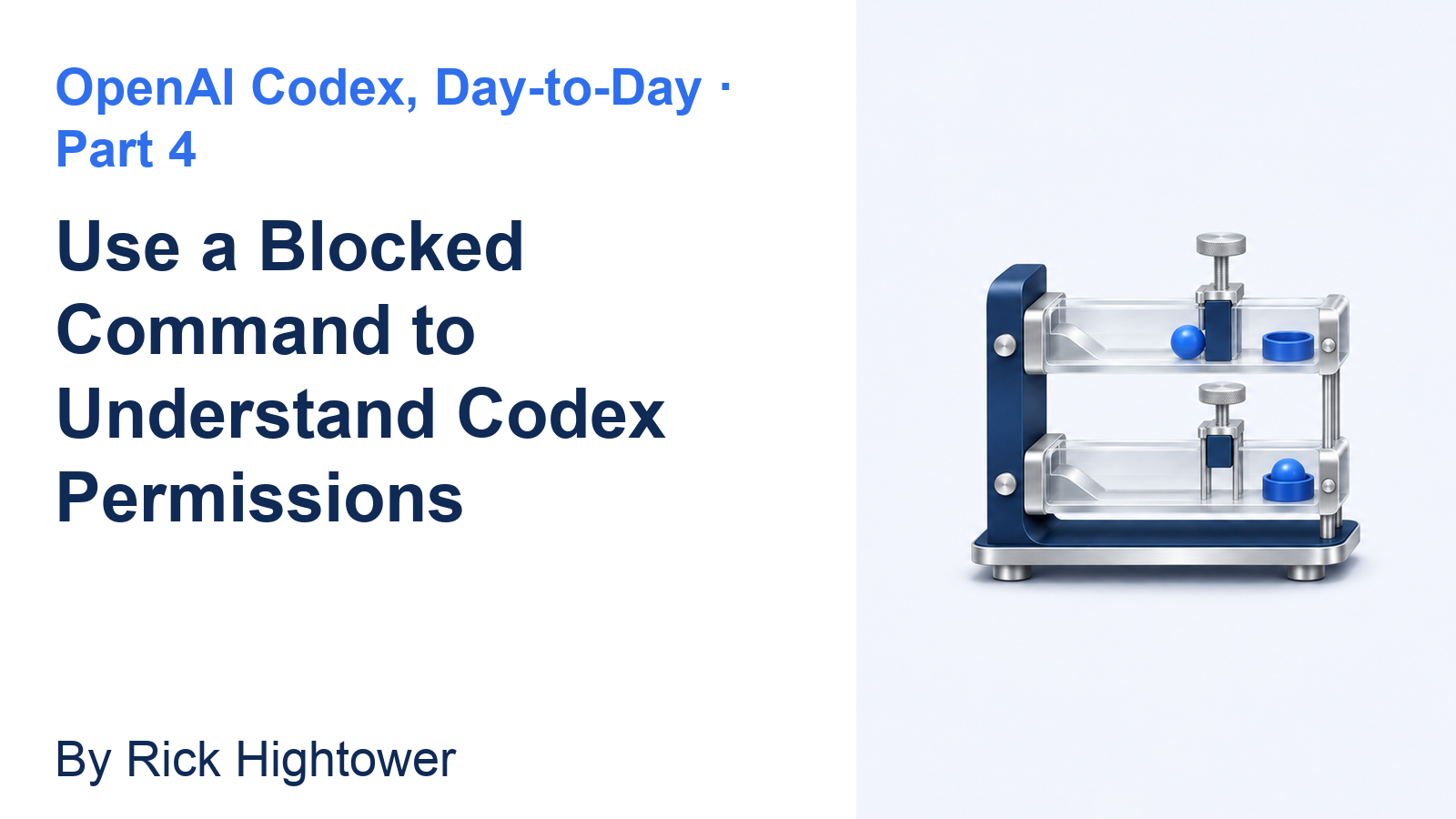
Compare a denied request with its control, then approve one retry.
A failed network request needs a comparison before you can explain why it failed.
In this article: Observe the enforced boundary before asking for work, and keep the project unchanged through one scoped approval.
In Part 3, you revised the batch-classification plan, implemented it in a fresh conversation, and saved a clean commit with seven passing tests.
Tested on Codex CLI 0.169.0, macOS, Node.js 22.22.1, and Git 2.47.1.
Desktop actions are not run. Enter /quit in yesterday's idle session and stay in your ticket-triage terminal directory.
Start here
Prerequisites: A macOS terminal with sh and curl, Git, Node.js 22 or later, and Ticket Triage through Part 3.
codex sandbox --permission-profile :read-only -- sh -c 'printf "probe\n" > sandbox-probe.txt'; printf "write exit: %s\n" "$?"
Check: The write is refused with Operation not permitted and write exit: 1.
Today you will observe a blocked file write, compare blocked and permitted network requests, and finish with the project unchanged. Run this command in your terminal, outside the Codex composer. It launches no model request.
Starting fresh or fell behind? Run git switch -C main codex/day-03. This replaces your main with the end of Day 3; to keep your own work, run git branch my-backup first.
A sandbox is an enforced boundary around a running command. A permission profile names the boundary to apply. In this command, codex sandbox runs one command inside that boundary; --permission-profile :read-only selects the built-in profile that prevents writes. The standalone -- ends Codex's options. Everything after it describes the command to run.
sh starts a shell, and -c gives it the quoted command. Inside those quotes, printf produces text, \n means a newline, and > tries to write the text into sandbox-probe.txt. The semicolon runs the next command afterward even if that write fails. The final printf prints the exit status, a number indicating success or failure: %s inserts its argument, and $? supplies the preceding command's status. Zero means success; a nonzero value means failure.
The intended result is refusal with no new file, before any model task.
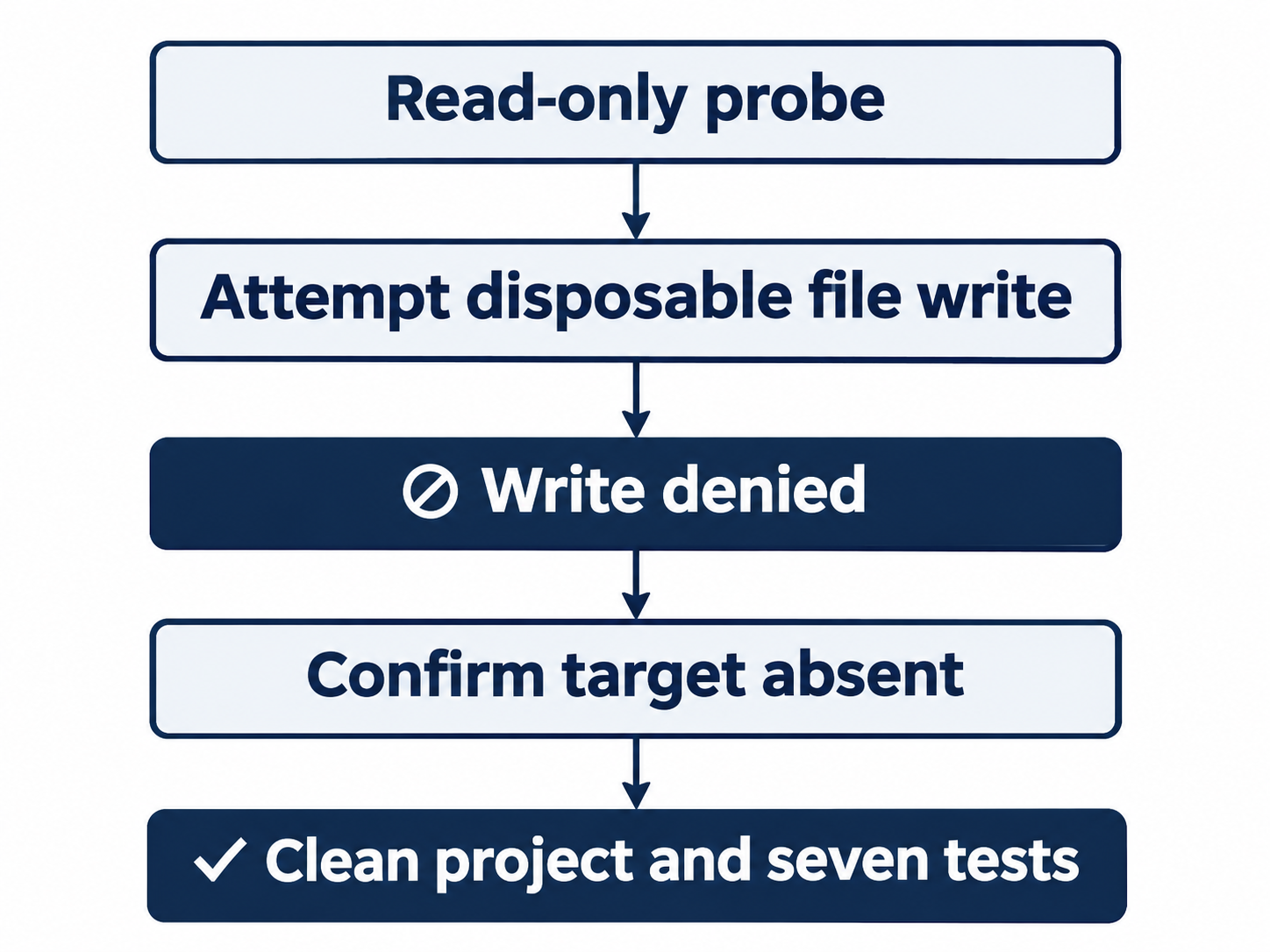
Confirm the disposable target is absent, then verify clean status and seven tests.
Compare a network request
Run another command under the same profile:
codex sandbox --permission-profile :read-only -- curl -I --max-time 10 https://learn.chatgpt.com; printf "network exit: %s\n" "$?"
Check: The sandboxed request reports host-resolution failure and network exit: 6.
curl requests a web address. The -I option asks for response headers, the status and descriptive fields sent before a page's content. --max-time 10 limits the attempt to ten seconds. This request sends no project files.
Look for Could not resolve host: learn.chatgpt.com and network exit: 6. Resolving a host means finding the network address for its name. Compare that refusal with the ordinary terminal request below.
A network failure alone is not enough to establish its cause. Check the same address from your normal terminal, without the sandbox helper:
curl -I --max-time 10 https://learn.chatgpt.com
Check: The ordinary request returns HTTP/2 200; if it also fails, fix connectivity first.
HTTP/2 200 indicates success. If both attempts fail, restore ordinary connectivity before accepting the sandbox demonstration.
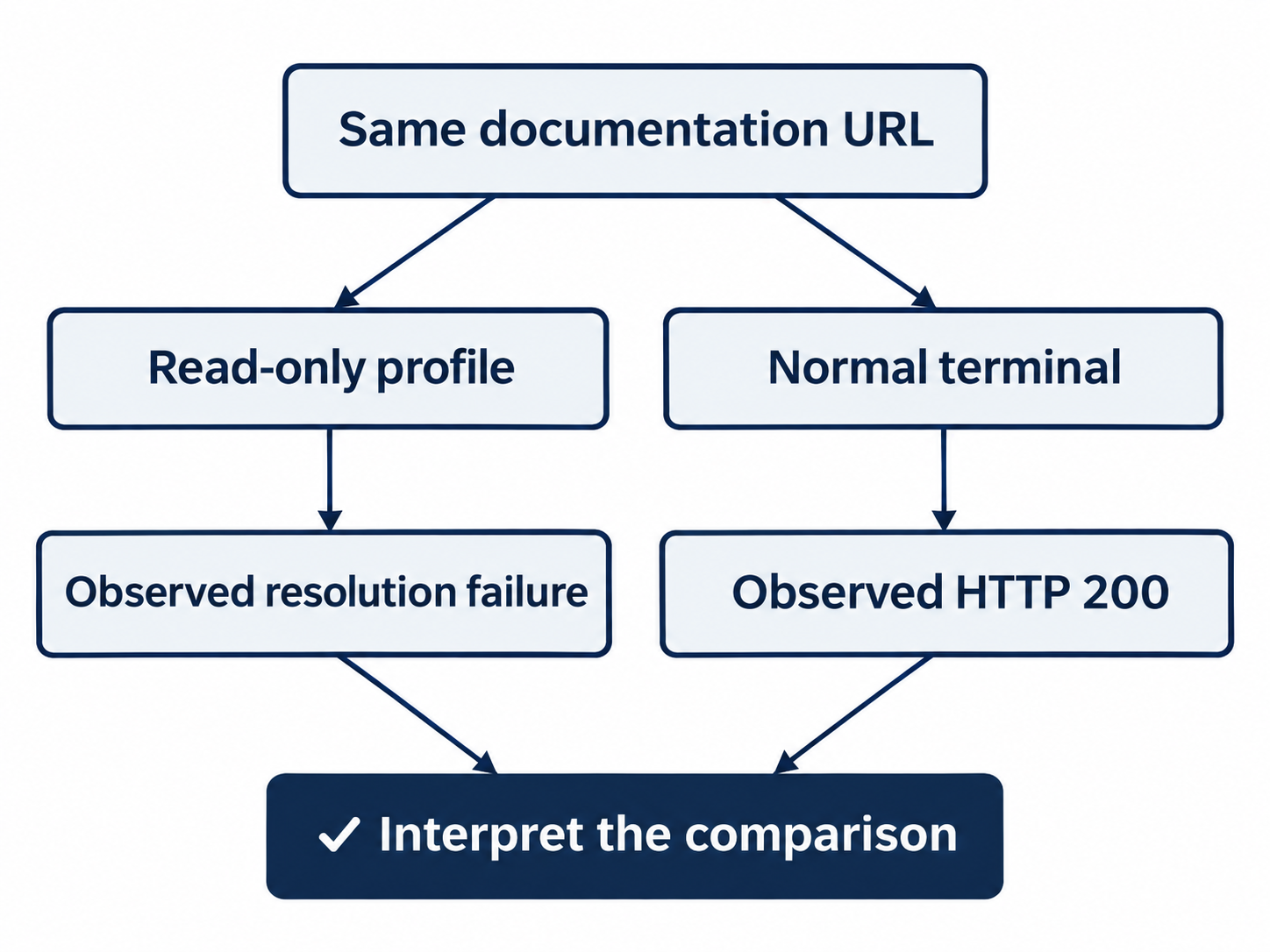
A host-resolution failure under the profile needs the ordinary terminal’s successful control request.
Check the starting project
Verify that you still have yesterday's clean, seven-test project:
git status --short && npm test
Check: The repository is clean and all seven tests pass.
Expect no status entries and seven passes with zero failures. Inspect any discrepancy before proceeding; this lesson changes no code.
Confirm that the denied write created no file:
test ! -e sandbox-probe.txt && git status --short && npm test
Check: No probe file exists, status is clean, and seven tests pass.
The shell’s test checks a condition: -e means the path exists and ! reverses it. This differs from composer !. An absent probe makes the condition succeed so && continues.
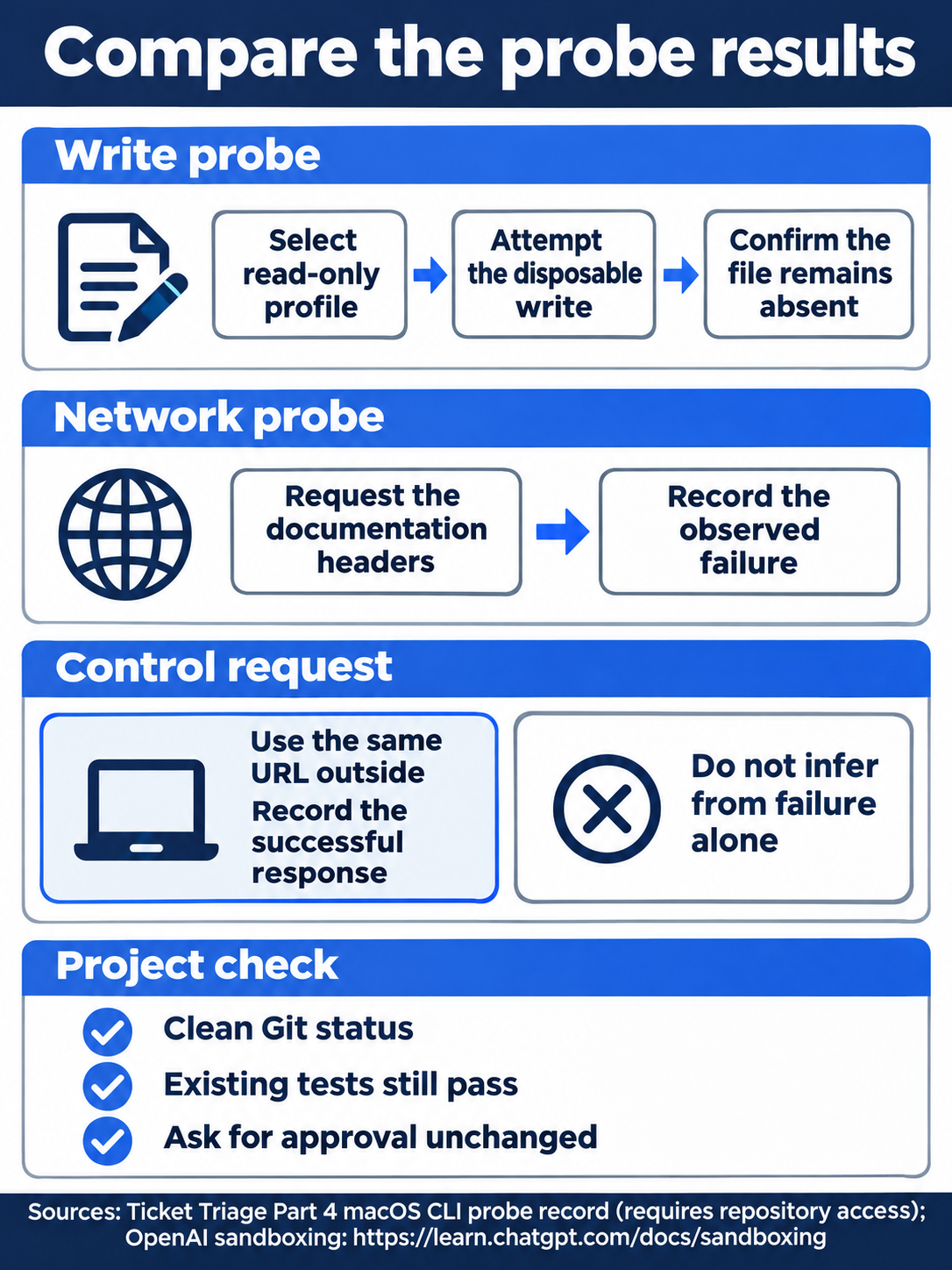
The comparison and unchanged-project check give the refusal its meaning.
Inspect the interactive permission mode
Reopen the saved conversation:
codex resume --last
Check: The saved Ticket Triage conversation opens.
When the composer is ready, enter:
/permissions
Check: Ask for approval remains selected; Escape closes the picker.
The Update Model Permissions picker offers four choices: Ask for approval, Approve for me, Full Access, and Read Only. Keep Ask for approval selected, then press Escape to close the picker. Its description permits workspace reads, edits, and commands while requiring approval for internet access or edits outside the workspace. The workspace is the project area where Codex is allowed to work.
An approval is your decision about a particular requested action. The sandbox defines the enforced boundary; an approval determines whether a proposed action can cross it. Changing the standalone probe's profile did not change this saved conversation's mode.
Send this bounded request:
Run curl -I --max-time 10 https://learn.chatgpt.com and report the response status. If the sandbox blocks it, request approval to retry that same command. Do not change files.
Check: The blocked request leads to an approval for the same curl command.
Check the actual first attempt for status 6. Codex asks Would you like to run the following command? with a reason explaining the resolution failure and retry outside the boundary.
Read the displayed command. It should be the same curl request to the documentation site. Read the three choices:
- Yes, proceed (y), approving this request once.
- Yes, and don't ask again for commands that start with
curl -I --max-time 10 https://learn.chatgpt.com(p), saving a command-prefix approval. - No, and tell Codex what to do differently (esc), cancelling the request.
Choose 1. Yes, proceed. The approved retry should return HTTP/2 200. This is permission for the reviewed request; you do not need to select Full Access or save a permanent allowance.
Check: The approved retry returns HTTP/2 200 and Ask for approval remains selected.
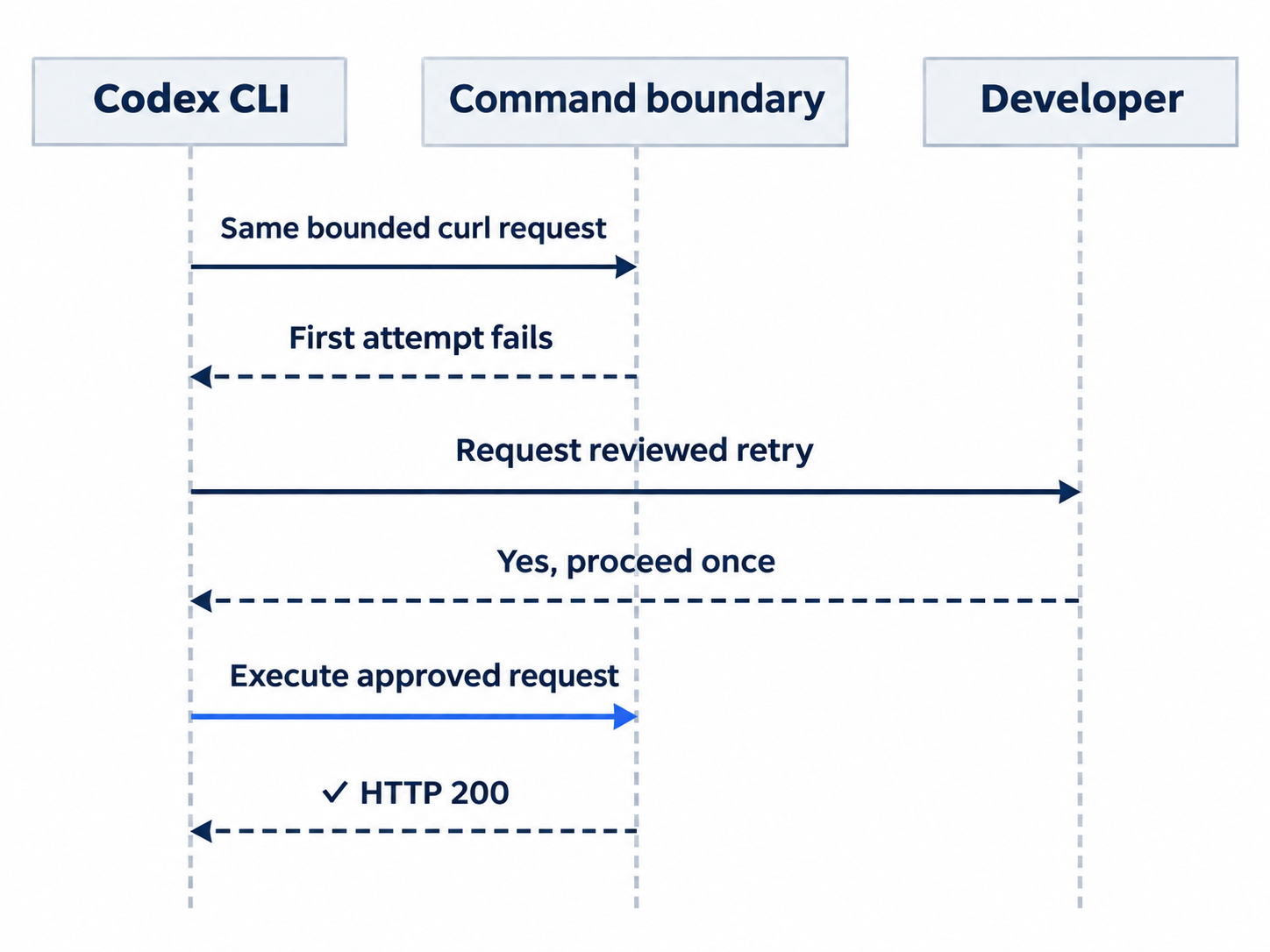
Approve the same bounded curl request once, then inspect its successful response.
Finish with the same files and mode
Independently check the project:
!git status --short && npm test
Check: No project files changed and all seven tests pass.
Expect a clean status and seven passes. Enter /permissions again, verify Ask for approval is still current, and press Escape. These allowed reads and tests do not require another approval dialog.
Check: The picker closes with Ask for approval still current.
The desktop path
Not run: desktop steps. Open Ticket Triage in the ChatGPT desktop app. Choose New tab, then Terminal, for its integrated terminal. Before sending a model prompt, run the same sandbox probes, ordinary curl comparison, and project checks there. These remain CLI commands running inside the app's terminal.
Check: The app is on Ticket Triage with Ask for approval selected.
Use the permissions control beneath the composer to select Ask for approval, then send the same bounded network request. Inspect the requested command and choose the single-action approval. Record the actual desktop labels and screenshot the request as part of this manual check. Run the final status and test commands without the composer's !, and confirm the selected permission mode remains unchanged.
Check: If you complete the labeled desktop route, verify the same final result before removing its Not run label.
What you proved
- The read-only profile refuses the write and network probe.
- One-time approval permits the reviewed network retry.
- Ask for approval remains selected with unchanged files and seven passing tests.
You can stop here. Going deeper explains why this works and where it breaks.
Going deeper
Read this section if you need to distinguish permission settings, examine command rules, or understand what historical security disclosures establish.
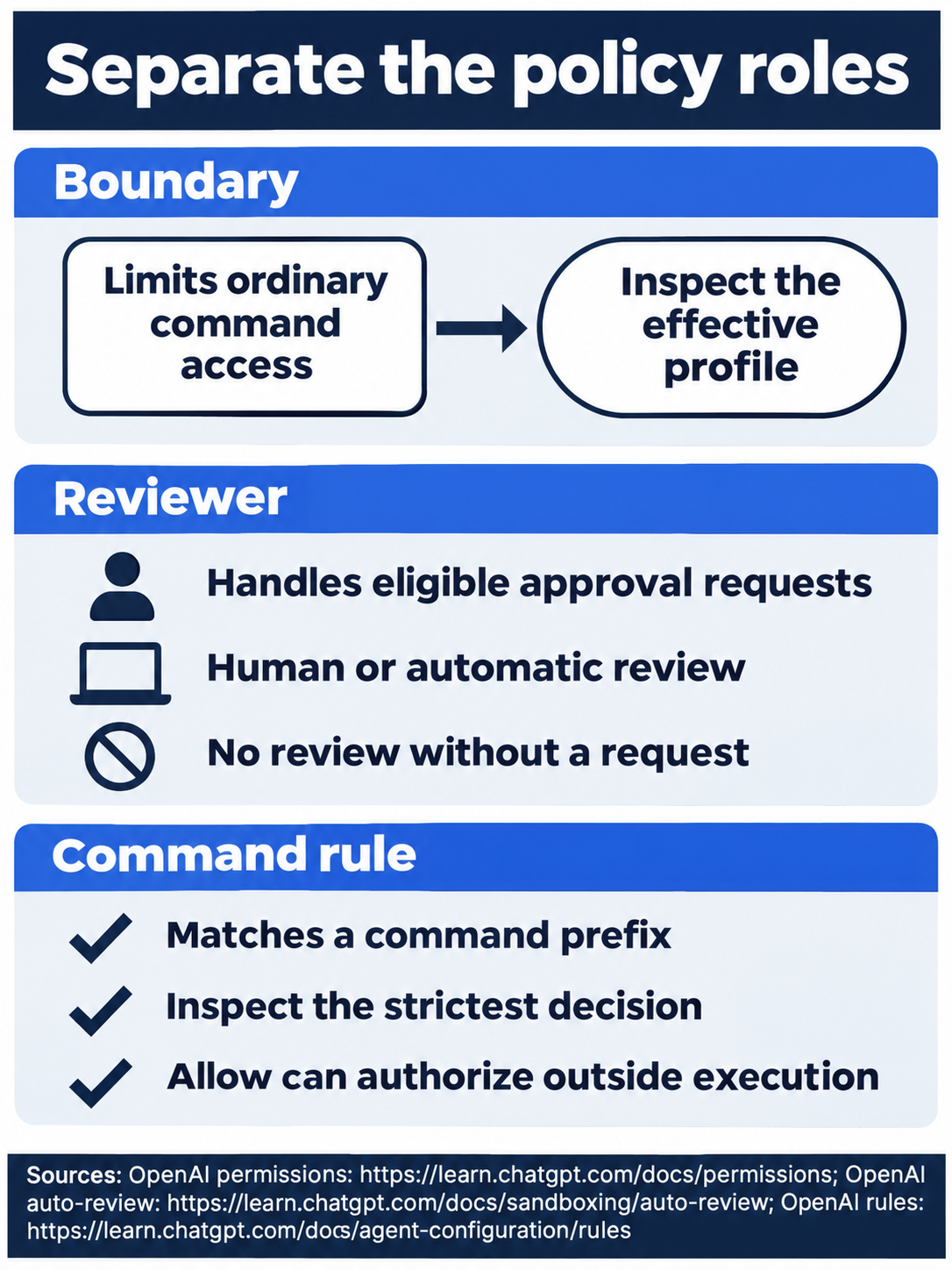
The sandbox, approval reviewer, and command rules have different roles.
Boundary, reviewer, and platform
The named profiles are a beta configuration interface. The three built-ins are :read-only, :workspace, and :danger-full-access. The workspace profile permits writes in active workspace roots and system temporary directories, with protected paths such as .git remaining restricted. Full access removes local sandbox restrictions. Named profiles and older sandbox_mode settings have precedence rules, so inspect the effective selection rather than combining examples blindly. See permission profiles.
Approve for me routes eligible approval requests to a separate reviewer agent. It does not by itself expand the workspace boundary. The CLI configuration uses approvals_reviewer = "auto_review" with an eligible interactive policy such as approval_policy = "on-request". An action that needs no approval generates no review. The Auto-review guide explains the review process and its limits.
Optional inspection, doc-backed, not run: open /permissions and read the descriptions of Ask for approval, Approve for me, and Full Access without selecting another mode. Reset: press Escape, confirm Ask for approval remains selected, and check the repository is clean.
The operating system enforces the command boundary. macOS uses Seatbelt. Linux and WSL2 use the Linux implementation, with bubblewrap and a bundled fallback subject to platform prerequisites. Native Windows has its own sandbox implementation. These platform alternatives are not run in this lesson; the sandbox guide supplies their setup and troubleshooting details.
Test a command rule without installing it
An exec-policy rule matches a command prefix, the initial arguments of a command. Rules live in .rules files and use prefix_rule(pattern=..., decision=...). The strictest matching decision wins: forbidden, then prompt, then allow. The current rules documentation explicitly defines allow as execution outside the sandbox without prompting. It is not merely permission to try the command inside the existing boundary.
Optional exercise, doc-backed, not run: create a new ticket-triage-probe.rules beside, rather than inside, the project. Do not overwrite an existing file. Put this rule in it:
prefix_rule(
    pattern = ["curl", "-I", "--max-time", "10", "https://learn.chatgpt.com"],
    decision = "prompt",
)
Check: The disposable rule uses the exact curl prefix and prompt decision.
From the project terminal, check the rule:
codex execpolicy check --pretty --rules ../ticket-triage-probe.rules -- curl -I --max-time 10 https://learn.chatgpt.com
Check: The reported strictest rule decision is prompt; no network request is executed.
--rules supplies the file; --pretty formats the JSON result, a structured text representation. Check that the strictest decision is prompt. This checker evaluates the command against the supplied rule; it does not run curl or install the rule in your normal configuration. Active rules normally load from rules/ beside configuration layers, including the user layer and trusted project layers. Saving a prefix approval in the picker can write a user rule, which explains why the beginner exercise chose approval once.
Reset: delete only the disposable ticket-triage-probe.rules you created, leave the normal rules directories untouched, and confirm Ticket Triage remains clean with seven passing tests.
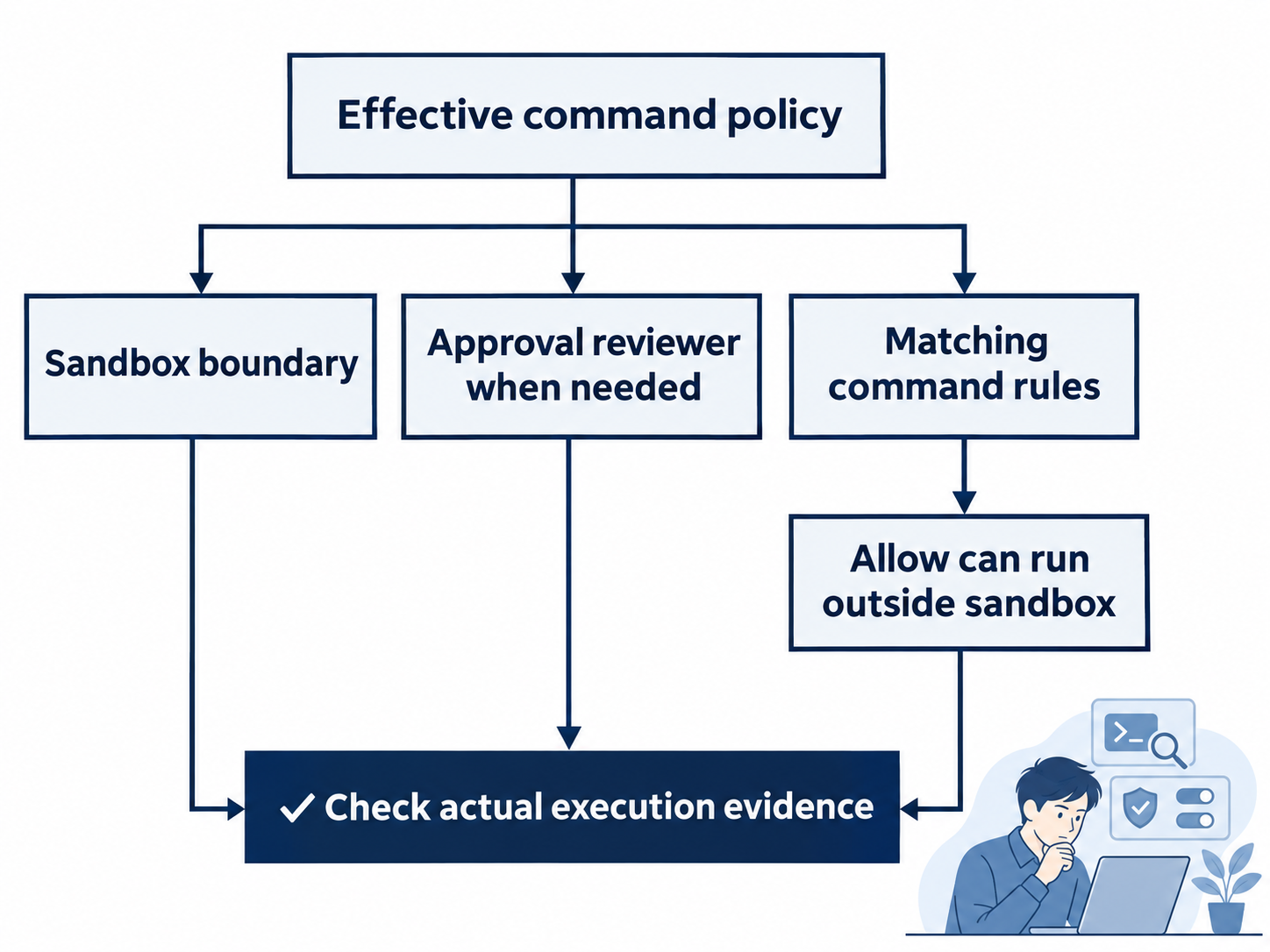
An allow rule can permit execution outside the sandbox; inspect actual behavior.
What the 2026 disclosures establish
Oren Yomtov’s September 15, 2026 Overpatch and Heapjack report describes CLI patch-tool and desktop JavaScript-tool escapes, reported August 12 and fixed within eight days. It names CLI 0.149.0 and desktop 26.818.21641 or later as corrected. These are the researcher’s claims; this lesson does not reproduce the exploits.
Manifold’s September 1 GitSpawn disclosure says Codex was affected, its report was a duplicate, and Codex was patched. It publishes no separate full Codex chain; do not transfer another product’s identifier or detailed case study.
OpenAI’s May 8 Running Codex safely at OpenAI describes bounded execution, review, network policy, and monitoring. It predates those reports and does not confirm their particular fixes. An incident-specific primary OpenAI response remains unestablished.
Keep Codex current outside the pinned exercise and trust inspected repositories. Sandboxing is one protective layer; these probes do not establish that every tool path is vulnerability-free.
Optional maintenance check, doc-backed, not run: compare codex --version with the latest stable OpenAI Codex release, recording any difference before changing your installation. Reset: make no version or configuration change during the pinned lesson run; leave Ask for approval selected and the project clean.

Conceptual illustration: inspect the command and reason before choosing its approval.
Do this today
Everyone
- Observe both denied probes, compare the host's successful request, and choose one-time approval for the reviewed network command.
- Verify seven passing tests, clean Git status, and Ask for approval still selected.
If you read Going deeper
- Inspect the permission descriptions without changing modes, then perform the reset.
- If you try the rule checker, inspect its
promptresult, remove only your disposable rule file, and confirm the clean seven-test endpoint.
Coming up in Part 5: AGENTS.md that loads every time, with a project rule you can inspect before a new session uses it.